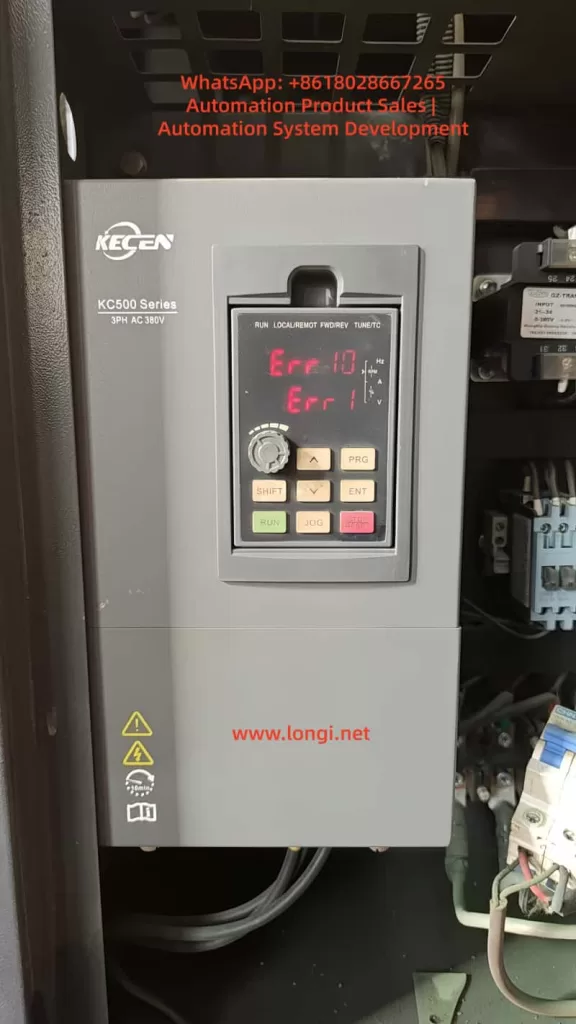
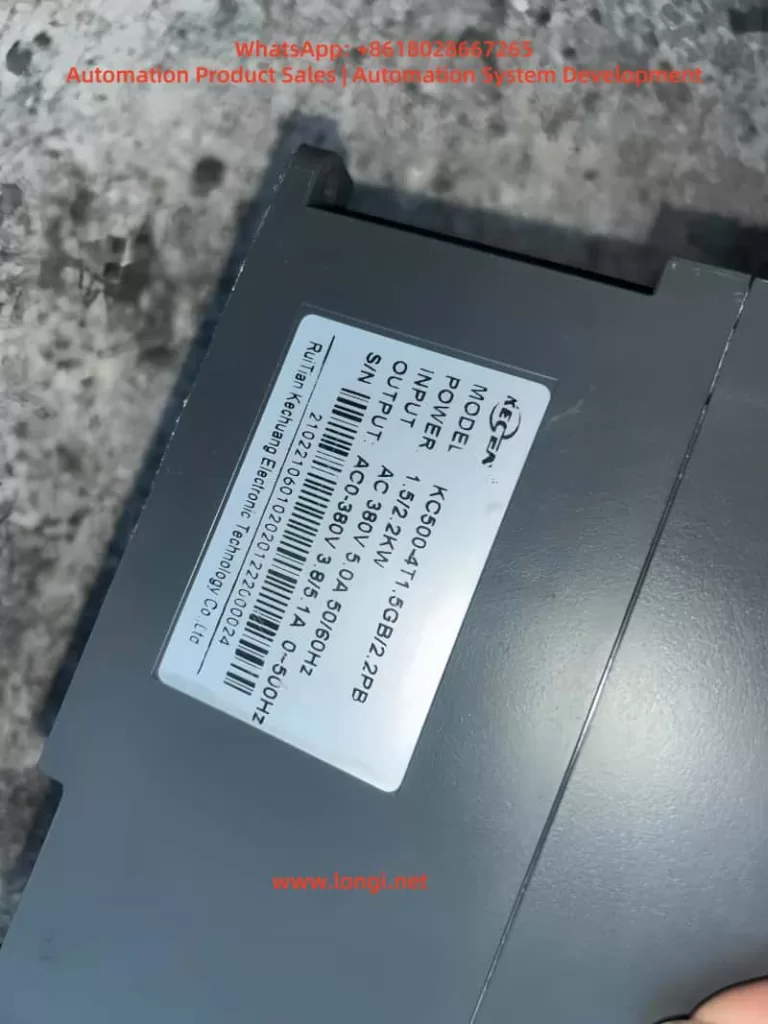
This paper delves into the multifaceted impacts of motor dust accumulation on the operation of KECEN inverters (KC480/KC500 series) from Chuan Science, focusing particularly on Err10 (Drive Overload) and a hypothetical Err1 (Drive Unit Protection) fault. Through a systematic analysis of how dust affects motor heat dissipation, insulation performance, mechanical components, and electrical connections, comprehensive and targeted solutions are proposed. This paper aims to provide industrial field technicians with a detailed and practical guide for fault handling and prevention, ensuring the long-term stable operation of motors and inverters.
1. Introduction
In the field of industrial automation, inverters serve as the core equipment for motor speed control, and their stable operation is crucial for ensuring the continuity and efficiency of production lines. However, motors and inverters often face various challenges in practical operation, among which motor dust accumulation is a prevalent yet easily overlooked issue. This paper will take KECEN inverters (KC480/KC500 series) as an example to analyze in detail how motor dust accumulation can lead to Err10 (Drive Overload) and a hypothetical Err1 (Drive Unit Protection) fault, and propose corresponding handling and preventive measures.
2. Fault Overview
2.1 Err10 Fault: Drive Overload
The Err10 fault typically indicates drive overload in KECEN inverters, meaning the motor load exceeds the rated carrying capacity of the inverter. This fault can be triggered by various factors, including excessive load, motor lock-up, inadequate inverter power rating, or improper setting of motor overload protection parameters. However, motor dust accumulation, as an indirect yet significant factor, should not be overlooked.
2.2 Hypothetical Err1 Fault: Drive Unit Protection
The Err1 fault is hypothesized here as drive unit protection, which may involve abnormalities in the inverter’s internal power module, drive circuit, or control board. Although the specific fault code and表现形式 (manifestations) may vary by manufacturer, drive unit protection is typically closely related to abnormal conditions such as overcurrent, overvoltage, and overheating. Motor dust accumulation may indirectly trigger such protection mechanisms by affecting heat dissipation or causing poor electrical connections.
3. Multidimensional Impacts of Motor Dust Accumulation
3.1 Poor Heat Dissipation
Mechanism of Impact: Motors generate significant heat during operation, which must be effectively dissipated through heat sinks and fans. Dust accumulation can cover the heat sinks, obstructing heat dissipation and leading to a continuous rise in motor temperature. Impact on Inverter: Motor overheating can trigger the inverter’s overload protection (Err10). Additionally, long-term high-temperature operation can accelerate the aging of internal components in the inverter, increasing the risk of faults.
3.2 Degraded Insulation Performance
Mechanism of Impact: Dust may contain conductive substances, such as metal particles and carbon powder. Accumulation of these substances on motor windings and insulation materials can degrade insulation performance. In humid environments, this situation can be particularly severe, potentially leading to internal short circuits in the motor. Impact on Inverter: Internal short circuits in the motor can trigger the inverter’s overcurrent protection or drive unit protection (hypothetical Err1) and even damage internal components of the inverter.
3.3 Increased Mechanical Wear
Mechanism of Impact: Once dust enters the motor, it can cause wear on mechanical components such as bearings and gears. Long-term accumulation can lead to unstable motor operation, producing vibrations and noise. Impact on Inverter: Increased mechanical wear-induced motor load can trigger the inverter’s overload protection (Err10). Additionally, vibrations and noise may also affect the normal operation and lifespan of the inverter.
3.4 Poor Electrical Connections
Mechanism of Impact: Dust accumulation on electrical connection points can lead to poor contact, increasing contact resistance and generating additional heat. This can result in voltage drops, current imbalances, and even open circuits. Impact on Inverter: Poor electrical connections can trigger various protection mechanisms in the inverter, including overcurrent protection and drive unit protection (hypothetical Err1), and may also cause damage to internal components.
4. Handling and Preventive Measures
4.1 Cleaning Motor Dust
Operational Steps:
Preparation: Gather appropriate cleaning tools, such as compressed air, vacuum cleaners, soft brushes, and cleaning cloths.
Shutdown and Disconnection: Ensure the motor and inverter are completely shut down and disconnected from the power supply before cleaning.
External Cleaning: Use a vacuum cleaner or soft brush to remove dust from the motor’s exterior, including heat sinks, fans, and ventilation openings.
Internal Cleaning (if accessible): For motors with accessible interiors, use compressed air to blow out dust from windings, bearings, and other components. Exercise caution to avoid damaging delicate parts.
Final Inspection: After cleaning, visually inspect the motor for any signs of damage or wear. Reassemble any disassembled parts and ensure all connections are secure.
4.2 Inspecting and Optimizing the Heat Dissipation System
Operational Steps:
Visual Inspection: Check for any obstructions or damage to heat sinks, fans, and ventilation openings.
Fan Operation Test: Manually rotate the fan blades to ensure they move freely without obstruction. Power on the motor (if safe to do so) and verify that the fan operates correctly.
Cleaning Heat Sinks: Use a soft brush or compressed air to remove dust from heat sinks, ensuring optimal heat transfer.
Thermal Paste Application (if necessary): If the motor has been disassembled, apply a thin layer of thermal paste between the motor and heat sink to enhance heat conduction.
4.3 Calibrating and Optimizing Inverter Parameters
Operational Steps:
Overload Protection Parameters: Set the inverter’s overload protection parameters reasonably based on the motor’s actual load conditions to avoid false triggering.
Acceleration and Deceleration Times: Adjust acceleration and deceleration times according to motor and load characteristics to reduce inrush currents during startup and stopping.
V/F Curve Adjustment: Optimize the V/F curve settings based on motor load characteristics to improve motor operating efficiency and stability.
4.4 Strengthening Routine Maintenance and Monitoring
Operational Steps:
Regular Cleaning: Establish a regular cleaning schedule for motors and inverters to ensure equipment cleanliness.
Condition Monitoring: Regularly check the operating status of motors and inverters, including temperature, vibration, and noise levels, to detect and address anomalies promptly.
Parameter Recording: Record inverter parameter settings and operating data to facilitate fault analysis and parameter optimization.
4.5 Environmental Improvement and Protection
Operational Steps:
Dust Prevention Measures: Install dust covers or take other dust prevention measures around motors and inverters to reduce dust ingress.
Regular Cleaning of Work Area: Regularly clean the work area to maintain a clean environment and reduce dust concentration.
Humidity Control: In humid environments, take dehumidification measures to prevent dust and moisture from combining and degrading insulation performance.
5. Case Study
5.1 Case Background
A factory’s production line experienced frequent Err10 (Drive Overload) and hypothetical Err1 (Drive Unit Protection) faults with its KECEN inverter (KC500 series), leading to multiple production line shutdowns. Technicians initially suspected motor overload but found that the motor load did not exceed the rated value upon inspection.
5.2 Fault Investigation
Further investigation revealed significant dust accumulation inside the motor, with heat sinks covered in dust, leading to poor heat dissipation. Additionally, poor electrical connections due to dust accumulation were also observed.
5.3 Handling Measures
Cleaning Motor Dust: Thoroughly cleaned the motor’s interior using compressed air and vacuum equipment.
Inspecting Heat Dissipation System: Confirmed that the cooling fan and heat sinks were functioning properly without blockages or damage.
Securing Electrical Connections: Checked and tightened all electrical connection points to ensure good contact.
Calibrating Inverter Parameters: Reasonably set overload protection parameters and other key parameters based on the motor’s actual load conditions.
Strengthening Routine Maintenance: Established a regular cleaning schedule for motors and inverters and enhanced condition monitoring and parameter recording.
Environmental Improvement: Added dust covers around motors and inverters and regularly cleaned the work area.
5.4 Handling Results
After implementing the above handling measures, the inverter no longer experienced Err10 or hypothetical Err1 faults, and the production line resumed stable operation.
6. Conclusion
Motor dust accumulation is a significant factor contributing to inverter Err10 (Drive Overload) and hypothetical Err1 (Drive Unit Protection) faults. By implementing comprehensive measures such as cleaning motor dust, inspecting and optimizing the heat dissipation system, calibrating and optimizing inverter parameters, strengthening routine maintenance and monitoring, and improving the environment, these issues can be effectively resolved, and similar faults can be prevented from recurring. Industrial field technicians should fully recognize the hazards of motor dust accumulation and take effective measures to prevent and handle it, ensuring the long-term stable operation of motors and inverters.
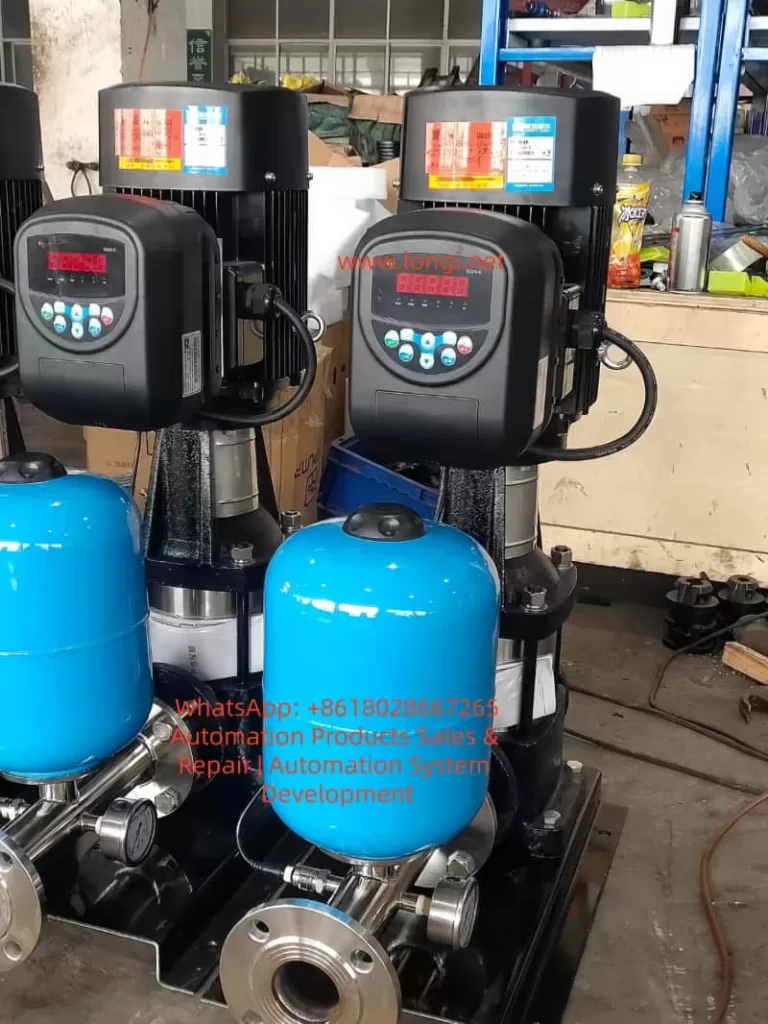
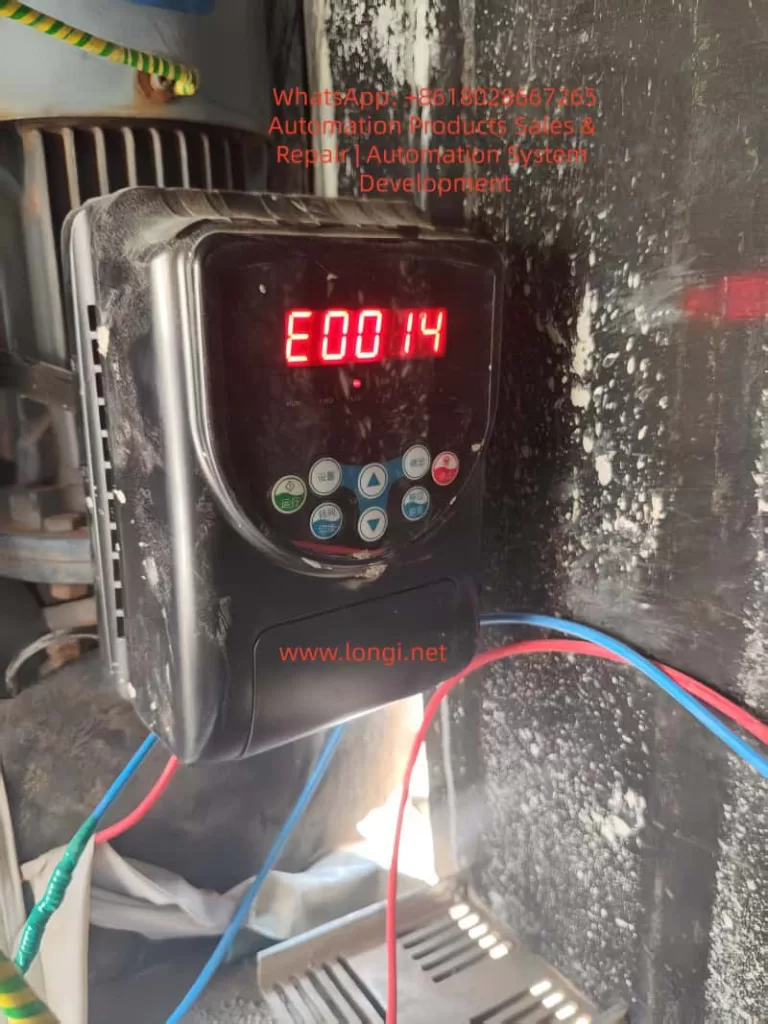
In the realm of industrial automation, the Variable Frequency Drive (VFD) serves as the “heart” of the motor drive system, undertaking core functions such as speed regulation, energy saving, and overload protection. The Weier (Weier) S320 series inverters, known for their high cost-performance ratio and stable vector control performance, are widely applied in constant pressure water supply, fans, pumps, conveyors, and packaging machinery. They cover a power range from 0.75kW to 37kW. However, during long-term operation, inverters inevitably encounter various faults. Among these, E0014 “Output Side Phase Loss (or Severe Load Three-Phase Imbalance)” is one of the most common fault codes in the S320 series.
If the E0014 fault is not addressed promptly, it can lead to motor burnout, equipment downtime, and even safety accidents. According to statistics from an industrial maintenance platform, E0014 accounts for approximately 18% of faults in S320 series inverters. Of these, 60% stem from wiring issues, 25% from motor or cable faults, 10% from inverter hardware damage, and 5% from load or parameter issues. This article provides a comprehensive analysis of the E0014 fault from the perspectives of fault principles, cause analysis, systematic troubleshooting processes, typical cases, and prevention strategies, offering a practical solution guide for engineers and technicians.
2. Definition and Detection Principle of E0014 Fault
2.1 Official Definition of Fault Code
According to the Weier S320 Series Inverter User Manual, the accurate description of the E0014 fault is:
Output Side Phase Loss (or Severe Load Three-Phase Imbalance): The inverter detects that one or two phases of the three phases (U, V, W) at the output terminal have no current output, or the imbalance of three-phase current (voltage) exceeds the set threshold.
2.2 Detection Principle: Current Sampling and Threshold Judgment
The S320 series inverter employs a detection mechanism based on Current Sensors (Hall Sensors) + Digital Signal Processing (DSP). The core logic is as follows:
Current Sampling: Three-phase Hall sensors installed near the output terminals collect the output current of the U, V, and W phases in real-time (sampling frequency is approximately 10kHz).
Imbalance Calculation: The DSP chip calculates the imbalance of the three-phase current using the following formula:
Threshold Trigger: When the imbalance exceeds the default value of 20% (adjustable via parameter F012), or when the current of a certain phase is zero (phase loss), the inverter immediately locks the IGBT drive signal, stops output, and displays E0014 on the panel.
Note: “Severe load three-phase imbalance” is also a triggering condition. For example, if a fan blade breaks or a pump impeller jams, the motor’s three-phase load becomes unbalanced, causing the three-phase current deviation to exceed the threshold. Even if the wiring and motor are intact, this will trigger E0014.
3. Core Cause Analysis of E0014 Fault
The essence of the E0014 fault is a severe imbalance in three-phase current (voltage) on the output side. The causes can be divided into four categories: Wiring Issues, Motor & Cable Faults, Inverter Hardware Damage, and Load Abnormalities.
3.1 Wiring Issues: The Most Common “Explicit Fault”
Wiring is the “energy transmission channel” between the inverter and the motor. Its reliability directly affects the current balance on the output side. Common problems include:
Loose Terminals: Vibration or oxidation causes poor contact at the inverter output terminals (U, V, W) or motor terminal box terminals. Contact resistance increases (e.g., from 0.1Ω to 10Ω) or even disconnects completely. For instance, in a constant pressure water supply system, a loose V-phase terminal due to long-term vibration caused the phase current to drop from 15A to 0A, triggering E0014.
Wire Breakage: Mechanical damage (e.g., crushed by heavy objects) or aging (insulation cracking leading to core wire breakage) causes a phase wire to disconnect. For example, the output cable of a conveyor equipment broke at the terminal due to frequent movement, resulting in no W-phase output.
Wiring Errors: Although rare, reversing the U, V, W phase sequence or failing to connect a phase (e.g., connecting only two phases) will cause output phase loss. However, wiring errors more often cause the motor to reverse or fail to start rather than directly triggering E0014, but they must be checked.
3.2 Motor and Cable Faults: The “Hidden Danger” Zone
The motor is the load of the inverter. The condition of its windings and the insulation performance of the cable directly affect the current balance. Common issues include:
Motor Winding Burnout: Long-term phase-loss operation (e.g., power supply side phase loss), overload, or poor heat dissipation causes winding insulation to age and eventually burn out a phase winding. For example, a pump motor’s U-phase winding burned out due to bearing wear causing overload. The resistance increased from 2.5Ω to infinity, and the inverter detected no current in that phase, triggering E0014.
Cable Insulation Damage: Aging, moisture, or corrosion causes the insulation layer to crack, leading to short circuits between phases or between phase and ground, resulting in abnormal current in a phase. For example, an outdoor fan cable exposed to rain developed cracked insulation, causing a short between V-phase and ground. The V-phase current surged from 10A to 30A, and the three-phase imbalance exceeded 20%.
Loose Motor Terminal Box: Vibration causes terminals inside the motor terminal box to loosen, leading to poor contact in a phase wire, similar to the inverter output terminal issue.
3.3 Inverter Hardware Faults: “Fatal Damage” to Core Components
The inverter’s output module (IGBT) and current sensors are key components for detecting output status. Their damage directly causes E0014:
IGBT Module Damage: The IGBT (Insulated Gate Bipolar Transistor) is the power switching device. If an IGBT in a phase is damaged (open or short circuit) due to overcurrent, overheating, or voltage surge (e.g., lightning strike), there will be no output voltage in that phase, and the motor will have no current. For example, the W-phase IGBT of a fan inverter failed due to a cooling fan malfunction causing overheating. The Collector (C) to Emitter (E) opened, resulting in no W-phase output and triggering E0014.
Current Sensor Fault: Current sensors (e.g., Hall sensors) detect three-phase output current. If dust accumulation or aging wires cause the sensor output signal to drift (e.g., U-phase sensor output drops from 2.5V to 0V), the inverter will falsely judge that there is no current in that phase and trigger E0014.
Control Board Fault: Damage to components like A/D converters or operational amplifiers on the control board causes errors in current sampling signal processing, leading to a false phase-loss judgment. However, the probability of control board failure is low (about 5%) and is usually considered only after other causes are ruled out.
3.4 Load Abnormalities: The “Indirect Trigger” Often Overlooked
The three-phase balance of the load directly affects the current distribution of the motor. If the load has abnormalities like jamming or component damage, it causes three-phase load imbalance, leading to severe deviation in three-phase current:
Fan Blade Damage: A fan blade breaks due to foreign object impact, causing the impeller to rotate with unbalanced three-phase load. The current in one phase increases significantly (e.g., from 10A to 20A), exceeding the imbalance threshold.
Pump Impeller Jamming: Debris enters the pump, jamming the impeller. The motor needs to output more torque, causing overcurrent in one phase (e.g., from 15A to 30A) and triggering E0014.
Conveyor Belt Deviation: A deviated conveyor belt causes uneven force on the rollers, leading to unbalanced three-phase motor load and triggering E0014.
Note: E0014 caused by load abnormalities is usually accompanied by other fault codes (such as Overcurrent E0002) and requires combined judgment.
3.5 Parameter Setting Issues: The “Human Factor” for False Alarms
The phase-loss protection threshold of the inverter (e.g., current imbalance) can be adjusted via parameters. If the threshold is set too sensitive (e.g., less than 10%), even slight three-phase imbalance will trigger E0014. If set too insensitive (e.g., greater than 30%), it fails to provide timely protection, leading to motor burnout. For example, a user adjusted the “Output Phase Loss Detection Threshold” (Parameter F012) from the default 20% to 10%, causing false alarms during normal motor operation due to slight imbalance.
4. Systematic Troubleshooting Process for E0014 Fault
Troubleshooting E0014 must follow the principle of “Safety First, Easy to Difficult, External to Internal”. The specific process is as follows:
4.1 Step 1: Safety Preparation (Avoid Electric Shock Risk)
The DC bus (between P and N terminals) of the inverter stores high-voltage energy (with 380V input, DC bus voltage is approximately 537V). Even after power-off, the capacitor needs 5-10 minutes to discharge. Therefore, before troubleshooting:
Cut off the inverter’s input power (R, S, T terminals) and hang a “Do Not Energize” warning sign.
Use a multimeter to measure the DC bus voltage (between P and N terminals) to confirm it is below 36V (safe voltage) before proceeding.
Wear insulated gloves and use insulated tools (e.g., screwdrivers, clamp meters) to avoid direct contact with live parts.
Wiring issues are the most common cause of E0014 (60%), so check this first:
Visual Inspection: Open the inverter output terminal cover (U, V, W) and check if wires are loose, broken, or if the insulation is damaged. If loose, tighten the terminals with a torque wrench (refer to the manual for torque values, e.g., 1.2N·m for M4 terminals). If wires are broken, replace them with new wires of the same specification (copper core cable).
Resistance Measurement: Use the multimeter’s low resistance range (200Ω) to measure the resistance between output terminals (U-V, V-W, W-U). Under normal conditions, the resistance should equal the DC resistance of the motor windings (e.g., 2-3Ω for a 7.5kW motor), and the difference between the three phases should not exceed 5%. If the resistance between two phases is infinite, the wire in that phase is broken. If the resistance difference is too large (e.g., U-V is 2Ω, V-W is 5Ω), it indicates poor contact.
Insulation Measurement: Use a Megger (Insulation Resistance Tester) to measure the insulation resistance of the output terminals to ground (PE terminal). It should normally be greater than 1MΩ (for low-voltage motors). If the insulation resistance is below 0.5MΩ, the cable insulation is damaged and needs replacement.
4.3 Step 3: Motor and Cable Testing
If the wiring is fine, check the motor and cable:
Motor Winding Resistance Measurement: Open the motor terminal box and use a multimeter to measure the resistance of U-V, V-W, and W-U. If the resistance of a phase is infinite, the winding is broken. If the resistance difference exceeds 5%, it indicates a short circuit or poor contact in the winding.
Motor Insulation Resistance Measurement: Use a Megger to measure the insulation resistance of the motor windings to ground (motor casing). It should normally be greater than 1MΩ. If it is below 0.5MΩ, the motor windings are damp or the insulation is aged. It needs to be baked (heat in an oven to 80°C for 4 hours) or the motor needs replacement.
Cable Continuity Test: Use a multimeter to test the continuity of the cable at both ends (inverter side and motor side). If a phase wire is not conducting, the cable is broken. If there is continuity between phases, the cable is shorted.
4.4 Step 4: Inverter Hardware Diagnosis
If the motor and cable are fine, check the inverter itself:
IGBT Module Detection: Open the inverter and locate the output IGBT module (usually a three-phase bridge structure, one IGBT per phase, model such as FS150R12KT3). Use the multimeter’s diode range to measure the resistance between the Collector (C) and Emitter (E) of the IGBT:
Normally, the resistance between C-E is infinite when the IGBT is off. When conducting (red probe on E, black probe on C), the resistance is about 0.5-1Ω (due to the internal freewheeling diode).
If the C-E resistance of a phase is infinite, the IGBT is open (damaged). If the resistance is very small (close to 0Ω), the IGBT is shorted (damaged).
Current Sensor Detection: Locate the current sensors (usually near the output terminals, three sensors for three phases). Measure their output voltage with a multimeter (temporary power-on required, be careful). Normally, the sensor output voltage is proportional to the current (e.g., 0-5V corresponds to 0-rated current). If the output voltage of a phase is zero or abnormal (e.g., U-phase outputs 0V while V and W phases output 2.5V), the sensor is damaged.
Control Board Check: Inspect the control board for signs of burning or bulging capacitors. Use an oscilloscope to measure the current sampling signal (e.g., the signal from the sensor to the control board) to see if it is normal (e.g., sine wave or PWM wave). If the signal is abnormal, replace the control board.
4.5 Step 5: Load Status Verification
If all the above steps show no issues, check the load:
Manual Rotation: Disconnect the motor from the load (e.g., remove the conveyor chain) and turn the motor shaft by hand to check if it rotates flexibly. If the load is jammed, repair the load (e.g., clean debris from the pump, adjust fan blades).
Three-Phase Balance Detection: Use a clamp meter to measure the three-phase current of the motor during operation (temporary power-on required, be careful). If the difference between the three-phase currents exceeds 20%, it indicates unbalanced three-phase load. Adjust the load (e.g., replace damaged fan blades, calibrate the pump impeller).
4.6 Step 6: Parameter and Waveform Analysis
If both hardware and load are fine, check parameters and waveforms:
Parameter Check: Enter the inverter’s parameter setting interface (password required, e.g., default “0000” for S320 series) and check if the “Output Phase Loss Detection Threshold” (Parameter F012) is set reasonably. The default is 20%. If set too low (e.g., 10%), increase it to 20%-25%. If set too high (e.g., 30%), decrease it to 15%-20% (to avoid false alarms).
Waveform Detection: Use an oscilloscope to measure the voltage waveform at the inverter output terminals (between U, V, W). Normally, it should display a three-phase PWM wave (Pulse Width Modulation wave) with an amplitude equal to the DC bus voltage (approx. 537V) and a frequency equal to the set frequency (e.g., 50Hz). If there is no waveform in a phase, the IGBT in that phase is damaged. If the waveform is distorted (e.g., uneven amplitude), the IGBT drive circuit is faulty.
5. Analysis of Typical Fault Cases
Case 1: Phase Loss Fault Caused by Loose Output Terminal
Scenario: A residential constant pressure water supply system uses a Weier S320-11kW inverter to drive two water pumps (one in use, one on standby). One day, the inverter suddenly reported E0014, and the pump stopped, causing a water outage in the community. Troubleshooting:
After shutdown and power-off, the output terminal cover was opened after discharging. The V-phase terminal wire was found to be loose, with obvious oxidation marks between the wire and the terminal.
A multimeter measured the resistance between U-V and V-W. The resistance between V-W was infinite (normal should be 2.5Ω), indicating a broken V-phase wire.
The V-phase terminal was retightened, and the oxidized end of the wire was polished with sandpaper. The resistance was measured again, and all three phases showed 2.5Ω, balanced.
After power-on testing, the inverter operated normally, and the E0014 fault disappeared. Root Cause: Loose terminal caused poor contact, which worsened due to oxidation over time, eventually leading to disconnection and phase loss. Solution: Replace the wire end (crimp with a cold-pressed terminal) and inspect terminal tightness weekly.
Case 2: E0014 Triggered by Motor Winding Burnout
Scenario: A factory conveyor using a Weier S320-7.5kW inverter suddenly reported E0014 during operation. The motor stopped, and materials piled up on the conveyor. Troubleshooting:
After power-off, the motor terminal box was opened, and the U-phase winding wire was found to be burnt out with charred insulation.
A multimeter measured the motor winding resistance. The resistance between U-V was infinite, while V-W and W-U were 3Ω (normal), indicating a burnt-out U-phase winding.
The motor bearings were inspected and found to be severely worn (radial clearance exceeded 0.2mm), causing the motor rotor to rub against the stator, overheating and burning out the winding.
The motor (same model 7.5kW) and bearings (model 6204) were replaced. After rewiring and power-on, the inverter operated normally. Root Cause: Bearing wear caused motor overload, overheating the winding until it burned out, resulting in phase loss. Solution:Inspect motor bearings quarterly (add lubricant) and avoid overload operation (keep conveyor load below 80% of rated value).
Case 3: Output Phase Loss Caused by IGBT Module Damage
Scenario: A workshop fan using a Weier S320-15kW inverter reported E0014 during operation. The fan stopped, and the workshop temperature rose. Troubleshooting:
After power-off and discharging, the inverter was opened, and burn marks were found on the Collector and Emitter of the W-phase IGBT module (FS150R12KT3).
A multimeter measured the C-E resistance of the IGBT. The W-phase was 0Ω (shorted), while U and V phases were infinite (normal).
The cooling fan was inspected and found not rotating (bearing seized
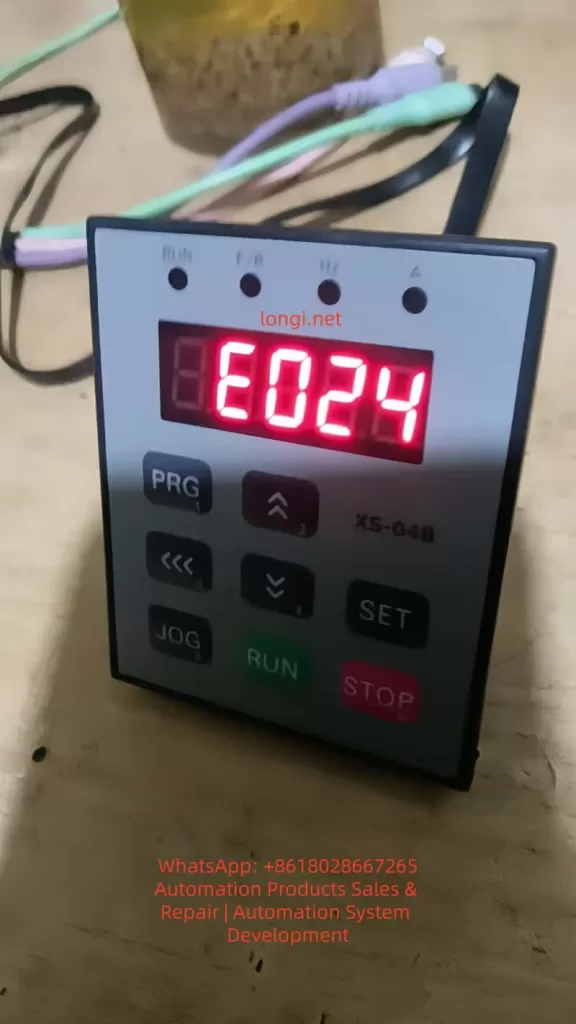
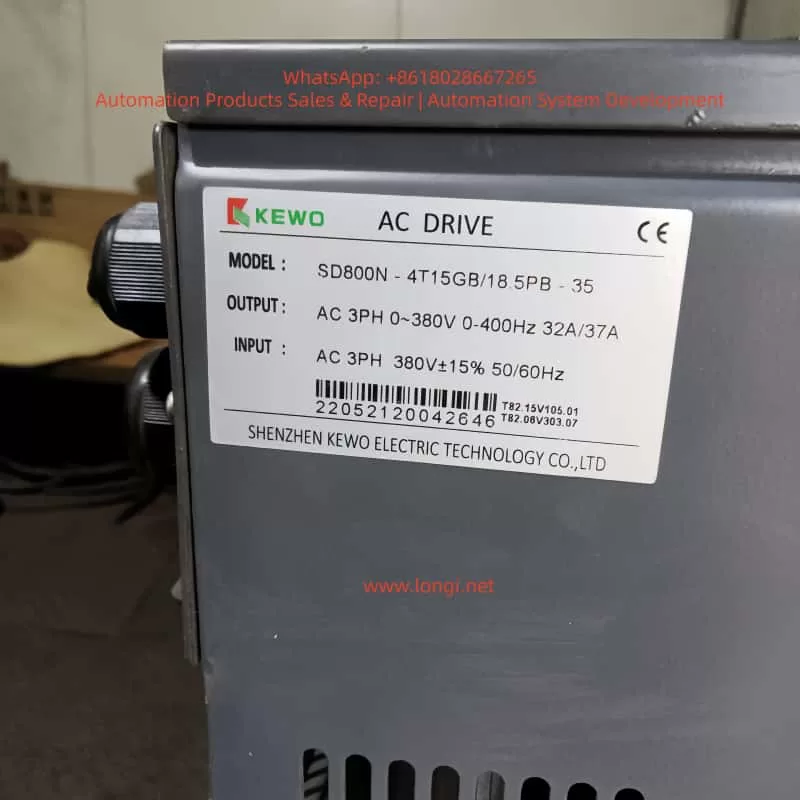
KEWO SD800N series inverters, as the upgraded iteration of the AD800 series, are widely deployed in industrial drive applications—including fans, pumps, conveyors, and textile machinery—due to their high reliability, rich communication capabilities, and flexible parameter configuration. Supporting protocols like Modbus RTU/ASCII, Profibus-DP (optional), and Ethernet/IP (optional), they meet the remote monitoring and control needs of the Industrial Internet of Things (IIoT). However, the E024 communication fault ranks among the most frequent issues reported by users: according to a 2023 survey by an industrial automation forum, E024 accounts for ~15% of SD800N fault repairs, primarily in remote communication scenarios (e.g., water treatment plants, material handling lines).
The E024 fault stems from interruptions in the communication link between the inverter and upper computer (e.g., PLC, HMI, IPC) or failed data exchange. Unaddressed, it prevents the inverter from receiving start/stop commands, frequency setpoints, or status feedback—severely impacting production efficiency. This article combines SD800N’s hardware characteristics, communication principles, and field cases to dissect E024’s root causes and provide a repeatable, systematic troubleshooting workflow for engineers to minimize downtime.
I. E024 Fault Definition and Root Causes
Per the KEWO SD800N Series Inverter User Manual, E024 corresponds to “Communication Fault”, triggered when:
The inverter fails to receive a valid command from the upper computer within the set timeout (default: 10 seconds, adjustable via P9.05);
The inverter’s response frame is not acknowledged by the upper computer.
The manual explicitly lists three core causes:
Abnormal Upper Computer: Power failure, software crashes, damaged communication interfaces, missing drivers, or incorrect protocol configuration (e.g., PLC/HMI settings mismatch);
Defective Communication Cable: Incorrect cable type (e.g., RS232 instead of RS485), reverse wiring (A/B lines swapped), physical damage/looseness, or missing terminal resistors (for long-distance links);
Incorrect Communication Parameters: Mismatch between the inverter and upper computer in baud rate, station address, parity, or protocol (e.g., Modbus RTU vs. ASCII).
II. Communication Principles and Key Concepts
SD800N’s standard communication interface is RS485 (half-duplex), which uses differential signaling (A/B lines) to resist electromagnetic interference (EMI)—critical for industrial environments. Its primary protocol is Modbus RTU (binary format, high efficiency), with the following frame structure:
Start Bit
Station Address
Function Code
Data Area
CRC Check
Stop Bit
1 bit
1 byte
1 byte
N bytes
2 bytes
1 bit
For example:
Upper computer sends: 01 06 00 01 00 64 (Station 1, Function Code 06 [write single register], Address 0001H, Value 0064H = 100Hz);
If no response is received or the CRC check fails, the inverter triggers E024.
III. Systematic Troubleshooting Workflow for E024
Step 1: Hardware Connection Inspection (Most Common Fault Point)
Goal: Verify no physical defects in cables, connectors, or terminal resistors.
Interface Confirmation: SD800N’s communication terminal is labeled “RS485” or “A/B” (some models use “+/-“: “+” = A, “-” = B). For RJ45 (Ethernet) interfaces, ensure the cable is a crossover type (required for some devices).
Cable Type Check: Use shielded twisted pair (STP) with a wire diameter of 0.5–1.0mm². Never use RS232 cables—their voltage levels (±5V) mismatch RS485 (±2V) and will damage the interface.
Wiring Correctness: Use a multimeter’s buzzer mode to test continuity:
If the cable is marked “A”/”B”, match upper computer A → inverter A, B → B;
If unmarked, measure voltage between A/B (powered on): RS485 should show -2V ~ +2V. A reading of 0V or reversed polarity (-5V ~ +5V) indicates reverse wiring.
Terminal Resistor Check: For links >100 meters, install a 120Ω/0.25W resistor at both ends of the bus to match RS485’s characteristic impedance (120Ω) and eliminate signal reflections.
Test: Disconnect power, measure resistance at both ends of the cable. A reading of ~120Ω confirms correct installation.
Connector Integrity: Inspect connectors for oxidation, bent pins, or looseness. Re-crimp or replace with industrial-grade DB9/RJ45 connectors if needed.
Step 2: Upper Computer Validation (Rule Out Upper System Issues)
Goal: Confirm the upper computer’s hardware, software, and protocol settings are functional.
Hardware Check:
Power: Verify the upper computer (PLC/IPC) is powered on (indicator lights active);
Interface: For USB-to-RS485 modules, ensure the “TX/RX” LED flashes (normal communication) and drivers (e.g., CH340, PL2303) are installed in Device Manager;
Wiring: Upper computer RS485 A → inverter A, B → B.
Software/Protocol Configuration: Open the upper computer software (e.g., KingView, WinCC, Siemens TIA Portal) and cross-verify:
Protocol: Must be “Modbus RTU” (SD800N default);
Baud Rate: Match inverter P9.01 (e.g., 9600, 19200, 38400);
Station Address: Match inverter P9.02 (default: 1; unique for multi-inverter systems);
Parity: Match inverter P9.03 (None/Odd/Even);
Stop Bit: Match inverter P9.04 (1 or 2 bits);
Register Address: Align with SD800N’s Modbus map (e.g., operating frequency = 40001H, offset 0000H).
Communication Test: Use a serial debugging tool (e.g., SSCOM, Modbus Poll) to simulate upper computer commands:
If no response or an error frame (e.g., 01 83 02 00 01 F8 3A [illegal function code]) is returned, recheck parameters or wiring.
Step 3: Inverter Parameter Verification (Critical but Overlooked)
SD800N’s communication parameters reside in Group P9 (Communication Parameters). Below are key settings (refer to the latest manual for batch-specific variations):
Parameter
Name
Range
Factory Default
Description
P9.00
Protocol Selection
0=Modbus RTU
0
1=Modbus ASCII (rarely used)
P9.01
Baud Rate
0=9600
0
1=19200; 2=38400; 3=57600; 4=115200
P9.02
Station Address
1–247
1
Unique for multi-inverter systems
P9.03
Parity
0=None
1
1=Odd; 2=Even
P9.04
Stop Bit
0=1 bit
0
1=2 bits (rare)
P9.05
Timeout (100ms units)
0–255
10
Increase for long links (e.g., 20 = 2 seconds)
Troubleshooting Priorities:
Confirm P9.00 = 0 (Modbus RTU); switch to 1 if using ASCII;
Match P9.01 to the upper computer’s baud rate;
Ensure P9.02 is unique across all inverters on the bus;
Align P9.03/P9.04 with the upper computer’s parity/stop bit settings;
Avoid setting P9.05 too low (e.g., 10 = 1 second may be insufficient for 200m links).
Supplementary Parameters:
P0.01 (Operation Command): Set to 2 (RS485) for upper computer control;
P0.03 (Main Frequency): Set to 9 (Communication) for remote frequency setting. Incorrect settings here won’t trigger E024 but will prevent the inverter from executing commands—verify only after resolving communication.
Step 4: Interference Mitigation (Invisible but Common Root Cause)
Industrial EMI—from 380V power lines, motor surges, or inverter switching noise—is a top cause of intermittent E024 faults.
Mitigation Strategies:
Wiring Isolation: Separate communication cables from power lines (input/output terminals) by ≥20cm. Avoid parallel routing; cross vertically if necessary.
Shield Grounding: Ground the cable shield at one end only (preferably the inverter’s PE terminal or upper computer’s ground) to prevent ground loops.
Test: Measure shield-to-PE resistance with a multimeter—should be <1Ω.
Filtering:
Add ferrite cores to both ends of the communication cable to suppress high-frequency noise;
Install a KEWO-dedicated EMI filter at the inverter’s RS485 port to block differential/common-mode interference.
Distance from Interference Sources: Route cables away from motors, transformers, or welders (≥50cm spacing).
Upgrade Communication Media: For severe interference or long distances (>1200m), use fiber optic modules (optional for SD800N, e.g., Profibus-DP/Ethernet). Fiber optics are immune to EMI and ideal for harsh environments.
IV. Field Case Studies
Case 1: Reverse Wiring Causes E024
Scenario: A water treatment plant’s SD800N inverter uses ordinary twisted pair (not STP) with A/B reversed. Symptom: Inverter displays E024; PLC cannot start/stop the motor. Resolution:
Replace cable with STP and rewire A→A, B→B;
Add 120Ω terminal resistors (120m link);
Test communication—fault cleared.
Case 2: Baud Rate Mismatch
Scenario: A textile mill’s SD800N inverter (P9.01=0 [9600]) communicates with an HMI set to 19200. Symptom: HMI cannot read frequency; “Communication Error” alert. Resolution: Set P9.01=1 (19200) and retest—communication restored.
Case 3: Station Address Conflict
Scenario: Three SD800N inverters on a conveyor line all use station address 1. Symptom: Inverters alternate E024; PLC cannot target individual units. Resolution: Set P9.02 to 1, 2, 3 for each inverter; update PLC station addresses—fault resolved.
Case 4: Missing Terminal Resistors
Scenario: A 200m RS485 link without terminal resistors. Symptom: Intermittent E024; communication drops randomly. Resolution: Install 120Ω resistors at both ends—fault eliminated.
V. Preventive Measures to Reduce E024 Occurrence
Standardize Wiring: Use STP, separate power/communication cables, and ground shields at one end.
Parameter Backup: Save correct P9 parameters to the inverter’s EEPROM (via P0.09=2) or export to a PC using KEWO’s software.
Use Specialized Tools: Deploy serial debuggers (SSCOM) or Modbus testers (Modbus Poll) to accelerate troubleshooting.
Firmware Updates: Contact KEWO support to upgrade firmware (e.g., fix CRC bugs in older versions).
VI. Safety Precautions
Power Off Before Work: Disconnect 380V input power and verify DC bus voltage <36V (multimeter test).
No Hot Plugging: Avoid inserting/removing communication connectors while powered—risk of short circuits.
Multimeter Safety: Use AC 500V range for voltage, buzzer mode for continuity.
Insulation: Wear insulated gloves/goggles when testing live equipment.
Grounding: Never skip shield grounding—risk of electric shock.
VII. Conclusion
E024 is a common but manageable fault in KEWO SD800N inverters. Over 90% of cases are resolved by:
Correct STP wiring with terminal resistors;
Matching baud rate/station address/parity between inverter and upper computer;
Mitigating EMI via shielding and isolation.
Preventive measures (standardized wiring, parameter backups, regular checks) can reduce E024 occurrence to <5%. For complex issues (e.g., protocol incompatibility, hardware failure), contact KEWO’s technical support (400-888-XXXX) to avoid warranty voidance.
Key Takeaway: Troubleshoot E024 systematically—start with hardware (cables/connectors), then software (parameters), then interference. Use specialized tools and field experience to minimize downtime.
Appendix: Common Modbus Register Addresses for SD800N (Reference)
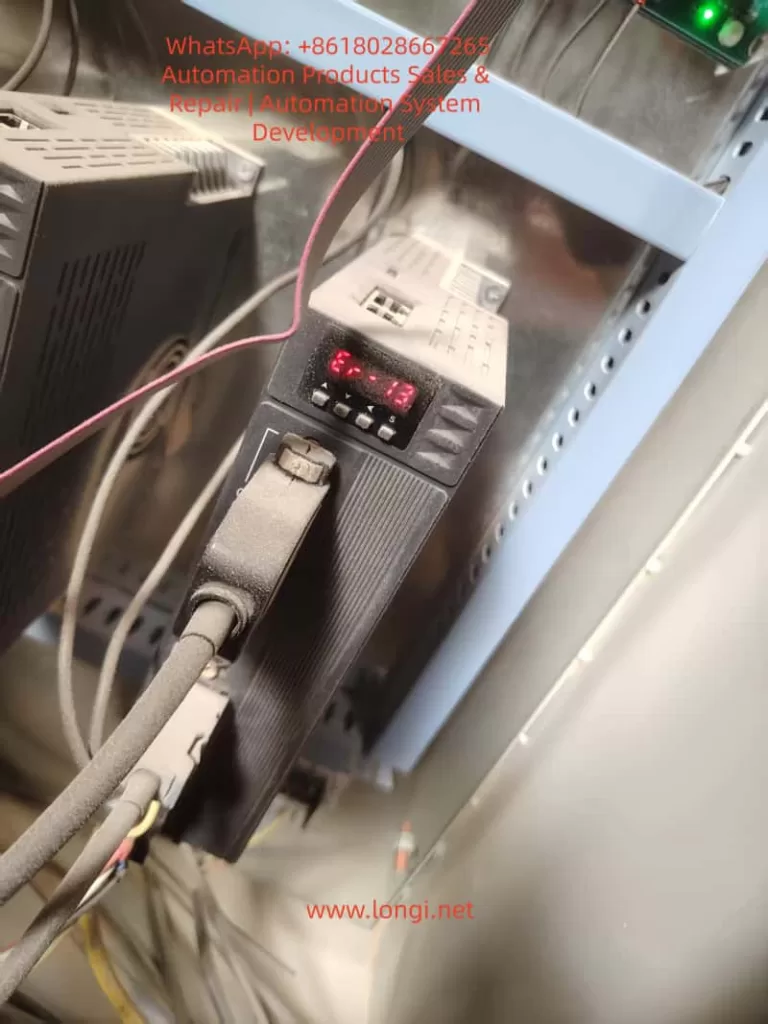
In the field of industrial automation, servo systems are core components for achieving precise motion control, and their stability directly impacts production efficiency and product quality. The Berger Lahr EXC-30 series servo drives are widely used in applications such as machine tools, packaging machinery, and robots due to their high precision and reliability. However, during long-term operation, the ER-13 overload fault is one of the most common alarms. If not addressed promptly, this fault can lead to motor burnout, drive damage, and even production shutdowns. Based on the hardware characteristics and control logic of the EXC-30 series, this article provides an in-depth analysis of the causes, troubleshooting procedures, and solutions for the ER-13 fault, offering practical guidance for engineering technicians.
II. Definition and Classification of the ER-13 Fault Code
According to the Berger Lahr EXC-30 series user manual, the ER-13 fault corresponds to an “Overload” condition and is triggered in two scenarios:
During power-on of the control supply: The drive detects abnormal current at the moment of power-up, usually related to hardware failures.
During motor operation: The actual torque of the motor exceeds its rated torque (or the torque limit set by the drive), or excessive torque fluctuations occur due to control abnormalities.
The core logic of this fault is as follows: The drive continuously monitors the motor winding current through current sensors. When the current exceeds 1.5 times the rated value (or the set overload threshold) and persists for a certain duration (typically 1-3 seconds), the ER-13 alarm is triggered, and the drive output is cut off to protect the motor and the drive itself.
III. In-depth Analysis of the Causes of the ER-13 Fault
The causes of the ER-13 fault are complex and require a comprehensive assessment based on hardware status, load characteristics, and parameter settings. The following is a detailed classification analysis:
(I) ER-13 Triggered at Power-on: Primarily Hardware Failures
1. Circuit Board Failures
Current Sensor Drift: In the EXC-30 series drives, failures in the current detection circuit (e.g., Hall sensors), drive circuit (e.g., IGBT modules), or control board (e.g., CPU board) can lead to abnormal current detection at power-up. For example:
If the current sensor drifts, the detected current value may be significantly higher than the actual value, triggering overload protection.
If the IGBT module is short-circuited, a short circuit occurs at the power output terminal, causing a sudden increase in current at power-up.
If the control board program malfunctions, it may misinterpret current signals, resulting in false alarms.
2. Motor Winding Short Circuit
A short circuit between phases or to ground in the motor stator windings can cause a rapid increase in current at power-up, exceeding the drive’s overload threshold. This is often accompanied by motor overheating and a burning smell.
3. Brake Not Released (for motors with brakes)
For certain EXC-30 series models equipped with electromagnetic brakes (e.g., motors with brakes), if the brake coil is not energized or the brake is mechanically jammed, the motor is braked at power-up. The drive detects a “locked-rotor current” and triggers the ER-13 fault.
(II) ER-13 Triggered During Operation: Primarily Load and Control Issues
1. Operation Beyond Rated Torque
This is the most common cause and includes the following scenarios:
Excessive Load: Mechanical transmission system issues such as insufficient lubrication on guide rails, worn screw nuts, or external impact loads (e.g., material jamming in packaging machinery) can increase the load beyond the motor’s rated capacity.
Improper Parameter Settings: Incorrect settings for parameters such as the torque limit (e.g., P001 in EXC-30), start-stop frequency (P002), and acceleration/deceleration time (P004) can lead to operation beyond rated torque. For example:
Setting the torque limit (P001) too high (exceeding the motor’s rated torque).
Setting the start-stop frequency (P002) too fast, causing the starting impact torque to exceed the rated value.
Setting the acceleration/deceleration time (P004) too short, resulting in excessive acceleration and a surge in torque.
2. Brake Not Released During Operation
For motors with brakes, if the brake coil loses power or experiences a mechanical failure (e.g., worn brake pads, failed springs) during operation, the brake may not fully release. The motor then has to overcome the braking torque, causing the actual torque to exceed the rated value.
3. Motor Instability and Oscillation
Improper adjustment of servo system gains (e.g., excessively high position gain P003 or speed gain P005) can cause the motor to oscillate during operation, with torque fluctuating periodically. If the peak torque exceeds the rated value, the ER-13 fault is triggered. This is common in scenarios with a high load inertia ratio (load inertia/motor inertia), such as robot arms or large worktables.
4. Wiring Errors
Power Line Disconnection: If one of the three-phase power lines (UVW) to the motor is disconnected (e.g., due to loose connectors or crushed wires), the motor operates in a phase-loss condition, reducing torque. To maintain speed, the current increases, eventually leading to overload.
Incorrect Encoder Wiring: If the encoder feedback lines (e.g., A/B phase, Z phase) are reversed or loose, the drive cannot accurately detect the motor’s position or speed, causing control algorithm disruptions and abnormal torque output.
IV. Systematic Troubleshooting Procedure for the ER-13 Fault
For the ER-13 fault in the EXC-30 series, follow the principle of “checking external factors before internal ones, mechanical issues before electrical ones, and parameters before hardware,” and proceed with the following steps:
Step 1: Visual and Wiring Inspection (Quickly Eliminate Obvious Faults)
Check Wires and Connectors: Examine the power lines (UVW), encoder lines, and brake lines for breaks, oxidation, or looseness (e.g., bent connector pins).
Check Mechanical Status: Manually rotate the motor shaft (after disconnecting the load) to check for any binding (e.g., sticky guide rails, bent screw rods). Check the load for foreign objects (e.g., material rolls in packaging machinery, iron filings in machine tools).
Check the Brake: For motors with brakes, listen for a “click” sound at power-up (indicating brake release). Use a multimeter to measure the brake coil voltage (usually DC24V). If the voltage is normal but there is no release action, the brake has a mechanical failure.
Step 2: Load and Parameter Verification (Core Troubleshooting Step)
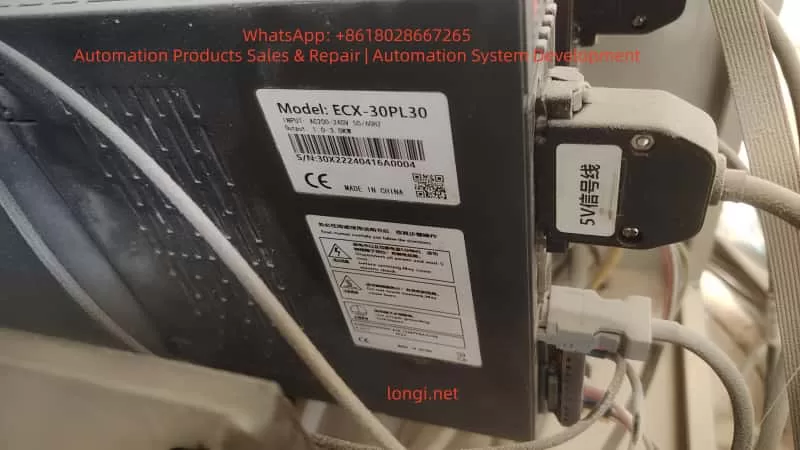
Measure Load Torque: Use a torque wrench or torque sensor to measure the actual load torque and compare it with the motor’s rated torque (which can be found in the EXC-30 series model specifications, e.g., the rated torque of the ECX-30PL30 is 10 N·m).
Verify Parameter Settings: Enter the drive’s parameter mode (set via the operation panel or software in the EXC-30 series) and check the following key parameters:
Torque Limit (P001): Ensure it does not exceed the motor’s rated torque (recommended to be set at 1.2-1.5 times the rated value).
Start-Stop Frequency (P002): Check if it is too high (e.g., exceeding 50% of the motor’s rated frequency).
Acceleration/Deceleration Time (P004): Check if it is too short (e.g., start time < 0.1 seconds).
Gain Parameters (P003 position gain, P005 speed gain): Check if they are too high (gradually reduce them using the “gain adjustment” function and observe for motor oscillation).
Step 3: Electrical Testing (Locate Wiring and Hardware Faults)
Power Line Testing: Use a multimeter to measure the resistance between the three phases (UVW) of the motor. The resistance should be balanced (e.g., 0.5 Ω ± 10%). If one phase shows infinite resistance, there is a break. Measure the resistance between the power lines and ground (should be > 10 MΩ). A lower value indicates insulation damage.
Encoder Line Testing: Use an oscilloscope to measure the encoder’s A/B phase signals (normal signals are differential pulses with a frequency proportional to the motor speed). If the signals are missing or distorted, the encoder wiring is incorrect or the encoder is damaged.
Current Testing: Use a clamp-on ammeter to measure the motor’s operating current (should be less than the rated current). If the current exceeds 1.5 times the rated value, the load is too heavy or the parameters are improperly set.
Brake Testing: Measure the brake coil resistance (normal values range from tens to hundreds of ohms). If the resistance is infinite, the coil is burned out. Measure the brake release time (should be < 0.5 seconds). A longer time indicates mechanical jamming.
Step 4: In-depth Hardware Testing (Circuit Boards and Drive)
If no fault is found in the previous steps, disassemble the drive for hardware testing:
Current Sensor: Measure the sensor’s output voltage (should be proportional to the current, e.g., 2.5V for 10A). If the output is abnormal, the sensor is damaged.
IGBT Module: Use a multimeter to measure the resistance between the collector (C) and emitter (E) of the IGBT (should be infinite). If it conducts, the module is short-circuited.
Control Board: Check for swollen electrolytic capacitors or burned resistors on the board. Use a programmer to read the control board program (if corrupted, reprogram it).
V. Solutions and Case Studies for the ER-13 Fault
(I) Common Fault Solutions
Fault Cause
Solution
Excessive Load
Clear mechanical foreign objects, lubricate guide rails, use a lighter load, or upgrade to a higher-power motor/drive.
Brake Not Released
Repair the brake coil (replace or rewind it), adjust the brake pad clearance, or check the brake power supply.
Improper Parameter Settings
Reduce the torque limit (P001), increase the acceleration/deceleration time (P004), or adjust the gains (P003/P005).
Power Line Disconnection
Reconnect the wires (crimp terminals) or replace damaged wires.
Incorrect Encoder Wiring
Verify the encoder pin definitions (usually a 25-pin D-type connector in EXC-30 series) and reconnect correctly.
Circuit Board Failure
Replace the current sensor, IGBT module, or control board (recommended to return to the manufacturer for repair).
(II) Typical Case Studies
Case 1: ER-13 Due to Material Jamming in Packaging Machinery
Fault Phenomenon: An EXC-30 servo motor (model ECX-30PL30) on a packaging machine suddenly reported ER-13 during operation and could not be restarted after shutdown.
Troubleshooting Process:
Manually rotating the motor shaft revealed that the load side (material roll) was jammed and could not rotate.
Disassembling the packaging machine revealed that a piece of packaging paper was stuck on the material roll support, causing a sudden increase in load torque.
After clearing the foreign object, the motor shaft rotated smoothly manually, and the drive restarted without fault.
Solution: Add a protective cover to the material roll support and regularly clean foreign objects.
Case 2: ER-13 Due to Brake Coil Burnout
Fault Phenomenon: An EXC-30 servo motor with a brake (model ECX-30BL30) on a machine tool frequently reported ER-13 during operation, and the brake did not release with a sound.
Troubleshooting Process:
Using a multimeter, the brake coil voltage was measured at DC24V (normal), but the coil resistance was infinite (normal value: 120 Ω).
Disassembling the brake revealed that the coil winding was burned black (due to long-term overload).
After replacing the brake coil, power-up testing showed normal brake release, and the motor operated without alarm.
Solution: Check the brake load (ensure it does not exceed the rated braking torque) and avoid long-term overload.
Case 3: ER-13 Due to Improper Gain Adjustment
Fault Phenomenon: An EXC-30 servo motor (model ECX-30HL30) on a robot arm oscillated during high-speed operation, accompanied by ER-13 alarms.
Troubleshooting Process:
Using an oscilloscope to measure the motor current revealed periodic fluctuations in the current waveform, with peak values exceeding the rated value.
Checking the parameters revealed that the position gain (P003) was set to 1000 (rated value: 500), and the speed gain (P005) was set to 800 (rated value: 400).
Gradually reducing the gains (P003 to 600, P005 to 500) eliminated the oscillation and prevented further ER-13 alarms.
Solution: Based on the load inertia ratio (8:1 in this case), recalculate the gain parameters (recommended to reduce gains by 20%-30% when the inertia ratio exceeds 5:1).
VI. Preventive Measures for the ER-13 Fault
To reduce the occurrence of the ER-13 fault, take the following measures in terms of design, installation, and maintenance:
Proper Component Selection: Select motors based on load torque and inertia (recommended load inertia ratio < 5:1) to avoid “overloading a small motor.”
Parameter Optimization: Verify parameters (torque limit, start-stop frequency, gains) before power-up and adjust them according to load characteristics (e.g., increase acceleration/deceleration time for heavy loads).
Lubricate mechanical transmission parts (guide rails, screw rods) and clean dust (to prevent it from entering the drive) quarterly.
Test motor winding insulation annually (use a megohmmeter to measure ground resistance, which should be > 10 MΩ).
Environmental Protection: Install the drive in a well-ventilated area (temperature < 40°C) and avoid humid or dusty environments (add protective covers if necessary for harsh environments).
VII. Conclusion
The ER-13 overload fault in the Berger Lahr EXC-30 series is the result of the interaction between hardware, load, and parameters. During troubleshooting, follow a logical approach from “external to internal” and “mechanical to electrical,” focusing on load status, parameter settings, and wiring integrity. Through the analysis and case studies in this article, engineering technicians can quickly locate the root cause of the fault and implement targeted solutions. Additionally, by selecting components properly, performing regular maintenance, and optimizing parameters, the occurrence of the ER-13 fault can be effectively prevented, ensuring the stable operation of the servo system.
In the field of industrial automation, the core of fault handling is “understanding system logic + mastering troubleshooting methods.” It is hoped that this article will provide practical technical references for Berger Lahr servo users and improve equipment maintenance efficiency.
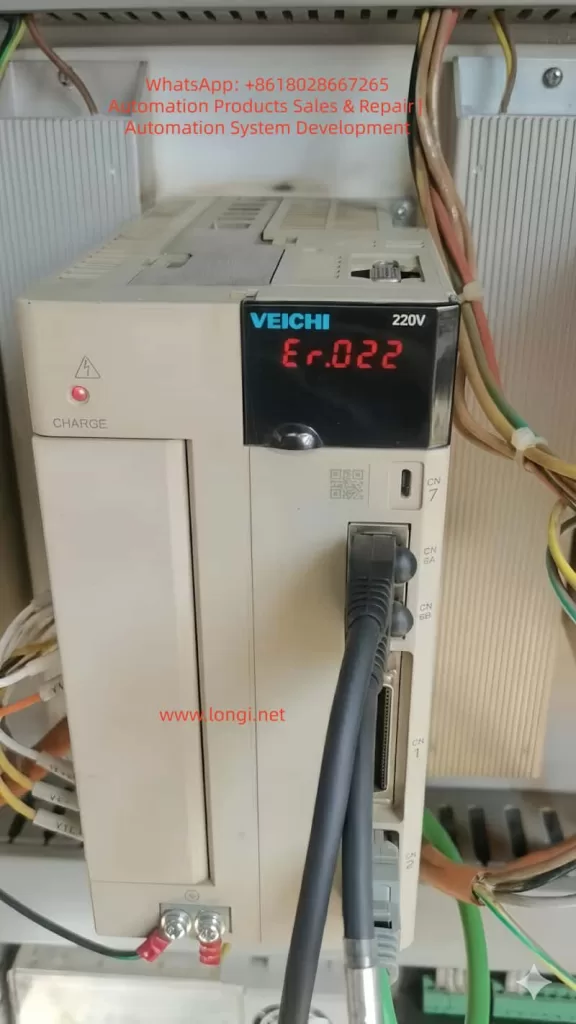
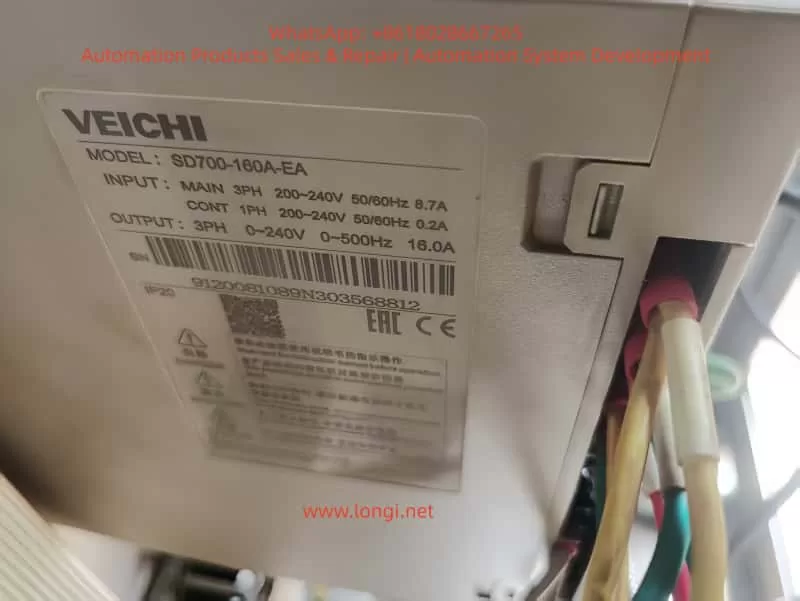
2.2 Technical Features of the SD700 Series Servo Drive
2.3 Operating Modes and Control Logic of Servo Drives
Common Fault Types and Cause Analysis of Servo Drives
3.1 Fault Classification and Level Division
3.2 Cause Analysis of Er.022 (System and Checksum Error)
3.3 Comparison with Other Common Fault Codes (Er.001, Er.003, Er.016, etc.)
Diagnosis and Handling Process for Er.022 Fault
4.1 Fault Phenomena and Preliminary Judgment
4.2 Principle and Operation Steps of Soft Reset (FN002)
4.3 Advanced Diagnosis: Parameter Verification and Hardware Inspection
4.4 Case Study: Actual Handling Process of Er.022
Preventive Maintenance and Optimization of Servo Drives
5.1 Key Points for Regular Inspection and Maintenance
5.2 Parameter Backup and Recovery Strategies
5.3 Environment and Wiring Optimization
5.4 Firmware Upgrade and Compatibility Management
Fault Prediction and Intelligent Development Trends of Servo Systems
6.1 Predictive Maintenance Based on Data Analysis
6.2 Application of Artificial Intelligence in Servo Fault Diagnosis
6.3 Intelligent Upgrade of Servo Systems in the Context of Industry 4.0
Conclusion and Recommendations
1. Introduction
As the core execution unit of modern industrial automation systems, servo drives are widely used in CNC (Computer Numerical Control) machine tools, robots, packaging machinery, printing equipment, and other fields. Their high-precision and high-response control characteristics significantly improve production efficiency and product quality. However, due to complex working environments, electrical interference, and incorrect parameter settings, servo drive failures occur frequently. Among them, Er.022 (System and Checksum Error) is a relatively common fault in the SD700 series servo drives.
This article takes the SD700 Er.022 fault as the starting point to systematically analyze the causes, diagnostic methods, and handling processes of servo drive faults. It also discusses preventive maintenance and intelligent development trends, aiming to provide engineering and technical personnel with a scientific and efficient solution for fault handling and optimization.
2. Basic Principles and Structure of Servo Drives
2.1 Core Composition of Servo Systems
A servo system typically consists of the following three parts:
Servo Drive: Receives control signals to drive the servo motor.
Servo Motor: The actuator that converts electrical energy into mechanical motion.
Feedback Device (Encoder): Detects the motor’s position and speed in real-time and feeds it back to the drive to form a closed-loop control.
Inside the servo drive, core components such as DSP (Digital Signal Processor), FPGA (Field-Programmable Gate Array), Power Module (IGBT), and Communication Interfaces are integrated to achieve precise control through high-speed computing.
2.2 Technical Features of the SD700 Series Servo Drive
The SD700 series is a high-performance servo drive with the following features:
Fault Diagnosis and Protection: Built-in multiple fault codes and alarm mechanisms for quick problem localization.
2.3 Operating Modes and Control Logic of Servo Drives
The main operating modes of a servo drive include:
Position Control Mode: Precisely controls the motor position via pulse signals.
Speed Control Mode: Controls the motor speed via analog or digital signals.
Torque Control Mode: Directly controls the motor’s output torque, suitable for applications like tension control.
The control logic is based on the PID (Proportional-Integral-Derivative) algorithm, combined with feedforward compensation and filtering processing to achieve high-precision closed-loop control.
3. Common Fault Types and Cause Analysis of Servo Drives
3.1 Fault Classification and Level Division
Servo drive faults can be divided into the following types:
Hardware Faults:
Power module damage (IGBT short circuit, open circuit).
Encoder wire break or signal abnormality.
Main circuit overvoltage/undervoltage.
Software/Parameter Faults:
Incorrect parameter settings (e.g., Pn000 control mode mismatch).
Firmware abnormality or checksum failure (e.g., Er.022).
Communication Faults:
Fieldbus communication interruption (EtherCAT, CANopen, etc.).
Command signal loss or interference.
Environment and Wiring Faults:
Electromagnetic Interference (EMI).
Poor grounding or power fluctuation.
According to severity, faults can be divided into:
4. Diagnosis and Handling Process for Er.022 Fault
4.1 Fault Phenomena and Preliminary Judgment
Typical phenomena of Er.022:
The drive panel displays “Er.022”, and the servo motor stops.
Cannot start via the Servo ON (/S-ON) signal.
The alarm light (ALM) is constantly on.
Preliminary Judgment Steps:
Check for recent parameter changes or firmware upgrades.
Confirm if the encoder cables are connected properly (SD+, SD-, BAT+, BAT-).
Check if the control power supply (L1C, L2C) is stable.
4.2 Principle and Operation Steps of Soft Reset (FN002)
Soft Reset is a standard operation to clear temporary fault states. It does not clear user parameters but reloads system defaults.
Operation Steps:
Enter Fn Mode: Press the MODE/SET key to switch to the auxiliary function (Fn) mode.
Select FN002: Use the ▲/▼ keys to select FN002 (Soft Reset).
Execute Reset: Press the MODE/SET key to confirm; the drive will re-initialize.
Observe Result:
If the fault clears, normal operation resumes.
If the fault persists, proceed to advanced diagnosis.
4.3 Advanced Diagnosis: Parameter Verification and Hardware Inspection
If the soft reset is ineffective, further diagnosis is required:
Parameter Verification:
Check if Pn000 (Control Mode) matches the actual application.
Confirm if Pn100 (Motor Model) and Pn101 (Encoder Type) are correct.
Use FN000 (Alarm Record) to view historical faults.
Encoder Inspection:
Measure if the encoder power supply (+5V, 0V) is normal.
Check the absolute encoder battery voltage (should be ≥3.0V).
Use an oscilloscope to detect if there is pulse output on SD+ and SD- signals.
Hardware Inspection:
Measure if the IGBT module is short-circuited (use a multimeter to measure resistance between U/V/W and ground).
Check if the main circuit capacitors are bulging or leaking.
Confirm if grounding is reliable (≤1Ω).
4.4 Case Study: Actual Handling Process of Er.022
Case Background: A CNC machining center using an SD700-7R6A drive suddenly reported Er.022 and failed to start.
Troubleshooting Process:
Soft Reset: Executed FN002, but the fault remained.
Parameter Check: Found that Pn100 was mistakenly set to “0” (the default should be “7”).
Parameter Correction: After restoring Pn100 to “7”, the fault was cleared.
Root Cause Analysis: The parameter loss was caused by operator misoperation.
Conclusion:
Er.022 is mostly caused by parameter errors or encoder abnormalities.
Soft Reset is the first step; if ineffective, parameters and hardware need in-depth inspection.
5. Preventive Maintenance and Optimization of Servo Drives
5.1 Key Points for Regular Inspection and Maintenance
Daily Inspection:
Confirm no alarms on the drive panel.
Check if the motor running sound is abnormal (e.g., noise, vibration).
Weekly Inspection:
Clean the drive cooling fan and filter.
Check if wiring terminals are loose.
Monthly Inspection:
Measure the absolute encoder battery voltage.
Check if the main circuit capacitors are bulging.
Yearly Inspection:
Use FN100 (Vibration Detection) to evaluate the mechanical state.
Back up all parameters (Pn group).
5.2 Parameter Backup and Recovery Strategies
Use host computer software to back up parameters regularly (e.g., SD700 supporting debugging software).
Backup files should include:
Pn parameters (control parameters).
Fn auxiliary function settings.
Internal position data (e.g., origin offset).
When restoring, parameters should be loaded step-by-step to avoid conflicts caused by batch writing.
5.3 Environment and Wiring Optimization
Electromagnetic Compatibility (EMC):
Separate servo cables from signal cables by a distance of ≥30cm.
Use shielded cables and ensure the shield layer is grounded at a single point.
Power Quality:
Use a regulated power supply to avoid voltage fluctuations exceeding ±10%.
Install a noise filter at the main circuit input.
Grounding Standards:
Ensure common grounding for the drive, motor, and control cabinet, with grounding resistance ≤1Ω.
Avoid ground loops (e.g., interference caused by multi-point grounding).
5.4 Firmware Upgrade and Compatibility Management
Check the manufacturer’s official website regularly for the latest firmware.
Back up parameters before upgrading and confirm compatibility with the motor model.
Do not power off during the upgrade process to prevent EEPROM damage.
6. Fault Prediction and Intelligent Development Trends of Servo Systems
6.1 Predictive Maintenance Based on Data Analysis
Through IoT (Internet of Things) and big data analysis, real-time monitoring is performed on:
Motor temperature, vibration, and current fluctuations.
Drive alarm logs and parameter change trends.
Using machine learning algorithms to predict faults (e.g., IGBT aging, encoder failure).
Case: Brands like Siemens and Fanuc have launched cloud monitoring platforms that use AI to analyze historical data and warn of IGBT faults one month in advance.
6.2 Application of Artificial Intelligence in Servo Fault Diagnosis
Automatic Fault Classification:
Use NLP (Natural Language Processing) to parse alarm descriptions and automatically match solutions.
Intelligent Parameter Optimization:
AI dynamically adjusts PID parameters and gain settings based on load changes.
Remote Expert Systems:
Combined with AR (Augmented Reality), technicians can receive real-time guidance via smart glasses.
6.3 Intelligent Upgrade of Servo Systems in the Context of Industry 4.0
Digital Twin:
Build a virtual model of the servo system to simulate fault scenarios and optimize parameters.
Edge Computing:
Embed edge AI chips in the drive to process data in real-time and reduce cloud latency.
Adaptive Control:
The system automatically identifies load changes and switches control modes (e.g., from speed mode to torque mode).
7. Conclusion and Recommendations
7.1 Summary
Er.022 faults are mostly caused by parameter errors, encoder abnormalities, or firmware corruption, and can be quickly recovered via Soft Reset (FN002).
Preventive maintenance is the key to reducing faults; regular parameter backup, wiring checks, and environment optimization are essential.
Future servo systems will develop towards intelligence and predictive maintenance, combining AI, IoT, and Digital Twins to improve reliability.
7.2 Recommendations
For Engineers:
Familiarize yourself with the drive manual and master the use of Fn auxiliary functions.
Establish a parameter backup library to avoid data loss due to misoperation.
For Enterprises:
Invest in intelligent monitoring systems to implement predictive maintenance.
Train employees regularly to improve fault diagnosis capabilities.
For System Integrators:
Consider EMC protection and grounding standards during the system design phase.
Choose servo drive brands that support remote diagnosis.
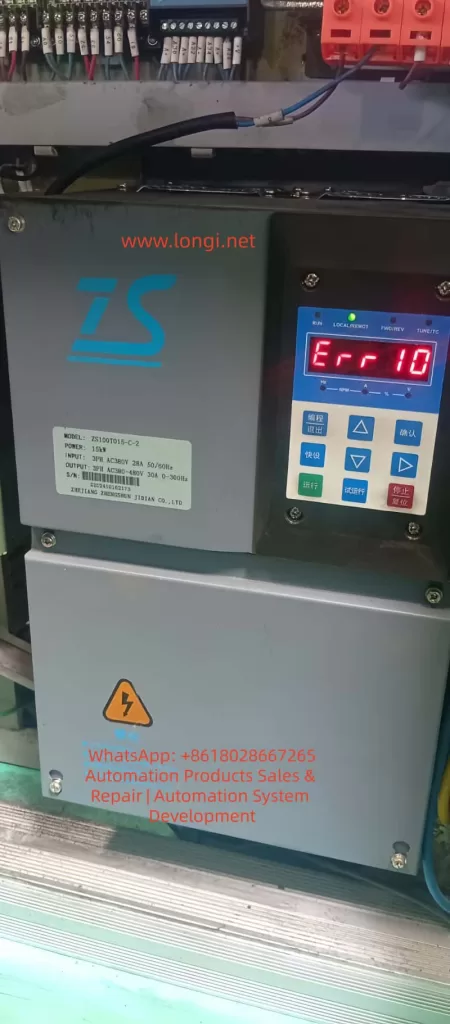
The Zhensun Servo ZS100 series is a dedicated control system designed specifically for hydraulic servo oil pump systems. It consists of the ZS100 series servo drive, ZM permanent magnet synchronous servo motor, and ZB braking unit. Covering a power range from 7.5kW to 75kW, it adopts Closed-loop Vector Control (VCC) with a maximum frequency of 300Hz, starting torque of 180% at 0Hz, speed regulation range of 1:1000, stability accuracy of ±0.02%, and an overload capacity of 150% rated output current for 100s or 180% rated output current for 5s. The system is widely used in hydraulic equipment such as injection molding machines, die-casting machines, and spinning machines, emphasizing high reliability, high stability, and cost-effectiveness. In practical field applications, the ERR10 fault (displayed as “Err 10” on the panel) is one of the most frequent alarms, directly affecting equipment operational safety. Based on the complete structure of the ZS100 series manual, this article provides a comprehensive operational guide covering fault definition, internal coding mechanisms, in-depth analysis of four causes, step-by-step diagnosis procedures, targeted solutions, parameter optimization for prevention, and typical case reviews, helping engineers quickly locate and thoroughly resolve the issue.
I. Nature of ERR10 Fault and Alarm Trigger Mechanism
The panel display for ERR10 corresponds to the fault name “Drive Overload”. In the drive’s internal fault address 8000H, its code is 000A, listed alongside ERR02~ERR07 (overcurrent/overvoltage series), ERR09 (undervoltage), and ERR11 (motor overload). The trigger conditions are strictly based on the drive’s hardware protection logic: when the output current continuously exceeds the rated value and surpasses the overload tolerance time, or when IGBT module temperature/bus voltage abnormalities cause a protection action, the system immediately locks the PWM output, the panel red light flashes, and “Err 10” is displayed. Unlike ERR11 (motor overload), ERR10 focuses on the drive unit’s own load-bearing capacity rather than the motor winding thermal protection.
1. Trigger Logic
Trigger conditions are strictly based on drive hardware protection logic:
When output current continuously exceeds the rated value and exceeds overload tolerance time;
Or when IGBT module temperature/bus voltage abnormalities cause protection actions;
The system immediately locks PWM output, panel red light flashes, and displays “Err 10”.
Note: Unlike ERR11 (motor overload), ERR10 focuses on the drive unit’s load-bearing capacity, not motor winding thermal protection.
2. Trigger Paths
Current Detection Circuit: Hall sensor or shunt resistor samples three-phase output current in real-time. Triggers after exceeding 150% rated value for 100s or 180% for 5s.
Pressure Feedback Abnormality: Abnormal pressure sensor feedback (terminal A13) causes the control loop to output excessive setpoints, indirectly amplifying current.
Hardware Abnormality: IGBT short-circuit leakage current directly increases bus current.
3. Reset Method
Press the panel “Stop/Reset” button (red button);
Or clear via DI digital input (D11~D15 programmed as reset signal).
Warning: Root cause must be eliminated before reset, otherwise repeated triggering will cause permanent drive damage.
II. In-depth Analysis of Four Major Causes
Section 4.1 of the manual clearly lists the troubleshooting checklist for ERR10, totaling four items, each corresponding to high-frequency field scenarios. The following analysis combines system specifications, wiring, parameters, and hydraulic application characteristics.
Cause 1: Drive Undersizing
Core Basis: ZS100 series sizing core basis is the table in Section 1.2.
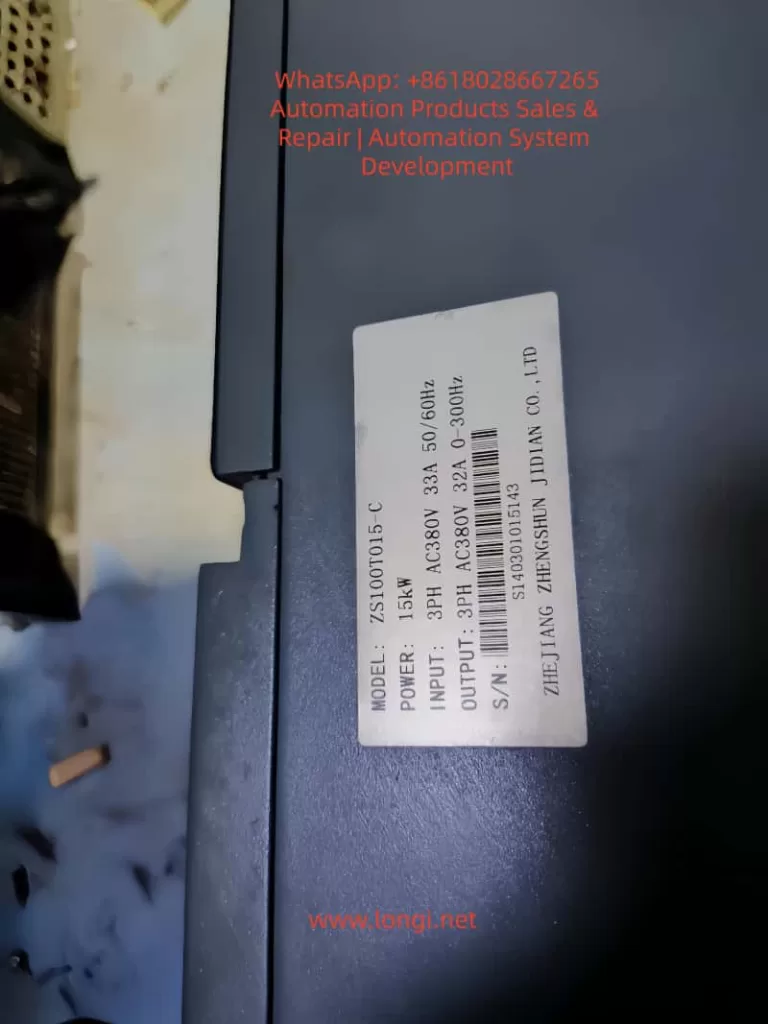
Example: Take ZS100T015-C (15kW, rated output current 32A). If actual hydraulic pump power demand reaches 18kW (considering 1.2~1.5x safety margin), the drive capacity is insufficient.
Risk: Hydraulic pump starting torque peaks can reach over 200%. If sizing only matches rated power, long-term operation will inevitably overload.
MCCB needs ≥63A, contactor ≥40A, input wire ≥6mm². If wires are too thin or contactor capacity is insufficient, contact resistance heating further amplifies overload.
Braking Unit: 15kW model built-in braking resistor recommended ≥32Ω/100W. Without external braking unit or if resistance value is too large, deceleration energy cannot be released, indirectly raising bus voltage and current.
Quantitative Judgment: Measured output current (A01/A02 analog output) long-term ≥110% rated value indicates undersizing.
Cause 2: Excessive Load or Motor Locked Rotor
High-load scenarios specific to hydraulic systems:
Relief valve not fully open, pump blockage, injection/clamping pressure set too high;
Oil temperature too low causing viscosity increase, pipeline leakage causing excessive compensation current.
Locked Rotor Characteristics:
When motor locks, three-phase current instantly reaches over 300%, triggering ERR10 within 5s.
Criteria: Speed feedback (PG card SIN/COS signal) is 0 while set frequency >0Hz, or A13 pressure feedback suddenly rises to upper limit.
Commissioning Risk: Section 3.2 of commissioning flow clearly states that if load tuning (P1.16=2) fails during motor trial run, overload is easily caused by locked rotor. ZS100 overload protection time is strict: must act after 150% for 100s, otherwise IGBT burn risk is extremely high.
Cause 3: Drive Hardware Failure
Fault Scope: Includes IGBT module aging, current sensor drift, main control board/drive board abnormalities, lightning protection board breakdown.
Accompanying Fault: ERR18 (current detection fault) often accompanies ERR10.
Hardware Failure Features: ERR10 reported even without load, or three-phase current severely unbalanced (>20%).
Board-level Check Points:
Bus capacitor capacity attenuation (measured voltage fluctuation >10%);
Cooling fan speed <2000rpm;
IGBT module Vce saturation voltage drop abnormality.
Environmental Impact: 15kW model weighs 6.5kg. When installation environment temperature exceeds 40℃ or vibration >5.9m/s², hardware life significantly shortens.
Cause 4: Pressure Sensor Failure
ZS100 is optimized for hydraulic servo pumps. Terminal A13 (pressure sensor feedback) connects to ±10V or 0~20mA signal (selected by J5 jumper).
Fault Mechanism: Sensor output abnormality (open circuit, short circuit, zero drift >0.5%) causes closed-loop vector control to misjudge insufficient pressure, automatically increasing torque setpoint and causing current surge.
Typical Manifestations:
Panel shows ERR10 while A13 input voltage remains constant at 0V or 10V limit values.
If 13V sensor power supply (+13V~GND) output deviation >±10%, it will also indirectly trigger.
Requirement: Hydraulic system pressure fluctuates greatly (0~250bar), requiring high sensor pressure resistance and linearity.
III. Standardized Diagnostic Procedure (30-Minute Positioning Method)
Strictly follow the five-step method of “Power-off Inspection—Power-on Parameters—Load Isolation—Sensor Verification—Hardware Measurement” to avoid blind reset.
1. Safety Power-off Inspection (5 minutes)
Cut off main power R/S/T, wait for bus capacitor to discharge to <36V (confirm with multimeter DC range). Check:
Main Circuit: Whether wires (U/V/W) are loose or insulation damaged;
Grounding: Whether grounding terminal ⊕ is reliable (<0.1Ω);
Braking Resistor: Whether (+、PB) connections are correct and resistance matches (15kW ≥32Ω);
Sensor: Whether pressure sensor wires (A13-GND) have open or short circuits.
Nameplate Check: ZS100T015-C-2 input 28A/output 30A, matches actual pump power?
2. Parameter Check and Self-Learning (10 minutes)
After power-on, enter P1 group (motor parameters):
P1.01~P1.05: Confirm motor rated power, current, voltage, frequency, speed match ZM motor nameplate;
P1.15: Motor overload coefficient default 1.0;
P1.16: Execute static self-learning (=1) or dynamic self-learning (=2), must open relief valve before running. Learning failure directly correlates with ERR10.
P0.02: =0 (panel control), confirm no external CAN setpoint interference.
Disconnect motor from pump coupling (or close all valves), execute no-load trial run:
Press “Run” key, observe output current (A01 set as current monitoring, J4 jumper voltage output).
If ERR10 still reported: Exclude excessive load, pointing to hardware or sizing issues.
If current normal: Reconnect pump, gradually increase pressure (from 10bar), monitor corresponding relationship between A13 pressure feedback and current.
4. Pressure Sensor Special Verification (5 minutes)
Measure +13V~GND output: should be 13V±1.3V;
Measure A13-GND voltage: 0V at no pressure, 10V at full pressure (or 20mA range);
Calibration: Calibrate sensor with standard pressure source. If output deviation >2%, replace immediately (recommend 0~350bar 4~20mA type).
PID Optimization: Optimize P3 group PID parameters (reduce proportional gain by 20%~30%, extend integral time).
3. For Hardware Failure
Module Replacement: Replace corresponding module (IGBT module must match model);
Maintenance: Clean heat sink, fan speed test >2800rpm;
Return to Factory: Return entire unit or replace drive (free during warranty).
4. For Pressure Sensor Failure
Replacement: Replace with same specification sensor, re-zero (pressure feedback zero calibration in P parameters);
Anti-interference: Add shielded wire, keep away from strong current interference;
Bus Check: For multi-unit systems, check CAN bus terminal resistance (J8 jumper).
Post-reset Monitoring: Must monitor for 30 minutes. Confirm current <105% rated value, pressure stable, no abnormal noise before putting into production.
V. Parameter Optimization and Preventive Maintenance System
Preventing ERR10 core lies in parameter closed-loop and regular maintenance:
Conclusion: From Passive Alarm to Active Protection
ERR10 is not an isolated fault, but the result of four-dimensional coupling among drive, motor, hydraulic load, and sensor. Mastering the complete ZS100 series architecture (Chapters 1~10 + Appendices), combined with the five-step diagnosis and four targeted solutions above, can compress fault downtime by over 90%.
Recommendation: Establish equipment files, execute quarterly “parameter backup—self-learning—load test—sensor calibration” maintenance, combined with PLC upper monitoring to achieve zero-fault operation. The key to hydraulic servo system efficiency and stability lies in “proper sizing, precise parameters, timely maintenance”. Strictly following this process will transform ERR10 from a “common fault” into a controllable risk that is “predictable and avoidable”.
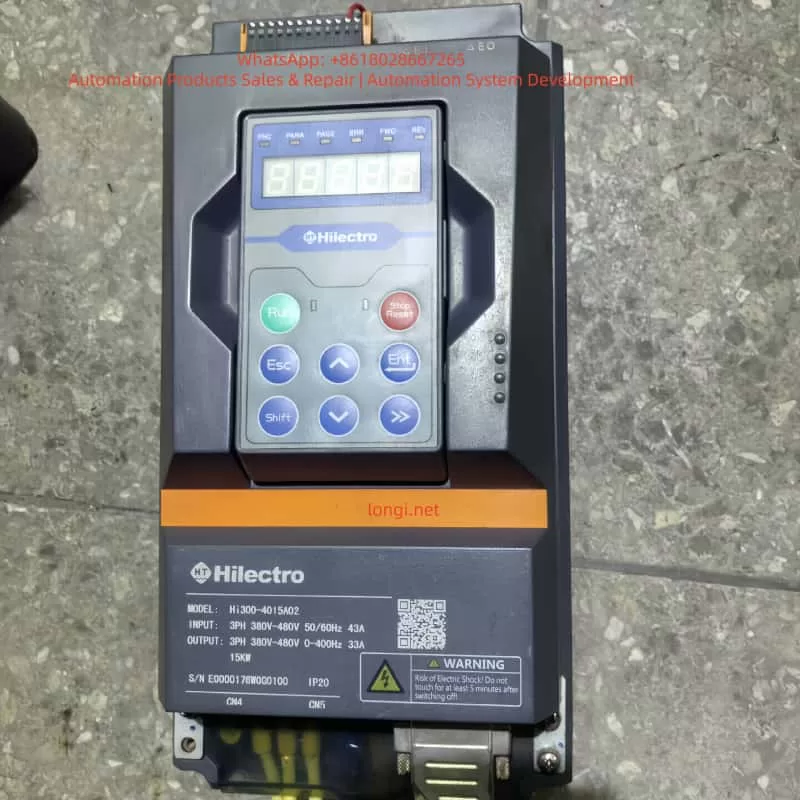
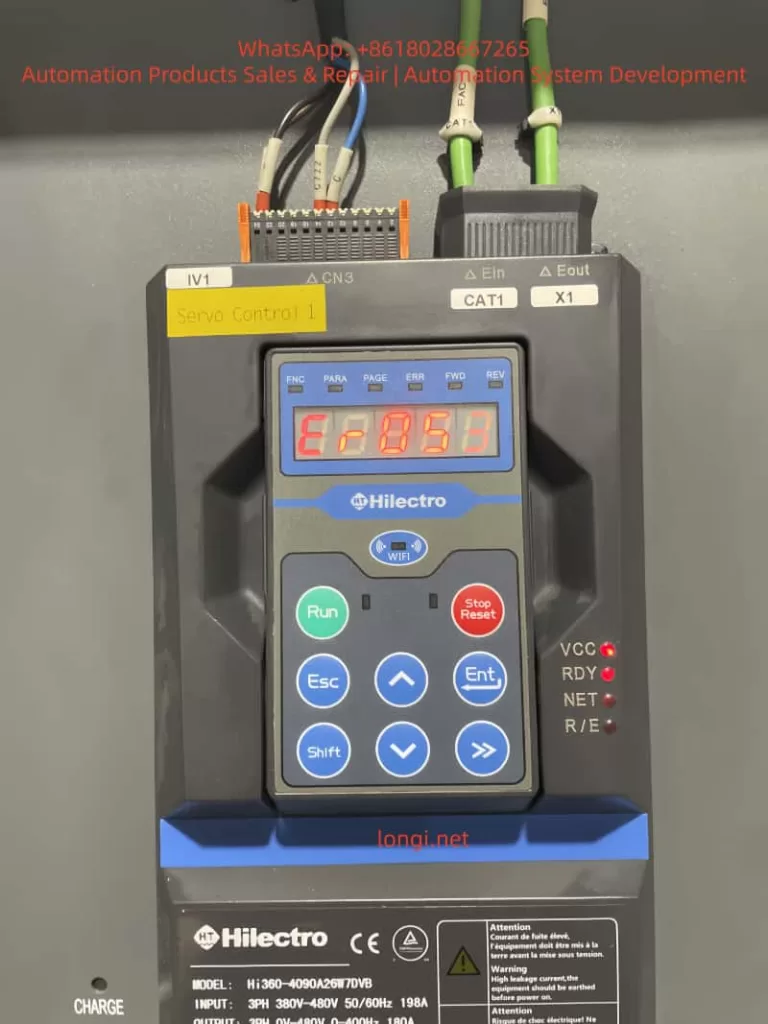
In industrial automation fields such as injection molding machines, CNC machine tools, and packaging machinery, the HILECTRO HI300/HI360 series drives have become core power solutions for numerous equipment manufacturers due to their high reliability, precise vector control performance, and comprehensive protection functions. However, even industry-leading products are not immune to faults—among which, the ER053 “software undervoltage” fault is one of the most frequently reported issues by users. This fault can cause the drive to suddenly shut down and the motor to stop running, leading to production interruptions and raw material waste in mild cases, and motor or load machinery damage in severe cases.
This article provides a systematic analysis of the ER053 fault from six dimensions: fault definition, cause analysis, troubleshooting steps, solutions, case verification, and preventive maintenance. It aims to assist maintenance personnel in quickly locating problems, efficiently resolving faults, and offering long-term prevention strategies to ensure stable equipment operation.
I. Definition and Typical Phenomena of the ER053 Fault
1.1 Fault Code Meaning
The ER053 fault is a software undervoltage protection fault in the HILECTRO HI300/HI360 series drives, classified as a power-related fault. According to the manufacturer’s technical documentation, its triggering logic is as follows:
The drive’s internal CPU collects the input power supply voltage through voltage sensors. When the effective value of the line voltage is detected to be below 85% of the rated voltage (e.g., below 323V in a 380V system) and the duration exceeds the software-set delay threshold (typically 50-100ms), the software algorithm determines it as an “undervoltage” condition, triggering the ER053 fault and shutting down the drive.
Unlike hardware undervoltage protection (e.g., voltage relays directly cutting off the power supply), software undervoltage protection is more flexible—it filters out instantaneous voltage fluctuations (e.g., drops within 10ms) through algorithms to avoid false shutdowns. However, it may also lead to faults due to algorithm misjudgments or improper parameter settings.
1.2 Typical Fault Phenomena
The ER053 fault exhibits distinct “power-related” characteristics, which maintenance personnel can quickly identify through the following phenomena:
Display Panel: The operation panel displays the “ER053” fault code with a red backlight, and some models may emit a “beep” alarm sound.
Indicator Lights: The “RDY” (ready) light flashes or goes out, the “VCC” (power supply) light remains on, but the “NET” (network) light may flash.
Equipment Status: The motor suddenly stops running, and the load machinery (e.g., injection molding machine screw, machine tool worktable) stalls or remains stationary.
Accompanying Phenomena: The workshop lights may briefly dim, or nearby large equipment (e.g., air compressors, electric welders) may start up when the fault occurs.
II. In-depth Cause Analysis of the ER053 Fault
The core of the ER053 fault is “insufficient input power supply voltage,” but its causes involve four dimensions: the power supply side, the wiring side, the load side, and the drive’s internal circuitry, which need to be dissected one by one.
2.1 Power Supply Side: Grid Fluctuations or Instantaneous Power Outages
The grid is the power source for the drive, and its stability directly affects drive operation. Common issues include:
Instantaneous Power Outages: When large equipment (e.g., 100kW air compressors, cranes) starts up, the grid current surges, causing the voltage to drop instantaneously (potentially below 50% of the rated voltage) for 5-100ms. For example, when an air compressor near an injection molding machine plant started up, the drive’s input voltage dropped from 380V to 280V for 60ms, triggering the ER053 fault.
Long-term Low Voltage: In remote areas or old grids, the voltage may remain below the drive’s minimum input requirement (380V ± 10% for the HI360 series) for extended periods. For instance, the grid voltage at a machine tool plant consistently remained at 350V, causing the drive to frequently report errors due to “borderline undervoltage.”
Phase Loss or Phase Sequence Errors: Although phase loss usually triggers the ER001 fault, if it causes voltage imbalance in the remaining two phases, the software may misjudge it as an undervoltage condition (requiring judgment based on other fault codes).
2.2 Wiring Side: Loose Connections or Cable Defects
The contact resistance or cable losses in the input wiring can cause the “actual input voltage” to be lower than the “power supply end voltage,” making it a common cause of the ER053 fault:
Loose Connections: The screws on the drive’s input terminals (L1/L2/L3) are not tightened properly, or the copper lugs are oxidized (blackened), increasing contact resistance. For example, a user’s L1 terminal screw torque was only 8N·m (standard: 15-20N·m), resulting in a 50V voltage drop at 100A current and reducing the actual input voltage from 380V to 330V.
Cable Damage: The cable’s insulation layer is damaged due to prolonged bending or friction, or the copper core is oxidized (increasing resistance). For instance, after 5 years of use, the copper core resistance of a device’s cable increased from 0.1Ω to 0.5Ω, causing a 75V voltage drop at 150A current.
Poor Grounding: Excessive PE grounding resistance (>4Ω) causes the voltage detection reference point to shift. For example, a user connected the grounding wire to a water pipe, resulting in a 10Ω grounding resistance and a 20V detection voltage error.
2.3 Load Side: Load Mutations or Overloads
Sudden changes in the load can cause the motor current to surge, pulling down the power supply voltage and triggering an undervoltage condition:
Load Jamming: The injection molding machine screw gets jammed by cold material, or the machine tool’s ball screw bearing is damaged, causing a sudden increase in load torque. To overcome the load, the motor current surges (potentially reaching 2-3 times the rated current), pulling down the power supply voltage. For example, when an injection molding machine screw jammed, the current increased from 120A to 250A (rated 180A), and the voltage dropped from 380V to 310V.
Overload Operation: Operating continuously beyond the motor’s rated load (e.g., setting the injection pressure of an injection molding machine higher than specified) causes the current to remain excessively high, lowering the voltage. A user increased the injection pressure from 100bar to 150bar to improve production output, causing the motor current to consistently exceed the rated value and the drive to frequently report the ER053 fault.
2.4 Drive’s Internal Circuitry: Detection Circuit or Software Issues
If the power supply, wiring, and load are all normal, internal drive faults must be considered:
Voltage Sensor Damage: The Hall voltage sensor (detecting input voltage) may output a low voltage due to overheating or aging. For example, a drive’s sensor consistently output 1.2V (normal: 2.5V), causing it to report the ER053 fault even with normal input voltage.
Sampling Circuit Faults: Increased resistance in sampling resistors (e.g., 10kΩ) or capacitor leakage can cause the sampling voltage to be low. For instance, a drive’s sampling resistor increased to 15kΩ, reducing the sampling voltage from 2V to 1.5V and causing the software to misjudge it as an undervoltage condition.
Software Algorithm Misjudgments: Early software versions (e.g., HI360 V1.0) may have bugs in the voltage fluctuation filtering logic, causing false ER053 reports when voltage fluctuations exceed ±10%. Upgrading to V1.1 resolved the issue.
III. Systematic Troubleshooting Steps for the ER053 Fault
Troubleshooting the ER053 fault should follow the principle of “from the outside in, from simple to complex” to avoid盲目 (blindly) disassembling the drive. The following is a standardized process:
3.1 Step 1: Collect Fault Information (Critical!)
Inquire from Operators: Gather information on the equipment’s state when the fault occurred (starting/running/stopping), load conditions (jamming/overload), surrounding environment (equipment starting/lightning), and previous operations (parameter changes/cable replacements).
Observe Phenomena: Record the fault code (whether accompanied by other codes), indicator light states (RDY/VCC lights), motor sounds (abnormal noises), and load states (e.g., screw jamming).
Check Historical Records: The HI360 series supports storing the last 10 faults. View the fault time and voltage values using the “PARA-97” parameter to determine if it is a recurring fault.
3.2 Step 2: Check the Input Power Supply (Basic Troubleshooting)
Tools: Multimeter (Fluke 15B+, AC voltage range), oscilloscope (bandwidth ≥1MHz, sampling frequency ≥10MS/s), voltage tester.
Operation Steps:
Cut off the drive’s power supply and confirm no voltage at the input terminals using a voltage tester.
Open the wiring cover and locate the input terminals (L1/L2/L3/N/PE).
Measure the line voltage: L1-L2/L2-L3/L3-L1, which should normally be within 380-480V (HI360 range) with a deviation ≤ ±5%.
Measure the neutral-to-ground voltage: N-PE, which should normally be <2V (good grounding).
Capture instantaneous voltage drops using an oscilloscope (e.g., below 320V and lasting >50ms).
Check the power switch/fuse for burn marks or looseness.
Judgment Criteria: Voltage below 380V or instantaneous drops → power supply side issue; normal voltage → proceed to the next step.
3.3 Step 3: Check Wiring and Cables (Frequent Fault Points)
Cut off the power supply and remove the input cable copper lugs.
Inspect the copper lugs for oxidation (blackening) and clean them with alcohol or replace them with tin-plated copper lugs (oxidation-resistant).
Inspect the cable for insulation damage and measure the core resistance using a multimeter (normal <0.1Ω/m).
Reconnect the wiring, tightening the screws with a torque of 15-20N·m to ensure a tight contact between the copper lugs and terminals.
Test the grounding by measuring the resistance between the PE terminal and the grounding electrode (<4Ω). If the grounding electrode is a water pipe/rebar, confirm good grounding.
Judgment Criteria: Oxidized copper lugs/loose screws/cable damage → repair and test; normal wiring → proceed to the next step.
3.4 Step 4: Check the Load Conditions (Easily Overlooked Points)
Cut off the power supply and use the manual cranking tool to rotate the load (e.g., injection molding machine screw) to check for jamming.
Inspect the load machinery for damaged bearings (abnormal noises/heat), loose/broken drive belts, or foreign objects in the ball screw.
Measure the motor current with the power supply connected using a clamp-on ammeter (should be < the rated current, e.g., 180A for the HI360-4090A26W7DVB).
Verify the motor parameters in the drive to ensure they match the actual motor (e.g., rated voltage/current/pole pairs). Incorrect parameters can lead to torque calculation errors.
Judgment Criteria: Load jamming/overload → repair the load; normal load → proceed to the next step.
3.5 Step 5: Internal Drive Inspection (For Professional Personnel Only)
Cut off the power supply and wait 5 minutes (for capacitor discharge).
Open the drive’s casing and locate the voltage detection circuit on the power board (Hall sensor, sampling resistors, operational amplifiers).
Measure the sensor output: The Hall sensor output should be 2-3V (corresponding to 380-480V input).
Measure the sampling resistors: Their resistance values should match the labeled values (e.g., 10kΩ ± 1%).
Measure the operational amplifier power supply: ±15V should be normal.
Replace components: If the sensor/resistors are damaged, replace them with original factory parts.
Upgrade the software: Check the “PARA-99” parameter (software version) and contact the manufacturer for an upgrade if it is outdated.
Judgment Criteria: Damaged internal components → replace and test; software issues → upgrade and verify fault resolution.
IV. Targeted Solutions for the ER053 Fault
Based on the troubleshooting results, take the following measures:
4.1 Solutions for Power Supply Side Issues
Instantaneous Power Outages: Install an uninterruptible power supply (UPS) (e.g., Santak C10KS, 10kVA capacity) or a voltage stabilizer (SBW-100kVA) to isolate grid fluctuations.
Long-term Low Voltage: Contact the power company for voltage adjustment or replace the drive with a wide-voltage model (the HI300 supports 340-480V input).
Phase Loss/Phase Sequence Errors: Install a phase sequence protector to ensure correct input phase sequence.
4.2 Solutions for Wiring Side Issues
Loose Connections: Use a torque wrench (15-20N·m) to tighten the screws and replace tin-plated copper lugs.
Cable Damage: Replace the cable with a YJV cable that meets the current requirements (70mm² for 180A) and avoid excessive bending (bending radius ≥10 times the diameter).
Poor Grounding: Install a dedicated grounding electrode (angle steel, resistance <4Ω) and use a yellow-green bicolored grounding wire (cross-section ≥16mm²).
4.3 Solutions for Load Side Issues
Load Jamming: Clear foreign objects (e.g., cold material in injection molding machines) and replace damaged bearings/drive belts.
Overload Operation: Reduce the load torque (e.g., lower the injection pressure in injection molding machines) and adjust the drive’s “torque boost” parameter (avoid excessive values).
Incorrect Motor Parameters: Reset the motor parameters in the drive (e.g., “PARA-01” rated voltage, “PARA-02” rated current).
4.4 Solutions for Internal Drive Issues
Component Damage: Contact HILECTRO after-sales service (400-888-XXXX) to replace the voltage sensor/sampling resistors.
Software Issues: Upgrade the software (e.g., HI360 V1.1) through a USB interface or operation panel, backing up parameters beforehand (“PARA-98”).
V. Typical Case Verification
Case 1: ER053 Fault in an Injection Molding Machine (Loose Wiring)
Fault Phenomenon: A HI360-4090A26W7DVB drive in an injection molding machine reported the ER053 fault 2-3 times per hour, accompanied by a “beep” alarm.
Troubleshooting Process:
The operator reported that the fault occurred during the injection phase (high current).
Power supply detection: Input voltage was 385V, normal.
Wiring inspection: The L1 terminal copper lug was oxidized, and the screw torque was only 8N·m.
Solution: Replace the tin-plated copper lug and tighten the screw (18N·m).
Result: No faults occurred after 1 month of continuous operation.
Case 2: ER053 Fault in a Machine Tool (Grid Instantaneous Power Outage)
Fault Phenomenon: A HI300-220A drive in a machine tool frequently reported the ER053 fault when a nearby air compressor started up, causing the worktable to stop moving.
Troubleshooting Process:
Observation: The workshop lights dimmed, and the RDY light flashed when the air compressor started up.
Oscilloscope detection: The voltage dropped from 380V to 290V for 80ms.
Solution: Install a 15kVA UPS to supply power to the drive and control system.
Result: The UPS maintained stable voltage when the air compressor started up, and the fault disappeared.
Case 3: ER053 Fault in a Drive (Internal Sensor Damage)
Fault Phenomenon: A user’s HI360 drive displayed the ER053 fault, but the input voltage was 385V, and the wiring was not loose.
Troubleshooting Process:
Load inspection: The motor current was 120A (rated 180A), and the load was normal.
Internal detection: The Hall sensor output was 1.2V (normal: 2.5V), confirming damage.
Solution: Replace the original factory voltage sensor.
Result: The drive returned to normal operation after replacement.
VI. Preventive Measures for the ER053 Fault
6.1 Regular Maintenance (Critical!)
Monthly: Check the input wiring (tighten screws, clean oxidation).
Quarterly: Detect the power supply voltage (record fluctuations).
Annually: Clean the drive’s interior (blow dust with compressed air) and test the grounding resistance (<4Ω).
6.2 Operational Specifications
Avoid frequent start-stop cycles (≤10 times per hour for injection molding machines).
Strictly prohibit overload operation (set the “maximum current” parameter strictly, e.g., “PARA-12” for HI360).
Do not arbitrarily modify parameters (e.g., “undervoltage threshold,” “torque boost”) without manufacturer guidance.
6.3 Environmental Requirements
Install in a well-ventilated area (temperature 0-40°C, humidity <80%).
Avoid dust, oil mist, and vibration (e.g., add a protective cover to the oil mist collector in injection molding machines).
6.4 Personnel Training
Operators: Master the ER053 phenomena and initial handling (check wiring/power supply).
Maintenance Personnel: Participate in manufacturer training to master troubleshooting steps and repair skills.
VII. Precautions
Safety First: Cut off the power supply before checking it and confirm no voltage using a voltage tester. Avoid touching high-voltage components (capacitors, rectifier bridges).
Tool Use: Select the correct multimeter range (AC voltage range for power supply) and ensure proper oscilloscope grounding.
Parameter Modification: Back up parameters (“PARA-98”) before modification and do not modify factory-default parameters (“PARA-00” initialization).
After-sales Support: Do not attempt internal repairs for internal circuit faults; contact manufacturer after-sales service. Do not use non-original factory parts.
VIII. Summary
The ER053 “software undervoltage” fault is a common issue in the HILECTRO HI300/HI360 series drives, with its core being “insufficient input power supply voltage.” However, its causes involve four dimensions: power supply, wiring, load, and internal circuitry. By following a systematic troubleshooting process (collect information → check power supply → check wiring → check load → internal detection), the fault cause can be quickly located. Targeted solutions (installing a UPS, tightening wiring, clearing the load, replacing sensors) can efficiently resolve most faults.
The key to preventing the ER053 fault is regular maintenance, standardized operation, and improved environmental conditions. Maintenance personnel should emphasize wiring inspections, power supply detections, and load monitoring to avoid major faults caused by minor issues. If internal circuit problems are encountered, timely manufacturer technical support should be sought to avoid expanding losses through self-repairs.
With the development of industrial automation, the reliability of drives directly affects production efficiency. Through the analysis in this article, we hope to help maintenance personnel better understand the ER053 fault, improve fault handling efficiency, and safeguard enterprise production.
The CHUEUN Ruikong CA100 series frequency converter is a high-quality product in the field of industrial automation, suitable for various industries such as metallurgy, mining, cement, petroleum, municipal services, machine tools, rubber and plastics, logistics, HVAC, and construction machinery. As a high-performance vector frequency converter, the CA100 series supports open-loop vector control (SVC) and V/F control, with a maximum frequency of up to 600Hz (vector control), applicable to both asynchronous and synchronous motors (CA100S series). This guide, based on the simplified user manual for the CHUEUN Ruikong CA100 series, provides detailed introductions to the operation panel functions, password setting and elimination, parameter access restrictions, external terminal forward/reverse control, external potentiometer speed regulation settings and wiring, fault code lists, and solutions. It aims to help users quickly get started with the CA100 frequency converter, optimize industrial equipment control, and enhance production efficiency. If you are searching for “CHUEUN Ruikong CA100 frequency converter operation guide,” “CA100 password setting method,” “CA100 external control wiring diagram,” or “CA100 troubleshooting tutorial,” this guide will provide comprehensive answers.
Part 1: Introduction to the Operation Panel Functions of the CA100 Frequency Converter
The operation panel (also known as the LED keypad or control panel) of the CHUEUN Ruikong CA100 series frequency converter is the core interface for user interaction with the device, supporting parameter viewing, modification, operation control, and fault display. The panel includes a digital display, buttons, and indicator lights, and supports the extension of an external LED or LCD keypad (using a standard network cable). The mounting hole size for the panel is 64.5mm in length × 110.5mm in width. The following is a detailed functional introduction to help users master the “CA100 operation panel usage method.”
Detailed Explanation of Operation Panel Button Functions
The button design of the CA100 operation panel is simple and practical, including the following main buttons, each of whose functions can be optimized through parameter configuration. Button operations should be performed in a safe state to avoid accidental contact while powered on.
RUN Button: Start operation button. In keyboard control mode, pressing this button starts the forward rotation operation of the frequency converter (default direction). Suitable for quick start testing scenarios. If the frequency converter is in terminal control or communication control mode, this button is ineffective. Note: Ensure the motor is connected correctly before starting to avoid overloading.
STOP/RESET Button: Stop/reset button. In the running state, pressing this button stops the frequency converter output; in the fault alarm state, pressing this button resets the fault. The function of this button is affected by parameter P7-27, for example, it can be set to be effective only in keyboard mode. The reset operation can clear the current fault code, but the root cause should be investigated to prevent repeated alarms.
QUICK Button: Jog operation button or direction switching button. Depending on the setting of parameter P7-28:
If P7-28=0, it is the jog operation button. When pressed, the frequency converter operates at the jog frequency (default 0.00Hz~50.00Hz, adjustable via parameters) and stops when released. Suitable for debugging or short-term operation.
If P7-28=1, it is the direction switching button. After pressing, the running direction is reversed (forward to reverse, and vice versa). This function is very practical in scenarios requiring frequent rotation direction switching, such as conveyor belt control.
PRG Button: Programming button. Pressing this button enters the parameter programming mode, allowing viewing and modification of function codes (such as P0 group basic parameters, P5 group input terminals, etc.). Press and hold to exit the programming mode. Combined with the MF.K button, it enables parameter group switching.
MF.K Button: Multifunction button. Supports button locking and function selection, allowing the definition of the operational scope of some buttons to prevent misoperation. For example, through parameter settings, the RUN/STOP buttons can be locked, allowing only authorized users to operate.
UP/DOWN Buttons: Up/down adjustment buttons. In programming mode, used to increase or decrease parameter values; in running mode, can adjust the digital given frequency (if the frequency source is set to digital given). The rate of change can be set via parameter P5-12 (0.01Hz/s~100.00Hz/s, default 1.00Hz/s).
The operation panel supports parameter copying. Using an LED or LCD keypad allows for quick parameter replication, suitable for batch equipment configuration. The LCD keypad is optional and supports Chinese/English/Russian prompts, enhancing international application convenience.
Detailed Explanation of Operation Panel Indicator Light Functions
The CA100 frequency converter operation panel has four indicator light groups, providing intuitive status feedback. The colors and blinking states correspond to different meanings, facilitating real-time monitoring.
RUN Indicator Light (Running Status, Green):
On: The frequency converter is in the running state, and the motor output is normal.
Off: The frequency converter is in the stopped state, with no output.
Blinking: The frequency converter is in sleep mode (energy-saving mode), suitable for fan and pump loads.
L/D/C Indicator Light (Control Mode, Red):
Off: Keyboard control mode (running commands come from the operation panel).
On: Terminal control mode (running commands come from external DI terminals).
Blinking: Remote communication control mode (running commands come from a serial port, such as Modbus).
FWD/REV Indicator Light (Running Direction, Red):
Off: Forward rotation state.
On: Reverse rotation state.
Blinking: The target frequency and actual frequency directions are opposite, or in a reverse operation prohibition state (restricted by parameter settings).
On: Torque control mode (suitable for constant torque loads, such as cranes).
Blinking: Motor parameter tuning is in progress or in a fault state. Tuning requires ensuring the motor is unloaded, and the Err code is displayed in case of a fault.
These indicator lights, combined with the LED digital display, can display parameter values, running frequencies, fault codes, etc. The display supports an input frequency resolution of 0.01Hz (digital setting) or up to the maximum frequency × 0.1% (analog setting), ensuring precise control.
How to Set and Eliminate Passwords
The CA100 frequency converter supports a user password function, implemented through parameter P7-49, to prevent unauthorized parameter modifications. The password range is 0~65535, with a default of 0 (no password). Setting a password is a key step to enhance device security, suitable for multi-user shared scenarios.
Steps to Set a Password:
Press the PRG button to enter the programming mode, displaying P0-00 (or the current group).
Use the UP/DOWN buttons to navigate to the P7 group (auxiliary function parameters).
Enter P7-49 (user password), which defaults to 0.
Enter the desired password (e.g., 1234) and press the MF.K button to confirm and save.
Exit the programming mode. The next time you enter programming mode, you will need to enter the password to modify parameters. If the password is entered incorrectly more than a certain number of times (restricted by parameters), the Err26 (password input exceeds the limit) fault will be triggered.
Steps to Eliminate a Password:
In programming mode, enter the current password to unlock parameter access.
Navigate to P7-49 and set the value to 0, then press the MF.K button to confirm.
Exit the mode. After the password is eliminated, parameters can be freely modified. Note: If you forget the password, you can restore the factory settings through parameter initialization (P7-00=1), but custom parameters will be lost.
The password function integrates automatic voltage regulation (AVR) and torque limiting to ensure safe operation. If the device is locked after password setting, it is recommended to contact a CHUEUN Ruikong agent for support.
How to Set Parameter Access Restrictions
Parameter access restrictions for the CA100 series are mainly implemented through the user password (P7-49), with no independent access level parameters (such as advanced/user level). Once the password is enabled, non-password holders can only view parameters and cannot modify them, suitable for preventing misoperation in factory environments.
Steps to Set Access Restrictions:
Set a non-zero value for P7-49 (as described above) to enable restrictions.
Combine with the MF.K button to lock specific buttons (the operational scope is defined by parameter P7-28).
For advanced restrictions, set P7-00=2 (partial initialization) to retain user parameters but restrict access.
Steps to Remove Access Restrictions:
Follow the same steps as eliminating the password. Additionally, button locking can be removed by setting P7-28=0. Parameter access restrictions help users searching for “CA100 parameter protection method” to ensure stable device operation.
This section has detailed all the functions of the CA100 operation panel, ensuring users can operate the frequency converter efficiently. Next, we will explore external control configurations.
Part 2: External Terminal Forward/Reverse Control and External Potentiometer Speed Regulation of the CA100 Frequency Converter
The CHUEUN Ruikong CA100 series supports flexible external control, including digital input (DI) terminal forward/reverse control and analog input (AI) terminal potentiometer speed regulation. The input terminals come standard with four DIs (expandable to five, with AI1 being reusable as a DI) and support NPN input mode. Implementing these functions requires setting relevant parameters and correct wiring. The following is a detailed guide suitable for users searching for “CA100 external terminal control tutorial.”
Implementing External Terminal Forward/Reverse Control
External terminal forward/reverse control switches the running command channel to terminal mode, using DI1 and DI2 to control the direction. Suitable for PLC or switch control scenarios.
Parameter Setting Steps:
Set the running command channel to terminal control: Navigate to P0-02 (running command channel) and set it to 1 (control terminal given). The default is 0 (operation panel).
Configure DI terminal functions:
P5-00 (DI1 function) = 1 (forward rotation FWD).
P5-01 (DI2 function) = 2 (reverse rotation REV).
Set the terminal command mode P5-11:
0: Two-wire mode 1 (DI1 closed for forward rotation, DI2 closed for reverse rotation; both closed or open for shutdown).
1: Two-wire mode 2 (DI1 closed for operation, DI2 open for forward rotation, closed for reverse rotation).
2: Three-wire mode 1 (requires DI3=3 for three-wire control).
3: Three-wire mode 2 (similar but with different logic). The default is 0.
Set the DI filtering time P5-10=0.010s (to avoid noise interference).
Set the DI effective logic P5-13=00000 (high level effective, adjustable to low level).
Wiring for Specific Terminals:
The main circuit terminals of the CA100 include R/S/T (input), U/V/W (output to the motor), +/ – (brake). The control terminals include:
Connect DI1 to one end of an external switch and the other end to COM (common ground).
Connect DI2 to one end of another switch and the other end to COM.
Example: Using push-button switches, pressing DI1-COM short-circuits to start forward rotation; pressing DI2-COM short-circuits to start reverse rotation. Ensure the wire diameter complies with the manual’s recommendations (refer to the peripheral device connection section in the preface) and install a filter to avoid harmonic interference.
For models from 18kW to 30kW, DI5 expansion is supported.
After setting, press the external switches to control forward/reverse rotation. The torque response is ≤40ms, ensuring a quick response.
External potentiometer speed regulation uses the AI1 analog input to adjust the frequency, suitable for manual speed control such as fan speed regulation.
Parameter Setting Steps:
Set the frequency source to analog input: P0-03 (main frequency source) = 1 (analog voltage given) or 2 (analog current given). The default is 0 (digital given).
Configure AI1 parameters (page 46):
P5-15 (AI1 minimum input value) = 0.00V (corresponding to the lowest speed).
P5-16 (AI1 minimum input corresponding setting) = 0.0% (-100.0%~100.0%, corresponding to the frequency percentage).
P5-17 (AI1 maximum input value) = 10.00V (default).
P5-18 (AI1 maximum input corresponding setting) = 100.0% (corresponding to the maximum frequency P0-14).
If an auxiliary frequency source is needed, set P0-04=1 (AI1 auxiliary).
Ensure the running command channel is set to terminal or keyboard as required.
Wiring for Specific Terminals:
Use a 10kΩ potentiometer: Connect one end to +10V (built-in power supply), the sliding end to AI1, and the other end to GND.
Example: When the potentiometer is rotated to 0V, the frequency is 0Hz; when rotated to 10V, the frequency is the maximum (P0-14, default 50Hz).
AI1 supports voltage/current switching (via jumpers), with voltage as the default. When wiring, ensure there is no short circuit and refer to the manual for the wire diameter.
Combined with forward/reverse control, complete external operation can be achieved: terminal control for direction and potentiometer for speed regulation. Monitor the output current during testing to avoid overloading (150% rated for 60s).
Part 3: Fault Codes and Solutions for the CA100 Frequency Converter
The CA100 series frequency converter has a built-in comprehensive fault protection mechanism. When a fault occurs, an Err code is displayed, and the relay output is activated. The following lists all common fault codes (based on pages 20-24 and 31 of the manual), including cause investigation and handling countermeasures. Fault troubleshooting should be performed by professional personnel, referring to the “CA100 fault code compendium.”
Fault Code List and Solutions
Fault Name
Code
Cause Investigation
Solution
Inverter Module Protection
Err01
1. U/V/W short-circuit or to ground; 2. Module overheating; 3. Loose internal wiring; 4. Board card abnormality.
1. Eliminate the short circuit; 2. Check the fan/air duct; 3. Tighten the cables; 4. Seek support.
1. Heavy load/short acceleration time; 2. Unreasonable P9-31/32.
1. Extend time; 2. Reset P9.
User-defined Fault 1
Err30
1. DI input signal.
1. Reset.
User-defined Fault 2
Err31
1. DI input signal.
1. Reset.
PID Feedback Loss During Operation
Err32
1. Feedback < PA-13.
1. Check signal/reset PA-13.
Quick Current Limiting
Err33
1. Heavy load/stalled rotation; 2. Short acceleration time.
1. Reduce load/replace with larger size; 2. Extend time.
Load Loss Fault
Err34
1. Detection conditions reached (P9-28~30).
1. Reset/reset parameters.
Input Power Fault
Err35
1. Abnormal voltage; 2. Frequent power on/off.
1. Adjust voltage; 2. Extend cycle.
Parameter Storage Abnormality
Err37
1. DSP/EEPROM communication abnormality.
1. Replace main control board; 2. Seek support.
Current Operation Time Reached
Err39
1. > P7-38.
1. Reset.
Cumulative Operation Time Reached
Err40
1. Reached P7-20.
1. Initialize/clear.
Motor Switching During Operation
Err42
1. Terminal switching during operation.
1. Stop and switch.
Master-Slave Control Communication Disconnection
Err46
1. No master/slave setting; 2. Incorrect wiring/parameters.
1. Set master; 2. Check wiring/P8.
SVC Stop Speed Feedback Abnormality
Err47
1. Parameters not learned/motor not connected.
1. Set P9-09=0 to turn off (0~100.0s, default 5s).
The fault address (page 31) corresponds to Modbus communication: e.g., 0004 = acceleration overcurrent. When a fault occurs, check U1-40 (current fault display). Common countermeasures include parameter identification (P4 group motor parameters), voltage stabilization, and load optimization. If the issue cannot be resolved, contact the CHUEUN Ruikong service center.
Conclusion: Optimization Suggestions for the CA100 Frequency Converter
The CHUEUN Ruikong CA100 series frequency converter, with its 150% overload capacity, 1:200 speed regulation range, and built-in PID control, is suitable for diverse applications. By following this guide, safe and efficient operation can be achieved. Regularly maintain the air duct and check the wiring. For more details, refer to the complete manual.
In the field of industrial automation, the BOTTEN A900 series general vector control inverters are widely used in applications such as fans, water pumps, conveyors, and machine tools due to their high reliability and precise vector control performance. However, as one of the most common inverter faults, ERR06 (Overcurrent during Constant Speed Operation) often poses a significant challenge for maintenance personnel. It not only causes equipment downtime but also risks damaging the motor or the inverter’s power modules.
This article combines the technical manual of the BOTTEN A900, actual maintenance case studies, and industry experience to systematically analyze the ERR06 fault from four dimensions: fault definition, root cause analysis, troubleshooting process, and solutions. It serves as a practical “fault troubleshooting manual” for maintenance engineers and technical personnel.
II. Definition and Trigger Mechanism of ERR06 Fault
According to the User Manual for BOTTEN A900 Series General Vector Control Inverters, ERR06 corresponds to the fault name “Overcurrent during Constant Speed Operation.” The trigger conditions are defined as follows:
When the inverter is in the constant speed operation phase (i.e., the output frequency is stable at the set value without acceleration or deceleration), if the output current exceeds 1.5 times the rated current (the specific threshold can be adjusted via parameters) and persists for more than 1 second (default setting), the overcurrent protection is triggered. The inverter immediately stops output and displays ERR06.
It is crucial to note the core difference between ERR06 and “Overcurrent during Acceleration (ERR04)” or “Overcurrent during Deceleration (ERR05)”: The fault occurs during the “constant speed phase,” not the dynamic adjustment phase. This implies that the root cause is more likely related to sudden load changes, parameter errors, or external circuit issues rather than the dynamics of acceleration or deceleration.
III. Core Cause Analysis of ERR06 Fault
Based on the “Fault Alarm and Countermeasures” table in the manual and practical maintenance experience, the causes of ERR06 can be categorized into five major types, ranked by frequency of occurrence:
1. Grounding/Short Circuit in Inverter Output Circuit (Approx. 40%)
The output circuit is the “energy transmission channel” between the inverter and the motor. If the cable, terminal blocks, or motor windings experience ground short circuits (e.g., cable insulation damage, motor windings touching the casing) or phase-to-phase short circuits (e.g., cable cores sticking together), the output current will surge, triggering overcurrent protection.
Common Scenarios: Cables chewed by rodents, insulation wear at wall penetrations, loose terminal blocks causing poor contact, or motor windings shorted due to moisture.
Technical Principle: During a short circuit, the loop resistance approaches zero. According to Ohm’s Law (I=U/R), the current instantly spikes to several times the rated value, far exceeding the inverter’s overcurrent threshold.
2. Incorrect Motor Parameter Settings (Approx. 30%)
The vector control of the BOTTEN A900 relies on accurate motor parameters (e.g., rated power, rated voltage, rated current, number of pole pairs, rotor resistance). If these parameters do not match the motor nameplate, the inverter’s torque calculation becomes inaccurate, leading to abnormal increases in motor current.
Common Errors:
Rated current set too low (e.g., motor actual rated current is 37A, but set to 32A).
Incorrect number of pole pairs (e.g., a 2-pole motor set to 4-pole, causing synchronous speed calculation errors).
Failure to perform “Motor Parameter Identification” (Vector control requires identification to obtain precise motor parameters; otherwise, control accuracy degrades).
Technical Principle: In vector control, the inverter calculates torque current and excitation current based on motor parameters. If parameters are wrong, excitation current becomes insufficient, forcing the motor to increase stator current to maintain torque, eventually triggering overcurrent.
3. Low Input Voltage or Phase Loss (Approx. 15%)
The DC bus voltage of the inverter (approximately 1.35 times the input voltage; e.g., 537V DC for 380V AC input) is the foundation of the output voltage. If the input voltage drops below 85% of the rated value (e.g., 380V input dropping below 320V), the DC bus voltage becomes insufficient. The inverter cannot output enough voltage to maintain constant speed operation, causing the motor to draw more current to overcome the load, triggering overcurrent.
Common Scenarios: Grid voltage fluctuations (e.g., voltage sags during factory peak hours), excessively long input cables (high line loss), or phase loss (e.g., blown fuses).
4. Sudden Load Addition During Operation (Approx. 10%)
If the load suddenly increases during the constant speed phase (e.g., conveyor jamming, pump impeller blockage, fan dust accumulation) beyond the motor’s rated load capacity, the motor current will rise sharply. The inverter’s overcurrent protection will respond quickly, triggering ERR06.
Sudden process load changes (e.g., pressure surge during injection molding machine clamping).
Foreign objects stuck in the load (e.g., debris caught in a conveyor belt).
5. Undersized Inverter Selection (Approx. 5%)
If the inverter’s rated power is less than the motor power (e.g., a 15KW inverter driving an 18.5KW motor) or its overload capacity is insufficient (e.g., the load requires 1.5x overload, but the inverter only supports 1.2x), the constant speed current may exceed the inverter’s limit, triggering overcurrent.
Common Misconception: Assuming “an inverter with slightly lower power than the motor is sufficient,” ignoring the load’s overload requirements (e.g., starting overload for fans and pumps).
IV. Step-by-Step Troubleshooting Process for ERR06 Fault
For ERR06 faults, it is recommended to follow the principle of “external first, internal later; easy first, difficult later.” The specific steps are as follows:
Objective: Eliminate short circuits, grounding, or voltage anomalies in external circuits.
Operation 1: Measure Input Voltage Use a multimeter to measure the voltage at the inverter input terminals (R/S/T). Confirm it is within 380V ± 15% (i.e., 323V–437V) and check for phase loss (voltage difference between phases ≤ 5%). If voltage is low, check the grid line or install a voltage stabilizer; if phase loss occurs, replace fuses or repair lines.
Operation 2: Inspect Output Cables and Motor
Use a megger (insulation resistance tester) to measure the insulation resistance of output cables (U/V/W). The requirement is ≥1MΩ (values below this indicate cable insulation damage).
Open the motor terminal box and measure winding resistance (U-V, V-W, W-U). It should be balanced across three phases (difference ≤ 2%) with no grounding (resistance between windings and casing ≥1MΩ).
Check if cable terminal screws are loose (tighten with a screwdriver to avoid poor contact).
Step 2: Verify Motor Parameter Settings
Objective: Ensure inverter motor parameters match the nameplate.
Operation 1: Enter Parameter Setting Interface Press the PRG key on the inverter panel to enter the “Function Parameter Group” menu. Select the P1 Group (Motor Parameter Group) (Refer to the manual’s “Function Code Organization”: P0~PF are basic functions, P1 is for motor parameters).
Operation 2: Modify Parameters Refer to the motor nameplate and modify the following key parameters (using BOTTEN A900-4T015GB as an example):Parameter No.Parameter NameMotor Nameplate (18.5KW)Setting ValueP1-01Motor Rated Power18.5KW18.5P1-02Motor Rated Voltage380V380P1-03Motor Rated Current37A37P1-04Motor Rated Frequency50Hz50P1-05Motor Pole Pairs2 (4-pole motor)2
Operation 3: Motor Parameter Identification (Critical) The BOTTEN A900 supports automatic motor parameter identification (requires motor to be unloaded). Procedure:
Press PRG to enter P1 group, select P1-06 (Parameter Identification Selection), and set to “1” (Start Identification).
Press ENTER to confirm. The inverter will automatically output low-frequency voltage to measure motor resistance, inductance, etc.
After identification, P1 parameters update automatically. Save them by pressing ENTER.
Step 3: Inspect Load and Mechanical System
Objective: Eliminate sudden load changes or mechanical failures.
Operation 1: Observe Load Operation Start the inverter and observe the load (e.g., fan, pump):
Check for abnormal noise (e.g., “buzzing” from damaged bearings, “grinding” from jamming).
Check for vibration (e.g., conveyor belt jumping due to insufficient tension).
Check for overheating (e.g., motor casing temperature exceeding 80°C, measured with an infrared thermometer).
Operation 2: Test Load Torque Use a clamp meter to measure the actual motor current and compare it with the inverter display (if the difference exceeds 10%, the inverter’s current detection may be faulty). If the actual current exceeds the motor’s rated current (e.g., 37A motor running at 45A), the load exceeds the rating. Adjust the load (e.g., clean pump debris, adjust conveyor tension).
Operation 1: Check DC Bus Voltage Disconnect power and wait 5 minutes (to discharge DC bus capacitors). Open the inverter cover and measure the DC bus terminals (P/N) with a multimeter. The normal value should be around 537V (for 380V input). If voltage is too low, the rectifier bridge or capacitors may be faulty.
Operation 2: Check IGBT Modules Use a multimeter’s diode test mode to measure the forward voltage drop between IGBT module terminals (U/V/W) and P/N terminals (normal: 0.3–0.7V). If the drop is 0 or infinite for any phase, the IGBT module is damaged (requires replacement).
Operation 3: Check Current Sensors Current sensors (e.g., Hall sensors) detect output current. If loose or damaged, they cause detection errors. Verify via replacement method (swap with a same-model sensor; if the fault disappears, the original sensor is faulty).
If all above checks reveal no issues, review vector control parameters to prevent overcurrent due to improper settings:
Torque Boost (P0-10): If set too high, it causes excessive current at low frequencies and potentially during constant speed. Adjust based on load type (5–10% for constant torque, 0–5% for variable torque).
V/F Curve (P0-11): Select a curve matching the load (e.g., “Variable Torque” for fans/pumps, “Constant Torque” for conveyors).
Overcurrent Protection Threshold (P0-12): If the load requires short-term overload (e.g., 1.2x rated current), the threshold can be slightly increased (but must not exceed the inverter’s max current, e.g., 37A for BOTTEN A900-4T015GB).
V. Case Studies of ERR06 Fault Solutions
Case 1: Overcurrent Caused by Output Cable Insulation Damage
Scenario: A BOTTEN A900-4T015GB inverter driving a 15KW water pump in a chemical plant frequently triggered ERR06. Troubleshooting:
Measured input voltage (385V, normal).
Used a megger to test output cables; U-phase insulation resistance was only 0.2MΩ (far below 1MΩ).
Inspected the cable and found insulation chewed by rodents at a wall penetration, causing the core to contact the wall (ground short). Solution: Replaced the damaged cable, insulated the wall penetration with tape, and re-measured insulation resistance (≥5MΩ). The fault was resolved.
Case 2: Overcurrent Caused by Incorrect Motor Parameters
Scenario: A BOTTEN A900-4T018PB inverter driving an 18.5KW motor in a machinery factory triggered ERR06 one minute after starting constant speed operation. Troubleshooting:
Checked external circuits (cables, motor) – all normal.
Verified motor parameters and found P1-03 (Rated Current) was set to 32A (actual motor rated current was 37A).
Reset P1-03 to 37A and performed motor parameter identification. Solution: After parameter modification, the inverter display showed stable current at 35A (near rated value), and the fault did not recur.
Case 3: Overcurrent Caused by Sudden Load Addition
Scenario: A conveyor system with a BOTTEN A900 inverter frequently triggered ERR06 when transporting heavy objects. Troubleshooting:
Measured input voltage (375V, normal).
Checked motor parameters (correct).
Observed the load and found a damaged conveyor roller bearing causing jamming and a sudden increase in load torque. Solution: Replaced the bearing and adjusted conveyor belt tension. The fault was resolved.
VI. Preventive Measures for ERR06 Fault
To prevent ERR06 recurrence, implement routine maintenance and preventive checks:
Regular External Circuit Inspection: Monthly megger tests for output cable insulation (≥1MΩ) and tightening of terminal screws.
Calibrate Motor Parameters: After replacing the motor or inverter, reset motor parameters and perform identification.
Monitor Input Voltage: Install voltage monitoring devices to alarm when voltage drops below 323V.
Maintain Load Equipment: Regularly clean dust from fans/pumps and check conveyor tension and bearing condition.
Proper Sizing: Select inverters based on load type (constant/variable torque) and overload requirements (e.g., for an 18.5KW motor, choose an 18.5KW or larger inverter with 1.2x/60s overload capacity).
VII. Conclusion
While the ERR06 fault on the BOTTEN A900 inverter is common, it can be quickly located and resolved by following a “external first, internal later; easy first, difficult later” troubleshooting process, combined with parameter verification, load inspection, and hardware testing. The key takeaways are:
Prioritize external circuit inspection (accounts for over 40% of faults).
Ensure motor parameter accuracy (core of vector control).
Monitor load changes (sudden load addition is a major cause of constant speed overcurrent).
For maintenance personnel, mastering troubleshooting techniques is essential, but understanding the inverter’s control principles (e.g., vector control torque calculation, overcurrent protection mechanisms) is crucial to prevent faults from recurring. This article aims to provide practical reference for industrial inverter maintenance, enhancing equipment reliability.
The Zhongtaiwei ZTW750 series frequency inverter is a high-performance, multifunctional vector control inverter widely used in industrial automation fields such as textiles, papermaking, wire drawing, machine tools, packaging, food processing, fans, pumps, and various automated production equipment. This article will provide a detailed introduction to the operation panel functions, password setting and elimination, parameter access restrictions, parameter reset to factory defaults, as well as how to implement external terminal forward/reverse control and external potentiometer speed regulation for the ZTW750 series frequency inverter. Additionally, common fault codes and their solutions will be listed to help users better understand and utilize the inverter.
I. Operation Panel Function Introduction
1.1 Overview of the Operation Panel
The operation panel of the Zhongtaiwei ZTW750 series frequency inverter integrates various function keys and display areas, facilitating user parameter settings, operational status monitoring, and inverter control. The operation panel mainly includes the following components:
Command Source Indicator: Indicates the current command source, such as panel operation, terminal operation, or remote operation.
Forward/Reverse Indicator: Displays the current running direction of the motor.
Run Indicator: Lights up when the inverter is running.
Programming Key (PRG): Used to enter or exit menus.
Enter Key (ENTER): Confirms parameter modifications or enters the next level menu.
Increment/Decrement Keys: Used to increase or decrease parameter values.
Shift Key: Selects the modification bit when adjusting parameters.
Run Key (RUN): Starts the inverter.
Stop/Reset Key (STOP/RESET): Stops the inverter or resets faults.
Multifunction Selection Key (MF.K): Quickly switches functions, such as forward/reverse switching and jogging.
Data Display Area: Displays set frequencies, output frequencies, monitoring data, and alarm codes.
1.2 Password Setting and Elimination
Password Setting:
The Zhongtaiwei ZTW750 series frequency inverter provides user password protection to prevent unauthorized parameter modifications. To set a password:
Enter the parameter setting menu and locate the user password parameter (PP-00).
Use the increment/decrement keys to input a new password (non-zero value).
Press the Enter key (ENTER) to save the settings.
Password Elimination:
To eliminate a set password, reset the user password parameter (PP-00) to 0 and press the Enter key to save.
1.3 Parameter Access Restrictions
To prevent misoperations or unauthorized parameter modifications, the Zhongtaiwei ZTW750 series frequency inverter offers parameter access restriction functions. Users can restrict parameter access by setting a user password (PP-00). When PP-00 is set to a non-zero value, entering the parameter setting menu requires inputting the correct password.
1.4 Parameter Reset to Factory Defaults
When it is necessary to restore the inverter parameters to their factory defaults, the parameter reset function can be used. The specific steps are as follows:
Enter the parameter setting menu and locate the parameter initialization parameter (PP-01).
Use the increment/decrement keys to select the reset option (e.g., restore factory parameters excluding motor parameters; restore all parameters including motor parameters).
Press the Enter key (ENTER) to execute the reset operation.
II. External Terminal Forward/Reverse Control and External Potentiometer Speed Regulation
2.1 External Terminal Forward/Reverse Control
The Zhongtaiwei ZTW750 series frequency inverter supports forward/reverse control of the motor through external terminals. The specific setup steps are as follows:
2.1.1 Wiring
Forward Control: Connect one end of the forward start button (normally open contact) to the DI1 terminal and the other end to the COM terminal.
Reverse Control: Connect one end of the reverse start button (normally open contact) to the DI2 terminal and the other end to the COM terminal.
2.1.2 Parameter Settings
Enter the parameter setting menu and locate the command source selection parameter (P0-02), setting it to the terminal command channel (value 1).
Set the DI1 terminal function to forward operation (P4-00 set to 1, P4-01 set to 1).
Set the DI2 terminal function to reverse operation (P4-00 set to 1, P4-02 set to 1).
2.2 External Potentiometer Speed Regulation
The Zhongtaiwei ZTW750 series frequency inverter supports motor speed regulation through an external potentiometer. The specific setup steps are as follows:
2.2.1 Wiring
Connect the three terminals of the potentiometer to the +10V, AI1, and GND terminals respectively. Among them, +10V and GND are provided by the inverter, and AI1 is the analog input terminal.
2.2.2 Parameter Settings
Enter the parameter setting menu and locate the frequency source selection parameter (P0-03), setting it to analog setting (value 2 or 3, depending on the potentiometer type).
Set AI1 input to voltage input or current input (according to the potentiometer type, P4-18 set to 0 or 2).
If necessary, adjust the analog input range by setting relevant parameters such as P4-04 to P4-07.
III. Fault Codes and Solutions
The Zhongtaiwei ZTW750 series frequency inverter may encounter various faults during operation, each with a corresponding fault code. Below are some common fault codes and their solutions:
3.1 Acceleration Overcurrent (Err02)
Possible Causes:
Grounding or short circuit in the inverter output circuit.
Vector control mode without parameter tuning.
Too short acceleration time.
Low voltage.
Starting the motor while it is still rotating.
Solutions:
Check the inverter output circuit and eliminate grounding or short circuit faults.
Perform motor parameter tuning.
Increase the acceleration time.
Adjust the input voltage to the normal range.
Ensure the motor is stopped before starting.
3.2 Deceleration Overcurrent (Err03)
Possible Causes:
Grounding or short circuit in the inverter output circuit.
Vector control mode without parameter tuning.
Too short deceleration time.
Low voltage.
Sudden load addition during deceleration.
Lack of a braking unit and braking resistor (if required).
Solutions:
Check the inverter output circuit and eliminate grounding or short circuit faults.
Perform motor parameter tuning.
Increase the deceleration time.
Adjust the input voltage to the normal range.
Avoid sudden load addition during deceleration.
Install a braking unit and braking resistor as needed.
3.3 Constant Speed Overcurrent (Err04)
Possible Causes:
Grounding or short circuit in the inverter output circuit.
Vector control mode without parameter tuning.
Low voltage.
Sudden load addition during operation.
Undersized inverter.
Solutions:
Check the inverter output circuit and eliminate grounding or short circuit faults.
Perform motor parameter tuning.
Adjust the input voltage to the normal range.
Avoid sudden load addition during operation.
Select a higher power rating inverter.
3.4 Undervoltage Fault (Err09)
Possible Causes:
Input voltage outside the specified range.
Abnormal bus voltage.
Faulty rectifier bridge and buffer resistors.
Abnormal drive or control board.
Solutions:
Adjust the input voltage to the specified range.
Check the bus voltage and replace capacitors if necessary.
Check the rectifier bridge and buffer resistors, replacing them if necessary.
Seek technical support from the manufacturer to check and replace the drive or control board.
Conclusion
The Zhongtaiwei ZTW750 series frequency inverter is widely used in industrial automation due to its high performance, multifunctionality, and ease of operation. This article has provided a detailed introduction to the operation panel functions, password setting and elimination, parameter access restrictions, parameter reset to factory defaults, as well as how to implement external terminal forward/reverse control and external potentiometer speed regulation. Additionally, common fault codes and their solutions have been listed. It is hoped that this article will help users better understand and utilize the Zhongtaiwei ZTW750 series frequency inverter, improving production efficiency and reducing maintenance costs.