Posted on

Panasonic MCDJT3220 Servo Drive Alarm 49.0: Model Identification, Encoder Fault Analysis, and Practical Troubleshooting Guide

In industrial automation maintenance, it is very common for a customer to send only a servo drive nameplate photo or a short alarm video and ask the technician to identify the model, determine the series, and analyze the fault. For experienced servo technicians, the nameplate and alarm code often provide enough key information to establish the initial diagnostic direction. However, for non-specialists, different Panasonic servo drive series can look similar from the outside, and model names can easily be confused. As a result, MINAS LIQI, A4, A5, and A6 series drives are sometimes misidentified.

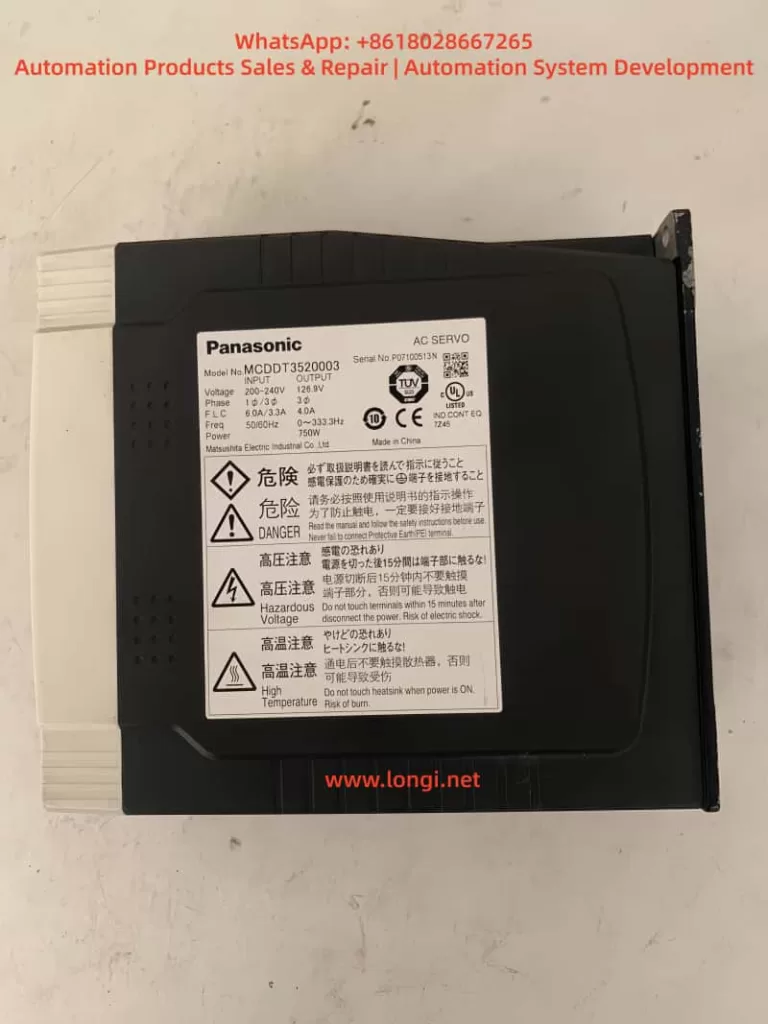
This article is based on a real field case involving a Panasonic AC Servo Driver. The nameplate shows the model as MCDJT3220, and the video appears to show the display flashing 49.0. Based on the nameplate, Panasonic servo model naming, and common field repair experience, this drive should not be identified as a MINAS A5 or MINAS A6 unit. It is a Panasonic MINAS LIQI series servo drive. The displayed alarm 49.0 should not first lead the technician toward the IGBT module, main power circuit, or motor U/V/W output stage. Instead, the main diagnostic direction should be the servo motor encoder feedback chain, especially the encoder itself, encoder cable, X2 encoder connector, and the encoder receiving circuit inside the drive.
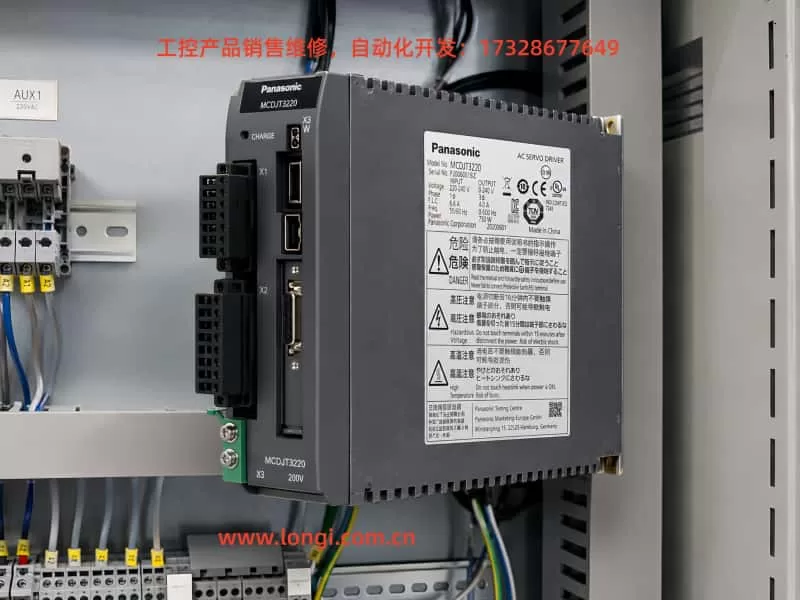

Panasonic MCDJT3220 MINAS LIQI AC servo drive mounted inside an electrical control cabinet, showing the model label, connectors, and industrial wiring layout.

1. Nameplate Identification: This Is Not an A5 or A6 Drive, but a LIQI Series Drive

From the customer’s photo, several important details can be read from the drive nameplate:

  • Brand: Panasonic
  • Product type: AC Servo Driver
  • Model: MCDJT3220
  • Input power supply: 220–240V AC
  • Input phase: single phase
  • Output: 0–240V, three phase
  • Output current: 4.0A
  • Power rating: 750W

The most important information is the model number: MCDJT3220. This model belongs to the Panasonic MINAS LIQI series, not the MINAS A5 or MINAS A6 series.

Many maintenance technicians immediately think of Panasonic A4, A5, or A6 servo drives when they see a Panasonic servo unit, because these series are widely used in factory automation, packaging machines, CNC equipment, labeling machines, printing machines, and various motion control systems. However, Panasonic also has the LIQI series, which is generally positioned as an economical servo system for relatively simple positioning, speed control, light-load transmission, packaging machinery, small automation equipment, and similar applications.

From the model naming structure, MCDJT3220 is clearly different from common A5 or A6 model formats. Panasonic A5 and A6 drives often use model structures such as MBDHT, MCDHT, MADHT, or MDDHT. The LIQI series commonly uses model combinations such as MCDJT. Therefore, the nameplate alone is already sufficient to make a reliable identification: this is a Panasonic MINAS LIQI 750W servo drive.

This distinction is important for repair quotation, spare parts procurement, and technical diagnosis. Different Panasonic servo series may use different control interfaces, encoder protocols, motor matching rules, parameter software, and alarm definitions. If the drive is incorrectly treated as an A5 or A6 model, the technician may consult the wrong manual, select the wrong motor, misunderstand the alarm code, or follow an incorrect troubleshooting path.


2. Basic Electrical Parameters of the Panasonic MCDJT3220

Based on the nameplate, the main electrical specifications of this MCDJT3220 servo drive can be summarized as follows:

ItemSpecification
BrandPanasonic
Product typeAC Servo Driver
SeriesMINAS LIQI
ModelMCDJT3220
Input powerSingle-phase AC 220–240V
Input frequency50/60Hz
Input current6.6A
Output voltageThree-phase 0–240V
Output current4.0A
Rated power750W
Matching motorPanasonic LIQI series servo motor

This is a 750W servo drive with single-phase 220V-class input and three-phase output for a servo motor. A common misunderstanding should be avoided here: although the input power is single phase, the output to the motor is still three-phase U/V/W. Inside the servo drive, the AC input is first rectified into a DC bus, and then the inverter stage generates three-phase PWM output for the servo motor.

Therefore, this drive should not be treated as a simple single-phase motor controller. It should also not be considered equivalent to an ordinary VFD. A servo system has not only a main power circuit and motor U/V/W output, but also a very important encoder feedback loop. If the encoder feedback is abnormal, the servo drive cannot operate normally even if the main power section is still healthy.
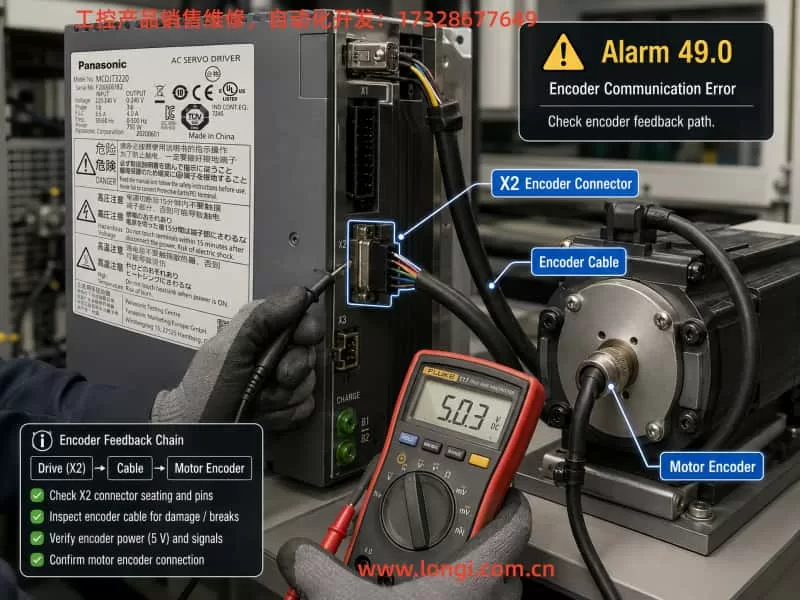

Technician troubleshooting Panasonic MCDJT3220 servo drive alarm 49.0 by checking the X2 encoder connector, encoder cable, and motor encoder feedback circuit with a multimeter.

3. Alarm 49.0 Indicates the Encoder Feedback System Should Be the Primary Focus

In the customer’s video, the servo drive display appears to flash 49.0. According to Panasonic servo alarm logic, alarm 49.0 is generally related to encoder protection and is commonly described as:

Incremental Encoder CS Signal Error Protection

In practical terms, it can be understood as:

Incremental encoder CS signal error
or, more simply:

The encoder feedback signal is abnormal, and the servo drive cannot correctly read or identify the motor encoder feedback.

The key word here is encoder. The defining characteristic of a servo system is closed-loop control. The drive does not simply output voltage and current to the motor; it must also continuously receive feedback from the motor encoder to determine rotor position, speed, and direction. If the encoder feedback is incorrect, missing, unstable, or logically inconsistent, the drive cannot safely control the motor.

For this reason, alarm 49.0 should not be diagnosed first as a general “motor not running,” “drive power module failure,” or “IGBT failure” problem. The first diagnostic area should be the encoder feedback chain.


4. What Does an Encoder CS Signal Error Mean?

A servo motor usually has an encoder mounted at the rear end. The encoder converts the motor shaft position, speed, direction, and related feedback information into signals that are sent back to the servo drive. The servo drive uses this feedback for position loop, speed loop, and current loop control.

A CS signal error can be understood as an abnormality in encoder serial communication or status-check logic. During power-on or operation, the drive checks whether the encoder feedback data is valid. If the drive detects abnormal encoder data, communication check errors, missing signals, or logical inconsistency, it triggers encoder protection.

In actual repair work, an encoder CS signal error does not always mean that the encoder itself is definitely damaged. It only means that the drive is receiving abnormal encoder feedback. The root cause may be located anywhere in the feedback chain, including:

  1. Broken encoder cable;
  2. Poor contact at the encoder connector;
  3. Abnormal encoder power supply;
  4. Defective encoder inside the servo motor;
  5. Oil, water, or contamination entering the motor encoder section;
  6. Poor shielding or grounding of the encoder cable, causing electrical interference;
  7. Damaged X2 encoder interface on the drive;
  8. Damaged encoder receiving circuit inside the drive;
  9. Motor and drive mismatch;
  10. Incorrect wiring or modified encoder cable pin assignment.

Therefore, when facing alarm 49.0, the correct method is not to immediately replace the drive. The technician should isolate and check the feedback path step by step: drive → encoder cable → motor encoder.


5. Common Causes of Alarm 49.0

5.1 Encoder Connector Not Fully Inserted or Poor Pin Contact

This is one of the most common and easily overlooked causes in the field. After transportation, machine vibration, drive replacement, cable removal, or maintenance work, the encoder connector may become slightly loose. It may look inserted from the outside, but the locking mechanism may not be fully engaged, or one of the internal pins may not be making reliable contact.

After long-term use, oil, dust, moisture, oxidation, or contamination may also accumulate inside the connector. Encoder signals are low-voltage weak signals. Unlike main power wiring, a small amount of contact resistance or instability can already cause communication failure.

The technician should power off the equipment, wait for the servo drive to discharge, unplug the X2 encoder connector, and inspect the pins carefully. Look for bent pins, recessed pins, broken pins, blackened contacts, oil contamination, moisture, or corrosion. After inspection and cleaning, the connector should be fully inserted and locked before powering on again.

5.2 Internal Breakage or Intermittent Contact in the Encoder Cable

Servo motor encoder cables are usually multi-core cables with thin conductors and shielding. In machines using drag chains, reciprocating axes, robotic arms, feeding mechanisms, cutting axes, or moving carriages, encoder cables are repeatedly bent during operation. Over time, one or more internal conductors may break.

The difficult part is that the outer sheath may still look normal while an internal conductor is already cracked or intermittently open. The machine may work when stationary but alarm when the axis moves to a certain position. The alarm may also appear or disappear when the cable is lightly moved.

For this type of fault, visual inspection alone is not reliable. A multimeter can be used to check continuity pin by pin. During the continuity test, gently bend and move the cable, especially near the motor end, drag chain bending section, and connector root. If the resistance changes or the continuity jumps, the cable likely has an internal break or intermittent connection.

5.3 Abnormal Encoder Power Supply

The encoder normally requires a low-voltage supply from the servo drive, commonly 5V or another specified voltage depending on the system. If the encoder power supply is missing or pulled down, the drive cannot read encoder data correctly.

There are two typical types of encoder power supply problems.

The first type is that the drive does not output the encoder supply correctly. Possible internal causes include a damaged 5V supply circuit, protective resistor, regulator, fuse element, or related power component.

The second type is that the external encoder cable or encoder itself is shorted, pulling down the encoder power supply from the drive. In this case, if the technician replaces only the drive without identifying the external short, the replacement drive may still show the same alarm or may even suffer damage again.

During repair, the technician may disconnect the encoder cable and check whether the encoder supply voltage from the drive side returns to normal. Another effective method is to connect the drive to a known-good matching motor and encoder cable for comparison testing. When measuring the encoder connector, extreme care is required to avoid shorting adjacent pins with the meter probe. A megohmmeter or insulation tester must never be used on encoder signal lines, because the high test voltage can easily damage the encoder and the drive input circuit.

5.4 Defective Motor Encoder

If the encoder connector and cable are confirmed to be normal but alarm 49.0 remains, the motor encoder itself must be suspected. Servo motor encoder damage can be caused by many factors, including:

  • Water entering the motor;
  • Oil entering the encoder section;
  • Mechanical impact on the motor rear cover;
  • Aging of encoder electronic components;
  • Heavy dust contamination;
  • Poor shielding or grounding causing static discharge or interference damage;
  • Hot-plugging the encoder cable;
  • Long-term high-temperature operation causing encoder aging.

A defective encoder may cause an alarm immediately at power-on, or it may fail only after the motor warms up. A temperature-dependent encoder fault can be especially difficult to identify because the drive may work normally when cold and fail only after some operating time.

5.5 Motor and Drive Mismatch

A servo drive cannot be connected to any motor simply because the power rating appears similar. Different Panasonic servo series may use different encoder protocols, feedback resolution, signal formats, and motor identification logic. If the customer has replaced the motor, drive, or cable, it is essential to confirm that the motor model is compatible with the MCDJT3220 drive.

In field repair, this type of situation is very common. The original drive may have failed, and the customer may have found another drive with the “same power rating” as a replacement. Or the original motor may have been replaced by another motor with a similar appearance. For an ordinary VFD driving a three-phase induction motor, similar voltage and power ratings may sometimes be enough for a basic test. However, a servo system is different. If the encoder protocol or motor identification is not compatible, the drive may immediately alarm and refuse to run.

Therefore, when diagnosing alarm 49.0, the motor nameplate must also be checked. The technician should confirm the motor model, encoder type, and power rating, and verify that the motor is suitable for the MCDJT3220 LIQI drive.

5.6 Fault in the Drive’s Internal Encoder Interface Circuit

If a known-good matching motor and encoder cable are connected to the drive and alarm 49.0 still appears, then the internal encoder interface circuit of the drive becomes the main suspect.

The encoder interface circuit may include:

  • Encoder power supply circuit;
  • Input protection components;
  • Differential receiver or serial communication interface IC;
  • Pull-up and pull-down resistors;
  • Filtering capacitors;
  • Optocouplers or isolation components;
  • MCU or control-chip input section.

This part of the circuit is a weak-signal processing circuit and can be damaged by external short circuits, hot-plugging, incorrect encoder wiring, electrostatic discharge, water corrosion, or contamination. Once the encoder interface circuit is damaged, the main power stage of the servo drive may still be normal, but the drive will still alarm because it cannot read the motor feedback.

In such a case, the technician should not focus only on measuring the IGBT or the DC bus voltage. For alarm 49.0, the diagnostic focus should be the X2 encoder interface and its related receiving circuit.


6. Recommended Field Troubleshooting Procedure

When dealing with this alarm, it is best to follow a structured troubleshooting procedure instead of immediately disassembling the drive or replacing expensive components.

Step 1: Confirm That the Alarm Code Is Really 49.0

First, observe the display carefully and confirm that the code is indeed 49.0, not 4.9, 49, E49, or another similar-looking code. Some servo drive displays are small, and a flashing video can easily lead to misreading. Ask the customer to take a clear still photo or record a close-up video of the display.

Correct alarm identification is critical because different alarm codes lead to completely different diagnostic paths. Overvoltage, overcurrent, undervoltage, overload, encoder fault, and excessive position deviation are all different types of faults.

Step 2: Confirm the Drive Model and Motor Model

Check the drive nameplate and confirm that the model is MCDJT3220. Then ask the customer to provide a clear photo of the servo motor nameplate. Confirm whether the motor belongs to the correct Panasonic LIQI matching series.

If the motor model cannot be confirmed, the diagnosis remains incomplete. This is especially important if the customer has replaced the motor or drive before the alarm appeared.

Step 3: Power Off and Reinsert the X2 Encoder Connector

Turn off the main power and wait until the internal capacitors of the servo drive have discharged. Then unplug the X2 encoder connector. Inspect the connector and socket carefully for abnormal pins, contamination, corrosion, loose contact, or mechanical damage. After cleaning and inspection, reinsert the connector firmly and power on again to check whether the alarm disappears.

Servo drives contain a high-voltage DC bus internally. Do not touch the terminals immediately after power-off. Always wait for proper discharge time and follow safety procedures.

Step 4: Inspect the Encoder Cable

Check the encoder cable for visible damage, cuts, crushing, pulling, oil contamination, or water ingress. If the machine uses a drag chain, pay special attention to the bending section. If the alarm changes when the cable is gently moved, an intermittent cable fault is very likely.

If possible, the fastest method is to replace the encoder cable with a known-good cable of the same type.

Step 5: Perform Cross Testing

Cross testing is one of the most effective methods in servo repair.

If there is another identical machine or compatible servo system on site, connect the suspected drive to a known-good motor and encoder cable. Alternatively, connect a known-good drive to the original motor and encoder cable.

The judgment logic is as follows:

  • If the fault follows the motor and encoder cable, the motor encoder or cable is faulty;
  • If the fault follows the drive, the drive’s internal encoder interface is faulty;
  • If replacing the encoder cable solves the problem, the encoder cable is faulty;
  • If replacing the motor solves the problem, the motor encoder is faulty;
  • If replacing the drive solves the problem, the drive interface circuit is faulty.

Cross testing is more reliable than simple measurement because encoder signals are high-speed or serial weak signals. Some problems cannot be clearly detected with a standard multimeter.

Step 6: Measure the Encoder Power Supply

If the technician has proper electrical repair experience, the encoder supply voltage can be measured. If the encoder supply voltage is abnormally low, disconnect the encoder cable and measure again.

If the supply voltage returns to normal after disconnecting the encoder cable, the external cable or motor encoder may be shorted. If the supply voltage is still missing after the encoder cable is disconnected, the drive’s internal encoder power supply circuit may be faulty.

When measuring the encoder connector, avoid shorting the pins. Do not use a high-voltage insulation tester on encoder lines.

Step 7: Check Shielding, Grounding, and Interference

If the alarm does not appear immediately at power-on but occurs intermittently during operation, the technician should also consider electrical interference. In a servo system, the U/V/W motor power cable is a strong noise source, while the encoder cable carries weak feedback signals. These two cables should not be routed closely in parallel over a long distance.

The encoder cable should be an original or high-quality shielded cable, and the shielding should be grounded according to proper practice. If the customer has extended the encoder cable, replaced it with an ordinary multi-core cable, or routed it near power wiring, the probability of alarm 49.0 increases significantly.


7. Difference Between Alarm 49.0 and Main Power Circuit Faults

Many customers see a servo drive alarm and immediately assume that the drive is damaged or that the power module has failed. However, from a repair perspective, it is necessary to distinguish the type of alarm.

If the problem is related to the IGBT module, output short circuit, overcurrent, DC bus overvoltage, braking circuit, or current detection circuit, the alarm code will usually point toward the power circuit or current feedback circuit. Alarm 49.0, on the other hand, points toward encoder feedback. In many cases, the drive may not even begin high-power output before the alarm is generated during power-on self-check or before servo enable.

In other words, alarm 49.0 does not primarily indicate:

  • IGBT failure;
  • Motor winding short circuit;
  • Braking resistor failure;
  • Main capacitor failure;
  • Rectifier bridge failure.

These parts are not impossible to fail, but based on the alarm logic, they should not be the first diagnostic priority. The encoder feedback system should be checked first. Starting with IGBT removal or main circuit testing may waste time and may not address the real fault.


8. Diagnostic Priorities Based on Different Symptoms

8.1 Alarm 49.0 Appears Immediately at Power-On

If the drive displays 49.0 immediately after power-on, before running or servo enable, the most likely causes include:

  • Encoder connector not properly inserted;
  • Broken encoder cable;
  • Encoder supply voltage shorted or missing;
  • Defective motor encoder;
  • Motor and drive mismatch;
  • Damaged encoder interface circuit inside the drive.

This type of fault is usually stable and can often be located by connector inspection, cable replacement, and cross testing.

8.2 Alarm 49.0 Appears After Servo Enable

If the drive powers on normally but alarms after servo enable, the technician should consider encoder data reading, motor identification, feedback validity, and parameter compatibility. Possible causes include:

  • Poor encoder signal quality;
  • Motor and drive parameter mismatch;
  • Partial failure in the encoder signal channels;
  • Failure when the drive attempts to read motor feedback data.

8.3 Alarm 49.0 Appears After Running for Some Time

If the equipment can run but alarms after some operating time, the main suspects are:

  • Intermittent break inside a drag-chain cable;
  • Motor encoder failure after heating;
  • Vibration causing momentary connector contact loss;
  • Encoder cable interference from nearby power wiring;
  • Cable tension when the axis moves to a certain position.

This type of fault is best diagnosed dynamically. Run the axis at low speed while observing the cable bending sections, or move the axis position and gently move the cable while watching whether the alarm appears or clears.


9. Safety Precautions During Repair

Servo drive repair involves both high-voltage power circuits and low-voltage signal circuits. The drive has 220V AC input and an internal high-voltage DC bus. The following precautions are essential:

First, do not touch main circuit terminals immediately after power-off. The internal capacitors need time to discharge.

Second, do not hot-plug the encoder cable. The encoder interface is a weak-signal electronic interface. Hot-plugging may generate transient voltage spikes and damage either the encoder or the drive interface IC.

Third, do not use a megohmmeter on encoder lines. An insulation tester is suitable for checking motor winding insulation to ground, but not for encoder signal wires. Encoder wires are connected directly to electronic circuits, and high test voltage can destroy them.

Fourth, do not randomly modify the encoder cable pinout. Servo encoder wiring is not ordinary control wiring. Pin assignment, shielding, twisted pairs, and grounding all matter. Incorrect modification may cause alarms or damage the interface circuit.

Fifth, when measuring the encoder connector, prevent probe slips and pin short circuits. Encoder connector pins are often dense. A brief short between 5V, signal, and ground pins may create a new fault.


10. Repair Communication and Quotation Suggestions

For a repair service provider, it is not professional to simply tell the customer “the drive is bad” or “the motor is bad” when alarm 49.0 appears. A better explanation is that the current alarm points to the encoder feedback chain, and further testing is required to locate the exact faulty part.

A suitable communication process is:

  1. Confirm the drive model and alarm code;
  2. Explain that the drive is a LIQI series unit, not an A5 or A6 drive;
  3. Explain that alarm 49.0 is an encoder feedback signal fault;
  4. Ask the customer for the motor nameplate, encoder cable photos, and X2 connector photos;
  5. Ask the customer to reinsert the encoder connector and inspect the cable;
  6. If possible, perform cross testing with a known-good matching motor, cable, or drive;
  7. Determine whether the fault is in the motor encoder, encoder cable, or drive interface circuit.

This approach is more professional and helps avoid misunderstanding. In particular, if the customer sends only the drive for repair but keeps the motor and encoder cable on site, the repair provider should explain that if the real fault is in the motor encoder or cable, repairing the drive alone will not solve the on-site alarm.


11. Information the Customer Should Provide

To improve diagnostic accuracy, the customer should provide the following information:

  • Full front photo of the servo drive;
  • Clear drive nameplate photo;
  • Servo motor nameplate photo;
  • Close-up photo of the X2 encoder connector;
  • Photos of both ends of the encoder cable;
  • Power-on alarm video;
  • Whether the alarm appears immediately at power-on, after servo enable, or during operation;
  • Whether the drive, motor, or cable has been replaced before;
  • Whether the machine has experienced water ingress, oil contamination, impact, cable damage, or drag-chain failure;
  • Whether there is another identical machine available for cross testing.

The more complete the information, the more accurate the fault judgment will be.


12. Conclusion

The Panasonic MCDJT3220 is a MINAS LIQI series 750W AC servo drive with single-phase 220–240V input and three-phase 0–240V output. It is not a MINAS A5 or MINAS A6 drive. The customer’s video appears to show alarm 49.0, which should be understood as an encoder feedback abnormality, commonly related to incremental encoder CS signal error protection.

The troubleshooting focus should not begin with the IGBT, rectifier bridge, braking resistor, or main capacitor. Instead, it should focus on the following chain:

Drive X2 encoder interface → encoder cable → motor encoder → encoder power supply and receiving circuit.

In practical repair work, the most effective method is to inspect the connector and cable first, then perform cross testing among the drive, encoder cable, and motor. If the alarm disappears after connecting a known-good matching motor and encoder cable, the original motor encoder or cable is faulty. If the alarm remains, the drive’s internal encoder interface circuit is likely damaged.

For technicians and service engineers, the key point is this: when alarm 49.0 appears on this Panasonic servo drive, do not immediately assume that the power module is defective. A servo system is a closed-loop control system, and encoder feedback is the foundation of operation. If the encoder feedback is invalid, the drive will protect itself even when the main power circuit is still normal. Correct model identification, accurate alarm interpretation, and systematic feedback-chain troubleshooting are the most important steps for solving this type of Panasonic servo fault.
Posted on

In-depth Analysis of OP Fault in Panasonic VF200 Inverter: The Essence of Communication Link Anomalies and Systematic Troubleshooting Strategies

I. Introduction

In industrial automation control systems, inverters, as the core equipment for motor driving, directly impact the continuous operation of production lines. The Panasonic VF200 series inverters, known for their compact size, rich features (such as vector control and torque boost), and high reliability, are widely used in load scenarios including fans, pumps, conveyor belts, and packaging machinery. However, in field maintenance, the OP fault (with “OP” displayed on the operation panel) is one of the most common alarms. According to statistics from an auto parts factory, OP faults account for over 35% of all VF200 faults and are often accompanied by motor shutdowns, seriously affecting production efficiency.

This article will comprehensively analyze the OP fault from five dimensions: its definition and manifestations, underlying principles, causes, systematic solutions, and preventive measures. By integrating the Panasonic VF200 technical manual, communication protocol specifications, and field cases, it delves into the root logic of the OP fault, providing maintenance personnel with a practical troubleshooting guide.

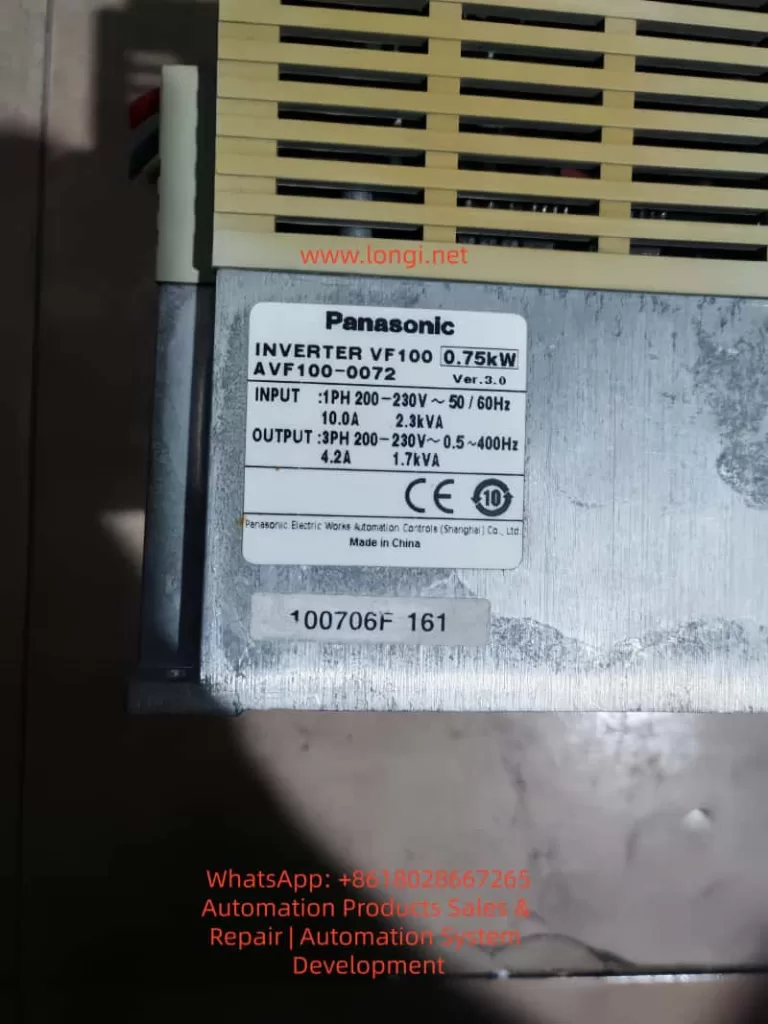
AVF100-0072

II. Definition and Manifestations of the OP Fault

According to the Panasonic VF200 User Manual, the OP fault (Operation Panel Error) is a system-level protection fault triggered by the inverter in response to “communication anomalies between the operation panel and the main body” or “illegal panel states.” The core triggering conditions and manifestations are as follows:

1. Triggering Conditions (Specified in the Manual)

  • Power-on during operation: When the inverter is “running” (with FWD/REV signals ON) and the operation panel’s power is suddenly turned on (e.g., by plugging or unplugging the panel cable).
  • Communication timeout: The communication signal between the panel and the main body fails to respond within the set time (e.g., no “heartbeat packet” from the panel is received within 1 second).
  • Communication cable detachment: The dedicated communication cable between the operation panel and the inverter main body is disconnected.
  • Operation panel detachment: The panel is not securely installed (the mechanical lock is loose), or the “installation detection switch” on the panel is disconnected.

2. Fault Manifestations

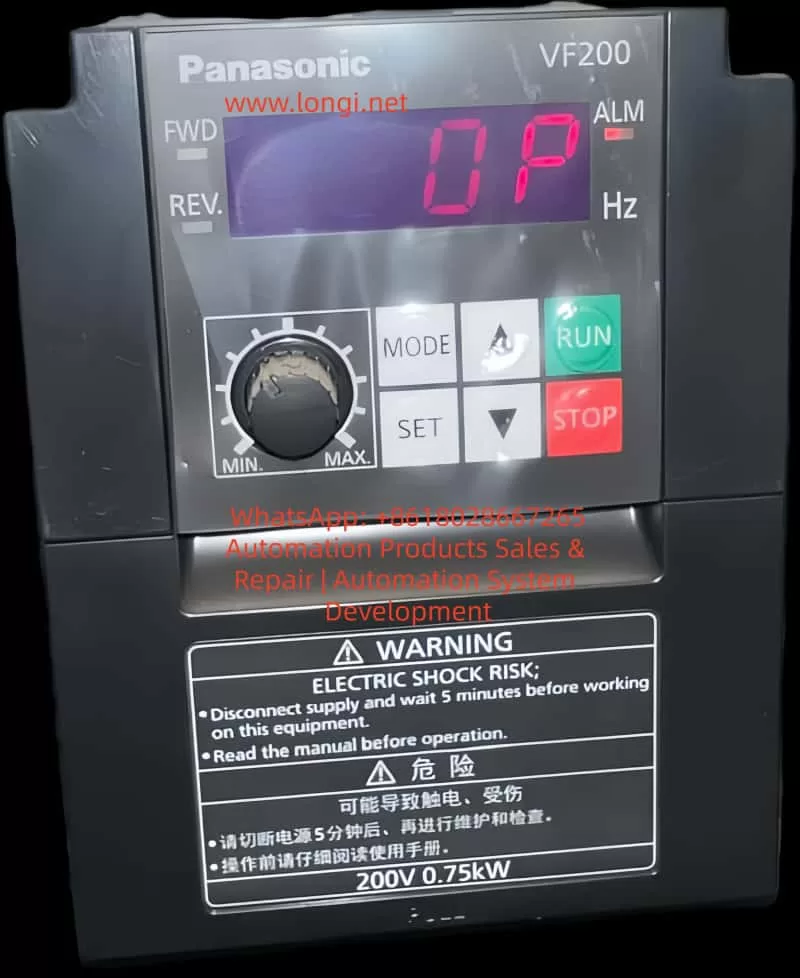
  • The operation panel display shows a fixed “OP” (in red or flashing).
  • The ALM alarm light on the inverter is illuminated (on some models).
  • The motor stops running (depending on the fault level; OP is a “severe fault” that typically triggers a shutdown by default).
  • Parameter setting and start/stop operations cannot be performed via the panel (due to communication interruption).

III. The Essence of the OP Fault: Integrity Protection of the Panel Communication Link

The essence of the OP fault is the inverter’s failure to detect the integrity of the “operation panel-main body” communication link, designed to prevent safety hazards caused by illegal operations or communication interruptions. This can be understood from the following three levels:

1. Hardware Level: Physical Connection Detection of the Communication Link

The VF200’s operation panel is connected to the main body via a dedicated serial communication cable (typically using the RS485 protocol), which includes three groups of lines: power (5V/24V), communication (TXD/RXD), and grounding (GND). The inverter main body continuously monitors the following through hardware circuits (such as optocouplers and voltage detection chips):

  • Whether the panel is installed (mechanical switch signal).
  • Whether the cable is detached (presence of communication signals).
  • Whether the power supply is normal (whether the panel’s supply voltage is within range).

When any of these conditions are not met, the hardware circuit sends an “abnormal signal” to the CPU, triggering the OP fault.

2. Software Level: Timeout Mechanism in the Communication Protocol

The VF200 adopts a Panasonic-specific communication protocol (such as a simplified version of MEWTOCOL-II), where the panel and the main body must regularly exchange “status frames” (e.g., the panel sends its “current display mode,” and the main body replies with “operating parameters”). The protocol sets a timeout threshold (default: 1 second). If no response is received from the other party within this threshold, the CPU determines it as a “communication interruption” and triggers the OP fault.

This mechanism ensures that operators can monitor the inverter’s status in real-time. If communication is interrupted, the panel cannot display operating parameters (such as frequency and current), preventing operators from determining whether the motor is overloaded or abnormal. In such cases, a shutdown is the safest option.

3. System Level: Prevention of Illegal Operations

When the panel’s power is turned on while the “operation signal is ON,” the inverter considers this an illegal operation (as plugging or unplugging the panel during operation may cause communication synchronization failures). Therefore, it triggers the OP fault and forces a shutdown to prevent misoperations (such as parameter modifications that could cause the motor to overspeed).

op fault of the VF200

IV. Causes of the OP Fault: A Full-Link Troubleshooting from Hardware to Software

The causes of the OP fault can be classified into four categories: hardware connection anomalies, incorrect parameter settings, communication interference, and component failures. The following is a detailed analysis:

(I) Hardware Connection Anomalies: The Most Common Field Faults

1. Operation Panel Cable Issues

  • Cable detachment/loosening: Field mechanical vibrations (e.g., from machine tools or conveyor belts) may cause the panel cable plug to loosen or the cable to be damaged by collisions. For example, in a packaging machinery application, the VF200 inverter’s panel cable was repeatedly collided by a robotic arm, causing oxidation and poor contact at the plug pins, frequently triggering the OP fault.
  • Cable quality issues: Using non-original cables (e.g., homemade cables) or cables with damaged shielding (ungrounded) can lead to signal attenuation in communication. RS485 communication requires a cable with a characteristic impedance of 120Ω. Using ordinary twisted-pair cables (with an impedance of 100Ω) can cause signal reflections and data errors.
  • Excessive cable length: The maximum recommended length for the VF200 panel cable is 5 meters (as specified in the manual). If this length is exceeded, signal attenuation can cause timeouts. In a water pump station application, the inverter’s control cabinet was 8 meters away from the panel, and no repeater was installed, leading to communication timeouts and triggering the OP fault.

2. Panel Installation Issues

  • Panel detachment: The mechanical lock (or latch) on the panel fails, or the operator does not secure it properly, causing the “installation detection switch” to disconnect. For example, in a textile machinery application, the panel’s latch broke, and it accidentally detached during operation, triggering the OP fault.
  • Panel power supply anomalies: The 5V (or 24V) power supply from the inverter main body to the panel fails (e.g., due to a damaged power module or a broken circuit), preventing the panel from functioning and causing communication interruption. Use a multimeter to measure the panel’s power input. If the voltage is below 4.5V (for a 5V specification), check the main body’s power circuit.

(II) Incorrect Parameter Settings: A Hidden Cause Often Overlooked

1. Improper Setting of the Start Mode Parameter P057

P057 is the start mode selection parameter in the VF200 (refer to page 130 of the manual), used to set the allowable state for turning on the panel’s power during operation. Typical setting values are as follows:

P057 Setting ValueMeaning
0Prohibit turning on the panel’s power during operation (default)
1Allow turning on the panel’s power during operation

If the panel needs to be plugged or unplugged during operation (e.g., for panel replacement) but P057 is set to “0” (prohibit), the OP fault will be triggered. For example, in a conveyor belt application, the inverter triggered an OP shutdown when the operator plugged or unplugged the panel during operation because P057 was set to “0.”

2. Excessively Short Communication Timeout Parameter Setting

The communication timeout time in the VF200 is set by parameter P123 (not explicitly specified in the manual; requires viewing via debugging software), with a default value of 1 second. If there is significant interference on-site (e.g., from electric welders or servo drives), the communication signal may experience brief delays (e.g., 1.2 seconds). If P123 is set to 1 second, a timeout may be incorrectly determined, triggering the OP fault.

3. Indirect Impact of the Torque Boost Parameter P007

P007 is the torque boost parameter (refer to page 130 of the manual), used to adjust the output voltage at low speeds (a higher setting value increases low-speed torque). If P007 is set too high (e.g., exceeding 30%), the motor current will increase (especially under light loads), increasing the CPU’s load in the inverter and preventing it from processing communication signals in a timely manner, indirectly causing timeout OP faults. For example, in a fan inverter application, P007 was set to 40%, causing the motor current to consistently exceed the rated value and the CPU load rate to reach 80%. The communication signal processing was delayed, triggering the OP fault.

(III) Communication Interference: A Hidden but Critical Fault Source

1. Electromagnetic Interference (EMI)

High-frequency equipment on-site (such as electric welders, switching power supplies, and servo drives) radiates electromagnetic waves in the range of 100kHz–1GHz, which can couple into the panel cable and distort the communication signal. For example, in an auto factory application, the VF200 inverter experienced OP faults when an electric welder was in operation because the panel cable induced high-frequency interference, causing “glitches” in the communication signal and triggering timeouts.

2. Wiring Interference

  • Co-trenching of power and communication lines: When the panel cable is co-trenched with motor and power lines, the high voltage (380V) of the power lines induces common-mode interference, which is superimposed on the communication signal (RS485 differential signals are susceptible to common-mode interference).
  • Poor grounding: If the grounding terminals of the inverter main body, panel, and motor are not reliably grounded (grounding resistance > 4Ω), interference signals cannot be discharged, increasing the communication error rate.

(IV) Component Failures: Communication Interruptions Caused by Hardware Damage

1. Operation Panel Failures

  • Communication chip damage: The RS485 transceiver (such as MAX485 or SN75176) inside the panel may be damaged by overvoltage (e.g., from static electricity), preventing it from sending or receiving signals. Use an oscilloscope to measure the TXD/RXD pins on the panel. If there is no signal output, the chip is damaged.
  • Display module failures: Although display module failures do not directly cause OP faults, they may prevent the panel from displaying “OP.” In such cases, rely on the ALM light (if illuminated, check communication).

2. Inverter Main Body Failures

  • Communication interface circuit damage: Aging optocouplers (such as PC817) on the main body can cause signal attenuation (a decrease in the current transfer ratio reduces the signal amplitude), or damage to the RS485 chip (such as MAX485) can prevent it from receiving panel signals.
  • CPU communication module failures: Damage to the CPU’s UART (Universal Asynchronous Receiver-Transmitter) interface is rare and is usually accompanied by other faults (e.g., inability to read parameters).

V. Systematic Solution Strategies: A Troubleshooting Process from Simple to Complex

The troubleshooting of OP faults should follow the principle of “hardware first, then software; simple first, then complex.” The following is a standardized process:

Step 1: Quickly Check Hardware Connections (Complete within 10 minutes)

  • Check panel installation: Confirm that the panel is securely installed and that the mechanical lock is effective. Press the panel by hand and observe whether the OP disappears (if it does, the installation detection switch has poor contact).
  • Check cable connections: Unplug the panel and inspect the cable plug for oxidation or bent pins. Use a multimeter to measure the continuity of TXD-GND and RXD-GND on the cable (normal: conductive). If the cable is broken, replace it with an original cable.
  • Check power supply: Use a multimeter to measure the panel’s power input (e.g., 5V supplied by the main body to the panel). If the voltage is abnormal (<4.5V or >5.5V), check the main body’s power module (such as the switching power supply) or the panel’s power circuit.

Step 2: Verify Parameter Settings (A Critical Step)

  • Enter parameter mode: Press the “MODE” key on the panel to enter the parameter setting mode (a password is required; default: “0000”).
  • Check P057 parameter: Locate P057 (start mode). If it is set to “0” (prohibit turning on the panel’s power during operation) and on-site operations require plugging or unplugging the panel during operation, change it to “1” (allow).
  • Check communication timeout parameter: Use debugging software (such as Panasonic FR-Configurator) to view P123 (communication timeout time). If it is set too short (e.g., 0.5 seconds), extend it to 2 seconds (balance response speed and anti-interference capability).
  • Restore default parameters: If the parameters are混乱 (chaotic), simultaneously press the “MODE” + “▼” keys to restore the factory settings (note: back up motor parameters, such as P130 motor capacity and P131 motor poles, before restoration).

Step 3: Eliminate Communication Interference (Requires On-site Rectification)

  • Environmental rectification: Move the inverter to a location away from interference sources (e.g., inside the control cabinet, >2 meters away from electric welders). Install an EMI filter (such as the Panasonic BFV0015 filter) inside the control cabinet to suppress power-side interference.
  • Wiring rectification:
    • Separate the panel cable from power lines (motor and power lines) by at least 10cm and avoid co-trenching.
    • Use shielded cables (shield both ends grounded, grounding resistance < 4Ω).
    • Install ferrite cores on the panel cable (wind 2–3 turns) to suppress high-frequency interference (the core’s impedance should match the interference frequency, e.g., a 100MHz core for suppressing high-frequency interference).
  • Grounding optimization: Ensure that the grounding terminals of the inverter main body, panel, and motor are reliably grounded (use copper wires of at least 2.5mm² for grounding and bury the grounding electrode 1.5 meters underground). Connect the grounding bar inside the control cabinet to the factory’s grounding system.

Step 4: Component Replacement and Advanced Diagnostics (For Stubborn Faults)

  • Replace the operation panel: Use a spare panel of the same model to replace the original panel. If the OP disappears, the original panel is faulty (requires repair or replacement). If the OP persists, the main body is faulty.
  • Test the main body’s communication interface: Use an oscilloscope to measure the TXD/RXD signals at the main body’s communication interface (RS485 differential signals; the voltage difference between A and B should be ≥200mV). If the signal amplitude is too low (<100mV), the optocoupler or RS485 chip is damaged, and the main board needs to be replaced.
  • Use debugging software: Use FR-Configurator software to read the fault records (e.g., the trigger time of the OP fault, the operating frequency, and current at that time) and analyze the fault patterns (e.g., whether it is triggered during electric welder operation or when the panel is plugged or unplugged during operation).

VI. Field Case Analysis: Typical Scenarios and Solutions for OP Faults

Case 1: OP Fault Caused by Cable Loosening

  • Scenario: A VF200 inverter (0.75kW) on packaging machinery suddenly displayed OP during operation, and the motor stopped.
  • Troubleshooting: The panel cable was inspected, and oxidation and poor contact were found at the plug pins. After re-plugging and cleaning the pins, the OP disappeared.
  • Cause: Mechanical vibrations caused the cable to loosen, leading to communication interruption and triggering the OP fault.
  • Solution: Replace the cable with an original one featuring a lock to prevent future loosening.

Case 2: Timeout OP Fault Caused by Interference

  • Scenario: A VF200 inverter at a water pump station frequently displayed OP during electric welder operation, causing the motor to shut down.
  • Troubleshooting: The wiring was inspected, and the panel cable was found to be co-trenched with the electric welder’s power line. Using an oscilloscope, high-frequency glitches (amplitude: 1V) were detected in the communication signal. After installing ferrite cores and an EMI filter, the OP disappeared.
  • Cause: High-frequency interference from the electric welder coupled into the communication cable, causing timeouts.
  • Solution: Separate the wiring and install interference suppression devices.

Case 3: OP Fault Caused by Incorrect P057 Setting

  • Scenario: A VF200 inverter on a conveyor belt triggered an OP shutdown when the operator plugged or unplugged the panel during operation.
  • Troubleshooting: The P057 parameter was checked and found to be set to “0” (prohibit turning on the panel’s power during operation). After changing it to “1,” plugging or unplugging the panel during operation no longer triggered the OP fault.
  • Cause: Incorrect P057 setting prohibited panel operations during operation.
  • Solution: Adjust the P057 parameter according to on-site requirements.

VII. Preventive Measures: Reducing OP Faults from the Source

  • Regular maintenance: Inspect the panel cable (plug, pins) and grounding every quarter. Clean the panel dust (to prevent contact issues due to dust) and check the effectiveness of the mechanical lock.
  • Parameter backup: Regularly back up the inverter parameters (such as motor parameters and P057 settings) using FR-Configurator software to prevent parameter loss or incorrect modifications.
  • Environmental optimization: Install the inverter in a well-ventilated, interference-free control cabinet (temperature: -10–50°C, humidity: <80%). Install fans or air conditioners inside the control cabinet to prevent component aging due to high temperatures.
  • Operator training: Train operators on the correct installation and removal of the panel (avoid colliding with the cable) and inform them of the meaning of the OP fault (panel communication anomaly). In case of a fault, do not force operations and contact maintenance personnel promptly.
  • Spare parts management: Stock common spare parts (such as operation panels, communication cables, and EMI filters) to shorten fault downtime (the average downtime for an OP fault is about 30 minutes; with sufficient spare parts, it can be reduced to 10 minutes).

VIII. Conclusion

The OP fault in the Panasonic VF200 inverter is a concentrated manifestation of anomalies in the “panel-main body” communication link, representing the inverter’s safety protection mechanism at its core. Resolving OP faults requires a systematic troubleshooting approach: from hardware connections (cables, panels) to parameter settings (P057, timeout parameters), then to interference suppression (wiring, grounding), and finally to component replacement (panels, main bodies).

Maintenance personnel should familiarize themselves with the VF200’s communication protocol (such as MEWTOCOL), parameter functions (such as P057, P007), and hardware structure (such as communication interface circuits) and quickly locate faults by referring to field cases. Through regular maintenance and preventive measures, the incidence of OP faults can be reduced by over 70%, significantly improving the inverter’s reliability.

In the era of Industry 4.0, while inverters are becoming increasingly intelligent, the stability of the basic communication link remains the core of reliable equipment operation. The troubleshooting process for OP faults essentially involves sorting out the interaction between “equipment-humans-environment.” Only by understanding the underlying logic of faults can we shift from “passive maintenance” to “active prevention” and truly achieve full-lifecycle management of equipment.

Posted on

Panasonic Minas A4 Servo Driver Err.49 Fault Diagnosis and Maintenance Guide

Introduction

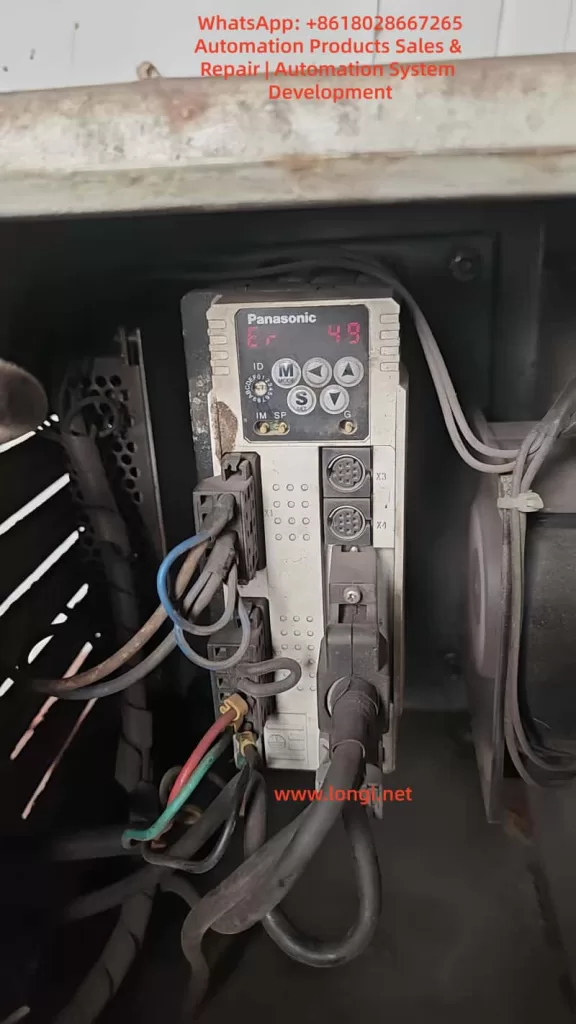
In the field of industrial automation, Panasonic’s Minas A4 series servo drivers are renowned for their high precision, reliability, and wide range of applications. These products are widely used in CNC machine tools, robotic arms, packaging equipment, and precision assembly lines. Among them, the model MCDDT3520052, a typical medium-power servo driver (500W, 200V input), is commonly used in applications requiring high response speed and stable torque output. However, in actual operation, users occasionally encounter the Err.49 error code, which usually manifests as the driver’s display panel flashing “Er 49” or a similar prompt, causing the motor to stop, servo lock to fail, and triggering the alarm output (ALM) to disconnect.

Err.49 is part of the Minas A4 series protection functions and primarily involves encoder communication signal abnormalities. If not handled promptly, it can lead to production downtime, equipment damage, or safety hazards. This article is based on Panasonic’s official manuals and technical data, combined with practical maintenance experience, to provide a detailed analysis of the causes, diagnostic methods, and solutions for Err.49. The article aims to provide practical guidance for engineers, technicians, and maintenance personnel. It also optimizes keywords such as “Panasonic Servo Err.49 Solution,” “MCDDT3520052 Fault Repair,” and “Panasonic Minas A4 Error 49 Diagnosis” for Search Engine Optimization (SEO) to help users find relevant information quickly.

According to the Panasonic Minas A4 series manual, Err.49 is specifically described as a “CS signal logic error of 2500[P/r], 5-wire serial encoder has been detected.” This indicates a logical inconsistency in the communication signal (CS, Communication Signal) between the encoder and the driver, resulting in data transmission failure. This fault often stems from hardware defects or connection issues rather than software parameter misconfiguration. We will analyze this layer by layer below.

MCDDT352,A4 series drive

Overview of Minas A4 Series Servo Drivers

The Panasonic Minas A4 series is an advanced AC servo system launched by Panasonic’s Industrial Automation Division, designed for precise control of position, speed, and torque. The series supports multiple control modes, including position control, speed control, and torque control, and is compatible with incremental or absolute encoders. The model MCDDT3520052 is a standard configuration of the A4 series with a rated output power of 500W and an input voltage of single-phase/three-phase 200V AC, suitable for small to medium-sized load applications.

Key Technical Specifications

  • Power Requirements: The control power supply is single-phase 100-115V AC or 200-230V AC, and the main power supply is three-phase 200-230V AC. The manual emphasizes that under operating conditions, the expected service life can reach 28,000 hours, provided the ambient temperature does not exceed 55°C and output is at rated torque and speed.
  • Encoder Support: The A4 series is compatible with 2500P/r 5-wire serial encoders, which are the encoder type commonly associated with Err.49 faults. The encoder connects via the X6 interface, providing high-resolution feedback (resolution up to 17-bit absolute).
  • Protection Functions: The driver has built-in protection mechanisms such as overvoltage (Err.12), overcurrent (Err.14), and encoder-related errors (Err.21, 23, 49, etc.). These functions are activated in real-time through internal circuit monitoring to ensure system safety.
  • Interfaces and Connections: X5 is the control signal interface, supporting pulse input in position/speed mode; X6 is the encoder interface; X1/X2 are power plugs. The manual details cable specifications: the maximum length of the encoder cable is 20m, and shielded wire must be used to prevent noise interference.

The advantage of the Minas A4 series lies in its real-time automatic gain adjustment and electronic gear function, which can adapt to different load inertia ratios (Pr20 parameter). However, during long-term use, the encoder, as the core feedback component, is susceptible to dust, vibration, or aging, leading to communication faults like Err.49. According to industry data, encoder-related errors account for 20%-30% of servo driver faults, especially in humid or dusty environments.

Features of Model MCDDT3520052

This model of driver is compact in size (approx. 150mm x 60mm x 200mm) and lightweight, making it easy to install. The panel display uses a 7-segment LED and supports parameter setting, monitor mode, and alarm code display. Users can connect to the X4 interface using PANATERM software (Panasonic’s dedicated communication tool) for parameter debugging and waveform monitoring. The software supports Windows systems and allows real-time viewing of torque, speed, and position deviation curves, which is crucial for diagnosing Err.49.

In practical applications, MCDDT3520052 is often paired with the MSMA series of motors to form a closed-loop control system. The motor encoder outputs a CS signal for synchronous data transmission. If the CS signal logic is abnormal, the driver will immediately trigger protection to prevent the motor from losing control.

Detailed Explanation of Err.49 Fault Code

Err.49 is a specific code in the Minas A4 series protection function, officially defined as “CS signal logic error of 2500[P/r], 5-wire serial encoder has been detected.” This means that in the 2500 pulses/revolution 5-wire serial encoder mode, the logical state of the communication signal CS is inconsistent, leading to data transmission failure.

Fault Trigger Mechanism

The driver monitors encoder feedback through a serial communication protocol. The CS signal is responsible for synchronizing the clock and data bits to ensure accurate transmission of position information. When a logic error occurs, the driver detects an abnormal signal level (such as high/low level inversion or noise interference) and immediately activates protection:

  • The motor stops and enters a servo lock state.
  • The ALM output disconnects (open circuit) to notify the host computer or PLC.
  • The panel flashes “Er 49” and records it in the alarm history (viewable via PANATERM).

Distinction from other encoder errors:

  • Err.21: Communication interruption (no signal at all).
  • Err.23: Communication data error (bit error caused by noise).
  • Err.48: Z-phase signal error (zero-position pulse missing).
    Err.49 specifically refers to a CS logic problem and is often related to hardware failures.

Associated Parameters and Timing

Chapter 6 of the manual’s protection function section details the timing chart for Err.49. When the fault is activated, the Dynamic Brake (DB) may intervene (depending on the Pr69 parameter), and the motor decelerates to below 30rpm before the SRV-ON signal becomes valid. Clearing Err.49 requires restarting the power supply after eliminating the cause; it cannot be cleared directly via the A-CLR input.

Related Parameters:

  • Pr69: Dynamic Brake action selection (0: DB effective when Servo OFF; 1: Invalid).
  • Pr6A: Servo OFF delay time (unit: 2ms).
    These parameters affect the fault recovery time to ensure a safe reset.
er 49 fault of panasonic drive

Analysis of Possible Causes

Err.49 does not occur randomly and usually stems from the following factors. Through systematic analysis, the scope of investigation can be narrowed down.

1. Encoder Hardware Failure

Most common cause: Internal chip damage or aging of the encoder. In a 5-wire serial encoder (A, B, Z, CS, GND), the CS line is responsible for logic control. If the photoelectric sensor or IC fails, it can cause the signal logic to invert. The manual states, “Encoder may be faulty, replace the motor.” In high-vibration or high-temperature environments, encoder life is shortened (typically 10 years).

2. Connection and Wiring Issues

  • Cable Damage: The encoder cable (X6 interface) is bent, worn, or has poor contact, causing the CS signal to interrupt.
  • Improper Shielding: The FG terminal is not properly grounded, allowing noise to interfere with CS logic. The manual recommends a maximum cable length of 20m using twisted shielded wire.
  • Loose Connectors: The X6 circular plug (17-pin) is oxidized or loose, affecting signal integrity.

3. Power Supply and Noise Interference

  • Unstable Encoder Power: Should be DC5V±5% (4.75-5.25V); voltage fluctuations cause CS signal distortion.
  • Electromagnetic Interference (EMI): Motor cables bundled with encoder cables or proximity to high-frequency equipment introduce noise. Industry standards require a separation of at least 30cm for wiring.

4. Internal Driver Defects

Although rare, a driver circuit board failure (such as IGBT damage) may indirectly affect encoder communication. The manual suggests replacing the driver if the alarm persists after disconnecting the motor.

5. Environmental Factors

  • Dust/Moisture: Motors with IP65 or lower are prone to dust accumulation, contaminating the encoder’s optical components.
  • Overload History: While not a direct cause, long-term overload (Err.16) may accelerate encoder aging.

Statistics show that 70% of Err.49 stems from encoder/cable issues, 20% from noise, and 10% from driver failures.

Diagnostic Steps

Diagnosing Err.49 requires a systematic approach using tools such as a multimeter, oscilloscope, and PANATERM software. Here is a step-by-step guide.

Step 1: Preliminary Inspection and Safety Preparation

  • Cut off the power supply and ensure the motor has stopped. Check the panel display for “Er 49” and record the alarm history (press MODE to enter monitor mode and select alarm records).
  • Inspect the environment: Temperature < 55°C, no obvious vibration or dust. Confirm the power supply voltage is stable (200-230V AC between L1-L3).

Step 2: Verify Connections

  • Check the X6 encoder plug: Ensure all pins (especially the CS line, usually pin 5) are not bent or corroded. Use a multimeter to test continuity; resistance should be <1Ω.
  • Test the cable: Disconnect both ends and measure resistance and insulation line by line (insulation to ground >10MΩ). If there is a short circuit or open circuit, replace the cable.
  • Confirm grounding: The FG terminal must be well-grounded with resistance <0.1Ω.

Step 3: Power and Signal Testing

  • Measure encoder power: X6 pin 1 (+5V) and pin 2 (GND). Voltage should be 4.75-5.25V. Large fluctuations indicate a problem with the driver’s power module.
  • Monitor the CS signal with an oscilloscope: A normal signal is a square wave (TTL level, 0-5V). Observe for distortion or noise spikes. Noise >0.5V may trigger Err.49.

Step 4: Software Diagnosis

  • Connect PANATERM (X4 interface): View waveform charts and monitor position feedback and deviation. Check Pr0B (absolute encoder setting) and Pr73 (overspeed level).
  • Perform a test run (JOG mode): Enter auxiliary mode and select JOG operation. If Err.49 does not appear but occurs during actual operation, it is suspected to be a load issue.

Step 5: Isolation Testing

  • Disconnect the motor: Activate SRV-ON. If the alarm persists, the driver is faulty.
  • Replace the motor: Test with a spare motor. If it operates normally, the original encoder is defective.

Diagnosis typically takes 1-2 hours and requires professional tools. If uncertain, it is recommended to contact a Panasonic authorized service center.

Solutions

For Err.49, the following repair solutions are provided, sorted by priority.

1. Replace the Encoder or Motor

If the diagnosis confirms an encoder failure, replace the motor directly (encoder is integrated). Panasonic recommends compatible motors from the MSMA series to ensure resolution matches 2500P/r. After replacement, reset the absolute encoder (Pr0B=1, clear data). Cost is approximately 2000-5000 RMB, depending on the model.

2. Repair Connections

  • Replace Cable: Use original shielded cable with a length <20m. Re-route cables to avoid running parallel to power lines.
  • Clean Connectors: Wipe the X6 plug with isopropyl alcohol and tighten the screws.

3. Eliminate Noise

  • Add Filters: Install an LC filter circuit on the encoder power supply to suppress EMI.
  • Separate Wiring: Keep motor power lines and signal lines at least 30cm apart, isolated by metal troughs.

4. Driver Repair or Replacement

If isolation testing indicates a driver problem, send it for repair or replace it. Repairs include checking internal serial port chips, costing approximately 1000 RMB. A new driver requires parameter matching (copy using PANATERM).

5. Parameter Optimization

Although not the core issue, adjusting Pr69 (DB action) and Pr6A (delay) can improve recovery. Avoid frequent SRV-ON/OFF cycles to prevent relay melting, which can indirectly induce faults.

Post-repair test: Run in JOG mode for 1 hour continuously and monitor for abnormalities.

Preventive Maintenance Measures

Preventing Err.49 requires regular maintenance and establishing a long-term mechanism.

1. Regular Inspections

  • Monthly: Inspect cable integrity, grounding resistance, and power supply voltage.
  • Quarterly: Use PANATERM to scan alarm history and analyze waveforms.

2. Environmental Optimization

  • Install Protective Covers: Dustproof and waterproof to ensure IP67 rating.
  • Temperature Control: Add fans to maintain temperature <40°C.

3. Parameter Backup

  • Use PANATERM to back up all parameters (Pr00-Pr7F) for easy recovery when replacing equipment.

4. Training and Records

  • Train Operators: To recognize early signs (e.g., abnormal motor noise).
  • Maintenance Logs: Record fault times and environmental data for trend analysis.

Implementing these measures can reduce the failure rate to below 5%.

Case Studies

Case 1: An MCDDT3520052 driver in a packaging factory developed Err.49 after 2 years of operation. Diagnosis revealed that the encoder cable was worn (broken wires at the bend), causing intermittent logic errors in the CS signal. Solution: Replaced the cable and separated the wiring. The system ran stably after repair with no recurrence.

Case 2: In a CNC machine application, Err.49 was accompanied by noise. An oscilloscope showed distorted CS waveforms, originating from interference from a nearby inverter. Solution: Added shielding and filtering. Lesson: Wiring planning is critical.

Case 3: Aged encoder failure. The motor had been used for 5 years, and the internal IC was damaged. Solution: Replaced the new motor at a cost of 3000 RMB, avoiding a production loss of 100,000 RMB.

These cases prove that timely diagnosis can save significant costs.

Conclusion

Although the Err.49 fault in Panasonic Minas A4 servo drivers is common, it can be efficiently resolved through systematic diagnosis and targeted maintenance. The focus is on the integrity of the encoder CS signal; prevention is better than cure. Users encountering similar issues are recommended to refer to the official manual or consult professional services. By optimizing SEO keywords such as “Panasonic Servo Fault Code 49” and “MCDDT3520052 Err.49 Repair,” this article provides comprehensive guidance to help improve equipment reliability and promote efficient development in industrial automation.

Posted on

Understanding and Resolving AL.72.8 Fault in Sanyo Denki SanMotion RS2 Series Servo Drivers

Introduction

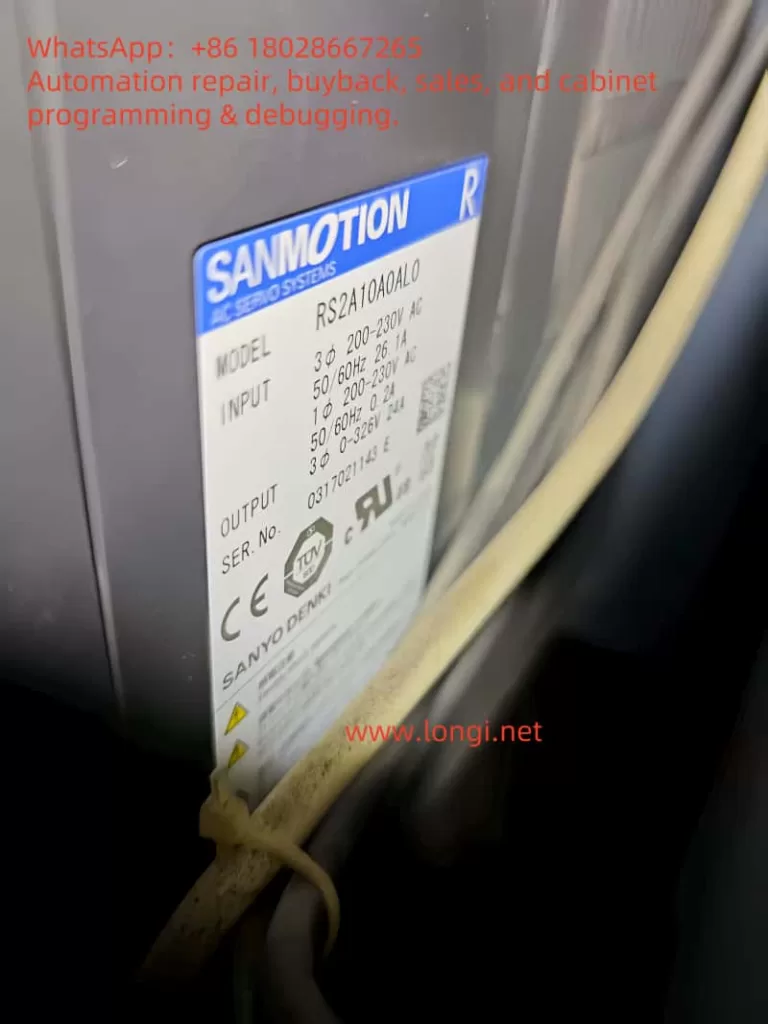
Sanyo Denki’s SanMotion RS2 series servo drivers are renowned for their precision and reliability in industrial automation applications, such as robotics, CNC machines, and automated manufacturing systems. These drivers are designed to deliver high-performance motion control, but like any sophisticated electronic system, they can encounter faults that disrupt operations. One such fault is the AL.72.8 error code, which, based on available information, likely indicates a ±12V power supply abnormality. This fault can halt critical operations, making it essential for technicians and engineers to understand its causes, troubleshooting steps, and preventive measures. This article provides a comprehensive guide to diagnosing and resolving the AL.72.8 fault, ensuring minimal downtime and sustained system performance.

Understanding the AL.72.8 Fault Code

The AL.72.8 fault code, sometimes displayed as “72H” in hexadecimal format, is believed to indicate an abnormality in the ±12V power supply within the Sanyo Denki SanMotion RS2 series servo driver. The ±12V supply is a critical component that powers various control circuits, including:

  • Encoder Interfaces: For precise motor position feedback.
  • Communication Ports: Such as RS-485 or CANopen, used for interfacing with control systems.
  • Logic Circuits: For processing control signals and ensuring proper operation.

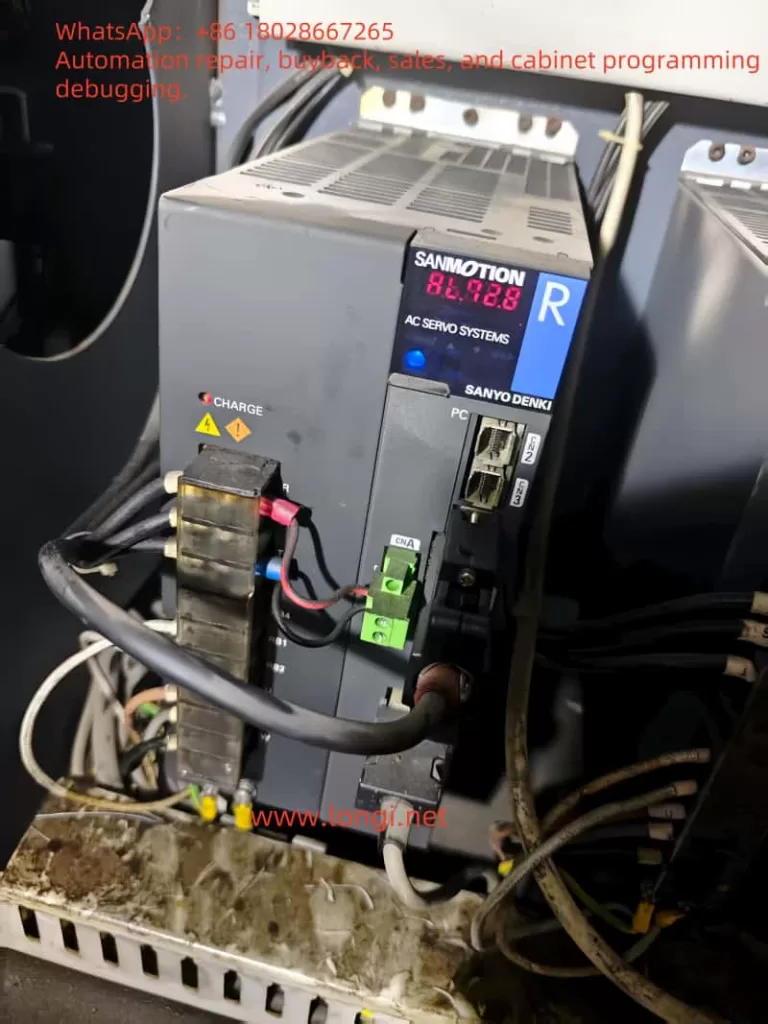
When the ±12V supply deviates from its nominal range (typically ±12V ±10%) or fails entirely, it can lead to erratic behavior, loss of control, or complete system shutdown. The fault is displayed prominently on the driver’s digital panel, as observed in user-provided images, signaling the need for immediate troubleshooting.

Potential Causes of AL.72.8

Several factors can trigger the AL.72.8 fault. Understanding these causes is the first step toward effective resolution:

  1. Internal Power Supply Failure:
    • The servo driver relies on an internal DC-DC converter to generate the ±12V supply from the main AC input (typically 200-240V AC). Failures in this converter, due to component wear, overheating, or manufacturing defects, can result in unstable or absent ±12V output.
    • Symptoms may include intermittent faults, random resets, or loss of communication with the motor or controller.
  2. Short Circuit or Open Circuit:
    • A short circuit in the ±12V line can cause excessive current draw, triggering protective circuits or damaging components.
    • An open circuit, conversely, prevents voltage from reaching critical components, leading to operational failures.
  3. Damaged Components:
    • Components on the control board, such as operational amplifiers, logic ICs, or microcontrollers powered by the ±12V supply, may fail due to overvoltage, overheating, or prolonged use.
    • Visual signs include burnt, discolored, or swollen components, particularly electrolytic capacitors.
  4. Incorrect Wiring:
    • While the ±12V supply is typically internal, external modifications or incorrect wiring during maintenance can introduce faults.
    • Unauthorized changes or loose connections can disrupt the power supply chain.
  5. Main Power Supply Issues:
    • The main AC input voltage must remain within 200-240V AC (±10%) for proper operation. Fluctuations, spikes, or sags can stress the internal DC-DC converter, affecting the ±12V supply.
    • Phase imbalances or power quality issues can exacerbate this problem.
  6. Aging Components:
    • Electrolytic capacitors, commonly used in power supply circuits, degrade over time, losing capacitance or increasing equivalent series resistance (ESR). This can destabilize the ±12V supply, especially under load.
    • Other components, such as voltage regulators, may also deteriorate with prolonged use.

The following table summarizes the potential causes and their impacts:

CausePotential Impact
Internal Power Supply FailureUnstable or missing ±12V supply, system shutdown
Short Circuit/Open CircuitExcessive current or no voltage to circuits
Damaged ComponentsAbnormal voltage behavior, circuit failure
Incorrect WiringDisrupted power supply, erratic operation
Main Power Supply IssuesStress on internal converter, voltage instability
Aging ComponentsReduced performance, intermittent faults

Troubleshooting the AL.72.8 Fault

Resolving the AL.72.8 fault requires a systematic approach to identify and address the root cause. Below are detailed troubleshooting steps:

  1. Verify Main Power Supply:
    • Use a true RMS multimeter to measure the input AC voltage at the driver’s power terminals, ensuring it is within 200-240V AC (±10%).
    • Check for voltage stability using a power quality analyzer if fluctuations are suspected.
    • Ensure the power source is free from phase imbalances or excessive noise.
  2. Inspect Internal and External Wiring:
    • With the power off and proper safety precautions (e.g., wearing ESD-safe gear), open the servo driver.
    • Visually inspect internal wiring for loose connections, burnt wires, or signs of overheating.
    • Check external connections, such as those to the motor or controller, for damage or improper wiring.
  3. Measure ±12V Supply:
    • Locate the ±12V test points on the control board, as specified in the RS2 series service manual.
    • With the driver powered on (in a safe, servo-off state), measure the voltage using a multimeter. The reading should be close to ±12V with minimal ripple (<1% of nominal voltage).
    • If the voltage is out of range, trace the ±12V lines to identify the point of failure.
  4. Check for Short Circuits:
    • Disconnect the driver from power.
    • Use a multimeter in continuity mode to check for shorts between the ±12V lines and ground or other circuits.
    • Measure resistance across the ±12V lines; it should be high (open circuit) unless intentional loads are present.
  5. Inspect Components:
    • Examine the control board for visible damage, such as bulging capacitors, discolored resistors, or burnt ICs.
    • If possible, measure the resistance or capacitance of suspect components and compare with expected values.
  6. Use Diagnostic Tools:
    • Utilize Sanyo Denki’s SANMOTION R Setup Software to access fault logs and additional error codes.
    • Monitor parameters related to power supply status to gain further insight into the fault.
  7. Consult Manufacturer’s Documentation:
    • Refer to the RS2 series manual for specific troubleshooting flowcharts or procedures for AL.72.8.
    • Check for service bulletins or known issues related to this fault code.
  8. Contact Technical Support:
    • If the issue persists, contact Sanyo Denki’s technical support or an authorized service center. Provide the model number, serial number, fault code, and detailed observations from your troubleshooting efforts.
    • Support contact details include:

    The following table outlines the troubleshooting steps and their objectives:

    StepObjective
    Verify Main Power SupplyEnsure input voltage is within specifications
    Inspect WiringIdentify loose or damaged connections
    Measure ±12V SupplyConfirm voltage stability and range
    Check for Short CircuitsDetect electrical faults in ±12V lines
    Inspect ComponentsIdentify damaged or faulty components
    Use Diagnostic ToolsAccess detailed fault logs and parameters
    Consult DocumentationFollow manufacturer’s troubleshooting guide
    Contact Technical SupportObtain expert assistance for unresolved issues

    Preventive Measures

    Preventing the AL.72.8 fault and similar issues requires proactive maintenance and careful system design. Here are key preventive measures:

    1. Regular Maintenance:
      • Schedule inspections every 6-12 months, depending on the operating environment.
      • Clean the driver to remove dust and debris, which can cause overheating or electrical issues.
      • Replace aging components, such as electrolytic capacitors, as per the manufacturer’s maintenance schedule.
    2. Stable Power Supply:
      • Install voltage stabilizers or uninterruptible power supply (UPS) systems to protect against power fluctuations.
      • Ensure the electrical panel includes overcurrent protection and surge suppression devices.
    3. Proper Installation:
      • Mount the servo driver vertically to optimize cooling and ensure adequate airflow.
      • Install in a clean, dry, and well-ventilated environment to prevent overheating and contamination.
    4. Monitor System Performance:
      • Use the driver’s built-in monitoring functions or diagnostic software to log temperatures, voltages, and other parameters.
      • Set up alerts for abnormal conditions, such as voltage deviations or temperature increases.
    5. Training and Documentation:
      • Train maintenance personnel on the specific RS2 series model and its fault codes.
      • Maintain up-to-date documentation, including service manuals and wiring diagrams, for quick reference.

    Conclusion

    The AL.72.8 fault code in Sanyo Denki SanMotion RS2 series servo drivers likely indicates a ±12V power supply abnormality, which can disrupt critical control functions. Potential causes include internal power supply failures, short circuits, damaged components, or main power supply issues. By following a systematic troubleshooting approach—verifying the main power supply, inspecting wiring, measuring voltages, and consulting technical support—technicians can effectively diagnose and resolve the issue. Preventive measures, such as regular maintenance, stable power supply, and proper installation, are essential for minimizing the occurrence of this fault and ensuring the longevity of the servo system. For further assistance, refer to the official Sanyo Denki documentation or contact their technical support team.

    Posted on

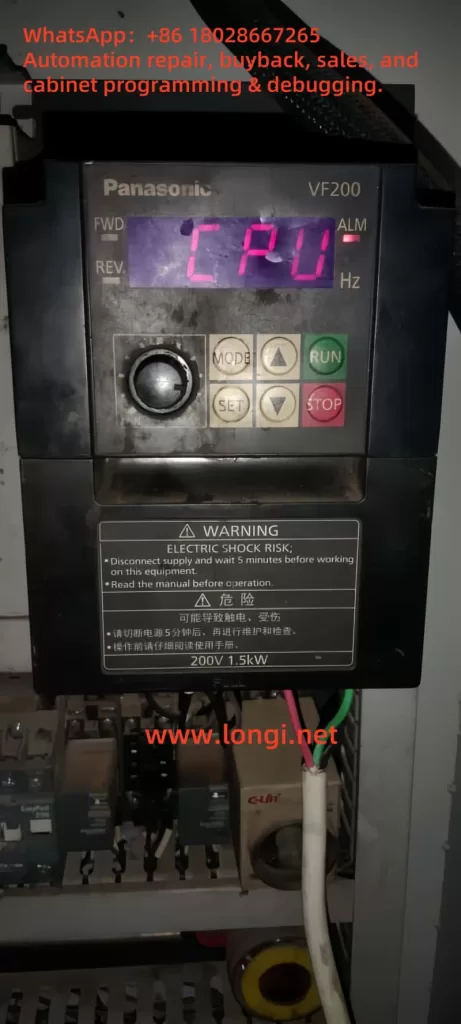
    Panasonic VF200 Series Inverter “CPU” Fault and ALARM Light Resolution Guide

    1. Introduction

    The Panasonic VF200 series inverter is a widely used device in industrial automation, known for its efficiency, reliability, and versatility. This series supports single-phase 200V (0.2kW to 2.2kW) and three-phase 400V (0.75kW to 15kW) power supplies, making it suitable for various motor control applications. However, users may encounter issues during operation, one of the most common and troubling being the “CPU” fault code displayed on the inverter’s screen accompanied by the ALARM light. This fault indicates an abnormality in the inverter’s core control system, potentially causing the device to stop functioning and disrupting production efficiency. This article will provide a detailed analysis of the “CPU” fault, its possible causes, and a systematic approach to troubleshooting and resolving the issue to help users quickly restore normal operation.

    CPU ALARM

    2. Meaning of the “CPU” Fault

    In the Panasonic VF200 series inverter, when the display shows the “CPU” fault code and the ALARM light is on, it typically indicates a problem with the inverter’s Central Processing Unit (CPU). The CPU is the “brain” of the inverter, responsible for executing control algorithms, processing input and output signals, and coordinating the overall operation of the device. When the CPU detects an abnormality in itself or related systems, the inverter enters protection mode, stops operation, and alerts the user by displaying the “CPU” code and lighting the ALARM lamp.

    According to the VF200 series user manual and technical documentation, the “CPU” fault may be associated with other anomalies such as instantaneous overcurrent (OC1-3) or temperature abnormalities (OH). This suggests that the “CPU” error may not solely be a hardware issue with the CPU but could also be triggered indirectly by external conditions or system operational states. Therefore, understanding the potential causes of this fault is crucial.

    3. Possible Causes of the “CPU” Fault

    The occurrence of the “CPU” fault can be triggered by various factors. Below are detailed analyses of several common causes:

    1. Power Supply Issues

    • Voltage Instability: The VF200 series inverter has strict requirements for input power. If the power supply voltage exceeds the rated range (single-phase 200V or three-phase 400V) or fluctuates, it may lead to insufficient power or overvoltage damage to the CPU.
    • Power Interference: Surges or electromagnetic interference (EMI) in the power supply can disrupt the normal operation of the CPU, especially in industrial environments with poor power quality.

    2. Overheating Issues

    • Temperature Abnormality (OH): If the internal temperature of the inverter is too high, it may be due to poor ventilation, high ambient temperature, or a malfunctioning cooling fan (FAn). High temperatures can affect the stability of the CPU and even trigger faults.
    • Overloading: Operating under high load conditions for extended periods can lead to inadequate heat dissipation, further exacerbating temperature increases.

    3. Overcurrent Issues

    • Instantaneous Overcurrent (OC1-3): Motor failures, sudden load changes, or wiring errors can cause the current to exceed the inverter’s rated value. This situation may place excessive stress on the CPU, triggering the protection mechanism and displaying the “CPU” error.
    • Improper Parameter Settings: If the current limit parameters are set incorrectly, it may fail to effectively prevent overcurrent conditions.

    4. Firmware or Software Issues

    • Firmware Corruption: Firmware is the software foundation for CPU operation. If the firmware is corrupted during an update or due to electrical interference, the CPU may not function properly.
    • Parameter Errors: Parameters set by the user that do not match the actual application may cause the CPU to execute abnormal instructions.

    5. Hardware Failures

    • CPU or Control Board Damage: Long-term use, manufacturing defects, or physical damage can lead to hardware failures in the CPU or its control board, such as circuit board burnout or component aging.
    • Connection Issues: Loose or poor internal connections may disrupt data communication between the CPU and other modules.

    6. External Interference

    • Electromagnetic Interference: High-power equipment commonly found in industrial environments can generate strong electromagnetic interference, affecting the CPU’s signal processing capabilities.
    • Poor Grounding: High grounding resistance can lead to the accumulation of electrical noise, interfering with CPU operation.
    VF200

    4. Steps to Troubleshoot and Resolve the “CPU” Fault

    To effectively resolve the “CPU” fault, users should follow these systematic steps for troubleshooting and resolution:

    1. Initial Checks and Safety Preparations

    • Power Off: According to the warning labels on the inverter, disconnect the power and wait at least 5 minutes to ensure the internal capacitors are discharged, avoiding the risk of electric shock.
    • Record Status: Note the operating conditions when the “CPU” fault occurred (such as load, ambient temperature, etc.) to provide clues for subsequent diagnosis.

    2. Check Power Supply Conditions

    • Measure Voltage: Use a multimeter to measure the input power voltage, ensuring it is within the rated range for single-phase 200V (0.2kW to 2.2kW) or three-phase 400V (0.75kW to 15kW) and free from significant fluctuations.
    • Check Grounding: Confirm that the grounding resistance is less than 10 ohms to eliminate interference caused by poor grounding.

    3. Check for Overheating Issues

    • Ambient Temperature: Ensure the operating environment temperature is between 0°C and 40°C, and check if the ventilation openings are blocked.
    • Cooling Fan: Verify if the fan is operating normally; replace it if faulty.
    • Clean the Device: Use compressed air to remove dust from inside the inverter to ensure proper heat dissipation.

    4. Check for Overcurrent Issues

    • Load Check: Ensure the motor load does not exceed the inverter’s rated capacity and check for motor short circuits or mechanical jams.
    • Wiring Check: Inspect the wiring between the inverter and the motor to ensure it is correct and secure.
    • Parameter Adjustment: Use the “MODE,” “SET,” “UP,” and “DOWN” keys to access parameter settings and check the current limit parameters, ensuring they are within 1% to 200% of the rated output current.

    5. Reset and Firmware Check

    • Power Reset: After powering off and waiting 5 minutes, power on again to see if the “CPU” error disappears.
    • Restore Factory Settings: If the issue persists, follow the user manual to restore factory settings and then reconfigure necessary parameters.
    • Firmware Update: Contact technical support to obtain the latest firmware and follow the instructions to update it.

    6. Hardware Inspection

    • Visual Inspection: Open the inverter casing and check the control board for signs of burning, odors, or damaged components.
    • Connection Repair: If loose connections are found, secure them with insulating tape and re-tighten.
    • Component Replacement: If hardware damage is severe, contact Panasonic after-sales service to replace the original control board.

    7. Reduce External Interference

    • Isolate Interference Sources: Separate the inverter from high-power equipment or install shielding covers.
    • Use Shielded Cables: Ensure that control signal lines and power lines use shielded cables to reduce electromagnetic interference.

    8. Testing and Verification

    • Operation Test: After completing the above steps, restart the inverter and observe if the “CPU” error is resolved.
    • Diagnostic Function: Use the inverter’s error log function to check for other related fault codes (such as OC1-3, OH, etc.).

    9. Seek Professional Support

    • If the issue remains unresolved, contact Panasonic technical support, providing detailed fault information, model (VF200), and troubleshooting records for remote diagnosis or on-site repair.

    5. Preventive Measures for “CPU” Faults

    To prevent the recurrence of “CPU” faults, users can take the following preventive measures:

    1. Regular Maintenance
    • Clean dust every 6 months, check wiring and fan status to ensure proper heat dissipation and electrical connections.
    1. Power Optimization
    • Install voltage stabilizers or UPS to ensure stable power supply and avoid voltage spikes.
    1. Environmental Management
    • Keep the operating environment clean, dry, and avoid high temperatures and humidity, ensuring good ventilation.
    1. Firmware Management
    • Regularly check firmware versions, back up parameters before updating to ensure software stability.
    1. Standardized Operation
    • Train operators to set parameters correctly according to the user manual to avoid malfunctions caused by incorrect operations.

    6. Conclusion

    The “CPU” fault displayed on the Panasonic VF200 series inverter, accompanied by the ALARM light, is a serious issue that requires prompt attention. It can be caused by power instability, overheating, overcurrent, firmware issues, hardware failures, or external interference. By following the systematic troubleshooting steps provided in this article, users can start with checking power and environmental conditions, then delve into hardware and firmware aspects to identify the root cause and apply targeted solutions. Additionally, regular maintenance and optimizing the operating environment are key to preventing faults. If self-troubleshooting fails, contacting Panasonic’s official support is advisable. Through these methods, users can not only resolve the current “CPU” fault but also enhance the long-term stability and lifespan of the equipment, ensuring reliable support for industrial production.


    Posted on

    Detailed Explanation and Troubleshooting of SC1 Fault in Panasonic VF0 Inverter

    In industrial automation, the inverter plays a crucial role in motor speed regulation and energy saving. Its stability directly affects the efficiency and reliability of the entire system. This article focuses on the SC1 fault code commonly seen in the Panasonic VF0 series inverter, analyzing its meaning, root causes, and practical troubleshooting steps.

    1. What Does SC1 Fault Indicate?

    According to the Panasonic VF0C Inverter Manual, the SC1 code signifies an overcurrent or abnormal heat generation at the heatsink during acceleration. It is a protective mechanism to prevent IGBT modules or internal circuits from damage caused by excessive current or temperature spikes.

    • SC1: Overcurrent or overheating during motor acceleration phase
    • Main protection target: IGBT modules, bus capacitors, cooling fans
    • Trigger timing: During the acceleration ramp-up of the motor

    2. Common Causes of SC1 Fault

    SC1 faults can arise due to issues in power electronics, load mechanics, thermal conditions, or control parameters. The most frequent causes include:

    a) Output Short Circuit or Ground Fault

    Faulty motor cables or incorrect wiring (e.g., shorted U/V/W terminals or ground leakage) can cause surge currents during motor start-up.

    b) Heavy or High-Inertia Load

    Excessive mechanical load, locked rotor, or applications with high inertia (e.g., conveyor belts, compressors) may draw high start-up current, exceeding inverter ratings.

    c) Cooling System Failure

    Fan failure, clogged heatsinks, or poor cabinet ventilation can lead to temperature rise and SC1 alarm.

    d) Improper Parameter Settings

    A too-short acceleration time (e.g., 0.1~1 sec) will force the inverter to ramp up frequency quickly, resulting in high current output.

    e) Input Voltage Instability

    Low input voltage increases the output current demand, especially during acceleration, potentially triggering overcurrent faults.

    sc1_fault_diagram

    3. Troubleshooting and Solution Steps

    Here are practical steps to diagnose and resolve SC1 alarms:

    Step 1: Check Output Wiring and Motor Load

    • Use a multimeter to test U/V/W terminals for shorts or ground leakage.
    • Inspect motor cables for damage or poor connections.
    • Rotate the motor shaft manually to ensure it’s not mechanically jammed.

    Step 2: Inspect Cooling Fan and Heat Dissipation

    • Open the inverter cover and check if the cooling fan is running.
    • Clean dust on the heatsink with compressed air.
    • Ensure the electrical cabinet has proper ventilation, especially in summer.

    Step 3: Optimize Parameter Settings

    Access parameter setting mode (MODE → SET), then adjust:

    Parameter No.FunctionSuggested Setting
    Pr.01Acceleration time3~5 seconds
    Pr.13Overcurrent limitMid or wide range
    Pr.90Heatsink temperature limitAvoid low threshold

    Tip: Always record the original settings before making changes.

    Step 4: Measure Input Voltage

    • Check the input voltage on the terminal block to ensure it is within the rated range (200~230V).
    • If voltage is low, consider improving incoming power cable thickness or stability.

    Step 5: Evaluate Load Application

    • For high-inertia loads, use S-curve acceleration or external soft-start mechanisms.
    • Reduce frequency of frequent starts/stops if possible.

    4. Real-World Case Study

    A Panasonic VF0 inverter (model BFV00152GK, 1.5kW) experienced frequent SC1 faults. On-site checks revealed:

    • Internal fan failure
    • Acceleration time set to only 0.5 seconds
    • Enclosure internal temperature reached over 45°C

    Fixes Applied:

    • Replaced fan and cleaned heatsink
    • Adjusted Pr.01 (acceleration time) to 3.0 seconds
    • Added top exhaust fan to the control cabinet

    Result: SC1 alarms were eliminated after these corrections.

    5. Preventive Measures

    To minimize SC1 alarms in the future:

    • Periodically clean inverter and cabinet internals
    • Replace consumables like fans and capacitors every 2–3 years
    • Avoid aggressive acceleration settings
    • Add temperature sensors and alarms for heat monitoring
    • Use external torque/speed ramps for sensitive applications
    VF0

    6. Conclusion

    The SC1 code on Panasonic VF0 inverters is a protection feature for acceleration-related overcurrent or thermal overload. It indicates a potential risk that should not be ignored. With proper diagnostics and control parameter tuning, SC1 alarms can be resolved efficiently, ensuring reliable and long-term operation of your automation system.


    Posted on

    Panasonic Inverter VF200 Series User Manual Guide

    Introduction

    The Panasonic Inverter VF200 series is a powerful and flexible variable frequency drive (VFD) equipment widely used in the industrial automation field. This document aims to provide users with a detailed user guide to help them better understand and efficiently operate the VF200 series inverter.


    Function diagram of Panasonic VF200 series inverter operation panel

    1. Operation Panel Function Introduction, Parameter Upload, and Download

    1.1 Operation Panel Function Introduction

    The operation panel of the Panasonic Inverter VF200 series serves as the primary interface for user interaction. It features various functions and indicators to facilitate ease of use and monitoring.

    • Display Section: Displays output frequency, current, linear speed, set frequency, communication station number, abnormality content, various mode displays, and function setting data.
    • FWD/REV Indicators: Green indicators that show the forward/reverse operation status.
    • Panel Potentiometer: Used to set the operating frequency via the operation panel.
    • Alarm (ALM) Indicator: Red indicator that lights up in case of abnormalities or alarms.
    • RUN/STOP Buttons: Buttons to start/stop the inverter.
    • MODE Button: Toggles between various modes such as operation status display, frequency setting, rotation direction setting, control status monitoring, custom settings, function settings, and built-in memory settings.
    • SET Button: Used to switch modes, display data, and store settings.
    • ▲(UP) and ▼(DOWN) Buttons: Used to change data, output frequency, and set the rotation direction when operating via the panel.
    VF200 picture

    1.2 Uploading and Downloading Parameters

    • Uploading Parameters (CPY1): To upload the inverter’s functional parameters to the operation panel’s built-in memory, follow these steps:
      1. Stop the inverter.
      2. Press the MODE button four times to enter the function setting mode.
      3. Press the SET button.
      4. Use the ▲/▼ buttons to select “CPY1”.
      5. Press the SET button and set the value to “UPL”.
      6. Press the SET button again to start the upload process.
    • Downloading Parameters (CPY2): To download the parameters from the operation panel’s built-in memory to the inverter, follow these steps:
      1. Stop the inverter.
      2. Press the MODE button four times to enter the function setting mode.
      3. Press the SET button.
      4. Use the ▲/▼ buttons to select “CPY2”.
      5. Press the SET button and set the value to “dOL”.
      6. Press the SET button again to start the download process.

    1.3 Setting and Eliminating Passwords

    • Setting a Password:
      1. Stop the inverter.
      2. Press the MODE button four times to enter the function setting mode.
      3. Use the ▲/▼ buttons to navigate to parameter P150.
      4. Press the SET button to display the current password.
      5. Use the ▲/▼ buttons to set a new password (range: 0000-9999).
      6. Press the SET button to save the password.
    • Eliminating a Password:
      1. Stop the inverter.
      2. Press the MODE button four times to enter the function setting mode.
      3. Use the ▲/▼ buttons to navigate to parameter P150.
      4. Press the SET button to display the current password.
      5. Set the password to “0000” using the ▲/▼ buttons.
      6. Press the SET button to eliminate the password.

    1.4 Restoring Parameter Initialization

    To restore the inverter’s parameters to their factory default settings, follow these steps:

    1. Stop the inverter.
    2. Press the MODE button four times to enter the function setting mode.
    3. Use the ▲/▼ buttons to navigate to parameter P151.
    4. Press the SET button to display the current setting.
    5. Set the value to “3” using the ▲/▼ buttons.
    6. Press the SET button to restore the parameters to their factory defaults.
    Panasonic VF200 inverter control terminal wiring diagram

    2. External Terminal Control for Forward/Reverse Rotation and PWM Frequency Control

    2.1 Forward/Reverse Rotation Control via External Terminals

    To achieve forward/reverse rotation control via external terminals, connect the relevant control signals to the designated terminals on the inverter.

    • Terminal Configuration:
      • SW1-SW5 (Control Circuit Terminals 4-8): These terminals can be configured to control forward/reverse rotation, start/stop, and other functions.
      • Configuration Steps:
        1. Stop the inverter.
        2. Enter the function setting mode by pressing the MODE button four times.
        3. Navigate to parameters P036-P040 using the ▲/▼ buttons.
        4. Set the desired function (e.g., forward/reverse, start/stop) to the corresponding terminal using the ▲/▼ buttons.
        5. Press the SET button to save the settings.

    2.2 PWM (Pulse) Frequency Control

    To control the inverter’s output frequency via PWM signals, follow these steps:

    • Terminal Configuration:
      • Terminal 7 (SW4) and Terminal 8: These terminals are used to receive PWM frequency control signals.
      • Configuration Steps:
        1. Stop the inverter.
        2. Enter the function setting mode by pressing the MODE button four times.
        3. Navigate to parameter P087 using the ▲/▼ buttons.
        4. Set the value to “1” to enable PWM frequency control.
        5. Press the SET button to save the setting.
        6. Connect the PWM signal source to terminals 7 and 8 according to the wiring diagram provided in the manual.
    • Additional Settings:
      • P088: Sets the number of PWM cycles to average for frequency calculation.
      • P089: Sets the PWM signal period.

    By following this guide, users can effectively utilize the Panasonic Inverter VF200 series, leveraging its advanced features and flexible control options to meet various industrial automation needs.