Posted on

Particle Metrix ZetaView NTA Analyzer Startup Self-Test Failure and Stepper Drive Timeout Fault Diagnosis

1. Overview of the Fault Phenomenon

The Particle Metrix ZetaView is a nanoparticle tracking analysis (NTA) instrument widely used for the characterization of exosomes, viruses, liposomes, nanomaterials, protein aggregates, colloidal suspensions, and other nanoscale particles. Although it appears externally as a compact benchtop laboratory analyzer, internally it integrates a laser illumination system, microscopic imaging system, sample cell positioning mechanism, temperature and fluid control system, camera acquisition module, motion control system, and dedicated analysis software.

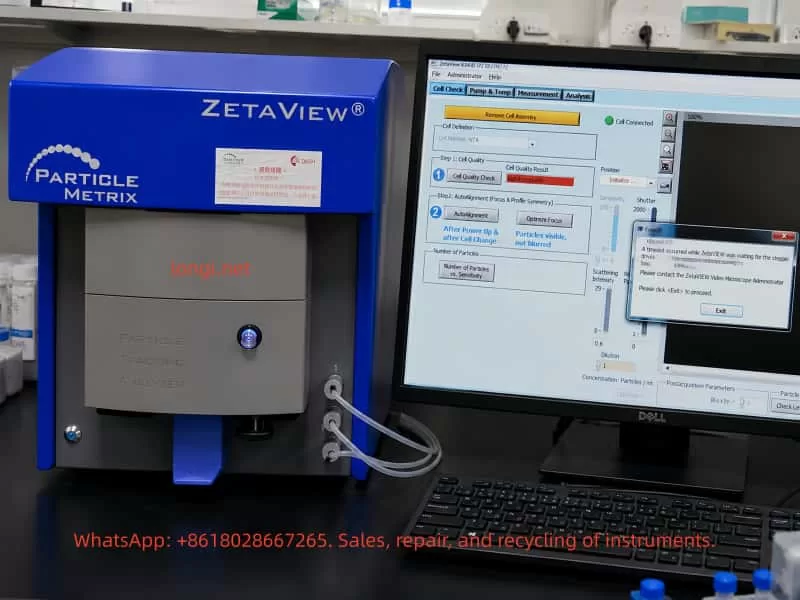
One common field failure encountered on this type of instrument is startup initialization failure. After powering on the instrument and launching the ZetaVIEW software, the system cannot complete the self-check procedure. During initialization or Cell Check, the software displays an error message similar to:

A timeout occurred while ZetaVIEW was waiting for the stepper drives to stop.
ZetaVIEW will be stopped without saving the configuration file.
Please contact the ZetaVIEW Video Microscope Administrator.

This error does not simply indicate a software crash or Windows problem. It means that during startup initialization, the software issued a motion command to the internal stepper motor system, but the instrument failed to return the expected “motion completed” or “drive stopped” status within the allowed time window.

For service engineers, this is a critical distinction. Reinstalling the software or replacing the PC may not resolve the issue. In most cases, the fault is associated with one or more of the following subsystems:

  • Sample cell installation or positioning problems
  • Mechanical blockage inside the motion platform
  • Stepper motor or stepper driver failure
  • Home sensor or limit switch malfunction
  • Motion controller communication errors
  • Internal power supply instability
  • Liquid contamination, salt crystallization, or corrosion inside the instrument

Therefore, when a ZetaView analyzer reports a “stepper drives timeout” error during startup, troubleshooting should focus primarily on the internal motion control system rather than the software alone.


Particle Metrix ZetaView NTA analyzer showing a ZetaVIEW software self-test failure with a stepper drive timeout error on the connected computer screen.

2. Basic Internal Structure of the ZetaView NTA Analyzer

Understanding the internal architecture of the analyzer is essential for correct fault diagnosis.

The ZetaView is not merely an optical microscope. Its operation is based on nanoparticle tracking analysis. Nanoparticles suspended in liquid undergo Brownian motion. A laser illuminates the particles inside the sample cell, and the microscopic imaging system captures the scattered light from each particle. The software then calculates particle size distribution by analyzing particle motion trajectories.

To achieve this, the instrument includes several interconnected systems.


2.1 Laser Illumination System

The analyzer requires a stable laser source to illuminate nanoparticles inside the measurement cell. Scattered light from the particles is captured by the camera system.

Laser-related failures usually produce symptoms such as:

  • Dark image
  • No visible particles
  • Weak scattering intensity
  • High optical noise
  • Unstable illumination

However, laser faults generally do not directly trigger “stepper drive timeout” errors unless multiple initialization procedures fail simultaneously.


2.2 Microscopic Imaging System

The instrument includes:

  • Microscope optics
  • Imaging camera
  • Focus adjustment mechanism
  • Optical positioning assembly

The software functions “Auto Alignment” and “Optimize Focus” indicate that the system must move and adjust optical components during initialization.

If the imaging system fails, typical symptoms include:

  • Black image
  • Blurred particles
  • Unstable focus
  • Excessive background noise
  • Missing particle trajectories

Again, these faults alone normally do not generate the specific “waiting for the stepper drives to stop” error unless the motion system involved in focusing is malfunctioning.


2.3 Sample Cell and Fluidic System

The sample cell is where nanoparticle measurements occur. Tubing connections allow sample injection, flushing, and fluid exchange.

The software screen often displays messages such as:

  • Remove Cell Assembly
  • Cell Connected
  • Cell Quality Check

If the sample cell is improperly installed, contaminated, misaligned, or mechanically interfering with the positioning mechanism, the motion platform may fail during initialization.

Common issues include:

  • Misaligned sample cell
  • Salt residue inside the holder
  • Damaged sealing ring
  • Deformed mounting mechanism
  • Mechanical obstruction
  • Improper insertion depth

2.4 Motion Control System

The motion system is the most important subsystem related to this fault.

Inside the analyzer, several precision movements may be controlled by stepper motors:

  • Sample cell positioning
  • Focus adjustment
  • Optical path alignment
  • Stage positioning
  • Internal calibration movement

During startup, the software typically performs:

  • Homing operations
  • Position calibration
  • Focus initialization
  • Alignment verification
  • Motion completion checks

If any axis fails to stop correctly, or if the controller does not receive the expected completion signal, the software eventually reports a timeout error.


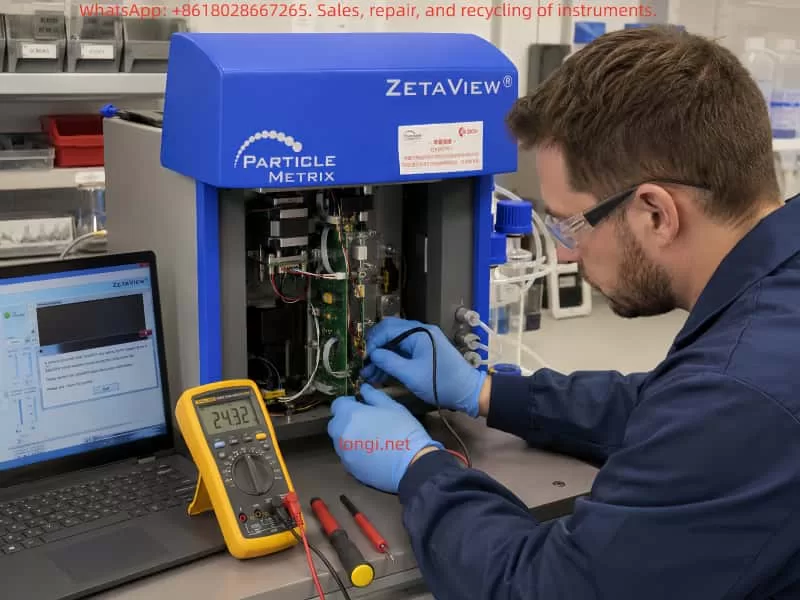
Engineer diagnosing and repairing a Particle Metrix ZetaView NTA nanoparticle analyzer with the instrument panel open, using a multimeter and laptop during troubleshooting.

3. Technical Meaning of the Error Message

The key phrase is:

waiting for the stepper drives to stop

This is extremely important.

It means the software successfully communicated with the instrument and attempted to control the internal motion system. The failure occurred after motion commands were already issued.

This implies several important conclusions:

  1. The instrument is at least partially communicating with the PC.
  2. The motion initialization process has started.
  3. The software is waiting for confirmation that the stepper-driven mechanism has stopped or reached its target position.
  4. That confirmation never arrived within the allowed time.

Therefore, the root problem lies somewhere within the motion control chain:

  • Mechanical movement
  • Stepper motors
  • Driver electronics
  • Home sensors
  • Limit switches
  • Motion feedback logic
  • Controller communication

This is not primarily a Windows or GUI software problem.


4. Common Causes of the Fault

4.1 Sample Cell Assembly Problems

The appearance of “Remove Cell Assembly” suggests that the software is checking sample cell status during startup.

If the sample cell is:

  • Improperly seated
  • Mechanically obstructing movement
  • Contaminated
  • Deformed
  • Incorrectly installed

the initialization sequence may fail.

This is particularly common when:

  • Operators force the cell into position
  • Salt crystals accumulate
  • Sample liquid leaks into the holder
  • The positioning mechanism becomes misaligned

A practical first step is always:

  1. Power off the instrument
  2. Remove the sample cell
  3. Clean the mounting area
  4. Restart the analyzer
  5. Retry initialization

If the instrument passes startup without the cell installed, the fault is strongly related to the sample cell assembly or associated positioning mechanism.


4.2 Mechanical Blockage

Mechanical resistance is one of the most common causes of stepper timeout errors.

Typical sources include:

  • Dried sample residue
  • Salt crystallization
  • Corrosion
  • Contaminated guide rails
  • Damaged bearings
  • Misaligned sliders
  • Bent lead screws
  • Foreign debris inside the motion path

Typical symptoms:

  • Humming motor without movement
  • Clicking or knocking sounds
  • Intermittent startup success
  • Axis stalling during homing
  • Excessive resistance during manual movement

NTA analyzers often operate with biological buffers and saline solutions. Even small liquid leaks can eventually contaminate precision mechanical assemblies.


4.3 Stepper Motor Failure

Stepper motors themselves can fail, although this is less common than mechanical blockage or driver board faults.

Possible motor-related issues include:

  • Open motor winding
  • Shorted winding
  • Connector failure
  • Bearing seizure
  • Motor overheating
  • Insufficient holding torque
  • Damaged cables

Diagnostic methods include:

  • Measuring winding resistance
  • Checking motor holding torque
  • Observing motor vibration
  • Listening for abnormal noise

A motor that vibrates but does not rotate often indicates either:

  • Mechanical blockage
  • Incorrect drive signals
  • Coil phase problems
  • Driver current failure

4.4 Stepper Driver Board Failure

The stepper driver board converts motion commands into motor current.

Failures may involve:

  • Burned driver ICs
  • Overcurrent protection triggering
  • Damaged MOSFETs
  • Corroded PCB traces
  • Loose connectors
  • Missing enable signals
  • Driver overheating
  • Power supply collapse

Typical symptoms:

  • Motor has no holding torque
  • Motor briefly moves then stops
  • Driver IC overheating
  • Repeated startup failures
  • Axis movement instability

Because many ZetaView instruments use proprietary motion control boards, board-level diagnosis may require oscilloscope testing and electronic repair skills.


4.5 Home Sensor or Limit Switch Failure

During startup, the instrument typically performs homing operations.

The motion axis moves toward a reference position until:

  • A home sensor activates
  • A limit switch changes state
  • A position feedback signal is detected

If this feedback never occurs, the software waits indefinitely until timeout.

Common causes include:

  • Dust blocking optical sensors
  • Broken limit switches
  • Misaligned sensor flags
  • Loose sensor connectors
  • Broken wires
  • Failed Hall sensors
  • Corroded optical interrupters

This is one of the most common root causes of startup timeout faults.


4.6 Internal Power Supply Problems

Motion systems require stable power.

Typical internal voltages include:

  • 24V motor supply
  • 12V auxiliary supply
  • 5V logic supply

Power-related faults may produce:

  • Random startup failures
  • Weak motor movement
  • Driver resets
  • Unstable communication
  • Excessive ripple noise
  • Voltage drop during motion

Important diagnostic points include:

  • Voltage stability under load
  • Ripple measurement
  • Capacitor aging
  • Connector oxidation
  • Power supply overheating

A static voltage reading alone is insufficient. Dynamic measurements during motor movement are far more useful.


4.7 Communication or Software Configuration Issues

Although the primary fault is usually hardware-related, communication problems should still be considered.

Potential issues include:

  • USB communication instability
  • Driver mismatch
  • Incorrect software version
  • Permission conflicts
  • Corrupted configuration files
  • PC power management problems

However, if the software already reaches the Cell Check interface and displays “Cell Connected,” communication is likely at least partially functional.

Therefore, communication issues are usually secondary rather than primary causes.


5. Recommended Troubleshooting Procedure

Step 1 – Record the Complete Failure Behavior

Before disassembly, record:

  • Software version
  • Exact error message
  • Startup timing
  • Motor sounds
  • Recent maintenance history
  • Sample leakage history
  • Transport history
  • Environmental conditions

This information greatly improves diagnostic efficiency.


Step 2 – Perform Minimal Startup Configuration

Reduce the system to the simplest possible state:

  1. Remove the sample cell
  2. Disconnect unnecessary peripherals
  3. Restart the analyzer
  4. Observe initialization behavior

If startup succeeds without the sample cell installed, focus on the cell assembly mechanism.


Step 3 – Listen to Internal Motion Behavior

Motor sounds provide valuable clues.

No sound at all

Possible causes:

  • No power
  • Dead driver board
  • Controller not issuing commands

Humming without movement

Possible causes:

  • Mechanical blockage
  • Insufficient drive current
  • Jammed axis

Repetitive clicking

Possible causes:

  • Failed homing
  • Sensor malfunction
  • Axis hitting mechanical stop

Brief movement then timeout

Possible causes:

  • Feedback failure
  • Motion interruption
  • Controller communication issue

Step 4 – Inspect Mechanical Assemblies

Check for:

  • Corrosion
  • Salt deposits
  • Contamination
  • Misalignment
  • Loose couplings
  • Damaged rails
  • Broken belts
  • Liquid intrusion

Mechanical inspection should always be performed carefully to avoid disturbing optical alignment.


Step 5 – Check Home Sensors and Limit Switches

Measure:

  • Sensor supply voltage
  • Output signal switching
  • Connector integrity
  • Wiring continuity

A failed home sensor can completely prevent successful initialization even if the motor itself is functioning normally.


Step 6 – Test Motors and Driver Boards

Key checks include:

  • Winding resistance
  • Driver board supply voltage
  • Enable signals
  • STEP/DIR signal activity
  • Motor holding torque
  • Driver temperature

Oscilloscope testing may be required for advanced diagnosis.


Step 7 – Verify Power Supplies

Measure:

  • 24V rail
  • 12V rail
  • 5V rail
  • Ripple voltage
  • Voltage sag during motion

Aging capacitors frequently cause intermittent startup problems in older laboratory instruments.


6. Repair Approaches

Depending on the root cause, repairs may involve:

  • Cleaning contamination
  • Realigning sample cell assemblies
  • Replacing sensors
  • Repairing motion rails
  • Replacing driver ICs
  • Rebuilding power supplies
  • Repairing corroded PCBs
  • Replacing damaged stepper motors
  • Reconfiguring software settings

After repair, the instrument must pass:

  • Startup initialization
  • Cell Quality Check
  • Auto Alignment
  • Optimize Focus
  • Standard particle testing

Only then can the repair be considered complete.


7. Important Diagnostic Distinctions

Software startup failure is not the same as self-test failure

If the software does not launch at all, the issue may be PC-related.

If the software launches but reports stepper timeout during initialization, the fault is inside the instrument.


“Cell Connected” does not mean the analyzer is healthy

This only confirms partial communication. Motion systems, optics, and sensors may still be malfunctioning.


Motor noise does not guarantee proper movement

A powered stepper motor may hum even when stalled.


Smooth mechanics do not guarantee healthy sensors

The axis may move correctly while the controller still fails to detect home position feedback.


Static voltage readings can be misleading

Power supplies may appear normal without load but collapse during motor operation.


8. Preventive Maintenance Recommendations

To reduce future failures:

  • Clean the sample cell after every use
  • Prevent liquid leakage
  • Avoid salt crystallization
  • Periodically exercise the instrument
  • Avoid forcing mechanical assemblies
  • Inspect tubing regularly
  • Monitor unusual startup sounds
  • Keep internal motion systems clean

Proper preventive maintenance significantly reduces the risk of motion system failures.


9. Conclusion

The “waiting for the stepper drives to stop” timeout error on a Particle Metrix ZetaView NTA analyzer is fundamentally a motion control initialization failure rather than a simple software problem.

The root cause usually lies in one or more of the following areas:

  • Mechanical blockage
  • Stepper motor failure
  • Driver board malfunction
  • Home sensor failure
  • Motion controller faults
  • Internal power instability
  • Sample cell positioning issues

Effective troubleshooting requires a structured approach:

  1. Observe startup behavior
  2. Listen to motor activity
  3. Inspect mechanics
  4. Verify sensors
  5. Test power supplies
  6. Diagnose driver electronics
  7. Validate software configuration

For precision laboratory instruments such as the ZetaView, successful repair means more than simply reopening the software. The analyzer must complete initialization, pass Cell Check procedures, perform stable Auto Alignment, and generate reliable nanoparticle measurements before the repair can be considered complete.

In practical field service, the “stepper drives timeout” message is actually highly valuable because it clearly narrows the problem to the motion control system. Once the troubleshooting process is focused on motors, sensors, mechanics, power supplies, and motion feedback signals, the fault can usually be isolated efficiently and repaired systematically.

Posted on

ABB EL3010-C / Uras26 Gas Analyzer Calibration Failure Analysis: From Abnormal SO₂ Concentration to “Raw Values Cannot Be Sampled”

In industrial flue gas monitoring, process gas analysis, environmental emission control, and chemical process measurement, the ABB EL3000 / EL3010-C gas analyzer is a widely used online analytical instrument. When configured with a Uras26 infrared analyzer module, it can measure infrared-active gases such as SO₂, CO₂, CO, NO, CH₄, and other process components. Because this type of analyzer involves optical detection, sample cells, temperature compensation, pressure compensation, EEPROM data sets, internal calibration cells, and external span gas calibration logic, a calibration failure should never be judged from one parameter alone.

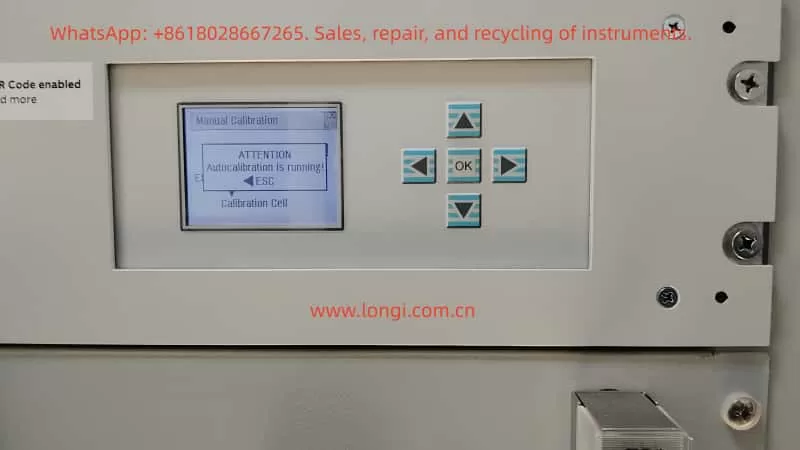
A typical case involves an ABB EL3010-C gas analyzer that failed during SO₂ calibration. Two phenomena appeared at the same time. First, in ABB Optima TCT software, the Calibration Cell 1 parameter showed an apparently abnormal SO₂ concentration component, approximately 0.3134 ppm. Second, when manual zero calibration was performed from the analyzer front panel, the analyzer displayed the following error:

ERROR
Calibration canceled!
Raw values cannot be sampled!
SO2

Many technicians may see the first symptom and immediately conclude that the SO₂ calibration cell concentration is wrong, or that the EEPROM data is corrupted. However, from a troubleshooting perspective, the second message is more important. It means the analyzer cannot acquire a valid raw signal from the SO₂ channel during calibration. Therefore, this problem should not be treated simply as a wrong concentration value in the TCT configuration. The correct diagnostic sequence should be: verify whether the raw signal is valid, check detector status, confirm gas flow and calibration conditions, verify pressure and temperature compensation, and only then investigate whether the configuration data or EEPROM data set is corrupted.

ABB EL3010-C gas analyzer showing an SO2 calibration error while a laptop displays Optima TCT software with Calibration Cell 1 settings and SO2 diagnostic data.

1. Basic Working Logic of ABB EL3010-C and the Uras26 Module

The ABB EL3010-C belongs to the ABB EL3000 / Advance Optima family of gas analyzers. Depending on configuration, the system may include a Uras26 infrared analyzer module, pressure sensor, temperature compensation unit, sample gas handling components, I/O modules, and a system controller.

The Uras26 is a nondispersive infrared gas analyzer module. Its basic principle is that infrared light passes through a sample gas cell. Different gas molecules absorb infrared energy at specific wavelengths. The detector receives the remaining light intensity, and this detector signal changes according to gas concentration. The analyzer then applies linearization, temperature compensation, pressure compensation, cross-sensitivity correction, and other algorithms to convert the raw detector signal into a displayed concentration value.

For service work, three types of data must be clearly distinguished.

The first type is the raw value, meaning the original detector signal or internal raw count. It is not ppm, not vol%, and not the final gas concentration. It is the basic signal used by the analyzer for calculation.

The second type is the measured value, meaning the calculated gas concentration after internal processing, such as SO₂ ppm or CO₂ vol%.

The third type is configuration and calibration data, including detector configuration, gas component settings, measurement ranges, calibration cell parameters, calibration factors, compensation parameters, and linearization data. These values are usually stored in the module EEPROM or related memory.

When the analyzer reports “Raw values cannot be sampled,” the message directly points to the first type of data. The SO₂ channel cannot provide a valid raw value for the calibration algorithm. At this stage, even if a calibration cell concentration value looks suspicious in TCT, it should not immediately be treated as the root cause.

2. The Role of Optima TCT: Not a Simple Routine Calibration Tool

ABB Optima TCT stands for Test & Calibration Tool. It connects to ABB Advance Optima analyzer modules and can read data sets from the module EEPROM. It can also save, archive, configure, test, and write data sets back to the module. In the TCT tree structure, a technician may see items such as General Data, Uras26 Detector, SO₂ component, measurement range, temperature detector, pressure detector, and Calibration Cell.

In field service, TCT is useful mainly for the following tasks:

  1. Reading and saving the original EEPROM configuration data;
  2. Checking the relationship between detectors, components, ranges, and calibration cells;
  3. Checking raw values, component values, and status codes;
  4. Checking pressure and temperature compensation values;
  5. Testing pumps, valves, module communication, and detector status;
  6. Restoring or correcting configuration data after confirming the correct data source;
  7. Comparing data set changes before and after calibration.

However, TCT should not be understood as the tool that must be used for daily zero and span calibration. In normal maintenance, routine zero calibration and span calibration are usually performed from the analyzer front panel, through the automatic calibration sequence, or through a plant control system. TCT is more suitable for engineering configuration, deeper diagnostics, data backup, and data recovery.

Therefore, when a customer asks, “How do you configure such gas analyzers?” the accurate answer is:

Routine zero and span calibration should normally be performed from the analyzer menu. TCT is mainly used to read, back up, inspect, and restore configuration data. When calibration from the analyzer menu fails, when parameters appear corrupted, or when module configuration is suspicious, TCT is then used to analyze EEPROM data sets and module status.

3. Calibration Cell Concentration Is Not the Same as External Span Gas Concentration

In this case, the TCT screen showed Calibration Cell 1 configured approximately as follows:

  • Cell Type: Cell with one component;
  • Detector Component 1: Uras26 Detector 1;
  • Component: SO₂ ppm;
  • Concentration Component 1: approximately 0.3134 SO₂ ppm;
  • Raw Value Component 1: approximately 1714596;
  • Calibration Cell Factor 1: approximately 0.3077.

Since the SO₂ measuring range was 0–200 ppm, many technicians would consider 0.3134 ppm unreasonable. From practical experience, this value does look suspicious for a 0–200 ppm SO₂ range. However, one point must be emphasized: the Calibration Cell concentration component is not the same as the external SO₂ span gas concentration, and it is not the live SO₂ reading.

An internal calibration cell is usually an internal optical reference, such as a reference gas cell or an equivalent absorption element inserted into the infrared optical path. It simulates a known absorption effect so that the analyzer can check or correct drift. Its parameters must match the exact analyzer, exact detector, exact calibration cell certificate, and original factory data. A technician should never simply replace this value with 50 ppm, 100 ppm, or any other span gas concentration just because the value looks wrong.

If the goal is to calibrate SO₂ using an external standard gas cylinder, the correct target is the analyzer’s zero/span calibration menu, not manual modification of the Calibration Cell concentration in TCT.

Therefore, the 0.3134 ppm value in Calibration Cell 1 should be treated as a suspicious parameter, but not as a confirmed fault by itself. The technician must first confirm:

  • Whether this analyzer physically has an internal calibration cell installed;
  • Whether Calibration Cell 1 really belongs to SO₂;
  • Whether Calibration Cell 2 belongs to another detector or component;
  • What the original factory equivalent concentration of the cell should be;
  • Whether the calibration cell factor was modified;
  • Whether the current data set truly belongs to this analyzer;
  • Whether someone previously wrote another analyzer’s data set into this module.

Without this information, EEPROM data should not be modified.

Technician troubleshooting an ABB EL3010-C Uras26 gas analyzer with SO2 zero and span gas connections while Optima TCT shows raw value and overrange status.

4. “Raw Values Cannot Be Sampled” Is the Core Diagnostic Clue

The analyzer front panel displayed:

Calibration canceled!
Raw values cannot be sampled!
SO2

This message is more diagnostically important than the concentration component shown in TCT. It means that during SO₂ calibration, the analyzer attempted to acquire the SO₂ raw signal, but the sampling failed or the sampled value was invalid. As a result, the calibration was canceled.

This type of error usually comes from several main categories.

4.1 Sample Gas Flow Problems

During calibration, zero gas or span gas must actually enter the analyzer sample cell. If the gas does not enter the analyzer, or if the flow is unstable, the analyzer cannot acquire a stable raw value.

Common causes include:

  • Zero gas not opened;
  • Abnormal outlet pressure from the gas cylinder regulator;
  • Too low gas flow;
  • Inlet pressure too high or too low;
  • Blocked sample filter;
  • Blocked exhaust outlet;
  • Internal sample pump not working;
  • Solenoid valve not switching to the correct gas path;
  • Tubing connected incorrectly;
  • Condensate inside the sample cell;
  • Sample gas path blocked by sulfate deposits, dust, or corrosion products.

Online SO₂ analyzers are especially vulnerable to acidic condensate and dust contamination. If the sample conditioning system fails, moisture, acid mist, sulfur compounds, and particles may enter the sample cell. Mild contamination may cause drift, while severe contamination may attenuate the optical path or block the gas path.

4.2 Abnormal Raw Signal from Uras26 Detector 1

If SO₂ is assigned to Uras26 Detector 1, failure to sample raw values may indicate a problem in the detector signal chain.

Typical symptoms include:

  • Raw value is zero or extremely low;
  • Raw value remains frozen;
  • Raw value exceeds the ADC range;
  • Raw value fluctuates violently;
  • Detector status code is abnormal;
  • Analyzer shows overrange, underrange, invalid value, or alarm indication;
  • Calibration cannot reach a stable condition.

Possible causes include infrared source aging, infrared source failure, chopper malfunction, detector aging, preamplifier failure, ADC acquisition fault, loose signal connection, module power problem, or severe contamination of the sample cell.

4.3 Optical System Contamination or Attenuation

The Uras26 measurement depends on a stable infrared optical path. If the source, mirror, window, sample cell, or detector optical path is contaminated, the detector signal will be reduced or distorted. In SO₂ applications, optical contamination is relatively common, especially when sample conditioning is poor. Moisture, acid mist, dust, and reaction products can deposit on optical windows.

If optical attenuation becomes severe, the analyzer may still display some value in measurement mode, but during calibration it may fail to satisfy the required stability, intensity range, or algorithm conditions. The result can be “Raw values cannot be sampled.”

4.4 Temperature or Pressure Compensation Problems

Infrared gas absorption is affected by temperature and pressure. In an EL3010-C / Uras26 configuration, temperature and pressure compensation are often present. In the TCT tree, this may appear as items such as T-Con U26 C and A.Pres hPa. If temperature or pressure measurements are invalid, the final SO₂ calculation may also become invalid, and calibration may be blocked.

The following points should be checked:

  • Whether the pressure value is reasonable, such as close to atmospheric pressure or within the expected process range;
  • Whether the temperature value is reasonable;
  • Whether the pressure sensor has an alarm;
  • Whether the temperature compensation status is normal;
  • Whether the compensation items are configured correctly;
  • Whether the pressure or temperature value is used in the current SO₂ range calculation.

If the pressure sensor is open-circuit, short-circuit, out of range, or incorrectly configured, the analyzer may be unable to calculate a valid SO₂ value.

4.5 Configuration Data or EEPROM Data Set Problems

If hardware and gas flow are normal, but TCT shows logical inconsistencies between detector, component, measurement range, and calibration cell configuration, the EEPROM data set may have been modified incorrectly or corrupted.

Common situations include:

  • A technician wrote another analyzer’s data set into this module;
  • A CPU board or memory device was replaced but the correct data set was not restored;
  • Calibration cell settings were modified incorrectly in the full version of TCT;
  • Detector 1 / Detector 2 assignment does not match SO₂ / CO₂ component assignment;
  • Measurement range is missing;
  • Correction function points to a non-existent component;
  • Calibration cell points to the wrong detector;
  • Data set is incompatible with the actual module type;
  • EEPROM memory is unstable.

However, EEPROM failure should not be the first assumption. It should be investigated only after gas flow, detector raw value, pressure, temperature, and optical condition have been checked.

5. Correct Troubleshooting Sequence: Do Not Modify Parameters First

The worst response to this type of problem is to directly modify the concentration component in TCT and write it back to EEPROM. This may destroy recoverable original data and turn a calibration problem into a serious configuration problem.

A safer diagnostic process is as follows.

Step 1: Fully Back Up the Current Data Set

After connecting TCT, read the module data and save it immediately. The saved file extension depends on the module type. Analyzer module files are commonly saved as a format such as .d04. The automatic backup copy generated by TCT should also be preserved.

At minimum, save two files:

  • Original file before testing;
  • File after zero calibration or after the error occurs.

If it is necessary to determine whether a parameter “changed by itself,” the conclusion must be based on a comparison of before-and-after data files, not memory or screenshots alone.

Step 2: Do Not Write to EEPROM

Before the fault is confirmed, do not execute Send Module Data and do not write any modified data back to the analyzer module. This is especially important for Calibration Cell, Detector, Component, Range, and Correction Function settings.

Step 3: Use Module Test View to Check Real Status

The Module Test View in TCT is the most important diagnostic screen in this case. The following values should be checked:

  • Uras26 Detector 1 raw value;
  • Uras26 Detector 1 status;
  • SO₂ component measured value;
  • SO₂ percentage of range;
  • SO₂ status code;
  • Active correction functions;
  • Pressure value;
  • Temperature value;
  • Pump and valve test status.

If the SO₂ raw value is missing, frozen, overrange, or has an abnormal status, the problem already exists before calibration. In that case, there is no point focusing only on calibration cell concentration.

Step 4: Confirm Zero Gas and Flow

Before performing zero calibration, confirm that the zero gas source is correct. SO₂ zero calibration is usually performed with high-purity nitrogen or suitable zero gas. Clean air may be acceptable in some applications, but only if it meets the analyzer and process requirements.

The following field checks are necessary:

  • Whether zero gas is connected to the correct inlet;
  • Whether flow rate meets analyzer requirements;
  • Whether the outlet is open;
  • Whether the internal pump is operating;
  • Whether solenoid valves are switching correctly;
  • Whether the sample conditioning system is dry and clean;
  • Whether there is condensate or blockage.

If the gas path is not open, the analyzer cannot sample a stable raw value.

Step 5: Observe Whether SO₂ Is Valid in Measurement Mode

Before repeating calibration, check whether SO₂ is displayed normally in measurement mode. If SO₂ is already invalid, unstable, overrange, or constantly negative in measurement mode, the problem is not the calibration operation itself. The detection chain already has an issue.

The symptoms can be interpreted as follows:

  • SO₂ value is stable in measurement mode, but calibration fails: likely calibration condition, stability judgment, or configuration problem;
  • SO₂ value is unstable: likely gas flow fluctuation, optical source problem, or detector issue;
  • SO₂ value is overrange: possible wrong gas concentration, optical contamination, configuration error, or real contamination;
  • SO₂ value is invalid: prioritize raw value, ADC, pressure, and temperature compensation checks;
  • SO₂ value remains frozen: possible signal chain freeze or data update failure.

Step 6: Check Pressure and Temperature Compensation

Verify whether pressure and temperature values are within reasonable ranges. If pressure or temperature is abnormal, correct the compensation signal first. Otherwise, even a healthy SO₂ detector may produce invalid calculated concentration.

Step 7: Only Then Investigate Calibration Cell Configuration

Only after raw value, gas flow, pressure, temperature, and SO₂ measurement stability are confirmed should Calibration Cell 1 and Calibration Cell 2 be investigated.

At that point, check:

  • Whether Calibration Cell 1 should be assigned to SO₂;
  • Whether Calibration Cell 2 should be assigned to CO₂;
  • Whether Cell Type is correct;
  • Whether Detector Component 1 / 2 are correct;
  • Whether Concentration Component matches original factory data;
  • Whether Calibration Cell Factor is reasonable;
  • Whether an original backup data set is available for recovery.

Without an original certificate or backup, calibration cell parameters should not be reconstructed by guesswork.

6. How to Judge Whether EEPROM or Memory Is Faulty

When a parameter appears to change unexpectedly, technicians often suspect EEPROM failure. This is possible, but evidence is required.

A real EEPROM or memory data problem usually shows symptoms such as:

  1. Parameters are lost after power cycling;
  2. The same data reads differently each time;
  3. Serial number, module type, detector configuration, or range configuration becomes abnormal;
  4. Different screens show contradictory component, range, or detector logic;
  5. TCT reports errors such as data not compatible, unknown index, invalid subindex, or module data incorrect;
  6. Before-and-after file comparison shows irregular changes in non-calibration configuration fields;
  7. Write verification fails;
  8. The analyzer randomly reports configuration errors or module identification errors.

If only zero correction, drift, raw reference, or offset-related values change after zero calibration, that may be part of the normal calibration process and does not prove EEPROM failure.

The correct method is data comparison:

  1. Read the module data with TCT and save it as before_zero;
  2. Take screenshots of Calibration Cell 1, Calibration Cell 2, SO₂ component, range, and Module Test View;
  3. Perform zero calibration from the analyzer front panel;
  4. Re-read the module data from the module, instead of opening the old file;
  5. Save it as after_zero;
  6. Compare the two files and screenshots.

If changes are mainly limited to zero, drift, calibration result, or correction values, they may be normal or calibration-related. If nominal Calibration Cell concentration, Detector assignment, Range definition, Component name, or similar configuration fields change without reason, then corrupted data or memory instability becomes much more likely.

7. Relationship Between External Gas Calibration and Internal Calibration Cell

For a 0–200 ppm SO₂ measuring range, reliable calibration is usually based on external standard gas. A typical procedure is:

  1. Introduce zero gas;
  2. Wait until SO₂ measured value and raw value are stable;
  3. Perform zero calibration;
  4. Introduce certified SO₂ span gas;
  5. Wait until the reading is stable;
  6. Perform span calibration or end-point calibration;
  7. Recheck zero gas;
  8. Recheck span gas;
  9. Record calibration deviations before and after adjustment.

The span gas concentration should be selected according to the range. For a 0–200 ppm range, a span gas around 50% to 90% of full scale is commonly used, such as 100 ppm, 150 ppm, or 160 ppm, depending on site rules, analyzer instructions, and metrology requirements.

The internal calibration cell is usually used for drift checking, internal verification, or certain automatic calibration functions. It should not be treated as a complete substitute for external standard gas, especially after repair, optical contamination, detector replacement, suspected data corruption, or long-term drift.

8. Reasonable Fault Chain in This Case

Based on the observed symptoms, the more reasonable fault chain is:

The SO₂ channel cannot provide a valid raw value during calibration
→ The front-panel zero calibration is canceled
→ Calibration Cell 1 or related values in TCT appear abnormal
→ The field technician assumes the Calibration Cell 1 concentration is wrong
→ The actual root cause may be SO₂ raw signal acquisition, gas flow, optical condition, pressure/temperature compensation, or data set consistency.

Therefore, the most important next step is not to modify the 0.3134 ppm value. The priority is to obtain the SO₂ raw value and status code from Module Test View. Without this information, it is impossible to determine whether the root cause is gas path failure, detector failure, optical contamination, pressure/temperature compensation failure, or EEPROM data corruption.

9. Service Conclusion and Recommended Handling

When an ABB EL3010-C / Uras26 gas analyzer reports “Calibration canceled! Raw values cannot be sampled! SO2,” the following principles should be followed.

First, back up data before making any change.
The data set read by TCT is the basis for recovery and comparison. Any write-back action must be performed only after confirming that the data is correct.

Second, check raw value before checking concentration.
The SO₂ displayed concentration is a calculated result. The raw value is the foundation of whether calibration can proceed.

Third, check gas flow before suspecting the circuit board.
Whether zero gas actually enters the analyzer, whether flow is stable, whether the sample cell is blocked, and whether valves and pumps are working are often overlooked but critical.

Fourth, check pressure and temperature compensation before judging the SO₂ algorithm.
Abnormal pressure and temperature values can directly affect gas concentration calculation and calibration validity.

Fifth, do not modify Calibration Cell parameters casually.
The internal calibration cell concentration is not the external span gas concentration. It must be confirmed using the original certificate, backup file, or factory data.

Sixth, EEPROM failure must be proven.
Memory or EEPROM should be strongly suspected only when parameters read inconsistently, configuration fields change without reason, data is lost after power cycling, incompatible data messages appear, or module identification becomes abnormal.

10. Summary

For an ABB EL3010-C / Uras26 gas analyzer, calibration problems should not be judged only by one concentration value or one TCT parameter. An abnormal SO₂ concentration component under Calibration Cell 1 is worth investigating, but the front-panel message “Raw values cannot be sampled! SO2” is the more direct and important diagnostic clue. It means the SO₂ channel cannot provide a valid original signal during calibration, so the calibration algorithm cannot continue.

The correct troubleshooting strategy is to examine SO₂ raw value, detector status, gas flow, optical condition, pressure and temperature compensation, and configuration data consistency step by step. TCT should be used as a diagnostic and backup tool, not as an entry point for blind parameter modification. Only after hardware, gas path, raw signal, and compensation values are confirmed should Calibration Cell configuration be corrected, and only with reliable original data.

For high-precision gas analyzers, the most dangerous service action is not a temporary calibration failure. The real danger is writing new EEPROM data without backup or evidence. The proper method is to save the original data first, then use Module Test View to identify why the SO₂ raw value cannot be sampled. This approach prevents a diagnosable calibration fault from becoming a much more complicated configuration corruption problem.

Posted on

Troubleshooting Standardization Failure and Low Count Rate Faults in InnoV-X Alpha Series Handheld XRF Analyzers

Handheld XRF analyzers are widely used for alloy identification, scrap metal sorting, incoming material inspection, PMI testing, and field-grade composition screening. The InnoV-X / Innov-X Systems Alpha series is an older generation handheld XRF platform commonly used in alloy analysis applications. Although the instrument is compact, its internal structure includes an X-ray tube, high-voltage power supply, detector, preamplifier, digital pulse processing circuit, power management system, and PDA or embedded control terminal. After years of field use, these instruments may develop standardization failures, low count rate faults, unstable results, abnormal spectra, or poor repeatability.

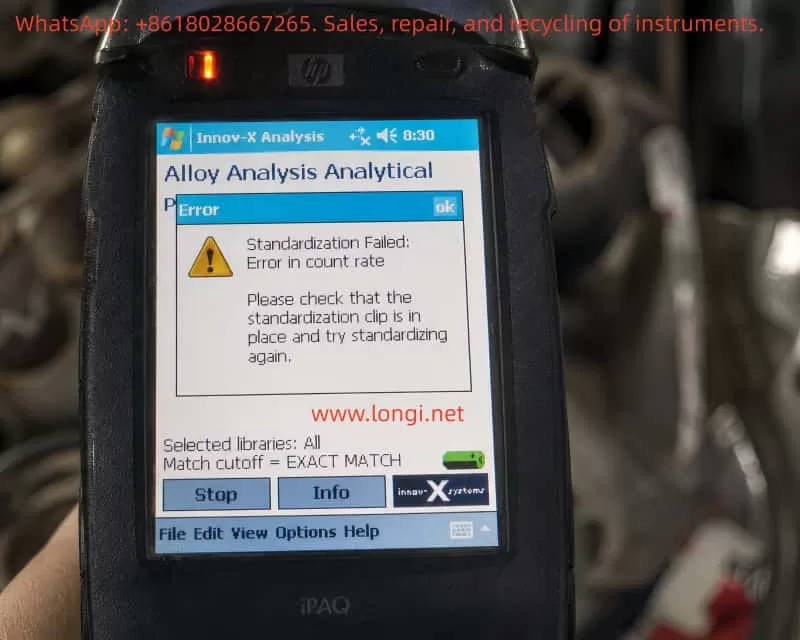
A typical fault case is an InnoV-X Alpha series handheld XRF analyzer showing the following message during standardization in Alloy Analysis mode:

Standardization Failed: Error in count rate

The instrument also prompts the operator to check whether the standardization clip is in place. In the information screen, the following diagnostic values are displayed:

ItemMeasured ValueExpected Value
Total counts4741966
Test resolution187176
Peak check Fe327.1326
Peak check Mo887.0888

These values are very important. They show that the analyzer is not completely dead, and the problem is not caused by the alloy library or match cutoff setting. The main fault is that the total count rate during standardization is far lower than expected.

In XRF analysis, a low count rate usually means that the detector is receiving insufficient effective X-ray fluorescence signal. The cause may be in the standardization clip, analyzer window, X-ray tube output, shutter, collimator, detector, or signal-processing chain.

Innov-X Alpha series handheld XRF alloy analyzer displaying “Standardization Failed: Error in count rate” warning during alloy analysis calibration process

1. What Standardization Does in a Handheld XRF Analyzer

Many users misunderstand standardization as a normal software setting. In fact, standardization is a critical self-check and normalization process before reliable XRF measurement.

During XRF analysis, the X-ray tube emits primary X-rays onto the sample or standardization target. The atoms in the material generate characteristic fluorescent X-rays. The detector receives these signals and converts them into an energy spectrum. The software then calculates elemental composition based on peak position, peak intensity, background, and calibration algorithms.

Standardization is used to confirm several key conditions:

The X-ray tube must have enough output.
The detector must receive sufficient counts.
The energy scale must not be seriously shifted.
The characteristic peaks must appear at the correct positions.
The detector resolution must still be within an acceptable range.
The instrument must be normalized to its current operating condition.

For the InnoV-X Alpha series, standardization normally requires a dedicated standardization clip or check standard installed over the analyzer window. This clip contains a known standard material. The analyzer uses this known target to check whether the measuring system is working correctly.

Therefore, when the instrument says:

Please check that the standardization clip is in place and try standardizing again

it is not just a general reminder. The software is detecting that the expected XRF signal is too weak, similar to the situation where the standardization clip is missing, not seated properly, or blocked.

2. Why This Is a Count Rate Fault, Not a Library Problem

The core error is:

Standardization Failed: Error in count rate

The diagnostic screen shows:

Total counts: 474
Expected counts: 1966

The actual count is only about 24% of the expected value. This difference is too large to ignore. It means the analyzer is receiving only a small fraction of the signal it should receive during standardization.

The screen also shows:

Selected libraries: All
Match cutoff = EXACT MATCH

These settings are related to alloy grade matching after a measurement has been taken. They affect which alloy libraries are searched and how strictly the software matches the measured composition to known alloy grades. They do not control the physical X-ray count rate during standardization.

Changing the alloy library, match cutoff, or grade database will not solve a low standardization count rate fault. The correct diagnostic direction is the XRF signal chain: standardization clip, analyzer window, X-ray tube, high-voltage supply, shutter, collimator, detector, and preamplifier.

Female electronics engineer repairing an Innov-X Alpha series handheld XRF analyzer on a laboratory workbench with diagnostic tools and opened internal components visible

3. Interpreting the Fe and Mo Peak Check Values

The information screen also gives peak check data:

Peak check Fe = 327.1, factory set = 326
Peak check Mo = 887.0, factory set = 888

These values are close to the factory-set positions. This means the instrument can still identify the Fe and Mo peak positions. The energy calibration is not severely shifted.

This is an important diagnostic point. If the energy scale were seriously wrong, the peaks would appear in incorrect positions, the instrument might misidentify elements, or the spectrum would be unstable. In this case, however, the Fe and Mo peak positions are close to normal.

Therefore, the main problem is not energy calibration. The instrument can still “see” the peaks, but the signal strength is too low.

A practical way to summarize this fault is:

Peak position is basically correct, but total counts are seriously low.

This points more strongly to weak excitation, blocked X-ray path, poor standardization target contact, window contamination, tube output weakness, shutter obstruction, or detector count efficiency loss.

4. Understanding the Resolution Value

The screen shows:

Test resolution = 187
Expected resolution = 176

Detector resolution is normally a measure of how sharply the detector can separate nearby energy peaks. A lower value is generally better. The measured value of 187 is worse than the expected value of 176, but it is not the main reason for the current error.

If resolution were the primary fault, the instrument would usually report a resolution failure, broad peaks, unstable element identification, or poor separation between adjacent peaks.

In this case, the displayed error is clearly:

Error in count rate

So the first priority is to solve the low count rate problem. The slightly worse resolution should be treated as a secondary warning. If the count rate problem is solved but the analyzer still fails standardization due to resolution, then the detector, cooling, preamplifier, or signal-processing electronics should be checked further.

5. The Standardization Clip Is the First Suspect

For this type of older handheld XRF analyzer, the standardization clip is extremely important. It is not just a protective cover, and it cannot be replaced by any random piece of metal.

The standardization clip has a defined material, geometry, thickness, and position. The analyzer expects a specific response from this target. If the clip is missing, loose, reversed, damaged, or contaminated, the count rate can drop sharply.

Possible clip-related causes include:

The clip is not installed at all.
The clip is not fully seated on the analyzer nose.
The clip is installed in the wrong direction.
The internal standard plate has fallen off or moved.
The wrong clip from another model is being used.
The standard plate is dirty, oxidized, scratched, or covered with oil.
There is a gap between the standard plate and the analyzer window.
Plastic film, tape, dust, or debris is between the window and the clip.

In the reported case, the total counts are only 474 while the expected value is 1966. Such a large drop is very consistent with the analyzer not seeing the standardization target correctly.

Before opening the instrument, the operator should take clear photos of the standardization clip installed on the analyzer nose and check whether the clip is fully locked into position.

6. Analyzer Window Contamination or Damage

The analyzer window is another common cause of low count rate. The front window of an XRF analyzer is usually a very thin film designed to allow X-rays to pass while protecting the detector and internal optical path.

If the window is contaminated or blocked, both outgoing primary X-rays and incoming fluorescent X-rays may be attenuated. This can cause standardization failure.

Common window-related problems include:

Oil contamination.
Dust or metal powder on the window.
Transparent tape or plastic film covering the window.
A protective film left on the nose.
Sample debris stuck near the aperture.
Window film deformation or dents.
Cracked or torn window film.
Internal contamination after window damage.

Some operators apply tape or plastic film to protect the analyzer window. This may look harmless, but it can seriously affect XRF performance, especially during standardization and low-energy element detection.

The analyzer window and standardization plate should be clean and unobstructed. If the window is broken, continued testing is not recommended because dust and metal particles may enter the internal X-ray path and contaminate the detector or collimator.

7. Weak X-Ray Tube Output or High-Voltage Problem

If the standardization clip is correct, the standard plate is clean, and the analyzer window is not blocked, but the total counts remain far below the expected value, the next major suspect is weak X-ray excitation.

The excitation system includes:

X-ray tube.
High-voltage power supply.
Tube current control circuit.
High-voltage feedback circuit.
Safety interlock circuit.
Shutter mechanism.
Collimator and beam path.

An aging X-ray tube may still produce X-rays, but the output intensity can become too weak. This would allow the analyzer to detect some Fe and Mo peaks, while the total counts remain too low to pass standardization.

A weak high-voltage supply can produce a similar fault. The tube voltage or tube current may not reach the required operating value. The result is weak excitation, low peak intensity, and low total counts.

A partially closed shutter can also cause this problem. If the shutter does not open fully, the beam path may be partially blocked. The analyzer may still receive some signal, but not enough for standardization.

A blocked or misaligned collimator can produce the same symptom: detectable peaks with greatly reduced intensity.

These faults require professional repair. The X-ray tube and high-voltage section involve radiation safety and high voltage, so the instrument should not be opened casually by an unqualified operator.

8. Detector and Signal-Processing Faults

Although the current case points first to the standardization clip, window, or X-ray output, detector-related problems cannot be completely excluded.

The detector converts incoming X-ray photons into electrical pulses. These pulses are then processed by the preamplifier, shaping circuit, digital pulse processor, and software.

Detector or signal-chain problems may cause:

Low total count rate.
Poor resolution.
Broad peaks.
High noise.
Unstable spectra.
Large variation between repeated tests.
Temperature-related drift.
Intermittent standardization success and failure.

The resolution value in this case is 187 compared with the expected 176, which means the detector condition may not be perfect. However, because the primary error is count rate, the detector should be considered after the external target, window, X-ray source, shutter, and collimator have been checked.

If the count rate remains low on all known samples and the spectrum is noisy or unstable, then the detector bias, preamplifier power supply, pulse output, temperature control, and digital signal-processing board should be inspected.

9. Meaning of the Software Reset Prompt

The instrument also displays a message recommending that the operator shut down the Innov-X software, power off the instrument for 30 seconds, and restart.

This is a useful first step because older PDA-based or Windows CE-based XRF analyzers can occasionally suffer from software state errors, communication interruptions, or incomplete measurement sequences.

A restart may solve:

Temporary PDA software freeze.
Interrupted standardization process.
Temporary communication error.
Software cache or state fault.
Previous test not exiting correctly.

However, if the same count rate error returns after a full restart, the problem should no longer be treated as a simple software problem. The diagnostic direction should move to the physical measurement chain.

10. Recommended Field Troubleshooting Procedure

The troubleshooting process should go from simple to complex and from external to internal.

First, fully power off the instrument. Close the Innov-X software, turn off the analyzer, remove or disconnect the battery if possible, wait at least 30 seconds, restart the instrument, enter Alloy Analysis mode, install the standardization clip, and repeat standardization.

Second, inspect the standardization clip. Confirm that it is the original correct clip for this analyzer, that it is fully seated, that it is not reversed, and that the internal standard plate is present and clean.

Third, clean the standardization plate. Use a clean lint-free cloth. If there is oil or heavy dirt, a small amount of isopropyl alcohol may be used on the metal standard plate, but liquid must not enter the analyzer nose.

Fourth, inspect the analyzer window. Check for dust, oil, tape, plastic film, cracks, dents, torn film, or metal powder. The window must be clean and unobstructed.

Fifth, if the instrument allows testing, measure a known stainless steel sample such as 304 or 316 stainless steel. Observe whether Fe, Cr, and Ni peaks appear normally. If all peaks are extremely weak, the problem is not limited to the standardization clip.

Sixth, view the spectrum if the software allows it. Peak position, peak height, background, noise, and peak width can help separate excitation problems from detector problems.

11. Repair-Level Diagnostic Direction

If the external checks do not solve the problem, the analyzer needs internal repair-level diagnosis.

The X-ray tube output should be checked to confirm whether tube voltage and tube current are reaching the required levels.

The high-voltage power supply should be checked for weak output, excessive ripple, insulation leakage, or load failure.

The shutter mechanism should be checked to confirm whether it opens fully during measurement.

The collimator and internal beam path should be checked for blockage, contamination, or mechanical misalignment.

The detector and preamplifier should be checked for bias voltage, power supply stability, pulse output amplitude, noise, resolution, and thermal stability.

The main board and PDA communication should also be checked, although the presence of valid counts and peak check values suggests that this is not simply a communication failure.

12. How to Explain the Fault to the Customer

A clear technical explanation should be based on the diagnostic values.

The analyzer failed standardization because the standardization count rate is too low. The total counts are 474, while the expected counts are 1966. The analyzer is receiving only about one quarter of the expected signal.

The Fe and Mo peak positions are close to the factory-set values, so the energy calibration is basically normal. The main problem is not the alloy library or match cutoff setting. The problem is insufficient XRF signal during standardization.

The customer should first check the original standardization clip, standard plate cleanliness, analyzer window condition, and whether anything is blocking the window. If these are normal, the instrument should be inspected for weak X-ray tube output, high-voltage supply fault, shutter problem, blocked collimator, or detector count performance problem.

13. Can the Analyzer Continue to Be Used?

If standardization fails, the analyzer should not be used for formal inspection. Even if it can still enter measurement mode, the results may be unreliable.

Low count rate affects:

Detection sensitivity.
Low-concentration element identification.
Alloy grade matching.
Repeatability.
Quantitative accuracy.
Weak peak recognition.
Measurement statistics.

The analyzer may still show element results, but the statistical error will be much higher. In scrap sorting, this may cause wrong grade identification. In quality control, it may cause false acceptance or false rejection.

14. Final Technical Conclusion

The InnoV-X Alpha series handheld XRF analyzer in this case fails standardization in Alloy Analysis mode due to a count rate error. The total counts are only 474, while the expected count value is 1966. The actual signal is only about 24% of the expected signal.

The Fe and Mo peak check values are close to the factory-set values, which means the energy scale is basically normal. The main fault is not library selection, match cutoff, or alloy database configuration. The main fault is insufficient XRF signal strength during standardization.

The most likely causes are:

Incorrectly installed standardization clip.
Missing, damaged, dirty, or wrong standardization clip.
Dirty, covered, or damaged analyzer window.
Weak X-ray tube output.
Abnormal high-voltage or tube current control.
Shutter not fully opening.
Blocked collimator or internal beam path.
Detector efficiency loss or signal-processing fault.

The correct diagnostic sequence is:

standardization clip → standard plate → analyzer window → X-ray tube output → high-voltage supply → shutter → collimator → detector and preamplifier.

A practical repair rule is:

If the peak positions are basically correct but the total counts are seriously low, the energy calibration is not the main problem. The main problem is weak signal generation, signal blockage, or poor count collection.

Posted on

When a Siemens LDS 6 Ammonia Slip Analyzer Shows Abnormal Readings, Distorted Transmission Values, and Repeated Fault Switching: A Complete Diagnostic Path from “Suspected Board Failure” to “Confirmed Optical Path Contamination”

In industrial flue gas monitoring systems, ammonia slip measurement is often treated as a “parameter problem.” If the displayed value is too high, people first suspect calibration. If an alarm appears, they check wiring. If the reading does not fall to zero after a fiber disconnection, they immediately suspect the main board or analog output. However, for a Siemens LDS 6 laser gas analyzer based on tunable diode laser absorption principles, this line of thinking can easily send troubleshooting in the wrong direction. The core reason is simple: this type of analyzer is not a conventional extractive instrument. It is a highly integrated in-situ optical measurement system whose stability depends simultaneously on the optical path, reference channel, laser driver, detector chain, internal signal processing, and system status logic. Once the optical path is contaminated, connector coupling degrades, or lens surfaces become dirty, the instrument may display symptoms that look exactly like board failure, even though the root cause is not in the electronics at all.

This article is based on an actual troubleshooting process involving a Siemens LDS 6 ammonia slip analyzer central unit. It focuses on several typical symptoms: excessively high readings, readings that remain after optical disconnection, abnormal transmission values, status bar fault switching, distorted diagnostic values, and apparent logic inconsistency. The investigation ultimately led to a clear conclusion: the root cause was not main board failure, not an acquisition or computation board defect, and not a permanently forced analog output. The real fault was optical contamination at fiber connectors, lenses, or related optical interfaces. After cleaning, the analyzer returned to normal operation.
This kind of case is highly valuable for maintenance engineers, instrument technicians, and process analysis specialists because it reveals a crucial truth: for an LDS 6, optical path integrity must be placed very high in the diagnostic priority list. If not, a technician can waste a great deal of time replacing boards, questioning software versions, or chasing output logic issues while ignoring the actual cause.

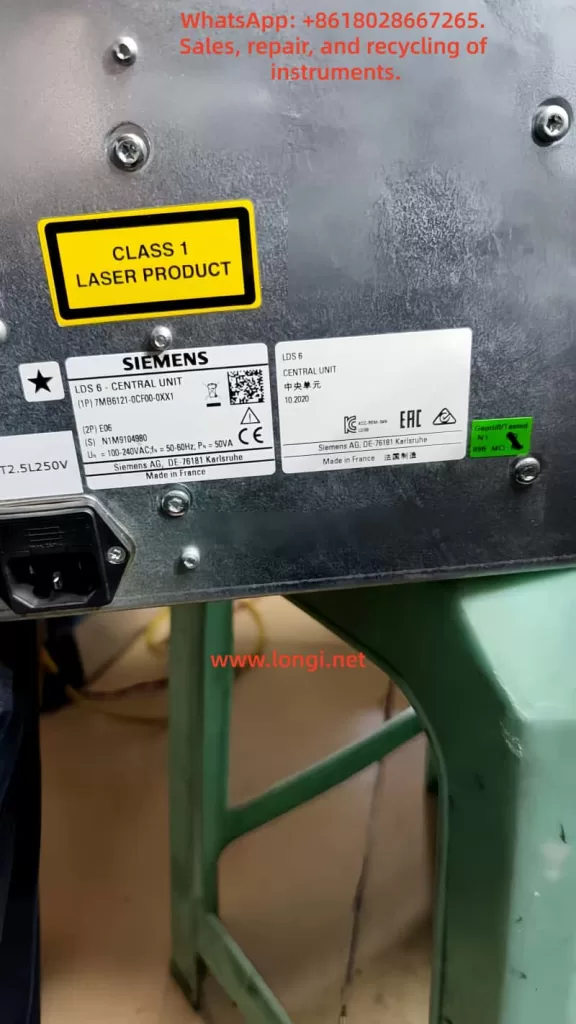
Rear label of Siemens LDS 6 central unit, model 7MB6121-0CF00-0XX1, showing Class 1 laser product warning and serial information

1. Why LDS 6 ammonia slip analyzer faults are so easily misdiagnosed

When field personnel encounter abnormal readings on an LDS 6, they usually think of two categories first.

The first is software or parameter problems. These include measurement range mismatch, compensation parameter errors, output hold states, unresolved function control, and other menu-related issues.

The second is electronic board failure. Typical suspicions include acquisition and computation board faults, frozen display values, forced analog output, unstable main controller operation, EEPROM issues, or FPGA problems.

These suspicions are not entirely unreasonable. However, they both rely on the same hidden assumption: that the optical chain is still basically healthy. Once that assumption is false, many symptoms that appear “electronic” are only secondary reflections of an optical fault.

The LDS 6 does not simply calculate concentration from a single analog input board. Its measurement result depends on the coordinated operation of the laser source, reference path, monitor path, field optical path, receiver channel, signal processing chain, and status logic. If any part of the optical coupling degrades, the analyzer may show several confusing behaviors:

  1. The measured concentration may become too high, too low, or fail to return to zero.
  2. The Diagnostics page may show severely distorted Absolute Transmission and Relative Transmission values.
  3. The status line may switch repeatedly among FAULT, Maintenance Request, CTRL, TR, and related states.
  4. The main screen may sometimes show 0.00 ppm, sometimes dashes, and sometimes a value that appears to remain active.
  5. The logbook may contain Transmission Limit alarms, Optomodule Fault messages, and temperature-compensation-related maintenance requests.

Once these symptoms overlap, it becomes very tempting to blame the main board, interface board, laser driver board, EEPROM, FPGA, or other complex hardware. In reality, contaminated optical components are among the most common ways to create exactly this kind of “it looks like the boards are bad” situation.

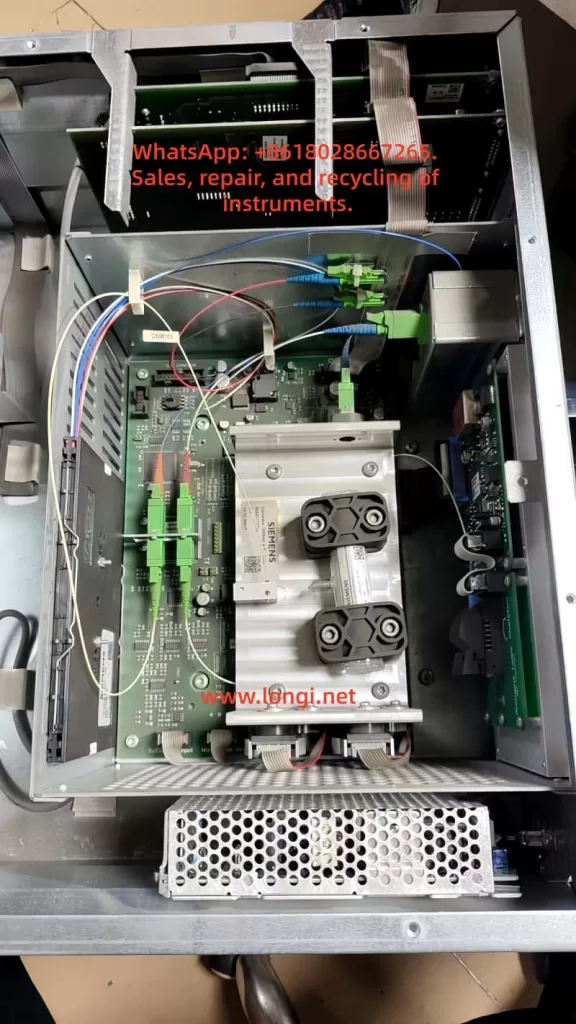
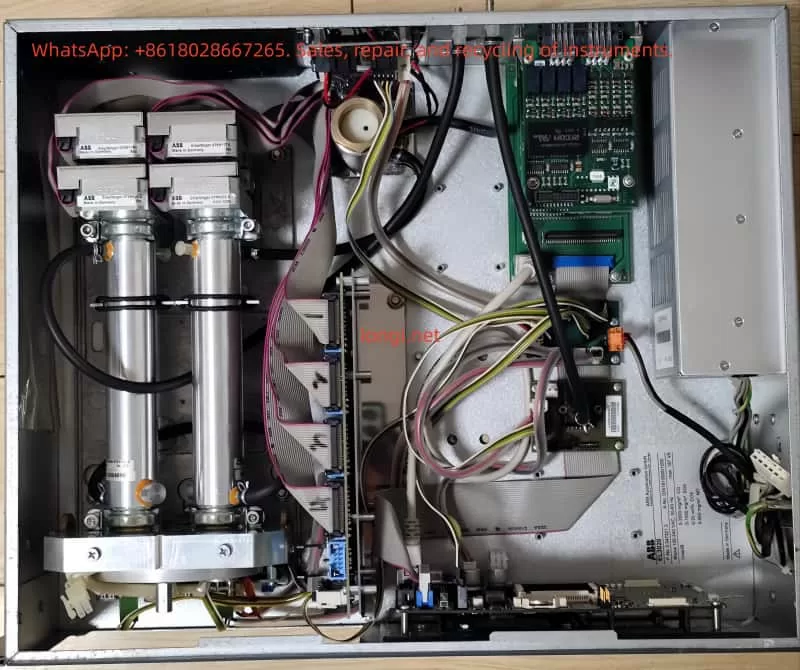
Internal view of Siemens LDS 6 ammonia analyzer central unit with optical modules, circuit boards, fiber connections, and power supply exposed

2. Why the fault initially looked like a board problem but actually pointed to the optical path

The initial field description claimed that under “normal absolute and relative transmission conditions,” the analyzer displayed a value that was too high. According to the manufacturer’s troubleshooting logic, once the fiber or optical path is disconnected, the analyzer should show no signal, a signal abnormality alarm, an overrange state, or zero. But in the field, the operator reported that the reading remained even after fiber disconnection. Based on that behavior, the instrument itself was suspected, followed by suspicion of the signal acquisition and computation board, or alternatively that the display value was locked and the analog output was being forced.

If one reads only that description, it is easy to move directly toward electronic boards or output logic. “The reading remains after disconnection,” “the value does not drop,” and “the concentration is too high” all sound like frozen acquisition data, display cache retention, or forced output.

However, once the investigation progressed, inconsistencies began to appear.

On one hand, after the unit arrived for repair and was powered without the complete field optical setup, the Diagnostics page showed extremely low Absolute Transmission and Relative Transmission, indicating almost no effective optical signal.

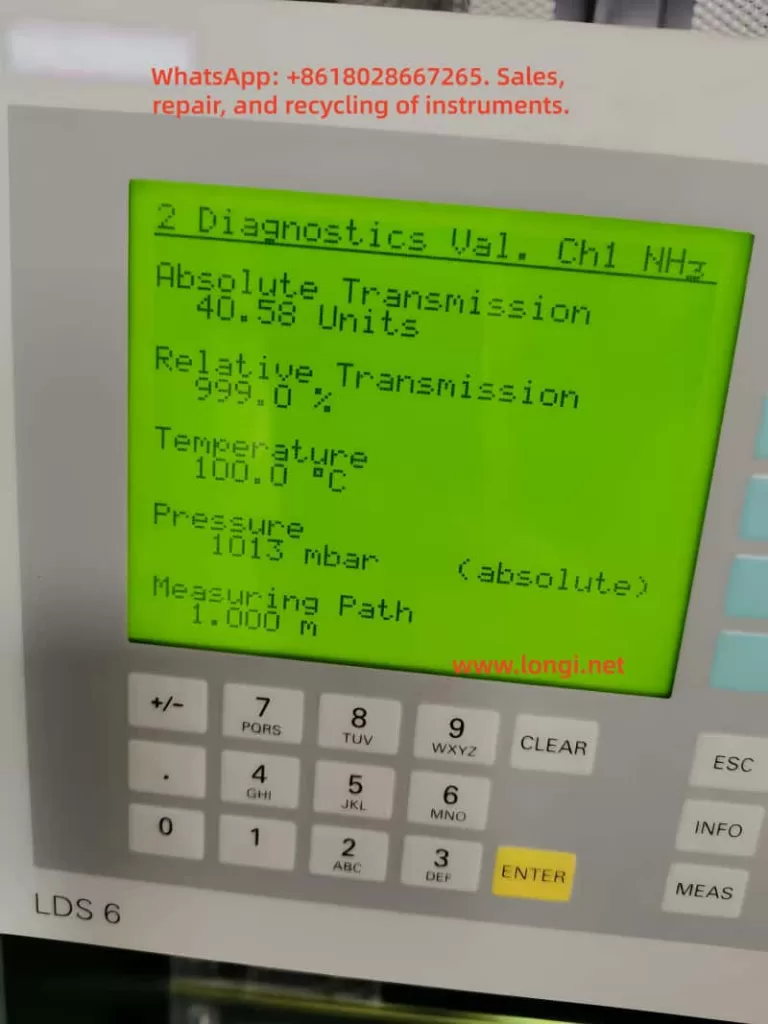
On the other hand, the customer later provided a historical field photo showing a very different condition: Absolute Transmission was high, and Relative Transmission had climbed all the way to 999.0%. This meant the analyzer had not always been in a simple “no light” state. At some earlier point, it had displayed a different kind of fault: one in which the transmission diagnostics had clearly run away or saturated.

These two conditions appear contradictory at first glance, but in fact they point to the same fundamental issue: the optical path condition was unstable, and optical coupling had already been severely disturbed by contamination or abnormal reflection.

When contamination is still moderate, the analyzer may continue to receive part of the signal, but the proportional relationship between reference and measurement channels becomes distorted. As a result, Relative Transmission may surge, saturate, or become physically unreasonable.

When contamination worsens further, optical coupling deteriorates rapidly, and the system approaches signal collapse. Then both Absolute and Relative Transmission may fall toward zero.

This explains why the same analyzer can show two apparently opposite failure modes over time: one that looks like a runaway diagnostic condition, and another that looks like complete optical loss.

Siemens LDS 6 diagnostics screen for NH3 channel showing abnormal transmission values: Absolute Transmission 40.58 units and Relative Transmission 999.0 percent

3. Why “the reading remains after the fiber is disconnected” does not automatically mean board failure

This was one of the most misleading aspects of the case.

Many maintenance technicians are accustomed to treating “the input is gone but the reading remains” as direct evidence that an acquisition board is bad, a cache is not cleared, or software has frozen. On ordinary analog instruments, that reasoning can sometimes be valid. On an LDS 6, however, the word “reading” must first be broken into categories:

  1. The concentration value on the main display.
  2. The diagnostic values such as Absolute Transmission and Relative Transmission.
  3. The analog output signal transmitted to PLC or DCS.
  4. A retained or filtered engineering value shown in the upper control system.

When field personnel say “the reading remains,” they are often not referring to the LCD main value at all. They may be referring to a DCS value that did not immediately drop, or a trend value that remained on the upper-level system. In a complex analyzer, this can be related to output hold strategy, fault delay behavior, function control logic, or simply the fact that the disconnected element was not the decisive optical path segment.

The most important point is that the unit received for repair was not a complete field system. It was primarily the central unit. Once the central unit is separated from the field sensor, hybrid cable, and actual measurement path, many assumptions that are valid in the field are no longer valid on the repair bench. In other words, what the customer observed in the complete field configuration and what the technician observed from a stand-alone central unit are not the same test condition.

Therefore, such statements are useful clues, but they cannot be treated as direct proof of board failure.

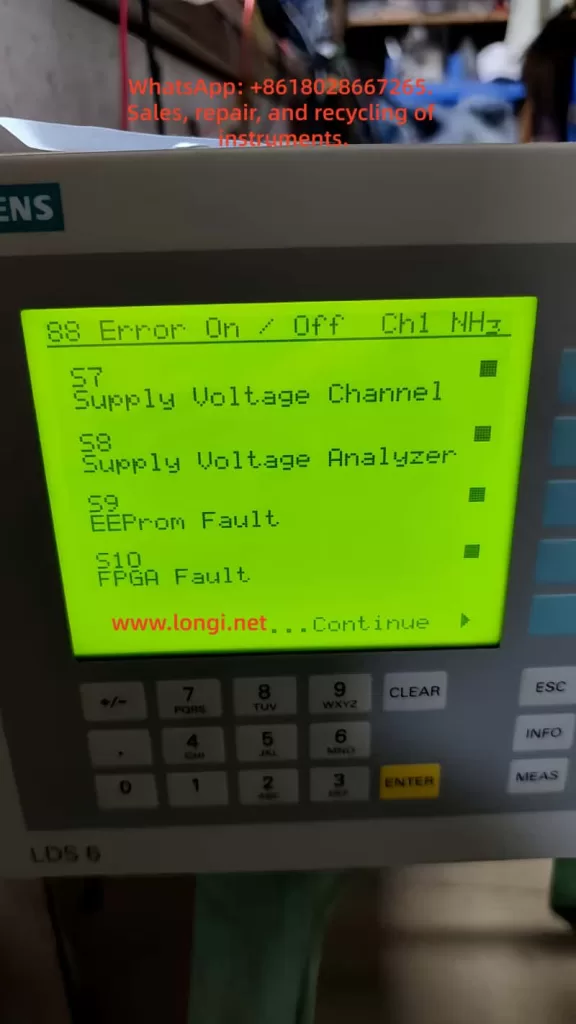
Siemens LDS 6 error configuration screen for NH3 channel showing enabled fault items including supply voltage, EEPROM fault, and FPGA fault

4. Why Diagnostics must be checked before assuming a hardware board defect

For a laser gas analyzer like the LDS 6, the most valuable page is usually not the main menu but the Diagnostics Values page. The concentration displayed on the home screen is already the final result of an algorithm. Diagnostics is much closer to the underlying physical state.

In this case, the parameters that actually clarified the direction were:

  • Absolute Transmission
  • Relative Transmission
  • Temperature
  • Pressure
  • Measuring Path

The two transmission values were the most important. The reason is straightforward: if the laser chain, reference chain, receiver chain, and field optical path are healthy, transmission should not collapse toward zero, nor should Relative Transmission rush to 999.0% and remain there. Once these values become either extremely low or obviously saturated, troubleshooting should return immediately to the optical path rather than diving straight into main boards and menu parameters.

In this case, later comparison with a donor unit under no external optical connection also showed low transmission on both units. This reinforced an important point: when no external optical path is connected, low transmission can be physically reasonable and cannot by itself be used as a fault verdict.

What actually has diagnostic value is not a single number, but the broader behavior:

  1. Under identical no-light conditions, which unit is more stable?
  2. Does the unit repeatedly switch among FAULT, Maintenance Request, CTRL, and TR states?
  3. Does Diagnostics behave in a significantly more abnormal way under identical conditions?
  4. After cleaning the optical path, do the transmission values return to a more realistic condition?

This is why the breakthrough ultimately did not come from board replacement, but from cleaning the optical interfaces.

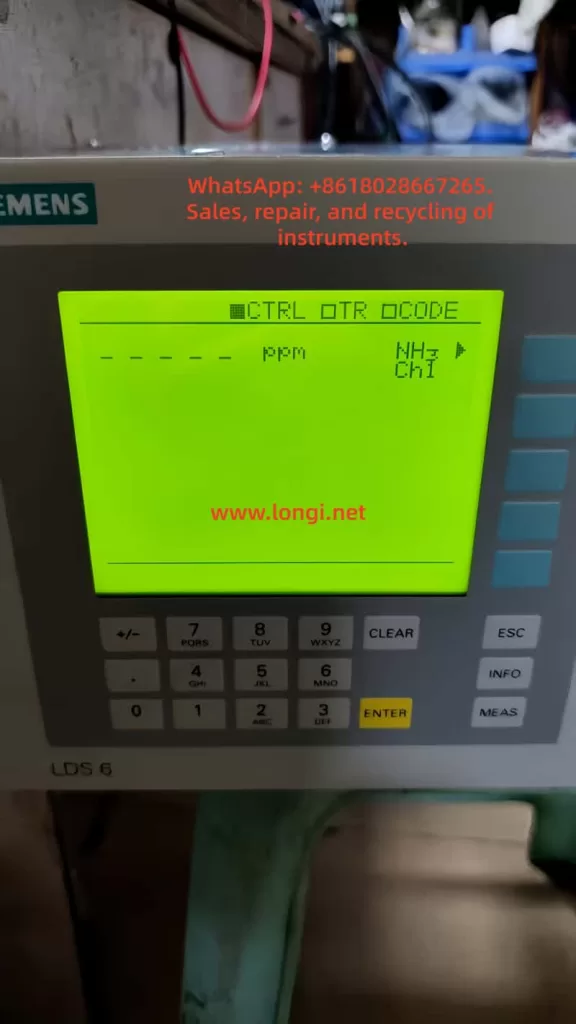
Siemens LDS 6 NH3 channel display showing CTRL OTR OCODE status with dashed measurement output instead of a valid ppm reading

5. Why optical contamination can create such complex fault behavior

Many people underestimate how destructive contamination can be in a laser gas analyzer.

In ordinary electronic equipment, dirt may simply affect cooling or appearance. In an in-situ laser analyzer, even light contamination can alter spot quality, incident angle, reflection characteristics, and optical coupling efficiency.

Typical contamination points include:

  1. Fiber connector end faces.
  2. External optical windows.
  3. Lens surfaces on transmitter or receiver optics.
  4. Internal optical coupling or collimation interfaces.
  5. Long-term deposits such as dust films, process residue, oily contamination, or condensate.

Once contamination occurs at these locations, several kinds of changes can follow.

5.1 Optical power attenuation

The most direct result is a reduction in received signal strength, causing Absolute Transmission to fall.

5.2 Spot distortion and increased scattering

Contamination does not always simply “block light.” It can distort the beam shape and alter the optical path, causing the ratio between reference and measurement channels to become unreliable. Relative Transmission may therefore surge abnormally or saturate.

5.3 Unstable coupling efficiency

Connector contamination is often not a fixed attenuation but an unstable coupling problem. The signal may improve and worsen unpredictably. This causes the analyzer to switch among normal, maintenance request, and fault states, making the problem look like software instability.

5.4 Triggering of upper-level diagnostic logic

The analyzer only knows that the underlying optical conditions are not acceptable. It may not immediately distinguish whether the cause is a dirty lens, contaminated connector, degraded coupling, or board damage. Therefore, it may switch among Transmission Limit, Optomodule Fault, Maintenance Request, and related states.

This fully explains why the same instrument in this case could show one phase with transmission collapse, another phase with runaway transmission values, and a repeating sequence of status changes. All of these can originate from the same class of optical contamination problem.

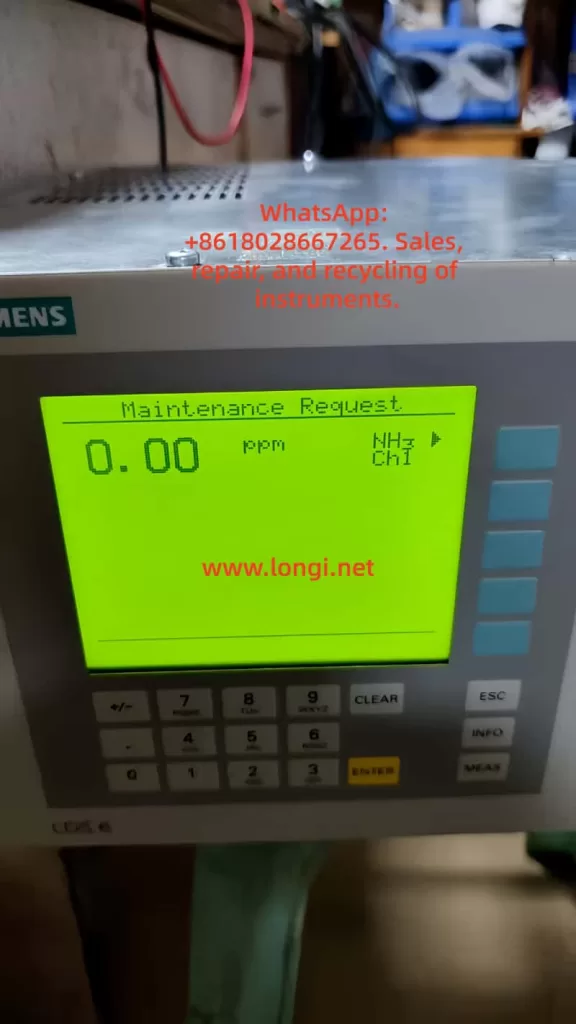
Siemens LDS 6 main screen showing Maintenance Request status for NH3 channel with a displayed value of 0.00 ppm

6. Why the donor unit comparison helped, but did not replace root cause analysis

A donor central unit was also introduced during troubleshooting. At first, the idea was to determine which analyzer was “good” and which was “bad” by comparing their displayed values. However, the analysis gradually revealed something more important:

  • A donor unit cannot be judged healthy solely because its transmission value is low under no external optical path; low transmission can be normal in that condition.
  • The donor unit becomes useful mainly as a comparative reference under identical no-light conditions.
  • If the donor unit remains stable while the customer unit repeatedly enters FAULT or Maintenance Request states, then the customer unit clearly has additional instability.
  • But even if the donor unit appears more stable, this does not eliminate the need to inspect the customer unit’s optical path for contamination.

In the end, the donor unit served mainly as a comparative tool. It helped establish a critical boundary condition: low transmission under no external optical path must not automatically be interpreted as a fault. That insight was essential in preventing a wrong conclusion.

7. The turning point: from “prepare to replace boards” to “cleaning restores normal operation”

The decisive turning point in this case was not complicated, but it was highly representative. After extensive menu analysis, board identification, donor comparison, and video-based state analysis, attention returned to the most fundamental part of the system: the optical path.

The actual findings were straightforward:

  • Fiber connectors were contaminated.
  • Lenses or related optical surfaces were dirty.
  • After cleaning, the analyzer returned to normal.

This means that all of the earlier symptoms that looked so much like board problems were simply the system-level consequences of an optical chain disturbance.

This conclusion is extremely valuable for maintenance practice because it suggests a revised troubleshooting priority:

When an LDS 6 shows abnormal readings, state switching, or distorted transmission values, optical cleaning and interface inspection should be placed ahead of blind board substitution.

8. A practical standard troubleshooting sequence for this type of fault

Based on this case, a more reliable troubleshooting order for an LDS 6 can be summarized.

Step 1: Define the test condition clearly

First determine:

  • Is this a complete field system fault, or only a central unit on the bench?
  • Is the external sensor connected?
  • Is the actual field optical path complete?
  • Does the customer’s “reading” refer to the local display, Diagnostics, or PLC/DCS engineering value?

If this is not clarified first, all later interpretation becomes mixed and unreliable.

Step 2: Check Diagnostics before assuming board failure

Focus on:

  • Absolute Transmission
  • Relative Transmission
  • Whether they are near zero
  • Whether they are abnormally high or saturated
  • Whether the values are physically consistent with the actual setup

Low transmission is not automatically a fault. Relative Transmission at 999.0% is certainly not normal.

Step 3: Observe state behavior

State stability often matters more than one isolated numeric value. If the analyzer repeatedly jumps among FAULT, Maintenance Request, CTRL, TR, and related states under unchanged conditions, an underlying instability exists.

Step 4: Inspect and clean the optical path first

This should include:

  • Fiber connector end-face cleaning
  • Lens and window cleaning
  • Optical coupling surface inspection
  • Checking for dust, residue, oily films, or process deposits
  • Rechecking Diagnostics after cleaning

Step 5: Consider board comparison and donor substitution only after optical cleaning

Only after optical path cleanliness has been confirmed should board substitution become a meaningful next step. Otherwise, a healthy donor board may be inserted into a contaminated optical system, leading to further misinterpretation.

9. How to explain the result to the customer professionally

Customer communication in this kind of case also matters. Many customers become convinced very early that “the main board is bad” or “the program is corrupted.” If the final explanation is too casual, such as “it was just dirty,” they may underestimate the difficulty of the work.

A proper explanation should be framed like this:

  1. The fault belongs to the optical chain category, not merely a parameter issue.
  2. Contamination of the fiber connector, lens, or related optical interface caused abnormal optical coupling, distorted transmission diagnostics, status alarms, and measurement abnormalities.
  3. This type of fault can easily imitate board-related symptoms and requires combined analysis of Diagnostics, state behavior, and optical inspection.
  4. After cleaning, the system returned to normal, which shows that the main board was not fundamentally damaged.

This wording remains technically accurate while properly reflecting the value of the diagnostic work.

10. Conclusion: for a laser analyzer, always return first to the light itself

The most important lesson from this case is not the exact name of a board, nor whether a donor unit should have been purchased. The most important lesson is a basic maintenance principle:

When troubleshooting a laser analyzer, think about the optical path before thinking about the board.

When an instrument shows:

  • excessively high readings,
  • abnormal behavior after disconnection,
  • distorted diagnostic values,
  • repeated fault switching,
  • transmission values that sometimes collapse and sometimes run away,

none of these symptoms automatically prove failure of the main board, acquisition board, or output board.

In many cases, the real cause is simply contamination at fiber connector end faces, dirty lenses, contaminated windows, or degraded optical coupling.

Once a technician forgets that the device is fundamentally a laser optical analyzer and starts treating it like an ordinary electronic instrument, the diagnostic path quickly moves away from the real cause.

In this case, the investigation began with suspicion of board failure. It then progressed through menu analysis, state comparison, donor-unit testing, and behavior comparison before finally returning to the optical path itself. Cleaning restored normal operation. That sequence proves something highly important:

The most complex fault symptoms may originate from the simplest optical contamination.

For third-party maintenance specialists, the true value of this case is not merely that “cleaning fixed it.” The true value lies in establishing a more reliable diagnostic logic:

define the test condition first,
check Diagnostics next,
evaluate state stability,
prioritize optical path inspection and cleaning,
and only then proceed to board substitution.

That is the diagnostic discipline required to troubleshoot an LDS 6 effectively, minimize wrong turns, and produce repair conclusions that withstand technical scrutiny.

Posted on

Troubleshooting Low Gas Flow and Abnormal Curves in an SBI Single Burning Item Test System: A Practical Analysis of Sampling Lines, Filter Contamination, Condensation, and Pump Degradation

The SBI Single Burning Item test is widely used to evaluate the fire reaction performance of building products, insulation materials, decorative boards, composite panels, and other construction-related materials. It is not a simple ignition test. Instead, it is a complete fire performance test system that combines a combustion chamber, burner, exhaust duct, smoke measurement, gas sampling system, gas analyzer, temperature and pressure measurement, flow calculation, and data acquisition software.

In an SBI test, the final report and software curves depend heavily on the stability of the gas sampling and gas analysis system. In many field service cases, the gas analyzer can power on normally, the O₂, CO₂, and CO sensors appear normal in the software, and the analyzer screen may still show reasonable readings. However, the customer may still report two typical problems:

The gas flow is too low.

The test curves or software graphs are abnormal.

This type of fault is often misjudged as a failed gas sensor, a software problem, or a calibration error. In many real cases, the root cause is not the sensor itself, but the sampling gas path: blocked filters, contaminated tubes, poor condensation drainage, weak sampling pump, dirty valve seats, blocked flowmeters, branch imbalance, or outlet back pressure.

This article analyzes this type of failure from an engineering maintenance perspective and explains how to diagnose low gas flow and abnormal SBI test curves systematically.

Servomex MultiExact 4100 gas analyzer showing O2, CO2, and CO readings in an SBI single burning item test system

1. The Role of the Gas Analysis System in an SBI Test

During an SBI test, combustion products are collected by the exhaust system. A portion of the exhaust gas is drawn through the sampling line and sent to the gas analyzer after filtration, condensation, drying, and flow regulation.

The gas analyzer normally measures:

O₂ concentration;

CO₂ concentration;

CO concentration.

These values are not only displayed for reference. They are key input signals for the SBI software. The software uses oxygen consumption, carbon dioxide generation, carbon monoxide generation, exhaust flow, pressure, temperature, and smoke data to calculate the dynamic combustion behavior of the tested material.

Typical calculated parameters may include:

Heat release rate;

Total heat release;

Smoke production rate;

Total smoke production;

FIGRA;

SMOGRA;

Gas concentration trends.

The O₂ channel is especially important because many heat release calculations are closely related to oxygen consumption. If the O₂ sampling flow is low, delayed, diluted, or unstable, the calculated heat release curve will be distorted. The CO₂ and CO channels are also important because they reflect combustion products and combustion completeness.

Therefore, the gas analyzer system must satisfy several conditions at the same time:

The sampling flow must reach the required value.

The gas path must be free from blockage.

The sampling line must not leak.

The filters must not be overloaded.

The condenser and drainage system must work properly.

The sampling pump must provide sufficient suction.

The O₂, CO₂, and CO channels must have normal response times.

The gas transport delay must be stable.

The calibration gas and sample gas switching path must be correct.

The outlet must be free from blockage and excessive back pressure.

If any of these conditions fail, the sensor may still show a normal status, but the final SBI test curve may still be wrong.

O2 and CO/CO2 channel flowmeters showing low gas sampling flow in an SBI combustion test analyzer cabinet

2. Typical Fault Symptoms

When the SBI gas sampling system has a flow problem, the following symptoms are commonly seen:

The flowmeter float cannot reach the red target line.

The O₂ channel flow is too low.

The CO/CO₂ channel flow is too low.

When the front sampling line is disconnected, one channel rises but the other channel does not change much.

A small filter becomes dirty again only a few days after replacement.

Black dots, yellow stains, tar marks, or rust-like particles appear on the filter.

Transparent tubes become yellow, brown, or hard.

The sampling pump makes noise, but the actual flow is still insufficient.

The gas analyzer display shows O₂, CO₂, and CO values, but the dynamic response is slow.

The software curve is delayed, flattened, or unstable.

Peak values are too low.

The test image or graph does not match the expected combustion process.

Zero and span calibration may appear successful, but real test results remain abnormal.

The gas values recover very slowly after the test.

Test repeatability is poor.

These symptoms usually indicate a gas path problem rather than a simple sensor failure.

Internal gas regulation and pneumatic tubing section of an SBI gas analysis system with pressure gauge, flow controls, and sampling lines

3. Why Normal Sensor Status Does Not Mean Normal Test Results

A common field mistake is to judge the whole system only by the sensor status in the software. If the software shows that the O₂, CO₂, and CO sensors are normal, the user may assume that the gas analysis system is healthy. This is not correct.

Sensor status usually means that the sensor circuit has no obvious electrical alarm, the signal is not out of range, communication is normal, and the current static reading can be obtained. However, an SBI test requires dynamic gas data. During combustion, gas concentrations change rapidly. The analyzer must receive the gas sample at the correct flow rate and with a predictable response time.

If the sampling flow is low, several problems occur.

First, the gas takes longer to reach the analyzer. The combustion event occurs in the test chamber, but the gas analyzer receives the concentration change too late. The curve shifts in time.

Second, the gas replacement inside the tubes, filters, condenser, and analyzer cell becomes slow. Old gas remains in the system, while new gas enters slowly. This produces a tailing effect and slows the response.

Third, the peak value is reduced. A combustion peak may last for only a short time. If the sampling system responds too slowly, the peak is mixed, delayed, and damped before reaching the sensor. The software then sees a lower peak than the real one.

Fourth, different gas channels may have different delays. For example, if the O₂ channel is slow and the CO₂ channel is faster, the software receives mismatched signals. This phase difference can distort calculated heat release and gas curves.

Fifth, calibration becomes misleading. Under low-flow conditions, static zero and span readings may still be adjusted, but the dynamic response during a real fire test remains wrong.

Therefore, troubleshooting an SBI gas analysis system must separate two concepts:

Sensor electrical status;

Gas sampling and dynamic response condition.

A normal sensor does not prove that the gas path is normal. A stable static reading does not prove that the dynamic test curve is reliable.

Inline gas filter and pneumatic valve assembly inside an SBI gas analyzer cabinet for sample gas conditioning

4. How to Interpret the Flowmeter Reading

Many SBI gas analysis cabinets have separate flowmeters for the O₂ channel and the CO/CO₂ channel. A red line is often marked on the flowmeter, indicating the required target flow. In some systems, this target may be around 3 L/min, but the exact value must follow the equipment specification and calibration setting.

When reading the flowmeter, several points should be noted:

The red line is not the actual flow; it is only a target reference.

The actual flow must be read from the float position.

Both channels should be close to the target and stable.

If one channel is obviously low, that branch may be blocked, restricted, leaking, affected by weak suction, or suffering from outlet back pressure.

If both channels are low, the common sampling pump, common gas path, front filter, condenser, or exhaust path may be faulty.

If the flow rises after disconnecting the front sampling line, the front gas path has high resistance.

If the flow does not rise after disconnecting the front sampling line, the problem is more likely inside that branch, inside the analyzer gas path, at the flowmeter, at the gas cell, at the pump side, or at the outlet.

A typical example is this: after disconnecting the front sampling line and allowing the analyzer to draw ambient air, the CO/CO₂ flow rises, but the O₂ flow does not change much. This means the CO/CO₂ channel still has suction capacity and is mainly affected by front-end resistance. However, the O₂ channel likely has an internal restriction, such as a blocked O₂ filter, needle valve, flowmeter, analyzer cell inlet, restrictor, outlet tube, or internal branch tube.

Sampling pump and contaminated yellow gas tubing inside an SBI single burning item test gas analysis system

5. What It Means When a Small Filter Becomes Dirty Again Quickly

If a small gas filter was replaced only a few days ago and already shows black dots, yellow stains, brown marks, or rust-like particles, this is not normal. It means there is still a contamination source upstream of the filter.

The contamination may come from several sources.

The first source is soot from combustion exhaust. SBI testing often involves building materials, insulation boards, decorative panels, plastic composites, or organic materials. These materials can generate soot during combustion. If the front coarse filter is not effective, soot particles will reach the downstream fine filter.

The second source is tar and organic condensate. When hot combustion gases cool down, organic vapors may condense into yellow-brown or black sticky substances. These deposits attach to tube walls, filters, pump heads, and gas cells.

The third source is water carrying contaminants. Combustion gas contains water vapor. If the condenser or drainage system does not work well, moisture can carry soot, soluble compounds, and acidic contaminants downstream.

The fourth source is metal oxide or rust powder. If metal sampling tubes, fittings, condenser parts, or other metal components are exposed to moisture for a long time, oxidation particles may be carried by the gas flow.

The fifth source is pump wear debris. If a diaphragm pump has operated for a long time with wet and dirty gas, its diaphragm, valve plates, or seals may degrade and produce black particles.

For this reason, replacing only the small filter does not solve the root cause. The upstream contamination source must be found. Otherwise, the new filter will become dirty again quickly, and the flow will drop again.

6. The Meaning of Yellowed or Hardened Transparent Tubes

SBI gas sampling systems often use transparent or semi-transparent tubes. A clean gas path should have relatively clear tubing, without visible deposits. If the tubes are yellow, brown, blackened, or hardened, it usually means that smoke, moisture, tar, or other contaminants have passed through them for a long time.

Contaminated tubes create several problems:

Deposits reduce the effective inner diameter.

Tar increases gas adsorption and causes response tailing.

Soot and particles can detach during operation and contaminate new filters.

Hardened tubing may lose sealing performance at fittings.

Tube bends and low points may accumulate water.

Partial collapse or deformation can reduce flow.

In many service cases, replacing only the filter is not enough. If the old tubes remain contaminated, the system will continue shedding particles and tar residue. For an SBI smoke sampling system, visibly yellowed or hardened tubes should usually be replaced, especially around the pump inlet, pump outlet, condenser outlet, filter inlet, O₂ branch, and CO/CO₂ branch.

7. A Sampling Pump That Makes Noise May Still Be Faulty

The sampling pump is one of the most important parts of the SBI gas analysis system. A common field misunderstanding is that if the pump makes noise, the pump is good. This is wrong.

A diaphragm pump or micro gas pump may still run electrically but fail to provide sufficient suction or flow.

Common pump problems include:

Aged diaphragm;

Cracked diaphragm;

Valve plate stuck by tar;

Water inside the pump head;

Soot and tar inside the pump chamber;

Aged sealing ring;

Partially blocked inlet or outlet fitting;

High outlet back pressure;

Reduced motor speed;

Worn pump chamber and poor volumetric efficiency.

Pump weakness may appear as:

Both channels have low flow.

Blocking the sampling inlet does not change the pump sound much.

Disconnecting the front line does not restore flow.

The flow is unstable.

The software curve is slow and flat.

Filters and tubes have been replaced, but flow is still insufficient.

The correct way to test the pump is to isolate it. Disconnect the pump inlet from the front sampling system and let the pump draw ambient air directly. If the flow returns to the target value, the pump is probably able to work, and the blockage is upstream. If the flow remains low even when the pump draws directly from ambient air, the problem is likely in the pump head, diaphragm, valve plates, downstream branch, outlet, or internal gas path.

8. Condenser and Drainage Problems Are Very Common

Combustion exhaust contains water vapor. Before the gas enters the analyzer, it usually must be cooled, condensed, and dried. If the condenser is not working properly, the drain pump fails, the drain bottle is full, the water separator is blocked, or condensate is carried downstream, the gas sampling system will become unstable.

Typical signs of condensation or drainage problems include:

The small filter is wet.

Water droplets appear in transparent tubes.

The flowmeter float fluctuates.

The flow suddenly drops.

Water accumulates at low points in the tubing.

The filter changes color quickly.

CO₂ and CO response becomes slow.

O₂ reading recovers slowly.

Water enters the pump head.

The software curve becomes unstable.

A water blockage can be difficult to find. It may not completely block the gas path. Instead, it creates unstable resistance. Sometimes the flow looks acceptable, but when a water droplet moves to a fitting, valve, or low point, the flow suddenly decreases.

Therefore, every low point in the tubing must be checked. The sampling line should not form a water trap. The condenser temperature, drain pump operation, drain bottle condition, water separator, dryer, and downstream filter dryness should all be confirmed.

If a downstream filter is wet, replacing the filter alone is not enough. The condenser and drainage problem must be corrected first.

9. Key Inspection Points for Low O₂ Channel Flow

The O₂ channel is critical in SBI testing. If the O₂ flow is low, the final calculated curve may be seriously wrong even if CO₂ and CO values still change.

When the O₂ channel flow is low, inspect the following parts:

O₂ channel small filter;

O₂ branch needle valve;

Internal blockage inside the needle valve;

O₂ flowmeter float;

Fittings before and after the O₂ flowmeter;

O₂ analyzer cell inlet;

Small restrictor or capillary at the cell inlet;

Contamination inside the O₂ cell;

O₂ outlet tube;

Outlet back pressure;

Internal soft tube deformation or collapse;

Leakage in the O₂ branch;

Weak suction in the O₂ branch.

If the O₂ flow does not rise after the external sampling line is disconnected, the problem is not mainly in the front sampling probe. It is more likely inside the O₂ branch itself. The best approach is to disconnect the O₂ flowmeter inlet and observe whether the float rises. Then disconnect the flowmeter outlet to determine whether the restriction is before the flowmeter, inside the flowmeter, or after the flowmeter.

10. Key Inspection Points for Low CO/CO₂ Channel Flow

The CO/CO₂ channel often passes through an infrared measurement section or related analyzer cell. It is also sensitive to flow, moisture, and contamination.

When the CO/CO₂ flow is low, inspect the following areas:

Sampling probe blockage;

Smoke coarse filter blockage;

Condenser water accumulation;

Drain bottle blockage;

Water separator blockage;

Dryer failure;

CO/CO₂ small filter blockage;

CO/CO₂ needle valve blockage;

Infrared gas cell inlet contamination;

CO/CO₂ outlet back pressure;

Water accumulated at tube low points;

Yellowed tubing with internal deposits.

If the CO/CO₂ flow rises after the front sampling line is disconnected, the channel is not completely blocked. The main resistance is likely upstream. However, this does not mean the internal channel is perfectly clean, because long-term contamination may have already entered the downstream section.

11. Do Not Ignore Outlet Blockage and Back Pressure

Many technicians focus only on the inlet side of the gas path. However, outlet blockage can also reduce inlet flow.

Outlet problems include:

Bent exhaust tube;

Compressed outlet tube;

Outlet connected to the wrong port;

Stuck check valve;

Condensate inside the exhaust tube;

Blocked outlet filter;

Excessive back pressure;

Cross-interference between different channel outlets.

If the analyzer outlet is restricted, the sampling pump cannot discharge gas smoothly. As a result, the inlet flow decreases. In a multi-channel gas analyzer, a blocked outlet in one branch may cause low flow, slow response, and ineffective flow adjustment in that branch.

Therefore, both inlet and outlet paths must be inspected during troubleshooting.

12. Section-by-Section Testing Is the Most Effective Method

When an SBI gas analysis system has low flow, guessing is not efficient. The most effective diagnostic method is section-by-section isolation.

A recommended procedure is as follows.

First, record the current flow of both channels.

Record the actual float positions of the O₂ and CO/CO₂ flowmeters. Confirm how far they are from the target red line.

Second, disconnect the analyzer inlet and let it draw ambient air.

If the flow rises significantly, the front sampling system has high resistance. If the flow remains low, the problem is likely inside the analyzer branch, pump path, outlet, or pump itself.

Third, disconnect the pump inlet and let the pump draw ambient air directly.

If the flow returns to normal, the blockage is before the pump. If the flow remains low, suspect the pump, pump outlet, downstream branch, or exhaust path.

Fourth, check the pump outlet.

If the pump outlet has poor discharge or high pressure, inspect the pump head, valve plates, diaphragm, and outlet back pressure.

Fifth, reconnect the condenser, filters, and probe one section at a time.

After reconnecting each section, observe the flow. If the flow drops sharply after one section is connected, the blockage or resistance is in that section or upstream of it.

Sixth, test the O₂ and CO/CO₂ branches separately.

Do not only test the common line. Each branch may have its own needle valve, filter, flowmeter, analyzer cell, and outlet.

Seventh, perform an inlet blocking test.

When the system is running, block the sampling inlet. Under normal conditions, the flow should quickly drop close to zero, and the pump sound should change. If the flow does not drop clearly, there may be a leak. If the pump sound does not change, the pump may be weak or the blocked point may not be in the effective suction path.

This method quickly separates the problem into front sampling system, pump, analyzer internal branch, or outlet.

13. How Gas Leaks Affect SBI Curves

Apart from blockage, leakage is another common problem. The upstream side of the sampling pump is usually under negative pressure. If a fitting, tube, filter housing, condenser seal, drain bottle, three-way valve, or solenoid valve leaks, ambient air will be sucked into the sample line.

Leakage can cause:

Sample gas dilution;

Lower CO₂ peak;

Lower CO peak;

Weak O₂ decrease;

Flattened curves;

Lower calculated heat release;

Poor repeatability;

Normal calibration but abnormal real test curves.

Leakage does not always cause low flow. In some cases, the flowmeter may look normal because the pump is drawing air, but the air is not the correct smoke sample. This is more dangerous because the operator may assume that the flow is acceptable, while the concentration data is already diluted.

Leak detection methods include:

Blocking the sampling inlet and checking whether the flow drops to zero;

Checking positive-pressure fittings with soap solution;

Using smoke or alcohol vapor near negative-pressure fittings and observing reading changes;

Inspecting aged or cracked tubes;

Checking filter housing O-rings;

Checking quick fittings;

Checking condenser and drain bottle seals.

14. Why Calibration Should Not Be Done Before Flow Is Restored

When abnormal curves appear, some operators immediately perform zero and span calibration. This is the wrong sequence if the gas flow is abnormal.

Calibration requires clean, stable, sufficient gas flow. If the gas path is blocked, leaking, wet, slow, or unstable, the calibration may be misleading.

Under poor flow conditions, calibration can cause several problems:

It may compensate for a gas path fault as if it were a sensor offset.

The calibration process becomes slow and unstable.

Standard gas may be diluted by leakage.

The zero point may drift.

The span may appear correct in static mode but fail during dynamic testing.

The software curve remains abnormal after calibration.

The correct sequence is:

Restore the gas path.

Confirm the correct flow.

Confirm no leakage.

Confirm normal response time.

Then perform zero and span calibration.

15. Recommended Repair Plan

For SBI gas analysis systems with low flow, dirty filters, contaminated tubes, and abnormal curves, the following repair plan is recommended.

First, replace visibly contaminated tubes.

Any transparent tube that is yellow, hardened, brown, blackened, or internally contaminated should be replaced, especially around the pump inlet, pump outlet, filter inlet, condenser outlet, O₂ branch, and CO/CO₂ branch.

Second, replace or clean the front coarse filter.

If the front coarse filter is ineffective, the downstream fine filter will become dirty very quickly. The smoke sample must be properly filtered before reaching the pump and analyzer.

Third, inspect the condenser and drainage system.

Confirm that the condenser cools properly, the drain pump works, the drain bottle is not blocked, the water separator is clean, and no water reaches the downstream filter.

Fourth, inspect the sampling pump.

Check the diaphragm, valve plates, pump head, seals, inlet fittings, and outlet fittings. If water, tar, or black powder is found in the pump head, clean or rebuild the pump. If pump capacity is weak, replace the pump.

Fifth, clean the O₂ branch.

Inspect the O₂ needle valve, filter, flowmeter, analyzer cell inlet, restrictor, outlet, and internal tubes. If O₂ flow adjustment has little effect, a blockage or outlet restriction is likely.

Sixth, clean the CO/CO₂ branch.

Inspect the infrared gas cell inlet, CO/CO₂ filter, needle valve, outlet, and front condensation/filtration system.

Seventh, check all fittings for leakage.

Inspect quick connectors, compression fittings, filter housings, three-way valves, solenoid valves, condenser connections, and drain bottle seals.

Eighth, reorganize tubing layout.

Avoid low points that collect water. Avoid sharp bends. Avoid unnecessarily long tubes. Make sure cabinet doors, cable ducts, or brackets do not press on tubes.

Ninth, perform a response test after flow is restored.

Introduce clean air or standard gas and observe the time required for O₂, CO₂, and CO readings to change and stabilize. The response time should be stable and consistent with equipment requirements.

Tenth, perform zero and span calibration only after the gas path is confirmed.

Calibration after restoring proper flow is meaningful. Calibration before restoring flow is not reliable.

16. Verification After Repair

After repair, do not judge the system only by whether there is some flow. The following points should be confirmed:

The O₂ channel reaches the target flow.

The CO/CO₂ channel reaches the target flow.

Both flow readings are stable.

Blocking the sampling inlet causes the flow to drop quickly.

Disconnecting the inlet and drawing ambient air produces reasonable flow behavior.

The small filter does not become dirty again immediately.

No water droplets are visible in the transparent tubes.

The sampling pump runs smoothly.

O₂, CO₂, and CO readings recover normally.

Standard gas response time is normal.

Software curves show reasonable peak timing and recovery.

Repeated tests are stable.

Only after these checks pass can the SBI gas analysis system be considered reliable again.

17. Conclusion

In an SBI Single Burning Item test system, the gas analysis system is a critical part of the measurement chain. When the equipment shows low gas flow and abnormal software curves, the first suspicion should not be the sensor alone. A gas analyzer may still display O₂, CO₂, and CO values, and the software may still report normal sensor status, but the sampling flow, gas path cleanliness, pump capacity, condensation drainage, and dynamic response may still be wrong.

When the flowmeter cannot reach the target red line, a newly replaced filter becomes dirty again within a short time, transparent tubes turn yellow, the pump makes noise but the flow is low, or one channel rises after disconnecting the front line while another channel does not, the fault should be investigated from the gas sampling path.

Common root causes include blocked filters, water blockage, soot and tar contamination, aged tubing, weak sampling pump diaphragm, stuck pump valve plate, blocked O₂ branch needle valve, excessive CO/CO₂ channel resistance, contaminated gas cell inlet, outlet back pressure, and leakage in the negative-pressure line.

The correct troubleshooting strategy is:

Restore gas flow first.

Then check response time.

Then perform calibration.

Finally verify the SBI software curves.

Section-by-section testing is the most effective diagnostic method. By isolating the sampling probe, condenser, filters, pump inlet, pump outlet, analyzer branches, and exhaust outlet, the technician can quickly determine whether the fault is in the front sampling system, the pump, the internal analyzer branch, or the outlet path.

For an SBI gas sampling system that has been contaminated by combustion smoke for a long time, replacing only the small filter is usually not enough. Contaminated tubes must be replaced, the condenser and drainage system must be cleaned, the sampling pump must be inspected, the O₂ and CO/CO₂ branches must be cleared, low-point water traps must be eliminated, and outlet restrictions must be removed.

Only when both gas channels return to the specified flow, the O₂, CO₂, and CO response times are normal, and the software curves are stable can the SBI test result be considered trustworthy.

Posted on

Troubleshooting a Malvern Mastersizer 3000 Application Error During Software Startup

1. Overview of the Fault

In particle size analysis systems, the instrument hardware, operating software, communication drivers, database components, and Windows environment work together as one complete measurement platform. When a user reports that the software cannot start, it is easy to assume that the analyzer itself is faulty. However, software startup failure and instrument hardware failure are two different categories of problems and should be diagnosed separately.

A typical fault can occur on a Malvern Mastersizer 3000 system where the software starts, displays the Malvern splash screen, and then immediately shows an Application Error message:

An unexpected exception occurred while calling HandleException with policy ‘Default Policy’. Please check the event log for details about the exception.

At this stage, the software has not entered the main operating interface. The user cannot connect to the instrument, load measurement methods, perform background measurements, run samples, or analyze data. In the Windows Event Viewer, the user may find entries such as Application Error, Windows Error Reporting, Application Hang, .NET Runtime errors, or records mentioning KERNELBASE.dll.

The key point is that this type of error should not be immediately interpreted as a laser particle size analyzer hardware failure. It is more likely to be a Windows-side software environment problem, especially when the error appears before the main Mastersizer interface opens.

For a Malvern Mastersizer 3000 system, startup failure is usually related to one or more of the following:

Windows compatibility issue

Damaged software installation

Missing or corrupted .NET Framework components

Missing or corrupted Microsoft Visual C++ runtime libraries

Damaged user configuration files

Damaged local database or method database

Malvern background service failure

Device driver conflict

Permission issue

Windows update conflict

Security software interference

Only after the software can open normally and enter the instrument connection stage should the instrument body, laser source, optical bench, dispersion unit, communication interface, and hardware modules be considered as the primary fault targets.

mastersizer3000

2. Why This Fault Should Not Be Judged as Instrument Hardware Damage First

A Malvern Mastersizer 3000 system consists of several layers. The analyzer hardware is only one part of the system. The software layer must start correctly before any meaningful judgment can be made about the instrument body.

If the instrument hardware were the direct cause, the software would usually open first and then show instrument-related errors, such as:

Instrument not found

Communication failure

Laser status abnormal

Optical alignment failure

Background signal abnormal

Wet dispersion unit not detected

Dry dispersion unit not detected

SOP cannot initialize the accessory

Obscuration cannot be stabilized

Measurement signal unstable

In contrast, when the software crashes during the splash screen stage, before entering the main interface, the problem is normally located in the PC-side software environment. At this moment, the software may not even have started instrument communication. It may still be loading its program framework, local database, services, configuration files, user profile, report templates, runtime libraries, or graphical components.

Therefore, if the software fails before reaching the main interface, the correct diagnostic direction is:

First diagnose the computer, operating system, software installation, runtime components, database, configuration files, and services. Do not disassemble the particle size analyzer body at this stage.

A simple but important test is to disconnect the instrument from the computer and then open the software alone. If the software still reports the same Application Error without any instrument connected, the fault is almost certainly not caused by the analyzer hardware.

Application Error  of the mastersizer3000

3. Meaning of the Application Error Message

Windows Application Error is a general crash event. It does not represent one specific Malvern fault code. It only means that a program encountered an unhandled exception and Windows recorded the crash.

The most important fields in Windows Event Viewer are:

Faulting application name

Faulting module name

Exception code

Fault offset

Process ID

Application path

Module path

Time of event

Among these fields, the most important one is the faulting application name.

If the faulting application name is Mastersizer.exe, Malvern.exe, MalvernPanalytical-related executable, or another executable clearly belonging to the Mastersizer software, the log is useful for diagnosing the Mastersizer software failure.

If the faulting application name is mmc.exe, then the crashed program is not Mastersizer. mmc.exe is Microsoft Management Console. Windows Event Viewer, Device Manager, Services, and many Windows administrative tools run under mmc.exe.

For example, if the Event Viewer shows:

Faulting application name: mmc.exe

Faulting module name: KERNELBASE.dll

Application path: C:\Windows\System32\mmc.exe

This means the Windows management console itself crashed. It does not prove that the Mastersizer 3000 software crashed in KERNELBASE.dll. It also does not tell us which Mastersizer component failed.

This distinction is very important. A wrong interpretation of the Event Viewer log can lead to a completely wrong repair direction.

4. Understanding KERNELBASE.dll in the Event Log

KERNELBASE.dll is a core Windows system component. Many application exceptions are eventually reported through KERNELBASE.dll. Therefore, seeing KERNELBASE.dll in the faulting module field does not automatically mean that KERNELBASE.dll itself is damaged.

KERNELBASE.dll often appears when an application throws an exception that is not properly handled. The real cause may be:

.NET runtime exception

Application configuration error

Database access failure

Missing software dependency

Permission problem

Program module conflict

Windows compatibility problem

Access violation

Damaged user profile

Security software blocking the program

Corrupted application file

If the exception code is 0xe0434352, it often indicates a .NET-related exception. If the exception code is 0xc0000005, it often indicates an access violation, which may be caused by a damaged module, incompatible driver, memory access issue, or software conflict.

However, the KERNELBASE.dll record is only meaningful if the faulting application is the Mastersizer software. If the faulting application is mmc.exe, that record belongs to Windows Event Viewer or another Windows console tool, not to the Malvern application.

5. Windows 11 Compatibility Risk with Older Instrument Software

Many laboratory instruments are designed and validated for specific Windows versions. An instrument software package may install successfully on a newer Windows system, but that does not mean it is fully compatible or stable.

In many real service cases, older scientific instrument software may work reliably on Windows 10 but fail on Windows 11, especially after major Windows updates. Mastersizer 3000 software version 3.88, for example, may encounter compatibility risks on a newer Windows 11 environment, depending on the exact software release, driver package, service components, and instrument configuration.

Possible symptoms include:

Software installs but cannot start

Software starts but crashes at the splash screen

Local database cannot initialize

Malvern service fails to start

USB or Ethernet instrument driver does not load correctly

Software cannot register required components

Report or graph module fails to initialize

.NET component throws an exception

User configuration cannot be read

Windows security settings block background services

For normal office applications, Windows 11 may be suitable. For laboratory instrument software, however, stability and validated compatibility are more important than using the newest operating system.

If the problem appeared after replacing the computer, reinstalling the operating system, or upgrading to Windows 11, system compatibility should be treated as a high-priority suspect.

A practical service recommendation is to test the same Mastersizer software version on a clean Windows 10 64-bit computer. If the software opens normally on Windows 10 but not on Windows 11, the problem is very likely related to operating system compatibility or software environment differences.

6. What the Mastersizer 3000 Software Loads During Startup

When the Mastersizer 3000 software starts, it does much more than display a user interface. During startup, it may load and initialize:

Main application framework

User profile

Instrument configuration

Local database

Measurement records

SOP methods

Report templates

Analysis calculation modules

Graphical display components

Malvern background services

Communication services

USB or Ethernet drivers

License or authorization components

Cloud or update services

Windows user permissions

Temporary folders and cache files

If any of these components are missing, damaged, blocked, or incompatible, the software may crash before reaching the main interface.

For example, if the user configuration file is damaged, the software may fail while loading the last used instrument, window layout, default method, or user preference settings. If the local database is damaged, the software may fail while reading historical measurement data or method libraries. If a background service is not running, the main program may fail when trying to communicate with that service.

Therefore, the startup phase should be treated as a software environment initialization process, not as an instrument measurement process.

7. Recommended Diagnostic Procedure

A structured diagnostic sequence is essential. The goal is to separate software failure from hardware failure, then identify the exact software layer causing the crash.

Step 1: Disconnect the Instrument and Start the Software Alone

Disconnect the Mastersizer 3000 instrument body from the computer. Also disconnect wet dispersion units, dry dispersion units, USB cables, Ethernet cables, and any external accessories if possible.

Then start the Mastersizer software alone.

If the software opens normally without the instrument connected, the software itself may be functional, and the problem may be related to instrument communication, device driver initialization, or a connected accessory.

If the software still reports the same Application Error, the fault is most likely in the computer, software installation, database, configuration files, Windows environment, or runtime components.

This is the first and most important separation test.

Step 2: Run the Software as Administrator

Right-click the Mastersizer 3000 shortcut and choose Run as administrator.

If the software opens correctly as administrator, the fault may be caused by insufficient user permissions, blocked access to the database folder, blocked configuration directory, or restricted service communication.

If the software still reports the same error, the problem is not simply caused by normal user permissions.

Step 3: Find the Correct Event Viewer Log

Open Windows Event Viewer:

Windows Logs → Application

Run the Mastersizer software again and allow it to fail. Record the exact time of the error. Then check the Application log around that time.

Look for entries from:

Application Error

Windows Error Reporting

.NET Runtime

Application Hang

MalvernPanalytical

Malvern

Mastersizer

Open each related record and confirm the faulting application name.

A valid record should show a faulting application related to Mastersizer or Malvern. If the application name is mmc.exe, the user has selected the wrong record. That record belongs to Windows Event Viewer or another Windows management console.

The following fields should be recorded:

Faulting application name

Faulting module name

Exception code

Application path

Module path

Fault offset

Only after these details are available can the next diagnostic step be accurate.

Step 4: Check Malvern Services

Press Win + R, type:

services.msc

Then check whether Malvern or MalvernPanalytical services are present and running. Depending on the software version, there may be services related to cloud communication, data, instrument communication, update functions, or background control.

If a Malvern service is stopped, try to start it manually. If it fails to start, record the error message. A service that cannot start may indicate:

Damaged installation

Missing dependency

Permission issue

Database problem

Windows service registration failure

Security software blocking the service

The Mastersizer front-end software may rely on these background services. If service communication fails, the main software may crash during startup.

Step 5: Confirm the Windows Version

Confirm the operating system details:

Windows 10 or Windows 11

64-bit or 32-bit

Exact Windows build version

Whether Windows was recently updated

Whether the computer was recently replaced

Whether the software was installed on a newly prepared system

If the system is Windows 11 and the Mastersizer software version is older, compatibility must be considered. Testing on Windows 10 64-bit is often the fastest way to confirm whether the operating system is part of the problem.

Step 6: Check Recent Installation or Repair Activity

If the Event Viewer shows many MsiInstaller records, it may indicate that Windows Installer recently installed, repaired, reconfigured, or checked software components.

Ask the user:

Was the software recently installed?

Was the operating system reinstalled?

Was the software copied from another computer instead of installed properly?

Was a software repair attempted?

Were Malvern components removed?

Was a cleaner tool used?

Was antivirus software recently installed?

Was Windows recently updated?

Were ProgramData or AppData folders deleted?

A failed or incomplete installation is a common cause of startup errors.

Step 7: Back Up Data Before Repairing or Reinstalling

Before repairing or reinstalling the software, back up all important user data. This may include:

Measurement records

SOP methods

Report templates

Instrument configuration

User settings

Databases

Calibration-related records

Do not simply delete Malvern folders. Some folders may contain important laboratory data.

Possible data locations include:

C:\ProgramData\Malvern Instruments

C:\ProgramData\Malvern Panalytical

C:\Users\Public\Documents\Malvern Instruments

C:\Users[User]\AppData\Roaming\Malvern

C:\Users[User]\AppData\Local\Malvern

The exact location depends on software version and installation configuration, but the principle is the same: back up before removing or reinstalling.

8. Database or Configuration File Damage

Damaged configuration files or local databases are common in laboratory software. They may be caused by:

Unexpected power failure

Forced shutdown during software operation

Software crash during measurement

Disk space shortage

Antivirus quarantine

Windows update changing permissions

Damaged Windows user profile

File system error

Improper software migration

Manual deletion of folders

Typical symptoms include:

Software crashes before the main interface opens

Software cannot load methods

Historical records cannot be opened

Report templates disappear

Only one Windows user account fails

New Windows user account works

Software crashes when loading the last used configuration

A useful test is to create a new Windows administrator account and run the Mastersizer software from that account. If the software opens under a new user but not under the original user, the original user profile or user-level configuration is likely damaged.

If the software fails under all Windows users, the problem is more likely in the common software installation, database, runtime components, Windows services, or operating system compatibility.

9. .NET Framework and Visual C++ Runtime Issues

Many scientific instrument programs depend on Microsoft .NET Framework and Microsoft Visual C++ Redistributable packages. If these components are missing or damaged, the software may report Application Error, .NET Runtime error, KERNELBASE.dll exception, or crash during startup.

Important points:

Installing only the latest runtime may not be enough. Older software may require a specific Visual C++ runtime version.

Both x86 and x64 runtime packages may be required, even on a 64-bit Windows system.

.NET Framework 4.x components should be checked and repaired if the log points to .NET Runtime.

If the Event Viewer shows .NET Runtime, clr.dll, or exception code 0xe0434352, the issue should be treated as a .NET application exception.

In such cases, repair actions may include:

Repairing .NET Framework

Enabling required Windows .NET features

Repairing Visual C++ Redistributables

Reinstalling the Malvern software

Running the installer as administrator

Checking whether antivirus software blocked registration of DLL files

10. Instrument Communication and Driver Problems

Even though startup failure is usually a PC-side issue, communication and driver problems should not be ignored completely. Some instrument software automatically scans connected hardware during startup. If a device driver or external accessory responds abnormally, the software may crash.

This is why the disconnected-instrument test is necessary.

If the software opens when the instrument is disconnected but crashes when the instrument is connected, check:

Instrument power supply

USB or Ethernet cable

USB port stability

Device Manager recognition

Malvern instrument driver installation

IP address or network configuration

Firewall settings

Wet dispersion unit connection

Dry dispersion unit connection

Accessory communication

Malvern service status

For laboratory instruments, avoid unstable USB hubs, long USB extension cables, front-panel USB ports, and docking stations whenever possible. Direct rear-panel USB or a stable Ethernet connection is preferred.

11. How to Explain the Problem to the Customer

A professional explanation to the customer should avoid premature conclusions. The recommended wording is:

Based on the current symptom, the Mastersizer 3000 software crashes during startup before entering the main operating interface. This suggests a PC-side software or Windows environment issue rather than direct damage to the particle size analyzer hardware. The next step is to disconnect the instrument and open the software alone, then check the correct Windows Event Viewer record. The useful record must show Mastersizer or Malvern as the faulting application. If the log shows mmc.exe, it is the Windows Event Viewer itself and not the Mastersizer software. After the correct log is confirmed, we can determine whether the fault is related to .NET, KERNELBASE.dll, Malvern software modules, database files, configuration files, services, drivers, or Windows compatibility.

This explanation is clear and technically accurate. It also prevents the customer from unnecessarily disassembling the instrument or sending the analyzer body for repair before software-side diagnosis is complete.

12. Practical Service Strategy for Repair Companies

For a repair company or third-party service provider, this type of fault should be handled in three levels.

Level 1: Remote Diagnosis

Collect:

Photos of the error message

Video of the startup process

Software version

Windows version

Instrument connection status

Event Viewer details

Malvern service status

Recent installation or update history

The goal is to confirm whether the problem is software-side or hardware-side.

Level 2: PC-Side Software Repair

If the fault is confirmed as a PC-side software problem, the repair work may include:

Backing up data

Repairing runtime libraries

Repairing .NET Framework

Checking Windows services

Checking Malvern services

Reinstalling the Mastersizer software

Reinstalling drivers

Creating a new Windows user

Checking compatibility mode

Testing on Windows 10 64-bit

Level 3: Full Instrument Commissioning

Only after the software opens normally should the instrument be connected for complete testing.

Commissioning should include:

Instrument recognition

Communication stability

Laser status

Background signal

Optical alignment

Wet or dry dispersion unit recognition

Standard sample repeatability

SOP loading

Data saving and report generation

This sequence avoids unnecessary hardware repair and protects customer data.

13. Folders That Should Not Be Deleted Carelessly

Customers sometimes try to solve software problems by deleting folders. This is risky because laboratory software may store important data in hidden or system folders.

Avoid deleting Malvern-related folders before backup. They may contain:

Measurement history

SOP methods

User configuration

Report templates

Instrument configuration

Database files

Calibration-related files

Cache files

Important locations may include:

C:\ProgramData\Malvern Instruments

C:\ProgramData\Malvern Panalytical

C:\Users\Public\Documents\Malvern Instruments

C:\Users[User]\AppData\Roaming\Malvern

C:\Users[User]\AppData\Local\Malvern

Before reinstalling software, always back up these folders or use the manufacturer-recommended backup method.

14. Case-Based Preliminary Conclusion

Based on the described case, the following conclusions can be made:

The Mastersizer 3000 software displays an Application Error during startup.

The software crashes before entering the main operating interface.

Running as administrator does not solve the issue.

The Event Viewer contains Application Error and Windows Error Reporting records.

One opened Application Error 1000 record shows faulting application name mmc.exe, which means it is a Windows Event Viewer or Microsoft Management Console crash, not the Mastersizer software crash.

The computer appears to be running a newer Windows 11 environment.

Mastersizer 3000 software version 3.88 may have compatibility risks on newer Windows 11 systems.

There is currently no evidence proving damage to the analyzer hardware, laser unit, optical bench, or dispersion unit.

The next step is to generate the Mastersizer error again and locate the correct Event Viewer record where the faulting application is Mastersizer or Malvern.

If the software still crashes with the instrument disconnected, the fault should be handled as a PC-side software environment issue.

If the software opens when the instrument is disconnected but crashes when the instrument is connected, then instrument communication, drivers, or accessory hardware should be checked.

The most reasonable current repair direction is:

Repair or verify the PC-side software environment first, then perform instrument communication and hardware commissioning. Do not disassemble the analyzer body before confirming that the software can start correctly.

15. Recommended Final Troubleshooting Workflow

The following workflow is recommended for field service:

Disconnect the Mastersizer instrument and all accessories from the computer.

Start the Mastersizer software alone.

If the error appears again, record the exact time.

Open Windows Event Viewer.

Go to Windows Logs → Application.

Find records around the exact error time.

Open Application Error, Windows Error Reporting, and .NET Runtime records.

Confirm whether the faulting application is Mastersizer or Malvern.

Ignore records where the faulting application is mmc.exe unless troubleshooting Windows itself.

Record the faulting module and exception code.

Check Malvern services in services.msc.

Create a new Windows administrator account and test again.

Confirm whether the computer is Windows 10 or Windows 11.

If using Windows 11, test the same software on Windows 10 64-bit.

Back up measurement data, SOP methods, reports, and configuration files.

Repair or reinstall the Mastersizer software and required runtime components.

Restart the computer.

Start the software without the instrument connected.

If the software opens normally, reconnect the instrument.

Test communication, laser status, background signal, dispersion unit recognition, and standard sample repeatability.

This workflow is practical, safe, and technically logical. It reduces misdiagnosis and avoids unnecessary hardware repair.

16. Conclusion

A Malvern Mastersizer 3000 Application Error during software startup should be treated as a software-side startup failure until proven otherwise. When the error occurs before the main interface opens, the most likely causes are Windows compatibility, damaged software components, missing runtime libraries, corrupted configuration files, database problems, Malvern service failure, or driver conflicts.

The Windows Event Viewer is useful, but only if the correct record is selected. If the faulting application is mmc.exe, the crash belongs to Microsoft Management Console, not to the Mastersizer software. The useful log must show Mastersizer or Malvern as the faulting application. The faulting module, exception code, and application path should then be used to determine the next repair step.

For this type of fault, the correct principle is:

Software before hardware.

Logs before disassembly.

Backup before reinstallation.

Offline startup before instrument connection.

Windows compatibility before component-level repair.

Following this approach protects customer data, avoids unnecessary instrument disassembly, and greatly improves the accuracy of the diagnosis.

Posted on

X-MET8000 Handheld XRF Analyzer

Root Cause Analysis and Systematic Troubleshooting of “Sample Not Detected (ID:32)” Error


1. Introduction: A Frequently Misdiagnosed “Fault”

In practical field applications of handheld XRF (X-ray Fluorescence) analyzers, the message:

“Sample not detected (Detector): Measurement stopped (ID:32)”

is one of the most commonly encountered prompts.

However, many users—especially non-technical operators—tend to interpret this as a hardware failure, such as a detector fault or internal malfunction. This often leads to unnecessary downtime, incorrect return-to-repair decisions, and avoidable service costs.

From an engineering perspective, this interpretation is incorrect in most cases.

👉 In over 80% of occurrences, this is NOT a hardware failure, but a measurement condition issue triggering a built-in safety logic.

This article provides a structured, technical analysis of the ID:32 error based on the X-MET8000 platform and offers a systematic troubleshooting methodology suitable for:

  • Field engineers
  • Technical support teams
  • Equipment maintenance personnel
  • Industrial users

X-MET8000

2. Fundamentals of XRF Measurement (Prerequisite Understanding)

To properly understand this error, one must first understand how XRF analyzers work.


2.1 Basic Measurement Process

A handheld XRF analyzer operates through the following sequence:

  1. The X-ray tube emits primary X-rays
  2. The sample is excited and emits characteristic secondary X-rays (fluorescence)
  3. The detector captures the emitted fluorescence
  4. The system analyzes the energy spectrum to determine elemental composition

2.2 Conditions Required for Valid Measurement

For a successful measurement, the following conditions must be satisfied:

  • Proper physical contact between probe and sample
  • Sample must have sufficient size and thickness
  • Detector must receive adequate fluorescence signal intensity
  • Safety interlock (contact/proximity sensor) must be activated

If any of these conditions fail, the instrument will automatically terminate the measurement.


3. Technical Interpretation of ID:32 Error


3.1 Error Message Breakdown

Sample not detected (Detector)
Measurement stopped (ID:32)
ComponentMeaning
Sample not detectedNo valid sample signal detected
DetectorDetector failed to receive sufficient signal
Measurement stoppedSystem aborted measurement
ID:32Internal diagnostic code

3.2 Engineering Definition

👉 ID:32 = Sample Detection Failure

More precisely:

The detector did not receive sufficient fluorescence signal above the threshold, or the contact detection system was not properly triggered, resulting in automatic measurement termination.


3.3 Internal Trigger Mechanisms

The X-MET8000 typically relies on two parallel validation mechanisms:


① Signal Threshold Validation

  • The detector evaluates whether the incoming fluorescence signal exceeds a predefined minimum threshold
  • If the signal resembles background radiation (i.e., air), it is classified as “no sample”

② Contact Safety Interlock

  • The probe includes a contact or proximity sensor
  • X-ray emission is restricted or stopped unless proper contact is detected

👉 If either condition is not met → ID:32 is triggered


Sample Not Detected (ID:32)

4. Seven Common Causes of ID:32 (Ranked by Probability)


4.1 Poor Probe Contact (Most Common, >50%)

Symptoms:

  • Gap between probe and sample surface
  • Unstable hand positioning

Technical Cause:

  • X-ray scattering increases
  • Fluorescence signal fails to return efficiently

Solution:

  • Press the analyzer firmly against the sample
  • Maintain perpendicular alignment

4.2 Measuring Air / No Sample

Symptoms:

  • Analyzer not properly aligned
  • Measurement triggered without a sample

Cause:

  • Detector only receives environmental background

4.3 Sample Too Small

Typical Cases:

  • Screws, wires, narrow tubes
  • Irregular edges

Issue:

  • Insufficient surface coverage
  • Increased background interference

Solution:

  • Place sample on a solid metal backing
  • Use a sample holder

4.4 Sample Too Thin or Low Density

Examples:

  • Foils
  • Coated materials
  • Loose powders

👉 Leads to insufficient fluorescence signal


4.5 Surface Contamination (Critical)

Types:

  • Oil
  • Paint
  • Oxidation
  • Rust

👉 Effects:

  • X-ray attenuation
  • Signal distortion or reduction

4.6 Detector Window Contamination

Common issues:

  • Metal dust accumulation
  • Oil residue
  • Protective film damage

👉 Directly reduces detection efficiency


4.7 Contact Sensor Malfunction (Low Probability)

Symptoms:

  • Error persists even with proper contact
  • Occurs across multiple samples

Possible causes:

  • Sensor failure
  • Mechanical wear
  • Internal wiring issues

5. Systematic Troubleshooting Procedure

This structured workflow is suitable for both remote support and on-site diagnostics.


Step 1: Reference Sample Test (Critical)

Use:
👉 A solid stainless steel or steel block

Procedure:

  • Press firmly
  • Maintain stable contact

Interpretation:

ResultConclusion
Measurement successfulNot a device issue
Error persistsContinue troubleshooting

Step 2: Inspect Detector Window

Check for:

  • Dirt or contamination
  • Damage or obstruction

Step 3: Verify Contact Condition

  • Apply firm pressure
  • Adjust angle if necessary

Step 4: Test Different Samples

Purpose:

  • Eliminate sample-related factors

Step 5: Restart Device

To rule out:

  • Temporary software anomalies

Step 6: Hardware Diagnosis (Final Stage)

If all above fail, consider:

  • Detector failure
  • Contact sensor malfunction
  • Internal electronics issue

6. Common Misdiagnosis Cases


Case 1: “Detector Failure” Misjudgment

Actual issue:

  • Painted surface measured

👉 Root cause: Surface contamination


Case 2: Small Component Measurement Failure

Actual issue:

  • Sample size insufficient

👉 Solution:

  • Use metal backing

Case 3: Repeated Error in Field

Actual issue:

  • Detector window covered with metal dust

7. Preventive Best Practices


7.1 Proper Operation

  • Maintain firm, stable contact
  • Avoid movement during measurement

7.2 Sample Preparation

  • Clean surface
  • Remove coatings
  • Polish if necessary

7.3 Use Accessories

  • Sample holders
  • Measurement stands

7.4 Routine Maintenance

  • Clean detector window regularly
  • Inspect protective film

8. Technical Support Strategy

When assisting customers:


1️⃣ Always rule out operational issues first

Avoid premature hardware conclusions


2️⃣ Guide standardized testing

Ask customer to use a solid metal reference sample


3️⃣ Provide structured instructions

Avoid vague or generic advice


9. Final Summary

The ID:32 error should not be interpreted as a fault, but as a measurement condition failure.

From a technical standpoint:

It indicates insufficient signal or improper sample contact—not equipment damage.


Key Statistics:

  • >80% cases: Operational or sample-related
  • <10% cases: Actual hardware issues

10. Engineering Conclusion

👉 The “Sample not detected (ID:32)” message in X-MET8000 is:

  • A normal protective mechanism
  • A standard behavior in XRF systems
  • Fully avoidable through proper operation

Posted on

HACH SC1000 Modbus Communication Data Error Troubleshooting

Mapping Table, Register Offset, and Engineering Recovery Guide

1. Introduction: When Modbus Communication Is “Online” but All Data Is Wrong

In industrial water quality monitoring systems, the HACH SC1000 controller is widely used to integrate pH, conductivity, dissolved oxygen, turbidity, COD, ammonia, and multi-parameter probes into centralized monitoring platforms.

Most SC1000 installations communicate with PLCs, DCS systems, or industrial PCs through RS485 Modbus RTU.

A common and extremely misleading field problem is:

The serial port is online, Modbus polling works, no communication alarms appear —
yet the values on the control system are completely wrong.

Typical symptoms include:

  • Some parameters always show 0
  • One parameter shows a “reasonable” value but appears under the wrong variable
  • Switching byte order suddenly produces very large or negative numbers
  • No communication timeout or CRC error exists

This type of fault is often misdiagnosed as:

  • Cable interference
  • RS485 wiring error
  • Baud rate or parity mismatch
  • Sensor failure

However, in real engineering practice, if communication is stable but data is logically wrong, the root cause is almost never the physical layer.

It is almost always a Modbus register mapping structure problem.

This article provides a systematic engineering analysis based on a real SC1000现场案例, and explains:

  • Why this problem happens
  • How to identify it correctly
  • How to recover the system
  • How to prevent it permanently

HACH SC1000 controller Modbus communication settings screen showing slave address, baud rate 9600, stop bit 1, and data order configuration for RS485 Modbus RTU

2. Understanding SC1000 Modbus Architecture: Not a Fixed Register Device

Many engineers assume that the SC1000 has a “fixed Modbus register table” like most simple instruments.

This assumption is incorrect.

The SC1000 is a modular multi-parameter platform, not a single-function transmitter.

Its Modbus output is built from three layers:

  1. Sensor layer (pH, LDO, conductivity, turbidity, etc.)
  2. Internal variable layer (measurement, temperature, status words, warning codes, error codes)
  3. Modbus publishing layer (mapping table / telegram table)

Only the third layer defines what the external system can see.

The SC1000 does not simply expose one permanent register table.
Instead, it dynamically generates a Modbus mapping table according to:

  • Installed sensor modules
  • Active variables
  • Engineering configuration
  • Default regeneration or manual editing

This mapping table controls:

  • Which variables are published
  • The order of variables
  • Register offsets
  • Data types (float / int)

Once this table changes, the PLC or industrial PC must follow it exactly.
If the control system continues reading the old structure, the data becomes meaningless.


Industrial HMI screen showing incorrect water quality data from HACH SC1000 via Modbus, with pH value displayed in wrong channel and multiple parameters showing zero readings

3. Typical Fault Characteristics of Mapping Table Failure

In the real case discussed, the control system showed:

  • pH ≈ 7.689 (correct value)
  • but it appeared under the wrong channel
  • most other channels were 0
  • changing data order produced huge or negative values

These symptoms form a very clear technical fingerprint.

3.1 Physical communication is normal

  • No timeout
  • No CRC alarm
  • Stable refresh
  • Values change consistently

This proves:

  • RS485 wiring is fine
  • Baud rate and framing are correct
  • Modbus RTU frames are valid

3.2 Logical structure is broken

  • Only one variable looks real
  • Others are zero or impossible
  • Changing byte order changes magnitude but not correctness

This proves:

  • The data exists
  • But registers are being interpreted using the wrong structure

This is a register mapping failure, not a communication failure.


Water quality monitoring system device configuration interface listing HACH instruments connected via RS485, including SC1000, Hydrolab probes, and NPW analyzers for Modbus data acquisition

4. The Root Cause: SC1000 Modbus Mapping Table Has Changed

When the SC1000 Modbus variable list was inspected, it showed entries such as:

0   Temperature        float  
2   Error Code         int  
3   pH                 float  
5   pH                 float  
7   Status Word        int  
8   Device Warnings    int  
9   Device Errors      int  
10  pH                 float  

Two facts are immediately obvious:

4.1 Registers are not continuous

Offsets are:
0, 2, 3, 5, 7, 8, 9, 10 …

This means the table includes:

  • gaps
  • integer diagnostic registers
  • mixed data lengths

4.2 Data types are mixed

The table mixes:

  • float measurement values
  • int status words
  • int warning codes
  • int error codes

However, most engineering projects configure the PLC or IPC to read:

pH
temperature
conductivity
dissolved oxygen
turbidity

as continuous float values.

When the SC1000 mapping table reverts to a default or regenerated structure, while the control system still expects a continuous float table, the result is guaranteed misalignment.

This explains perfectly why:

  • one pH value appears in the wrong variable
  • all others become zero or nonsense

HACH SC1000 Modbus register mapping table showing mixed float and integer variables such as pH, temperature, device warnings, and error codes, illustrating Modbus telegram structure

5. Why This Happens After “Just Viewing Parameters”

The SC1000 contains configuration functions such as:

  • Default value settings
  • Sensor reinitialization
  • Module scanning
  • Variable refresh

Any of the following actions may regenerate the Modbus table:

  • Installing or removing a probe
  • Entering and confirming default settings
  • Saving sensor configuration
  • Rebuilding internal variable lists

If the operator enters these menus and confirms with “OK”, the SC1000 may:

  • rebuild its internal object list
  • regenerate the Modbus publishing table
  • restore factory mapping structure

Once this happens, the control system is immediately out of sync.

This is why many field failures occur suddenly after “only checking parameters”.


6. Systematic Engineering Troubleshooting Process

Step 1: Eliminate physical communication faults

Confirm:

  • No Modbus timeout
  • No CRC errors
  • Stable refresh rate
  • Values change logically

If true → proceed to logical structure analysis.


Step 2: Verify whether mapping misalignment exists

Indicators:

  • One real value appears under wrong tag
  • Many values are zero
  • Switching byte order only changes magnitude

If present → mapping table problem confirmed.


Step 3: Inspect SC1000 Modbus variable table

Navigate to:

Fieldbus → Modbus → Sensor → Variables / Telegram / Register list

Check:

  • Offsets
  • Order
  • Data types
  • Diagnostic registers presence

Step 4: Compare with PLC / IPC Modbus configuration

Confirm for each channel:

  • Function code (03 / 04)
  • Register address
  • Data length (1 or 2 registers)
  • Data type (float / int)

If PLC expects continuous floats while SC1000 outputs mixed types, misalignment is guaranteed.


7. Engineering Recovery Methods

Method A – Restore original SC1000 mapping (Recommended)

If any original documents exist:

  • commissioning sheet
  • Modbus register list
  • integrator documentation
  • screenshots

Use them to rebuild the SC1000 mapping:

  • remove diagnostic registers
  • publish only process values
  • arrange continuous floats

This keeps the control system unchanged.


Method B – Rebuild a new engineering mapping table

If no documentation exists, rebuild on site.

Recommended industrial structure:

0   pH              float
2   Temperature     float
4   Conductivity    float
6   Dissolved O2    float
8   Turbidity       float
10  COD             float

Principles:

  • Only process variables
  • Only float
  • Continuous order
  • No status words

Once published, adjust PLC addresses to match.


Method C – Modify PLC Modbus configuration

This is least preferred.

It requires:

  • remapping every channel
  • reinterpreting data types
  • rebuilding alarms and scaling

It increases long-term maintenance risk.


8. How to Prevent This Failure in Engineering Projects

8.1 Always export Modbus mapping tables

Every SC1000 project must include:

  • printed mapping table
  • Excel documentation
  • commissioning photos

The Modbus table is as important as PLC code.


8.2 Treat “default settings” as dangerous operations

Default or regeneration functions should be restricted and documented.


8.3 Check mapping after probe replacement

Any sensor change may rebuild internal variables.

Mapping verification must become a maintenance step.


8.4 Establish dual-side backups

  • SC1000 parameter backup
  • PLC project backup

This prevents catastrophic configuration drift.


9. Conclusion

When HACH SC1000 Modbus communication shows:

  • online communication
  • wrong values
  • variable displacement
  • zero readings

the correct engineering conclusion is:

This is not a communication problem.
This is a Modbus mapping structure problem.

The SC1000 is not a fixed-register device.
Its Modbus output is an engineering-level data structure.

Once the mapping table changes, the control system must change with it — or the data becomes meaningless.

The real solution is not changing baud rate, cables, or parity.
The real solution is:

  • inspecting the mapping table
  • understanding register structure
  • rebuilding engineering-grade Modbus telegrams.
Posted on

Analysis of the Reasons Why ABB EL3020 Infrared Analyzer Cannot Enter Manual Zero/Span Calibration and Engineering Solutions

I. Problem Background and On-site Phenomena

ABB EL3020 infrared gas analyzers are widely used in industrial flue gas analysis, process gas monitoring, and environmental online monitoring systems for the continuous measurement of gases such as CO, CO₂, SO₂, and NOx. They feature both automatic and manual calibration functions. During on-site operation and maintenance, it is common to encounter a situation where, despite having introduced zero gas and span calibration gas in preparation for manual calibration, when accessing the “Manual Calibration” menu, the instrument interface displays the message “ATTENTION: Autocalibration is running!”. At this point, the zero and span calibration menus cannot be accessed, and the buttons cannot be used to select calibration items. The instrument appears to be “stuck” on the calibration interface, leading customers to mistakenly assume it is a system crash, panel failure, or software anomaly. In reality, this is due to the normal operation of the EL3020’s internal calibration logic.

 Autocalibration is running
EL3020

II. Overview of the EL3020 Calibration System

The EL3020 belongs to the ABB EasyLine/EL3000 series, and its calibration modes are divided into two categories: automatic calibration and manual calibration, with the system design following an exclusion principle.

1. Automatic Calibration

  • Characteristics: It can be executed periodically at set times (e.g., once a day or once a week), triggered by external signals (such as from a PLC, digital input (DI), or Modbus), or initiated automatically after power-on. It automatically completes zero and span calibrations and controls the switching of calibration gases using solenoid valves.
  • Purpose: To ensure the long-term stable operation of the analyzer without human intervention, preventing measurement errors caused by optical drift and environmental changes.

2. Manual Calibration

  • Usage: It is used for initial installation and commissioning, after replacing components such as the optical module, for calibration gas comparison, post-repair calibration, and abnormal correction.
  • Operation: It is carried out by engineers on-site and requires human confirmation of zero gas, span gas, and stabilization time, among other factors.

3. Exclusion Principle

During automatic calibration, the manual calibration function is forcibly locked by the system to prevent the simultaneous writing of calibration parameters by automatic and manual processes, interference with the calibration process by human actions, and measurement inaccuracies caused by parameter confusion.

III. Meaning of the “Autocalibration is running” Status

When the EL3020 displays “Autocalibration is running”, it does not necessarily mean that the device is actively switching solenoid valves to introduce calibration gases. Instead, it indicates that the system’s automatic calibration process is in an incomplete state, which may result from the following situations:

1. Automatic Calibration is Actually in Progress

For example, when the instrument has just been powered on, when it has reached the scheduled time for automatic calibration, or when an external PLC has just triggered a calibration signal. At this time, the instrument is undergoing processes such as gas circuit switching, sensor stabilization, zero-point collection, span collection, data calculation, and storage. Manual calibration is locked until these processes are completed.

2. Automatic Calibration was Interrupted, and the Status was Not Reset (Most Common)

During the calibration process, sudden power outages, insufficient calibration gas pressure, gas circuit blockages or leaks, abnormal optical module signals, premature termination by operators, or abnormal external control signals can cause the automatic calibration process to be incomplete. As a result, the system’s “calibration status bit” remains in the “running” state, and the menu is locked.

3. The Preconditions for Automatic Calibration Are Not Met for an Extended Period

If the sensor signal remains unstable for a long time, the temperature or light intensity does not reach the stability threshold, the zero gas or span gas concentration is not within a reasonable range, or the flow rate is abnormal, the automatic calibration process will continue to wait for these conditions to be met, and the status will remain “running”.

Physical internal structure diagram of EL3020

IV. System Design Reasons

From the perspective of analyzer system safety, it is a reasonable design to lock manual calibration when automatic calibration is not completed. Writing parameters during automatic calibration while manual writing occurs can lead to EEPROM data conflicts. Forcing a span calibration before zero-point collection is completed can cause serious proportional errors. An incomplete automatic calibration indicates that the current parameters have unknown credibility. Forcibly opening the manual entry point can easily result in “the more adjustments, the more errors” situations. Therefore, the EL3020 adopts a “status lock” mechanism, and manual calibration will always be unavailable as long as the automatic calibration status is not cleared.

V. On-site Solutions

Engineering handling should follow the principle of “from software to hardware, from simple to complex”.

✅ Solution 1: Wait for the Automatic Calibration to Complete (Preferred)
When the device has just been powered on or an automatic calibration has just been triggered, ensure a normal supply of zero gas and span gas, and maintain stable flow, pressure, and temperature. Observe whether the status ends on its own. After the automatic calibration process is fully completed, the system will automatically release the manual calibration menu. This solution is suitable for newly commissioned instruments, normal periodic calibrations, and warm-up stages.

✅ Solution 2: Attempt to Abort the Automatic Calibration in the Menu
Some EL3000 series models support options such as “Abort Calibration” or “Stop Auto Calibration”. If such options are available in the menu, you can try to terminate the automatic process to make the system exit the “running” state. This solution is suitable for situations where the automatic calibration is obviously stuck, there is a history of human triggering, and you do not want to restart the device.

✅ Solution 3: Power Off and Restart (Most Common and Effective)
If the automatic calibration status cannot end on its own, stop the measurement, turn off the gas supply, and power off the instrument for at least 30 seconds. Then, power it back on, wait for the system to fully start up, and do not trigger the automatic calibration. Directly access the manual calibration menu. This solution is suitable for situations where the automatic calibration is abnormally interrupted, the menu is permanently locked, or the status is clearly abnormal.

✅ Solution 4: Eliminate the Root Cause of the Inability to Complete Automatic Calibration
If the device repeatedly enters the “Autocalibration is running” state and cannot end, you need to investigate the root cause. Focus on checking whether the zero gas is truly zero, whether the span gas concentration is correct, whether the gas circuit is blocked, whether the solenoid valves are functioning, whether the flow rate is stable, whether the sensor signal is within a reasonable range, and whether there are external signals continuously triggering calibration. Otherwise, even after a restart, the device may enter automatic calibration again and get stuck.

VI. Engineering Experience Summary

In the EL3020 and the entire EL3000 series, the inability to enter manual calibration is almost never due to a broken panel and rarely a true software fault. In most cases, it is caused by the “automatic calibration status not being cleared”. The handling logic is not about “how to access it” but rather figuring out why the system believes that automatic calibration has not ended, why automatic calibration cannot be completed normally, and how to make the automatic process end correctly or be reset.

VII. Summary

Currently, the instrument is in the automatic calibration state. According to ABB’s design logic, the system will forcibly lock the manual zero and span calibration menus until the automatic calibration is completed. This is not a fault but a protection mechanism. You need to first allow the automatic calibration to complete or clear the automatic calibration status through a restart before performing manual calibration.

VIII. Conclusion

The “Autocalibration is running” message on the EL3020 reflects the instrument’s internal calibration status management mechanism. Correctly understanding it helps engineering personnel quickly determine the nature of the problem, avoid盲目 (blindly) disassembling the instrument or mistakenly assuming damage to the main board, improve on-site fault handling efficiency, and reduce the secondary risks caused by misoperations. The key to solving the problem lies in understanding “why the automatic calibration has not ended”.

Posted on

User Guide for Rosemount X-STREAM X2 Series Gas Analyzers

Introduction

The Rosemount X-STREAM X2 series gas analyzers, introduced by Emerson Process Management, are high-performance instruments widely used in industrial process control, environmental monitoring, and safety protection. Renowned for their high precision, stability, and versatility, these analyzers are capable of simultaneously measuring multiple gas components, such as oxygen (O₂), carbon monoxide (CO), carbon dioxide (CO₂), and methane (CH₄). This user guide provides a comprehensive overview of the installation, operation, maintenance, and troubleshooting of the X-STREAM X2 series gas analyzers, enabling users to fully leverage their capabilities.

X-STREAM X2 physical product

1. Product Overview

1.1 Product Features

  • Multi-Parameter Measurement: The X-STREAM X2 series supports simultaneous measurement of various gas components.
  • High Precision: Utilizes advanced sensor technology and signal processing algorithms to ensure accurate and reliable measurement results.
  • Flexible Configuration: Offers multiple models and configuration options to meet diverse application needs.
  • User-Friendly Interface: Equipped with a large LCD display and intuitive user interface for easy operation and monitoring.
  • Remote Communication: Supports industrial communication protocols like Modbus for remote monitoring and data transmission.
  • Robust Design: Features a sturdy enclosure suitable for harsh industrial environments.

1.2 Application Areas

  • Petrochemical Industry: Monitors gas composition during refining and chemical production processes.
  • Iron and Steel Metallurgy: Monitors blast furnace gas, converter gas, and other industrial gases.
  • Power and Energy: Used for combustion control in gas turbines and boilers.
  • Environmental Monitoring: Atmospheric pollution monitoring and indoor air quality assessment.
  • Safety Protection: Monitors combustible gas concentrations in flammable and explosive environments to prevent accidents.

2. Installation and Commissioning

2.1 Pre-Installation Preparation

  • Confirm Specifications: Select the appropriate analyzer model and configuration based on application requirements.
  • Check Accessories: Verify that all random accessories, including sensors, cables, and mounting brackets, are included.
  • Environmental Assessment: Ensure the installation environment meets the analyzer’s operating requirements, avoiding extreme conditions such as high temperature, high humidity, and strong corrosion.
  • Safety Measures: Adhere to safety operating procedures and wear necessary protective equipment during installation.

2.2 Installation Steps

2.2.1 Secure Installation Location

  • Choose a suitable installation location based on site conditions, ensuring the analyzer is securely mounted and easily accessible for maintenance.
  • Use the provided mounting brackets or screws to fix the analyzer to a wall or equipment.

2.2.2 Connect Gas Pathways

  • Connect the sample gas inlet, exhaust outlet, and calibration gas interface according to the analyzer’s gas pathway specifications.
  • Ensure tight and leak-free gas pathway connections using appropriate sealing materials and fasteners.

2.2.3 Electrical Connections

  • Connect the power and signal cables, ensuring correct wiring.
  • The analyzer typically supports 24V DC or 100-240V AC power input; select the appropriate power supply based on site conditions.
  • Use shielded cables for signal connections to reduce electromagnetic interference.

2.2.4 Grounding

  • Proper grounding is essential for the safe operation of the analyzer.
  • Connect the analyzer’s grounding terminal to the site grounding system reliably.

2.3 Commissioning and Calibration

2.3.1 Power-On Inspection

  • Power on the analyzer and observe if the display and indicators illuminate normally.
  • Check if the analyzer’s self-test process completes smoothly without errors.

2.3.2 Parameter Setup

  • Use the analyzer’s operation interface or host computer software to set relevant parameters, such as measurement range, alarm thresholds, and output signal type.
  • Configure communication parameters, such as Modbus address and baud rate, according to actual application needs.

2.3.3 Zero and Span Calibration

  • Perform zero calibration in a clean air or nitrogen environment to ensure measurement accuracy.
  • Use standard gases for span calibration, adjusting the analyzer’s output signal to match the standard gas concentration.
  • Follow the analyzer’s calibration procedures and safety norms during calibration.
The actual display content of X-STREAM X2

3. Operation and Maintenance

3.1 Daily Operation

3.1.1 Startup and Shutdown

  • Press the analyzer’s startup button or send a startup command through the host computer software to initiate operation.
  • To stop the analyzer, first halt the sample gas supply, then press the stop button or send a stop command.

3.1.2 Real-Time Monitoring

  • Observe the analyzer’s display or host computer software interface to monitor gas concentrations and instrument status in real-time.
  • Pay attention to alarm messages and promptly address any abnormalities.

3.1.3 Data Recording and Analysis

  • The analyzer typically features data recording capabilities to log historical data and alarm events.
  • Regularly export data for analysis to evaluate production process stability and safety.

3.2 Routine Maintenance

3.2.1 Cleaning and Upkeep

  • Regularly clean the analyzer’s enclosure and display to maintain cleanliness.
  • Clean gas pathway interfaces and sensor surfaces to prevent dust and dirt accumulation affecting measurement accuracy.

3.2.2 Sensor Replacement

  • Replace aging sensors based on their service life and actual usage.
  • Follow the analyzer’s sensor replacement procedures and safety norms when replacing sensors.

3.2.3 Firmware Upgrades

  • Stay informed about firmware upgrade releases from Emerson Process Management and promptly upgrade the analyzer’s firmware.
  • Firmware upgrades enhance analyzer performance and stability, fixing known issues.

3.3 Troubleshooting

3.3.1 Common Fault Phenomena

  • Abnormal Measurement Values: May result from sensor aging, gas pathway leaks, or interference.
  • Frequent Alarms: May be caused by incorrectly set alarm thresholds or actual gas concentration exceeding limits.
  • Communication Failures: May stem from communication line faults, incorrect parameter settings, or host computer software issues.

3.3.2 Troubleshooting Steps

  1. Observe Phenomena: Record fault phenomena and occurrence times in detail.
  2. Inspect Gas Pathways: Check for tight and leak-free gas pathway connections and normal sample gas supply.
  3. Verify Power and Signals: Ensure stable and reliable power supply and correct signal cable connections.
  4. Examine Sensors: Check for sensor aging or damage and replace if necessary.
  5. Review Parameter Settings: Verify correct analyzer parameter settings.
  6. Consult Manuals: Refer to the analyzer’s user manual and troubleshooting guide for further investigation.
  7. Contact Support: If unable to resolve the issue independently, promptly contact Emerson Process Management’s after-sales service department for technical support.

4. Advanced Features and Applications

4.1 Remote Monitoring and Data Transmission

  • The X-STREAM X2 series supports industrial communication protocols like Modbus for remote monitoring and data transmission.
  • Use host computer software or SCADA systems to view analyzer measurement data and status in real-time.
  • Remote monitoring enhances production process automation and safety management efficiency.

4.2 Multi-Parameter Linked Control

  • The analyzer supports multi-parameter measurement and linked control functions, automatically adjusting production process parameters based on changes in various gas concentrations.
  • For example, in combustion control processes, fuel and air supply can be automatically adjusted based on oxygen and carbon monoxide concentrations to optimize combustion and achieve energy savings and emission reduction.

4.3 Data Analysis and Optimization

  • Leverage historical data and alarm event information recorded by the analyzer for in-depth data analysis and process optimization.
  • Identify potential issues and improvement opportunities in the production process through data analysis, proposing targeted optimization measures.
  • Data analysis contributes to enhancing production process stability and safety while reducing operating costs.

5. Safety Precautions

5.1 Operational Safety

  • Thoroughly read the user manual and safety norms before operating the analyzer.
  • Adhere to site safety operating procedures and protective measures, wearing necessary protective equipment.
  • Cut off power and gas supply before performing calibration, maintenance, and troubleshooting operations.

5.2 Environmental Safety

  • Ensure the analyzer’s installation environment meets operating requirements, avoiding extreme conditions.
  • Keep the analyzer away from flammable, explosive items, and strong electromagnetic interference sources.
  • Regularly inspect the analyzer’s grounding and lightning protection measures.

5.3 Data Security

  • Regularly back up and securely store historical data and alarm event information recorded by the analyzer.
  • Prevent unauthorized access and tampering with analyzer data and parameter settings.
  • Ensure data security and integrity during firmware upgrades and data transmission.

6. Conclusion and Future Outlook

The Rosemount X-STREAM X2 series gas analyzers play a pivotal role in industrial process control, environmental monitoring, and safety protection with their high precision, stability, and versatility. This user guide provides users with comprehensive knowledge on installation, operation, maintenance, and troubleshooting, enabling them to fully leverage the analyzer’s performance advantages. As industrial automation and intelligence levels continue to rise, the X-STREAM X2 series will undergo further optimization and innovation, offering users more efficient, convenient, and secure gas analysis solutions.