Posted on

Delta C2000 Series Inverter VFDr Fault Analysis: Causes, Diagnosis, and Repair Logic for “Read VFD Info Error”

1. Overview of the Fault Symptom

During the maintenance and commissioning of Delta C2000 series inverters, technicians may occasionally encounter a fault message on the keypad display showing “VFDr / Read VFD Info Er”. At first glance, this fault does not resemble common inverter faults such as overcurrent, overvoltage, undervoltage, overload, phase loss, ground fault, or overheating. Instead, it points more toward an internal communication or data-reading problem.

Taking a Delta C2000 inverter model VFD040C43A-21 as an example, this unit belongs to the three-phase 380–480V input class, with an output power of approximately 4kW / 5HP. After power-up, the keypad lights up normally, but the display shows:

Fault
VFDr
Read VFD Info Er

From the literal meaning, VFDr can be understood as an abnormal condition during the keypad’s reading of VFD information. The English message “Read VFD Info Er” means “Read VFD Info Error”, indicating that the keypad has failed to read the inverter’s internal information correctly.

The key point of this fault is that the keypad, control board, memory, communication interface, or low-voltage control power supply may have a data exchange problem. As a result, the keypad cannot correctly read the inverter model, parameter information, status data, or internal identification information.

Therefore, the VFDr fault should not be simply understood as a damaged power module, nor should it be directly classified as a motor-side fault. It is more accurately described as an information-reading failure between the human-machine interface and the inverter control system. During repair, troubleshooting should focus first on the keypad, keypad connector, control board communication circuit, low-voltage power supply, memory devices, and the general condition of the control board.

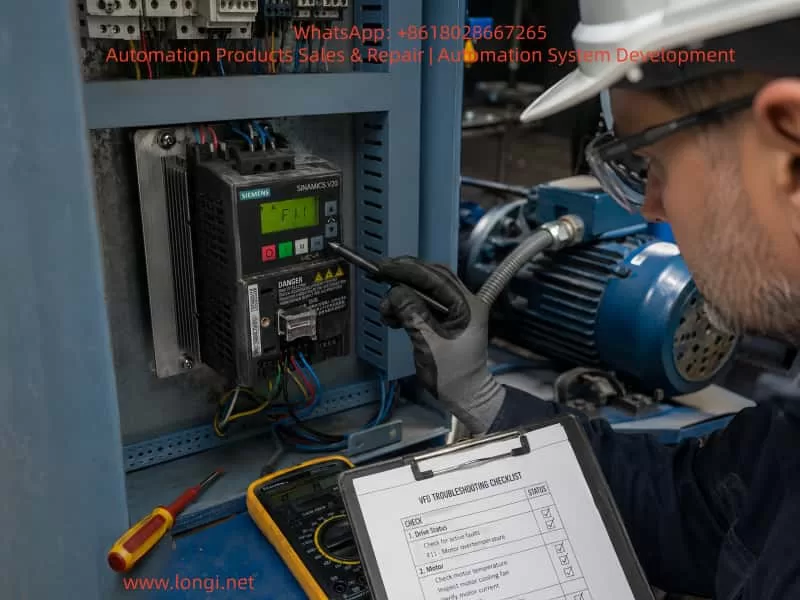
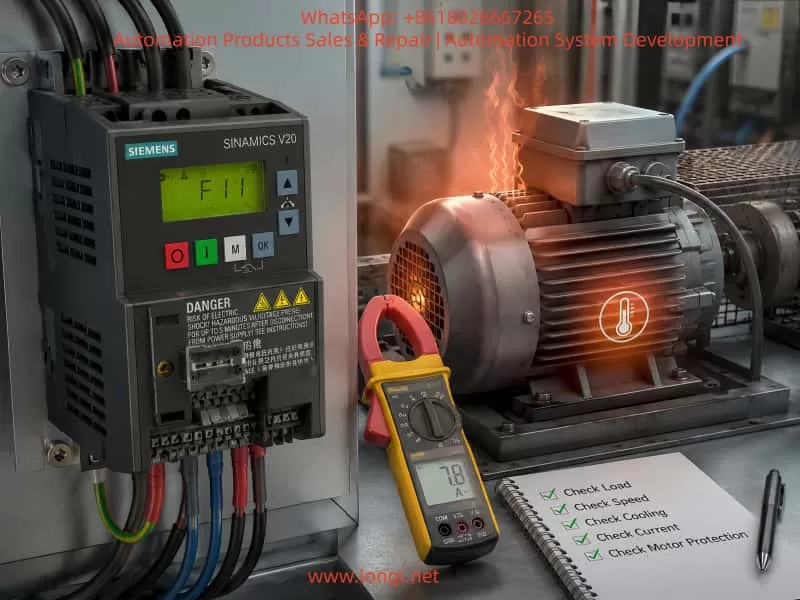
Delta C2000 series inverter showing VFDr fault and “Read VFD Info Er” message on the keypad display during workshop diagnosis.

2. Essential Meaning of the VFDr Fault

The keypad of an inverter is not merely a simple display screen. It usually performs several functions:

It displays operating frequency, current, voltage, fault codes, and status information. It allows parameter reading and modification. It executes commands such as start, stop, forward/reverse operation, and reset. It exchanges data with the main control board through a communication interface. During power-up, it reads the inverter model, capacity, firmware version, parameter area, status flags, and other internal information.

When the keypad displays “Read VFD Info Er”, it means that the keypad has failed while reading internal information from the inverter. This failure may occur at several levels.

The keypad itself may not be working properly. The connection between the keypad and the inverter control board may be poor. The control board may not be responding correctly to the keypad’s request. The internal memory data on the control board may be abnormal, causing the keypad to read invalid information. The low-voltage control power supply may be unstable, causing the MCU, memory, or communication IC to operate abnormally. The control board may be affected by moisture, oxidation, contamination, cold solder joints, or connector damage, resulting in communication failure.

From a repair perspective, VFDr is a communication and data-reading fault, not a typical power output fault. This distinction is very important. If the fault is incorrectly judged as an IGBT, rectifier bridge, DC bus capacitor, or driver board failure, the repair direction will be wrong and a great deal of time may be wasted.

3. Basic Structure of the Delta C2000 Inverter

To analyze the VFDr fault accurately, it is necessary to understand the basic electrical structure of the C2000 series inverter. In general, an inverter consists of the following sections.

3.1 Main Power Circuit

The main power circuit includes the input rectifier, DC bus, pre-charge circuit, braking unit, inverter IGBT module, current detection circuit, and output terminals. Its function is to rectify three-phase AC power into DC power, then use the IGBT inverter section to output three-phase AC power with adjustable frequency and voltage.

Common main circuit faults include input phase loss, DC bus overvoltage, DC bus undervoltage, IGBT short circuit, output ground fault, output phase loss, and braking unit faults. These faults usually appear as protection-related codes such as OC, OV, LV, GF, OH, or OL.

VFDr does not usually point first to a main power circuit fault. Even if the power board is damaged, it may not directly cause VFDr. Conversely, even if the power section is normal, the inverter may still display VFDr due to abnormal communication, memory failure, or control board problems.

3.2 Control Power Supply

The control power supply usually generates several low-voltage rails through a switching power supply circuit, such as 24V, 15V, 5V, and 3.3V. The exact voltage configuration may vary by model, but the general functions are as follows.

The 24V supply is often used for relays, external terminals, fan control, or interface circuits. The 15V supply may be used for analog circuits, driver front-end circuits, or operational amplifiers. The 5V supply is commonly used for communication ICs, digital logic, and some interface circuits. The 3.3V supply is often used for the main MCU, DSP, Flash, EEPROM, or logic chips.

If the 5V or 3.3V supply is unstable, communication between the keypad and the control board may fail. Slight ripple, a low voltage level, or abnormal power-on reset timing may all cause data-reading errors. During repair, it is not enough to check only whether voltage is present. The technician should also confirm whether the voltage is stable, whether ripple is excessive, and whether the power-up sequence is normal.

3.3 Main Control Board

The main control board is the brain of the inverter. It handles parameter processing, operation logic, fault protection, PWM output, communication management, and keypad interaction. It usually contains an MCU or DSP, memory devices, communication ICs, crystal oscillator, reset circuit, analog sampling circuits, and digital input/output circuits.

The VFDr fault is closely related to the control board. If the control board cannot return correct device information to the keypad, the keypad will report a reading error. Control board abnormalities may be caused by several factors:

The MCU fails to start correctly. The crystal oscillator does not oscillate or has an abnormal frequency. The reset circuit is abnormal. Flash or EEPROM data is damaged. The communication IC is faulty. Interface protection components are shorted. The low-voltage power supply is abnormal. The board is affected by moisture or corrosion. The program area or parameter area is corrupted.

3.4 Keypad and Interface Section

The keypad is connected to the inverter body through pins, a ribbon cable, an RJ45 connector, or a similar interface. The keypad usually contains its own MCU, key scanning circuit, display driver, communication interface, and sometimes memory-related devices. It is not a passive display; it is a small communication terminal.

If the keypad connector is oxidized, has poor contact, bent pins, a broken ribbon cable, or a loose socket, VFDr may occur. The same fault may also occur if the keypad’s internal communication IC is damaged. This is especially common in second-hand units, equipment stored for a long time, devices exposed to moisture, or machines used in dusty industrial environments.

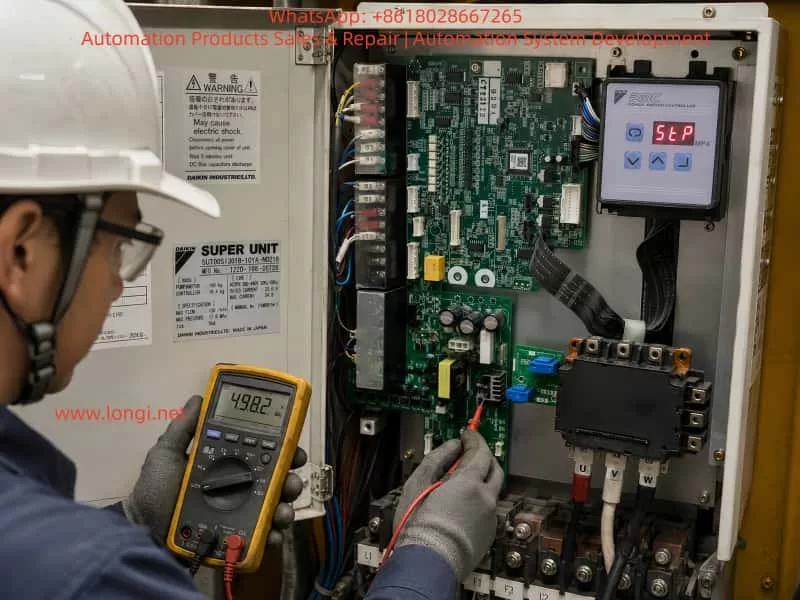
Technician testing a Delta C2000 inverter control board with a multimeter while diagnosing the VFDr keypad communication fault.

4. Difference Between VFDr and Common Operating Faults

When technicians see an inverter fault, they may immediately think of the motor, load, IGBT, or power module. However, the logic for diagnosing VFDr is different.

4.1 Common Operating Faults Are Usually Related to Load or Power Circuit Conditions

For example, an overcurrent fault normally requires checking motor insulation, output short circuit, acceleration time, mechanical load jam, IGBT condition, and current detection circuits. An overvoltage fault requires checking input voltage, deceleration time, braking resistor, and braking unit. An overheating fault requires checking the fan, heat sink, temperature sensor, and ambient temperature.

These faults usually occur during start-up, acceleration, operation, deceleration, or load changes.

4.2 VFDr Usually Occurs During Power-Up or Information Reading

VFDr often appears immediately after the inverter is powered on, or when the keypad attempts to enter a menu or read internal information. It is not directly related to whether the motor is connected or whether the load is running. Even if no motor is connected, the inverter may still display VFDr.

This indicates that the fault is closer to the control layer rather than the output power layer.

4.3 VFDr Is Not Simply a Parameter Error

Some technicians may see “Read VFD Info Error” and assume that the parameters are incorrect, then try to restore factory settings. In reality, when the keypad cannot correctly read inverter information, forced initialization may not be effective. The problem may not be parameter setting error; the real issue may be that the keypad cannot establish reliable communication with the control board, or the control board cannot correctly read its own internal information.

If the control board memory is damaged, the communication link is abnormal, or the low-voltage power supply is unstable, restoring parameters will not solve the root cause.

5. Possible Causes of the VFDr Fault

5.1 Poor Keypad Contact

This is one of the most common and easiest causes to eliminate. Industrial environments are complex. After long-term operation, the keypad interface may become oxidized, loose, deformed, or contaminated with dust. After transportation, disassembly, or maintenance, the keypad may also be improperly seated.

The correct method is to power off the inverter, remove the keypad, and inspect the connector and pins for oxidation, blackening, bending, breakage, or looseness. The connector may be cleaned using electronic contact cleaner, then dried thoroughly before reinstallation. If available, a known-good keypad from the same series should be used for cross-testing.

If replacing the keypad clears the fault, the original keypad or its connector is likely defective. If the VFDr fault remains after replacing the keypad, the problem is more likely inside the inverter control board.

5.2 Keypad Failure

The keypad itself contains electronic circuits. After long-term use, it may develop MCU failure, communication IC failure, display driver fault, or Flash data abnormality. If the keypad has been affected by electrostatic discharge, hot plugging, external communication interference, or moisture, internal damage may occur.

A faulty keypad may show garbled characters, no key response, failure to enter menus, read failure, fixed fault display, or communication interruption. The best diagnostic method is still cross-testing: install the suspected keypad on a known-good inverter, or install a known-good keypad on the faulty inverter. Cross-testing is more direct than only measuring voltage.

5.3 Abnormal Keypad Communication Line

The keypad usually exchanges data with the control board through serial communication. The communication path may contain transceiver ICs, protection diodes, TVS diodes, resistors, capacitors, isolation devices, and other components. If any of these components becomes shorted, open, or degraded, communication may fail.

Common problems include damaged communication ICs, shorted TVS diodes, open or drifted resistors near the interface, cold solder joints, corroded traces, broken ribbon cables, PCB trace damage, and leakage in ESD protection devices.

During repair, a multimeter can be used to check whether the resistance from each connector pin to ground is abnormal. If an oscilloscope is available, the communication line should be checked for data waveforms. Under normal conditions, there should be data exchange between the keypad and the control board after power-up. If the signal remains permanently high, permanently low, or severely distorted, the communication link is abnormal.

5.4 Abnormal Low-Voltage Control Power Supply

In VFDr faults, low-voltage power supply problems are often overlooked. Many technicians focus only on the DC bus voltage and power module, but do not carefully measure the control power supply. In fact, an unstable control power supply can create many symptoms that look like communication faults.

The following points should be checked:

Whether 5V is stable. Whether 3.3V is stable. Whether there is a voltage drop during power-up. Whether ripple is excessive. Whether electrolytic capacitors have aged. Whether the DC-DC converter or linear regulator is overheating. Whether the reset circuit is releasing normally. Whether the low-voltage power rail has a short circuit or leakage load.

If the 5V rail is low, for example around 4.5V, the communication IC may still operate marginally, but the data error rate will increase significantly. If the 3.3V rail has ripple or momentary dropouts, the main MCU may repeatedly reset, causing the keypad to fail when reading inverter information.

5.5 Main MCU or DSP Not Starting Correctly

If the main control chip does not start correctly, the keypad cannot read valid inverter information. Causes may include abnormal crystal oscillator operation, reset circuit failure, power supply fault, program memory corruption, or failure of the chip itself.

The technician can measure whether the crystal oscillator has a proper oscillation signal, whether the reset pin level is normal, and whether the main control supply voltage is correct. If the main control chip has abnormal heating, abnormal supply current, or no response on all communication lines, damage to the MCU or program area should be considered.

This type of fault is more difficult to repair. It normally requires an oscilloscope, logic analyzer, thermal camera, adjustable power supply, and comparison with a known-good board of the same model.

5.6 Flash, EEPROM, or Parameter Memory Abnormality

Another important diagnostic direction for “Read VFD Info Error” is the memory section. The inverter stores model information, capacity information, parameter data, firmware version, calibration data, and other internal information. If the memory chip is damaged, or if internal data is lost, corrupted, or fails checksum verification, the control board may be unable to provide correct VFD information to the keypad.

Common causes of memory faults include long-term storage, power failure during writing, surge or electrostatic damage, chip aging, incorrect maintenance operation, moisture-induced leakage around chip pins, and failed firmware or parameter copying.

If the memory area is abnormal, the inverter may not only display VFDr, but may also show incorrect model identification, incorrect capacity identification, failure to save parameters, failure to restore factory settings, or repeated alarms after power-up.

5.7 Moisture, Contamination, or Corrosion on the Control Board

Industrial inverters are often installed in environments containing dust, oil mist, water vapor, or metal particles. Once the control board is affected by moisture or contamination, slight leakage may occur. Digital communication circuits are sensitive to leakage and impedance changes. Even minor contamination may affect data transmission.

The control board should be checked carefully for green copper corrosion near connectors, blackened chip pins, water stains, oil residue, dust accumulation, oxidized ribbon cable sockets, moldy or cracked solder joints, leaking capacitors, and cracked protective coating.

For slight contamination, the board can be cleaned with anhydrous alcohol or dedicated electronic cleaner and then dried thoroughly. For severe corrosion, trace repair, component replacement, or control board replacement may be required.

5.8 External Communication or Expansion Module Interference

Some Delta C2000 inverters are connected to external communication modules, expansion cards, PLCs, HMIs, or fieldbus systems. If an expansion module is abnormal, it may affect internal communication or power-up identification. Although VFDr is more closely related to keypad information reading, external communication interference should also be ruled out in complex systems.

During troubleshooting, all unnecessary external wiring should be disconnected first, leaving only the required input power and keypad. This puts the inverter into a minimum system condition. If the fault disappears after external communication is disconnected, the communication module, parameter settings, shielding, grounding, termination resistor, or external device status should be checked.

6. Systematic Diagnostic Procedure

The VFDr fault should be diagnosed according to the principle of from outside to inside, from simple to complex, from interface to control board. The following procedure is recommended.

6.1 Confirm the Exact Fault Display

First confirm that the display really shows:

VFDr
Read VFD Info Er

Do not rely only on verbal descriptions. A difference of one letter in a fault code may lead to a completely different repair direction. Take photos of the fault display, nameplate, voltage class, operating environment, and wiring condition.

6.2 Power Off, Discharge, and Power On Again

An inverter contains large DC bus capacitors. Even after power is removed, dangerous voltage may remain inside. Before removing the keypad or inspecting internal circuits, power must be disconnected and the DC bus voltage must fall to a safe level. It is recommended to wait more than 10 minutes and measure the voltage between P and N, or DC+ and DC-, to confirm that the bus is discharged.

After repowering the inverter, observe whether the fault remains. If it disappears intermittently, poor contact, unstable power-up, or moisture may be suspected. If it appears every time, the fault is stable and easier to locate.

6.3 Inspect the Keypad and Connector

Remove the keypad and inspect the interface. Clean the connector and pins, then reinstall the keypad. Confirm that it is fully inserted, locked in place, and not loose.

If a known-good keypad from the same series is available, cross-testing should be performed. The test result is highly valuable:

If a known-good keypad works normally on the faulty inverter, the original keypad is likely defective. If a known-good keypad still shows VFDr on the faulty inverter, the fault is likely inside the inverter control board. If the suspected keypad also shows the same fault on a normal inverter, the keypad itself is very likely defective. If the suspected keypad works normally on another inverter, the control board or interface of the faulty inverter should be checked.

6.4 Test the Inverter in Minimum System Condition

Disconnect the motor cable, external control terminals, communication cables, and expansion cards. Keep only the necessary input power and keypad. This eliminates external wiring, communication interference, and terminal short-circuit factors.

If VFDr remains under minimum system conditions, the fault is basically internal to the inverter. If the inverter returns to normal, reconnect external wiring step by step to identify the circuit that triggers the fault.

6.5 Check the Control Power Supply

After opening the cover, measure the key power supply points on the control board. The focus should be on 5V, 3.3V, 24V, and other low-voltage rails. During measurement, do not only check static voltage. Observe whether there is a voltage drop during power-up or when the fault appears.

If an oscilloscope is available, check the power supply ripple. Excessive ripple on digital power rails may cause communication errors and MCU malfunction. For older units, electrolytic capacitors, regulator ICs, DC-DC modules, and switching power supply feedback circuits should be inspected carefully.

6.6 Check Communication Waveforms

In a well-equipped repair environment, an oscilloscope can be used to observe the keypad communication lines. Under normal conditions, there should be data requests and responses between the keypad and the control board after power-up. If only the keypad sends data and there is no response from the control board, the main controller may not have started or the receiving channel may be abnormal. If the control board responds but the waveform amplitude is abnormal or severely distorted, the communication IC, protection devices, or line impedance may be faulty.

If a TVS diode on the communication line is shorted, the waveform may be pulled low or the resistance may be abnormally small. After removing or replacing the abnormal protection component, communication may recover.

6.7 Check Main Controller Start-Up Conditions

If there is no communication response, further check the start-up conditions of the main control chip, including power supply, reset, crystal oscillator, and program memory. If the main controller does not start, the keypad cannot read any valid information.

This step requires stronger electronic repair skills. If no circuit diagram is available, comparison with a known-good board of the same model is useful for judging voltage, waveform, and resistance differences.

6.8 Check Memory and Parameter Area

If the main controller starts and communication waveforms exist, but the information still cannot be read correctly, memory or parameter area abnormality should be suspected. Check the power supply, chip select, clock, and data line waveforms of EEPROM, Flash, FRAM, or other memory devices. Oxidized pins, cold solder joints, or abnormal chip power supply may also cause read failure.

Memory-related faults should not be handled blindly. Some inverter memory devices contain capacity identification, calibration data, and factory information. Replacing the chip with a blank one may cause the inverter to lose capacity identification or fail to operate. Whenever possible, the original data should be preserved. If necessary, data comparison should be performed using the same model and same capacity inverter.

7. Precautions During Repair

7.1 Do Not Hot-Plug the Keypad

Although some inverter keypads support remote mounting or removal, hot-plugging is not recommended during repair. Hot-plugging may generate surge voltage or electrostatic discharge, damaging the keypad communication IC or the main control interface. The correct procedure is to power off the inverter, wait for discharge, confirm safety, and then remove or install the keypad.

7.2 Do Not Immediately Restore Factory Parameters

VFDr is an information-reading error, not a normal parameter setting error. Before communication is restored, factory initialization often cannot be executed correctly. Even if it can be executed, it may erase original parameters and make later commissioning more difficult. In production-line applications, original parameters may include motor nameplate data, control mode, communication address, analog scaling, and protection logic. Random initialization may create additional problems.

7.3 Do Not Immediately Judge the Power Module as Faulty

VFDr does not directly correspond to power module failure. A damaged power module may coexist with other problems, but when VFDr appears alone, the control communication system should be checked first. Blindly removing and testing IGBTs will not solve the reading error and may increase the risk of secondary damage.

7.4 Pay Attention to High-Voltage Safety

The Delta C2000 is an industrial inverter, and the internal DC bus voltage is very high. In a 380V-class inverter, the rectified DC bus voltage can reach approximately 500–700VDC. Even after power is removed, the bus capacitors may still hold dangerous voltage. Before repair, the bus voltage must be measured and confirmed safe. A dark keypad display does not mean the inverter is safe.

7.5 Observe ESD Protection

The keypad, control board, communication ICs, Flash, and EEPROM are all sensitive electronic components. During repair, electrostatic discharge should be avoided. This is especially important when removing and installing the keypad or control board in a dry environment.

8. Typical Diagnostic Logic

When a Delta C2000 inverter displays VFDr after power-up, the following logic can be used.

If the keypad is completely dark, check the control power supply and keypad power first.
If the keypad lights up but displays VFDr, check keypad communication and control board response first.
If replacing the keypad solves the problem, the original keypad or its interface is faulty.
If replacing the keypad does not solve the problem, focus on the control board.
If cleaning the connector solves the problem, poor contact or contamination leakage is confirmed.
If the low-voltage power supply is low, repair the power supply before judging communication.
If the communication line has abnormal resistance to ground, check TVS devices, communication ICs, and nearby interface components.
If the main controller has no crystal oscillation, no reset release, and no communication waveform, check MCU start-up conditions.
If the main controller communicates but information reading still fails, check the memory and parameter area.
If the equipment has been stored for a long time or exposed to moisture, connector oxidation, board contamination, power supply aging, and memory abnormality should be considered high-probability causes.

This diagnostic order helps avoid blind component replacement and improves repair efficiency.

9. Relationship Between VFDr and Long-Term Storage

Inverters that have been stored for a long time are more likely to show VFDr-type faults. There are several reasons.

First, long-term power-off storage can degrade electrolytic capacitors, causing increased ripple in the control power supply during start-up. Second, humid environments can oxidize connectors and cause leakage on the PCB surface. Third, dust and oil contamination accumulated over time can reduce insulation resistance and affect high-impedance communication circuits. Fourth, memory devices or parameter areas in older equipment may develop data abnormalities. Fifth, transportation may loosen the keypad connector, ribbon cable, or socket.

Therefore, for inverters that have been stored for years, it is recommended to perform visual inspection, insulation checking, low-voltage power supply checking, and connector cleaning before power-up. For larger units, capacitor reforming and main circuit safety tests should also be considered to prevent secondary damage caused by direct power-up.

10. Post-Repair Testing

After the VFDr fault is cleared, the repair should not end simply because the keypad no longer reports an error. A full system test should be performed to confirm that both the control system and the power system are operating normally.

Recommended test items include:

Power on the inverter multiple times and confirm that VFDr does not reappear. Enter the parameter menu and confirm that parameters can be read, modified, and saved. Check whether the inverter model, capacity, voltage class, and version information are displayed correctly. Confirm that all keypad buttons work normally. Check whether external terminal inputs and outputs are normal. Check analog input and output functions. Perform no-load operation and observe whether output frequency and voltage are stable. Run the motor at low frequency and observe whether the output current is balanced. Perform acceleration and deceleration tests and confirm that no abnormal alarms occur. Power off and then power on again to confirm that parameter saving is normal.

If the repair involves the memory, control board, or control power supply, parameter retention and repeated power-cycle stability must be tested carefully. Some memory or power supply problems may not appear immediately and may only be exposed after repeated hot and cold tests.

11. Conclusion

When a Delta C2000 series inverter displays VFDr / Read VFD Info Er, the essential fault is that the keypad has failed to read internal information from the inverter. This is different from common main circuit faults such as overcurrent, overvoltage, overload, or short circuit. The repair focus should be placed on the keypad, keypad connector, control board communication circuit, low-voltage control power supply, MCU start-up conditions, and memory data integrity.

In actual repair work, the recommended troubleshooting method is to proceed from outside to inside: first inspect the keypad and connector, then perform cross-testing, check the control power supply and communication waveform, and finally move deeper into the control board, memory, and program data level. For equipment that has been stored for a long time, exposed to moisture, transported, or purchased second-hand, connector oxidation, control board contamination, power supply aging, and parameter storage abnormality are all high-probability causes.

The key to diagnosing VFDr is not to blindly replace power components, but to understand the nature of the fault as an information-reading error. Once the data link between the keypad and the control system is clearly understood, the fault range can be narrowed efficiently by checking power supply, interface, communication, main controller, and memory in sequence.

For technicians, VFDr is a representative control-layer fault. It shows that modern inverters are not just power converters; they are complex systems integrating power electronics, embedded control, digital communication, parameter storage, and human-machine interaction. To repair such equipment accurately, one must understand not only the main power circuit, but also the control board; not only how to test IGBTs, but also how to analyze communication circuits and low-voltage power supplies. Only with this complete diagnostic approach can the real fault be identified and ineffective repair work avoided.

Posted on

Troubleshooting Yaskawa SGDM Servo Drive A.F5 Alarm: Motor Disconnection, Output Circuit Abnormality, and Internal Drive Fault Analysis

1. Overview of the Fault Symptom

Yaskawa SERVOPACK servo drives are widely used in industrial automation equipment. Older Yaskawa series such as SGDM, SGDH, and SGDV are commonly found in CNC machines, printing machines, packaging equipment, semiconductor machinery, handling systems, robotics-related mechanisms, dedicated production lines, and high-precision positioning systems. Because these machines often operate for many years in demanding industrial environments, servo systems may develop alarms, failure to enable, unstable operation, unexpected stopping, or complete axis failure.

One common fault on the Yaskawa SGDM series is the A.F5 alarm. In many field cases, technicians may see “A.F5” on the display and simply interpret it as “AF5.” Some may immediately assume that the servo drive itself is defective. However, this alarm does not always mean that the SERVOPACK is damaged. In many cases, it points to an abnormal motor power circuit, especially a disconnection or poor contact in the U, V, W motor power lines between the servo drive and the servo motor. It may also be caused by an open motor winding, loose terminal, faulty connector, damaged cable, or an internal output detection or current detection fault inside the servo drive.

From a repair and troubleshooting perspective, the A.F5 alarm should be handled according to the principle of checking the external motor circuit first and the internal drive circuit second. It is not correct to dismantle the drive immediately after seeing A.F5, nor is it correct to only check parameters or control signals. The first priority should be to inspect the motor power cable, motor winding, intermediate terminals, connectors, contactors, drag-chain cables, and the U/V/W output path. Only after the external circuit has been confirmed normal should the internal power output stage and detection circuit of the SERVOPACK be considered.

Yaskawa SGDM SERVOPACK 200V servo drive displaying A.F5 alarm inside an industrial electrical cabinet.

2. Basic Meaning of the A.F5 Alarm

On the Yaskawa SGDM servo drive, A.F5 generally indicates a Servomotor Disconnection Alarm.

It can be understood as:

Servo motor power line disconnection alarm, servo motor connection abnormality alarm, or output circuit abnormality alarm.

The core meaning is that when the drive attempts to control the servo motor, it detects that the motor power circuit is not forming a normal current path, or that the output-side condition does not match the expected state of a normally connected motor. As a result, the drive determines that the motor may not be connected correctly, the power cable may be open, one output phase may be missing, or the internal detection circuit may be abnormal.

It is important to note that A.F5 is not primarily an encoder alarm and is not a general parameter error. A complete servo system includes several parts:

  1. Servo drive main power circuit;
  2. Servo drive control board;
  3. Servo motor;
  4. Motor power cable;
  5. Encoder feedback cable;
  6. Control signal wiring;
  7. Servo ON, limit, emergency stop, and safety circuits;
  8. Mechanical load.

The A.F5 alarm mainly concerns the power output relationship between the servo drive and the servo motor. The key inspection targets are the U, V, and W motor phases and the related output detection circuit.

3. Common Timing of the A.F5 Alarm

Before judging the fault location, it is necessary to confirm when the A.F5 alarm appears. Different alarm timing often indicates different fault directions.

3.1 A.F5 Appears Immediately After Control Power Is Turned On

If the servo drive displays A.F5 immediately after the control power is applied, before the Servo ON signal is given, the fault is more likely related to the internal detection circuit of the drive.

Possible causes include:

  • Abnormal internal output detection circuit;
  • Abnormal current detection circuit;
  • Faulty connection between the power board and control board;
  • Aging electronic components inside the drive;
  • Abnormal main circuit detection signal;
  • Previous output short circuit, explosion, water ingress, moisture damage, or severe overload.

External motor wiring problems cannot be completely ruled out, especially if the motor cable is severely shorted or connected incorrectly. However, if the alarm appears before servo enable, the SERVOPACK itself deserves more attention.

3.2 Power-On Is Normal, but A.F5 Appears After Servo ON

If there is no alarm after power-on, but A.F5 appears when the servo is enabled, when the machine is started, or when the axis is about to run, the external motor power circuit is more suspicious.

This is a very common field situation. Typical causes include:

  • One phase of U/V/W motor cable is open;
  • Motor power connector is loose;
  • Motor terminal box wiring is loose;
  • Intermediate terminal block has poor contact;
  • Internal conductor of a drag-chain cable is broken;
  • Output-side contactor contact is burnt or unreliable;
  • Servo motor winding is open;
  • Incorrect wiring after repair, relocation, or modification;
  • Loose screws on the drive output terminals.

In this case, the correct inspection direction is from the drive output terminals to the motor end, section by section.

3.3 A.F5 Appears Occasionally During Operation

If the equipment can run but occasionally stops with A.F5 after a period of operation, the fault is often intermittent.

Common causes include:

  • Drag-chain cable conductor is half-broken due to repeated bending;
  • Motor connector loses contact under vibration;
  • Terminal block oxidation or looseness;
  • Motor cable insulation or conductor damage;
  • Motor winding internal break changes with temperature;
  • Internal solder joint or connector problem inside the drive;
  • Poor thermal stability of the current detection circuit.

Intermittent faults are more difficult to locate than fixed faults. Static measurement may appear normal, but the problem may occur only during movement, vibration, or heating. In such cases, cable bending tests, hot-state testing, operation monitoring, and substitution testing are necessary.

Technician using a multimeter to troubleshoot a Yaskawa SGDM servo drive with A.F5 servomotor disconnection alarm.

4. Difference Between A.F5 Alarm and Encoder Fault

In field maintenance, some technicians tend to classify all servo alarms as “encoder problems.” This is inaccurate. In a Yaskawa servo system, encoder-related alarms usually involve encoder communication, feedback abnormality, encoder disconnection, encoder data error, or battery alarm. The core of A.F5 is not the feedback signal but the motor power output circuit.

The difference can be summarized as follows:

ItemA.F5 AlarmEncoder-Related Alarm
Main targetMotor power cable U/V/WEncoder feedback cable
Circuit involvedMain power output, current detection, motor windingEncoder power, communication, feedback signal
Typical symptomAlarm after Servo ON, motor does not runFeedback abnormality, homing error, encoder communication alarm
Main inspection pointU/V/W cable, motor winding, output terminalsEncoder connector, battery, feedback cable, encoder
Must the motor be faulty?NoNo
Must the drive be faulty?NoNo

Therefore, when A.F5 occurs, the inspection should not focus only on the encoder cable, nor should the encoder be replaced blindly. The correct focus should be the motor three-phase power cable and the drive output circuit.

5. Main Causes of the A.F5 Alarm

5.1 Servo Motor Power Cable Disconnection

This is the most direct and common cause. The servo motor power cable normally includes U, V, W phases and PE ground. The drive outputs three-phase PWM voltage through U, V, and W to control the servo motor. If any phase is disconnected, the drive cannot establish normal output current and may trigger A.F5.

The disconnection may occur at:

  • Drive output terminals;
  • Cabinet terminal block;
  • Aviation connector;
  • Servo motor connector;
  • Drag-chain cable;
  • Cable bending point;
  • Motor terminal box;
  • Rewired location after repair, relocation, or modification.

This is especially common in machines with moving axes, robotic arms, gantry systems, and drag-chain applications. The cable may look intact externally, but the copper conductor inside may already be half-broken or completely open.

5.2 Loose Terminal or Poor Contact

Loose terminals are common in industrial equipment. Servo drive U/V/W outputs carry fast-changing current. If the terminal is not tight, heating, oxidation, arcing, increased contact resistance, or intermittent disconnection may occur.

Typical signs include:

  • Blackened terminal;
  • Discolored cable lug;
  • Loose terminal screw;
  • Yellowed or deformed insulation sleeve;
  • Burnt smell near the terminal;
  • Alarm becomes more frequent during vibration.

Machines with strong vibration, such as punching feeders, packaging machines, printing machines, woodworking machines, and CNC machine tools, are more likely to develop loose terminals.

5.3 Open Servo Motor Winding

If the motor winding is internally open, the drive will also fail to detect a normal motor load. After power-off, the three-phase motor winding resistance can be measured to make a preliminary judgment.

Measurements should be taken between:

  • U-V;
  • V-W;
  • W-U.

The three resistance values should be close to each other. If one pair shows infinite resistance, the winding or internal lead wire may be open. If the three values are obviously unbalanced, the motor may also have an internal fault.

For large servo motors, the winding resistance can be very low, and ordinary multimeters may not give highly accurate readings. Therefore, the relative balance of the three readings is usually more important than the absolute value.

5.4 Intermediate Contactor or Terminal Block Fault

Some machines use an intermediate contactor, terminal block, plug connector, or safety disconnect device between the servo drive and the motor. In general, it is not recommended to casually install a contactor on the U/V/W output side of a servo drive, because the servo output is a high-frequency PWM waveform and improper switching may cause impact or detection errors.

If the original machine design does include an output-side contactor, the following points should be checked carefully:

  • Whether the contactor contacts are burnt;
  • Whether all three phases close reliably and simultaneously;
  • Whether the contactor coil is energized properly;
  • Whether terminal blocks are loose;
  • Whether one phase has high contact resistance;
  • Whether a safety circuit is incorrectly interrupting the output side.

A contactor may appear conductive during static measurement, but under load its voltage drop may increase, causing the drive to report A.F5.

5.5 Servo Motor Model Mismatch or Incorrect Wiring

Yaskawa servo drives require correct motor matching. If the motor, drive, or cable has been replaced, there may be motor mismatch, wrong phase sequence, or incorrect connector pin definition.

Common wiring mistakes include:

  • Connecting a motor from a different series to an incompatible drive;
  • Incorrect U/V/W phase sequence;
  • Motor power cable connected to wrong terminals;
  • Input power and motor output mistakenly reversed;
  • Motor cable connected to braking resistor terminals;
  • Incorrect pin assignment when using a non-original cable.

Reversing the input power and motor output is especially dangerous and may directly damage the power module. During repair, L1/L2/L3 input terminals and U/V/W output terminals must be clearly distinguished. Wire color alone should not be used as the only basis.

5.6 Internal Power Module Fault

If the external motor, cable, connector, and terminal block are confirmed normal but A.F5 remains, an internal drive fault must be considered.

The SGDM series is an older Yaskawa servo drive family. Many units have been operating for more than ten or even twenty years. Aging components, damaged power modules, cracked solder joints, and current detection drift are all possible.

Common internal problems include:

  • Damaged IGBT module;
  • One output phase open internally;
  • Aging gate driver optocoupler;
  • Abnormal gate drive circuit;
  • Current detection circuit fault;
  • Hall current sensor or shunt resistor fault;
  • Poor connection between power board and control board;
  • DC bus voltage detection abnormality;
  • Output detection comparator circuit fault.

If the drive previously experienced output short circuit, motor cable short circuit, water ingress, heavy dust contamination, capacitor failure, or power module explosion, the probability of internal damage is higher.

5.7 Control Board or Detection Circuit Fault

The A.F5 alarm depends on the internal detection logic of the drive. If the detection circuit itself is faulty, the drive may falsely report motor disconnection even when the external motor cable is normal.

Examples include:

  • Current sampling signal not reaching the control board;
  • Damaged operational amplifier;
  • Abnormal isolated feedback signal;
  • Comparator output error;
  • Changed value of analog sampling resistor;
  • Damaged control board input channel;
  • Poor contact in board-to-board ribbon cable or connector.

This type of fault usually requires professional bench repair, circuit measurement, signal tracing, substitution testing, and oscilloscope analysis.

6. Correct Field Troubleshooting Procedure

Step 1: Record the Alarm Condition

Before troubleshooting, record the following information:

  1. Servo drive model;
  2. Servo motor model;
  3. Alarm code;
  4. Whether the alarm appears at power-on or after Servo ON;
  5. Whether the alarm occurs intermittently during operation;
  6. Whether the motor, cable, or drive was repaired or replaced before;
  7. Whether the machine was relocated, rewired, flooded, shorted, or overloaded;
  8. Whether abnormal noise, smell, breaker trip, or mechanical jamming occurred before the alarm.

These details help narrow down the fault quickly.

Step 2: Power Off and Confirm DC Bus Discharge

There is a high-voltage DC bus inside the servo drive. Even after power is turned off, the capacitors may retain dangerous voltage. Before checking U/V/W terminals or opening the drive, the main power must be disconnected and the DC bus voltage must be confirmed safe.

Safety requirements include:

  • Turn off the machine main power;
  • Wait until the CHARGE indicator goes out;
  • Use a multimeter to confirm that the DC bus voltage has dropped to a safe level;
  • Do not touch main circuit terminals directly;
  • Do not plug or unplug motor or encoder cables while powered;
  • Do not disconnect U/V/W wiring while the drive is enabled.

The servo output side carries high-frequency PWM voltage. Live operation can cause electric shock, short circuit, or secondary damage.

Step 3: Inspect the U/V/W Output Terminals

Check the motor output terminals at the bottom of the drive:

  • U;
  • V;
  • W;
  • PE ground.

Inspection items include:

  • Whether terminal screws are loose;
  • Whether cable lugs are tightly pressed;
  • Whether terminals are burnt or blackened;
  • Whether cables are detached;
  • Whether wiring is incorrect;
  • Whether wire numbers match the drawing;
  • Whether copper strands are exposed and causing short circuit;
  • Whether oil, dust, or metal chips are present.

If loose terminals are found, re-crimp the cable lug, clean oxidation, and tighten the terminal. If cable lugs or terminal blocks are already burnt, they should be replaced rather than simply tightened.

Step 4: Measure Motor Winding Resistance

Disconnect the U/V/W motor cable from the drive and measure the motor-side three-phase winding resistance.

MeasurementJudgment
U-VShould show low resistance
V-WShould show low resistance
W-UShould show low resistance
Comparison of three valuesShould be basically balanced
One pair reads infinitePossible winding open circuit or cable break
One pair obviously higherPossible poor contact or winding abnormality

If the measurement is taken at the drive end, the result includes both the cable and motor. If abnormal, continue measuring at the motor connector or motor terminal box to distinguish cable fault from motor fault.

Step 5: Measure Insulation to Ground

Although A.F5 mainly indicates a disconnection alarm, insulation should also be checked. Damaged cable insulation or motor winding leakage may cause other alarms or indirectly affect the drive detection.

Use a megohmmeter to measure:

  • U to PE;
  • V to PE;
  • W to PE;
  • Motor winding to motor housing.

For a servo motor and cable, insulation should be high. If insulation is low, the motor, cable, or connector may be damp, damaged, contaminated, or aged.

Important: the servo drive must be disconnected before using a megohmmeter. Never apply megger voltage directly to the drive electronics, as this may damage the drive.

Step 6: Inspect Motor Connector and Intermediate Connectors

Servo systems often use aviation plugs or special connectors. Connector faults are common, especially in environments with oil mist, coolant, dust, and vibration.

Check for:

  • Bent pins;
  • Pins pushed backward;
  • Connector not locked;
  • Oil or water inside the connector;
  • Oxidized or blackened pins;
  • Poor shield termination;
  • Cable strain at connector tail;
  • Loose crimping inside the plug.

If oil or water has entered the connector, simply blowing it dry may not be reliable. The connector should be cleaned, dried, re-crimped, or replaced if necessary.

Step 7: Inspect Drag-Chain Cable

For moving axes, the drag-chain cable is a key suspect. Drag-chain cable damage can be hidden, and static measurement may not reveal it.

Practical checking methods include:

  1. Measure continuity while bending the cable;
  2. Move the machine to different positions and measure again;
  3. Check whether the alarm only occurs at a certain axis position;
  4. Temporarily bypass the drag-chain cable with another motor cable;
  5. Check whether the bending radius is too small;
  6. Inspect for clamping, pulling, or mechanical damage.

If A.F5 disappears after bypassing the original cable, the original cable or intermediate connector is very likely faulty.

Step 8: Use Substitution Testing to Identify Motor or Drive Fault

If there is another same-model axis or spare equipment on site, substitution testing can be used, but it must be done carefully.

Possible methods include:

  • Connect a known-good motor to the suspected drive;
  • Connect the suspected motor to a known-good drive;
  • Swap motor power cables;
  • Swap encoder cables;
  • Swap drives.

Before substitution, confirm that voltage, power rating, motor model, encoder type, and parameters are compatible. Randomly connecting different motor and drive models may cause damage.

Typical conclusions are:

  • If the fault follows the motor, the motor or motor cable is faulty;
  • If the fault follows the drive, the drive is faulty;
  • If the fault follows the cable, the cable or connector is faulty;
  • If the fault disappears after reconnection, there may have been poor contact.

7. Internal Repair Logic of the Servo Drive

When the external motor cable, motor winding, connector, and terminal block are all confirmed normal but A.F5 remains, the drive should be inspected internally.

7.1 Check the Power Module

The SGDM servo drive uses an internal power module or IGBT output structure. During repair, check:

  • Whether the P-N DC bus is shorted;
  • Whether U/V/W to P or N show abnormal short circuit;
  • Whether the IGBT bridge diode characteristics are normal;
  • Whether one output phase is open;
  • Whether the module has cracks, burns, or explosion marks;
  • Whether the module base shows overheating discoloration.

If the IGBT module is damaged, replacing a fuse or simply resetting the alarm is not enough. The gate drive circuit, motor cable, and load must also be checked, otherwise the new module may fail again.

7.2 Check the Gate Drive Circuit

The IGBT gate drive circuit controls the switching of the power module. If the drive signal is abnormal, output current cannot be established correctly, and the system may judge the motor as disconnected or output abnormal.

Inspection points include:

  • Whether gate drive power supply is normal;
  • Whether upper and lower bridge gate signals are normal;
  • Whether driver optocouplers are damaged;
  • Whether gate resistors are open or changed in value;
  • Whether protection diodes are shorted;
  • Whether the driver board is burnt;
  • Whether board-to-board connectors are reliable.

This area usually requires an oscilloscope and isolated measurement conditions. It is not recommended for untrained field personnel to test blindly.

7.3 Check the Current Detection Circuit

The servo drive often depends on output current feedback to judge motor connection status. If the current detection circuit fails, the control board may interpret the output as abnormal even if the power module is working.

Common detection components include:

  • Current transformer;
  • Hall current sensor;
  • Shunt resistor;
  • Operational amplifier;
  • Comparator;
  • A/D input channel;
  • Isolation amplifier;
  • Signal filter circuit.

If one phase current feedback is missing, the drive may falsely report motor disconnection or output phase loss.

7.4 Check the Connection Between Control Board and Power Board

A common issue in older drives is oxidized board connectors, poor ribbon-cable contact, or cracked solder joints. This is especially common in high-temperature, dusty, oily, or vibrating environments.

Check:

  • Oxidized connectors;
  • Loose ribbon cables;
  • Cracked solder joints;
  • Warped circuit boards;
  • Blackened pins;
  • Electrolytic capacitor leakage corrosion;
  • Conductive dust contamination.

For old drives, cleaning the boards, reseating connectors, and re-soldering suspicious joints may solve intermittent alarms.

8. Common Misjudgments During Repair

8.1 Looking Only at the Alarm Code and Ignoring Alarm Timing

The same A.F5 alarm can have different causes depending on whether it appears at power-on, after Servo ON, or during operation. Ignoring timing can lead to the wrong troubleshooting direction.

8.2 Checking Only the Encoder Cable Instead of the Motor Power Cable

The key circuit of A.F5 is not the encoder cable but the motor power circuit. The encoder cable can be inspected, but it should not be treated as the main target.

8.3 Assuming the Cable Is Good Because a Multimeter Shows Continuity

A half-broken drag-chain cable may appear conductive during static measurement but open during movement. For intermittent alarms, dynamic bending tests or temporary cable replacement are necessary.

8.4 Using a Megohmmeter Without Disconnecting the Drive

Megger voltage can damage drive electronics. When measuring motor or cable insulation, the drive side must be disconnected first.

8.5 Replacing the Drive Blindly

If the root cause is a motor cable break, short circuit, or motor winding fault, replacing the drive may not solve the problem and may even damage the replacement drive.

8.6 Ignoring Mechanical Jamming

Although A.F5 mainly indicates a motor connection abnormality, severe mechanical jamming may cause abnormal servo current and mislead troubleshooting. The mechanical axis, brake release, and load condition should also be checked.

9. Recommended Standard Troubleshooting Flow

For a Yaskawa SGDM servo drive with A.F5 alarm, the following sequence is recommended:

  1. Confirm that the displayed alarm is A.F5;
  2. Record when the alarm appears;
  3. Power off and confirm DC bus discharge;
  4. Check the drive U/V/W output terminals;
  5. Check the motor power wiring;
  6. Measure the three-phase motor winding resistance;
  7. Measure motor and cable insulation to ground;
  8. Inspect motor connector, terminal block, and intermediate contactor;
  9. Check whether drag-chain cable conductors are broken;
  10. Temporarily bypass intermediate wiring for testing;
  11. Use substitution testing to distinguish motor, cable, and drive;
  12. After confirming the external circuit is normal, inspect the drive internally;
  13. Check IGBT, gate drive circuit, current detection circuit, power board, and control board;
  14. Perform no-load testing after repair;
  15. Connect the motor and run at low speed;
  16. Finally restore machine load and test normal operation.

The principle is:

External before internal; simple before complex; low-risk checks before dismantling; root cause confirmation before replacing parts.

10. Key Tests After Repair

After repairing an A.F5 fault, it is not enough to confirm that the alarm disappears. A complete test should be performed.

10.1 Static Test

Check:

  • Drive powers on without alarm;
  • Control power is normal;
  • Main power is normal;
  • DC bus voltage is normal;
  • Cooling fan operates normally;
  • No abnormal sound or smell.

10.2 Servo Enable Test

After applying Servo ON, observe:

  • Whether A.F5 reappears;
  • Whether the motor becomes energized;
  • Whether the brake releases properly;
  • Whether the motor vibrates;
  • Whether current is abnormal;
  • Whether overcurrent, overload, or encoder alarms appear.

10.3 Low-Speed Run Test

Run the motor forward and reverse at low speed and observe:

  • Whether the rotation direction is correct;
  • Whether operation is smooth;
  • Whether there is abnormal noise;
  • Whether current is balanced;
  • Whether speed feedback is stable;
  • Whether stopping is normal.

10.4 Load Test

After restoring the machine load, test:

  • Acceleration and deceleration;
  • Positioning accuracy;
  • Long-term operation;
  • Whether drag-chain movement affects the alarm;
  • Motor and drive temperature rise;
  • Whether terminals become hot.

Only after the machine runs continuously without the alarm should the repair be considered complete.

11. Preventive Maintenance Recommendations

For older Yaskawa SGDM servo systems, regular maintenance can reduce the occurrence of A.F5 and similar alarms.

11.1 Tighten Terminals Regularly

Input terminals, output terminals, motor terminal boxes, and cabinet terminal blocks should be checked regularly. In high-power servo systems, loose terminals can cause heating, burning, and poor contact.

11.2 Inspect Drag-Chain Cables Regularly

Drag-chain cables are consumable parts. Bending points, fixing points, and moving sections should be inspected frequently. Cables beyond their service life should be replaced in advance.

11.3 Keep the Electrical Cabinet Clean

Dust, oil mist, and metal particles can contaminate circuit boards and terminals. Electrical cabinets should be kept clean, dry, and well ventilated.

11.4 Prevent Oil and Water from Entering the Motor

Servo motor connectors, motor terminal boxes, and cable entry points should be protected from coolant, oil, and moisture. This is especially important for machine tools, cleaning equipment, and food packaging machines.

11.5 Avoid Random Switching on the Output Side

Do not casually install contactors, switches, or plug-in structures on the U/V/W output side of the servo drive. If output switching is required by machine design, it must follow proper servo system rules and only switch when the drive is stopped and has no output.

11.6 Mark Wires Clearly After Maintenance

Many servo faults occur after incorrect reconnection. Before disconnecting wires, take photos, mark wire numbers, and record terminal positions. During reassembly, do not rely only on wire color. Always verify according to the drawing and terminal definition.

12. Conclusion

The A.F5 alarm on a Yaskawa SGDM servo drive is essentially a servomotor disconnection or output circuit abnormality alarm. It should not be simply interpreted as “the drive is bad,” nor should the troubleshooting focus only on the encoder or parameters. The correct analysis should focus on the motor power circuit, especially the U/V/W output cable, motor winding, terminal block, connector, drag-chain cable, intermediate contactor, and the internal output detection and power drive circuits of the SERVOPACK.

In practical repair work, if A.F5 appears after Servo ON, the external motor cable, motor winding, connector, and terminal contact should be suspected first. If A.F5 appears immediately after control power is applied, or if the external circuit is fully confirmed normal but the alarm remains, the internal power module, current detection circuit, gate drive circuit, and control board should be inspected.

For old SGDM servo drives, long service life often leads to aging electronic components, poor board contact, and deterioration of the power section. Therefore, successful troubleshooting requires both field electrical diagnosis and electronic repair capability. A systematic process should be followed: alarm timing analysis, external circuit inspection, motor winding measurement, dynamic cable testing, substitution verification, and internal drive inspection.

Although A.F5 appears to be a simple alarm code, it involves the servo system’s power output, motor connection, current detection, and protection logic. For maintenance personnel, the key is not only to remember the alarm code, but to understand the detection logic and fault chain behind it. Only then can the root cause be located quickly, repair efficiency improved, unnecessary part replacement avoided, and machine downtime reduced.

Posted on

Troubleshooting Schneider ATV310 F022 Fault During Constant-Speed Operation: Causes, Parameters, and Practical Solutions

1. Overview of the Fault Symptom

The Schneider Electric ATV310 variable frequency drive is widely used in small and medium-power industrial applications, including fans, pumps, conveyors, woodworking machines, packaging equipment, and general three-phase asynchronous motor control. Because the ATV310 is a compact and economical drive, many technicians assume that its fault codes are limited to common electrical problems such as overcurrent, overvoltage, undervoltage, motor overload, overheating, or output phase loss.

However, in real field service and repair work, one fault is frequently misunderstood: the drive runs normally at a constant speed, then suddenly stops and displays F022. The customer may describe the situation as follows:

The motor runs normally for some time.

The speed is stable, with no acceleration or deceleration at the moment of failure.

The drive suddenly stops.

The display shows F022.

Sending the run command again does not restart the drive.

Only powering off and restarting the drive makes it work again.

After running for a while, the same fault appears again.

This fault is often misdiagnosed as a control board failure, CPU crash, power supply problem, IGBT module fault, motor insulation issue, or internal overheating. In fact, according to the ATV310 fault definition, F022 is not a power-stage fault. It is related to Modbus communication monitoring.

Understanding the real meaning of F022 is the key to solving this problem correctly.

Schneider ATV310 variable frequency drive inside an electrical cabinet, with the front cover open and the red LED display showing F022 Modbus communication fault.

2. What F022 Really Means: Modbus Communication Interruption

On the ATV310, F022 means Modbus interruption. The possible cause is an interruption of communication on the Modbus network.

Although the ATV310 is an entry-level drive, it supports Modbus RTU communication. Through the communication port, a PLC, HMI, industrial computer, gateway, remote terminal, or other Modbus master device can read and write parameters, send run commands, and provide frequency references.

Once Modbus control or communication monitoring is enabled, the drive expects regular communication from the Modbus master. If the drive does not receive valid Modbus requests within the defined timeout period, it detects a communication fault and may stop with F022.

The logic is simple:

The drive believes that Modbus communication should be active.

No valid Modbus request is received within the preset timeout.

The drive detects a communication loss.

If the communication fault management parameter is set to stop the drive, the drive performs a freewheel stop and displays F022.

Therefore, F022 does not directly indicate a motor short circuit, output phase loss, overload, DC bus overvoltage, or IGBT damage. The first diagnostic direction should be communication wiring, communication parameters, command source settings, Modbus timeout, and communication fault management.

3. Why F022 Can Occur During Constant-Speed Operation

Many users ask why a communication fault appears when the motor is already running at a steady speed. They assume that Modbus is only required when starting, stopping, or changing speed.

This is not correct.

In a Modbus-controlled system, the PLC or HMI usually needs to communicate with the drive continuously. Even when the motor is running at a stable speed such as 30 Hz, 40 Hz, or 50 Hz, the master device may still need to send control words, frequency references, status requests, or communication keep-alive messages.

If this periodic communication is interrupted, the drive considers the control channel unreliable. In many industrial systems, loss of communication can be a serious safety and process risk. For example:

A pump may lose pressure or level control.

A fan may lose interlock control.

A conveyor may continue or stop unexpectedly.

The upper control system may no longer know the real drive status.

For this reason, the ATV310 provides Modbus communication fault monitoring. The drive can stop automatically when communication is lost.

Therefore, constant-speed operation does not prevent F022. As long as communication monitoring is active, Modbus loss can trigger F022 during starting, acceleration, constant-speed operation, or deceleration.

Female electrician wearing safety glasses and gloves repairing a Schneider ATV310 variable frequency drive inside an industrial electrical control cabinet.

4. Key ATV310 Parameters Related to F022

When troubleshooting F022, technicians should not only look at the fault code. Several parameters are directly related to this problem, especially 610, 611, 701, 702, 703, and 704.

4.1 Parameter 611: Modbus Communication Fault Management

Parameter 611 is the most direct parameter related to F022. It defines what the drive should do when an integrated Modbus communication fault occurs.

The common settings are:

611 = 00: Modbus communication fault ignored.

611 = 01: Freewheel stop when Modbus communication is interrupted.

If 611 = 01, the drive will stop and display F022 after a Modbus communication interruption. This is normally the safer setting for equipment controlled by PLC or HMI through Modbus.

If 611 = 00, the drive ignores the Modbus communication fault. In this case, communication loss will not stop the drive with F022.

However, setting 611 to 00 is not a universal repair method. It disables Modbus fault monitoring. If the equipment relies on Modbus for critical control, allowing the drive to continue running after communication loss may create a safety risk. This setting should only be used after confirming that Modbus is not used for essential control, or after a proper risk assessment.

4.2 Parameter 610: Disable Detected Faults

Parameter 610 is not only for Modbus. It belongs to the fault detection management menu and allows certain detected faults to be disabled or cleared through a logic input.

The ATV310 manual lists several faults that can be disabled and cleared through this function, including F022.

This means that F022 can also be affected by parameter 610. However, the logic is different from parameter 611.

611 directly manages the Modbus communication fault action.

610 assigns a logic input to disable or clear certain detected faults, including F022.

In practical terms, parameter 611 is the direct Modbus fault management setting, while parameter 610 is a broader external fault inhibition function. They are related, but they are not the same.

4.3 Parameter 704: Modbus Timeout

Parameter 704 is the Modbus timeout parameter. It defines how long the drive waits without receiving a Modbus request before detecting a Modbus fault.

If the PLC or HMI polling cycle is too long, or if the communication task is unstable, a timeout value that is too short can cause nuisance F022 faults.

For example, a PLC may stop polling the drive temporarily because of program execution delays, HMI screen switching, overloaded communication tasks, or a gateway delay. If the time between two valid Modbus requests exceeds the timeout value, the drive may detect F022 even though the cable is not physically disconnected.

Increasing parameter 704 can improve tolerance to temporary communication delays, but it does not solve severe communication instability. If there is real signal loss, noise, poor wiring, or master-side failure, increasing the timeout only delays the fault.

4.4 Parameter 701: Modbus Address

Parameter 701 is the Modbus address. Every drive on the same RS485 network must have a unique address.

If two or more ATV310 drives have the same Modbus address, the master device may receive conflicting responses. This can cause unstable communication, data errors, or intermittent F022 faults.

Address conflict is especially common after replacing a drive, copying parameters, or installing multiple new drives with factory settings.

4.5 Parameter 702: Modbus Baud Rate

Parameter 702 defines the Modbus baud rate. It must match the baud rate setting of the PLC, HMI, gateway, or other master device.

Common baud rates include 4.8 kbps, 9.6 kbps, 19.2 kbps, and 38.4 kbps. Many industrial systems use 9.6 kbps or 19.2 kbps.

If the baud rate is wrong, communication may fail completely. If settings are inconsistent after drive replacement or parameter reset, the system may become unstable.

4.6 Parameter 703: Modbus Format

Parameter 703 defines the Modbus communication format, including parity and stop bit configuration. Typical formats include 8E1, 8N1, or 8N2.

The drive and the master device must use the same format. Any mismatch in baud rate, parity, stop bits, or address can result in communication failure or intermittent F022.

5. Common Causes of F022 in the Field

5.1 Loose or Poor RS485 Connection

Poor communication wiring is one of the most common causes of F022. In a real industrial environment, vibration, dust, humidity, heat, and mechanical stress can weaken RJ45 plugs, terminals, adapters, or intermediate connectors.

Typical points to check include:

Loose RJ45 connector.

Poorly crimped communication plug.

Oxidized terminal block.

Loose A/B wires.

Broken shield wire.

Too many intermediate joints.

Communication cable pulled or bent repeatedly.

If F022 appears randomly during machine operation, especially on vibrating equipment, the first suspicion should be communication contact instability.

5.2 RS485 A/B Polarity Error or Incorrect Wiring

RS485 uses a differential pair, usually marked as A/B, D+/D-, or 485+/485-. Different manufacturers may use different naming conventions. A wiring mistake may cause complete communication failure, but in some cases the system may work intermittently through converters or gateways.

If the fault appears after installing a new drive, replacing a PLC or HMI, changing cables, or modifying the panel wiring, the A/B polarity should be checked carefully. Swapping the A/B wires is often a useful test when communication is unstable.

5.3 Electrical Noise from Motor Cables

The output cable from the drive to the motor is a strong source of high-frequency noise, especially when the motor cable is long, unshielded, poorly grounded, or when the switching frequency is high.

If the RS485 communication cable is routed together with motor cables, input power cables, contactor coil wires, or solenoid valve wires, interference can be coupled into the communication line. This may cause Modbus errors and F022.

Good practice includes:

Separate RS485 cables from power cables.

Avoid long parallel runs with motor cables.

Cross power cables at 90 degrees when necessary.

Use shielded twisted pair cable for RS485.

Ground the shield properly according to the installation design.

Use termination resistors where required.

Use RS485 isolators or repeaters in harsh environments.

5.4 PLC or HMI Communication Task Interruption

F022 is not always caused by the drive or the cable. The Modbus master can also be the source of the problem.

Examples include:

PLC program communication task stops temporarily.

HMI freezes or restarts.

Gateway or serial server reboots.

Communication polling is too slow.

Multiple devices compete for the same communication port.

PLC 24 VDC supply drops.

HMI screen switching overloads the communication task.

If F022 appears at the same time as HMI alarms, PLC communication errors, or gateway restarts, the master-side system must be inspected.

5.5 Duplicate Modbus Addresses

When several ATV310 drives are connected to the same RS485 network, duplicate Modbus addresses can cause random communication failures.

If two drives respond to the same request at the same time, the data on the bus becomes corrupted. One drive may sometimes appear online and sometimes offline. The system may show random F022 faults.

This problem is common when several drives are installed with default settings and the addresses are not changed individually.

5.6 Improper Modbus Timeout Setting

If parameter 704 is too short for the actual communication cycle, F022 may occur even though the network is basically functional.

Some PLC or HMI programs only write the run command once and then stop polling the drive. This is not suitable when communication monitoring is enabled. If the drive expects continuous Modbus activity, the master must keep sending valid requests within the timeout period.

If the application does not require continuous Modbus supervision, the communication fault monitoring strategy should be reviewed.

5.7 Drive Parameters Incorrectly Set to Modbus Control

Another common situation is that the customer does not use any RS485 communication at all, but the ATV310 still reports F022.

This usually means that the parameters were changed incorrectly. The drive may have previously been used in a Modbus-controlled machine and later moved to a simple terminal-control application. Or a technician may have restored or copied the wrong parameters.

If the drive command source or frequency reference source is set to Modbus while no Modbus master is connected, F022 may occur because the drive is waiting for communication that does not exist.

In this case, replacing the control board is unnecessary. The correct approach is to restore the command source and frequency reference source to keypad, terminal, or analog input mode.

6. Why the Drive May Require Power Cycling After F022

Customers often say that after F022 appears, the drive cannot be restarted until power is turned off and on again. This can happen for two reasons.

First, the fault has not been properly reset. Sending a run command again is not the same as resetting a fault. The cause must be removed first, and the fault must then be reset through the keypad, logic input, communication reset, or power cycling.

Second, the communication fault still exists. If the PLC is still not polling, the RS485 cable is still disconnected, or the HMI is still offline, the drive will detect F022 again immediately after reset.

Power cycling may temporarily restart the drive and communication interface, but it does not prove that the root cause is solved. If the communication problem remains, F022 will return.

7. Difference Between Parameters 610 and 611

Because both 610 and 611 can affect F022, technicians may ask which one should be changed.

The answer depends on the purpose.

Parameter 611 is the direct Modbus communication fault management parameter. It defines whether the drive ignores a Modbus fault or performs a freewheel stop.

Parameter 610 is a logic-input assignment for disabling detected faults. It can inhibit or clear several faults, including F022, through an external digital input.

Therefore:

Use 611 when the target is to define the drive’s response to Modbus communication loss.

Use 610 only when the application requires an external input to inhibit or clear selected detected faults.

For troubleshooting, 611 is the more direct parameter for F022. Parameter 610 is more suitable for special applications, commissioning, or temporary bypass logic. It should not be used casually as a permanent solution without safety review.

If the machine truly uses Modbus for run commands or speed reference, permanently ignoring or disabling F022 may be dangerous. If the communication path fails, the drive may continue running without proper supervision from the control system.

8. Practical Troubleshooting Procedure

Step 1: Confirm the Fault Code

First, confirm that the display really shows F022. On a seven-segment display, some fault codes can be misread. A photo or video is useful.

If the fault is confirmed as F022, the troubleshooting direction should be communication.

Step 2: Confirm Whether Modbus Is Used

Check whether the drive is connected to a PLC, HMI, remote terminal, gateway, serial converter, or industrial PC.

If Modbus is used, inspect the communication system.

If Modbus is not used, check whether the drive parameters were incorrectly set to Modbus command or Modbus reference.

Step 3: Check Parameters 701, 702, 703, and 704

Verify:

701: Modbus address.

702: Baud rate.

703: Communication format.

704: Modbus timeout.

For multiple drives on the same network, ensure that every drive has a unique address.

Step 4: Check Parameter 611

If 611 is set to 01, the drive will stop on Modbus communication loss. This confirms that F022 behavior is active.

If the site does not use Modbus control, setting 611 to 00 may be used to verify that the fault is caused by Modbus monitoring. However, safety risk must be evaluated first.

Step 5: Check Parameter 610

Check whether 610 is assigned to a logic input. If it is, confirm the status of that input.

A wrongly assigned or unstable logic input may cause fault inhibition or reset behavior that confuses diagnosis.

Step 6: Inspect the RS485 Physical Layer

Check all communication connectors, terminals, cable shields, intermediate adapters, and routing.

Pay attention to:

Loose plugs.

Broken cable.

Wrong A/B polarity.

Poor shielding.

Communication cable routed with power cable.

Missing termination resistor.

Long cable without repeater.

Grounding problems.

Step 7: Inspect the Master Device

Check the PLC, HMI, or gateway.

Look for:

Communication alarms.

PLC program errors.

HMI freezing.

Gateway restart.

Unstable 24 VDC power supply.

Excessive polling load.

Multiple masters on the same bus.

The drive may be reporting F022 only because the master device stopped sending valid requests.

Step 8: Perform an Isolation Test

If possible, run the drive locally from the keypad or from terminal control, without relying on Modbus. Let it run for a sufficient test period.

If F022 no longer appears, the motor and power stage are probably not the root cause. The problem is likely in the communication path or parameter configuration.

If F022 still appears during local operation, check whether communication monitoring is still enabled or whether an external device is still connected to the communication port.

9. When to Suspect Drive Hardware Failure

Most F022 cases are not caused by internal drive hardware failure. However, hardware should be considered if:

All communication parameters are correct.

The RS485 cable and master device are verified.

Another ATV310 works normally on the same network.

The faulty drive still reports F022 randomly.

The RJ45 communication port is physically damaged.

The control board has corrosion, moisture damage, or burn marks.

Strong voltage was accidentally applied to the communication port.

The RS485 transceiver circuit is suspected to be damaged.

Possible hardware problems include a damaged RJ45 connector, cracked solder joints, failed RS485 transceiver IC, damaged protection components, or control board supply issues. Still, hardware should only be suspected after excluding parameter and wiring problems.

10. Temporary Measures and Permanent Solutions

10.1 Temporary Measures

If the machine must be restarted urgently, the following temporary actions may be considered:

Power cycle the drive after removing the immediate fault condition.

Check and reconnect the RS485 cable.

Restart the PLC, HMI, or gateway.

Increase parameter 704 appropriately.

Set 611 to 00 only if Modbus monitoring is not required.

Run the drive locally for testing.

Use fault reset after communication is restored.

These actions may help resume production, but they do not necessarily solve the root cause.

10.2 Permanent Solutions

A proper long-term solution should focus on communication stability and correct control strategy:

Use shielded twisted pair cable for RS485.

Separate communication cables from power cables.

Improve grounding and shielding.

Use proper termination resistors.

Avoid duplicate addresses.

Avoid multiple Modbus masters on one bus.

Optimize PLC polling logic.

Ensure continuous periodic communication.

Set 704 according to actual communication timing.

Correctly configure command and reference sources.

Do not use Modbus control unless required.

Keep communication fault protection active where safety requires it.

11. Practical Field Judgment

The following questions help quickly identify the direction of diagnosis:

Is the drive connected to a PLC or HMI through Modbus?

If yes, inspect the communication network and master polling.

Is the drive controlled by Modbus for run and speed reference?

If yes, F022 is a critical control-path fault and should not be ignored casually.

Is there no Modbus connection at all?

If yes, check whether the parameters were incorrectly set for Modbus control or communication monitoring.

Does the drive work again after power cycling?

This indicates that the fault can be temporarily reset, but it does not prove that the root cause is fixed.

Does setting 611 to 00 stop the F022 fault?

This confirms that the fault comes from Modbus communication monitoring. It does not prove that the communication system is healthy.

Does the drive run normally in local keypad mode?

If yes, the motor and power module are unlikely to be the main problem. Focus on communication and parameter configuration.

12. Example Case: Fan Drive Stops with F022 at 50 Hz

A machine used an ATV310 drive to control a fan. The customer reported that the fan stopped randomly once or twice per day. The drive always displayed F022. After power cycling, the machine could run again.

At first, the customer suspected that the drive control board was defective. However, inspection showed that the drive was controlled by a PLC through Modbus. Parameter 611 was set to 01, and parameter 704 was set to 10 seconds.

The PLC program was supposed to poll the drive continuously. However, during certain HMI screen changes, the communication task became overloaded and the PLC did not send a valid Modbus request to the drive for more than 10 seconds. The ATV310 then detected Modbus timeout and stopped with F022.

The solution included:

Optimizing the PLC Modbus polling program.

Reducing unnecessary HMI data refresh.

Ensuring periodic transmission of the drive control word.

Separating the RS485 cable from motor cables.

Improving shield grounding.

Adjusting the Modbus timeout after testing.

After these corrections, the drive operated continuously without F022.

This case shows that F022 is often a system communication problem, not a drive power-stage failure.

13. Why F022 Should Not Be Casually Disabled

Some technicians may set 611 to 00 or use 610 to disable F022 immediately after seeing the fault. This may stop the machine from tripping, but it can create serious risk.

If the drive receives its run command and frequency reference through Modbus, loss of communication means the control system may no longer supervise the drive properly. If F022 is disabled, the drive may continue running even when the PLC or HMI has lost control.

Possible risks include:

A pump continues running during a low-level or high-pressure condition.

A fan loses interlock control.

A conveyor keeps moving after downstream blockage.

The HMI displays incorrect drive status.

An emergency-related process command is not transmitted correctly.

For this reason, disabling F022 should only be used for temporary testing or after a proper safety assessment. The preferred solution is to repair the communication problem and keep suitable communication fault protection active.

14. Recommended Troubleshooting Principles

For ATV310 F022 faults, the following principles are recommended:

Confirm the exact fault code first.

Check parameters before replacing hardware.

Check communication wiring before replacing the drive.

Perform local operation testing to isolate the issue.

Do not permanently disable communication fault monitoring without risk assessment.

If a temporary bypass is used, record the parameter change.

Restore proper fault monitoring before final commissioning.

For simple terminal-control applications that do not use Modbus, make sure the drive is not accidentally configured for Modbus command or reference. For automation systems using Modbus, make sure the master device communicates continuously and reliably.

15. Conclusion

The Schneider ATV310 F022 fault is essentially a Modbus communication interruption fault. It is different from overcurrent, overload, output short circuit, or IGBT overheating faults. Troubleshooting should focus on communication wiring, communication parameters, timeout settings, master polling, command source configuration, and fault management logic.

Parameter 611 directly defines the Modbus communication fault response. Parameter 610 can disable or clear selected detected faults, including F022, through a logic input. Parameter 704 defines the Modbus timeout. Parameters 701, 702, and 703 define the address, baud rate, and communication format.

When a customer reports that the ATV310 suddenly stops during constant-speed operation, displays F022, and requires power cycling before restart, the drive should not be judged faulty immediately. A correct diagnostic process should confirm whether Modbus is used, inspect parameters 701 to 704, 610, and 611, check the RS485 wiring and shielding, verify PLC or HMI communication, and perform local operation testing.

If Modbus is not used, F022 is often caused by incorrect parameter configuration. If Modbus is used, the fault is usually caused by RS485 interruption, master polling delay, electrical noise, address conflict, or timeout setting issues.

Parameters 611 or 610 can be used for temporary verification or special applications, but disabling F022 should not be treated as a permanent repair method without safety consideration. The reliable solution is to restore stable Modbus communication and configure the drive’s communication fault management according to the real control and safety requirements of the machine.

Posted on

Panasonic MCDJT3220 Servo Drive Alarm 49.0: Model Identification, Encoder Fault Analysis, and Practical Troubleshooting Guide

In industrial automation maintenance, it is very common for a customer to send only a servo drive nameplate photo or a short alarm video and ask the technician to identify the model, determine the series, and analyze the fault. For experienced servo technicians, the nameplate and alarm code often provide enough key information to establish the initial diagnostic direction. However, for non-specialists, different Panasonic servo drive series can look similar from the outside, and model names can easily be confused. As a result, MINAS LIQI, A4, A5, and A6 series drives are sometimes misidentified.

This article is based on a real field case involving a Panasonic AC Servo Driver. The nameplate shows the model as MCDJT3220, and the video appears to show the display flashing 49.0. Based on the nameplate, Panasonic servo model naming, and common field repair experience, this drive should not be identified as a MINAS A5 or MINAS A6 unit. It is a Panasonic MINAS LIQI series servo drive. The displayed alarm 49.0 should not first lead the technician toward the IGBT module, main power circuit, or motor U/V/W output stage. Instead, the main diagnostic direction should be the servo motor encoder feedback chain, especially the encoder itself, encoder cable, X2 encoder connector, and the encoder receiving circuit inside the drive.


Panasonic MCDJT3220 MINAS LIQI AC servo drive mounted inside an electrical control cabinet, showing the model label, connectors, and industrial wiring layout.

1. Nameplate Identification: This Is Not an A5 or A6 Drive, but a LIQI Series Drive

From the customer’s photo, several important details can be read from the drive nameplate:

  • Brand: Panasonic
  • Product type: AC Servo Driver
  • Model: MCDJT3220
  • Input power supply: 220–240V AC
  • Input phase: single phase
  • Output: 0–240V, three phase
  • Output current: 4.0A
  • Power rating: 750W

The most important information is the model number: MCDJT3220. This model belongs to the Panasonic MINAS LIQI series, not the MINAS A5 or MINAS A6 series.

Many maintenance technicians immediately think of Panasonic A4, A5, or A6 servo drives when they see a Panasonic servo unit, because these series are widely used in factory automation, packaging machines, CNC equipment, labeling machines, printing machines, and various motion control systems. However, Panasonic also has the LIQI series, which is generally positioned as an economical servo system for relatively simple positioning, speed control, light-load transmission, packaging machinery, small automation equipment, and similar applications.

From the model naming structure, MCDJT3220 is clearly different from common A5 or A6 model formats. Panasonic A5 and A6 drives often use model structures such as MBDHT, MCDHT, MADHT, or MDDHT. The LIQI series commonly uses model combinations such as MCDJT. Therefore, the nameplate alone is already sufficient to make a reliable identification: this is a Panasonic MINAS LIQI 750W servo drive.

This distinction is important for repair quotation, spare parts procurement, and technical diagnosis. Different Panasonic servo series may use different control interfaces, encoder protocols, motor matching rules, parameter software, and alarm definitions. If the drive is incorrectly treated as an A5 or A6 model, the technician may consult the wrong manual, select the wrong motor, misunderstand the alarm code, or follow an incorrect troubleshooting path.


2. Basic Electrical Parameters of the Panasonic MCDJT3220

Based on the nameplate, the main electrical specifications of this MCDJT3220 servo drive can be summarized as follows:

ItemSpecification
BrandPanasonic
Product typeAC Servo Driver
SeriesMINAS LIQI
ModelMCDJT3220
Input powerSingle-phase AC 220–240V
Input frequency50/60Hz
Input current6.6A
Output voltageThree-phase 0–240V
Output current4.0A
Rated power750W
Matching motorPanasonic LIQI series servo motor

This is a 750W servo drive with single-phase 220V-class input and three-phase output for a servo motor. A common misunderstanding should be avoided here: although the input power is single phase, the output to the motor is still three-phase U/V/W. Inside the servo drive, the AC input is first rectified into a DC bus, and then the inverter stage generates three-phase PWM output for the servo motor.

Therefore, this drive should not be treated as a simple single-phase motor controller. It should also not be considered equivalent to an ordinary VFD. A servo system has not only a main power circuit and motor U/V/W output, but also a very important encoder feedback loop. If the encoder feedback is abnormal, the servo drive cannot operate normally even if the main power section is still healthy.


Technician troubleshooting Panasonic MCDJT3220 servo drive alarm 49.0 by checking the X2 encoder connector, encoder cable, and motor encoder feedback circuit with a multimeter.

3. Alarm 49.0 Indicates the Encoder Feedback System Should Be the Primary Focus

In the customer’s video, the servo drive display appears to flash 49.0. According to Panasonic servo alarm logic, alarm 49.0 is generally related to encoder protection and is commonly described as:

Incremental Encoder CS Signal Error Protection

In practical terms, it can be understood as:

Incremental encoder CS signal error
or, more simply:

The encoder feedback signal is abnormal, and the servo drive cannot correctly read or identify the motor encoder feedback.

The key word here is encoder. The defining characteristic of a servo system is closed-loop control. The drive does not simply output voltage and current to the motor; it must also continuously receive feedback from the motor encoder to determine rotor position, speed, and direction. If the encoder feedback is incorrect, missing, unstable, or logically inconsistent, the drive cannot safely control the motor.

For this reason, alarm 49.0 should not be diagnosed first as a general “motor not running,” “drive power module failure,” or “IGBT failure” problem. The first diagnostic area should be the encoder feedback chain.


4. What Does an Encoder CS Signal Error Mean?

A servo motor usually has an encoder mounted at the rear end. The encoder converts the motor shaft position, speed, direction, and related feedback information into signals that are sent back to the servo drive. The servo drive uses this feedback for position loop, speed loop, and current loop control.

A CS signal error can be understood as an abnormality in encoder serial communication or status-check logic. During power-on or operation, the drive checks whether the encoder feedback data is valid. If the drive detects abnormal encoder data, communication check errors, missing signals, or logical inconsistency, it triggers encoder protection.

In actual repair work, an encoder CS signal error does not always mean that the encoder itself is definitely damaged. It only means that the drive is receiving abnormal encoder feedback. The root cause may be located anywhere in the feedback chain, including:

  1. Broken encoder cable;
  2. Poor contact at the encoder connector;
  3. Abnormal encoder power supply;
  4. Defective encoder inside the servo motor;
  5. Oil, water, or contamination entering the motor encoder section;
  6. Poor shielding or grounding of the encoder cable, causing electrical interference;
  7. Damaged X2 encoder interface on the drive;
  8. Damaged encoder receiving circuit inside the drive;
  9. Motor and drive mismatch;
  10. Incorrect wiring or modified encoder cable pin assignment.

Therefore, when facing alarm 49.0, the correct method is not to immediately replace the drive. The technician should isolate and check the feedback path step by step: drive → encoder cable → motor encoder.


5. Common Causes of Alarm 49.0

5.1 Encoder Connector Not Fully Inserted or Poor Pin Contact

This is one of the most common and easily overlooked causes in the field. After transportation, machine vibration, drive replacement, cable removal, or maintenance work, the encoder connector may become slightly loose. It may look inserted from the outside, but the locking mechanism may not be fully engaged, or one of the internal pins may not be making reliable contact.

After long-term use, oil, dust, moisture, oxidation, or contamination may also accumulate inside the connector. Encoder signals are low-voltage weak signals. Unlike main power wiring, a small amount of contact resistance or instability can already cause communication failure.

The technician should power off the equipment, wait for the servo drive to discharge, unplug the X2 encoder connector, and inspect the pins carefully. Look for bent pins, recessed pins, broken pins, blackened contacts, oil contamination, moisture, or corrosion. After inspection and cleaning, the connector should be fully inserted and locked before powering on again.

5.2 Internal Breakage or Intermittent Contact in the Encoder Cable

Servo motor encoder cables are usually multi-core cables with thin conductors and shielding. In machines using drag chains, reciprocating axes, robotic arms, feeding mechanisms, cutting axes, or moving carriages, encoder cables are repeatedly bent during operation. Over time, one or more internal conductors may break.

The difficult part is that the outer sheath may still look normal while an internal conductor is already cracked or intermittently open. The machine may work when stationary but alarm when the axis moves to a certain position. The alarm may also appear or disappear when the cable is lightly moved.

For this type of fault, visual inspection alone is not reliable. A multimeter can be used to check continuity pin by pin. During the continuity test, gently bend and move the cable, especially near the motor end, drag chain bending section, and connector root. If the resistance changes or the continuity jumps, the cable likely has an internal break or intermittent connection.

5.3 Abnormal Encoder Power Supply

The encoder normally requires a low-voltage supply from the servo drive, commonly 5V or another specified voltage depending on the system. If the encoder power supply is missing or pulled down, the drive cannot read encoder data correctly.

There are two typical types of encoder power supply problems.

The first type is that the drive does not output the encoder supply correctly. Possible internal causes include a damaged 5V supply circuit, protective resistor, regulator, fuse element, or related power component.

The second type is that the external encoder cable or encoder itself is shorted, pulling down the encoder power supply from the drive. In this case, if the technician replaces only the drive without identifying the external short, the replacement drive may still show the same alarm or may even suffer damage again.

During repair, the technician may disconnect the encoder cable and check whether the encoder supply voltage from the drive side returns to normal. Another effective method is to connect the drive to a known-good matching motor and encoder cable for comparison testing. When measuring the encoder connector, extreme care is required to avoid shorting adjacent pins with the meter probe. A megohmmeter or insulation tester must never be used on encoder signal lines, because the high test voltage can easily damage the encoder and the drive input circuit.

5.4 Defective Motor Encoder

If the encoder connector and cable are confirmed to be normal but alarm 49.0 remains, the motor encoder itself must be suspected. Servo motor encoder damage can be caused by many factors, including:

  • Water entering the motor;
  • Oil entering the encoder section;
  • Mechanical impact on the motor rear cover;
  • Aging of encoder electronic components;
  • Heavy dust contamination;
  • Poor shielding or grounding causing static discharge or interference damage;
  • Hot-plugging the encoder cable;
  • Long-term high-temperature operation causing encoder aging.

A defective encoder may cause an alarm immediately at power-on, or it may fail only after the motor warms up. A temperature-dependent encoder fault can be especially difficult to identify because the drive may work normally when cold and fail only after some operating time.

5.5 Motor and Drive Mismatch

A servo drive cannot be connected to any motor simply because the power rating appears similar. Different Panasonic servo series may use different encoder protocols, feedback resolution, signal formats, and motor identification logic. If the customer has replaced the motor, drive, or cable, it is essential to confirm that the motor model is compatible with the MCDJT3220 drive.

In field repair, this type of situation is very common. The original drive may have failed, and the customer may have found another drive with the “same power rating” as a replacement. Or the original motor may have been replaced by another motor with a similar appearance. For an ordinary VFD driving a three-phase induction motor, similar voltage and power ratings may sometimes be enough for a basic test. However, a servo system is different. If the encoder protocol or motor identification is not compatible, the drive may immediately alarm and refuse to run.

Therefore, when diagnosing alarm 49.0, the motor nameplate must also be checked. The technician should confirm the motor model, encoder type, and power rating, and verify that the motor is suitable for the MCDJT3220 LIQI drive.

5.6 Fault in the Drive’s Internal Encoder Interface Circuit

If a known-good matching motor and encoder cable are connected to the drive and alarm 49.0 still appears, then the internal encoder interface circuit of the drive becomes the main suspect.

The encoder interface circuit may include:

  • Encoder power supply circuit;
  • Input protection components;
  • Differential receiver or serial communication interface IC;
  • Pull-up and pull-down resistors;
  • Filtering capacitors;
  • Optocouplers or isolation components;
  • MCU or control-chip input section.

This part of the circuit is a weak-signal processing circuit and can be damaged by external short circuits, hot-plugging, incorrect encoder wiring, electrostatic discharge, water corrosion, or contamination. Once the encoder interface circuit is damaged, the main power stage of the servo drive may still be normal, but the drive will still alarm because it cannot read the motor feedback.

In such a case, the technician should not focus only on measuring the IGBT or the DC bus voltage. For alarm 49.0, the diagnostic focus should be the X2 encoder interface and its related receiving circuit.


6. Recommended Field Troubleshooting Procedure

When dealing with this alarm, it is best to follow a structured troubleshooting procedure instead of immediately disassembling the drive or replacing expensive components.

Step 1: Confirm That the Alarm Code Is Really 49.0

First, observe the display carefully and confirm that the code is indeed 49.0, not 4.9, 49, E49, or another similar-looking code. Some servo drive displays are small, and a flashing video can easily lead to misreading. Ask the customer to take a clear still photo or record a close-up video of the display.

Correct alarm identification is critical because different alarm codes lead to completely different diagnostic paths. Overvoltage, overcurrent, undervoltage, overload, encoder fault, and excessive position deviation are all different types of faults.

Step 2: Confirm the Drive Model and Motor Model

Check the drive nameplate and confirm that the model is MCDJT3220. Then ask the customer to provide a clear photo of the servo motor nameplate. Confirm whether the motor belongs to the correct Panasonic LIQI matching series.

If the motor model cannot be confirmed, the diagnosis remains incomplete. This is especially important if the customer has replaced the motor or drive before the alarm appeared.

Step 3: Power Off and Reinsert the X2 Encoder Connector

Turn off the main power and wait until the internal capacitors of the servo drive have discharged. Then unplug the X2 encoder connector. Inspect the connector and socket carefully for abnormal pins, contamination, corrosion, loose contact, or mechanical damage. After cleaning and inspection, reinsert the connector firmly and power on again to check whether the alarm disappears.

Servo drives contain a high-voltage DC bus internally. Do not touch the terminals immediately after power-off. Always wait for proper discharge time and follow safety procedures.

Step 4: Inspect the Encoder Cable

Check the encoder cable for visible damage, cuts, crushing, pulling, oil contamination, or water ingress. If the machine uses a drag chain, pay special attention to the bending section. If the alarm changes when the cable is gently moved, an intermittent cable fault is very likely.

If possible, the fastest method is to replace the encoder cable with a known-good cable of the same type.

Step 5: Perform Cross Testing

Cross testing is one of the most effective methods in servo repair.

If there is another identical machine or compatible servo system on site, connect the suspected drive to a known-good motor and encoder cable. Alternatively, connect a known-good drive to the original motor and encoder cable.

The judgment logic is as follows:

  • If the fault follows the motor and encoder cable, the motor encoder or cable is faulty;
  • If the fault follows the drive, the drive’s internal encoder interface is faulty;
  • If replacing the encoder cable solves the problem, the encoder cable is faulty;
  • If replacing the motor solves the problem, the motor encoder is faulty;
  • If replacing the drive solves the problem, the drive interface circuit is faulty.

Cross testing is more reliable than simple measurement because encoder signals are high-speed or serial weak signals. Some problems cannot be clearly detected with a standard multimeter.

Step 6: Measure the Encoder Power Supply

If the technician has proper electrical repair experience, the encoder supply voltage can be measured. If the encoder supply voltage is abnormally low, disconnect the encoder cable and measure again.

If the supply voltage returns to normal after disconnecting the encoder cable, the external cable or motor encoder may be shorted. If the supply voltage is still missing after the encoder cable is disconnected, the drive’s internal encoder power supply circuit may be faulty.

When measuring the encoder connector, avoid shorting the pins. Do not use a high-voltage insulation tester on encoder lines.

Step 7: Check Shielding, Grounding, and Interference

If the alarm does not appear immediately at power-on but occurs intermittently during operation, the technician should also consider electrical interference. In a servo system, the U/V/W motor power cable is a strong noise source, while the encoder cable carries weak feedback signals. These two cables should not be routed closely in parallel over a long distance.

The encoder cable should be an original or high-quality shielded cable, and the shielding should be grounded according to proper practice. If the customer has extended the encoder cable, replaced it with an ordinary multi-core cable, or routed it near power wiring, the probability of alarm 49.0 increases significantly.


7. Difference Between Alarm 49.0 and Main Power Circuit Faults

Many customers see a servo drive alarm and immediately assume that the drive is damaged or that the power module has failed. However, from a repair perspective, it is necessary to distinguish the type of alarm.

If the problem is related to the IGBT module, output short circuit, overcurrent, DC bus overvoltage, braking circuit, or current detection circuit, the alarm code will usually point toward the power circuit or current feedback circuit. Alarm 49.0, on the other hand, points toward encoder feedback. In many cases, the drive may not even begin high-power output before the alarm is generated during power-on self-check or before servo enable.

In other words, alarm 49.0 does not primarily indicate:

  • IGBT failure;
  • Motor winding short circuit;
  • Braking resistor failure;
  • Main capacitor failure;
  • Rectifier bridge failure.

These parts are not impossible to fail, but based on the alarm logic, they should not be the first diagnostic priority. The encoder feedback system should be checked first. Starting with IGBT removal or main circuit testing may waste time and may not address the real fault.


8. Diagnostic Priorities Based on Different Symptoms

8.1 Alarm 49.0 Appears Immediately at Power-On

If the drive displays 49.0 immediately after power-on, before running or servo enable, the most likely causes include:

  • Encoder connector not properly inserted;
  • Broken encoder cable;
  • Encoder supply voltage shorted or missing;
  • Defective motor encoder;
  • Motor and drive mismatch;
  • Damaged encoder interface circuit inside the drive.

This type of fault is usually stable and can often be located by connector inspection, cable replacement, and cross testing.

8.2 Alarm 49.0 Appears After Servo Enable

If the drive powers on normally but alarms after servo enable, the technician should consider encoder data reading, motor identification, feedback validity, and parameter compatibility. Possible causes include:

  • Poor encoder signal quality;
  • Motor and drive parameter mismatch;
  • Partial failure in the encoder signal channels;
  • Failure when the drive attempts to read motor feedback data.

8.3 Alarm 49.0 Appears After Running for Some Time

If the equipment can run but alarms after some operating time, the main suspects are:

  • Intermittent break inside a drag-chain cable;
  • Motor encoder failure after heating;
  • Vibration causing momentary connector contact loss;
  • Encoder cable interference from nearby power wiring;
  • Cable tension when the axis moves to a certain position.

This type of fault is best diagnosed dynamically. Run the axis at low speed while observing the cable bending sections, or move the axis position and gently move the cable while watching whether the alarm appears or clears.


9. Safety Precautions During Repair

Servo drive repair involves both high-voltage power circuits and low-voltage signal circuits. The drive has 220V AC input and an internal high-voltage DC bus. The following precautions are essential:

First, do not touch main circuit terminals immediately after power-off. The internal capacitors need time to discharge.

Second, do not hot-plug the encoder cable. The encoder interface is a weak-signal electronic interface. Hot-plugging may generate transient voltage spikes and damage either the encoder or the drive interface IC.

Third, do not use a megohmmeter on encoder lines. An insulation tester is suitable for checking motor winding insulation to ground, but not for encoder signal wires. Encoder wires are connected directly to electronic circuits, and high test voltage can destroy them.

Fourth, do not randomly modify the encoder cable pinout. Servo encoder wiring is not ordinary control wiring. Pin assignment, shielding, twisted pairs, and grounding all matter. Incorrect modification may cause alarms or damage the interface circuit.

Fifth, when measuring the encoder connector, prevent probe slips and pin short circuits. Encoder connector pins are often dense. A brief short between 5V, signal, and ground pins may create a new fault.


10. Repair Communication and Quotation Suggestions

For a repair service provider, it is not professional to simply tell the customer “the drive is bad” or “the motor is bad” when alarm 49.0 appears. A better explanation is that the current alarm points to the encoder feedback chain, and further testing is required to locate the exact faulty part.

A suitable communication process is:

  1. Confirm the drive model and alarm code;
  2. Explain that the drive is a LIQI series unit, not an A5 or A6 drive;
  3. Explain that alarm 49.0 is an encoder feedback signal fault;
  4. Ask the customer for the motor nameplate, encoder cable photos, and X2 connector photos;
  5. Ask the customer to reinsert the encoder connector and inspect the cable;
  6. If possible, perform cross testing with a known-good matching motor, cable, or drive;
  7. Determine whether the fault is in the motor encoder, encoder cable, or drive interface circuit.

This approach is more professional and helps avoid misunderstanding. In particular, if the customer sends only the drive for repair but keeps the motor and encoder cable on site, the repair provider should explain that if the real fault is in the motor encoder or cable, repairing the drive alone will not solve the on-site alarm.


11. Information the Customer Should Provide

To improve diagnostic accuracy, the customer should provide the following information:

  • Full front photo of the servo drive;
  • Clear drive nameplate photo;
  • Servo motor nameplate photo;
  • Close-up photo of the X2 encoder connector;
  • Photos of both ends of the encoder cable;
  • Power-on alarm video;
  • Whether the alarm appears immediately at power-on, after servo enable, or during operation;
  • Whether the drive, motor, or cable has been replaced before;
  • Whether the machine has experienced water ingress, oil contamination, impact, cable damage, or drag-chain failure;
  • Whether there is another identical machine available for cross testing.

The more complete the information, the more accurate the fault judgment will be.


12. Conclusion

The Panasonic MCDJT3220 is a MINAS LIQI series 750W AC servo drive with single-phase 220–240V input and three-phase 0–240V output. It is not a MINAS A5 or MINAS A6 drive. The customer’s video appears to show alarm 49.0, which should be understood as an encoder feedback abnormality, commonly related to incremental encoder CS signal error protection.

The troubleshooting focus should not begin with the IGBT, rectifier bridge, braking resistor, or main capacitor. Instead, it should focus on the following chain:

Drive X2 encoder interface → encoder cable → motor encoder → encoder power supply and receiving circuit.

In practical repair work, the most effective method is to inspect the connector and cable first, then perform cross testing among the drive, encoder cable, and motor. If the alarm disappears after connecting a known-good matching motor and encoder cable, the original motor encoder or cable is faulty. If the alarm remains, the drive’s internal encoder interface circuit is likely damaged.

For technicians and service engineers, the key point is this: when alarm 49.0 appears on this Panasonic servo drive, do not immediately assume that the power module is defective. A servo system is a closed-loop control system, and encoder feedback is the foundation of operation. If the encoder feedback is invalid, the drive will protect itself even when the main power circuit is still normal. Correct model identification, accurate alarm interpretation, and systematic feedback-chain troubleshooting are the most important steps for solving this type of Panasonic servo fault.

Posted on

MARPOSS TBD Laser Tool Breakage Detector Repair and Signal Testing: From Wiring Identification to Tool OK Output Diagnosis

1. Overview: The TBD Is Not a Conventional Laser Tool Setter

The MARPOSS TBD is a non-contact laser tool breakage detector used on CNC machining centers, drilling/tapping machines, and automated machine tools. At first glance, many technicians may mistake it for a normal laser tool setter. This leads to a common misunderstanding: as long as an object blocks the laser beam, the output should change immediately.

That is not how this device works.

The TBD is not primarily designed to measure tool length or automatically write tool offset values into the CNC system. Its core function is to check whether a tool is present, broken, or still suitable for machining. A more accurate description would be:

MARPOSS TBD laser tool breakage detector / non-contact tool presence detector.

During operation, the CNC or PLC enables the TBD through an external input signal. The spindle moves the tool to a preset inspection position. The TBD emits a laser beam toward the tool surface. If the tool is intact, the laser is reflected back to the receiver lens. If the tool is broken, the expected reflective surface is missing, and the detector will classify the tool as broken or not identified.

Therefore, the TBD should not be treated as a simple through-beam or reflective photoelectric switch. It does not merely detect whether something blocks the laser beam. It must receive a valid reflected signal that matches its internal recognition logic. Only after the controller identifies a valid tool condition will the STATUS indicator turn on and the Tool OK output become active.

This distinction is crucial for repair work. If the technician only blocks the laser with a finger or metal plate and expects the output to change, the test result may be misleading.


MARPOSS TBD reflective laser tool breakage detector installed inside a CNC machine, emitting and receiving a red laser beam from a rotating cutting tool for non-contact tool presence detection.

2. External Structure and Key Components

A typical MARPOSS TBD unit has several important physical features.

The first is the large circular optical window on the front. This is mainly the receiving window. Reflected laser light from the tool surface enters through this lens and is detected by the internal optical receiver. Behind this window are typically the receiving optics, photodiode circuit, preamplifier, and signal conditioning circuits. If this window is cracked, fogged, contaminated, or filled with coolant residue, the detector may fail to identify the tool even when the laser emitter is working.

The second feature is the small laser emission aperture. The laser beam is emitted from this small opening and aimed toward the tool. The reflected light then returns to the large receiving lens. In many units, an air purge port is also provided near the optical area. The purpose of the air port is to keep coolant mist, oil, dust, and chips away from the optical surfaces.

The third feature is the multi-pin circular connector. This connector carries the power supply, Laser Enable input, Tool OK output, Signal Monitor analog output, and related common terminals. Different TBD versions and cable assemblies may use different wiring colors. Therefore, wiring should not be identified only by wire color. It must be confirmed by PCB tracing, component function, and actual testing.

The fourth feature is the front indicator panel. It usually has three indicators:

  • POWER
  • SIGNAL
  • STATUS

POWER indicates the power and laser enable state. SIGNAL indicates reflected signal strength. STATUS indicates whether the tool has been successfully identified. In troubleshooting, STATUS is the most important indicator for judging whether the Tool OK output should be active.

The fifth feature is the FOCUS POSITION adjustment. On some versions, this appears as a small adjustment mechanism marked with “FOCUS POSITION” and “FAR.” This is not a general operating mode selector. It is related to optical focus or detection distance. If the distance, angle, or focus setting is incorrect, the detector may show analog signal variation while the STATUS indicator remains off.


Technician testing an opened MARPOSS TBD laser tool breakage detector on a repair bench, measuring the PCB, signal wiring, laser enable input, signal monitor, and Tool OK output with a multimeter.

3. Identifying the Six Signal Wires

During repair, the unit may contain a separate pair of main power wires and a six-wire signal harness connected to the circular connector. By comparing a faulty unit with a known-good TBD, the six signal wires can be identified as follows:

Wire ColorProbable FunctionDescription
BlackSignal Monitor reference groundAnalog reference, not necessarily connected to main power 0V
RedSignal Monitor analog output0–5V analog monitor signal
YellowTool OK / COM OUT terminalOne side of PVT212S output
GreenTool OK / COM OUT terminalThe other side of PVT212S output
PinkLaser Enable inputExternal enable input
GrayCOM INCommon terminal for Laser Enable input

Several important points must be emphasized.

First, the black wire may connect to a local capacitor negative terminal or local signal reference node on the PCB, but it is not necessarily connected to the main power supply negative terminal. It should not be assumed to be the same as the device power 0V.

Second, the red wire is not the Laser Enable wire. PCB tracing shows that the red wire passes through a resistor and enters an AD823A signal conditioning stage. This strongly suggests that it belongs to an analog signal path, most likely the Signal Monitor output. Applying 12V or 24V to the red wire may damage the analog front end.

Third, the pink and gray wires form the Laser Enable input pair. In actual testing, applying an external 12V signal through a 4.7kΩ resistor to the pink wire, with the gray wire connected to 0V, caused the POWER indicator to change from green to orange and the laser to turn on. This confirms the pink/gray pair as the enable input.

Fourth, the yellow and green wires connect to the output side of a PVT212S PhotoMOS relay. They are not active voltage outputs. They behave like an isolated solid-state contact. An external power source and load are required to observe switching behavior.


Technical diagram explaining the MARPOSS TBD reflective laser tool detection principle, showing laser emission, reflected light reception, signal monitor output, status recognition, and Tool OK output flow.

4. The Role of the PVT212S PhotoMOS Relay

The PCB contains a PVT212S device. This component is not a simple optocoupler and not an analog amplifier. It is a PhotoMOS solid-state relay. Internally, it contains an input LED and an output MOSFET switch, optically isolated from each other.

In the TBD, the PVT212S is used as the final isolated Tool OK output stage.

Its working logic can be understood as follows:

The controller determines that a valid tool has been identified
↓
The controller drives the input LED of the PVT212S
↓
The PVT212S output MOSFET turns on
↓
The yellow and green wires form a closed solid-state switch
↓
The CNC / PLC receives the Tool OK signal

This explains why the yellow and green wires do not output 12V or 24V by themselves. They are equivalent to an isolated relay contact. Measuring yellow-to-ground or green-to-ground with a multimeter may show no meaningful voltage.

The correct way to test this output is to create an external low-current load circuit, for example:

+12V → 2.2kΩ or 4.7kΩ resistor → LED → Yellow wire
Green wire → 0V

If there is no response, reverse the yellow and green wiring and test again. In many PhotoMOS outputs, polarity may not matter for low-current DC tests, but both directions should still be verified.

However, the PVT212S output will only switch if its input side is driven. If pins 1 and 2 of the PVT212S always measure 0V, the yellow/green output will not change no matter how the external output circuit is connected.


5. Why Blocking the Laser Does Not Necessarily Activate the Output

A common mistake is to block the laser beam with a hand or metal plate and expect the Tool OK output to change. This is not a valid test for a TBD.

The TBD is based on reflected laser detection. It is not checking simple beam interruption. It is looking for reflected light from a tool surface under the correct geometric and optical conditions.

When a hand blocks the laser, the red/black Signal Monitor output may change significantly. For example, it may rise from about 0.6V to around 5V. This only proves that the receiver and analog signal chain respond to optical changes. It does not prove that the controller has recognized a valid tool.

A hand, flat metal plate, or random obstruction may create a saturated or invalid reflection. The internal logic may classify this as an invalid condition rather than a valid tool.

A more realistic test should use:

  • A drill bit
  • A tap
  • A shiny round steel rod
  • A screwdriver shaft
  • A cylindrical metal tool

The laser should strike the cylindrical surface or tool surface, not simply a flat plate. The best simulation is to rotate the tool or round bar slowly, because the real application typically involves rotating tools.

Only when the controller decides that the reflected signal corresponds to a valid tool will the STATUS indicator turn on. Only then should the PVT212S input and yellow/green output be expected to change.


6. Meaning of the POWER, SIGNAL, and STATUS Indicators

The three front indicators are essential for diagnosing the TBD.

POWER Indicator

The POWER indicator shows the power and laser enable state.

A typical operating sequence is:

  • Main power only: POWER should be green.
  • Laser Enable active: POWER should change to orange.
  • Fault state: POWER may show red or fail to remain on.

If the unit cannot hold a green POWER indicator with only main power applied, it has not entered normal standby. In that case, there is no point in expecting the yellow/green output to switch. The internal power supply, control logic, reset circuit, laser driver, or local regulators must be checked first.

SIGNAL Indicator

The SIGNAL indicator reflects the strength or quality of the received optical signal. It does not directly mean that the Tool OK output is active.

Signal Monitor voltage and the SIGNAL indicator are useful for aligning the optical path. However, signal variation alone does not guarantee that the tool has been identified.

STATUS Indicator

STATUS is the key indicator.

When STATUS turns on, the unit has identified the tool. When STATUS remains off, the tool is not identified or is considered broken. As long as STATUS is off, the PVT212S output may remain inactive. This is normal behavior.

If STATUS turns on but PVT212S pins 1 and 2 still remain at 0V, then the output drive circuit should be investigated.


7. The Red and Black Signal Monitor Wires

The red and black wires form the analog Signal Monitor output.

In testing, the voltage between red and black may vary from roughly 0V to 5V depending on the reflected signal. For example:

  • No valid reflection: around 0.6V
  • Strong obstruction or saturated reflection: near 5V

This signal is useful for optical alignment and signal evaluation. It is not a switching output and not a Laser Enable input.

The correct use of the Signal Monitor is:

  1. Apply the Laser Enable signal through the pink/gray pair.
  2. Measure DC voltage between the red and black wires.
  3. Move a drill bit or round rod in the laser path.
  4. Observe voltage changes.
  5. Use the voltage together with SIGNAL and STATUS indicators to find a valid detection position.

If red/black voltage changes but STATUS remains off, the receiver circuit is responding, but the signal is not being accepted as a valid tool identification condition.


8. The Importance of FOCUS POSITION Adjustment

The TBD is highly sensitive to distance, angle, and focus. The FOCUS POSITION adjustment is critical.

The unit may output laser light and show analog signal variation, but still fail to identify the tool if the focus is not correct. Typical symptoms include:

  • POWER changes from green to orange after Laser Enable.
  • The laser is visible.
  • Red/black Signal Monitor voltage changes.
  • SIGNAL may change.
  • STATUS remains off.
  • PVT212S is not driven.
  • Yellow/green output does not change.

This does not necessarily mean the electronics are faulty. It may simply mean the optical geometry is wrong.

A proper bench test should use a fixed setup. The TBD should be clamped securely. The test drill or round rod should also be fixed in a stable holder. Suggested starting distances are:

300mm → 500mm → 800mm

At each distance, slowly adjust:

  • Tool height
  • Tool angle
  • Lateral position
  • FOCUS POSITION
  • Tool rotation

The goal is to make STATUS turn on stably. If the technician holds the detector and tool by hand, the position may be too unstable, and STATUS may appear only briefly or not at all.


9. Function of the Air Port

The air port is often misunderstood. It is not usually an electrical interlock.

Its purpose is to provide air purge for the optical windows. It prevents coolant mist, oil vapor, dust, and chips from sticking to the transmitter aperture and receiver lens.

The air purge helps with:

  • Keeping the laser emission aperture clean
  • Keeping the receiver window clean
  • Reducing coolant interference
  • Improving long-term stability
  • Preventing false alarms in machine environments

For bench testing, air supply is generally not required to verify main power, Laser Enable, laser output, Signal Monitor, STATUS, and Tool OK output. However, for actual machine operation, clean and dry compressed air should be used. If the air contains oil or water, it may make the optical window dirtier rather than cleaner.


10. Complete Test Procedure Using a Known-Good Unit

The most efficient troubleshooting method is to compare the faulty unit with a known-good TBD.

Step 1: Main Power Test

Apply main power only.

Expected result:

  • POWER indicator stays green.
  • No abnormal heating.
  • The main controller appears to start normally.

If the POWER indicator does not stay green, check internal power supply, local regulators, reset circuit, MCU power, and laser driver supply.

Step 2: Laser Enable Test

Apply the enable signal:

+12V or +24V → 4.7kΩ resistor → Pink wire
0V → Gray wire

Expected result:

  • POWER changes from green to orange.
  • Laser output becomes active.

This confirms the pink/gray pair as Laser Enable and COM IN.

Step 3: Signal Monitor Test

Measure between red and black:

Red probe → Red wire
Black probe → Black wire

Move a drill bit or round metal rod in front of the laser. The voltage should change in the 0–5V range.

Step 4: STATUS Recognition Test

Use a drill bit, tap, or round steel rod to simulate a tool. Adjust distance, angle, rotation, and FOCUS POSITION until STATUS turns on.

This is the key step. Without STATUS, the Tool OK output should not be expected to switch.

Step 5: PVT212S Input Test

When STATUS is on, measure the DC voltage directly across PVT212S pins 1 and 2.

If the controller is driving the output, the input side should show a forward LED drive voltage.

If STATUS is on but pins 1 and 2 remain at 0V, check the PVT drive circuit.

Step 6: Yellow/Green Output Test

Build a low-current external test circuit:

+12V → 4.7kΩ resistor → LED → Yellow wire
Green wire → 0V

If there is no response, reverse yellow and green. Observe whether the LED changes when STATUS turns on and off.


11. Troubleshooting a Faulty TBD Unit

When a faulty TBD has a cracked lens, coolant ingress, corrosion, or unstable output, the repair should proceed stage by stage.

Case 1: POWER Does Not Stay Green

If the unit cannot remain in green standby with only main power applied, check:

  • Main power input
  • Power driver daughterboard
  • 5V and 3.3V regulators
  • MCU reset
  • Clock circuit
  • Laser driver detection
  • Corrosion leakage
  • Protection devices

At this stage, Tool OK output testing is not meaningful.

Case 2: POWER Is Green, but Laser Enable Does Not Turn It Orange

Check:

  • Pink/gray input circuit
  • Input current limiting resistor
  • Input optocoupler or isolation device
  • Input protection diodes
  • COM IN reference circuit
  • MCU input recognition

Case 3: POWER Turns Orange, but There Is No Laser

Check:

  • Laser diode
  • Laser driver
  • Laser module cable
  • Laser aperture contamination
  • Driver daughterboard
  • Laser fault detection circuit

Case 4: Laser Works, but Red/Black Signal Monitor Does Not Change

Check:

  • Receiver window
  • Photodiode
  • Transimpedance preamplifier
  • AD823A signal conditioning circuit
  • Lens contamination
  • Optical alignment

Case 5: Signal Monitor Changes, but STATUS Never Turns On

Check:

  • Detection distance
  • FOCUS POSITION
  • Tool surface
  • Tool rotation
  • Signal saturation or insufficient signal
  • Receiver window fogging
  • Controller recognition logic

Case 6: STATUS Turns On, but Yellow/Green Output Does Not Switch

Check:

  • PVT212S pins 1 and 2 drive voltage
  • PVT input resistor
  • PVT driver transistor or MOSFET
  • PVT212S device itself
  • Output protection components
  • Yellow/green cable path

12. Common Mistakes During Repair

Mistake 1: Treating Red/Black as Power Wires

Red and black belong to Signal Monitor, not main power. A low voltage between red and black is normal when there is no valid optical signal.

Mistake 2: Applying 12V to the Red Wire

The red wire is part of the analog signal chain. Applying 12V to it may damage the AD823A input stage or related analog circuitry.

Mistake 3: Expecting Yellow/Green to Output 24V

Yellow and green are isolated switch output terminals. They do not actively output voltage. An external load and supply are required.

Mistake 4: Testing with a Hand Blocking the Laser

Blocking the laser with a hand only proves that the receiver sees optical disturbance. It does not simulate a valid rotating tool.

Mistake 5: Replacing the PVT212S Before STATUS Turns On

If STATUS is not on, PVT212S may not be driven. Replacing the PhotoMOS relay without proving that the controller is issuing Tool OK may be unnecessary.

Mistake 6: Assuming the Air Port Is Required for Electrical Output

The air port is for optical cleaning and protection. It is not the main reason the Tool OK output fails to switch during bench testing.


13. Practical Recommendations for Machine Installation

When installing or repairing a MARPOSS TBD on a machine tool, several practical points should be observed.

The detector must be mounted rigidly. Any movement between the TBD and the tool detection position can cause unstable recognition.

The CNC program must move the tool to the correct inspection position. The TBD does not automatically search for the tool tip. It checks whether a valid reflective tool surface exists at the programmed location.

The tool should ideally rotate during detection. A rotating tool produces a more realistic reflective pattern than a static flat surface.

The optical windows must be kept clean. Coolant residue, oil mist, and chips can cause false broken-tool alarms.

The air purge should use clean, dry air. Dirty air may contaminate the optics instead of cleaning them.

When replacing a damaged TBD with a used unit, do not rely only on similar appearance. Confirm the code, connector, wiring, optical focus, detection distance, and output behavior.

Before returning a repaired unit to service, the technician should verify:

  • Main power
  • Laser Enable
  • Laser output
  • Signal Monitor
  • STATUS recognition
  • Tool OK output

A unit that only powers on but cannot identify a simulated tool is not properly tested.


14. Conclusion

The MARPOSS TBD laser tool breakage detector is not a simple laser switch. It is an optical tool recognition system consisting of laser emission, reflected light reception, analog signal conditioning, controller judgment, status indication, and isolated output stages.

Based on practical tracing and testing, the six signal wires can be defined as:

Black: Signal Monitor reference ground
Red: Signal Monitor 0–5V analog output
Yellow / Green: Tool OK / COM OUT isolated output
Pink: Laser Enable
Gray: COM IN

When the pink/gray enable input is activated, POWER changes from green to orange and the laser turns on. The red/black Signal Monitor voltage varies with reflected light. The yellow/green output is controlled by the PVT212S PhotoMOS relay and only changes when the detector identifies a valid tool.

The key point is this:

The PVT212S output will not operate merely because the laser is blocked. It operates only when the detector receives valid reflected tool information, the STATUS indicator confirms Tool Identified, and the controller drives the PVT212S input.

For repair technicians, this means that troubleshooting must follow the signal chain:

Main power
↓
Laser Enable
↓
Laser emission
↓
Reflected signal reception
↓
Signal Monitor
↓
STATUS recognition
↓
PVT212S drive
↓
Tool OK output

Once this logic is understood, troubleshooting becomes much more systematic. Faults such as cracked receiver glass, coolant ingress, corroded PCB areas, unstable output, no Tool OK signal, or false broken-tool alarms can be separated into optical faults, power faults, analog reception faults, controller recognition faults, or output stage faults.

This is the correct way to repair and test a MARPOSS TBD laser tool breakage detector: not by guessing from wire colors or simply blocking the laser, but by verifying each stage of the signal path step by step.

Posted on

Troubleshooting WEIHONG NK300BX CNC Controller Blue Screen: Technical Analysis of STOP 0x000000EA and iegddis Display Driver Failure

1. Fault Overview

WEIHONG CNC control systems are widely used in woodworking engraving machines, panel cutting machines, CNC routers, and woodworking machining centers. Compared with common faults related to VFDs, servo drives, PLCs, limit switches, or pneumatic components, faults inside the CNC controller itself are often more difficult for field technicians to judge correctly. Once the controller fails to start properly, the whole machine cannot perform homing, load machining programs, enable servo axes, or run automatic operation.

In this case, a woodworking machining center equipped with a WEIHONG NK300BX controller showed a Windows blue screen after power-on. The screen displayed the following message:

A problem has been detected and Windows has been shut down to prevent damage to your computer.

The most important fault information on the screen was:

STOP: 0x000000EA

and the related fault file was:

iegddis

The blue screen also showed the following explanation:

The device driver got stuck in an infinite loop. This usually indicates problem with the device itself or with the device driver programming the hardware incorrectly.

From these messages, it can be determined that this is not a normal CNC machining alarm. It is not a servo alarm, spindle inverter alarm, tool magazine alarm, air pressure alarm, limit switch alarm, or emergency stop alarm. Instead, it is a Windows system crash inside the industrial computer section of the CNC controller.

The NK300BX controller is not only a simple operation panel. It normally contains an industrial computer mainboard, system storage device, RAM, display circuit, I/O control interface, CNC control software, and dedicated machine configuration files. Therefore, this type of blue screen fault must be analyzed from the perspective of an industrial PC system, not only from the perspective of ordinary machine electrical faults.

WEIHONG NK300BX CNC controller showing a Windows blue screen error with STOP 0x000000EA and iegddis display driver fault on a woodworking machining center.

2. Difference Between an NK300BX Blue Screen and a Normal CNC Alarm

In woodworking CNC machines, technicians usually judge faults from alarm messages shown inside the CNC software interface. Typical alarms include emergency stop not released, axis limit triggered, servo not ready, spindle not started, insufficient air pressure, homing failure, tool number error, tool magazine position error, or external input abnormality. These alarms are generated after the CNC software has started normally and detected an abnormal condition from the machine.

The blue screen in this case is completely different. A Windows blue screen means that the underlying operating system has crashed. When this happens, the WEIHONG CNC software cannot continue running, the I/O status cannot be read normally, servo enable signals cannot be controlled properly, spindle control cannot be issued, machining programs cannot be loaded, and homing operation cannot be performed.

Therefore, this type of fault should not be handled as an ordinary machining alarm. Checking the limit switches, emergency stop button, servo drives, spindle VFD, pneumatic valves, air pressure switch, or tool sensor will usually not solve the problem. The correct maintenance focus should be on the internal industrial computer hardware, system disk, display driver, RAM, motherboard chipset, graphics circuit, cooling condition, and power supply stability of the controller.

3. Meaning of STOP 0x000000EA

The Windows blue screen code STOP 0x000000EA generally means that a device driver has become stuck in an infinite loop. Windows stops the system to prevent further damage or a complete lock-up. The explanation shown on the blue screen already gives an important clue: the device driver is unable to correctly control the hardware, or the hardware itself is not responding correctly.

In this specific case, the fault file shown is iegddis. This file name is generally related to the Intel integrated graphics/display driver. Many early industrial PC mainboards use Intel chipsets and integrated graphics. During Windows startup and operation, the display driver is responsible for screen output, graphical interface refresh, and communication with the display hardware.

If the display driver file is damaged, the integrated graphics chipset is abnormal, the RAM reads data incorrectly, or the system disk has damaged files, the system may report this kind of blue screen.

For a CNC controller, this type of problem may appear in different ways. Some machines may occasionally show a blue screen and work again after restart. Some may repeatedly show the blue screen and never enter the WEIHONG operation interface. Some may start normally but crash after running for a period of time due to heat, vibration, unstable power supply, or file read errors. Different symptoms point to different possible root causes.

Technician inspecting the internal motherboard, RAM module, DOM system disk, power supply, and cooling area inside a dusty WEIHONG NK300BX CNC controller cabinet.

4. Possible Causes

4.1 Damaged Windows System Files or Display Driver

This is one of the most common causes. Woodworking CNC controllers often operate in dusty environments and may experience improper shutdowns, unstable power supply, sudden power loss, or long-term lack of system maintenance. These conditions can damage Windows system files.

If the damaged file is related to the display driver, graphics initialization, or Windows startup, the machine may show STOP 0x000000EA during startup.

If the machine shows the same blue screen every time it starts, and the fault file is always iegddis, the probability of system file damage or display driver damage is high. In this situation, it is not reasonable to immediately replace servo drives or spindle inverters, because external actuators normally do not directly cause a Windows display driver blue screen.

4.2 Aging System Disk, DOM, CF Card, or Hard Disk

Many WEIHONG controllers and early industrial CNC systems use DOM electronic disks, CF cards, IDE hard disks, SATA industrial disks, or small industrial storage modules as the system storage device. After years of operation, these storage devices may develop bad sectors, slow reading speed, file corruption, missing system files, or damaged partitions.

When the system disk becomes weak, Windows may fail to read the display driver file correctly during startup. It may also read corrupted data and then crash. Common symptoms include slow startup, occasional “system not found” messages, missing file warnings, CNC software freezing, machining programs failing to save, frequent crashes, or repeated blue screens.

For CNC controller maintenance, the system disk is a very important inspection point. The system disk does not only contain Windows. It also contains the CNC software, controller card driver, machine parameters, manufacturer configuration files, tool magazine logic, I/O mapping, axis settings, and sometimes authorization files. If the system disk is completely damaged without backup, recovery becomes much more difficult.

4.3 Poor RAM Contact or Damaged RAM

Woodworking machines operate in environments with dust, vibration, temperature changes, and sometimes humidity. The RAM module inside the controller may become loose, oxidized, or contaminated with dust. Poor RAM contact can cause system files to load incorrectly, drivers to execute abnormally, and the graphical interface to crash.

RAM faults do not always produce the same blue screen code. Sometimes the machine fails during startup. Sometimes it freezes during operation. Sometimes the CNC software crashes after entering Windows. If cleaning and reseating the RAM temporarily solves the problem, poor contact is likely. If replacing the RAM completely solves the issue, the original RAM should be considered faulty.

4.4 Integrated Graphics or Motherboard Chipset Failure

Because the blue screen points to the display driver, the graphics hardware itself must also be considered. On many industrial mainboards, the graphics function is integrated into the chipset. If the graphics chipset is aging, overheating, poorly soldered, or affected by unstable power supply, the display driver may fail to control the hardware correctly, resulting in the “infinite loop” blue screen.

This possibility becomes more likely if the fault still appears after system restoration, system disk replacement, and display driver reinstallation. If the controller has been used for many years, if the cooling fan has stopped, if the heat sink is full of dust, or if motherboard capacitors are aging, the probability of motherboard hardware failure increases significantly.

4.5 Poor Cooling and Dust Contamination

The biggest environmental problem for woodworking machines is wood dust. Dust can enter the controller and accumulate on the motherboard, RAM, heat sink, power supply board, and connectors. It reduces cooling efficiency and may also cause slight leakage or corrosion when combined with moisture.

If the CPU, chipset, or graphics section overheats, the system may freeze, show a blue screen, restart automatically, or display abnormal graphics. If the customer reports that the machine works normally when cold but crashes after running for some time, or if the problem becomes more frequent in hot weather, cooling should be checked carefully.

The technician should inspect whether the internal fan is rotating, whether the heat sink is blocked by dust, and whether the motherboard is covered by wood powder.

4.6 Abnormal Controller Power Supply

Although this case mainly points to a display driver problem, the controller power supply should not be ignored. The industrial PC mainboard normally requires stable 5V, 12V, or dedicated power rails. If the power supply is aging, filter capacitors are weak, or ripple is excessive, the system may crash randomly.

A woodworking machine may contain high-interference devices such as spindle VFDs, servo drives, solenoid valves, vacuum pumps, dust collectors, and large motors. Poor grounding, weak shielding, or unstable supply voltage can increase the chance of controller instability.

For an intermittent blue screen, the technician should measure the controller input voltage and internal power supply output. It is also important to observe whether the blue screen appears when the spindle starts, when servo axes move, or when a dust collector or vacuum pump is switched on. If the fault is synchronized with high-power equipment operation, power quality and electrical interference must be investigated.

5. Initial On-Site Diagnosis

When an NK300BX controller shows a blue screen, external electrical components should not be replaced blindly. A correct diagnosis should begin with the blue screen information, timing of the fault, restart behavior, and internal controller condition.

First, record the blue screen code and the file name. In this case, the important information is STOP 0x000000EA and iegddis. This clearly points toward the Windows display driver, graphics hardware, or related system files.

Second, check whether the fault appears every time. If the controller shows the same blue screen at every startup, the system disk, display driver, system files, or motherboard graphics hardware are the main suspects. If the fault appears only occasionally, RAM contact, cooling, power supply, or vibration-related problems should also be considered.

Third, power off the machine completely and wait for several minutes before restarting. If the controller can enter Windows or the WEIHONG CNC interface even once, immediately back up machine parameters, machining programs, and configuration files. Do not continue repeated test starts without backup, because if the system disk is already weak, repeated abnormal shutdowns may make the damage worse.

Fourth, open the controller and check the internal condition. Look for heavy wood dust, stopped fans, swollen capacitors, loose RAM, loose system disk connectors, oxidized terminals, or damaged ribbon cables.

Fifth, if possible, try to enter Windows Safe Mode. If Safe Mode can be entered, the basic hardware may still be functional, and the problem may be related to the display driver or normal startup items. The display driver can be removed or replaced by the standard VGA driver for testing. However, for CNC controllers, random driver installation is not recommended, because an incorrect driver version may affect the CNC software environment or controller card driver.

6. Recommended Repair Procedure

6.1 Back Up Data First

If the controller can still enter the system, the first action should be backup, not repair. Important data includes machine parameters, machining programs, tool magazine parameters, homing parameters, I/O configuration, manufacturer-specific configuration files, WEIHONG software installation package, and license-related files if available.

For woodworking machining centers, even if the control system model is the same, the parameters may be different from one machine to another. Machine stroke, pulse equivalent, home direction, limit polarity, tool magazine logic, vacuum zone control, spindle command method, lubrication output, and pneumatic sequence may all be customized by the machine manufacturer.

If the system disk is damaged and there is no parameter backup, reinstalling the software alone may not restore the machine to working condition. The machine may still need a complete parameter setup and commissioning.

6.2 Clean Dust and Reseat RAM and System Disk

After disconnecting power, open the controller housing and clean the internal dust using dry compressed air or an anti-static brush. Remove the RAM module, clean the gold fingers with alcohol, allow it to dry, and reinstall it firmly. Check whether the DOM, CF card, hard disk, SATA cable, or IDE connector is loose. Reseat the connectors if necessary.

This simple step is very effective in woodworking machinery. Many blue screen, freezing, and startup problems are not caused by completely failed components, but by dust, oxidation, vibration, and poor contact.

6.3 Check Cooling Fan and Motherboard Condition

Check whether the CPU fan and enclosure fan are operating normally. If a fan is stuck, slow, noisy, or not rotating, it should be replaced. Check whether the heat sink is blocked by dust. Inspect the motherboard capacitors for swelling or leakage. Look for overheating marks around the chipset, power section, and display circuit.

If the controller only fails after running for a period of time, use a temperature measuring tool or infrared thermometer to check the CPU, chipset, and power module temperature. If the temperature is too high, solve the cooling problem before doing deeper system repair.

6.4 Test or Replace the System Disk

If the system disk can be removed, make a full disk image backup first. For old CF cards, DOM modules, or hard disks, it is not recommended to repeatedly repair the original disk directly. If the disk is already weak, repair operations may cause further data loss.

A safer method is to clone the original system disk to a new industrial-grade disk and then test the cloned disk. If the cloned disk works normally, the original disk is likely aging or unstable. If the cloning process reports read errors or becomes extremely slow, the original disk condition is probably poor.

6.5 Restore the System Image or Reinstall the CNC Environment

If system files are confirmed to be damaged, the system image may need to be restored. However, an ordinary Windows installation is not enough for a WEIHONG CNC controller. The NK300BX requires dedicated CNC software, hardware drivers, controller card drivers, authorization files, and machine manufacturer parameters.

System recovery should preferably use the original manufacturer image, the same controller model image, or a complete backup image. If no image is available, the equipment manufacturer or WEIHONG system supplier should be contacted for the correct version. Installing a normal Windows system blindly may allow the controller to boot, but the machine may still be unable to move or operate correctly.

6.6 Replace RAM for Cross Testing

If the blue screen is intermittent, the fault code changes, or the system is unstable, replace the RAM with a known good module of the same specification. RAM faults cannot always be judged visually, and they may not always prevent startup. In field repair, cross testing with a known good RAM module is one of the fastest and most practical methods.

6.7 Determine Whether the Motherboard Is Faulty

If cleaning, reseating RAM, replacing the system disk, restoring the system, and reinstalling the display driver do not solve the problem, and the controller still repeatedly shows STOP 0x000000EA with iegddis, the motherboard graphics section or chipset should be strongly suspected.

Motherboard faults may include integrated graphics failure, chipset soldering problems, abnormal motherboard power supply, aging capacitors, or BIOS-related issues. These faults are more difficult to repair on site. Unless professional BGA repair and industrial motherboard repair equipment are available, replacing the same model motherboard or replacing the complete controller is usually more efficient.

7. How to Distinguish This Fault from Servo, VFD, and I/O Faults

When a woodworking machine cannot start, many technicians first suspect the servo drive, spindle inverter, or control wiring. In this case, however, the Windows blue screen appears before the CNC software can run normally. Therefore, external servo drives and VFDs are usually not the direct cause.

External equipment may indirectly affect the controller through electrical noise, grounding problems, or power supply disturbance, but this is different from a normal servo alarm.

The distinction is simple:

If the screen enters the WEIHONG CNC software and shows an axis alarm, emergency stop alarm, limit alarm, spindle alarm, or input/output alarm, it belongs to the CNC control layer.

If the screen directly shows a Windows blue screen with a STOP code and a system file name, it belongs to the industrial computer layer inside the controller.

This case is clearly the second type. The correct repair direction should focus on the controller itself instead of blindly checking the tool sensor, spindle, limit switch, or pneumatic components.

8. How to Explain the Fault to the Customer

When communicating with a woodworking machine customer, it is better to avoid excessive computer terminology. The explanation can be made simple and practical:

This is not a normal machining alarm. It is a Windows blue screen inside the CNC controller. The blue screen code is 0x000000EA, and the related file is iegddis, which is associated with the Intel display driver or graphics hardware. Possible causes include damaged system files, aging system disk, poor RAM contact, motherboard graphics failure, internal dust, overheating, or unstable controller power supply. The first step is to power off the machine, clean the controller, reseat the RAM and system disk, and try to restart. If the controller can enter the system, back up the parameters and machining programs immediately. If the blue screen appears repeatedly, the system disk, Windows image, or controller motherboard needs further repair or replacement.

This explanation helps the customer understand that the problem cannot be solved simply by changing a parameter. The controller itself must be inspected.

9. Preventive Maintenance

To reduce blue screen and freezing faults in WEIHONG CNC controllers, woodworking machines should be maintained regularly. The electrical cabinet and controller should be cleaned periodically. Cooling air channels should be kept clear. The machine should be shut down through the normal procedure whenever possible, instead of switching off power directly.

Important machining programs and machine parameters should be backed up regularly to a USB drive or computer. For older controllers using CF cards, DOM modules, or old hard disks, a system disk image should be made in advance. This is especially important because once the system disk fails completely, recovery may require the original machine manufacturer, and downtime will be much longer.

Good grounding, proper shielding, and stable power supply are also important. The spindle VFD, servo drives, vacuum pump, and dust collector may generate electrical interference. If grounding is poor, the CNC controller may become unstable even if the controller itself is not completely damaged.

10. Conclusion

A WEIHONG NK300BX controller showing a Windows blue screen with STOP 0x000000EA and iegddis is an internal industrial PC system fault, not a normal CNC machining alarm. The problem is usually related to the Intel display driver, Windows system files, system disk, RAM, integrated graphics chipset, cooling condition, or controller power supply stability.

The correct repair principle is to proceed from simple checks to deeper diagnosis. First record the blue screen information. Then clean the controller, reseat RAM and system disk, and check fans and cooling. If the system can still enter Windows, back up parameters and programs immediately. Next, test the system disk, clone or replace it if necessary, restore the system image, or reinstall the correct WEIHONG CNC software environment. If the same 0x000000EA iegddis blue screen remains after system and storage repair, the motherboard graphics section or chipset should be suspected.

For woodworking CNC machine users, the key point is to identify the fault level correctly. A Windows blue screen means the CNC software has already failed to run. The troubleshooting direction should begin with the controller’s internal industrial computer system, not with the common external machine alarms such as servo, spindle, limit switch, or air pressure faults. Correct fault identification can prevent unnecessary parts replacement, reduce downtime, and help restore production faster.

Posted on

Parameter Setup and Troubleshooting for Driving a 400 Hz High-Speed Spindle Motor with a KC500 Inverter

High-speed spindle motors are widely used in CNC routers, woodworking machines, engraving machines, small machining centers, grinding machines, and other high-speed cutting equipment. These motors are very different from ordinary 50 Hz industrial motors. A typical high-speed spindle motor may have nameplate data such as 380 V three-phase input, 400 Hz rated frequency, 24,000 rpm rated speed, and a power rating from 1.5 kW to 5.5 kW or higher.

Because the rated frequency is much higher than the normal mains frequency, this type of spindle motor must be driven by a variable frequency drive. It cannot be connected directly to a 380 V three-phase power supply. When a general-purpose inverter such as the KC500 series is used to drive a 400 Hz spindle motor, correct parameter setting is essential. Incorrect parameters may cause the spindle to stop at 50 Hz, fail to accelerate above 100 Hz, only shake without rotating, or trigger overload faults such as Err10.

This article analyzes a typical case: a KC500 inverter was used to drive a 3.3 kW, 380 V, 7 A, 400 Hz, 24,000 rpm high-speed spindle motor. The customer reported that the device was limited to 50 Hz, then limited to 100 Hz, and the spindle only tried to turn but could not start properly. Later, the inverter displayed an Err10 fault. This is a typical example of incorrect inverter selection, incorrect parameter group understanding, insufficient current margin, and unsuitable commissioning procedure.

KC500 inverter displaying Err10 fault connected to a 400 Hz high-speed spindle motor in an industrial CNC control cabinet.

1. Difference Between a 400 Hz Spindle Motor and a Standard 50 Hz Motor

A standard three-phase induction motor usually has a rated frequency of 50 Hz or 60 Hz. Its rated speed is normally around 1450 rpm, 2900 rpm, or similar values depending on pole number. A high-speed spindle motor is designed differently. It often uses a much higher rated frequency, such as 300 Hz, 400 Hz, 600 Hz, or even higher.

For a 400 Hz, 24,000 rpm spindle motor, the rated operating point is 400 Hz, not 50 Hz. This means the motor reaches its rated speed and rated output power only when the inverter output frequency is close to 400 Hz. If the inverter is only set to 50 Hz, the spindle runs at only about one-eighth of its rated speed. The output torque and power at that point are limited, and the motor may not be able to start under load.

This is a key point. Many technicians are used to ordinary industrial motors and assume that 50 Hz is the normal operating frequency. For a high-speed spindle motor, this assumption is wrong. If the maximum frequency, upper frequency limit, or frequency source is not set correctly, the inverter may remain limited at 50 Hz. The spindle may then only vibrate, hum, or attempt to rotate without actually accelerating.

A 400 Hz spindle motor also has weaker low-frequency performance than many standard motors. It is normally intended to run at medium to high frequencies. At very low frequency, especially under load, the available starting torque may be insufficient. Therefore, during commissioning, it is often better to test carefully at around 100 Hz with a long acceleration time, rather than forcing the motor to run at 50 Hz under load.

Wiring and parameter setup diagram for a KC500 inverter driving a 380V 400Hz high-speed spindle motor with P0, P1, and P2 parameter guidance.

2. Inverter Selection: Do Not Only Look at the Light-Duty kW Rating

In this case, the inverter used by the customer was marked as KC500-4T-0022G/0040P. This model indicates approximately 2.2 kW heavy-duty rating and 4.0 kW light-duty rating. The output current was marked as 6 A / 10 A.

At first glance, some users may think that because the inverter has a 4.0 kW light-duty rating, it should be able to drive a 3.3 kW spindle motor. This is a common mistake.

For a spindle motor, it is not enough to select the inverter only by the light-duty kW rating. The key is output current and overload capacity under actual load. A high-speed spindle may require strong current during starting, acceleration, cutting, grinding, or when bearing friction is high. For this type of load, the heavy-duty rating is more relevant than the light-duty rating.

The motor in this case is rated at 3.3 kW and 7 A. The inverter heavy-duty output current is only about 6 A. This is already lower than the motor rated current. If the acceleration time is short, the mechanical load is high, the spindle bearing is tight, or the parameters are not correct, the inverter can easily enter overload protection and display Err10.

For a 3.3 kW, 7 A, 400 Hz spindle motor, a more suitable inverter would be KC500-4T3.7G/5.5P or a larger model. A larger inverter provides more current margin, better acceleration capability, and a lower probability of overload faults.

3. Meaning of Err10 on the KC500 Inverter

Err10 generally indicates inverter overload. It is not simply a wiring alarm. It means the inverter is being required to deliver more load current or load capacity than it can safely provide for a certain period.

Common causes include:

The mechanical load is too heavy. The spindle bearing may be damaged, the shaft may be stuck, the belt may be too tight, the coupling may be misaligned, or a cutting tool/load may still be attached during testing.

The motor parameters are incorrect. If rated power, voltage, current, frequency, and speed are not entered correctly, the inverter’s motor model and protection logic will not match the real motor.

The inverter is undersized. In this case, the spindle motor rated current is 7 A, while the inverter heavy-duty current is only around 6 A.

The acceleration time is too short. Accelerating a high-speed spindle from zero to several hundred hertz requires time. If the acceleration ramp is too aggressive, the inverter current rises quickly and may trigger overload or overcurrent.

The control mode or related parameters are unsuitable. For first commissioning, V/F control is usually safer and easier than changing vector speed loop parameters. Incorrectly changing P2 group parameters may cause poor startup behavior or unstable motor control.

Technician troubleshooting a KC500 inverter Err10 overload fault while measuring current on a 3.3 kW 400 Hz spindle motor system.

4. Do Not Confuse P0, P1, P2, and P3 Parameter Groups

One important issue in this case was that the customer wrote down parameters such as P2-00 = 400 Hz, P2-01 = 20 s, and P2-02 = 20 s. This is incorrect. P2 group is not the correct place to set maximum frequency, acceleration time, or deceleration time.

On many KC500 applications, the parameter groups have different functions:

P0 group is the basic function group. It includes control mode, run command source, frequency source, keypad frequency setting, maximum frequency, upper frequency limit, lower frequency limit, acceleration time, deceleration time, and other basic operating parameters. If the spindle cannot exceed 50 Hz, the first group to check is usually P0.

P1 group is the motor parameter group. It should contain motor nameplate data such as rated power, rated voltage, rated current, rated frequency, and rated speed. These values must be set according to the motor nameplate.

P2 group is normally related to vector control and speed loop parameters. It is not the correct group for basic spindle frequency setting. During basic V/F commissioning, users should not randomly modify P2 parameters. If P2 parameters have already been changed incorrectly, they should be restored to default values before further testing.

P3 group is usually related to V/F control characteristics, including V/F curve and torque boost. For high-speed spindle applications, a linear V/F curve is usually used first. Low-frequency torque boost can be applied carefully, but excessive boost may cause high current and overheating.

Confusing these parameter groups is one of the most common reasons why the spindle cannot start correctly.

5. Why the Inverter May Be Limited to 50 Hz

If a 400 Hz spindle motor is limited to 50 Hz, the problem is usually not the motor itself. It is normally caused by inverter parameter limits or frequency source configuration.

Common causes include:

The maximum frequency is still set to 50 Hz.

The upper frequency limit is still set to 50 Hz.

The keypad frequency setting is only 50 Hz.

The frequency source is not the keypad but an external analog signal, terminal input, or communication command.

The analog input scaling is set so that maximum input only corresponds to 50 Hz.

The run command source and frequency source are bound to another channel.

For a 400 Hz spindle motor, both the maximum frequency and the upper frequency limit must allow 400 Hz operation. It is not enough to change only one parameter. If maximum frequency is set to 400 Hz but the upper limit remains at 50 Hz, the actual output will still be limited. If the frequency source is not the keypad, the keypad setting may also be ignored.

During first commissioning, the simplest method is to use keypad start/stop and keypad digital frequency setting. This removes confusion from external terminals, potentiometers, PLC communication, or analog input scaling.

6. Recommended Basic Parameter Logic for a 400 Hz Spindle

For a 3.3 kW, 380 V, 7 A, 400 Hz, 24,000 rpm spindle motor, the basic setup logic should be as follows.

Use V/F control for first testing. Use keypad command for run/stop. Use keypad digital setting as the frequency source. Set maximum frequency to 400 Hz. Set the upper frequency limit to 400 Hz. Set the lower frequency limit to 0 Hz or a suitable safe value. Set acceleration and deceleration times to a relatively long value at first, such as 20 to 30 seconds.

Motor nameplate data must be entered correctly:

Rated power: 3.3 kW
Rated voltage: 380 V
Rated current: 7 A
Rated frequency: 400 Hz
Rated speed: 24,000 rpm

For the V/F curve, use a linear V/F curve first. A small amount of torque boost may be used to improve low-frequency starting, for example 3% to 5%. However, torque boost should not be increased blindly. Too much boost can cause excessive low-frequency current and overheating.

The most important warning is this: do not set P2-00 as 400 Hz, and do not set P2-01 or P2-02 as acceleration/deceleration time unless the exact function of those parameters is confirmed. For this basic spindle setup, P2 should generally be left at default values.

7. Why the Spindle Only Tries to Turn but Cannot Start

When the spindle only shakes or attempts to turn but cannot accelerate, several causes are possible.

First, the spindle may have mechanical resistance. Before electrical testing, the spindle should be rotated by hand with power off. It should rotate smoothly. If it feels tight, stuck, noisy, or rough, the mechanical problem must be solved first.

Second, the motor winding may have a problem. The resistance between U-V, V-W, and W-U should be balanced. Insulation from winding to ground should be good. A winding fault can cause abnormal current, vibration, or inverter trip.

Third, the inverter may be too small. In this case, the inverter heavy-duty rating is lower than the motor rated current. Even if the motor can rotate without load, it may fail under real conditions.

Fourth, the frequency and V/F settings may be wrong. If the inverter is trying to start a 400 Hz spindle at an unsuitable low frequency with insufficient voltage compensation, the motor may not develop enough torque.

Fifth, acceleration may be too aggressive. A high-speed spindle should not be forced to accelerate too quickly during the first test.

8. Correct Commissioning Procedure

A high-speed spindle motor should not be tested by immediately running to 400 Hz. The commissioning process should be gradual and controlled.

First, check the wiring. Three-phase input power should be connected to R/S/T. The spindle motor should be connected to U/V/W. The motor ground wire must be connected to PE/earth. No capacitor, contactor, power factor correction capacitor, or surge absorber should be installed between the inverter output and the motor.

Second, check the mechanical condition. The spindle should rotate freely by hand when power is off. If possible, remove the tool and test without load first.

Third, simplify the control system. Use keypad operation first. Do not use external terminals, analog input, or communication control until the motor runs correctly.

Fourth, set the correct basic parameters. Set P0 and P1 correctly. Do not randomly change P2. Use V/F control and a long acceleration time.

Fifth, test step by step. Start with around 100 Hz, not heavy load at 50 Hz. If the spindle rotates correctly, increase gradually: 100 Hz, 150 Hz, 200 Hz, 300 Hz, and finally 400 Hz.

Sixth, check rotation direction. If the direction is wrong, stop the inverter completely and swap any two motor output wires U/V/W. Never change output wiring while the inverter is running.

Seventh, monitor output current. If current quickly approaches or exceeds the motor rated current, stop and investigate. If Err10 appears repeatedly, the inverter may be undersized or the mechanical load may be too heavy.

9. Risks of Using an Undersized Inverter

Using an undersized inverter may appear to work during a short no-load test, but it is not reliable. Long-term operation with insufficient inverter capacity can cause frequent overload trips, high internal temperature, reduced capacitor life, stress on the IGBT module, and eventually inverter failure.

A spindle motor should be matched with sufficient current margin. This is especially important when the working environment is hot, the motor cable is long, the spindle bearing condition is unknown, or the load changes quickly during machining.

For a 3.3 kW, 7 A spindle motor, a 2.2 kW heavy-duty inverter is not an ideal choice. A 3.7 kW heavy-duty inverter or larger is more appropriate.

Acceleration and deceleration time also matter. A very short ramp can cause high current during acceleration and overvoltage during deceleration. For first commissioning, 20 to 30 seconds is a safer starting point. After successful testing, the ramp time can be optimized according to the machine requirements.

10. How to Determine Whether the Problem Is Parameter, Motor, Mechanical, or Inverter Related

When a spindle fails to start, the problem should be diagnosed step by step rather than guessing.

If the inverter can run up to 400 Hz without the motor connected, the inverter’s frequency command and output logic are probably functional. If it trips only when the motor is connected, focus on motor parameters, motor condition, mechanical load, and inverter capacity.

If the inverter cannot exceed 50 Hz even without load, check maximum frequency, upper frequency limit, frequency source, keypad setting, and external command configuration.

If the motor winding resistance is unbalanced or insulation to ground is poor, the motor must be repaired before further testing.

If the spindle is mechanically tight or noisy, the mechanical fault must be corrected first. A VFD cannot solve a seized bearing.

If parameters are correct, the spindle is mechanically free, and the motor still cannot start while current rises quickly, the inverter is probably too small or the motor has an electrical fault.

11. Practical Field Recommendations

For technicians commissioning a high-speed spindle with a KC500 inverter, the following recommendations are important.

Always read the motor nameplate first. The key data are voltage, current, frequency, speed, and power.

Do not treat a 400 Hz spindle motor like a 50 Hz industrial motor.

Open both maximum frequency and upper frequency limit to 400 Hz when the motor is rated for 400 Hz.

Use keypad control for the first test. Do not introduce PLC, external potentiometer, or analog signals before the motor runs correctly.

Set the motor nameplate parameters accurately in the motor parameter group.

Do not randomly modify vector control speed loop parameters.

Use V/F control first unless encoder feedback and vector tuning are properly configured.

Use long acceleration and deceleration times during the first test.

Test without load first.

Observe output current during each test.

Select the inverter according to output current and load type, not only according to the light-duty kW rating.

12. Conclusion

A KC500 inverter can be used to drive a 400 Hz high-speed spindle motor, but correct inverter selection and parameter setup are essential. In the analyzed case, the spindle motor was rated at 3.3 kW, 380 V, 7 A, 400 Hz, and 24,000 rpm, while the inverter was a KC500-4T-0022G/0040P. Its heavy-duty rating was smaller than the spindle requirement, so Err10 overload and startup failure were predictable under real conditions.

When a 400 Hz spindle is limited to 50 Hz, cannot start at 100 Hz, only shakes, or triggers Err10, the technician should check the maximum frequency, upper frequency limit, frequency source, run command source, motor nameplate parameters, V/F curve, acceleration time, mechanical load, motor winding condition, and inverter capacity.

The most common mistakes are setting the spindle like a normal 50 Hz motor, using an undersized inverter, and entering frequency or ramp values into the wrong parameter group. In particular, P2 group should not be mistaken for basic frequency and acceleration settings during simple V/F commissioning.

The correct approach is to set the motor parameters according to the nameplate, allow 400 Hz operation in the inverter, use V/F control for the first test, apply a reasonable acceleration ramp, test the spindle without load step by step, and ensure the inverter has enough output current margin. For a 3.3 kW / 7 A spindle motor, a KC500-4T3.7G/5.5P or larger inverter is a more suitable choice than a 2.2 kW heavy-duty model.

Following this method can prevent unnecessary fault misjudgment, reduce inverter overload trips, protect the spindle motor, and ensure stable operation of high-speed machining equipment.

Posted on

Technical Analysis and Troubleshooting Method for Hitachi Seiki HT 23R III CNC Lathe L2191 “MACHINE UNREADY” Alarm

Hitachi Seiki HT 23R III is a typical medium-sized CNC lathe equipped with the SEICOS L MULTI / SEICOS MULTI control system. On this type of machine, when the control screen starts normally and the software version page can be displayed, but the alarm line shows L2191 MACHINE UNREADY, the problem usually does not mean that the NC system has completely failed. It more often indicates that the machine-side ready conditions have not been satisfied.

In practical maintenance, this alarm should be understood as follows: the CNC control has powered up, the screen and basic system software are running, but the machine tool has not entered the fully ready state required for servo enable, spindle operation, axis movement, tool indexing, or automatic cycle operation. The NC system is waiting for the PLC and machine-side interlock chain to confirm that all necessary conditions are normal.

For an old CNC lathe such as the Hitachi Seiki HT 23R III, the “Machine Ready” condition is not a single signal or a single pushbutton. It is a combined result of many hardware and PLC logic conditions, including the emergency stop circuit, safety door, hydraulic pressure, lubrication, air pressure, chuck clamping confirmation, turret locking, servo drive ready signal, spindle drive ready signal, overload relays, 24 VDC control power, and PLC output permission. If any one of these conditions is missing, the system may display L2191 MACHINE UNREADY.

This article explains the meaning, diagnostic logic, common causes, and practical troubleshooting method for the Hitachi Seiki HT 23R III CNC lathe when it reports the L2191 MACHINE UNREADY alarm.


Close-up of a Hitachi Seiki SEICOS L MULTI CNC control panel displaying the L2191 MACHINE UNREADY alarm and software version information on an HT 23R III lathe.

1. Fault Phenomenon and Basic Meaning of the Alarm

A typical fault condition is as follows:

The machine is powered on. The CRT or operator screen lights up normally. The SEICOS MULTI system page can be displayed. The software version information, ladder version, boot software, and system software can be read. However, the alarm area shows:

L2191 MACHINE UNREADY

This situation is different from a completely dead NC system. If the screen can display the software version page, it means that the NC control, display unit, boot software, and basic human-machine interface have at least started successfully. Therefore, the first diagnostic direction should not be direct replacement of the NC CPU board or display unit.

The alarm means that the CNC system has not received the machine ready confirmation from the machine-side control logic. In other words, the PLC has not judged the machine as ready, or the ready signal has not been returned to the NC system.

The phrase “Machine Unready” is broad. It does not directly point to one failed component. It is a result alarm, not a component-level alarm. The actual cause may be located in the electrical cabinet, hydraulic system, lubrication unit, spindle drive, servo drive, safety circuit, turret mechanism, chuck clamping circuit, pressure switch, proximity switch, relay, contactor, or PLC input/output circuit.

For this reason, the correct maintenance method is not to replace parts blindly, but to trace the machine ready condition chain step by step.


2. Control Structure of the Hitachi Seiki HT 23R III

The Hitachi Seiki HT 23R III generally uses a SEICOS MULTI series control system. The control structure of this type of CNC lathe can be divided into several levels.

The first level is the NC control level. It handles coordinate control, program interpretation, interpolation, tool offset, spindle command, axis command, and screen display.

The second level is the PLC / ladder logic level. It controls the machine-side logic, such as hydraulic pump start, lubrication pump operation, chuck clamp confirmation, turret indexing, turret lock confirmation, tailstock movement, door interlock, coolant pump, chip conveyor, spindle permissive signals, and alarm collection.

The third level is the drive and actuator level. This includes the X-axis servo drive, Z-axis servo drive, spindle drive, hydraulic pump motor, contactors, relays, solenoid valves, pressure switches, limit switches, proximity switches, and other field components.

The fourth level is the safety and ready interlock level. This includes emergency stop, control power, servo enable, spindle ready, hydraulic pressure ready, lubrication ready, air pressure ready, turret lock ready, chuck clamp ready, and other conditions required before machine operation is allowed.

The L2191 MACHINE UNREADY alarm usually occurs between the PLC logic level and the safety/ready interlock level. The NC system has started, but the PLC has not completed the machine ready logic. Therefore, the troubleshooting focus should be on machine-side signals, PLC inputs, relays, drives, hydraulic conditions, and safety circuits.


Service engineer troubleshooting a Hitachi Seiki HT 23R III CNC lathe with SEICOS L MULTI control, checking the open electrical cabinet and hydraulic pressure during an L2191 MACHINE UNREADY fault diagnosis.

3. Typical Machine Ready Logic Chain

On a CNC lathe, the Machine Ready signal is usually generated only after a series of conditions are satisfied. A simplified logic chain may look like this:

Main control power normal → Emergency stop circuit closed → Safety door condition normal → 24 VDC control power normal → PLC running normally → Hydraulic pressure established → Lubrication condition normal → Servo and spindle drives ready → Turret locked → Chuck clamping confirmation normal → Machine Ready output established

Different machine versions may use different logic, but the basic principle is the same. If one condition is missing, the machine cannot enter the ready state.

For the Hitachi Seiki HT 23R III, the following conditions should be checked carefully.


4. Emergency Stop Circuit

The emergency stop circuit is the first and most important condition. On an old CNC lathe, the emergency stop button may not only be on the main operator panel. It may also be located on the electrical cabinet, tailstock area, chuck area, chip conveyor, hydraulic unit, bar feeder interface, or robot interface.

If the emergency stop circuit is open, the NC system may still power up and display normally, but the machine will not allow servo power, spindle operation, hydraulic operation, or axis movement.

The following points should be checked:

All emergency stop buttons should be released.

After releasing the emergency stop buttons, the RESET button should be pressed.

The emergency stop relay or safety relay inside the electrical cabinet should be checked.

The PLC input corresponding to emergency stop should be checked.

External machine interfaces should be inspected. If the machine was disconnected from a bar feeder, robot, loader, or chip conveyor, the emergency stop loop at the external interface may be open.

During machine relocation, emergency stop wiring, cabinet connectors, or interface plugs may become loose. This is especially common on imported second-hand machines. Therefore, even if the emergency stop button appears released, the actual emergency stop chain must still be verified electrically.


5. Control Power and 24 VDC Supply

A common mistake is assuming that the entire electrical system is normal just because the NC screen is on. In reality, the NC control power and the machine control power may be different circuits.

Old CNC lathes may use several control voltages, such as AC 100 V, AC 110 V, AC 200 V, DC 24 V, and other auxiliary supplies. PLC inputs, proximity switches, relays, solenoid valves, pressure switches, safety relays, and interface circuits often depend on 24 VDC control power.

If the 24 VDC power supply is low, unstable, missing, overloaded, or has blown fuses, the PLC may fail to receive the required ready signals. The machine may then remain in the Machine Unready state.

The following measurements should be performed with a multimeter:

Measure the output of the 24 VDC power supply.

Measure the 24 VDC supply at the PLC input common terminals.

Measure the power supply to the proximity switches and pressure switches.

Check whether any fuses or circuit breakers are open.

Check whether the 24 VDC voltage drops when the Machine Ready button is pressed.

Check terminal blocks for loose screws, oxidation, or broken wires.

The power indicator on a power supply is not enough. The voltage must be measured under load. A weak 24 VDC supply may still turn on its indicator lamp, but fail when relays or solenoids are energized.


6. Hydraulic System and Hydraulic Pressure Confirmation

The hydraulic system is one of the most important ready conditions on a CNC lathe. The Hitachi Seiki HT 23R III typically uses hydraulic functions for the chuck, turret, tailstock, spindle braking, or other auxiliary mechanisms, depending on configuration.

If the hydraulic pump does not start, the hydraulic pressure is too low, or the pressure switch does not confirm pressure, the machine will not become ready.

The following hydraulic-related faults are common:

Hydraulic pump motor does not start.

Hydraulic pump contactor does not energize.

Thermal overload relay has tripped.

Three-phase power is missing or phase sequence is wrong.

Hydraulic oil level is too low.

Hydraulic pump is worn or damaged.

Oil suction filter is blocked.

Relief valve setting is too low.

Hydraulic pressure switch is faulty.

Hydraulic pressure switch setting is incorrect.

Hydraulic pressure is present, but the pressure signal does not reach the PLC.

Hydraulic pipe leakage causes pressure loss.

The correct diagnostic method is to first observe whether the hydraulic pump starts. If it does not start, check the electrical control circuit of the pump, contactor, overload relay, motor, and PLC output. If the pump runs but there is no pressure, check the oil level, pump suction, filter, relief valve, and pump condition.

If the pressure gauge shows normal pressure but the alarm remains, the pressure switch and its PLC input must be checked. This is a very common fault: the machine has hydraulic pressure physically, but the control system does not receive the hydraulic ready signal.

In this case, the technician should check whether the pressure switch contact changes state, whether the signal reaches the terminal block, and whether the corresponding PLC input indicator turns on.


7. Lubrication System

The lubrication system can also prevent Machine Ready. CNC lathes require lubrication for guideways, ball screws, turret mechanisms, and other moving parts. The machine may monitor lubrication oil level, lubrication pump operation, or lubrication pressure.

Common lubrication-related problems include:

Lubrication oil level is too low.

Lubrication pump does not operate.

Lubrication pressure switch does not activate.

Lubrication line is blocked.

Lubrication pump motor or coil is defective.

Low oil level switch is stuck.

Lubrication relay or PLC output is faulty.

If the lubrication ready condition is not satisfied, the machine may remain in the unready state even if the NC system, hydraulic pump, and drives appear normal.

On older machines, lubrication oil may become dirty or thick after long storage. Oil lines may be blocked. Low-level float switches may stick. Therefore, lubrication should not be ignored when troubleshooting Machine Unready alarms.


8. Air Pressure and Safety Door Interlock

Some CNC lathes use compressed air for door locks, air blow, chuck confirmation, tailstock operation, measuring devices, or auxiliary systems. If air pressure is too low or the pressure switch is not activated, the machine ready chain may not be completed.

The safety door is another important interlock. Depending on the original configuration or later safety modification, the door lock may be part of the machine ready logic. If the door is open, the door switch is damaged, or the door proximity switch is misaligned, the machine may not enter ready state.

For second-hand machines imported from another country, the safety door circuit may have been modified. Sometimes safety switches are bypassed improperly, or external safety interfaces are left open after accessories are removed. These problems can directly cause Machine Unready.

Safety circuits should never be permanently shorted as a repair method. Temporary bypassing for diagnosis should only be performed by qualified personnel and only under controlled conditions. During normal machine operation, all safety devices must be restored to proper function.


9. Servo Drive and Spindle Drive Ready Signals

The machine ready logic often requires the servo drives and spindle drive to report ready status. If the X-axis servo drive, Z-axis servo drive, spindle drive, servo power module, regenerative unit, encoder feedback, cooling fan, or thermal protection circuit has an alarm, the PLC may not receive the drive ready signal.

Common drive-related problems include:

Servo drive alarm.

Spindle drive alarm.

Servo power supply undervoltage.

Main contactor does not energize.

Regenerative braking unit fault.

Encoder cable loose or damaged.

Servo motor overheat.

Drive cooling fan fault.

DC bus voltage abnormal.

Axis overtravel.

Axis position shifted during transport.

For this reason, when the NC screen only displays L2191 MACHINE UNREADY, the technician must still open the electrical cabinet and check all drive displays. The actual root cause may be shown on the servo drive or spindle drive, not on the NC screen.

For example, a spindle drive may show an undervoltage or overcurrent alarm, while the NC screen only summarizes the situation as Machine Unready. Similarly, an X-axis servo drive encoder fault may prevent the ready chain from completing.

Recording all drive alarm codes is essential before making any repair decision.


10. Axis Overtravel and Machine Position After Transportation

Old CNC lathes are often transported long distances. During transportation, the X or Z axis may move slightly due to vibration, lifting angle, or mechanical impact. If an axis presses a hard limit switch or enters an overtravel state, the machine may not become ready.

Possible symptoms include:

Axis is at the extreme end of travel.

Overtravel switch is pressed.

Limit switch roller is stuck.

Limit switch cable is broken.

Axis position is beyond the software travel range.

Servo cannot enable because the axis is in an unsafe position.

The technician should visually inspect the X and Z axis positions and check the limit switches. If the machine is in overtravel, the correct overtravel release procedure must be followed according to the machine manual. It is not recommended to force axis movement without understanding the control logic and mechanical condition.


11. Turret Lock Confirmation

The turret is one of the most important mechanisms on a CNC lathe. If the turret is not fully locked, the machine may not become ready. A turret that appears mechanically in position may still fail to provide the correct lock confirmation signal.

Typical turret-related causes include:

Turret stopped between stations.

Turret index did not complete.

Turret lock hydraulic pressure is low.

Turret lock proximity switch is faulty.

Turret position encoder is faulty.

Turret motor overload relay tripped.

Turret mechanism is jammed.

Turret clamp/unclamp cylinder does not move correctly.

Oil contamination affects proximity switch operation.

When troubleshooting, the technician should not judge only by visual inspection. The turret lock signal must be checked at the PLC input. If the turret lock input is not active, the PLC will not allow Machine Ready even if the turret looks locked from outside.


12. Chuck Clamping Confirmation

The chuck clamping signal is another critical condition. A CNC lathe usually requires confirmation that the chuck is properly clamped before spindle operation or automatic cycle. Depending on the machine logic, missing chuck clamp confirmation may also prevent the machine from entering full ready state.

Common chuck-related problems include:

Hydraulic chuck pressure too low.

Chuck clamp pressure switch faulty.

Drawtube cylinder stroke switch not activated.

Chuck clamp/unclamp confirmation switch damaged.

Foot pedal switch faulty.

Internal/external clamping mode selection incorrect.

PLC input does not receive the chuck clamp signal.

Hydraulic leakage inside chuck cylinder.

In troubleshooting, the hydraulic pressure should be checked first. Then the clamp/unclamp confirmation switches and their PLC input signals should be verified.

A very common situation is that the chuck physically clamps the workpiece, but the confirmation switch does not send the correct signal to the PLC. In that case, the machine logic still considers the chuck unsafe.


13. Why the NC Screen Can Work While the Machine Is Still Unready

It is important to distinguish between “NC power on” and “machine ready.”

A CNC lathe has several power and control stages:

The first stage is NC control power. The screen turns on, the control software starts, and menus can be displayed.

The second stage is machine control power. PLC modules, relays, contactors, sensors, solenoids, and auxiliary circuits receive power.

The third stage is machine ready. All safety, hydraulic, lubrication, drive, turret, chuck, and position conditions are satisfied.

The L2191 MACHINE UNREADY alarm means the machine has passed the first stage but has not completed the third stage. Therefore, the troubleshooting focus should be on the machine-side ready chain instead of immediately suspecting the NC CPU board.


14. Standard Troubleshooting Procedure

Step 1: Record the Current Alarm and Machine State

Before switching power off, the technician should record the alarm page, alarm number, machine mode, status codes, and whether the alarm changes after pressing RESET.

It is also important to observe whether any contactor energizes when the Machine Ready, Power On, or Servo On button is pressed. Listen for relay or contactor movement inside the electrical cabinet. Check whether the hydraulic pump starts. Check whether any alarm lamps are on inside the electrical cabinet.

If there are multiple alarms, handle the most basic safety, emergency stop, and power supply alarms first.

Step 2: Check Emergency Stop and Safety Chain

Release all emergency stop buttons and press RESET. Check the emergency stop relay and safety relay. Verify whether the corresponding PLC input changes state.

If the machine has external interfaces for a bar feeder, loader, robot, or chip conveyor, check whether the safety contacts are properly connected. Many second-hand machines fail to become ready because an external emergency stop loop is open after accessory removal.

Step 3: Check Control Power

Measure all important control voltages, especially 24 VDC. Check fuses, circuit breakers, terminal blocks, relays, and power supply outputs.

Do not rely only on indicator lights. Use a multimeter and measure the voltage under actual load.

Step 4: Check Hydraulic System

Confirm whether the hydraulic pump starts. If not, check the pump contactor, overload relay, motor, PLC output, and control circuit.

If the pump starts but pressure is low or zero, check oil level, filter, pump suction, relief valve, and hydraulic leakage.

If pressure is normal, check the hydraulic pressure switch and its PLC input signal.

Step 5: Check Servo and Spindle Drives

Open the electrical cabinet and record all alarm codes from the servo drives, spindle drive, and power modules. The NC screen may not display the detailed drive alarm.

If any drive is not ready, solve that drive fault first.

Step 6: Check Axis Limit Switches

Inspect whether the X or Z axis is pressing a limit switch. Check positive and negative overtravel switches. Verify the overtravel signal at the PLC input.

If the machine is in overtravel, follow the correct release procedure.

Step 7: Check Turret and Chuck Signals

Verify turret lock confirmation and chuck clamp confirmation at the PLC input level. Do not rely only on mechanical appearance. If the PLC does not receive the confirmation signal, the ready chain will remain open.

Step 8: Use PLC Input/Output Diagnosis

If the electrical cabinet has PLC input indicator lights, use them to verify each ready condition.

Check whether the input changes when:

Emergency stop is released.

Safety door is closed.

Hydraulic pressure is established.

Lubrication pressure is established.

Air pressure is normal.

Turret is locked.

Chuck is clamped.

Drives are ready.

If ladder monitoring is available, trace the Machine Ready coil and identify which contact in the logic chain is not satisfied. This is the most accurate method.


15. Common Fault Points and Repair Directions

Hydraulic Pump Does Not Start

If the hydraulic pump does not run and the pressure gauge stays at zero, check the pump contactor, thermal overload relay, motor, three-phase power, and PLC output.

If the contactor does not energize, the fault is likely in the control circuit. If the contactor energizes but the motor does not rotate, check the motor and main power. If the motor rotates but no pressure builds, check the oil pump, oil level, suction line, filter, and relief valve.

Hydraulic Pressure Exists but PLC Does Not Receive the Signal

If the pressure gauge shows normal pressure but the machine remains unready, check the pressure switch, wiring, terminal blocks, and PLC input. The pressure switch may need adjustment or replacement.

Emergency Stop Chain Open

If pressing Machine Ready produces no contactor action and the servo system does not power up, check emergency stop buttons, safety relays, door switches, external interface jumpers, and relay contacts.

Servo or Spindle Drive Alarm

If any drive shows an alarm, repair that drive fault first. Possible causes include encoder failure, motor fault, undervoltage, overcurrent, fan failure, regenerative unit fault, or power module fault.

Turret Not Locked

If the turret is between stations or the turret lock signal is missing, check the turret motor, turret hydraulic clamp, position encoder, lock switch, and turret mechanism.

Chuck Clamp Signal Abnormal

If the chuck is physically clamped but the machine does not recognize it, check the hydraulic pressure, clamp confirmation switch, drawtube cylinder switch, clamp/unclamp mode, and PLC input.

Lubrication Alarm

If the lubrication condition is not satisfied, check oil level, lubrication pump, pressure switch, low-level switch, and lubrication lines.

24 VDC Power Supply Fault

If multiple input signals are missing at the same time, check the 24 VDC supply, fuses, common terminals, sensor supply, and shorted field devices.


16. Common Misdiagnoses

Misdiagnosis 1: Assuming the Machine Is Electrically Normal Because the Screen Works

A working screen only proves that the NC control has started. It does not prove that the hydraulic system, safety circuit, PLC inputs, drives, or machine ready chain are normal.

Misdiagnosis 2: Replacing the NC Main Board Too Early

Most Machine Unready alarms are caused by peripheral ready conditions, not NC CPU board failure. The NC board should only be suspected after power, safety, hydraulic, drive, and PLC I/O conditions have been confirmed.

Misdiagnosis 3: Only Pressing RESET Without Following the Correct Power-On Sequence

Many old CNC machines require a specific sequence: main power, NC power, hydraulic start, Machine Ready, Servo On, and RESET. If the operator does not follow the correct sequence, the machine may appear faulty even when no component is damaged.

Misdiagnosis 4: Judging by Mechanical Appearance Only

A turret may look locked, a chuck may look clamped, and hydraulic pressure may appear normal. But if the corresponding confirmation signals do not reach the PLC, the machine will still remain unready.

Misdiagnosis 5: Permanently Bypassing Safety Signals

Safety signals should not be permanently shorted. Emergency stop, door interlock, chuck clamp confirmation, and hydraulic pressure confirmation are safety-critical. Bypassing them may cause unexpected spindle start, axis movement, or workpiece ejection.


17. Recommended On-Site Inspection Checklist

For a Hitachi Seiki HT 23R III with L2191 MACHINE UNREADY, the following checklist is recommended:

Record the NC alarm page and software version page.

Confirm that all emergency stop buttons are released.

Press RESET and observe whether the alarm changes.

Press Machine Ready / Power On / Servo On and listen for contactor action.

Check whether the hydraulic pump starts.

Check the hydraulic pressure gauge.

Check lubrication oil level and lubrication pump operation.

Check air pressure and air pressure switch.

Check the safety door and door lock switch.

Open the electrical cabinet and record servo drive and spindle drive alarms.

Check thermal overload relays.

Measure 24 VDC control power.

Check PLC input indicators.

Check whether X or Z axis is pressing an overtravel switch.

Check turret lock confirmation.

Check chuck clamp confirmation.

Trace the Machine Ready condition in the electrical diagram or ladder logic.

If ladder monitoring is available, identify which contact prevents the Machine Ready coil from turning on.

This troubleshooting process follows a clear principle: start from safety and power, then check hydraulic and drive conditions, then verify machine-side confirmation signals through PLC inputs, and finally consider NC or PLC board-level faults only if all field conditions are proven normal.


18. Repair Cost and Spare Parts Consideration

The L2191 MACHINE UNREADY alarm alone is not enough to determine the repair cost. It is only a general machine status alarm. The final cost depends on the actual failed component.

If the cause is an unreleased emergency stop, open safety door, low hydraulic oil, tripped overload relay, or missing external interface jumper, the repair cost may be low and mainly involve labor and adjustment.

If the cause is a pressure switch, proximity switch, relay, contactor, 24 VDC power supply, lubrication pump, or minor wiring fault, the cost is moderate and the parts are usually replaceable.

If the cause is a servo drive, spindle drive, power module, PLC I/O board, NC interface board, or SEICOS system board, the cost can be much higher. Spare parts for older Hitachi Seiki machines may be difficult to source, and compatibility must be verified carefully.

If the cause is turret mechanical jamming, hydraulic pump failure, spindle drive failure, lost parameters, or ladder program issues, the repair may require deeper on-site troubleshooting and machine-specific documentation.

Therefore, when only a screen photo is available, the correct conclusion is: the machine is not ready, and the most likely direction is a missing machine-side ready condition. However, the exact failed component cannot be confirmed without checking the electrical cabinet, hydraulic pressure, drive displays, PLC inputs, and interlock signals.


19. Practical Diagnostic Logic for Field Engineers

A practical diagnostic logic for this type of fault can be summarized as:

Do not start by replacing the NC board.

Do not judge only from the NC screen.

Do not ignore hydraulic pressure and pressure switch feedback.

Do not ignore safety door, emergency stop, and external accessory interfaces.

Do not trust mechanical appearance without checking PLC inputs.

Do not bypass safety circuits as a final solution.

Always trace the ready condition chain from the machine side back to the PLC.

In real maintenance, the fastest way is to identify which ready condition is missing. If the machine has ladder monitoring, locate the Machine Ready coil and inspect the preceding contacts. If ladder monitoring is not available, use PLC input indicators and an electrical diagram to check the ready chain one signal at a time.

The key question is not simply “Why does the screen show Machine Unready?” The real question is: Which required ready condition has not been confirmed by the PLC?

Once this question is answered, the fault becomes much easier to repair.


20. Conclusion

When a Hitachi Seiki HT 23R III CNC lathe displays L2191 MACHINE UNREADY, the essential meaning is that the machine ready conditions have not been completed. The alarm usually does not indicate a machining program problem, and it should not immediately be judged as NC control board failure.

Because this type of CNC lathe includes hydraulic chuck operation, turret locking, servo axes, spindle drive, lubrication, safety interlocks, and multiple PLC confirmation signals, the Machine Ready state depends on many conditions working together. The common causes include emergency stop circuit open, missing 24 VDC control power, hydraulic pump not starting, hydraulic pressure switch not confirming, lubrication failure, air pressure failure, safety door interlock problem, servo or spindle drive alarm, turret not locked, chuck clamp signal missing, overtravel switch active, relay fault, contactor fault, or PLC input signal failure.

The correct troubleshooting method is to start with the emergency stop and safety chain, then check control power and 24 VDC, then inspect hydraulic pressure and pressure switch feedback, then check servo and spindle drive alarms, and then verify turret, chuck, lubrication, air pressure, and limit switch signals. Finally, use PLC input indicators or ladder monitoring to trace the Machine Ready logic.

For old imported second-hand CNC machines, the most valuable maintenance resources are the original electrical diagrams, ladder logic, alarm list, parameter backup, and drive manuals. General public information can help identify machine configuration and control system type, but the final diagnosis must always return to the actual machine signal chain.

As long as the technician follows the logic of “alarm result → ready condition → PLC input → field component,” the broad L2191 MACHINE UNREADY alarm can usually be broken down into a specific, repairable fault point.

Posted on

Troubleshooting a KNC-400 Online Film Thickness Gauge That Returns to Zero but Does Not Start Continuous Scanning

1. Background of the Fault

Online film thickness gauges are widely used in blown film, cast film, composite film, packaging film, and other plastic film production lines. Their main function is to continuously monitor the thickness of the film during production and provide real-time data to operators or to an automatic control system. In many film extrusion lines, the measuring head is mounted on a circular scanning carriage. During normal operation, the carriage moves around the film bubble or across the measuring path, allowing the gauge to build a complete thickness profile.

A KNC-400 type film thickness measuring system is not just a single sensor. It is a complete measuring and motion-control system. It usually includes the measuring head, circular scanning carriage, drive motor, guide rail or belt mechanism, pneumatic air-bearing or air-gap control, proximity switch or reference-position sensor, data processor, industrial I/O module, communication interface, and upper-level display software.

In this case, the customer reported the following symptoms. After power-on, the small local display showed “Warm Up / waiting” for more than twenty minutes without any obvious change. When F1 was pressed to start measurement, the measuring carriage only shook slightly and did not start continuous scanning. However, after the carriage was manually pushed away from the zero position, pressing F1 caused the carriage to move. It passed two mechanical reference blocks and then returned to the zero position, where it stopped. After pressing F1 again to stop and restart, the same symptom returned: the carriage only moved slightly and stopped.

The upper computer displayed the Kdesign software interface, including pages such as Trend, Polar diagram, Linear diagram, Alarm list, and production data. The alarm history included messages such as “No communication to the kundig measuring device – Check Power Supply and data link” and repeated “Valve error compare special ALARM-page appeared/disappeared” records.

Several field observations are especially important. The measuring head had continuous compressed air blowing. The pressure display fluctuated around 290–300 mBar. When the pressure was manually increased, it later returned to the original range, which suggests that the system may have automatic pressure regulation. The ME and SE values changed synchronously when the pressure was adjusted. The small display on the measuring head showed changes before and after pressing F1. The measuring head status lamp remained green. The control cabinet contained Phoenix Contact I/O modules, power supply modules, a data processor board, and an RS-485 communication board, all with indicator lights. However, when the carriage passed the two reference blocks, the customer did not observe any obvious change in the Phoenix Contact input module indicators or the LEDs on the small control board.

At first glance, this fault can easily be mistaken for a motor stall, mechanical jam, or drive failure. However, the later tests show that the carriage can move when pushed away from the zero position and can return to zero under F1 command. Therefore, the failure cannot simply be attributed to a bad motor or a completely jammed mechanical system. The more likely fault area is the transition between “homing completed” and “continuous measuring scan allowed.”

This case is technically valuable because it shows a common problem in online measuring equipment repair: the apparent symptom is “the machine does not move,” but the root cause may be in position feedback, pressure control, communication, measurement permission logic, or software status, rather than in the motor itself.

KNC-400 circular online film thickness gauge showing the circular rail, scanning carriage, measuring head, proximity switch, 0-degree home position, and 38-degree and 87-degree reference markers around a blown film line.

2. Basic Operating Logic of a KNC-400 Online Thickness Gauge

To diagnose this kind of fault correctly, it is necessary to understand the normal operating sequence of a circular scanning film thickness gauge.

After power-on, the data processor and the measuring head usually enter an initialization stage. During this stage, the system checks the power supply, internal communication, measuring head status, temperature condition, pneumatic pressure condition, position sensor condition, and external interlocks. If the measuring head or measuring environment requires stabilization, the local display may show messages such as “Warm Up,” “waiting,” or similar status indications.

When the operator presses F1 to start measurement, the system does not necessarily begin continuous scanning immediately. In many circular scanning systems, the carriage first performs a homing or reference-position search. The controller must know where the carriage is before it can start a complete measuring cycle. This reference position is normally detected by a proximity switch, optical sensor, Hall sensor, or another position feedback device.

Only after the controller confirms the correct reference position, and after all measuring conditions are satisfied, does the carriage enter continuous scanning mode. During continuous scanning, the measuring head collects film thickness data and sends it to the data processor and upper computer. The software then displays actual profiles, basic centering profiles, linear diagrams, trend diagrams, maximum and minimum thickness values, average thickness, and other measurement data.

In this case, the customer confirmed an important point: in the past, the KNC-400 could start and run even when no film was being produced. It simply had no valid thickness data. This means the current problem is not caused merely by the absence of film. The system should be able to perform an empty scan. Therefore, the current failure is more likely caused by a missing internal permission signal, abnormal position feedback, pressure control problem, communication issue, or measurement state error.

The fact that the carriage can move after being manually pushed away from zero means that F1 is accepted by the system and the motion control loop still has basic functionality. The motor, transmission, belt, and guide rail cannot be considered completely failed. The key issue is that after the carriage returns to the zero position, the system does not continue into normal scanning.

Fault sequence diagram of a KNC-400 circular scanner showing the carriage moving from the measuring command through the 87-degree and 38-degree reference positions, returning to 0-degree home, and stopping instead of continuing the scan.

3. Analysis of the Main Fault Phenomena

3.1 The “Warm Up / waiting” Message Does Not Disappear

The “Warm Up / waiting” indication does not automatically mean a hardware fault. Many online measuring systems require a warm-up period before measurement is allowed. The system may wait for the measuring head temperature, internal electronics, pneumatic air gap, or communication state to stabilize.

However, if the system remains in this state for more than twenty minutes without any progress, it usually means that one of the measuring permission conditions has not been met. Possible causes include:

The actual measuring head temperature has not reached the target value.
The air pressure has not reached the required range.
The measuring head communication is abnormal.
The data processor has not received a valid measuring head status.
An external interlock signal is missing.
The carriage position or zero reference is not confirmed.
The measuring head remains in a stopped, waiting, or initialization state.
The system parameter or internal status is abnormal.

In this case, the local display showed a target temperature of 32.0°C. At first, only the target temperature was available, while actual temperature values such as ME, SE, Actual, or Current were not clearly identified. Later, the customer reported that ME and SE changed when the air pressure was adjusted. This proves that the measuring head is not completely dead; at least part of its sensing and display functions are active.

Therefore, “Warm Up / waiting” should be treated as a general waiting status, not as a single fault code. It may be caused by temperature, pressure, communication, position feedback, or external interlock conditions.

3.2 Pressing F1 Causes Only a Slight Shake

When F1 is pressed and the carriage only shakes slightly, it is tempting to suspect a blocked motor, jammed carriage, damaged belt, or failed drive output. But the later field test does not support this conclusion.

After the carriage was manually pushed away from the zero position, pressing F1 caused it to move and return to the zero point. This proves that the motor and transmission can produce effective motion. If the motor were completely stalled, or if the mechanism were seriously jammed, the carriage would not be able to perform this movement.

A more reasonable explanation is that when the carriage is already near the reference position, the controller only makes a short positioning or confirmation movement. Because the next permission condition is not satisfied, the controller does not start continuous scanning. As a result, the customer sees only a small shake.

This kind of symptom is common in automated equipment. The machine appears not to run, but in reality it is waiting for the next logical condition. The difference between “cannot move” and “not allowed to continue moving” is very important in fault diagnosis.

3.3 The Carriage Can Return to Zero After Being Manually Moved

This is the most important observation in the whole case.

It proves that the F1 command is recognized.
It proves that the motion system has at least partial functionality.
It proves that the motor and transmission are not completely defective.
It proves that the system can perform a homing-related action.
It suggests that the failure occurs after the homing action is completed.

In many industrial systems, the machine can return to home but cannot enter automatic operation. This usually means the problem is not the basic motion hardware, but the automatic-cycle enable condition. Examples include missing reference confirmation, missing safety input, missing process-ready signal, abnormal pressure, communication timeout, or incorrect process state.

For the KNC-400 in this case, the most likely point of failure is the logic between “home position found” and “continuous measuring scan started.”

3.4 Pressure Fluctuation Around 290–300 mBar

The pressure display fluctuates around 290–300 mBar. When F1 is pressed, the pressure changes. The customer also reported that manual pressure adjustment affects ME and SE values, but the pressure later returns toward the original value. This suggests that the pneumatic system may be closed-loop controlled, rather than purely manually regulated.

In an air-bearing or air-gap measuring head, stable pressure is critical. If the pressure is too low, the measuring head cannot maintain a stable air cushion or measuring distance. If the pressure is too high, it may disturb the film or shift the measuring geometry. If the controller compares target pressure and actual pressure, a deviation may trigger a valve or pressure comparison alarm.

The alarm history contains repeated “Valve error compare” messages. This may indicate that the valve control system, pressure feedback, or pressure comparison logic has detected an inconsistency.

However, the presence of 290–300 mBar pressure means the pneumatic system is not completely inactive. The ME and SE values respond to pressure changes, which indicates that the measuring head and air system have dynamic response. Therefore, the pneumatic system may be abnormal, but it should not be assumed to be the only fault without further confirmation.

The key question is not simply “is there pressure?” but rather:

What is the target pressure?
What is the actual pressure?
What is the allowable tolerance?
Does the actual pressure reach the target pressure during F1 startup?
Is the “Valve error compare” alarm active at the moment of failure, or only historical?
Does the pressure deviation prevent the system from entering measuring mode?

If the target pressure is 300 mBar and the actual pressure is stable around 290–300 mBar, pressure may not be the main cause. If the target pressure is higher and the actual value cannot reach it, then the pressure control loop must be investigated.

3.5 The Proximity Switch and Reference Block Signals Are Unclear

The field inspection originally suggested that there were three mechanical reference blocks on the circular rail. Later, the customer confirmed that there were only two blocks and only one proximity switch, which was partly hidden inside the carriage.

The customer tried touching the proximity switch with a copper sheet but did not observe an indicator light flashing on the measuring head. This test is not reliable. Many industrial proximity switches are inductive sensors, and they respond best to ferrous metal such as steel or iron. Copper and aluminum greatly reduce the sensing distance. A copper sheet may not trigger the switch even if the switch is good.

The correct test is to use a steel screwdriver, steel screw, or iron plate near the sensing face, while measuring the output voltage with a multimeter. The LED on the sensor may be hidden, dirty, damaged, or not visible from the current viewing angle. Therefore, the electrical output must be measured.

The customer also reported that when the carriage passed the two reference blocks, the Phoenix Contact input module indicators did not appear to change. This may be important, but it must be interpreted carefully. The visible indicator may not correspond to the proximity switch input. It may belong to another input, output, status, or communication signal. The correct terminal must be identified by tracing the sensor cable.

If the reference switch signal is abnormal, the system may behave in several ways:

The carriage may return to zero but the controller may not confirm homing completion.
The controller may believe the carriage is always at zero.
The controller may believe a limit condition is permanently active.
The controller may complete homing but fail to switch into scan mode.
The controller may produce only a short movement when F1 is pressed.
The system may remain in waiting or stopped state.

For this reason, the reference-position sensor and its wiring must be treated as a top-priority inspection item.

Diagnostic illustration of a KNC-400 scanner carriage with a technician checking the proximity switch, 24 VDC supply, signal output, reference target, and I/O input module using a multimeter.

4. Why This Is Unlikely to Be a Simple Motor Stall or Mechanical Jam

The customer asked whether the fault could be caused by motor stall or mechanical jamming. Based on the available evidence, this is not the most likely diagnosis.

A true motor stall usually has typical features: high motor current, abnormal motor heating, drive alarm, inability to move regardless of position, obvious mechanical resistance, belt slipping, gear jumping, or repeated failed movement attempts. A severely jammed carriage would also be difficult to move manually and would not be able to return to zero over a longer distance.

In this case, after the carriage was pushed away from zero, it moved under F1 command and returned to zero. This means the motor, drive, belt, guide rail, and carriage are capable of movement. The fault is more consistent with a control sequence problem than a basic motion hardware failure.

This does not mean the mechanical system should be ignored. The circular guide rail, rollers, belt tension, reference blocks, carriage bearings, and cable chain should still be inspected. Dirt, wear, local friction, misaligned blocks, or loose mechanical parts can cause unstable movement. But based on the available symptoms, mechanical blockage is not the first suspect.

The key difference is this: the carriage does not fail to move because it lacks mechanical capability; it stops because the control logic does not allow it to enter continuous scanning.

KNC-400 circular scanner troubleshooting guide showing position feedback, pneumatic pressure, data processor communication, target status versus actual status, and the diagnostic flow from F1 start to home position and scan interruption.

5. Correct Method for Testing the Proximity Switch

The proximity switch is one of the most important parts to verify. In a circular scanning thickness gauge, the controller must know the reference position. If the reference signal is wrong, the entire measuring cycle can be blocked.

A common three-wire proximity switch uses the following wiring convention:

Brown wire: +24 VDC
Blue wire: 0 VDC
Black wire: signal output

This is a common industrial convention, but the actual wiring should still be confirmed from the sensor label or wiring diagram.

The correct test procedure is as follows.

First, measure the supply voltage between brown and blue. It should normally be approximately 24 VDC. If there is no 24 VDC, the sensor has no power. The fault may be in the power supply, terminal block, fuse, cable, connector, or common line.

Second, measure the output voltage between black and blue. Move a steel object toward and away from the sensing face. The voltage should change clearly. For a PNP sensor, the output may change from 0 V to 24 V when activated. For an NPN sensor, the output may change from 24 V to 0 V when activated. The exact direction is less important than the fact that it must change reliably.

Third, trace the signal to the input module. A sensor output change at the sensor itself does not prove that the controller receives the signal. The same signal must be checked at the terminal block, connector, cable chain, Phoenix Contact input module, and data processor input.

Fourth, check whether the signal is stable. A proximity switch can be partially faulty. It may switch only at a very short distance, flicker because of contamination, or fail when the carriage moves. Long-term vibration, metal dust, cable fatigue, and connector oxidation can all cause intermittent switching.

Fifth, test the sensor with the actual mechanical reference block. A handheld steel tool is useful for initial testing, but the final test must verify that the real reference block triggers the sensor at the correct position and distance.

Using copper for this test is not recommended. Copper may not trigger an inductive proximity sensor reliably, so a “no response” result with copper does not prove the sensor is defective.

6. Pressure Control and Valve Error Diagnosis

The repeated alarm history related to “Valve error compare” suggests that the pressure control loop must be checked. In an air-gap measuring system, the controller may compare the target air pressure with the measured actual pressure. If the difference exceeds a threshold, it may block measurement or generate an alarm.

The field pressure reading of approximately 290–300 mBar may be normal, but this cannot be confirmed unless the target pressure is known. The display showed “Pressure 300 mBar” in one screen, which may be either a target or actual value depending on the menu. The temperature target was 32.0°C. The pressure target and pressure actual must be distinguished clearly.

The following checks are recommended.

Record the pressure before pressing F1.
Record the pressure during F1 startup.
Record the pressure after the carriage returns to zero.
Find the pressure target or pressure setpoint in the local menu.
Check whether the actual pressure reaches the target.
Check whether the valve error appears as an active alarm during the failure.
Check the air filter, regulator, tubing, solenoid valve, proportional valve, and measuring head nozzle.
Check whether the pressure sensor output is stable.

The fact that manual adjustment is followed by automatic return may indicate a closed-loop pressure controller. Therefore, the operator should not randomly change the pressure setting. Incorrect pressure may affect measurement calibration and cause additional error.

If the valve error is active during F1 startup, the pneumatic control loop may be preventing continuous scanning. If the valve error is only historical and does not reappear after clearing alarms, it may not be the immediate cause.

7. Meaning of Target Status and Actual Status

The local data processor menu showed status information such as Target status and Actual status. This distinction is important.

Target status refers to the state requested by the operator or upper-level system. For example, after pressing F1, the target status may become “measuring.” This only means that the system has been commanded to measure.

Actual status refers to the real state reported by the measuring system. If the actual status remains “waiting” or returns to “stopped,” the equipment did not truly enter measuring mode, even if the target status says “measuring.”

In this case, the customer observed that after pressing F1, Target status changed to measuring. After pressing F1 again to stop, Actual status changed to stopped. This means the command path is not completely broken. The data processor receives the operator command and changes the requested state. But the system may not be able to maintain actual measuring operation.

This difference is critical. Repeatedly pressing F1 will not solve the problem if the actual measuring permission is missing. The correct direction is to identify why the actual status does not remain in measuring after homing.

Possible reasons include:

Reference position not confirmed.
Pressure condition not satisfied.
Measuring head not ready.
Temperature condition not satisfied.
Communication abnormal.
External interlock missing.
Data processor parameter or status abnormal.
Input module signal missing.
Scan enable logic not satisfied.

8. Communication Alarm Analysis

The alarm history included “No communication to the kundig measuring device – Check Power Supply and data link.” This message should not be ignored. It indicates that, at least at some point, the data processor or upper computer lost communication with the measuring device.

Possible causes include unstable power supply, loose RS-485 wiring, poor connector contact, broken cable in the cable chain, communication board fault, measuring head power fault, shielding problem, or intermittent data link failure.

However, the later field evidence shows that the measuring head display works, the local processor menu is accessible, and the status values change. Therefore, the communication problem may be intermittent or historical rather than a complete current failure.

Still, the communication path should be checked carefully, especially because the measuring carriage moves. Cable-chain wiring is a common failure point in moving measuring systems. A cable may appear normal when stationary, but lose contact when the carriage reaches a certain position. This can cause intermittent communication alarms, sensor signal loss, or missing measurement data.

Recommended checks include:

Inspect all RS-485 terminal screws.
Check the shielding and grounding.
Check the cable chain for bending damage.
Move the carriage slowly while observing communication indicators.
Gently shake the cable at different carriage positions.
Clear historical alarms and check whether communication alarms reappear during F1 startup.
Measure data processor power supply stability.
Check the RS-485 board and connectors for oxidation or contamination.

If a communication alarm reappears exactly when the carriage moves or reaches a certain position, the cable chain or connector should be strongly suspected.

9. Most Probable Fault Chain in This Case

Based on all the available information, the most probable fault chain is as follows.

The KNC-400 powers on and enters a waiting state. When F1 is pressed, the upper computer or local processor issues a measuring command. If the carriage is away from zero, the system first performs a homing movement. The carriage moves past the reference blocks and returns to the zero position. After reaching zero, the system should transition into continuous scanning. However, one or more measuring permission conditions are not satisfied, so the scan does not start. When F1 is pressed again while the carriage is already near zero, the system only performs a short confirmation movement, which appears as a slight shake.

The most likely causes are:

Abnormal zero/reference proximity switch signal.
Incorrect or unstable signal transmission from the proximity switch to the input module.
The controller incorrectly believes the carriage is already at a limit or zero position.
The pressure control comparison condition is not satisfied.
The measuring head remains in waiting status.
The data processor does not receive a valid ready signal from the measuring head.
The external measuring enable or line-run interlock is missing.
The cable chain has an intermittent connection fault.
Historical or active valve/communication alarms are blocking the measuring cycle.

Among these, the proximity switch and its input signal should be checked first, because the movement behavior is strongly related to the zero/reference position.

10. Recommended On-Site Troubleshooting Sequence

A systematic troubleshooting sequence is necessary. Randomly replacing the motor, sensor, data processor, or measuring head may waste time and cost.

Step 1: Clear alarms and reproduce the fault

Record all current alarms first. Then clear the alarm list if the system allows it. Press F1 and reproduce the fault. The new alarms that appear during the fault are more important than old historical alarms.

Step 2: Record Target Status and Actual Status

Before pressing F1, record Target status and Actual status.
After pressing F1, record them again.
After the carriage returns to zero, record them again.
After pressing F1 to stop, record them again.

If Target status becomes measuring but Actual status does not remain measuring, the system command is received but the machine is not allowed to enter measuring mode.

Step 3: Confirm pressure target and actual pressure

Find the pressure-related menu in the local processor or upper software. Record the pressure target, actual pressure, and any pressure or valve alarms. Do not rely only on the 290–300 mBar display unless it is clear whether it is a target or actual value.

Step 4: Test the proximity switch electrically

Use a steel object, not copper. Measure the sensor power supply and output with a multimeter. Confirm that the output changes reliably when the reference block passes.

Step 5: Trace the proximity switch signal to the input module

Find the exact input channel receiving the proximity switch signal. Confirm that the signal changes at the Phoenix Contact module or data processor input. Do not judge from unrelated LEDs.

Step 6: Check the cable chain and moving cables

Move the carriage by hand or during homing while watching the signal and communication indicators. Intermittent cable faults are common in moving measuring devices.

Step 7: Check the pneumatic control loop

Inspect the air filter, regulator, proportional valve, tubing, fittings, and measuring head air outlet. Confirm that the actual pressure reaches the required target and does not oscillate beyond the allowed range.

Step 8: Check communication and power supply

Measure the DC power supply stability. Inspect RS-485 wiring and connectors. Check whether the communication alarm reappears during movement.

Step 9: Check external interlock signals

If the machine previously could run without film but now cannot, there may still be a missing external enable signal, changed parameter, disabled control mode, or lost line-run signal. Check the production line interface and input module signals.

Step 10: Consider board-level faults only after signal checks

Only after the sensor, pressure, communication, and interlock signals are confirmed should the data processor board, RS-485 board, input module, or measuring head electronics be suspected.

11. Practical Diagnostic Principles

Several principles are important in this type of repair.

Do not assume the motor is bad just because the carriage does not scan. If the carriage can return to zero, the motion hardware is at least partly functional.

Do not assume the pneumatic system is normal just because air is blowing. The target pressure and actual pressure must be compared.

Do not test an inductive proximity switch with copper and draw a conclusion. Use steel or iron and verify the output voltage.

Do not rely only on indicator lights. Measure the actual signal with a multimeter.

Do not confuse Target status with Actual status. A command to measure is not the same as actual measuring operation.

Do not ignore historical alarms, but do not let old alarms mislead the diagnosis. The most important alarm is the one that appears during the current fault.

Do not randomly adjust pressure, temperature, or calibration parameters. These settings may affect measurement accuracy.

Always suspect cable-chain wiring in moving systems. A cable can be normal when stationary and fail only during movement.

12. Conclusion

The KNC-400 fault in this case is unlikely to be a simple motor failure or a severe mechanical jam. The carriage can move after being manually pushed away from zero and can return to the zero position under F1 command. This proves that the basic movement system still works.

The real problem is that after the carriage returns to zero, the system does not enter continuous scanning. This points to a missing measurement permission condition, abnormal reference position feedback, pressure control comparison fault, communication problem, or external interlock issue.

The most important checks are the zero/reference proximity switch, its wiring to the input module, the pressure target versus actual pressure, the valve comparison alarm, Target status versus Actual status, and the moving cable chain. The proximity switch should be tested with a steel object and a multimeter, not with a copper sheet or by visual observation alone.

A correct diagnosis should follow the complete control sequence: power supply, communication, temperature, pressure, reference position, external enable, data processor status, and upper-computer command. Only by checking these conditions one by one can the actual reason for the KNC-400 failing to start continuous scanning be found.

For this type of online thickness gauge, the most effective repair strategy is not to replace parts blindly, but to determine exactly which condition blocks the transition from homing to measuring. Once that missing condition is identified, the repair path becomes clear: adjust or replace the proximity switch, repair wiring, restore pressure control, correct communication, or fix the relevant input or processor board.

Posted on

In-Depth Technical Analysis of Parker 590P DC Drive AUX POWER Fault: From Auxiliary Power Supply to CODING and Three-Phase Synchronization Detection

1. Fault Background and Initial Symptom

The Parker 590P / Eurotherm 590 series DC drive is widely used in industrial DC motor speed control systems. Unlike a simple DC power controller, the 590P has a relatively complex internal power and detection structure. It has an independent auxiliary control supply, a three-phase mains input, a thyristor firing circuit, phase synchronization detection, phase-loss detection, power-board coding identification, and multiple status feedback signals sent to the CPU control board.

In this case, the observed fault was very typical but also easy to misjudge:

The drive powered up normally. The keypad display was normal. However, once a run/start command was issued, the drive immediately tripped with an AUX POWER alarm.

At first glance, this alarm seems to point directly to an auxiliary power supply problem. A common assumption would be that the internal switching power supply is unstable, or that one of the secondary outputs such as +5 V, +24 V, +15 V, or -15 V collapses when the drive is enabled. The CPU control board was replaced first, but the fault remained unchanged. This proved that the fault was not caused by the CPU board itself. The diagnosis therefore had to move toward the power/drive board, auxiliary supply detection circuit, three-phase mains detection circuit, CODING signal, PHASE signal, and the signals exchanged between the power board and the CPU board.

The important lesson from this case is that AUX POWER on a 590P must not be interpreted only as “the low-voltage switching power supply has failed.” In the Parker 590 series, this alarm can also be triggered by abnormal three-phase mains detection or abnormal coding/synchronization signals.

Parker 590P DC drive showing an AUX POWER alarm on the keypad with the internal power drive board exposed for troubleshooting.

2. Two Different Power Concepts in the 590P

To understand this fault correctly, two power systems inside the drive must be clearly separated.

The first is the single-phase auxiliary supply. The 590P normally has a separate auxiliary supply input, often 110 V or 220 V AC depending on configuration. This auxiliary input powers the internal switching power supply. The switching supply then generates the low-voltage rails used by the electronics, such as:

  • +5 V for logic and CPU-related circuits;
  • +24 V for relays, I/O, fan, and auxiliary control functions;
  • +15 V for analog circuits;
  • -15 V for analog circuits.

These voltages can be measured on the power board test points:

  • TP7: +5 V
  • TP6: +24 V
  • TP4: +15 V
  • TP5: -15 V
  • TP8: 0 V reference

The second is the three-phase mains input, typically L1/L2/L3. This is not only the main power source for the thyristor bridge and DC armature output. It is also used by the control system to generate synchronization information. A DC thyristor drive must know the phase position of the AC supply in order to fire the SCRs at the correct angle. If the phase detection is wrong, missing, unstable, or inconsistent with the expected coding signal, the drive cannot safely run.

Therefore, the three-phase input participates in:

  • phase synchronization;
  • phase-loss detection;
  • phase sequence tracking;
  • mains voltage range recognition;
  • SCR firing reference generation;
  • power-board / stack coding validation.

This is why an AUX POWER fault can still occur even when +5 V, +24 V, +15 V, and -15 V are all present and stable.

Parker 590P power drive board with labeled diagnostic test points including TP1 CODING, TP2 PHASE, +15V, -15V, +24V, +5V, 0V and T15 switching transformer.

3. Why the Low-Voltage Switching Power Supply Was Not the Main Fault in This Case

The initial suspicion was reasonable: if the drive powers up normally but trips immediately after the start command, the auxiliary switching power supply could be weak under load. On older industrial drives, this is common. Aging electrolytic capacitors, a weak UC2844 supply capacitor, poor secondary rectifiers, high ESR output capacitors, or bad solder joints around the switching transformer can all cause a supply to look normal at no load but collapse when the drive is enabled.

The 590P board in this case used a UC2844 PWM controller and a switching transformer, marked T15. Its secondary side generated the low-voltage rails. If T15’s secondary output were weak, one would expect to see one or more of the following:

  • +5 V dipping below about 4.7 V during start;
  • +24 V falling significantly under load;
  • +15 V or -15 V becoming unstable;
  • UC2844 entering undervoltage lockout or hiccup mode;
  • all secondary voltages pulsing or dropping simultaneously;
  • excessive ripple on the electrolytic capacitors near T15.

However, measurements were made at the test points for +15 V, -15 V, +24 V, and +5 V before and after the start command. No obvious voltage change was observed with a multimeter. Although a multimeter may miss very narrow transient dips, the later comparison with a known good power/drive board strongly shifted the diagnosis away from the switching supply itself.

The conclusion was that the basic auxiliary low-voltage supply was probably healthy. The original AUX POWER alarm was more likely caused by the detection and coding section associated with three-phase mains recognition and synchronization.

Technician measuring the TP1 CODING signal on a Parker 590P power drive board, comparing a stable 2.3V good board reading with abnormal faulty board coding voltages.

4. The Real Importance of the CODING Circuit

The 590 series manual describes the coding circuit as being located on the power board. It is not merely a simple fixed resistor identification circuit. It is associated with the generation of synchronization signals for the main processor and the thyristor stack. It also participates in phase-loss detection and automatic phase-sequence tracking.

This is the key point in this case.

The CODING circuit performs several possible functions:

  1. Hardware identification
    The CPU board must know what type of power board, voltage range, stack configuration, and hardware version it is connected to.
  2. Power stack / thyristor synchronization support
    The CPU requires correct timing information before it can fire the SCRs.
  3. Three-phase mains supervision
    If the three-phase input is missing, if one phase is lost, or if the phase detection chain is abnormal, the CPU may receive an invalid coding or phase signal.
  4. Fault classification
    Depending on how the signal fails, the drive may report different alarms, such as SEQ PRE READY, coding-related faults, or AUX POWER.

The 590C documentation also lists two important fault codes:

  • 0xF003: pre-ready fault / coding not present;
  • 0xFF03: auxiliary power fault, with the recommended action to check the auxiliary supply or the three-phase mains input.

This directly matches the field behavior in this case. When the CODING line was manually grounded, the drive displayed SEQ PRE READY, proving that the CPU actively reads this coding signal. But the original fault was AUX POWER, which indicates that the CODING line was not simply absent. Instead, the CPU was likely receiving an abnormal or unstable combination of coding, phase, or mains-status information during the start sequence.

Parker 590P AUX POWER fault diagnostic flow diagram showing three-phase mains input, phase coding detection, LM324 transistor network, TP1 CODING, TP2 PHASE and CPU board signal path.

5. Key Test Result: Good Board vs Faulty Board

The most important diagnostic breakthrough came from comparing the faulty power/drive board with a known good board.

On the good board:

  • Without three-phase 380 V mains applied, TP1 CODING was about 2.3 V DC.
  • With three-phase 380 V mains applied, TP1 CODING remained about 2.3 V DC, with only a slight change.

On the faulty board:

  • Without three-phase mains, TP1 CODING was about 1.4 V DC.
  • With three-phase mains applied but before starting, TP1 CODING rose to about 2.7 V DC.

This comparison is extremely important.

It shows that on a healthy board, TP1 CODING should be a relatively stable identification voltage. It may be related to the coding/synchronization system, but it should not be strongly pulled up or down by the presence of three-phase mains.

On the faulty board, the CODING voltage was already abnormal without three-phase input. It was too low at 1.4 V. When the three-phase supply was applied, it shifted too high to 2.7 V. This means the CODING node was being incorrectly affected by the three-phase detection circuit, PHASE detection circuit, transistor network, op-amp circuit, leakage path, or board contamination.

The fault was therefore not simply “no coding.” If CODING were completely missing, the drive would more likely report a 0xF003 / SEQ PRE READY type fault. Instead, the faulty board produced a wrong or unstable coding condition, which the CPU interpreted as an auxiliary power / mains input abnormality.

6. Why Grounding CODING Caused SEQ PRE READY

During testing, the CODING signal was grounded. The drive then displayed SEQ PRE READY.

This result is logical.

Grounding CODING forces the CPU to see an invalid hardware/coding state. The CPU no longer sees a valid power board identity or coding supply. As a result, it stops at the pre-ready stage and reports a coding-related fault.

This proves several things:

  • CODING is definitely read by the CPU board.
  • CODING is not an ordinary digital alarm line.
  • CODING cannot be grounded, shorted, or bypassed as a repair method.
  • The normal CODING voltage range is meaningful to the CPU.
  • An incorrect CODING level can change the alarm category.

In simple terms:

  • CODING completely invalid or missing → SEQ PRE READY / 0xF003 type fault.
  • CODING present but abnormal in relation to mains/phase detection → AUX POWER / 0xFF03 type fault.

This explains why forcing CODING low did not reproduce the original AUX POWER alarm. It created a different, more fundamental pre-ready fault.

7. The Three Transistors Connected to CODING

Another important observation was that the CODING line was connected to three transistors on the power/drive board. When two of them were removed, the CODING voltage rose to around 4.5 V. When all were removed, the voltage became around 0.5 V.

This proves that these transistors are not unrelated components. They are part of the CODING voltage-generation network.

Such a transistor network may be used for:

  • weighted analog coding;
  • hardware version identification;
  • power stack identification;
  • voltage class coding;
  • phase/mains status gating;
  • fault-state encoding;
  • switching resistor branches into or out of the CODING node.

If one transistor develops leakage, if a base resistor drifts, if a collector-emitter path becomes partially conductive, or if contamination creates a leakage path across the board, the CODING voltage can shift significantly. Because the normal voltage is only around 2.3 V, even a few hundred millivolts of offset may be enough to confuse the CPU.

In this case, the faulty board’s CODING voltage changed from 1.4 V to 2.7 V depending on three-phase mains presence. That is too large to be considered normal. The three-transistor CODING network is therefore one of the first areas to inspect and repair.

The correct repair approach is not to remove transistors and test whether the drive runs. Instead, restore the original circuit and compare each transistor’s base, collector, and emitter voltages against the good board.

8. The Role of LM324 Near the CODING Circuit

The board also has an LM324 near the CODING and PHASE test points. LM324 is a quad operational amplifier commonly used in industrial analog circuits. In this kind of drive board, it may be used for:

  • buffering analog coding voltage;
  • filtering phase detection signals;
  • generating weighted voltage levels;
  • conditioning mains detection signals;
  • summing or comparing several status inputs;
  • driving transistor networks.

If the LM324 has input leakage, output offset, damaged output stage, poor supply, or defective feedback components, it can easily shift the CODING voltage.

The LM324 should be checked carefully by comparing the good board and the faulty board. Important pins include:

  • Pin 4: positive supply;
  • Pin 11: negative supply or ground, depending on circuit design;
  • Pins 1, 7, 8, and 14: op-amp outputs.

The practical method is to measure these pins on both boards under the same conditions:

  1. auxiliary supply only;
  2. auxiliary supply plus three-phase mains;
  3. start command applied;
  4. alarm present.

If one LM324 output on the faulty board changes abnormally with the three-phase mains while the corresponding output on the good board remains stable, that op-amp channel or its surrounding resistor/capacitor network should be investigated.

9. PHASE Signal Must Be Checked Together With CODING

TP2 PHASE should not be ignored. Unlike CODING, which appears as a DC identification voltage, PHASE may be a shaped synchronization signal or a logic signal related to three-phase mains detection. A multimeter may not reveal much about it. An oscilloscope is the correct instrument.

A healthy PHASE signal should be stable when the three-phase mains is present. It should not disappear, jitter heavily, or collapse during the start command.

If TP1 CODING is abnormal and TP2 PHASE is also abnormal, the fault may lie upstream in the three-phase detection chain rather than in the CODING transistor network alone.

The three-phase detection chain may include:

  • L1/L2/L3 mains input;
  • contactor input and output;
  • sampling wires;
  • burnt or oxidized connectors;
  • high-value power resistors;
  • 47 nF Y2 capacitors;
  • optocouplers or isolation modules such as Schurter IF-0321-G;
  • LM393 comparator;
  • LM324 signal conditioning circuit;
  • transistor coding network;
  • TP1 CODING and TP2 PHASE;
  • CPU board input circuits.

Because the drive is a thyristor DC drive, phase synchronization is essential. If the CPU cannot trust the phase signal, it will not allow normal running.

10. The Burnt Connector and Contamination Problem

Several photos showed burnt or darkened connectors and wiring near the three-phase sampling/coding area. This is not a cosmetic issue.

A carbonized connector can cause:

  • high resistance contact;
  • intermittent signal loss;
  • leakage between adjacent pins;
  • unstable three-phase sampling;
  • abnormal analog coding voltage;
  • false phase-loss detection;
  • false AUX POWER alarm.

This is especially serious around high-impedance analog nodes such as CODING. A +24 V relay circuit may tolerate some dirt or contact resistance, but a 2.3 V analog coding node may be disturbed by very small leakage currents.

Any burnt connector in this part of the board should be replaced, not merely cleaned. The PCB surface should be thoroughly cleaned. If the board material is carbonized, the carbonized area should be scraped away and insulated. The terminals and wire crimps should also be replaced or re-crimped if they show heat damage.

11. Why Phase Sequence Alone Is Not the Main Suspect

It is correct that a DC thyristor drive must consider phase sequence and phase synchronization. However, the manual indicates that the coding circuit provides automatic phase-sequence tracking. This means that a simple L1/L2/L3 sequence reversal may not necessarily cause this exact alarm.

More likely causes include:

  • one phase not being detected;
  • one sampling resistor open or drifting;
  • one optocoupler channel weak;
  • one isolation module output abnormal;
  • PHASE signal missing;
  • CODING signal being pulled by the phase detection circuit;
  • contactor output unstable;
  • sampling connector burnt or intermittent;
  • board contamination causing leakage;
  • CPU receiving invalid coding voltage.

Swapping two phases can be used as a diagnostic comparison, but if the fault remains unchanged, the focus should return to phase detection and coding signal conditioning, not merely phase order.

12. Recommended Diagnostic Procedure

For a Parker 590P that powers up normally but trips with AUX POWER when started, the following sequence is recommended.

Step 1: Verify the low-voltage auxiliary rails

Use TP8 as the 0 V reference and measure:

  • TP7 +5 V;
  • TP6 +24 V;
  • TP4 +15 V;
  • TP5 -15 V.

Check these values:

  • with auxiliary supply only;
  • with three-phase mains applied;
  • during start command;
  • after the alarm.

If these voltages remain stable, the low-voltage switching supply is not the main suspect.

Step 2: Measure TP1 CODING

Compare the value with a known good board if possible.

In this case:

  • good board: about 2.3 V with or without three-phase mains;
  • faulty board: 1.4 V without three-phase mains and 2.7 V with three-phase mains.

This confirms an abnormal CODING circuit.

Step 3: Measure TP2 PHASE with an oscilloscope

A multimeter may not be enough. Confirm whether the PHASE signal is present, stable, and consistent when three-phase mains is applied and during the start command.

Step 4: Compare the CODING transistor network

With power off and capacitors discharged, compare the good and faulty boards:

  • TP1 to 0 V resistance;
  • TP1 to +5 V resistance;
  • TP1 to +15 V resistance;
  • TP1 to -15 V resistance;
  • TP1 to TP2 PHASE resistance;
  • TP1 to each transistor pin.

Any major deviation points to leakage or incorrect loading.

Step 5: Replace suspect CODING transistors and inspect resistors

If the CODING voltage is abnormal, the three transistors connected to CODING should be tested or replaced. Their base resistors, collector resistors, emitter resistors, small signal diodes, and filter capacitors should also be inspected.

Step 6: Check LM324 and surrounding components

Compare LM324 output pins on the good and faulty boards. Replace LM324 if one channel output is offset or reacts abnormally to three-phase input.

Step 7: Inspect three-phase sampling and isolation components

Check:

  • high-value sampling resistors;
  • 47 nF Y2 capacitors;
  • Schurter IF-0321-G modules;
  • optocouplers;
  • LM393 comparator;
  • solder joints;
  • burnt plugs;
  • wiring harness.

Step 8: Repair all burnt connectors and contamination

Do not leave carbonized connectors in the circuit. Replace damaged plugs, clean the PCB, repair solder joints, and ensure there is no leakage between signal traces.

13. Final Technical Conclusion

This case shows that the AUX POWER alarm on a Parker 590P DC drive can be misleading if interpreted too narrowly. Although the term suggests an auxiliary power supply fault, the actual detection logic also involves three-phase mains input, coding signal, phase synchronization, and power-board identification.

In this case, the low-voltage auxiliary outputs +5 V, +24 V, +15 V, and -15 V were stable before and after the start command. Therefore, the UC2844 switching power supply and T15 transformer section were not the main fault.

The decisive clue was TP1 CODING. On a good board, TP1 CODING remained approximately 2.3 V whether the three-phase 380 V supply was applied or not. On the faulty board, TP1 was approximately 1.4 V without three-phase supply and 2.7 V with three-phase supply. This proves that the faulty board’s CODING node was being abnormally pulled by the three-phase detection or coding network.

The most probable fault area is therefore:

  • CODING transistor network;
  • LM324 signal conditioning circuit;
  • TP1 surrounding resistors and capacitors;
  • PHASE / three-phase detection coupling path;
  • burnt sampling connectors;
  • isolation components such as IF-0321-G or optocouplers;
  • LM393 phase/mains comparator circuit;
  • PCB contamination or leakage.

The correct repair strategy is to restore the CODING voltage to a stable value close to the good board’s 2.3 V and ensure that TP2 PHASE remains valid during start. Once the CPU receives a valid coding voltage and reliable phase/mains detection signals, the AUX POWER alarm should no longer appear.

The key diagnostic principle is simple:

Do not treat AUX POWER only as a low-voltage power supply fault. On a 590P DC drive, always check the CODING and PHASE detection chain together with the auxiliary power rails.