
In automated checkweighers, dynamic weighing systems, packaging inspection lines, and metal detection integration systems, Mettler Toledo Garvens devices often utilize industrial PCs (IPC) paired with HMI terminals as the core human-machine interface. Operators rely on touchscreens to select products, load recipes, manage batch operations, view weighing data, configure reject settings, and acknowledge alarms. When an HMI becomes unresponsive, even if the device continues to run in the background, production line operators lose control, which can lead to full line stoppages.
One common misdiagnosed fault involves the following situation: the screen displays normally, but the touchscreen does not respond; when an external USB mouse is connected to the IPC, it also fails to control the interface; power cycling does not resolve the issue; however, the IPC’s Ethernet port LEDs continue blinking, and the IPC’s IP address can be detected using network scanning tools. At first glance, this may appear to be a “touchscreen failure,” but from a maintenance perspective, the issue is often not confined to the HMI touchscreen itself. Instead, the root causes may involve the IPC operating system, USB/HID input chain, touchscreen controller, Windows services, Garvens HMI software, or the IPC motherboard hardware.
This article provides a detailed examination of such faults in Garvens X-Terminal-IPC industrial terminals, outlining diagnosis methods, remote access possibilities, port scanning procedures, on-site emergency handling, and key considerations for repair.
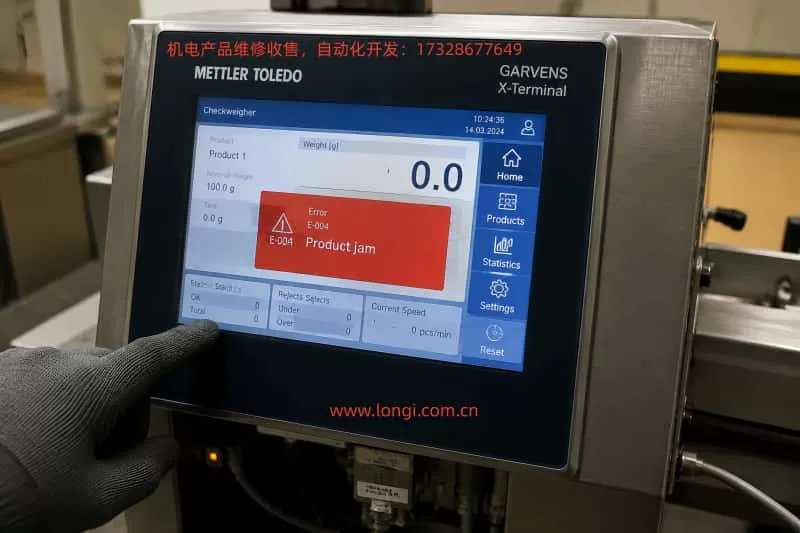
1. Differences Between Garvens X-Terminal-IPC and Standard HMI
Many technicians assume a device with a touchscreen is a simple HMI. However, in Garvens and Mettler Toledo systems, some terminals are not conventional embedded HMIs but industrial PC-based HMIs.
Standard embedded HMIs typically run proprietary firmware; interface programs are downloaded directly onto the HMI device, and communications occur primarily with PLCs, weighing controllers, or drives. In contrast, X-Terminal-IPC devices have these characteristics:
- They may run Windows or Embedded Windows operating systems internally.
- They include an Ethernet port for connecting to weighing controllers, production networks, or remote service tools.
- They include USB ports for mice, keyboards, backup media, or maintenance devices.
- They have COM ports for connecting older controllers or external modules.
- They are powered by a 24VDC industrial power supply.
- The system drive stores HMI software, device parameters, recipes, communication configurations, and historical data.
Consequently, when such devices become unresponsive, conventional HMI repair methods are insufficient. It is critical not to reinstall Windows, reset the system, or replace the disk without first backing up the system drive, as this may result in loss of proprietary software and device configurations.
2. Typical Fault Symptoms
Common field symptoms include:
- The display remains active, indicating that the LCD and backlight are operational and video output is at least partially functional.
- Touch inputs on the screen do not respond.
- External USB mice connected to USB1 or USB2 also fail.
- Power cycling does not restore functionality.
- Ethernet LEDs continue blinking.
- Using a laptop with an IP scanner, the IPC and the associated weighing controller IP addresses are detected, and the IPC can be pinged.
This combination of symptoms is critical: local input is nonfunctional, but network connectivity is still active.
This suggests that the IPC is not entirely dead; at minimum, the network interface, TCP/IP stack, or underlying system processes are still running. Meanwhile, the local touchscreen, USB input, or HMI software may be malfunctioning.
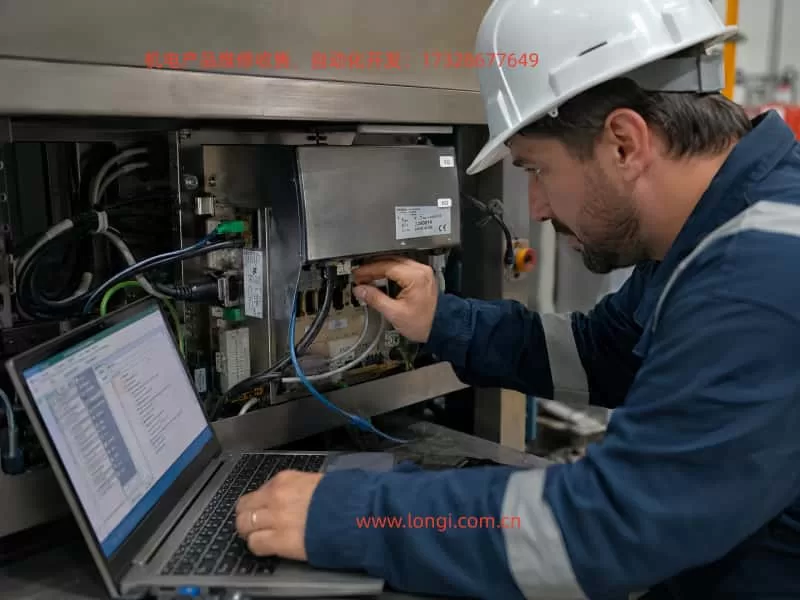
3. Why It Should Not Be Assumed to Be a Touchscreen Failure
If the problem were solely the touchscreen glass, the USB mouse should still allow control of the interface. Users would be able to navigate the HMI software menus or reset alarms.
However, if both the touchscreen and external USB mouse fail, the fault range is significantly broader. The likely causes include:
- IPC system freeze: Windows GUI or HMI software may be frozen, while the network stack continues responding to pings.
- USB/HID driver issues: touch and external devices may not be recognized due to driver or service errors.
- IPC motherboard USB controller failure: multiple USB ports nonfunctional, keyboard LEDs unresponsive.
- Internal touchscreen controller fault: short circuits or errors on the internal USB line may prevent any USB device from working.
- HMI software abnormal behavior: industrial software may lock the interface during critical alarms or communication errors.
The correct conclusion is that the fault is primarily on the IPC side, not just the touchscreen. While touchscreen hardware cannot be fully excluded, the focus of diagnostics should be IPC system operation, USB/HID input, motherboard interfaces, and remote accessibility.
4. What Ping Availability Indicates—and What It Does Not
Many assume that a successful ping means the IPC is fully operational, which is incorrect.
A ping indicates:
- Ethernet hardware is powered and connected.
- The IPC IP is reachable.
- Some system or network service is responding to ICMP requests.
A ping does not indicate:
- Windows desktop or HMI software is operational.
- USB input is functional.
- Touch drivers are working.
- Remote desktop or VNC services are enabled.
- Applications are stable and running correctly.
Therefore, ping success only indicates the IPC is not completely offline. Further diagnostics are required to determine if it can be remotely controlled.
5. Why Web Access May Fail
Some IPCs provide web interfaces, but a browser failing to access the IPC IP does not imply the IPC is offline. Many X-Terminal-IPC devices do not have HTTP services enabled by default. Web access failure could simply indicate that ports 80 or 8080 are closed.
Remote access options for industrial IPCs generally include:
- Windows Remote Desktop (RDP, port 3389)
- VNC (port 5900)
- Proprietary Garvens maintenance software
- Windows file sharing (SMB, port 445)
- Industrial software communication ports
- FTP or SSH (less common on Windows IPCs)
Thus, a browser test alone is insufficient for fault diagnosis.
6. FreeWeigh.Net Is Not Equivalent to IPC Remote Maintenance
FreeWeigh.Net is Mettler Toledo’s statistical quality control and production data management software. It is used for data acquisition, SPC/SQC, batch management, and communication with weighing/checkweigher devices.
However, FreeWeigh.Net does not provide remote control of the IPC desktop, and installing it will not restore touchscreen or USB mouse functionality. It is a data management tool, not a maintenance or recovery utility.
The priority in this fault scenario is to determine if the IPC offers any remote access channels.
7. Purpose of Port Scanning
Port scanning identifies which legitimate services are available on the IPC. For industrial maintenance, this is essential.
- Port 3389: Windows Remote Desktop
- Port 5900: VNC
- Ports 80/8080: Web services
- Port 445: SMB file sharing
If none of these ports are open, remote desktop control is not available, and the device cannot be managed through Ethernet alone.
8. PowerShell Port Testing
For technicians unfamiliar with Nmap, Windows PowerShell can test critical ports:
Test-NetConnection 172.21.177.220 -Port 3389
Test-NetConnection 172.21.177.220 -Port 5900
Test-NetConnection 172.21.177.220 -Port 80
Test-NetConnection 172.21.177.220 -Port 8080
Test-NetConnection 172.21.177.220 -Port 445
TcpTestSucceeded: Trueindicates the port is reachable.Falseindicates the port is closed, firewall-blocked, or unreachable.
9. Nmap Port Scanning
For comprehensive scanning, Nmap can enumerate all open TCP ports:
nmap -Pn -sV 172.21.177.220-Pn: skip host discovery.-sV: attempt service/version detection.- Scan all TCP ports:
nmap -Pn -p- 172.21.177.220
Open ports will guide remote access attempts.
10. Remote Desktop Access
If port 3389 is open, launch Remote Desktop (mstsc), enter the IPC IP, and log in using the correct Windows credentials. Success allows viewing the desktop, checking device manager, USB drivers, and HMI software.
11. VNC Access
If port 5900 is open, VNC Viewer can connect. Advantages:
- Directly mirrors HMI interface.
- Can interact even if local touch/mouse fail.
- Enables process recovery and configuration backup.
12. USB Keyboard Testing
Testing a USB keyboard is crucial:
- Plug in a wired USB keyboard.
- Check Num Lock/Caps Lock LEDs.
- Try Ctrl+Alt+Del, Alt+Tab, Alt+F4, Windows key.
- LEDs responding suggests USB controller may still work.
- No response indicates USB/HID controller or motherboard problem.
13. On-Site Emergency Procedure
- Document device label, model, serial number, software version, wiring photos.
- Measure 24VDC supply.
- Fully power down for 1–2 minutes.
- Test touch, USB mouse, and keyboard.
- Check Ethernet LED.
- Scan IP and ping.
- Perform port scan.
- Attempt RDP or VNC.
- Backup configurations and system files if remote access succeeds.
- If remote fails and local input is dead, backup system drive before any repair.
14. System Drive Backup Importance
Garvens IPC system drives store:
- HMI software
- Device configurations
- Communication parameters
- Product recipes
- Reject logic
- Language packs
- User permissions
- Database files
- Historical logs
- Licenses and authorization
- Network and COM settings
- Touch calibration data
Backup prevents permanent loss during repairs.
15. Probable Root Causes
- IPC system or HMI software freeze
- USB/HID driver malfunction
- IPC motherboard USB controller failure
- Touch controller short affecting USB bus
- 24V power instability
- System drive corruption or aging
16. Common Mistakes to Avoid
- Replacing touchscreen blindly
- Reinstalling Windows without backup
- Resetting to factory defaults
- Changing IP addresses incorrectly
- Relying solely on browser access
- Ignoring 24V power quality
- Replacing system disk before imaging
17. Recommended Repair Workflow
- Document device info and wiring
- Check power
- Power cycle
- Test USB input devices
- Verify Ethernet
- IP scan
- Ping IPC
- Port scan
- Remote access attempts
- Backup all important data
- Inspect drivers, device manager, events
- If remote fails, backup system disk
- Inspect IPC motherboard, USB, touch controller
- Repair or replace IPC as needed
- Restore system image
18. Conclusion
When a Garvens X-Terminal-IPC exhibits unresponsive touchscreen, unresponsive USB mouse, fails to recover on power cycle, but Ethernet LEDs blink and IP responds to ping, the fault should not be simplistically attributed to the touchscreen. Instead, the problem is likely on the IPC side: local input, USB/HID, Windows, HMI software, or motherboard.
Ping success indicates partial system availability but does not guarantee control. Port scanning is essential to identify potential remote access via RDP, VNC, web, or SMB. Remote access allows configuration backup and recovery. If no remote path exists and local input fails, system disk imaging is critical before attempting hardware repair.
In such industrial environments, the IPC is not merely a display; it is the core node of HMI and production data management. Proper diagnostics, cautious handling of system drives, and structured repair workflow are essential to restore functionality while preserving critical device data.