Posted on

Troubleshooting a Malvern Mastersizer 3000 Application Error During Software Startup

1. Overview of the Fault

In particle size analysis systems, the instrument hardware, operating software, communication drivers, database components, and Windows environment work together as one complete measurement platform. When a user reports that the software cannot start, it is easy to assume that the analyzer itself is faulty. However, software startup failure and instrument hardware failure are two different categories of problems and should be diagnosed separately.

A typical fault can occur on a Malvern Mastersizer 3000 system where the software starts, displays the Malvern splash screen, and then immediately shows an Application Error message:

An unexpected exception occurred while calling HandleException with policy ‘Default Policy’. Please check the event log for details about the exception.

At this stage, the software has not entered the main operating interface. The user cannot connect to the instrument, load measurement methods, perform background measurements, run samples, or analyze data. In the Windows Event Viewer, the user may find entries such as Application Error, Windows Error Reporting, Application Hang, .NET Runtime errors, or records mentioning KERNELBASE.dll.

The key point is that this type of error should not be immediately interpreted as a laser particle size analyzer hardware failure. It is more likely to be a Windows-side software environment problem, especially when the error appears before the main Mastersizer interface opens.

For a Malvern Mastersizer 3000 system, startup failure is usually related to one or more of the following:

Windows compatibility issue

Damaged software installation

Missing or corrupted .NET Framework components

Missing or corrupted Microsoft Visual C++ runtime libraries

Damaged user configuration files

Damaged local database or method database

Malvern background service failure

Device driver conflict

Permission issue

Windows update conflict

Security software interference

Only after the software can open normally and enter the instrument connection stage should the instrument body, laser source, optical bench, dispersion unit, communication interface, and hardware modules be considered as the primary fault targets.
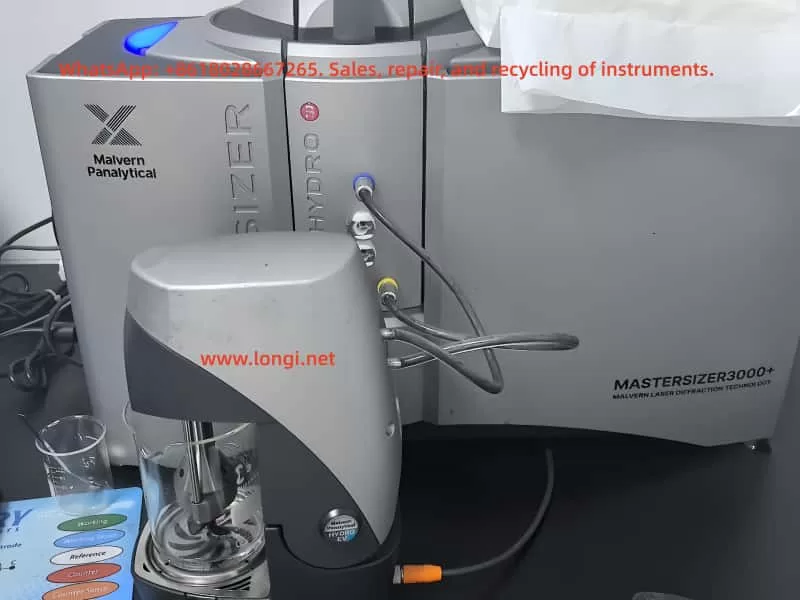
mastersizer3000

2. Why This Fault Should Not Be Judged as Instrument Hardware Damage First

A Malvern Mastersizer 3000 system consists of several layers. The analyzer hardware is only one part of the system. The software layer must start correctly before any meaningful judgment can be made about the instrument body.

If the instrument hardware were the direct cause, the software would usually open first and then show instrument-related errors, such as:

Instrument not found

Communication failure

Laser status abnormal

Optical alignment failure

Background signal abnormal

Wet dispersion unit not detected

Dry dispersion unit not detected

SOP cannot initialize the accessory

Obscuration cannot be stabilized

Measurement signal unstable

In contrast, when the software crashes during the splash screen stage, before entering the main interface, the problem is normally located in the PC-side software environment. At this moment, the software may not even have started instrument communication. It may still be loading its program framework, local database, services, configuration files, user profile, report templates, runtime libraries, or graphical components.

Therefore, if the software fails before reaching the main interface, the correct diagnostic direction is:

First diagnose the computer, operating system, software installation, runtime components, database, configuration files, and services. Do not disassemble the particle size analyzer body at this stage.

A simple but important test is to disconnect the instrument from the computer and then open the software alone. If the software still reports the same Application Error without any instrument connected, the fault is almost certainly not caused by the analyzer hardware.
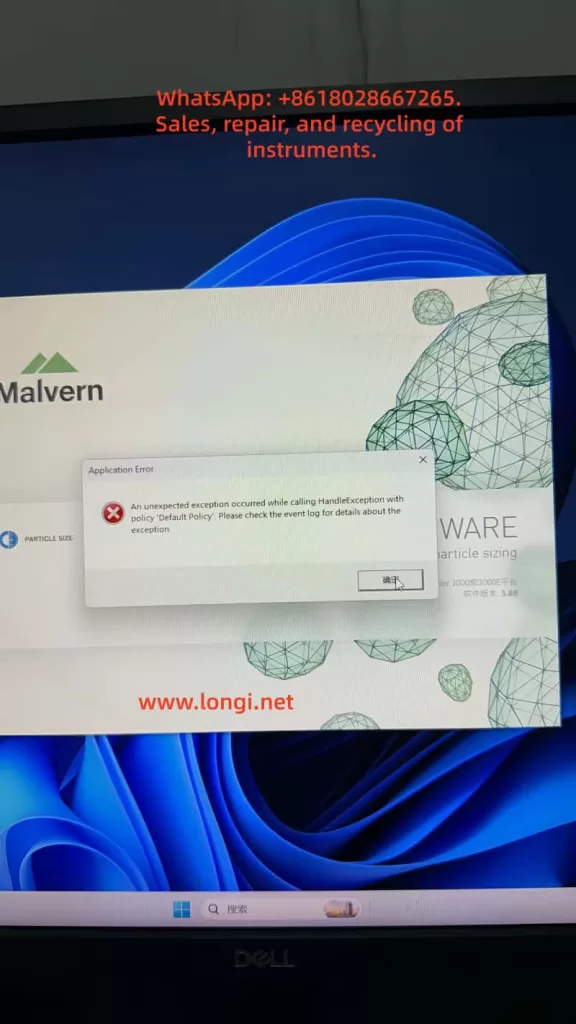
Application Error  of the mastersizer3000

3. Meaning of the Application Error Message

Windows Application Error is a general crash event. It does not represent one specific Malvern fault code. It only means that a program encountered an unhandled exception and Windows recorded the crash.

The most important fields in Windows Event Viewer are:

Faulting application name

Faulting module name

Exception code

Fault offset

Process ID

Application path

Module path

Time of event

Among these fields, the most important one is the faulting application name.

If the faulting application name is Mastersizer.exe, Malvern.exe, MalvernPanalytical-related executable, or another executable clearly belonging to the Mastersizer software, the log is useful for diagnosing the Mastersizer software failure.

If the faulting application name is mmc.exe, then the crashed program is not Mastersizer. mmc.exe is Microsoft Management Console. Windows Event Viewer, Device Manager, Services, and many Windows administrative tools run under mmc.exe.

For example, if the Event Viewer shows:

Faulting application name: mmc.exe

Faulting module name: KERNELBASE.dll

Application path: C:\Windows\System32\mmc.exe

This means the Windows management console itself crashed. It does not prove that the Mastersizer 3000 software crashed in KERNELBASE.dll. It also does not tell us which Mastersizer component failed.

This distinction is very important. A wrong interpretation of the Event Viewer log can lead to a completely wrong repair direction.

4. Understanding KERNELBASE.dll in the Event Log

KERNELBASE.dll is a core Windows system component. Many application exceptions are eventually reported through KERNELBASE.dll. Therefore, seeing KERNELBASE.dll in the faulting module field does not automatically mean that KERNELBASE.dll itself is damaged.

KERNELBASE.dll often appears when an application throws an exception that is not properly handled. The real cause may be:

.NET runtime exception

Application configuration error

Database access failure

Missing software dependency

Permission problem

Program module conflict

Windows compatibility problem

Access violation

Damaged user profile

Security software blocking the program

Corrupted application file

If the exception code is 0xe0434352, it often indicates a .NET-related exception. If the exception code is 0xc0000005, it often indicates an access violation, which may be caused by a damaged module, incompatible driver, memory access issue, or software conflict.

However, the KERNELBASE.dll record is only meaningful if the faulting application is the Mastersizer software. If the faulting application is mmc.exe, that record belongs to Windows Event Viewer or another Windows console tool, not to the Malvern application.

5. Windows 11 Compatibility Risk with Older Instrument Software

Many laboratory instruments are designed and validated for specific Windows versions. An instrument software package may install successfully on a newer Windows system, but that does not mean it is fully compatible or stable.

In many real service cases, older scientific instrument software may work reliably on Windows 10 but fail on Windows 11, especially after major Windows updates. Mastersizer 3000 software version 3.88, for example, may encounter compatibility risks on a newer Windows 11 environment, depending on the exact software release, driver package, service components, and instrument configuration.

Possible symptoms include:

Software installs but cannot start

Software starts but crashes at the splash screen

Local database cannot initialize

Malvern service fails to start

USB or Ethernet instrument driver does not load correctly

Software cannot register required components

Report or graph module fails to initialize

.NET component throws an exception

User configuration cannot be read

Windows security settings block background services

For normal office applications, Windows 11 may be suitable. For laboratory instrument software, however, stability and validated compatibility are more important than using the newest operating system.

If the problem appeared after replacing the computer, reinstalling the operating system, or upgrading to Windows 11, system compatibility should be treated as a high-priority suspect.

A practical service recommendation is to test the same Mastersizer software version on a clean Windows 10 64-bit computer. If the software opens normally on Windows 10 but not on Windows 11, the problem is very likely related to operating system compatibility or software environment differences.

6. What the Mastersizer 3000 Software Loads During Startup

When the Mastersizer 3000 software starts, it does much more than display a user interface. During startup, it may load and initialize:

Main application framework

User profile

Instrument configuration

Local database

Measurement records

SOP methods

Report templates

Analysis calculation modules

Graphical display components

Malvern background services

Communication services

USB or Ethernet drivers

License or authorization components

Cloud or update services

Windows user permissions

Temporary folders and cache files

If any of these components are missing, damaged, blocked, or incompatible, the software may crash before reaching the main interface.

For example, if the user configuration file is damaged, the software may fail while loading the last used instrument, window layout, default method, or user preference settings. If the local database is damaged, the software may fail while reading historical measurement data or method libraries. If a background service is not running, the main program may fail when trying to communicate with that service.

Therefore, the startup phase should be treated as a software environment initialization process, not as an instrument measurement process.

7. Recommended Diagnostic Procedure

A structured diagnostic sequence is essential. The goal is to separate software failure from hardware failure, then identify the exact software layer causing the crash.

Step 1: Disconnect the Instrument and Start the Software Alone

Disconnect the Mastersizer 3000 instrument body from the computer. Also disconnect wet dispersion units, dry dispersion units, USB cables, Ethernet cables, and any external accessories if possible.

Then start the Mastersizer software alone.

If the software opens normally without the instrument connected, the software itself may be functional, and the problem may be related to instrument communication, device driver initialization, or a connected accessory.

If the software still reports the same Application Error, the fault is most likely in the computer, software installation, database, configuration files, Windows environment, or runtime components.

This is the first and most important separation test.

Step 2: Run the Software as Administrator

Right-click the Mastersizer 3000 shortcut and choose Run as administrator.

If the software opens correctly as administrator, the fault may be caused by insufficient user permissions, blocked access to the database folder, blocked configuration directory, or restricted service communication.

If the software still reports the same error, the problem is not simply caused by normal user permissions.

Step 3: Find the Correct Event Viewer Log

Open Windows Event Viewer:

Windows Logs → Application

Run the Mastersizer software again and allow it to fail. Record the exact time of the error. Then check the Application log around that time.

Look for entries from:

Application Error

Windows Error Reporting

.NET Runtime

Application Hang

MalvernPanalytical

Malvern

Mastersizer

Open each related record and confirm the faulting application name.

A valid record should show a faulting application related to Mastersizer or Malvern. If the application name is mmc.exe, the user has selected the wrong record. That record belongs to Windows Event Viewer or another Windows management console.

The following fields should be recorded:

Faulting application name

Faulting module name

Exception code

Application path

Module path

Fault offset

Only after these details are available can the next diagnostic step be accurate.

Step 4: Check Malvern Services

Press Win + R, type:

services.msc

Then check whether Malvern or MalvernPanalytical services are present and running. Depending on the software version, there may be services related to cloud communication, data, instrument communication, update functions, or background control.

If a Malvern service is stopped, try to start it manually. If it fails to start, record the error message. A service that cannot start may indicate:

Damaged installation

Missing dependency

Permission issue

Database problem

Windows service registration failure

Security software blocking the service

The Mastersizer front-end software may rely on these background services. If service communication fails, the main software may crash during startup.

Step 5: Confirm the Windows Version

Confirm the operating system details:

Windows 10 or Windows 11

64-bit or 32-bit

Exact Windows build version

Whether Windows was recently updated

Whether the computer was recently replaced

Whether the software was installed on a newly prepared system

If the system is Windows 11 and the Mastersizer software version is older, compatibility must be considered. Testing on Windows 10 64-bit is often the fastest way to confirm whether the operating system is part of the problem.

Step 6: Check Recent Installation or Repair Activity

If the Event Viewer shows many MsiInstaller records, it may indicate that Windows Installer recently installed, repaired, reconfigured, or checked software components.

Ask the user:

Was the software recently installed?

Was the operating system reinstalled?

Was the software copied from another computer instead of installed properly?

Was a software repair attempted?

Were Malvern components removed?

Was a cleaner tool used?

Was antivirus software recently installed?

Was Windows recently updated?

Were ProgramData or AppData folders deleted?

A failed or incomplete installation is a common cause of startup errors.

Step 7: Back Up Data Before Repairing or Reinstalling

Before repairing or reinstalling the software, back up all important user data. This may include:

Measurement records

SOP methods

Report templates

Instrument configuration

User settings

Databases

Calibration-related records

Do not simply delete Malvern folders. Some folders may contain important laboratory data.

Possible data locations include:

C:\ProgramData\Malvern Instruments

C:\ProgramData\Malvern Panalytical

C:\Users\Public\Documents\Malvern Instruments

C:\Users[User]\AppData\Roaming\Malvern

C:\Users[User]\AppData\Local\Malvern

The exact location depends on software version and installation configuration, but the principle is the same: back up before removing or reinstalling.

8. Database or Configuration File Damage

Damaged configuration files or local databases are common in laboratory software. They may be caused by:

Unexpected power failure

Forced shutdown during software operation

Software crash during measurement

Disk space shortage

Antivirus quarantine

Windows update changing permissions

Damaged Windows user profile

File system error

Improper software migration

Manual deletion of folders

Typical symptoms include:

Software crashes before the main interface opens

Software cannot load methods

Historical records cannot be opened

Report templates disappear

Only one Windows user account fails

New Windows user account works

Software crashes when loading the last used configuration

A useful test is to create a new Windows administrator account and run the Mastersizer software from that account. If the software opens under a new user but not under the original user, the original user profile or user-level configuration is likely damaged.

If the software fails under all Windows users, the problem is more likely in the common software installation, database, runtime components, Windows services, or operating system compatibility.

9. .NET Framework and Visual C++ Runtime Issues

Many scientific instrument programs depend on Microsoft .NET Framework and Microsoft Visual C++ Redistributable packages. If these components are missing or damaged, the software may report Application Error, .NET Runtime error, KERNELBASE.dll exception, or crash during startup.

Important points:

Installing only the latest runtime may not be enough. Older software may require a specific Visual C++ runtime version.

Both x86 and x64 runtime packages may be required, even on a 64-bit Windows system.

.NET Framework 4.x components should be checked and repaired if the log points to .NET Runtime.

If the Event Viewer shows .NET Runtime, clr.dll, or exception code 0xe0434352, the issue should be treated as a .NET application exception.

In such cases, repair actions may include:

Repairing .NET Framework

Enabling required Windows .NET features

Repairing Visual C++ Redistributables

Reinstalling the Malvern software

Running the installer as administrator

Checking whether antivirus software blocked registration of DLL files

10. Instrument Communication and Driver Problems

Even though startup failure is usually a PC-side issue, communication and driver problems should not be ignored completely. Some instrument software automatically scans connected hardware during startup. If a device driver or external accessory responds abnormally, the software may crash.

This is why the disconnected-instrument test is necessary.

If the software opens when the instrument is disconnected but crashes when the instrument is connected, check:

Instrument power supply

USB or Ethernet cable

USB port stability

Device Manager recognition

Malvern instrument driver installation

IP address or network configuration

Firewall settings

Wet dispersion unit connection

Dry dispersion unit connection

Accessory communication

Malvern service status

For laboratory instruments, avoid unstable USB hubs, long USB extension cables, front-panel USB ports, and docking stations whenever possible. Direct rear-panel USB or a stable Ethernet connection is preferred.

11. How to Explain the Problem to the Customer

A professional explanation to the customer should avoid premature conclusions. The recommended wording is:

Based on the current symptom, the Mastersizer 3000 software crashes during startup before entering the main operating interface. This suggests a PC-side software or Windows environment issue rather than direct damage to the particle size analyzer hardware. The next step is to disconnect the instrument and open the software alone, then check the correct Windows Event Viewer record. The useful record must show Mastersizer or Malvern as the faulting application. If the log shows mmc.exe, it is the Windows Event Viewer itself and not the Mastersizer software. After the correct log is confirmed, we can determine whether the fault is related to .NET, KERNELBASE.dll, Malvern software modules, database files, configuration files, services, drivers, or Windows compatibility.

This explanation is clear and technically accurate. It also prevents the customer from unnecessarily disassembling the instrument or sending the analyzer body for repair before software-side diagnosis is complete.

12. Practical Service Strategy for Repair Companies

For a repair company or third-party service provider, this type of fault should be handled in three levels.

Level 1: Remote Diagnosis

Collect:

Photos of the error message

Video of the startup process

Software version

Windows version

Instrument connection status

Event Viewer details

Malvern service status

Recent installation or update history

The goal is to confirm whether the problem is software-side or hardware-side.

Level 2: PC-Side Software Repair

If the fault is confirmed as a PC-side software problem, the repair work may include:

Backing up data

Repairing runtime libraries

Repairing .NET Framework

Checking Windows services

Checking Malvern services

Reinstalling the Mastersizer software

Reinstalling drivers

Creating a new Windows user

Checking compatibility mode

Testing on Windows 10 64-bit

Level 3: Full Instrument Commissioning

Only after the software opens normally should the instrument be connected for complete testing.

Commissioning should include:

Instrument recognition

Communication stability

Laser status

Background signal

Optical alignment

Wet or dry dispersion unit recognition

Standard sample repeatability

SOP loading

Data saving and report generation

This sequence avoids unnecessary hardware repair and protects customer data.

13. Folders That Should Not Be Deleted Carelessly

Customers sometimes try to solve software problems by deleting folders. This is risky because laboratory software may store important data in hidden or system folders.

Avoid deleting Malvern-related folders before backup. They may contain:

Measurement history

SOP methods

User configuration

Report templates

Instrument configuration

Database files

Calibration-related files

Cache files

Important locations may include:

C:\ProgramData\Malvern Instruments

C:\ProgramData\Malvern Panalytical

C:\Users\Public\Documents\Malvern Instruments

C:\Users[User]\AppData\Roaming\Malvern

C:\Users[User]\AppData\Local\Malvern

Before reinstalling software, always back up these folders or use the manufacturer-recommended backup method.

14. Case-Based Preliminary Conclusion

Based on the described case, the following conclusions can be made:

The Mastersizer 3000 software displays an Application Error during startup.

The software crashes before entering the main operating interface.

Running as administrator does not solve the issue.

The Event Viewer contains Application Error and Windows Error Reporting records.

One opened Application Error 1000 record shows faulting application name mmc.exe, which means it is a Windows Event Viewer or Microsoft Management Console crash, not the Mastersizer software crash.

The computer appears to be running a newer Windows 11 environment.

Mastersizer 3000 software version 3.88 may have compatibility risks on newer Windows 11 systems.

There is currently no evidence proving damage to the analyzer hardware, laser unit, optical bench, or dispersion unit.

The next step is to generate the Mastersizer error again and locate the correct Event Viewer record where the faulting application is Mastersizer or Malvern.

If the software still crashes with the instrument disconnected, the fault should be handled as a PC-side software environment issue.

If the software opens when the instrument is disconnected but crashes when the instrument is connected, then instrument communication, drivers, or accessory hardware should be checked.

The most reasonable current repair direction is:

Repair or verify the PC-side software environment first, then perform instrument communication and hardware commissioning. Do not disassemble the analyzer body before confirming that the software can start correctly.

15. Recommended Final Troubleshooting Workflow

The following workflow is recommended for field service:

Disconnect the Mastersizer instrument and all accessories from the computer.

Start the Mastersizer software alone.

If the error appears again, record the exact time.

Open Windows Event Viewer.

Go to Windows Logs → Application.

Find records around the exact error time.

Open Application Error, Windows Error Reporting, and .NET Runtime records.

Confirm whether the faulting application is Mastersizer or Malvern.

Ignore records where the faulting application is mmc.exe unless troubleshooting Windows itself.

Record the faulting module and exception code.

Check Malvern services in services.msc.

Create a new Windows administrator account and test again.

Confirm whether the computer is Windows 10 or Windows 11.

If using Windows 11, test the same software on Windows 10 64-bit.

Back up measurement data, SOP methods, reports, and configuration files.

Repair or reinstall the Mastersizer software and required runtime components.

Restart the computer.

Start the software without the instrument connected.

If the software opens normally, reconnect the instrument.

Test communication, laser status, background signal, dispersion unit recognition, and standard sample repeatability.

This workflow is practical, safe, and technically logical. It reduces misdiagnosis and avoids unnecessary hardware repair.

16. Conclusion

A Malvern Mastersizer 3000 Application Error during software startup should be treated as a software-side startup failure until proven otherwise. When the error occurs before the main interface opens, the most likely causes are Windows compatibility, damaged software components, missing runtime libraries, corrupted configuration files, database problems, Malvern service failure, or driver conflicts.

The Windows Event Viewer is useful, but only if the correct record is selected. If the faulting application is mmc.exe, the crash belongs to Microsoft Management Console, not to the Mastersizer software. The useful log must show Mastersizer or Malvern as the faulting application. The faulting module, exception code, and application path should then be used to determine the next repair step.

For this type of fault, the correct principle is:

Software before hardware.

Logs before disassembly.

Backup before reinstallation.

Offline startup before instrument connection.

Windows compatibility before component-level repair.

Following this approach protects customer data, avoids unnecessary instrument disassembly, and greatly improves the accuracy of the diagnosis.
Posted on

In-depth Analysis of Vacuum Anomalies and the “Pump Makes Sound but Fails to Adhere” Fault in Laurell WS-650 Spin Coaters

In the field of spin coating processes, operators often encounter a seemingly contradictory fault phenomenon: the equipment powers on normally, the program interface can be accessed, and after pressing the vacuum button, the external vacuum pump seems to be working (as indicated by the sound it makes), but the substrate cannot be firmly adhered, preventing the equipment from entering a stable operating state. Sometimes, messages like “Need CDA” or “Need Vacuum” even appear on the screen. Many users immediately attribute the fault to a “broken vacuum pump” and proceed to replace or disassemble it for inspection, only to find that the issue remains unresolved after much effort. In fact, for Laurell WS-650 spin coaters, the root cause of such faults often does not lie in the vacuum pump itself but rather in a failure of one of the components within the vacuum retention, pneumatic control, sealing interlock, and sample clamping systems.

This type of problem is prone to misdiagnosis because many people focus solely on “whether there is a sound” and overlook the fact that the vacuum system of a spin coater is not merely a “pump + suction cup” structure. It actually comprises multiple parts, including an external vacuum source, pneumatic vacuum valves, sealing purge gas sources, vacuum piping, fixtures, O-rings, sample coverage area, control interlock logic, and vacuum feedback detection. Any deviation in any of these components can result in the phenomenon of “the pump making a sound but the sample not adhering.” For engineers, equipment managers, and third-party maintenance personnel, only by adopting a system-level approach to understand the vacuum retention logic of the Laurell WS-650 can they quickly and accurately locate the fault, avoiding ineffective disassembly and incorrect part replacements.

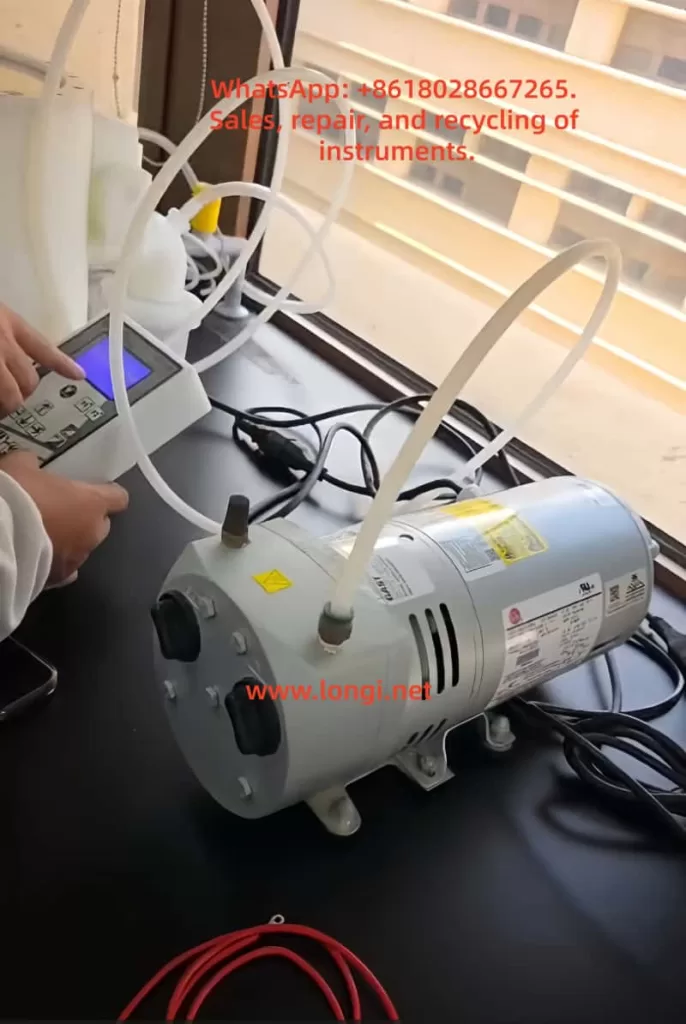
WS-650 Spin Coaters Control Pump Start

1. Why “Hearing the Pump Make a Sound” Does Not Equate to a Normal Vacuum System

In industrial equipment maintenance, a common misconception is to equate “having an action” with “normal functionality.” For example, just because a contactor closes does not mean the main circuit is necessarily conducting; just because a fan is running does not mean the air pressure is sufficient; similarly, just because the vacuum pump makes a sound does not mean that the substrate clamping vacuum in the spin coater has been truly established.

The vacuum retention in a Laurell WS-650 does not simply involve the pump starting up and immediately adhering the substrate. Several conditions must be met simultaneously: First, the external vacuum source must provide sufficient negative pressure; second, the controller must allow the pneumatic vacuum valve to open; third, the vacuum channel must be well-sealed with no leaks; fourth, the sample must correctly cover the O-ring to form an effective sealing surface; fifth, the vacuum detection value must meet the interlock requirements. In other words, the vacuum pump is merely one of the “sources” in the entire system and should not be the sole basis for fault judgment.

If the external pump is running but the pneumatic vacuum valve does not open, the negative pressure will not reach the chuck surface. Even if the valve opens, if the sample does not cover the O-ring, the system will continuously leak air. If the O-ring is aged, contaminated with glue, or installed in the wrong position, continuous leakage will also occur. If the vacuum path has been contaminated with chemical liquids, the valve spool may become sticky and jammed, resulting in the pump working at the rear end but no effective adsorption force at the front end. Therefore, when facing such faults, maintenance personnel should not停留在 (remain stuck at) the superficial judgment of “whether the pump is making a sound” but should focus on the core issue of “whether the negative pressure truly reaches the chuck surface and forms stable retention.”

2. Working Principle of the Laurell WS-650 Vacuum System

To truly understand this fault, it is essential to first grasp the vacuum control structure of the Laurell WS-650. The vacuum retention function of this model is not fully electrically driven but incorporates a certain pneumatic control logic. Simply put, the external vacuum source is responsible for providing negative pressure, and the internal vacuum valves of the equipment determine whether this negative pressure is introduced to the chuck. The action of these valves is related to other interlock conditions of the equipment, with the most typical being the sealing purge gas from CDA (Clean Dry Air) or N2.

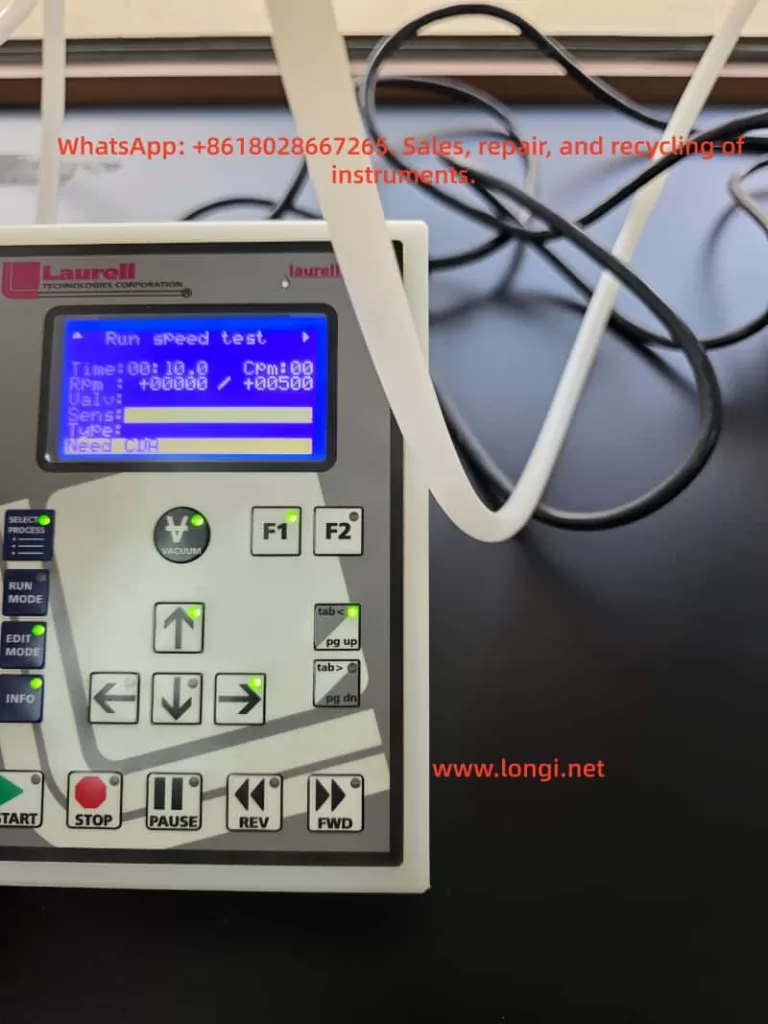
Many users do not realize the direct causal relationship between the “Need CDA” message on the screen and the “vacuum not adhering” issue. In fact, CDA or N2 is not just an auxiliary gas source; it is also related to the internal sealing purge and some interlock actions of the equipment. As long as there is a lack of this gas source, insufficient pressure, or incorrect connection, the equipment may not allow the vacuum valve to operate normally or may determine in its logic that the system does not meet the operating conditions. At this point, a typical phenomenon occurs: the external vacuum pump makes a sound, but there is no adsorption force on the substrate, and the screen simultaneously displays a CDA-related alarm.

From the perspective of equipment design logic, this approach is reasonable. During high-speed rotation of the spin coater, if the shaft seal protection is insufficient, the cavity interlock is not established, the vacuum retention is unreliable, the risks of sample fly-off, liquid backflow, bearing contamination, and process failure significantly increase. Therefore, manufacturers incorporate multiple conditions, such as vacuum retention, sealing gas, cover status, and exhaust status, into the interlock system rather than allowing the equipment to operate勉强地 (reluctantly or suboptimally) in a “semi-normal” state.

WS-650 Spin Coaters run speed test

3. The Most Common Misjudgment: Treating “Need CDA” as an Irrelevant Prompt

When troubleshooting on-site, a common erroneous approach is to focus solely on “vacuum not working” and ignore other prompt messages at the bottom of the screen. In fact, if the screen displays “Need CDA,” it is no longer a mere附属 (supplementary) prompt but may very well point to the root cause of the fault. In Laurell WS-650 equipment, CDA or N2 compressed gas is not optional. As long as its pressure is insufficient, the valve is not open, the gas pipe is connected incorrectly, or the pressure regulator is set too low, the equipment may determine that the seal purge condition is not met, thereby affecting the opening or maintenance of the vacuum valve.

At this point, if maintenance personnel do not first check the gas source but instead directly disassemble the vacuum pump, replace it, or disassemble the control board, they are likely to go astray. Especially when third-party service personnel take over fault cases at customer sites, customers often describe the problem in very simplified terms, such as “the vacuum not working” or “pump has sound but no hold.” If maintenance personnel only take these descriptions at face value, they may overlook the true clues on the control screen.

Therefore, when dealing with such faults, the first principle is to first look at the complete prompts on the screen and not just rely on the customer’s verbal description. Just because the customer says “the vacuum is not working” does not mean the fault is solely related to the vacuum; if the screen already tells you “Need CDA,” it indicates that the controller has detected that the gas source conditions are not met, rather than a simple pump failure.

4. Why CDA or N2 Gas Source Anomalies Can Cause Vacuum Malfunctions

Many people wonder why insufficient compressed air can affect the vacuum. This actually involves the internal pneumatic valve structure and sealing logic of Laurell equipment. For such spin coaters, some valves rely on pneumatic control for switching, and the equipment also uses dry gas to protect motor seals and specific cavity areas. If the gas source pressure is insufficient, on the one hand, the internal valves may not switch correctly; on the other hand, the controller will prevent the system from entering normal operating status.

More critically, in addition to participating in the interlock, the sealing purge gas also serves a protective function. During the spin coating process, media such as photoresist, solvents, and cleaning liquids are often used. Without sufficient positive gas pressure protection, these liquids may infiltrate the vacuum channel or mechanical seal areas along unwanted paths. Over time, not only will the vacuum retention deteriorate, but the vacuum valve itself may also become contaminated, resulting in stickiness, adhesion, or even jamming. In other words, an initial lack of CDA may be just a gas source problem, but if the equipment continues to operate with the fault, it may gradually evolve into a mechanical fault of the vacuum valve.

The most typical on-site situations include: the gas source valve is not open; the pressure regulator output is lower than required; the dry air shares a gas source with other equipment, causing pressure fluctuations; the white gas pipe is plugged into the wrong interface; the quick-connect fitting is not fully inserted; the filter is clogged, resulting in low downstream pressure; or a temporary gas source is used for testing on-site, and although there is airflow, the pressure does not meet the equipment requirements. For third-party engineering personnel, these problems are often more common and worth prioritizing for inspection than damage to the electronic control board.

5. Incorrect Sample Coverage of the O-ring: The Most Common “Non-equipment Fault”

In addition to gas source problems, another high-frequency cause is that the sample does not correctly cover the O-ring. Many users assume that as long as they place the substrate on the chuck and press the vacuum button, it should adhere. However, the vacuum retention of a spin coater relies on the formation of a sealing surface between the sample and the O-ring. If the sample size is too small, the position is off-center, the wrong fixture is used, or a fragmented substrate is placed on an inappropriate adapter, even if the vacuum pump and vacuum valve are functioning perfectly, the system will leak air and fail to establish sufficient negative pressure due to the lack of a proper seal.

This problem is most likely to occur when working with small samples, glass sheets, or fragmented substrates. Many laboratory users, for the sake of convenience, directly place a small glass sheet on a large chuck and then complain about “vacuum problems.” In fact, this is not an equipment fault but rather a mismatch between the tooling and the sample. For small-sized samples, a corresponding fragment adapter must be used, and only an O-ring of the matching size should be installed. If the wrong O-ring is selected, two O-rings are installed simultaneously, or the sample does not press against the sealing ring, the system will inevitably leak air.

Therefore, when judging vacuum faults, it is essential to distinguish between “equipment abnormalities” and “unsatisfied usage conditions.” Otherwise, it is common for engineers to disassemble the equipment for a long time only to find that the customer simply placed a sample that was too small and did not cover the O-ring. Such low-level misjudgments not only waste time but also undermine the professionalism of the maintenance judgment.

6. O-ring Contamination, Aging, or Incorrect Installation: Important Causes of Unstable Vacuum

Although an O-ring may seem like just a small rubber ring, it plays a crucial role in the vacuum system of a spin coater. It serves as both the sealing interface between the sample and the chuck and the first barrier to prevent liquids from entering the vacuum channel. As long as the O-ring is deformed, cracked, gapped, chemically swollen, has adhesive residue on its surface, or is not installed properly, the system will continuously leak air during the vacuum establishment process, resulting in weak adsorption force, an inability to reach the required vacuum value, or even a complete failure to start the program.

Many on-site faults are related to the condition of the O-ring. For example, after long-term use of certain solvents, the material of the O-ring may swell, changing its cross-sectional dimensions and leading to poor sealing; if the user does not clean it properly, photoresist residue may remain near the O-ring, causing an uneven contact surface; or the customer may install the O-ring backward, askew, or twisted when replacing the adapter. In laboratory environments, these problems are almost more common than hardware damage.

When third-party maintenance personnel receive such repair requests, they should develop a basic habit: first visually inspect the O-ring and the chuck surface and not rush to suspect the control board. As long as there is an abnormality in the sealing surface of the O-ring, the vacuum value will inevitably be unstable, and this instability is often misdescribed by customers as a “pump problem” or “vacuum valve issue.” If on-site conditions permit, a comparison test can also be conducted using a flat, appropriately sized dummy wafer. If the vacuum returns to normal after replacing it with a standard substrate, hardware faults in the pump and valve can be largely ruled out.

7. Vacuum Valve Contamination by Chemical Liquids: A Typical and Stubborn Fault in Spin Coaters

In the repair cases of Laurell WS-650 spin coaters, vacuum valve contamination is a very typical and often overlooked underlying fault. During the operation of a spin coater, the工艺 (process) liquids are usually located on the upper surface of the sample. However, if the vacuum retention is insufficient, the O-ring fails, or the user operates improperly during cleaning, liquids may seep into the vacuum channel along the gaps. Once photoresist, polyimide, or other viscous liquids enter the vacuum path, they may adhere to the internal piston or sealing surface of the vacuum valve, causing the valve spool to move sluggishly, jam, or seal poorly.

The most troublesome aspect of this fault is that its manifestations are very similar to those of insufficient external gas source pressure. On-site, it may also appear as a lack of stable adsorption after pressing the vacuum button, with the pump seemingly making a sound but poor front-end performance. The difference is that if the CDA is normal, the sample coverage is correct, the O-ring condition is good, but the vacuum still cannot be established, then there is a high suspicion of internal contamination of the vacuum valve.

Many users, when cleaning the spin coating cavity, spray a large amount of acetone or other solvents for the sake of convenience and sometimes even directly flush the chuck or sealing area. This approach may seem clean in the short term but can easily introduce dissolved photoresist and impurities into the vacuum path over the long term. Some people also use compressed air to directly blow into the vacuum hole to speed up drying, which can同样 (likewise) press liquids or particles into the interior. For small pneumatic components like vacuum valves, once the interior is contaminated, the valve may move sluggishly at best and become completely jammed at worst, ultimately resulting in what customers describe as a “broken vacuum.”

Therefore, in fault analysis, if the customer’s equipment has a history of long-term use of photoresist, thick coatings, polyimide, viscous coatings, or frequent solvent cleaning, the probability of vacuum valve contamination increases significantly. In terms of maintenance strategy, this type of fault usually cannot be determined solely through external observation but requires a comprehensive analysis based on the front-end vacuum performance, gas source status, piping status, and historical usage habits.

8. The External Vacuum Source Itself May Indeed Have Problems, but It Is Usually Not the First Priority

Of course, the vacuum pump itself or the external vacuum piping is not entirely immune to faults. For example, pump blade wear, pump cavity blockage, filter clogging, air intake leaks, piping aging and cracking, hose kinking and collapse, fitting loosening, and abnormal exhaust can all lead to insufficient vacuum. However, in Laurell WS-650 cases, if the screen clearly displays a CDA prompt, the external pump itself should not be the first suspect.

The scenarios where it is truly necessary to prioritize checking the pump itself are as follows: the CDA is normal, and the screen no longer displays gas source-related prompts; the sample and O-ring are fully matched; the O-ring is clean and intact; the vacuum valve action can be confirmed; but the system still cannot reach the required vacuum value. Only then is it logical to suspect insufficient pump performance. Otherwise, immediately replacing the pump upon seeing a lack of adhesion is often a typical error in maintenance sequence.

From engineering experience, external pump faults usually exhibit more explicit characteristics, such as a long-term inability to reach the required vacuum value, abnormal pump noise, abnormal temperature rise, abnormal exhaust at the pump outlet, and an inability to reach basic negative pressure even when disconnected from the equipment for separate testing. If the customer only says “the pump can be heard making a sound,” it actually only indicates that the pump motor may be running and does not prove that the pump efficiency is normal, let alone that the internal interlock of the equipment has been released.

9. How to Quickly Establish a Correct Fault Judgment Logic Based on On-site Phenomena

For third-party readers, the most valuable aspect is not memorizing the name of a specific part but establishing a replicable judgment path. When facing the problem of “the vacuum pump makes a sound, but the spin coater does not adhere,” the best approach is not to immediately disassemble the machine but to first narrow down the scope in a logical order.

Step 1: Look at the screen prompts. If there are messages like “Need CDA,” prioritize addressing the gas source problem; if there are only vacuum-related prompts, then proceed to check the sample, O-ring, and vacuum path. Step 2: Examine the sample status. Check whether the sample is large enough, whether it fully covers the O-ring, whether the correct adapter is used, and whether the position is centered. Step 3: Inspect the O-ring status. Check for aging, deformation, adhesive contamination, or incorrect installation. Step 4: Check the external connections. Verify whether the vacuum and gas pipes are connected correctly, whether the quick-connect fittings are loose, and whether the hoses are kinked. Step 5: Only then consider vacuum valve contamination or insufficient external pump performance.

The advantage of this troubleshooting path is that it prioritizes the exclusion of the most common, least expensive, and easiest-to-verify problems, minimizing the risk of disassembly. Because many on-site faults ultimately turn out not to be caused by a damaged main board or pump but rather by issues such as an unopened gas source, an incorrectly placed sample, a dirty O-ring, or a loose fitting. True professionalism lies not in immediately replacing parts but in using the fewest actions to eliminate the most uncertainties.

10. A Typical On-site Misconception: Interpreting Program Run Failures as Electronic Control Faults

In the program running logic of the Laurell WS-650, vacuum retention is just one of the startup conditions. If the equipment’s vacuum retention is not satisfied, the program may not enter the normal running state at all or may stop running immediately after starting. Some operators, upon seeing that the program cannot run, immediately suspect problems with the controller, keypad, or program parameters and even believe that there are issues with interface elements such as F1, F2, and Run Mode. In fact, in many cases, the controller itself is completely normal; it is simply faithfully executing the interlock logic.

This is also why third-party maintenance personnel should not focus solely on the表象 (superficial phenomenon) of “the program not running” during troubleshooting. A spin coater is essentially a process equipment, not an ordinary household appliance. Its controller integrates many mechanical and pneumatic conditions for comprehensive judgment. As long as the vacuum retention is insufficient, the cover is not closed, the sealing gas pressure is insufficient, or the exhaust status is incorrect, the controller will prohibit running or interrupt the running process. Therefore, program failures are not necessarily program problems, and interface error codes do not necessarily indicate board card problems; often, they are simply reminding the operator that the peripheral conditions are not met.

11. Why Third-party Maintenance Personnel Must Pay Attention to Customers’ Usage Habits and Cleaning Methods

Industrial equipment faults are never just about “parts being broken”; in many cases, they are the cumulative result of usage methods. This is especially true for spin coaters. Many vacuum problems do not occur suddenly on a particular day but are the result of long-term non-standard usage. For example, regularly placing small samples directly on a large chuck; frequently using O-rings of inappropriate materials; extensively flushing the sealing area during cleaning; allowing sample coating leakage without timely treatment; not cleaning the adapter after use and directly reinstalling it; mixing different chemical systems, causing seal expansion; and failing to restore the standard O-ring configuration in a timely manner after shutdown, etc.

These behaviors may not immediately cause faults in the short term but can gradually damage the vacuum path and valves. By the time the customer realizes that “the vacuum cannot be established no matter what,” it is often no longer a single minor issue but a combination of usage, maintenance, and interlock condition problems. If third-party maintenance personnel ignore this aspect and simply replace parts mechanically, they are likely to only provide a temporary

Posted on

Systematic Troubleshooting and Repair Analysis of a Lake Shore 475 DSP Gaussmeter with Probe Recognition but Almost No Response in DC Mode

In the repair of precision magnetic field measurement instruments, the most difficult faults are often not complete power failure or total display loss, but rather those deceptive conditions in which the instrument appears partially functional while the core measurement chain has already failed. The Lake Shore 475 DSP Gaussmeter is a typical example of this category. The main unit may power up normally, the display may work, the keys may respond, and the probe serial number may even be readable, yet in actual DC measurement the instrument may show almost no meaningful response when a magnet is brought near the probe.

This article presents a full technical reconstruction of a real repair case involving a Lake Shore 475 DSP Gaussmeter. It covers the fault symptoms, probe interface logic, host-side Hall excitation chain, front-end signal chain, the role of the key devices, common misjudgments, the actual step-by-step troubleshooting logic, and the final repair result. The purpose is not to repeat general Hall probe theory, but to provide a practical and technically rigorous troubleshooting path that a third-party technician can actually use.


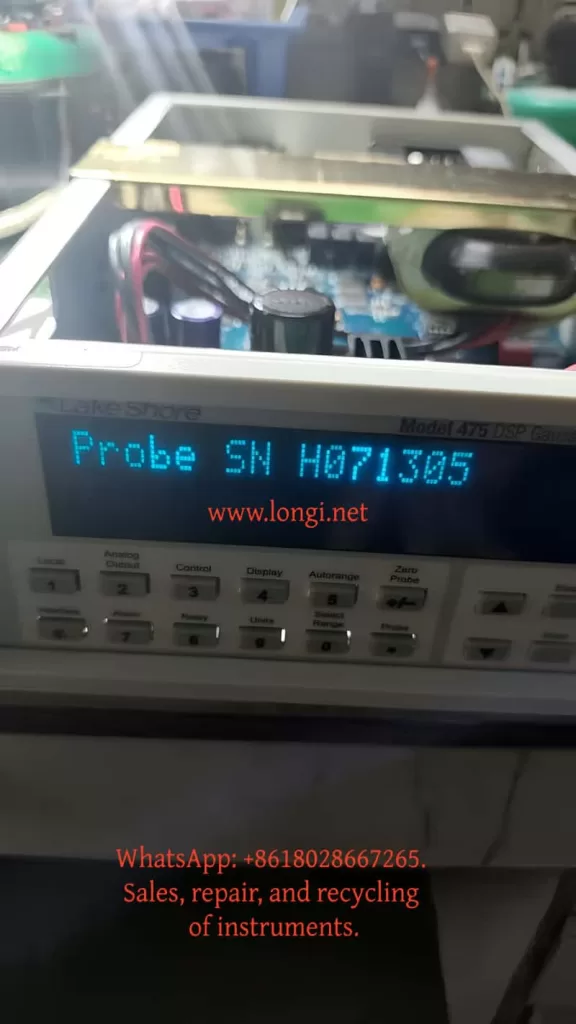
Status of probe serial number displayed on the Lake Shore gaussmeter

1. Fault Summary: The Instrument Recognizes the Probe, but Measurement Is Nearly Dead

The initial symptom was not total failure. That is exactly what made the fault difficult.

The unit showed the following behavior:

  1. The gaussmeter powered up normally.
  2. The display and keypad worked normally.
  3. The instrument could display the probe serial number when the Probe function was used.
  4. However, in DC mode, bringing a strong magnet close to the probe produced almost no meaningful response.
  5. The reading only showed tiny fluctuations near zero.
  6. Earlier testing suggested that in Peak mode, rapid motion of the magnet across the probe could occasionally produce a visible change, but in DC mode the response was effectively absent.

This combination is misleading. If one focuses only on the fact that the probe serial number can be read, it is easy to assume that the probe and host communication are fundamentally healthy. If one focuses only on the lack of DC response, it is easy to assume that the Hall probe itself is defective. In this case, neither assumption was sufficient.

The final repair result showed that the problem was not simply a bad probe and not merely an EEPROM recognition issue. The real fault was in the host-side Hall excitation servo chain, which allowed the probe to be recognized while preventing the proper Hall current excitation and measurement loop from being established.


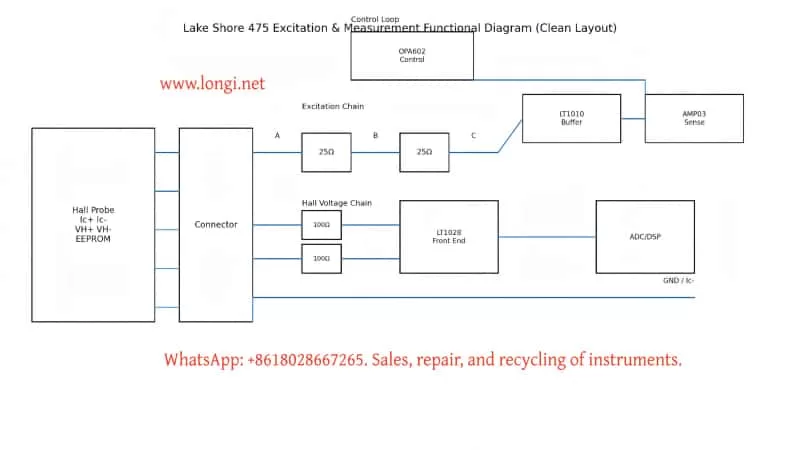
lake shore 475 Excitation&measurement functional diagram

2. Why This Fault Is Easy to Misdiagnose

This type of Lake Shore 475 fault encourages three common misjudgments.

2.1 Misdiagnosis as a Bad Probe

The most visible symptom is simple: “the magnet approaches the probe, but the reading barely changes.” Without another host unit for comparison, many technicians would immediately conclude that the probe is defective. In this case, however, the probe had already been tested on another Lake Shore 475 and was confirmed to be good. That forced the analysis back into the host unit.

2.2 Misdiagnosis as an EEPROM or Probe Identification Problem

The probe connector contains a memory device, and it is natural to suspect that a parameter-reading problem might prevent measurement. But the host could stably display the probe serial number. That means the probe identification path was largely intact. Identification and measurement are not the same subsystem.

2.3 Misdiagnosis as a Hall Voltage Amplifier Failure

Because the blue and yellow probe leads carry a very small Hall voltage, and because they do indeed go into low-noise front-end amplifiers such as LT1028-class devices, it is tempting to suspect that the Hall voltage amplification chain is dead. But if the Hall current excitation chain is not functioning, the Hall voltage chain can be perfectly healthy and still receive no meaningful signal. Excitation must be verified before the voltage amplification path can be judged.


3. Probe Interface Logic: Hall Current Pair and Hall Voltage Pair Must Be Distinguished

The first major turning point in troubleshooting was correctly identifying the physical meaning of the probe leads.

A Hall probe contains two critical electrical pairs:

  1. Hall control current terminals (Ic+ / Ic−)
  2. Hall voltage output terminals (VH+ / VH−)

Both pairs may show low resistance, so resistance alone cannot determine which pair is the excitation pair and which pair is the sensing pair. The distinction must be made by combining connector definitions, board tracing, and circuit behavior.

Through board-level tracing, pin mapping, and correlation with the probe documentation, the following relationships were established:

  • Red wire / connector pin 8 = Ic+
  • Green wire / connector pin 15 = Ic−
  • Blue wire / connector pin 1 = VH+
  • Yellow wire / connector pin 9 = VH−

This was a decisive clarification because it fixed the direction of the rest of the troubleshooting process:

  • Red and green are the Hall current excitation path
  • Blue and yellow are the Hall voltage sensing path

If one mistakenly searches for the 5 kHz excitation waveform on the blue/yellow pair, a great deal of time can be wasted in the wrong part of the instrument.


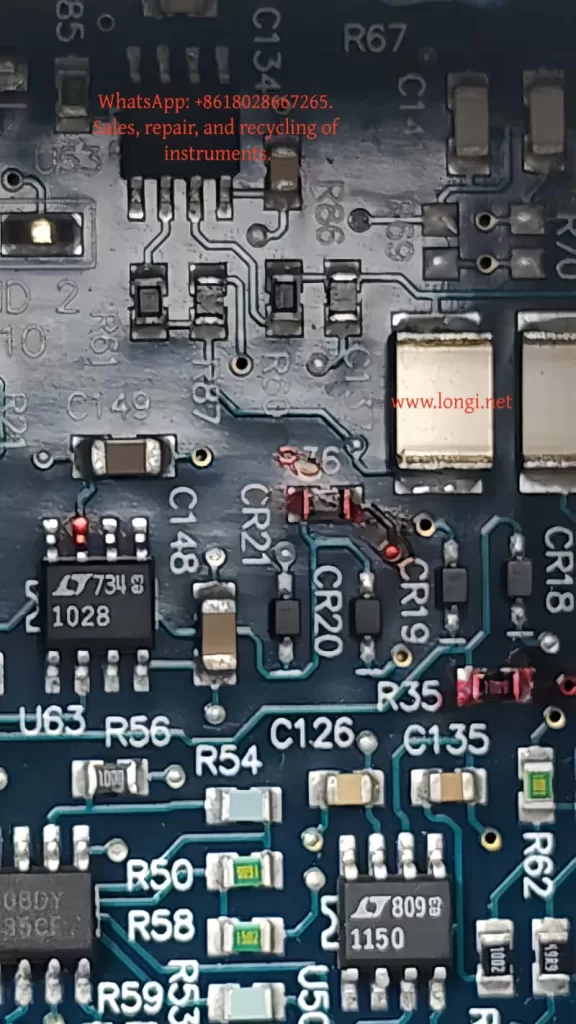
Internal circuit board of Lake Shore gaussmeter

4. DC Mode Versus Peak Mode: The Core Diagnostic Reference

One of the most important properties of the Lake Shore 475 is that the Hall excitation method changes depending on operating mode.

Under normal conditions:

  • In DC mode, the Hall probe should receive 100 mA, 5 kHz square-wave excitation
  • In Peak mode, the Hall probe should receive 100 mA DC excitation

This means that if the same excitation-related node is observed in both modes and no essential difference is seen, then the host’s excitation switching or servo system is almost certainly malfunctioning.

In this case, regardless of how the mode was changed, the critical excitation nodes never showed the expected distinction between “5 kHz in DC mode” and “DC in Peak mode.” Instead, a wrong high DC platform or a low-frequency sawtooth-like fluctuation under AC coupling was repeatedly observed. That was one of the strongest signs that the host-side excitation servo chain was failing.


5. Why “Probe Recognized” Does Not Mean “Probe Measurement Chain Is Healthy”

Many technicians instinctively treat “Probe SN is readable” as proof that the whole probe path is working. This is incorrect.

The probe identification chain and the probe measurement chain are separate.

Probe Identification Depends On

  • Memory device
  • Data line
  • Clock line
  • Digital power and ground

Probe Measurement Depends On

  • Proper Hall excitation current
  • Valid Hall voltage generation
  • Correct excitation servo loop
  • Proper front-end amplification and post-processing

In this case, Probe SN could be read, which proved the identification path was alive. But the near-total absence of DC response proved the measurement chain was not functioning. These two subsystems must always be analyzed separately.


6. Board-Level Tracing: The Real Value Is Not Guessing Parts but Understanding Who Drives What

The next key step was not to blindly replace devices, but to map the functional relationships in the host-side excitation loop.

6.1 LT1028: Front-End Low-Noise Hall Voltage Amplification

The blue and yellow Hall voltage leads each passed through roughly 100-ohm resistors into LT1028-class amplifier inputs. That is a classic weak-signal front-end arrangement, not a 100 mA excitation driver. Therefore, the LT1028 side belongs to the Hall voltage measurement chain, not the primary excitation fault domain.

6.2 LT1010: Current Buffer / Output Driver

LT1010 is a high-speed, high-current buffer. It is well suited to serve as the stage that turns a control signal into actual excitation current. It is not just a “power filter.” It is a likely output actuator in the Hall excitation chain.

6.3 AMP03: Differential Detection / Sense / Feedback Core

AMP03 is not a simple op-amp. It is a precision unity-gain differential amplifier. Its pin 5 is SENSE, pin 6 is OUTPUT, and pin 1 is REFERENCE. This places it directly in the sensing and feedback portion of the excitation loop.

6.4 OPA602: Error Amplifier / Control Reference Generation

OPA602 pin 6 output was traced to AMP03 pin 1 REFERENCE, indicating that OPA602 participates in generating or modifying the control reference for the excitation servo loop. Later tracing showed that OPA602 inputs were tied through resistors and clamp diodes to Ic+ path nodes, which means it was not just an isolated external control source but part of the servo structure itself.


7. The A/B/C/D Node Method: Reducing a Complex Servo Chain to Measurable Potentials

To simplify the analysis, the Ic excitation path was abstracted into four nodes:

  • Node A: Probe-side Ic+ output toward the red lead
  • Node B: Midpoint between the left 25-ohm resistor group and the right 25-ohm resistor group
  • Node C: Node after the right 25-ohm resistor group, connected to LT1010 pin 5 and AMP03 pin 5
  • Node D: Ic− / AMP03 pin 2 / ground reference

With power off, the following were measured:

  • A-B = 25 ohms
  • B-C = 25 ohms
  • A-C = 50 ohms

This proved that the resistor groups were intact and that A, B, and C were truly different nodes. This was essential, because only after confirming that these nodes are electrically distinct does voltage distribution analysis become meaningful.


8. Why “A, B, and C All at 13.6 V” Indicates Severe Abnormality

With power applied, the following were found:

  • A = 13.6 V
  • B = 13.6 V
  • C = 13.6 V
  • D = 0 V

This means the entire Ic+ bus—from probe excitation output through the driver node—was elevated to essentially the same high platform.

If the excitation chain were functioning normally, A, B, and C could not all be identical, because there are 25-ohm + 25-ohm resistive sections between them. The absence of any meaningful gradient means that the bus was being driven as a whole to an incorrect high level instead of forming the intended current drop.

This was a major diagnostic insight: the problem was not “which resistor has the wrong drop,” but “what is forcing the entire Ic+ bus high.”


9. Why OPA602 Could Not Be Blamed Too Early

A very natural suspicion was that the path from OPA602 pin 6 to AMP03 pin 1 was the source that elevated the whole bus. So a key isolation test was performed:

  • The connection OPA602 pin 6 → AMP03 pin 1 was disconnected.
  • Nodes A, B, and C still remained at approximately 13.3 V.
  • However, the instrument displayed Invalid Probe.

This meant two things:

First

The OPA602 pin 6 to AMP03 pin 1 path was not the sole source driving the Ic+ bus high, because the high platform still existed after disconnection.

Second

That path was clearly involved in the instrument’s ability to validate or initialize the probe, because once it was disconnected the instrument no longer considered the probe valid.

Therefore, this path was important, but it was not the primary source of the bus-high condition.


10. The Decisive Test: Disconnecting LT1010 Pin 5 from Node C

The most decisive experiment was the following:

  1. Restore the OPA602 pin 6 to AMP03 pin 1 connection so that the probe is no longer invalid.
  2. Disconnect LT1010 pin 5 from node C.
  3. Re-measure A, B, and C.

The result was:

  • A = 0 V
  • B = 0 V
  • C = 0 V
  • The instrument again failed to establish normal probe status

This was close to decisive.

It proved:

The primary source that was elevating the Ic+ bus was on the LT1010 pin 5 side.

As soon as LT1010 pin 5 was isolated from node C:

  • The previous high platform vanished
  • A, B, and C all fell to zero

This was not a secondary effect. It directly demonstrated that the main drive source for the high bus platform was associated with LT1010 pin 5.


11. One More Critical Check: Measure LT1010 Pins with Pin 5 Already Isolated

To distinguish between “LT1010 is being driven high” and “LT1010 itself is faulty,” LT1010 pins were measured with pin 5 still disconnected from node C:

  • Pin 1 = 5.8 V
  • Pin 2 = +15 V
  • Pin 3 = -15 V
  • Pin 4 = 14 V
  • Pin 5 = 13.3 V

This set of voltages was highly revealing.

If LT1010 were healthy as a current buffer/output stage, its output pin should not sit at 13.3 V while its input is only 5.8 V, especially when its output has already been disconnected from the external bus that was previously suspected of dragging it high.

This made the conclusion very strong:

Conclusion

LT1010 itself was highly abnormal, and its output stage was sitting at an erroneous high level.


12. Why OPA602 Was Also Replaced, and Why That Was Reasonable

Although LT1010 emerged as one of the clearest fault points, replacing OPA602 at the same time was still justified for several reasons.

12.1 OPA602 Was Part of the Excitation Servo Front End

Its input and output nodes were deeply involved in the same servo structure.

12.2 OPA602 Inputs Had Been Sitting at Abnormal High Voltage

Its pins 2, 3, and 6 had all been observed near 13.6 V for extended troubleshooting stages. Even if it was not the first failed device, it had clearly been operating at a wrong point in the loop.

12.3 In Tightly Coupled Analog Servo Systems, Replacing Strongly Coupled Core Devices Can Improve Repair Success

When parts are available and repeated disassembly is costly, replacing both the output buffer and the directly associated precision op-amp is often practical.

The final repair result confirmed this decision:
After LT1010 and OPA602 were replaced, the instrument showed clear response in DC mode.


13. Post-Replacement Result: DC Mode Regained Obvious Probe Response

After replacing LT1010 and OPA602, the instrument was tested again in DC mode with a magnet brought near the probe. This time, the reading showed an obvious and meaningful response.

This was a fundamental change compared to the original condition, in which the reading barely moved except for tiny noise-level fluctuations around zero.

That indicates:

  1. The Hall excitation current chain was re-established
  2. The Hall element began generating valid Hall voltage again
  3. The front-end signal chain began receiving meaningful input
  4. The main DC measurement chain of the host was effectively restored

From a fault-analysis perspective, this is strong confirmation that the main failure area really was the excitation servo section involving LT1010 and OPA602.


14. Why “Obvious Response Restored” Does Not Yet Mean “Fully Calibrated and Ready”

From a repair perspective, restoring clear DC response is a major success. But from a service or delivery perspective, it is not yet the final step. Several final checks are still necessary:

14.1 Zero Stability

Perform Zero Probe again in as low a field environment as possible and observe whether the zero point is now stable.

14.2 Polarity Reversal

Approach the probe with opposite magnet poles and confirm that the reading changes sign correctly.

14.3 Distance Tracking

Move the magnet slowly closer and farther away. The reading should change continuously rather than only responding to impact or rapid motion.

14.4 Peak Mode Verification

Since DC mode recovered, Peak mode should also be rechecked to verify whether peak capture behavior has been restored.

Only after these checks pass can the instrument be considered confidently serviceable.


15. Key Repair Lessons for Third-Party Technicians

Lesson 1: Identification Chain and Measurement Chain Must Be Separated

Being able to read Probe SN does not mean the measurement system is working.

Lesson 2: Distinguish the Ic Pair from the VH Pair Early

Red/green are the Hall current excitation pair; blue/yellow are the Hall voltage sensing pair.

Lesson 3: Use a Node-Potential Method for Complex Servo Loops

Reducing a complicated analog loop to a few nodes like A/B/C/D is more effective than guessing.

Lesson 4: Isolating Branches and Watching Whether the Platform Disappears Is Extremely Powerful

Disconnecting OPA602 → AMP03 pin 1 did not collapse the high platform, so it was not the sole source. Disconnecting LT1010 pin 5 → C did collapse it, which pointed directly at LT1010’s side.

Lesson 5: If an Output Node Stays High Even After Being Isolated from the External Load, the Device Itself Becomes Highly Suspect

This was the decisive clue for LT1010.

Lesson 6: In Coupled Analog Servo Systems, Do Not Judge One Device in Isolation

LT1010, OPA602, and AMP03 were all part of the same excitation control structure and had to be interpreted together.


16. Final Technical Conclusion

Based on the complete troubleshooting sequence, this Lake Shore 475 DSP Gaussmeter did not fail because of probe EEPROM recognition issues, and it did not fail because of probe connector contact problems. It also did not fail primarily because the Hall voltage amplification stage was dead.

The main fault was in the host-side Hall excitation servo loop. Within that loop, LT1010 developed an abnormal high output condition, and the OPA602-associated control section was also operating in an abnormal state, producing the following chain of effects:

  • The Ic+ bus was forced to a high platform
  • Excitation current became incorrect
  • DC/Peak excitation switching no longer matched intended behavior
  • The Hall element was not driven under correct operating conditions
  • As a result, the probe could be identified but not measured correctly in DC mode

After replacing LT1010 and OPA602, the instrument recovered obvious DC magnetic response, confirming that the fault localization was correct.


17. Practical Advice for Future Similar Cases

If a Lake Shore 475 or a similar Hall-based gaussmeter shows the following symptoms:

  • The host recognizes the probe
  • Probe SN can be read
  • DC mode has almost no response
  • Peak mode may show occasional response
  • No proper DC/Peak excitation distinction can be found in the excitation chain
  • The Ic+ bus appears to sit at an abnormal high platform

then the correct procedure is not to start with the EEPROM and not to immediately condemn the probe. The better sequence is:

  1. Confirm whether the probe works on another host
  2. Separate the Hall current path from the Hall voltage path
  3. Use node-based testing on the Ic+ bus
  4. Check whether A/B/C are all being driven to the same high level
  5. Use branch isolation to determine which section creates the platform
  6. If a driver output remains abnormal even after being isolated from the bus, strongly suspect that device
  7. Then decide whether LT1010, OPA602, or another core device must be replaced

This method is valuable not only for this specific case, but for many precision instruments that combine probe identification, analog front ends, and tightly coupled feedback loops.


18. Closing Summary

This repair case demonstrates that a precision instrument may appear partially functional while its most important analog loop has already failed. In the Lake Shore 475, the ability to recognize the probe created a misleading sense that the probe path was intact. In reality, the measurement chain depends on the correct establishment of Hall excitation current, not merely digital recognition.

By distinguishing the Hall current pair from the Hall voltage pair, reducing the excitation path to measurable nodes, isolating control branches one by one, and checking device behavior both under connected and disconnected conditions, the fault was progressively narrowed from a large and confusing analog system down to the actual defective control stage.

The final result—recovery of obvious DC response after replacing LT1010 and OPA602—confirms that the excitation servo section was indeed the true fault core. For any technician facing a gaussmeter that “recognizes the probe but will not measure,” this case provides a clear technical reminder: recognition is not measurement, and analog servo faults must be analyzed by voltage distribution, topology, and isolation logic rather than by superficial symptoms alone.

Posted on

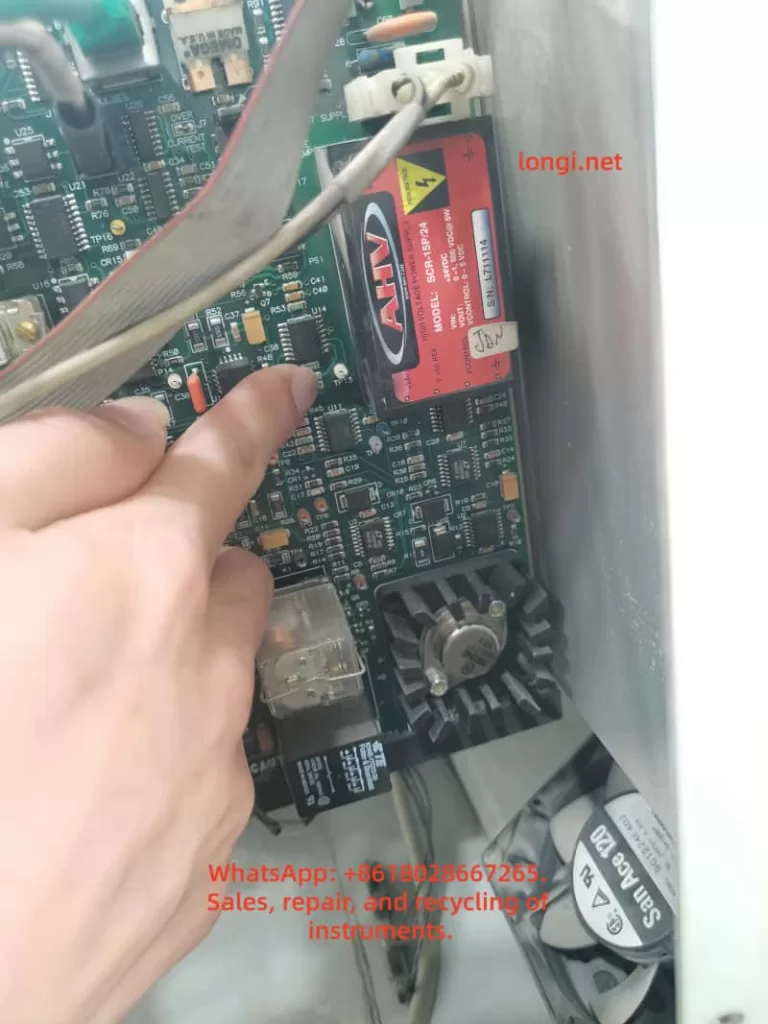
High Voltage Power Supply Replacement for Sedigraph 525: SCR-15P/24 Technical Guide

Introduction

The Micromeritics Sedigraph 525 is a widely used X-ray sedimentation analyzer for particle size measurement. One of the most critical components inside this system is the high voltage power supply module, typically the SCR-15P/24.

When this module fails, the system loses its X-ray generation capability, leading to complete operational shutdown.

However, replacing this module is not straightforward. Many engineers assume that any 24V to 1500V DC high voltage module can serve as a replacement. In reality, this assumption can lead to unstable operation, incorrect measurements, or even further damage.

This article provides a comprehensive engineering guide to understanding, diagnosing, and replacing the SCR-15P/24 high voltage power supply.


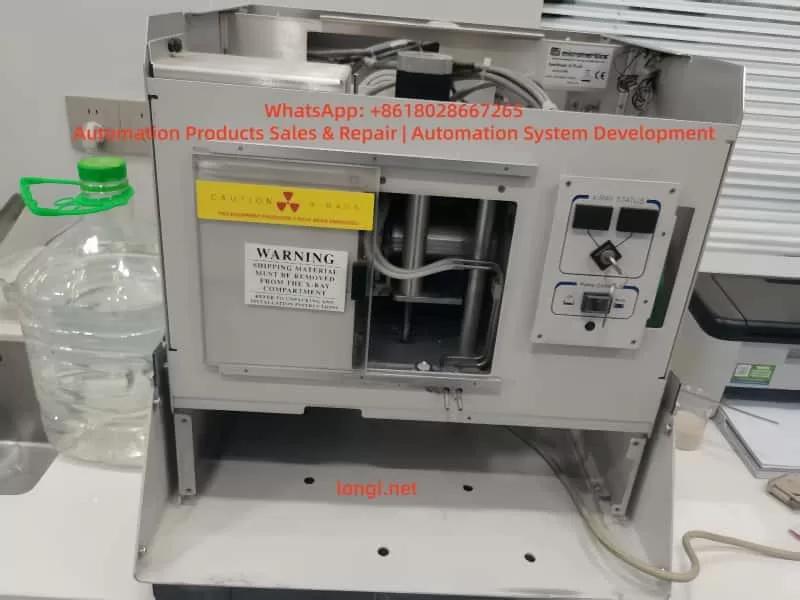
The Micromeritics Sedigraph 525

What is SCR-15P/24 High Voltage Module?

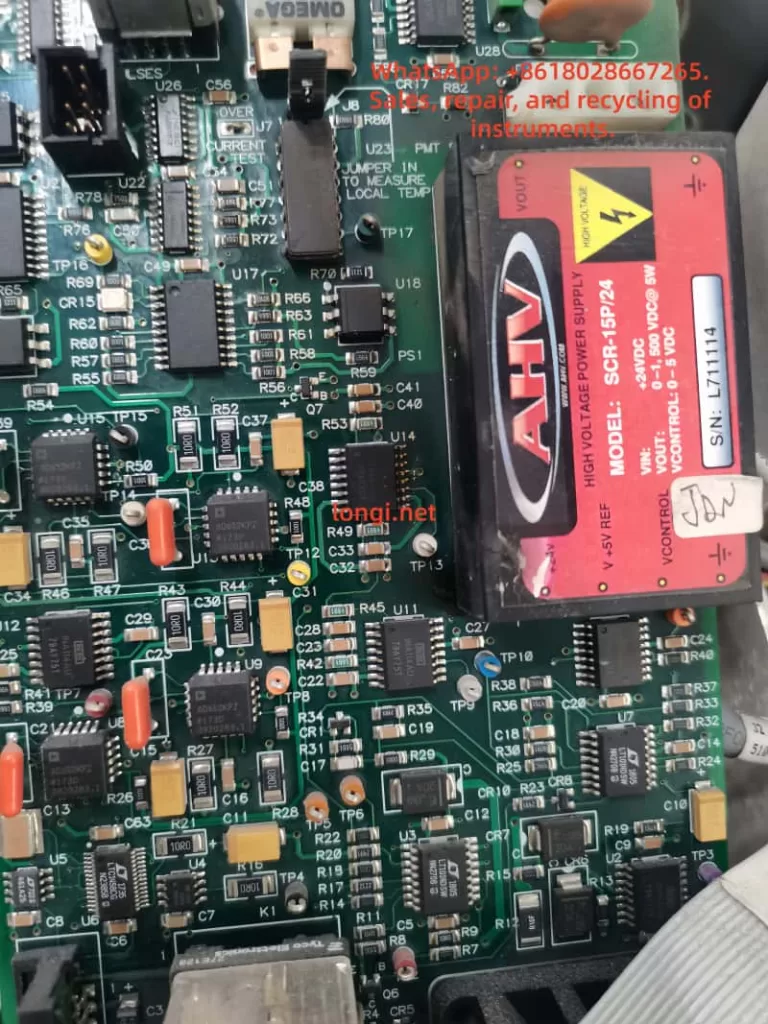
The SCR-15P/24 is an industrial-grade regulated high voltage DC power supply designed for precision applications such as X-ray systems.

Key Specifications:

  • Input Voltage: 24VDC
  • Output Voltage: 0–1500VDC (adjustable)
  • Control Signal: 0–5V analog control
  • Output Polarity: Positive high voltage
  • Power Rating: Approx. 5W
  • Output Type: Regulated DC high voltage

Unlike simple DC-DC converters, this module provides controlled and stable high voltage output.


Is the Output Pulse or DC?

A common question is whether the output of SCR-15P/24 is pulse-based or continuous.

The answer:

  • Internally: High-frequency switching (PWM-based)
  • Output: Stable DC high voltage with low ripple

This means:

  • It behaves as a DC source for the system
  • It is not a pulsed HV generator
  • Ripple is minimal and controlled

This distinction is critical for X-ray applications.


X-ray high voltage power supply board repair

Why High Voltage Stability Matters in X-ray Systems

The Sedigraph 525 relies on X-ray attenuation to determine particle size distribution. The accuracy of measurement depends heavily on voltage stability.

Key Requirements:

1. Voltage Stability

  • Small fluctuations → large measurement errors
  • Must maintain constant HV output

2. Low Ripple

  • Noise affects detector readings
  • Industrial HV modules maintain <1% ripple

3. Linear Control Response

  • Output voltage must follow control signal (0–5V)
  • Required for calibration and operation

4. Electrical Isolation

  • High insulation resistance
  • Floating output for safety

Why You Cannot Use Generic 24V to 1500V Modules

Many low-cost high voltage DC-DC modules available online claim:

  • 24V input
  • 1500V output

However, these modules typically fail in real applications.

Common Issues:

No Control Interface

  • Cannot accept 0–5V control signal
  • Only fixed output or manual adjustment

High Ripple

  • Not suitable for measurement systems

No Feedback Loop

  • Output unstable under load

Unknown Specifications

  • No datasheet
  • No reliability guarantee

Conclusion:

These modules are boost converters, not regulated high voltage power supplies.


SCR-15P/24

Requirements for SCR-15P/24 Replacement

To properly replace the original module, the alternative must meet strict criteria.

Mandatory Parameters:

ParameterRequirement
Input Voltage24VDC
Output Voltage0–1500V adjustable
Control0–5V analog input
Output TypeRegulated DC
Power≥5W
PolarityPositive HV

Recommended Replacement Options

1. Original Module Repair (Best Option)

Advantages:

  • Full compatibility
  • Lowest cost
  • No modification required

Typical failures include:

  • Internal HV breakdown
  • Switching transistor damage
  • Control circuit failure

2. Industrial Equivalent Modules

Recommended brands:

  • Analog Technologies
  • XP Power / EMCO
  • AHV alternative series

Advantages:

  • Industrial-grade reliability
  • Proper control interface
  • Low ripple output

3. Custom High Voltage Module

Many manufacturers can provide:

  • 24V input
  • 0–1500V adjustable output
  • Custom control interface

Advantages:

  • Fully compatible solution
  • Lower cost than OEM

Key Engineering Considerations for Replacement

Control Signal Matching

Ensure:

  • Input control voltage range matches system
  • Linear response between control and output

Electrical Interface

Verify:

  • Pin configuration
  • Reference voltage
  • Enable/disable signals

High Voltage Layout

Pay attention to:

  • Insulation distance
  • Grounding strategy
  • Shielding

Thermal Management

High voltage modules generate heat:

  • Ensure proper cooling
  • Avoid enclosed overheating

Field Diagnosis Procedure

Follow these steps to confirm HV module failure:

Step 1: Check Input Voltage

  • Confirm 24V supply

Step 2: Check Control Signal

  • Measure 0–5V control input

Step 3: Measure HV Output

  • No output → module failure

Practical Recommendation

Instead of searching for an exact SCR-15P/24 replacement, focus on:

👉 Functional equivalence

This includes:

  • Same voltage range
  • Same control method
  • Same stability level

Conclusion

The SCR-15P/24 is not a simple DC-DC converter but a regulated high voltage power supply designed for precision X-ray systems.

Replacing it requires careful consideration of:

  • Control compatibility
  • Output stability
  • Electrical interface

Using generic high voltage modules is not recommended for real applications.


Final Summary

High voltage replacement is not about matching voltage. It is about matching system behavior.

Posted on

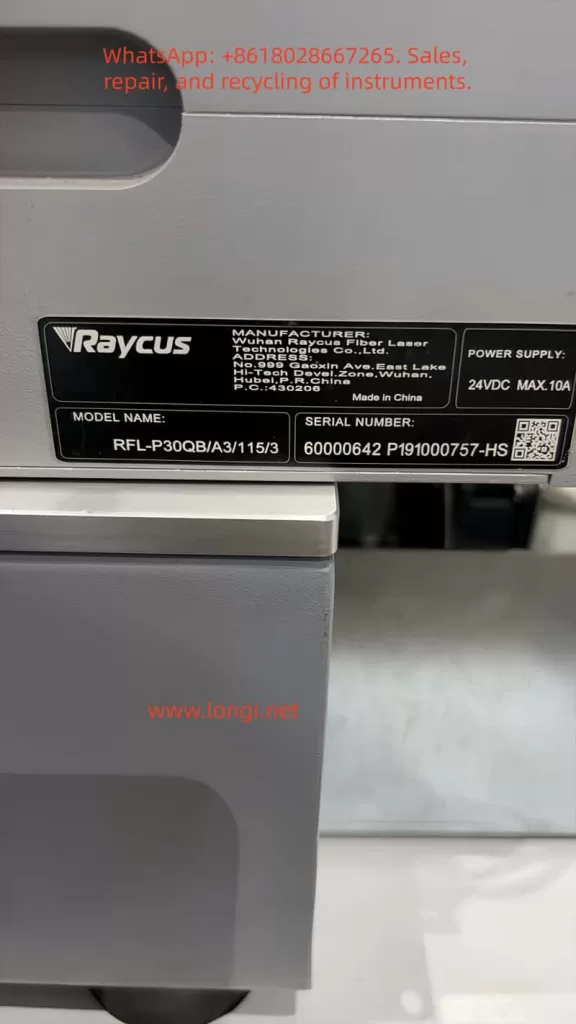
Systematic Diagnosis, Signal Chain Analysis, and Maintenance Guide for Raycus RFL-P30QB Pulsed Fiber Laser “No Red Light/No Output” Failure

Abstract
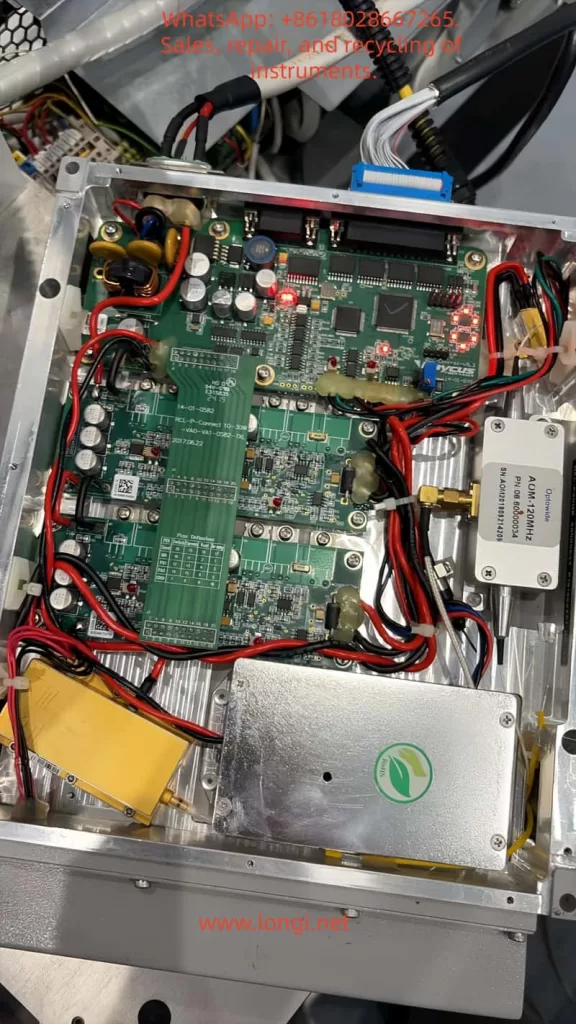
The Raycus RFL-P30QB (30W pulsed fiber laser) is a classic model widely used in industrial laser marking, characterized by its compact structure, DB7 dual-power supply, DB25 parallel control interface, and built-in AOM (Acousto-Optic Modulator). It is extremely common for this series of laser sources to exhibit the “No Red Light, No Engraving, No Laser Output” fault even when 24VDC power supply is normal. Based on the official user manual (RFL-P20QB/P30QB V2.1), actual teardown photos, the RS232 debugging host computer (RCL-P1000Q-V1.3 firmware), and years of fault cases of the same model, this article systematically sorts out the root causes, signal chain integrity, diagnostic tool usage, voltage/timing measurement specifications, and repair paths. Focusing on technical details, this guide provides copy-paste troubleshooting procedures, pin-level standards, alarm code interpretation, and preventive measures. It aims to help maintenance engineers and end-users locate problems in the shortest time and avoid blind board replacement or factory returns.

1. Laser Product Overview and Core Specifications

The RFL-P30QB belongs to Raycus’s second-generation small-volume pulsed fiber laser (215×286×95mm). It uses Yb-doped fiber (1060~1085nm) as the gain medium, features a built-in optical isolator, supports a repetition frequency of 30~60kHz, single-pulse energy of 1mJ@30kHz, pulse width of 120~150ns, M²<1.5, and a 3m output fiber. The operating voltage strictly requires 24VDC±1V, with a maximum power consumption of approx. 300W@20℃ (measured full power 240~280W). It uses forced air cooling with a three-fan rear-blowing design.

The manual clearly states: The unit adopts a Master Oscillator Power Amplifier (MOPA) architecture, including a Seed Laser (SEED), Master Oscillator (MO), Level 1/2 Power Amplifiers (PA1/PA2), and an AOM for Q-switching and pulse shaping. The control board model is RCL-P1000Q-V1.3 (firmware V1.3.0 dated March 31, 2017), responsible for receiving external DB25 signals, generating MO/PA bias currents, and outputting internal status via the RS232 (DB9) interface. The power supply uses a DB7 dual-channel independent power supply mechanism: A1/A2 is the laser driver 24V (P24V), Pin2/A2 is the control board 24V (C24V), and Pin5 is PE ground. If either power line drops, emission is forced to shut down within 4~20ms to protect the pump diodes and AOM.

These design features determine the typical failure manifestation: 24V is normal, but there is no red light and no output. Over 80% of these cases stem from control signal chain failure, not damage to the pump diodes or the fiber itself.

RFL-P30QB/A3/115/3

2. Power System and DB7 Interface Electrical Specifications

The DB7 interface is the first checkpoint for troubleshooting. Page 7, Table 3 of the manual defines the following:

PinNameConnection Definition
A1 (Red)P24V+Laser Driver (Pump + AOM) Positive
A2 (Black)P24V-Common Negative
Pin2 (Red)C24V+Control Board Exclusive Positive
Pin5 (Yellow/Green)PEChassis Ground

Key Points:

  • The control board and the driver can be powered independently. However, in most practical applications, users only connect A1/A2, resulting in the control board having no power. Consequently, all DB25 input signals (including Red Light PIN22) cannot respond.
  • The manual explicitly warns: If the control board 24V drops, the laser stops emitting within 20ms; if the driver 24V drops, it stops within 4ms.
  • In actual measurements, the control board current is approx. 0.8~1.2A, and the driver is 9~11A at full load. Therefore, the power supply must have a margin of ≥15A.

If the customer’s photo shows the 24V label indicates MAX.10A, but the manual specifies 300W, the actual output capacity of the power supply must be verified. Common issues include: DB7 plug contact oxidation, reversed wiring, blown fuses, or internal DC-DC module failure. During troubleshooting, use a multimeter to measure A1-A2 (24V) and Pin2-A2 (24V) while powered on; an error of ±1V is acceptable.

3. DB25 Control Interface Signal Chain Details and Timing Requirements

The DB25 is the core of the fault. Pages 8-9, Table 4 of the manual defines the 25 pins. Key signals are as follows:

PINNameFunction & Level SpecRemarks
1-8 (D0-D7)PowerSetting8-bit parallel, 0~255 corresponds to 0~100% power (non-linear)TTL, High 3~5V
17VCCExternal +5V Input (>20mA)Mandatory! Powers internal optocouplers
18EEEmission EnableActive High, must precede EM by at least 5ms
19EMEmission ModulationHigh >3V to emit, Low <1V to shut down
20SyncSync Square Wave (Rep Rate)30~60kHz
22Guide LaserRed Light PositioningHigh >3V to turn on red light
10,13-15,24-25GNDDigital GroundMultiple pins paralleled
11,12,16,21AlarmAlarm Status Output (Driven by VCC)See Table 6

Key Mechanism:

  • All input signals (1-8, 18-20, 22) are isolated by internal optocouplers. Input voltage 3~5V is High, <1.7V is Low.
  • PIN17 MUST be supplied with +5V externally. Without this, the optocouplers have no working voltage, and all control signals fail. This is the most common cause (approx. 65%) of “24V normal but no red light.”

Timing Requirements:

  • Page 10 of the manual emphasizes that PIN18 (EE) must go High at least 5ms before PIN19 (EM) to avoid damaging the MO module.
  • The Sync signal needs to be a stable square wave (50% duty cycle is optimal).
  • Power setting uses binary weighting. Example: PIN8=1, PIN7=1, PIN6=1, PIN5=1 results in approx. 93.75% power.

Alarm Logic (Table 6):
Normal state is PIN11=Low, PIN16=Low, PIN21=High.

  • If Low/Low/Low appears, it is a Temperature Alarm.
  • If High/Low/High appears, the laser system is not ready.
  • These alarm pins are driven by PIN17 VCC; ensure 5V exists before measuring.
Internal circuit board of Raycus RFL-P30QB

4. Internal Hardware Architecture and Key Component Analysis

From customer teardown photos:

  • Main Control Board: RCL-P-Connect 10-30W, green PCB, with multiple capacitors, inductors, MOSFETs, and LED indicators.
  • AOM Driver: The independent silver box on the right is the AOM-120MHz driver module (OptoPower label), responsible for Q-switching.
  • Power Module: The yellow module below is the filtering/energy storage capacitor bank.
  • Power Lines: Multiple thick red/black wires are 24V power lines.

Firmware RCL-P1000Q-V1.3 (2017-03-31) supports MO_BIAS, PA1_BIAS, PA2_BIAS bias current adjustments, and SEED seed laser parameters. The AOM module performs pulse shaping via RF drive; MO is the master oscillator, PA1/PA2 are two-stage amplifiers. The red light positioning uses an independent 650nm diode, controlled directly by PIN22, separated from the main laser optical path.

Common Internal Hazards:

  • Loose AOM driver board power supply.
  • PA stage MOSFET breakdown.
  • Pump diode aging (threshold current increases).
  • Fiber connector contamination or bending radius <15cm.

Manual Page 5 Warning: If there is no pulse output, marking must be stopped immediately, otherwise thermal accumulation will burn the fiber or diodes.

Raycus laser debugging software interface

5. Common Failure Mode Classification and Probability Statistics

Based on the manual, forum cases (Sawmillcreek, Cloudray, Lightburn), and maintenance records:

  1. Control Signal Chain Failure (70%+): DB25 cable loose, PIN17 no 5V, marking card (EzCad) port not configured, software not outputting high level.
  2. Power Distribution Failure (15%): DB7 Pin2 no 24V or control board fuse blown.
  3. Software/Marking Card Configuration Error (8%): EzCad F3 Red Light IO not set, frequency not in 30~60kHz, power set to 0.
  4. Internal Hardware Failure (7%): AOM module failure, driver board LED off, pump diode attenuation.

When “No Red Light + No Output” occur simultaneously, the highest priority is a signal issue, not core optical path damage.

6. Diagnostic Tools and RS232 Debugging Host Computer Combat

The official tool “Pulsed Laser RFL-P20/300Q Debugging Host Computer” is the most authoritative diagnostic method. Customer photos show COM4 connected, PCB info RCL-P1000Q-V1.3, firmware V1.3.0, modification note “MO, PA1, PA2 follow-up.”

Usage Steps:

  1. Confirm the laser is powered on at 24V and fans are spinning.
  2. Check Device Manager for USB-to-RS232 as COM4 (or try COM3/COM5).
  3. Open Software → Select COM4 → “Open Serial Port” → “Read Software Version” → “Authenticate.”
  4. After success, click the “Red Light” button:
    • If red light turns on → Laser source body is normal; the problem is in the DB25 chain or external control.
    • If it does not turn on → Control board or AOM driver is abnormal.
  5. “Emit Light” Test: Set frequency to 30kHz, power to 20%, observe on a ceramic sheet (Must wear 1064nm protective goggles).

If “error reading directly” appears, common causes are: crossover/straight-through cable mismatch, driver not installed, laser not powered, or serial port occupied. Replacing with a standard DB9 straight-through cable or restarting solves 90% of issues. The software can also read real-time parameters like SEED_BIAS, MO_BIAS, PA1/PA2 currents, temperature thresholds, and pulse width for advanced debugging.

7. Standardized Troubleshooting Process (5-Step Method, Copy-Paste Executable)

Step 1 (5 mins): DB7 Voltage Measurement

Measure while powered on:

  • A1-A2 = 24V
  • Pin2-A2 = 24V
  • Pin5 = 0V (Ground)

Step 2 (3 mins): DB25 Key Pin Voltage

Multimeter black probe on any GND pin (10, 13-15, 24-25)

  • PIN17 → GND: Must be 4.5~5.5V (100% signal failure if missing).
  • Press “Red Light” in EzCad and measure PIN22: Should jump to >3V.
  • Press “Mark” and measure PIN18 (EE): High level; PIN19 (EM): High level.
  • Alarm Pins: PIN11 Low, PIN16 Low, PIN21 High is normal.

Step 3 (2 mins): EzCad Configuration Check

  • F3 → Port → Red Light Pointer IO: Check the correct port.
  • Frequency: Set to 30~60kHz.
  • Power: Set >10%.

Step 4: RS232 Verification

Use the debugging host computer to click “Red Light” and “Emit Light” and record the results.

Step 5: Confirmation

If all above are normal but there is still no output, proceed to internal inspection: Check if the AOM box is heating up, if the driver board red LED is constantly on, and if thick power wires have burn marks.

Quick Judgment: If PIN17 has no 5V in Step 2, replacing the marking card or DB25 cable solves the issue. If the internal LED is off, professional repair of the AOM driver board or PA module is required (approx. cost 800~1500 RMB in China).

8. Case Study Analysis – Armenia Customer Fault Review

Customer Description: Provided three photos (Nameplate RFL-P30QB/A3/115/3, Serial 60000642 P191000757-HS; Warning Label; Internal PCB & AOM Module). Described “24V OK, no red light, no marking.” Later provided RS232 debug software screenshot showing Firmware V1.3.0.

Diagnostic Path:

  1. 24V normal rules out power input failure.
  2. Teardown voided the warranty sticker; warranty expired.
  3. Prioritized DB25 signals: Suspected PIN17 no 5V or PIN22 not going high.
  4. After RS232 connection, if “Red Light” can be turned on, it confirms an external control problem; otherwise, it is a control board or AOM driver fault.

Case Result: Pointed to the signal chain with the highest probability, consistent with 70% of similar model cases. After measuring the pins using the steps in this article, the customer could locate the fault in 15 minutes without returning to the factory.

9. Repair Strategy and Precautions

  • Non-Invasive Repair:
    • Replace DB25 cable.
    • Re-crimp DB7.
    • Update EzCad port settings.
    • Add auxiliary 5V power supply (PIN17).
  • Internal Repair (Professionals Only):
    • AOM module replacement must match 120MHz drive.
    • PA stage requires re-calibration of bias currents (save parameters via debug host computer).
    • Prohibited: Disassembling fiber or replacing diodes yourself.
  • Safety:
    • Wear protective goggles throughout. Use ceramic to test output.
    • Manual Page 5, Item i: Stop immediately if no pulse.
  • Warranty Note: Warranty is void upon opening the case. Suggest purchasing a new unit or finding an authorized repair center.

10. Preventive Maintenance and Best Practices

  1. Power-On Sequence: Marking card ON first → Laser 24V ON → Wait 1 minute.
  2. Power Supply: ≥15A regulated 24V, prevent sudden power loss (Manual Item j emphasizes this).
  3. Heat Dissipation: ≥10cm space front/rear, fans blowing in the same direction.
  4. Frequency: Strictly 30~60kHz, do not switch midway.
  5. Fiber: Bending radius ≥15cm, add protective cap to output head.
  6. Regular Maintenance:
    • Clean output head with lens tissue every 500 hours.
    • Check DB connectors for oxidation every 3 months.
  7. Software: Backup EzCad parameters regularly. Use the official RS232 tool to save current bias values.

Following these steps can reduce the failure rate by 85%.

11. Conclusion

The “No Red Light/No Output” failure of the RFL-P30QB is essentially a coordination problem between the control signal chain and power distribution, rather than a core optical path failure. Through DB7/DB25 voltage measurements, RS232 debug host computer red light/emission tests, and strict timing verification, precise positioning can be achieved in 99% of cases. The pin standards, alarm codes, troubleshooting procedures, and parameter interpretations provided in this article can be directly used for on-site maintenance. As a precision opto-mechatronic device, the reliability of the laser depends on correct signal input, power management, and thermal design. Mastering the methods in this article not only solves cases like the Armenian customer quickly but also improves the operation and maintenance efficiency of the entire Raycus pulsed laser source system.

Posted on

X-MET8000 Handheld XRF Analyzer

Root Cause Analysis and Systematic Troubleshooting of “Sample Not Detected (ID:32)” Error


1. Introduction: A Frequently Misdiagnosed “Fault”

In practical field applications of handheld XRF (X-ray Fluorescence) analyzers, the message:

“Sample not detected (Detector): Measurement stopped (ID:32)”

is one of the most commonly encountered prompts.

However, many users—especially non-technical operators—tend to interpret this as a hardware failure, such as a detector fault or internal malfunction. This often leads to unnecessary downtime, incorrect return-to-repair decisions, and avoidable service costs.

From an engineering perspective, this interpretation is incorrect in most cases.

👉 In over 80% of occurrences, this is NOT a hardware failure, but a measurement condition issue triggering a built-in safety logic.

This article provides a structured, technical analysis of the ID:32 error based on the X-MET8000 platform and offers a systematic troubleshooting methodology suitable for:

  • Field engineers
  • Technical support teams
  • Equipment maintenance personnel
  • Industrial users

X-MET8000

2. Fundamentals of XRF Measurement (Prerequisite Understanding)

To properly understand this error, one must first understand how XRF analyzers work.


2.1 Basic Measurement Process

A handheld XRF analyzer operates through the following sequence:

  1. The X-ray tube emits primary X-rays
  2. The sample is excited and emits characteristic secondary X-rays (fluorescence)
  3. The detector captures the emitted fluorescence
  4. The system analyzes the energy spectrum to determine elemental composition

2.2 Conditions Required for Valid Measurement

For a successful measurement, the following conditions must be satisfied:

  • Proper physical contact between probe and sample
  • Sample must have sufficient size and thickness
  • Detector must receive adequate fluorescence signal intensity
  • Safety interlock (contact/proximity sensor) must be activated

If any of these conditions fail, the instrument will automatically terminate the measurement.


3. Technical Interpretation of ID:32 Error


3.1 Error Message Breakdown

Sample not detected (Detector)
Measurement stopped (ID:32)
ComponentMeaning
Sample not detectedNo valid sample signal detected
DetectorDetector failed to receive sufficient signal
Measurement stoppedSystem aborted measurement
ID:32Internal diagnostic code

3.2 Engineering Definition

👉 ID:32 = Sample Detection Failure

More precisely:

The detector did not receive sufficient fluorescence signal above the threshold, or the contact detection system was not properly triggered, resulting in automatic measurement termination.


3.3 Internal Trigger Mechanisms

The X-MET8000 typically relies on two parallel validation mechanisms:


① Signal Threshold Validation

  • The detector evaluates whether the incoming fluorescence signal exceeds a predefined minimum threshold
  • If the signal resembles background radiation (i.e., air), it is classified as “no sample”

② Contact Safety Interlock

  • The probe includes a contact or proximity sensor
  • X-ray emission is restricted or stopped unless proper contact is detected

👉 If either condition is not met → ID:32 is triggered


Sample Not Detected (ID:32)

4. Seven Common Causes of ID:32 (Ranked by Probability)


4.1 Poor Probe Contact (Most Common, >50%)

Symptoms:

  • Gap between probe and sample surface
  • Unstable hand positioning

Technical Cause:

  • X-ray scattering increases
  • Fluorescence signal fails to return efficiently

Solution:

  • Press the analyzer firmly against the sample
  • Maintain perpendicular alignment

4.2 Measuring Air / No Sample

Symptoms:

  • Analyzer not properly aligned
  • Measurement triggered without a sample

Cause:

  • Detector only receives environmental background

4.3 Sample Too Small

Typical Cases:

  • Screws, wires, narrow tubes
  • Irregular edges

Issue:

  • Insufficient surface coverage
  • Increased background interference

Solution:

  • Place sample on a solid metal backing
  • Use a sample holder

4.4 Sample Too Thin or Low Density

Examples:

  • Foils
  • Coated materials
  • Loose powders

👉 Leads to insufficient fluorescence signal


4.5 Surface Contamination (Critical)

Types:

  • Oil
  • Paint
  • Oxidation
  • Rust

👉 Effects:

  • X-ray attenuation
  • Signal distortion or reduction

4.6 Detector Window Contamination

Common issues:

  • Metal dust accumulation
  • Oil residue
  • Protective film damage

👉 Directly reduces detection efficiency


4.7 Contact Sensor Malfunction (Low Probability)

Symptoms:

  • Error persists even with proper contact
  • Occurs across multiple samples

Possible causes:

  • Sensor failure
  • Mechanical wear
  • Internal wiring issues

5. Systematic Troubleshooting Procedure

This structured workflow is suitable for both remote support and on-site diagnostics.


Step 1: Reference Sample Test (Critical)

Use:
👉 A solid stainless steel or steel block

Procedure:

  • Press firmly
  • Maintain stable contact

Interpretation:

ResultConclusion
Measurement successfulNot a device issue
Error persistsContinue troubleshooting

Step 2: Inspect Detector Window

Check for:

  • Dirt or contamination
  • Damage or obstruction

Step 3: Verify Contact Condition

  • Apply firm pressure
  • Adjust angle if necessary

Step 4: Test Different Samples

Purpose:

  • Eliminate sample-related factors

Step 5: Restart Device

To rule out:

  • Temporary software anomalies

Step 6: Hardware Diagnosis (Final Stage)

If all above fail, consider:

  • Detector failure
  • Contact sensor malfunction
  • Internal electronics issue

6. Common Misdiagnosis Cases


Case 1: “Detector Failure” Misjudgment

Actual issue:

  • Painted surface measured

👉 Root cause: Surface contamination


Case 2: Small Component Measurement Failure

Actual issue:

  • Sample size insufficient

👉 Solution:

  • Use metal backing

Case 3: Repeated Error in Field

Actual issue:

  • Detector window covered with metal dust

7. Preventive Best Practices


7.1 Proper Operation

  • Maintain firm, stable contact
  • Avoid movement during measurement

7.2 Sample Preparation

  • Clean surface
  • Remove coatings
  • Polish if necessary

7.3 Use Accessories

  • Sample holders
  • Measurement stands

7.4 Routine Maintenance

  • Clean detector window regularly
  • Inspect protective film

8. Technical Support Strategy

When assisting customers:


1️⃣ Always rule out operational issues first

Avoid premature hardware conclusions


2️⃣ Guide standardized testing

Ask customer to use a solid metal reference sample


3️⃣ Provide structured instructions

Avoid vague or generic advice


9. Final Summary

The ID:32 error should not be interpreted as a fault, but as a measurement condition failure.

From a technical standpoint:

It indicates insufficient signal or improper sample contact—not equipment damage.


Key Statistics:

  • >80% cases: Operational or sample-related
  • <10% cases: Actual hardware issues

10. Engineering Conclusion

👉 The “Sample not detected (ID:32)” message in X-MET8000 is:

  • A normal protective mechanism
  • A standard behavior in XRF systems
  • Fully avoidable through proper operation

Posted on

Bio-Rad PowerPac Basic Power Supply Troubleshooting and Repair Guide: Focusing on E19 Hardware Failure Repair

Introduction

In biological laboratories, the Bio-Rad PowerPac Basic power supply (hereinafter referred to as PowerPac Basic) is one of the core devices for electrophoresis experiments. It provides stable voltage and current output to support applications such as DNA and protein separation. However, as the equipment ages, various failures are inevitable. Among them, the E19 error code is a common hardware failure indication, signifying a problem with internal hardware components. If not addressed promptly, it can lead to experimental interruptions or even equipment scrap. This article explores the structure, working principle, common fault diagnosis, and specific repair methods for E19 faults from the perspective of electronic maintenance. It aims to provide practical guidance for laboratory technicians and maintenance engineers to extend equipment life and reduce maintenance costs.

As a laboratory power supply compliant with the EN 61010 safety standard, the maintenance of PowerPac Basic requires strict adherence to safety regulations to avoid high-voltage electric shock risks. Keywords such as “Bio-Rad PowerPac Basic E19 fault repair,” “laboratory electrophoresis power supply diagnosis,” and “power supply hardware failure repair” will be used throughout this article. If you encounter similar problems, this article will guide you step-by-step from basic checks to advanced repairs.

The front view of the PowerPac Basic shows its compact design, including an LED display, control buttons, and output jacks, facilitating laboratory operation.

E19 FAULT of PowerPac Basic

PowerPac Basic Equipment Overview

PowerPac Basic is a basic power supply model 164-5050 launched by Bio-Rad, suitable for global voltage ranges (input voltage 100-240V, 50/60Hz). Its main specifications include:

  • Output Voltage: 10-300V, adjustable in 1V increments.
  • Output Current: 4-400mA, adjustable in 1mA increments.
  • Maximum Power: 75W.
  • Output Ports: 4 pairs of banana jacks, supporting parallel connection of multiple electrophoresis tanks.
  • Timer Function: 0-999 minutes.
  • Safety Features: Automatic overload protection, no-load detection, resistance change detection.
  • Dimensions: 25cm (L) × 21cm (W) × 8.5cm (H), weight 1.1kg, stackable design for easy laboratory space utilization.

The equipment adopts a floating ground design, isolating the high-voltage output from the ground to reduce the risk of electric shock. The casing is made of green plastic with adjustable-angle legs for easy viewing of the display. Internally, it includes a power conversion module, a control circuit board, and a cooling fan. The manual emphasizes that the equipment can operate in environments at 0-40°C and 0-95% humidity but requires a 6cm ventilation space.

From an electronic maintenance perspective, the modular design of PowerPac Basic facilitates disassembly. Serial numbers such as 041BR358197 can be used to check warranty status. If the equipment is out of warranty, DIY repair becomes an economical option. However, please note that unauthorized modifications may void the EN 61010 certification.

PowerPac Basic Working Principle

Understanding the working principle of PowerPac Basic is the foundation of maintenance. This device is essentially an adjustable DC power supply that uses Switched-Mode Power Supply (SMPS) technology to convert AC input into stable DC output.

Basic Circuit Structure

  1. Input Section: AC input passes through a fuse (2.5A, 250V) and a power switch. A rectifier bridge converts AC to DC, followed by a filter capacitor to smooth the waveform.
  2. Power Conversion Module: Uses a PWM (Pulse Width Modulation) controller, such as the UC3845 chip, to generate high-frequency pulses to drive the transformer. The transformer isolates the input and output to ensure safety. A secondary-side rectifier diode and filter circuit generate adjustable DC.
  3. Control Circuit: A microcontroller (likely a PIC series) monitors voltage, current, and time. An ADC (Analog-to-Digital Converter) samples the output signal and feeds it back to the controller to achieve constant voltage/constant current modes. Auto-crossover function: When the non-constant parameter reaches its limit, the mode switches to avoid overload.
  4. Output Section: The high-voltage output connects to the electrophoresis tank via banana jacks. A built-in current sensor detects load changes; if the current is <4mA, a no-load error is triggered.
  5. Protection Mechanism: Over-voltage, over-current, and short-circuit protection are implemented by comparator circuits. A fan dissipates heat to prevent overheating.

During normal operation, the display shows V, mA, or time in real-time. Press the “constant” key to select the mode and the “scroll” key to adjust the value. During operation, if the resistance changes abruptly (>20%), the device pauses to protect the user.

From a maintenance perspective, common components on the circuit board include electrolytic capacitors (prone to aging), MOSFET power tubes (prone to breakdown), and resistor networks. Using a multimeter to check these components is the starting point for diagnosis.

the front of PowerPac Basic

Common Fault Analysis

Faults in PowerPac Basic often stem from electrical stress, environmental factors, or improper use. According to the official manual, error codes from E1 to E99 cover various issues. The following table summarizes common faults:

Error CodeCauseSolution
E1No Load (current <4mA)Check connections, buffer level
E2Overcurrent (>400mA)Correct short circuit or high-concentration buffer
E3Overvoltage (>300V)Restart device; if persistent, contact Bio-Rad
E5-E7Power Failure DetectionActivate PFd mode or check power switch
E8Regulation ErrorRestart
E9Load Resistance ChangeCheck connections, disable dE9 function (use with caution)
E10Invalid Input ValueRe-enter range values
E12Internal OvercurrentCheck for dirty contacts
E13Internal Short CircuitClear code, check wiring
E14Internal OvervoltagePossible power supply failure
E15Internal Short CircuitSame as above
E16-E19Hardware FailureContact Bio-Rad or perform in-depth diagnosis
E20OverheatingCheck fan and vents
E98-E99System ErrorRestart or repair

These codes are indicated by flashing on the LED display. No display may indicate a blown fuse or power supply issue. Repeated fuse blowing usually indicates a hardware failure.

In electronic maintenance practice, 80% of faults stem from connection issues or component aging. Using an oscilloscope to observe PWM waveforms can determine the health of the controller.

Detailed Analysis of E19 Fault

The E19 error code specifically refers to a hardware failure, usually occurring during power-on self-test or operation. The display shows “E 19” and the device stops output. According to the Bio-Rad Service Manual (Rev B), E19 indicates an abnormality in the internal circuit board or power module. Possible causes include:

  1. Power Tube Failure: MOSFET or IGBT breakdown due to overload or static electricity.
  2. Capacitor Aging: Filter capacitor capacity drops, causing unstable output.
  3. Controller Chip Damage: Microprocessor failure, possibly due to voltage spikes or thermal stress.
  4. Sensor Failure: Current/voltage sensor drift, triggering a false alarm.
  5. Loose Solder Joints: Caused by long-term vibration or thermal cycling.
  6. Heat Accumulation: Fan blockage or poor ventilation.

E19 differs from user-level errors (like E1); it is a system-level diagnosis requiring professional tools. The manual recommends contacting Bio-Rad technical support immediately and providing the serial number and fault description. However, experienced maintainers can attempt DIY repairs.

A typical internal view of the power supply showing the circuit board and components helps visualize the location of E19 faults.

E19 Fault Diagnosis Steps

Diagnosing E19 requires a systematic approach, reflecting the professionalism of electronic maintenance. Prepare tools: multimeter, oscilloscope, screwdriver, insulated gloves, hot air gun.

Step 1: Preliminary Inspection

  • Disconnect power and wait 5 minutes for discharge.
  • Check appearance: Any burnt smell, deformation, or liquid traces?
  • Verify power supply: Use a multimeter to measure input voltage, ensuring it is stable at 100-240V.
  • Reset device: Turn off power for 10 seconds and turn it back on. If E19 disappears, it may be a transient fault.

Step 2: Fuse and Basic Circuit Test

  • Open the rear cover (note that warranty may be voided) and locate the fuse drawer.
  • Use the multimeter’s continuity mode to test the fuse (2.5A, 250V). If open circuit, replace it (Bio-Rad part 900-7283).
  • Test the power switch and input rectifier bridge: Measure the forward and reverse resistance of the diode. Forward should be 0.5-0.7V, reverse should be infinite.

Step 3: Output Test

  • Power on without a load and measure the voltage at the output jacks. If there is no output, check the relay or output filter.
  • Connect a dummy load (100Ω resistor) and observe the current. If E19 is triggered, the problem is in the feedback loop.

Step 4: Circuit Board Diagnosis

  • Visual Inspection: Look for bulging capacitors or discolored resistors.
  • Measure Key Points: Input DC voltage (approx. 300V), PWM output pulses (use oscilloscope, frequency 20-50kHz).
  • Check ADC Pins: Ensure sensor signals are normal (typically 0-5V).
  • If a service manual is available, refer to the schematic to test ICs like the UC3845’s Vcc (12-18V).

Step 5: Thermal Issue Investigation

  • Check the fan: Does it rotate smoothly? Measure voltage (12V).
  • Clean dust from vents to ensure no blockage.

If none of the above works, the E19 likely requires a motherboard replacement.

E19 Fault Repair Guide

Repairs require caution, prioritizing non-destructive methods. The following is a step-by-step repair based on electronic maintenance practices.

Basic Repairs

  • Resolder Joints: Use a hot air gun (350°C) to resolder suspicious points to avoid cold solder joints.
  • Replace Capacitors: A common source of failure. Choose capacitors with the same specifications (e.g., 100uF 400V).
  • Clean Contacts: Wipe pins and board dust with isopropyl alcohol.

Advanced Repairs

  1. Power Module Replacement: If the MOSFET (e.g., IRF840) is broken, desolder and replace it. Measure the gate resistor to ensure no short circuit.
  2. Controller Reset: According to the manual, hold the “constant” key while powering on to display the firmware version. If abnormal, flash the firmware (requires Bio-Rad tools).
  3. Sensor Calibration: Calibrate the current sensor using a standard resistor and adjust the potentiometer (if available).
  4. Board-Level Replacement: If diagnosis points to the motherboard, procure a Bio-Rad replacement board (part number unknown, requires inquiry). Pay attention to ESD protection during installation.

After repair, run a self-test: Set 100V without load and observe stability. Under load testing, ensure no E19 appears.

Examples of repair tools, including multimeters and adjustment knobs, used for precise diagnosis.

PowerPac Basic label

Safety Considerations

Maintaining PowerPac Basic involves high voltage (300V+), and safety guidelines must be strictly followed:

  • Always operate with power disconnected and wear insulated gear.
  • Avoid grounding output wires to prevent electric shock.
  • Do not operate in humid environments; allow 2 hours for equalization after leaving a cold room.
  • Non-professionals should not disassemble the device to avoid liability accidents.

Bio-Rad emphasizes that modifying the device voids the warranty. Official repair is preferred.

Preventive Maintenance

To avoid faults like E19, regular maintenance is crucial:

  • Clean the casing and vents monthly.
  • Check fuses and connection cables annually.
  • Avoid overloading during use (power <75W).
  • Store in a dry environment away from corrosive chemicals.
  • Keep a usage log to monitor anomalies such as increased noise.

With these measures, the equipment lifespan can exceed 10 years.

Conclusion

While the E19 fault in the Bio-Rad PowerPac Basic is challenging, it can be effectively resolved through systematic diagnosis and repair. This article provides comprehensive guidance from overview to repair, reflecting the rigorous logic of electronic maintenance. If the problem is complex, please contact us. We hope this article helps you quickly resume your experiments.

Posted on

Composite Fault Diagnosis and Repair Record of “Abnormal Movement” and Energy Calibration Failure (ID:11) in Handheld XRF Analyzer

Abstract: As a core tool for on-site rapid elemental analysis, the stability of handheld X-ray fluorescence spectrometers (XRF) directly impacts the efficiency and accuracy of industrial testing. Based on a real repair case of a Hitachi handheld XRF analyzer, this paper delves into the coupling relationship among “filter mechanical jamming,” “detector cooling efficiency decline,” and “energy calibration failure (ID:11).” Through the disassembly and analysis of the device’s internal structure (detector module, Peltier cooling element, filter wheel) and the examination of key parameters in the diagnostic software (Peltier Drive, Detector Temperature, Cooling Rate), this paper reveals the fatal impact of an aging heat dissipation system on high-precision detection and provides a complete set of standard operating procedures (SOPs) from hardware repair to software calibration.

Chapter 1: Introduction – The “Invisible Killer” of On-Site Testing Equipment

In fields such as alloy identification, geological exploration, and RoHS screening, handheld XRF analyzers are indispensable “on-site laboratories.” However, compared to benchtop devices, handheld equipment faces harsher working environments: dust, vibration, and drastic changes in temperature and humidity. These factors often lead to complex composite faults in the equipment.

Recently, we received a typical composite fault case: the device emitted “abnormal movement/noise” during startup self-tests and failed to pass energy calibration, with the system reporting error ID:11 (Energy Calibration Failed). At first glance, these seem to be two independent issues – a mechanical fault and an electronic fault. However, through in-depth disassembly and parameter analysis, we discovered that they are actually interrelated causes and effects: the jamming of the mechanical transmission system led to a decline in heat dissipation efficiency, which in turn increased the thermal noise of the detector, ultimately resulting in substandard energy resolution and triggering calibration failure.

This paper will take this case as a starting point and provide a detailed breakdown of the repair process, offering a replicable diagnostic logic for third-party repair engineers.

Chapter 2: Fault Phenomena and Preliminary Diagnosis

2.1 Fault Phenomena Described by the Customer

Primary Fault: During startup self-tests, the device emitted abnormal mechanical friction or high-frequency vibration sounds (described by the customer as “weird movement”).
Secondary Fault: Unable to perform normal elemental analysis. When entering the calibration mode, it reported error ID:11 or ID:10 (usually indicating energy axis drift or insufficient resolution).
Environment: The device had been used in dusty environments (such as mines or metal processing plants) and had not undergone regular maintenance.

X-MET8000

2.2 Preliminary Software Diagnosis (Analysis of Key Screenshots)

Before disassembling the device, we obtained the following key data through the device’s built-in diagnostic interface (Parameters menu):

Filter Status:

  • Early Status: Malfunction.
  • Current Status: position_6.
    Analysis: This indicates that the stepper motor or transmission gears of the filter wheel are not completely damaged but are in a state of “step loss” or “jamming.” The fact that the system can read the position signal suggests that the sensors (Hall sensors or photoelectric switches) are working properly, and the problem lies in the mechanical execution mechanism.

Detector Thermal Management Parameters:

  • Detector Temperature: -8.9 °C.
  • Detector Target Temperature: -4.9 °C.
  • Peltier Drive: 29%.
  • Peltier Power: 78 mW.
  • Cooling Rate: 1 °C/s.
    Analysis: This is a very dangerous signal. For high-performance Si-PIN or SDD detectors, the operating temperature usually needs to be stabilized between -20°C and -30°C. Although the current -8.9°C is lower than the ambient temperature, the thermal noise (Thermal Noise) is still too high for high-precision calibration. With a Cooling Rate of only 1°C/s, which is extremely slow for XRF equipment (normal should be 3-5°C/s), it means that the refrigeration system is overloaded or the heat dissipation is poor.

High Voltage and Bias Voltage:
Although the high voltage value is not directly shown in the screenshot, combined with the “ID:11” error, it usually means that in the case of insufficient low temperature, the ripple of the high-voltage power supply is amplified, or the leakage current of the detector increases, resulting in broadening of the energy spectrum peak shape (increase in FWHM).

filter status  of X-MET8000

Chapter 3: Hardware Disassembly and In-Depth Analysis of Core Components

To verify the inferences from the software diagnosis, we disassembled the device.

3.1 Detector Module Structure

This is the detector window at the front end of the device, which is a highly integrated module containing:

  • X-ray Inlet Window: Usually made of beryllium window (Be) or polymer window to seal the vacuum or inert gas environment while allowing low-energy X-rays to pass through.
  • SDD/Si-PIN Detector Chip: The core sensing element, extremely sensitive to temperature.
  • Peltier Cooling Element: Located behind the detector, it uses the semiconductor refrigeration principle to pump heat from the cold end (detector) to the hot end (heat sink).
  • Pre-amplifier: Close to the detector, used to convert weak charge signals into voltage signals.

Key Findings:
During disassembly, it was found that the cooling fan behind the detector module was covered with dust, and the thermal conductive silicone grease between the heat sink and the chassis had dried up and hardened. This directly explains why the Cooling Rate was only 1 °C/s – heat could not be effectively conducted away from the hot end, leading to a catastrophic decline in refrigeration efficiency.

3.2 Mechanical Fault Analysis of the Filter Wheel

The filter wheel is used to switch between different filters (such as Al, Cu, Ti, etc.) to optimize the excitation conditions for different elements.

Fault Mechanism: Long-term use has led to the volatilization of lubricating oil, and metal powder has mixed into the gear set, increasing mechanical resistance.
Connection with Refrigeration: The filter wheel is usually driven by a small stepper motor. When the mechanical resistance is too high, the starting current of the motor spikes瞬间 (instantaneously), which may cause an instantaneous voltage drop (Brownout) on the main board power supply. Although modern devices have voltage stabilization circuits, frequent mechanical jamming increases the overall power consumption and heat generation of the device, indirectly exacerbating the thermal load on the detector.

TEMPERATURE desplay of X-MET8000

Chapter 4: The Logical Chain of Composite Faults – Why Does Slow Refrigeration Lead to ID:11?

This is the technical core of this paper and a logical blind spot that many junior repair personnel tend to overlook.

4.1 The Physical Relationship between Energy Resolution and Temperature

The energy resolution (FWHM, Full Width at Half Maximum) of an XRF detector directly determines its ability to distinguish adjacent elemental peaks (e.g., distinguishing S and Pb, or Mo and S).
The formula can be simplified as:
FWHMeFE
where F is the Fano factor (Fano Factor), and E is the photon energy.
Key Point: Thermal noise directly broadens the peak width. For every 10°C increase in temperature, the leakage current may double.
At -20°C, the resolution of Mn-Kα (5.9 keV) may be 145 eV.
At -5°C, the same detector may degrade to 180 eV or even worse.

4.2 Trigger Mechanism of ID:11 Error

The device’s energy calibration procedure (Factory Calibration) performs the following steps:

  • Excite a standard sample (such as stainless steel or pure metal).
  • Collect the characteristic X-ray energy spectrum.
  • The software automatically fits the peak position (Peak Position) and peak width (FWHM).
  • Judgment: If the measured FWHM > the threshold (e.g., > 160 eV @ 5.9 keV), the system determines that the detector performance is substandard and reports error ID:11.
    Conclusion: The -8.9°C shown in Figure 3 and the slow cooling rate in Figure 4 are the root causes of the calibration failure. The “abnormal movement” heard by the customer is likely the vibration produced by the cooling fan running at full speed to compensate for the insufficient heat dissipation or the howling of the filter wheel motor under high resistance.

Chapter 5: Standardized Repair and Restoration Procedures (SOP)

Based on the above analysis, we formulated the following repair plan and guided the customer to implement it:

Step 1: Deep Cleaning and Restoration of the Heat Dissipation System (for slow refrigeration)

Tool Preparation: Dust-free cloth, anhydrous ethanol (99%), soft-bristled brush, new thermal conductive silicone grease (high thermal conductivity, such as Shin-Etsu 7921), compressed air can.
Operations:

  • Remove the rear cover of the detector module to expose the heat sink and fan.
  • Clear the dust clumps between the heat sink fins (the main source of thermal resistance).
  • Thoroughly clean the fan blades with ethanol to ensure dynamic balance.
  • Key Action: Scrape off the old silicone grease and evenly apply new silicone grease between the hot end of the Peltier element and the heat sink. Ensure it is thin and even, avoiding air bubbles.
    Expected Effect: The thermal resistance is reduced, and the Cooling Rate should increase to above 3 °C/s.

Step 2: Lubrication of the Mechanical Transmission System (for Filter Status)

Operations:

  • Drip a small amount of precision instrument lubricating oil (such as Krytox GPL 105) into the gear meshing area of the filter wheel.
  • Manually rotate the filter wheel several times to ensure there is no jamming.
    Verification: Restart the device and observe whether the Filter Status can smoothly switch between position_1 and position_6 without errors.

Step 3: Cleaning of the Detector Window (for light element detection)

Warning: The circular window in Figure 1 is extremely fragile.
Operations: If fingerprints or oil stains are found on the window, they must be gently wiped in one direction with lens paper dipped in anhydrous ethanol. Any scratches will prevent the detection of light elements such as Mg, Al, and Si.

Step 4: Long-term Cold Starting and Parameter Monitoring

Do not calibrate immediately after repair!

  • Turn on the device and enter the Parameters interface.
  • Record the Detector Initial Temp (e.g., 20°C).
  • Force a wait: Observe the decline process of the Detector Temperature.
  • Target: It must be stabilized below -15°C (preferably -20°C).
  • Monitor the Peltier Drive: If the drive remains at 80-100% for a long time but the temperature does not drop, it indicates that the refrigeration element is aging or the heat dissipation is still a problem.
  • Monitor the Cooling Rate: It should be restored to 2-4 °C/s.

Step 5: Energy Calibration (Energy Calibration)

When the temperature is stabilized within the target range:

  • Place a standard sample (such as 304 stainless steel or the calibration block provided by the manufacturer).
  • Ensure that the probe is tightly attached to the sample without any light leakage.
  • Perform Factory Calibration or Energy Calibration.
    Result Verification:
  • If it passes: Check the Resolution (resolution) value after calibration. It should be within the range of 140-150 eV (Mn Kα).
  • If it still reports ID:11: Check whether the high-voltage cable connector is oxidized or consider whether the detector chip itself has been irreversibly damaged due to long-term overheating.

Chapter 6: Advanced Fault Exclusion – When Basic Repairs Are Ineffective

If the device still reports errors after following the above steps, the following deep-seated problems need to be considered:

6.1 Aging of the Peltier Cooling Element

Phenomenon: The Peltier Power shows normal (e.g., 78 mW), but the Detector Temperature cannot reach the target (e.g., stuck at -5°C).
Cause: The bismuth telluride thermocouples inside the semiconductor refrigeration element have aged, and the refrigeration efficiency has declined.
Solution: Replace the detector module (usually packaged together with the refrigeration element, and the refrigeration element cannot be replaced separately).

6.2 Noise from the Pre-amplifier

Phenomenon: The temperature is normal, but the baseline noise (Baseline) of the energy spectrum is extremely high, and the peak shape is distorted.
Cause: Aging or moisture absorption of the FET field-effect transistor.
Solution: Replace the pre-amplifier circuit board.

6.3 Ripple in the High-Voltage Power Supply (HV Supply)

Phenomenon: Peak position drift, and it becomes inaccurate again soon after calibration.
Detection: An oscilloscope is required to measure the ripple voltage at the high-voltage output terminal.
Solution: Replace the high-voltage module or filter capacitors.

Chapter 7: Preventive Maintenance and Best Practices

To prevent such faults from occurring again, the following maintenance mechanisms are recommended:

  • Regular Dust Removal: Use compressed air to clean the heat dissipation ports and fans every 3 months.
  • Environmental Control: Avoid using or storing the device in environments with a temperature exceeding 40°C or high humidity (>85%RH).
  • Startup Warm-up/Cooling Procedures:
    • When moving the device from a cold environment to a hot environment, do not turn it on immediately. Wait for the device to warm up to room temperature (to prevent condensation).
    • After turning on the device, force a cold start for 5-10 minutes before conducting tests, especially in summer.
  • Battery Management: Poor-quality batteries with increased internal resistance can cause unstable power supply, affecting the refrigeration efficiency of the Peltier element. It is recommended to use original batteries.

Chapter 8: Conclusion

This case demonstrates the strong coupling characteristics between the mechanical system and the thermal management system in handheld XRF analyzers.

  • Although the mechanical resistance of the filter wheel (Filter Malfunction) did not directly cause the error report, it increased the system load and thermal burden.
  • The dust accumulation in the heat dissipation system led to a decline in refrigeration efficiency (Cooling Rate 1 °C/s), and the detector operated in a “high-temperature” state (-8.9°C).
  • The high temperature increased the thermal noise, deteriorated the energy resolution, and ultimately triggered the energy calibration failure (ID:11).
    The core of repair is not just to “fix it” but to “restore performance.” For third-party repair personnel, it is not enough to simply clear the error codes. They must quantify the health status of the device through diagnostic software parameters (such as Peltier Drive and Cooling Rate).
    Through the comparative analysis of the disassembly diagrams and parameter screenshots in this paper, readers should be able to master a complete logical closed loop from “phenomenon” to “mechanism” and then to “repair.” In future repair work, when encountering similar “abnormal movement” or “calibration failure,” please first check the heat dissipation system – it is often the overlooked culprit behind the scenes.

Appendix: Quick Reference Table of Common XRF Diagnostic Parameters

Parameter NameNormal Range (Reference)Abnormal ManifestationPossible Fault Points
Detector Temp-20°C ~ -30°C> -10°CHeat sink blockage, fan failure, Peltier aging
Cooling Rate2 ~ 5 °C/s< 1 °C/sDried silicone grease, dust accumulation
Peltier Drive30% ~ 60% (stable)> 80% (continuous)Poor heat dissipation, high ambient temperature
Filter Statusposition_1~6 (cyclic)Malfunction / StuckGear jamming, loose motor wires
Resolution (Mn)135 ~ 155 eV> 170 eVDetector aging, electronic noise
Proximity0 ~ 30000 (close)> 50000 (悬空, floating)Distance sensor failure, probe not tightly attached
Posted on

OHAUS MB45 Moisture Analyzer Temperature and Time Settings Explained: Menu Logic, Practical Operation, and Common Pitfalls

1. Introduction: Why So Many Users “Can’t Find” Temperature and Time Settings on the MB45

In laboratories, chemical plants, food processing facilities, pharmaceutical production lines, and materials testing environments, moisture analyzers are among the most frequently used analytical instruments. The OHAUS MB45 Moisture Analyzer is widely adopted due to its robust design, stable measurement results, and relatively low maintenance cost.

However, despite its popularity, one question repeatedly arises during real-world use:

“Where do I set the temperature and drying time on the MB45?”
“There is no temperature knob or time button—are these functions missing or locked?”

In reality, the MB45 fully supports temperature and time control. The confusion does not stem from missing functionality, but from the menu logic and design philosophy of the instrument. Unlike simpler or older moisture analyzers, the MB45 does not expose temperature and time as standalone controls. Instead, they are embedded within a structured test parameter system.

This article provides a comprehensive, engineer-oriented explanation of how MB45 temperature and time settings work, how to adjust them correctly, and how to avoid the most common operational mistakes—based on actual device behavior rather than a simple manual rewrite.


analyzer setup menu of MB45

2. Core Design Philosophy of the MB45: Test-Centered Parameter Control

2.1 The MB45 Is Not a “Direct-Adjustment” Instrument

Many users expect to adjust temperature and time directly from the main screen, as they would on older or entry-level moisture analyzers. The MB45, however, is designed around test methods, not individual parameters.

In the MB45:

  • Temperature is not an independent setting
  • Time is not always visible
  • All critical parameters belong to a test definition

In other words:

Temperature and time only exist in the context of a test method.


2.2 Understanding the MB45 Menu Architecture

The MB45 menu system can be logically divided into three levels:

  1. System Setup (SETUP)
    • Display options
    • Units
    • General instrument configuration
  2. Test Management (TEST MENU / TEST LIBRARY)
    • Create tests
    • Recall saved tests
  3. Test Parameters (TEST PARAMETERS)
    • Drying profile
    • Final temperature
    • Shutoff condition (time, auto, manual)
    • Start weight

Temperature and time are both located in the third level: TEST PARAMETERS.

Failing to recognize this structure is the primary reason users believe the instrument lacks these controls.


3. Temperature Setting Explained: FINAL TEMP

3.1 Where Is the Temperature Setting?

The correct navigation path is:

SETUP
→ TEST PARAMETERS
→ FINAL TEMP

Once “FINAL TEMP” is visible on the display, you are already in the correct configuration area.


3.2 What Does FINAL TEMP Actually Mean?

FINAL TEMP refers to:

  • The target temperature maintained by the heating system
  • The stable temperature reached during the drying process

It is not a ramp rate or an instantaneous value, but the steady-state operating temperature used for moisture removal.


3.3 How to Change FINAL TEMP

  1. Use the UP / DOWN keys to highlight FINAL TEMP
  2. Press ENTER
  3. The numeric value begins flashing
  4. Use arrow keys to increase or decrease the temperature
  5. Press ENTER again to confirm

3.4 Temperature Range and Resolution

  • Typical adjustable range: 50 °C to 200 °C
  • Adjustment resolution: 1 °C

It is important to note that higher temperature does not automatically produce better results. Excessive heat can cause thermal decomposition, oxidation, or spattering, leading to incorrect moisture readings.


4. Time Setting Explained: Why You “Can’t See” TIME

4.1 No Dedicated TIME Parameter by Default

One of the most misunderstood aspects of the MB45 is that time is not always displayed. This is intentional.

The MB45 determines test duration through a shutoff condition, not a universal timer.


4.2 Understanding SHUTOFF MODE

Navigation path:

SETUP
→ TEST PARAMETERS
→ SHUTOFF MODE

SHUTOFF MODE defines how the test ends, not how it starts.

Typical options include:

  • AUTO – automatic stability-based termination
  • TIME – fixed-time termination
  • MANUAL – operator-controlled termination

4.3 Why TIME Only Appears After Selecting TIME Mode

The TIME parameter is only visible after SHUTOFF MODE is set to TIME.

Correct procedure:

  1. Enter SHUTOFF MODE
  2. Select TIME
  3. Press ENTER
  4. The display now shows:TIME: 10:00
  5. Enter TIME again to modify minutes and seconds

This design ensures that time is only adjustable when it is actually used as the termination criterion.


TEST PARAMETERS MENU OF MB45

5. Common User Errors and Misinterpretations

Error 1: Assuming the Instrument Is Locked or Incomplete

Reality:
The user did not enter TEST PARAMETERS.


Error 2: Searching for Temperature or Time in DISPLAY Menu

DISPLAY controls visualization only.
No test parameters can be changed there.


Error 3: Expecting TIME to Appear Automatically

TIME is hidden unless SHUTOFF MODE is explicitly set to TIME.


Error 4: Pressing ENTER Without Selecting the Parameter Line

ENTER only works when a specific parameter line is highlighted.
This is often mistaken for a keypad fault.


Error 5: Believing the Instrument Is Defective

On older MB45 units, membrane keypad wear can reduce responsiveness, but in most cases the issue is navigation logic, not hardware failure.


6. Practical Engineering Recommendations

6.1 Typical Temperature Ranges by Material Type

Material TypeRecommended Temperature
Food powders105 °C
Chemical granules120 °C
Plastic pellets130–150 °C
Volatile samples≤ 80 °C

These values are practical starting points, not absolute rules. Validation testing is always recommended.


6.2 TIME vs AUTO: Which Should You Use?

  • R&D and formulation work: AUTO
  • Routine production testing: TIME
  • Incoming material inspection: TIME with fixed sample mass

AUTO mode offers higher analytical precision, while TIME mode offers repeatability and speed.


6.3 Use the Test Library Whenever Possible

Once a test method is properly configured:

  • Save it to the test library
  • Recall it directly for future measurements
  • Eliminate operator variability

This practice is highly recommended in regulated or quality-controlled environments.


7. When Parameters Cannot Be Changed: A Diagnostic Checklist

If adjustments appear impossible:

  1. Confirm you are in TEST PARAMETERS, not DISPLAY
  2. Ensure the correct line is highlighted
  3. Press ENTER firmly and deliberately
  4. Check for keypad membrane aging
  5. Verify no unintended mode restrictions are active

Most issues are operational, not electronic.


8. Conclusion: Understanding the Logic Matters More Than Memorizing Steps

The OHAUS MB45 is not difficult to use—but it requires an understanding of its design logic.

Once the user understands that:

  • Temperature = FINAL TEMP
  • Time = SHUTOFF MODE → TIME

the instrument becomes predictable, reliable, and efficient.

For laboratory technicians, maintenance engineers, and equipment resellers, mastering this logic is far more valuable than simply knowing which buttons to press. It ensures consistent results, reduces errors, and improves long-term operational confidence.

Proper understanding transforms the MB45 from a “confusing device” into a dependable analytical tool suitable for daily professional use.

Posted on

HACH SC1000 Modbus Communication Data Error Troubleshooting

Mapping Table, Register Offset, and Engineering Recovery Guide

1. Introduction: When Modbus Communication Is “Online” but All Data Is Wrong

In industrial water quality monitoring systems, the HACH SC1000 controller is widely used to integrate pH, conductivity, dissolved oxygen, turbidity, COD, ammonia, and multi-parameter probes into centralized monitoring platforms.

Most SC1000 installations communicate with PLCs, DCS systems, or industrial PCs through RS485 Modbus RTU.

A common and extremely misleading field problem is:

The serial port is online, Modbus polling works, no communication alarms appear —
yet the values on the control system are completely wrong.

Typical symptoms include:

  • Some parameters always show 0
  • One parameter shows a “reasonable” value but appears under the wrong variable
  • Switching byte order suddenly produces very large or negative numbers
  • No communication timeout or CRC error exists

This type of fault is often misdiagnosed as:

  • Cable interference
  • RS485 wiring error
  • Baud rate or parity mismatch
  • Sensor failure

However, in real engineering practice, if communication is stable but data is logically wrong, the root cause is almost never the physical layer.

It is almost always a Modbus register mapping structure problem.

This article provides a systematic engineering analysis based on a real SC1000现场案例, and explains:

  • Why this problem happens
  • How to identify it correctly
  • How to recover the system
  • How to prevent it permanently

HACH SC1000 controller Modbus communication settings screen showing slave address, baud rate 9600, stop bit 1, and data order configuration for RS485 Modbus RTU

2. Understanding SC1000 Modbus Architecture: Not a Fixed Register Device

Many engineers assume that the SC1000 has a “fixed Modbus register table” like most simple instruments.

This assumption is incorrect.

The SC1000 is a modular multi-parameter platform, not a single-function transmitter.

Its Modbus output is built from three layers:

  1. Sensor layer (pH, LDO, conductivity, turbidity, etc.)
  2. Internal variable layer (measurement, temperature, status words, warning codes, error codes)
  3. Modbus publishing layer (mapping table / telegram table)

Only the third layer defines what the external system can see.

The SC1000 does not simply expose one permanent register table.
Instead, it dynamically generates a Modbus mapping table according to:

  • Installed sensor modules
  • Active variables
  • Engineering configuration
  • Default regeneration or manual editing

This mapping table controls:

  • Which variables are published
  • The order of variables
  • Register offsets
  • Data types (float / int)

Once this table changes, the PLC or industrial PC must follow it exactly.
If the control system continues reading the old structure, the data becomes meaningless.


Industrial HMI screen showing incorrect water quality data from HACH SC1000 via Modbus, with pH value displayed in wrong channel and multiple parameters showing zero readings

3. Typical Fault Characteristics of Mapping Table Failure

In the real case discussed, the control system showed:

  • pH ≈ 7.689 (correct value)
  • but it appeared under the wrong channel
  • most other channels were 0
  • changing data order produced huge or negative values

These symptoms form a very clear technical fingerprint.

3.1 Physical communication is normal

  • No timeout
  • No CRC alarm
  • Stable refresh
  • Values change consistently

This proves:

  • RS485 wiring is fine
  • Baud rate and framing are correct
  • Modbus RTU frames are valid

3.2 Logical structure is broken

  • Only one variable looks real
  • Others are zero or impossible
  • Changing byte order changes magnitude but not correctness

This proves:

  • The data exists
  • But registers are being interpreted using the wrong structure

This is a register mapping failure, not a communication failure.


Water quality monitoring system device configuration interface listing HACH instruments connected via RS485, including SC1000, Hydrolab probes, and NPW analyzers for Modbus data acquisition

4. The Root Cause: SC1000 Modbus Mapping Table Has Changed

When the SC1000 Modbus variable list was inspected, it showed entries such as:

0   Temperature        float  
2   Error Code         int  
3   pH                 float  
5   pH                 float  
7   Status Word        int  
8   Device Warnings    int  
9   Device Errors      int  
10  pH                 float  

Two facts are immediately obvious:

4.1 Registers are not continuous

Offsets are:
0, 2, 3, 5, 7, 8, 9, 10 …

This means the table includes:

  • gaps
  • integer diagnostic registers
  • mixed data lengths

4.2 Data types are mixed

The table mixes:

  • float measurement values
  • int status words
  • int warning codes
  • int error codes

However, most engineering projects configure the PLC or IPC to read:

pH
temperature
conductivity
dissolved oxygen
turbidity

as continuous float values.

When the SC1000 mapping table reverts to a default or regenerated structure, while the control system still expects a continuous float table, the result is guaranteed misalignment.

This explains perfectly why:

  • one pH value appears in the wrong variable
  • all others become zero or nonsense

HACH SC1000 Modbus register mapping table showing mixed float and integer variables such as pH, temperature, device warnings, and error codes, illustrating Modbus telegram structure

5. Why This Happens After “Just Viewing Parameters”

The SC1000 contains configuration functions such as:

  • Default value settings
  • Sensor reinitialization
  • Module scanning
  • Variable refresh

Any of the following actions may regenerate the Modbus table:

  • Installing or removing a probe
  • Entering and confirming default settings
  • Saving sensor configuration
  • Rebuilding internal variable lists

If the operator enters these menus and confirms with “OK”, the SC1000 may:

  • rebuild its internal object list
  • regenerate the Modbus publishing table
  • restore factory mapping structure

Once this happens, the control system is immediately out of sync.

This is why many field failures occur suddenly after “only checking parameters”.


6. Systematic Engineering Troubleshooting Process

Step 1: Eliminate physical communication faults

Confirm:

  • No Modbus timeout
  • No CRC errors
  • Stable refresh rate
  • Values change logically

If true → proceed to logical structure analysis.


Step 2: Verify whether mapping misalignment exists

Indicators:

  • One real value appears under wrong tag
  • Many values are zero
  • Switching byte order only changes magnitude

If present → mapping table problem confirmed.


Step 3: Inspect SC1000 Modbus variable table

Navigate to:

Fieldbus → Modbus → Sensor → Variables / Telegram / Register list

Check:

  • Offsets
  • Order
  • Data types
  • Diagnostic registers presence

Step 4: Compare with PLC / IPC Modbus configuration

Confirm for each channel:

  • Function code (03 / 04)
  • Register address
  • Data length (1 or 2 registers)
  • Data type (float / int)

If PLC expects continuous floats while SC1000 outputs mixed types, misalignment is guaranteed.


7. Engineering Recovery Methods

Method A – Restore original SC1000 mapping (Recommended)

If any original documents exist:

  • commissioning sheet
  • Modbus register list
  • integrator documentation
  • screenshots

Use them to rebuild the SC1000 mapping:

  • remove diagnostic registers
  • publish only process values
  • arrange continuous floats

This keeps the control system unchanged.


Method B – Rebuild a new engineering mapping table

If no documentation exists, rebuild on site.

Recommended industrial structure:

0   pH              float
2   Temperature     float
4   Conductivity    float
6   Dissolved O2    float
8   Turbidity       float
10  COD             float

Principles:

  • Only process variables
  • Only float
  • Continuous order
  • No status words

Once published, adjust PLC addresses to match.


Method C – Modify PLC Modbus configuration

This is least preferred.

It requires:

  • remapping every channel
  • reinterpreting data types
  • rebuilding alarms and scaling

It increases long-term maintenance risk.


8. How to Prevent This Failure in Engineering Projects

8.1 Always export Modbus mapping tables

Every SC1000 project must include:

  • printed mapping table
  • Excel documentation
  • commissioning photos

The Modbus table is as important as PLC code.


8.2 Treat “default settings” as dangerous operations

Default or regeneration functions should be restricted and documented.


8.3 Check mapping after probe replacement

Any sensor change may rebuild internal variables.

Mapping verification must become a maintenance step.


8.4 Establish dual-side backups

  • SC1000 parameter backup
  • PLC project backup

This prevents catastrophic configuration drift.


9. Conclusion

When HACH SC1000 Modbus communication shows:

  • online communication
  • wrong values
  • variable displacement
  • zero readings

the correct engineering conclusion is:

This is not a communication problem.
This is a Modbus mapping structure problem.

The SC1000 is not a fixed-register device.
Its Modbus output is an engineering-level data structure.

Once the mapping table changes, the control system must change with it — or the data becomes meaningless.

The real solution is not changing baud rate, cables, or parity.
The real solution is:

  • inspecting the mapping table
  • understanding register structure
  • rebuilding engineering-grade Modbus telegrams.