Posted on

Troubleshooting a Malvern Mastersizer 3000 Application Error During Software Startup

1. Overview of the Fault

In particle size analysis systems, the instrument hardware, operating software, communication drivers, database components, and Windows environment work together as one complete measurement platform. When a user reports that the software cannot start, it is easy to assume that the analyzer itself is faulty. However, software startup failure and instrument hardware failure are two different categories of problems and should be diagnosed separately.

A typical fault can occur on a Malvern Mastersizer 3000 system where the software starts, displays the Malvern splash screen, and then immediately shows an Application Error message:

An unexpected exception occurred while calling HandleException with policy ‘Default Policy’. Please check the event log for details about the exception.

At this stage, the software has not entered the main operating interface. The user cannot connect to the instrument, load measurement methods, perform background measurements, run samples, or analyze data. In the Windows Event Viewer, the user may find entries such as Application Error, Windows Error Reporting, Application Hang, .NET Runtime errors, or records mentioning KERNELBASE.dll.

The key point is that this type of error should not be immediately interpreted as a laser particle size analyzer hardware failure. It is more likely to be a Windows-side software environment problem, especially when the error appears before the main Mastersizer interface opens.

For a Malvern Mastersizer 3000 system, startup failure is usually related to one or more of the following:

Windows compatibility issue

Damaged software installation

Missing or corrupted .NET Framework components

Missing or corrupted Microsoft Visual C++ runtime libraries

Damaged user configuration files

Damaged local database or method database

Malvern background service failure

Device driver conflict

Permission issue

Windows update conflict

Security software interference

Only after the software can open normally and enter the instrument connection stage should the instrument body, laser source, optical bench, dispersion unit, communication interface, and hardware modules be considered as the primary fault targets.
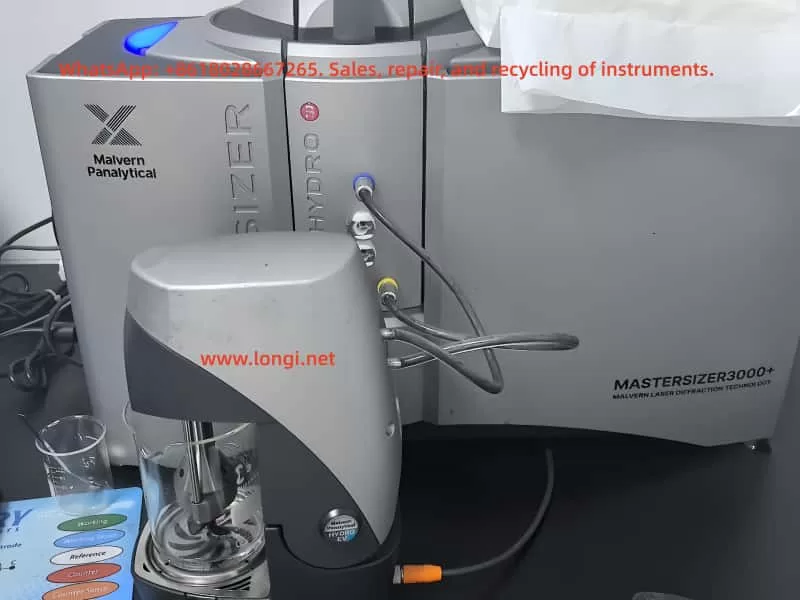
mastersizer3000

2. Why This Fault Should Not Be Judged as Instrument Hardware Damage First

A Malvern Mastersizer 3000 system consists of several layers. The analyzer hardware is only one part of the system. The software layer must start correctly before any meaningful judgment can be made about the instrument body.

If the instrument hardware were the direct cause, the software would usually open first and then show instrument-related errors, such as:

Instrument not found

Communication failure

Laser status abnormal

Optical alignment failure

Background signal abnormal

Wet dispersion unit not detected

Dry dispersion unit not detected

SOP cannot initialize the accessory

Obscuration cannot be stabilized

Measurement signal unstable

In contrast, when the software crashes during the splash screen stage, before entering the main interface, the problem is normally located in the PC-side software environment. At this moment, the software may not even have started instrument communication. It may still be loading its program framework, local database, services, configuration files, user profile, report templates, runtime libraries, or graphical components.

Therefore, if the software fails before reaching the main interface, the correct diagnostic direction is:

First diagnose the computer, operating system, software installation, runtime components, database, configuration files, and services. Do not disassemble the particle size analyzer body at this stage.

A simple but important test is to disconnect the instrument from the computer and then open the software alone. If the software still reports the same Application Error without any instrument connected, the fault is almost certainly not caused by the analyzer hardware.
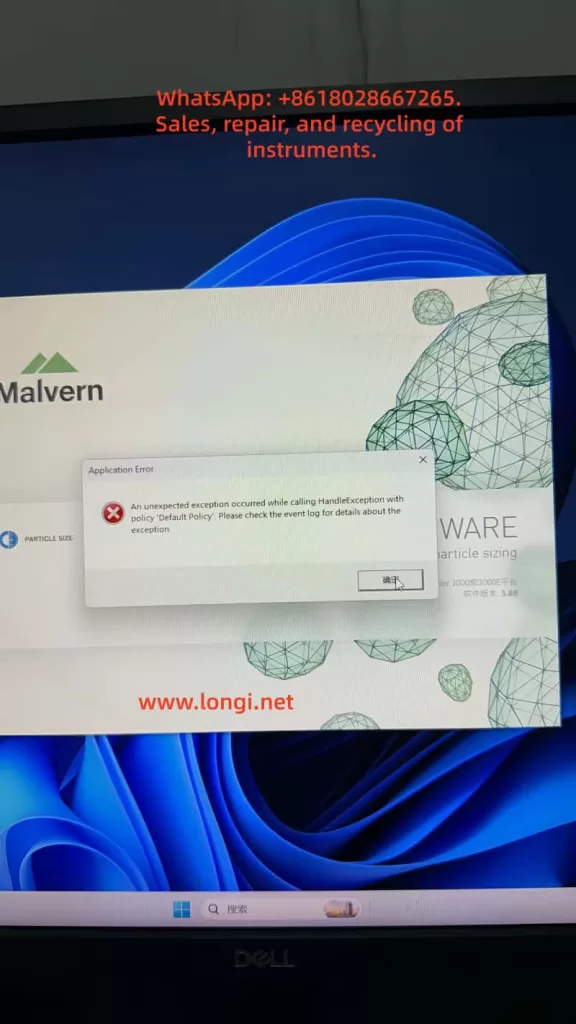
Application Error  of the mastersizer3000

3. Meaning of the Application Error Message

Windows Application Error is a general crash event. It does not represent one specific Malvern fault code. It only means that a program encountered an unhandled exception and Windows recorded the crash.

The most important fields in Windows Event Viewer are:

Faulting application name

Faulting module name

Exception code

Fault offset

Process ID

Application path

Module path

Time of event

Among these fields, the most important one is the faulting application name.

If the faulting application name is Mastersizer.exe, Malvern.exe, MalvernPanalytical-related executable, or another executable clearly belonging to the Mastersizer software, the log is useful for diagnosing the Mastersizer software failure.

If the faulting application name is mmc.exe, then the crashed program is not Mastersizer. mmc.exe is Microsoft Management Console. Windows Event Viewer, Device Manager, Services, and many Windows administrative tools run under mmc.exe.

For example, if the Event Viewer shows:

Faulting application name: mmc.exe

Faulting module name: KERNELBASE.dll

Application path: C:\Windows\System32\mmc.exe

This means the Windows management console itself crashed. It does not prove that the Mastersizer 3000 software crashed in KERNELBASE.dll. It also does not tell us which Mastersizer component failed.

This distinction is very important. A wrong interpretation of the Event Viewer log can lead to a completely wrong repair direction.

4. Understanding KERNELBASE.dll in the Event Log

KERNELBASE.dll is a core Windows system component. Many application exceptions are eventually reported through KERNELBASE.dll. Therefore, seeing KERNELBASE.dll in the faulting module field does not automatically mean that KERNELBASE.dll itself is damaged.

KERNELBASE.dll often appears when an application throws an exception that is not properly handled. The real cause may be:

.NET runtime exception

Application configuration error

Database access failure

Missing software dependency

Permission problem

Program module conflict

Windows compatibility problem

Access violation

Damaged user profile

Security software blocking the program

Corrupted application file

If the exception code is 0xe0434352, it often indicates a .NET-related exception. If the exception code is 0xc0000005, it often indicates an access violation, which may be caused by a damaged module, incompatible driver, memory access issue, or software conflict.

However, the KERNELBASE.dll record is only meaningful if the faulting application is the Mastersizer software. If the faulting application is mmc.exe, that record belongs to Windows Event Viewer or another Windows console tool, not to the Malvern application.

5. Windows 11 Compatibility Risk with Older Instrument Software

Many laboratory instruments are designed and validated for specific Windows versions. An instrument software package may install successfully on a newer Windows system, but that does not mean it is fully compatible or stable.

In many real service cases, older scientific instrument software may work reliably on Windows 10 but fail on Windows 11, especially after major Windows updates. Mastersizer 3000 software version 3.88, for example, may encounter compatibility risks on a newer Windows 11 environment, depending on the exact software release, driver package, service components, and instrument configuration.

Possible symptoms include:

Software installs but cannot start

Software starts but crashes at the splash screen

Local database cannot initialize

Malvern service fails to start

USB or Ethernet instrument driver does not load correctly

Software cannot register required components

Report or graph module fails to initialize

.NET component throws an exception

User configuration cannot be read

Windows security settings block background services

For normal office applications, Windows 11 may be suitable. For laboratory instrument software, however, stability and validated compatibility are more important than using the newest operating system.

If the problem appeared after replacing the computer, reinstalling the operating system, or upgrading to Windows 11, system compatibility should be treated as a high-priority suspect.

A practical service recommendation is to test the same Mastersizer software version on a clean Windows 10 64-bit computer. If the software opens normally on Windows 10 but not on Windows 11, the problem is very likely related to operating system compatibility or software environment differences.

6. What the Mastersizer 3000 Software Loads During Startup

When the Mastersizer 3000 software starts, it does much more than display a user interface. During startup, it may load and initialize:

Main application framework

User profile

Instrument configuration

Local database

Measurement records

SOP methods

Report templates

Analysis calculation modules

Graphical display components

Malvern background services

Communication services

USB or Ethernet drivers

License or authorization components

Cloud or update services

Windows user permissions

Temporary folders and cache files

If any of these components are missing, damaged, blocked, or incompatible, the software may crash before reaching the main interface.

For example, if the user configuration file is damaged, the software may fail while loading the last used instrument, window layout, default method, or user preference settings. If the local database is damaged, the software may fail while reading historical measurement data or method libraries. If a background service is not running, the main program may fail when trying to communicate with that service.

Therefore, the startup phase should be treated as a software environment initialization process, not as an instrument measurement process.

7. Recommended Diagnostic Procedure

A structured diagnostic sequence is essential. The goal is to separate software failure from hardware failure, then identify the exact software layer causing the crash.

Step 1: Disconnect the Instrument and Start the Software Alone

Disconnect the Mastersizer 3000 instrument body from the computer. Also disconnect wet dispersion units, dry dispersion units, USB cables, Ethernet cables, and any external accessories if possible.

Then start the Mastersizer software alone.

If the software opens normally without the instrument connected, the software itself may be functional, and the problem may be related to instrument communication, device driver initialization, or a connected accessory.

If the software still reports the same Application Error, the fault is most likely in the computer, software installation, database, configuration files, Windows environment, or runtime components.

This is the first and most important separation test.

Step 2: Run the Software as Administrator

Right-click the Mastersizer 3000 shortcut and choose Run as administrator.

If the software opens correctly as administrator, the fault may be caused by insufficient user permissions, blocked access to the database folder, blocked configuration directory, or restricted service communication.

If the software still reports the same error, the problem is not simply caused by normal user permissions.

Step 3: Find the Correct Event Viewer Log

Open Windows Event Viewer:

Windows Logs → Application

Run the Mastersizer software again and allow it to fail. Record the exact time of the error. Then check the Application log around that time.

Look for entries from:

Application Error

Windows Error Reporting

.NET Runtime

Application Hang

MalvernPanalytical

Malvern

Mastersizer

Open each related record and confirm the faulting application name.

A valid record should show a faulting application related to Mastersizer or Malvern. If the application name is mmc.exe, the user has selected the wrong record. That record belongs to Windows Event Viewer or another Windows management console.

The following fields should be recorded:

Faulting application name

Faulting module name

Exception code

Application path

Module path

Fault offset

Only after these details are available can the next diagnostic step be accurate.

Step 4: Check Malvern Services

Press Win + R, type:

services.msc

Then check whether Malvern or MalvernPanalytical services are present and running. Depending on the software version, there may be services related to cloud communication, data, instrument communication, update functions, or background control.

If a Malvern service is stopped, try to start it manually. If it fails to start, record the error message. A service that cannot start may indicate:

Damaged installation

Missing dependency

Permission issue

Database problem

Windows service registration failure

Security software blocking the service

The Mastersizer front-end software may rely on these background services. If service communication fails, the main software may crash during startup.

Step 5: Confirm the Windows Version

Confirm the operating system details:

Windows 10 or Windows 11

64-bit or 32-bit

Exact Windows build version

Whether Windows was recently updated

Whether the computer was recently replaced

Whether the software was installed on a newly prepared system

If the system is Windows 11 and the Mastersizer software version is older, compatibility must be considered. Testing on Windows 10 64-bit is often the fastest way to confirm whether the operating system is part of the problem.

Step 6: Check Recent Installation or Repair Activity

If the Event Viewer shows many MsiInstaller records, it may indicate that Windows Installer recently installed, repaired, reconfigured, or checked software components.

Ask the user:

Was the software recently installed?

Was the operating system reinstalled?

Was the software copied from another computer instead of installed properly?

Was a software repair attempted?

Were Malvern components removed?

Was a cleaner tool used?

Was antivirus software recently installed?

Was Windows recently updated?

Were ProgramData or AppData folders deleted?

A failed or incomplete installation is a common cause of startup errors.

Step 7: Back Up Data Before Repairing or Reinstalling

Before repairing or reinstalling the software, back up all important user data. This may include:

Measurement records

SOP methods

Report templates

Instrument configuration

User settings

Databases

Calibration-related records

Do not simply delete Malvern folders. Some folders may contain important laboratory data.

Possible data locations include:

C:\ProgramData\Malvern Instruments

C:\ProgramData\Malvern Panalytical

C:\Users\Public\Documents\Malvern Instruments

C:\Users[User]\AppData\Roaming\Malvern

C:\Users[User]\AppData\Local\Malvern

The exact location depends on software version and installation configuration, but the principle is the same: back up before removing or reinstalling.

8. Database or Configuration File Damage

Damaged configuration files or local databases are common in laboratory software. They may be caused by:

Unexpected power failure

Forced shutdown during software operation

Software crash during measurement

Disk space shortage

Antivirus quarantine

Windows update changing permissions

Damaged Windows user profile

File system error

Improper software migration

Manual deletion of folders

Typical symptoms include:

Software crashes before the main interface opens

Software cannot load methods

Historical records cannot be opened

Report templates disappear

Only one Windows user account fails

New Windows user account works

Software crashes when loading the last used configuration

A useful test is to create a new Windows administrator account and run the Mastersizer software from that account. If the software opens under a new user but not under the original user, the original user profile or user-level configuration is likely damaged.

If the software fails under all Windows users, the problem is more likely in the common software installation, database, runtime components, Windows services, or operating system compatibility.

9. .NET Framework and Visual C++ Runtime Issues

Many scientific instrument programs depend on Microsoft .NET Framework and Microsoft Visual C++ Redistributable packages. If these components are missing or damaged, the software may report Application Error, .NET Runtime error, KERNELBASE.dll exception, or crash during startup.

Important points:

Installing only the latest runtime may not be enough. Older software may require a specific Visual C++ runtime version.

Both x86 and x64 runtime packages may be required, even on a 64-bit Windows system.

.NET Framework 4.x components should be checked and repaired if the log points to .NET Runtime.

If the Event Viewer shows .NET Runtime, clr.dll, or exception code 0xe0434352, the issue should be treated as a .NET application exception.

In such cases, repair actions may include:

Repairing .NET Framework

Enabling required Windows .NET features

Repairing Visual C++ Redistributables

Reinstalling the Malvern software

Running the installer as administrator

Checking whether antivirus software blocked registration of DLL files

10. Instrument Communication and Driver Problems

Even though startup failure is usually a PC-side issue, communication and driver problems should not be ignored completely. Some instrument software automatically scans connected hardware during startup. If a device driver or external accessory responds abnormally, the software may crash.

This is why the disconnected-instrument test is necessary.

If the software opens when the instrument is disconnected but crashes when the instrument is connected, check:

Instrument power supply

USB or Ethernet cable

USB port stability

Device Manager recognition

Malvern instrument driver installation

IP address or network configuration

Firewall settings

Wet dispersion unit connection

Dry dispersion unit connection

Accessory communication

Malvern service status

For laboratory instruments, avoid unstable USB hubs, long USB extension cables, front-panel USB ports, and docking stations whenever possible. Direct rear-panel USB or a stable Ethernet connection is preferred.

11. How to Explain the Problem to the Customer

A professional explanation to the customer should avoid premature conclusions. The recommended wording is:

Based on the current symptom, the Mastersizer 3000 software crashes during startup before entering the main operating interface. This suggests a PC-side software or Windows environment issue rather than direct damage to the particle size analyzer hardware. The next step is to disconnect the instrument and open the software alone, then check the correct Windows Event Viewer record. The useful record must show Mastersizer or Malvern as the faulting application. If the log shows mmc.exe, it is the Windows Event Viewer itself and not the Mastersizer software. After the correct log is confirmed, we can determine whether the fault is related to .NET, KERNELBASE.dll, Malvern software modules, database files, configuration files, services, drivers, or Windows compatibility.

This explanation is clear and technically accurate. It also prevents the customer from unnecessarily disassembling the instrument or sending the analyzer body for repair before software-side diagnosis is complete.

12. Practical Service Strategy for Repair Companies

For a repair company or third-party service provider, this type of fault should be handled in three levels.

Level 1: Remote Diagnosis

Collect:

Photos of the error message

Video of the startup process

Software version

Windows version

Instrument connection status

Event Viewer details

Malvern service status

Recent installation or update history

The goal is to confirm whether the problem is software-side or hardware-side.

Level 2: PC-Side Software Repair

If the fault is confirmed as a PC-side software problem, the repair work may include:

Backing up data

Repairing runtime libraries

Repairing .NET Framework

Checking Windows services

Checking Malvern services

Reinstalling the Mastersizer software

Reinstalling drivers

Creating a new Windows user

Checking compatibility mode

Testing on Windows 10 64-bit

Level 3: Full Instrument Commissioning

Only after the software opens normally should the instrument be connected for complete testing.

Commissioning should include:

Instrument recognition

Communication stability

Laser status

Background signal

Optical alignment

Wet or dry dispersion unit recognition

Standard sample repeatability

SOP loading

Data saving and report generation

This sequence avoids unnecessary hardware repair and protects customer data.

13. Folders That Should Not Be Deleted Carelessly

Customers sometimes try to solve software problems by deleting folders. This is risky because laboratory software may store important data in hidden or system folders.

Avoid deleting Malvern-related folders before backup. They may contain:

Measurement history

SOP methods

User configuration

Report templates

Instrument configuration

Database files

Calibration-related files

Cache files

Important locations may include:

C:\ProgramData\Malvern Instruments

C:\ProgramData\Malvern Panalytical

C:\Users\Public\Documents\Malvern Instruments

C:\Users[User]\AppData\Roaming\Malvern

C:\Users[User]\AppData\Local\Malvern

Before reinstalling software, always back up these folders or use the manufacturer-recommended backup method.

14. Case-Based Preliminary Conclusion

Based on the described case, the following conclusions can be made:

The Mastersizer 3000 software displays an Application Error during startup.

The software crashes before entering the main operating interface.

Running as administrator does not solve the issue.

The Event Viewer contains Application Error and Windows Error Reporting records.

One opened Application Error 1000 record shows faulting application name mmc.exe, which means it is a Windows Event Viewer or Microsoft Management Console crash, not the Mastersizer software crash.

The computer appears to be running a newer Windows 11 environment.

Mastersizer 3000 software version 3.88 may have compatibility risks on newer Windows 11 systems.

There is currently no evidence proving damage to the analyzer hardware, laser unit, optical bench, or dispersion unit.

The next step is to generate the Mastersizer error again and locate the correct Event Viewer record where the faulting application is Mastersizer or Malvern.

If the software still crashes with the instrument disconnected, the fault should be handled as a PC-side software environment issue.

If the software opens when the instrument is disconnected but crashes when the instrument is connected, then instrument communication, drivers, or accessory hardware should be checked.

The most reasonable current repair direction is:

Repair or verify the PC-side software environment first, then perform instrument communication and hardware commissioning. Do not disassemble the analyzer body before confirming that the software can start correctly.

15. Recommended Final Troubleshooting Workflow

The following workflow is recommended for field service:

Disconnect the Mastersizer instrument and all accessories from the computer.

Start the Mastersizer software alone.

If the error appears again, record the exact time.

Open Windows Event Viewer.

Go to Windows Logs → Application.

Find records around the exact error time.

Open Application Error, Windows Error Reporting, and .NET Runtime records.

Confirm whether the faulting application is Mastersizer or Malvern.

Ignore records where the faulting application is mmc.exe unless troubleshooting Windows itself.

Record the faulting module and exception code.

Check Malvern services in services.msc.

Create a new Windows administrator account and test again.

Confirm whether the computer is Windows 10 or Windows 11.

If using Windows 11, test the same software on Windows 10 64-bit.

Back up measurement data, SOP methods, reports, and configuration files.

Repair or reinstall the Mastersizer software and required runtime components.

Restart the computer.

Start the software without the instrument connected.

If the software opens normally, reconnect the instrument.

Test communication, laser status, background signal, dispersion unit recognition, and standard sample repeatability.

This workflow is practical, safe, and technically logical. It reduces misdiagnosis and avoids unnecessary hardware repair.

16. Conclusion

A Malvern Mastersizer 3000 Application Error during software startup should be treated as a software-side startup failure until proven otherwise. When the error occurs before the main interface opens, the most likely causes are Windows compatibility, damaged software components, missing runtime libraries, corrupted configuration files, database problems, Malvern service failure, or driver conflicts.

The Windows Event Viewer is useful, but only if the correct record is selected. If the faulting application is mmc.exe, the crash belongs to Microsoft Management Console, not to the Mastersizer software. The useful log must show Mastersizer or Malvern as the faulting application. The faulting module, exception code, and application path should then be used to determine the next repair step.

For this type of fault, the correct principle is:

Software before hardware.

Logs before disassembly.

Backup before reinstallation.

Offline startup before instrument connection.

Windows compatibility before component-level repair.

Following this approach protects customer data, avoids unnecessary instrument disassembly, and greatly improves the accuracy of the diagnosis.
Posted on

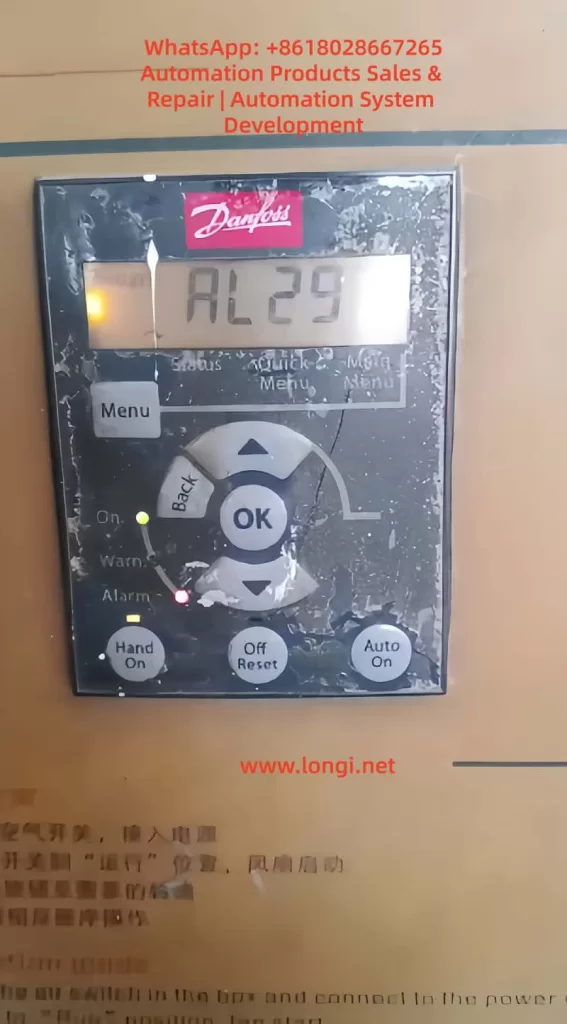
Danfoss FC-051 Inverter AL29 Overtemperature Alarm: Causes, Diagnosis, and Repair Methods

The Danfoss VLT Micro Drive FC-051 is a compact general-purpose inverter widely used in fans, pumps, conveyors, packaging machines, light industrial equipment, mixers, textile machines, and standard three-phase asynchronous motor speed control systems. Because of its compact structure, limited heat dissipation space, and frequent use in dusty electrical cabinets, the FC-051 may report temperature-related faults after long-term operation. One of the common alarms seen on site is AL29.

When a Danfoss FC-051 displays AL29, it usually indicates an overtemperature condition in the power section, power board, heatsink, or related temperature detection circuit. The drive stops output to protect the IGBT module, rectifier bridge, DC bus capacitors, and gate drive circuit. This alarm should not be treated as a simple parameter error. It is a thermal protection alarm, and the correct troubleshooting direction should focus on cooling, load current, cabinet ventilation, ambient temperature, fan condition, and the temperature feedback circuit.

  1. Meaning of AL29 on Danfoss FC-051
AL29 FAULT OF FC-051 VFD

AL29 on the Danfoss FC-051 can generally be understood as a power board or heatsink overtemperature alarm. It means that the internal temperature of the drive has reached the protection threshold, or the temperature detection circuit has sent an abnormal high-temperature signal to the control board.

Inside the inverter, the main heat-generating components include the rectifier bridge, IGBT module, braking circuit, DC bus capacitors, switching power supply, power resistors, and high-current copper traces on the power board. Among these, the IGBT module and heatsink area are usually the most critical parts related to AL29.

During operation, the input AC power is rectified into DC bus voltage. The IGBT module then switches at high frequency to generate variable-frequency and variable-voltage three-phase output for the motor. The IGBT produces conduction loss and switching loss. The heavier the load and the higher the output current, the more heat the power module generates. If this heat cannot be removed quickly, the heatsink temperature rises. When the temperature reaches the trip point, the inverter stops output and displays AL29.

Therefore, AL29 is a protection result, not a single fixed component failure. It may be caused by real overheating due to poor cooling, a damaged cooling fan, excessive output current, overload, poor cabinet ventilation, high carrier frequency, or a faulty temperature detection circuit.

  1. Why the FC-051 Is Prone to AL29

The FC-051 is a compact inverter. Many machines install it in a small control cabinet to save space. Sometimes several drives are mounted close to each other, with insufficient clearance at the top and bottom. For small drives, users often underestimate the importance of airflow and heat dissipation.

In actual industrial environments, the control cabinet may also contain contactors, power supplies, PLCs, servo drives, braking resistors, transformers, and other heat-generating components. If the cabinet is closed, the filter is blocked, or the cabinet fan does not work properly, the internal cabinet temperature can be much higher than the workshop temperature.

For example, the workshop temperature may be 35°C, but the internal cabinet temperature may rise to 45°C or even higher. If the inverter is running near full load under such conditions, the thermal margin becomes very small. AL29 then becomes likely, especially during summer, continuous operation, or high-load operation.

The FC-051 is also commonly used on fans and pumps. After long-term use, these machines may develop mechanical problems such as bearing wear, blocked impellers, dirty fan blades, pipe blockage, excessive pressure, belt over-tension, or increased mechanical resistance. These issues increase motor current and make the inverter heat up. In many cases, the drive alarm is only the visible symptom, while the real cause is a mechanical load problem.

  1. Common Causes of AL29

3.1 Blocked cooling path and dusty heatsink

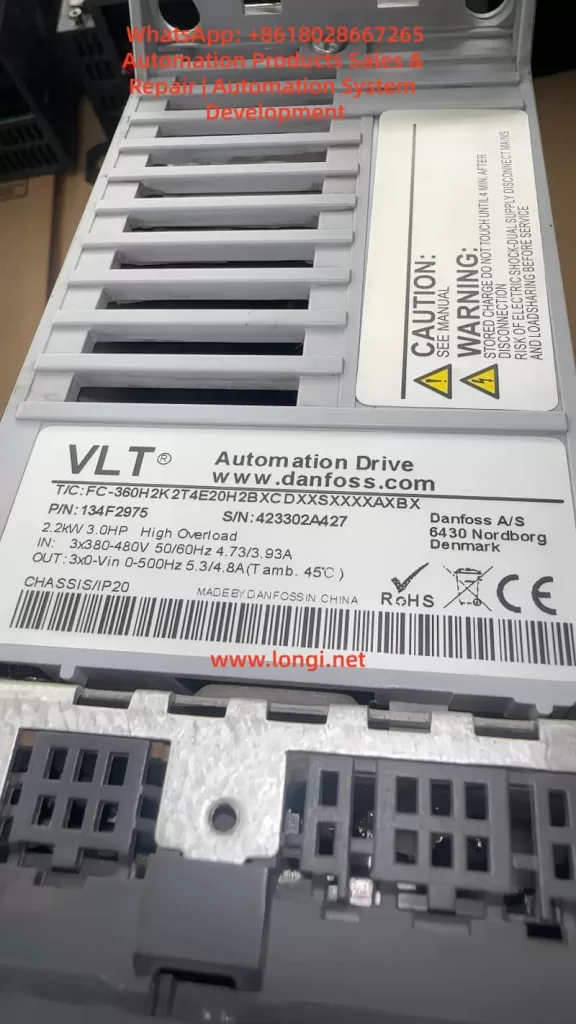
FC-360H2K2T4E20H2B

A very common cause of AL29 is dust blockage. If the front panel of the inverter is already covered with dust, the rear heatsink, bottom air inlet, top air outlet, and internal airflow path may also be dirty.

The inverter does not mainly dissipate heat through the front panel. The heat from the IGBT module is transferred to the heatsink through thermal grease and then removed by airflow. If the heatsink fins are blocked by dust, oil, cotton fiber, metal powder, or other contaminants, air cannot flow through the fins properly. Even if the load current is not excessive, the inverter may still trip on AL29 after running for some time.

In dusty environments, overtemperature alarms often become more frequent gradually. At first, the drive may trip only occasionally in summer. Later, it may trip after a few hours. Eventually, it may trip after only several minutes of operation. This pattern usually indicates worsening cooling conditions, fan aging, or heatsink contamination.

3.2 Cooling fan failure

Some FC-051 models or power ratings use a cooling fan. The fan must be checked carefully when troubleshooting AL29.

Fan faults include complete failure to rotate, slow rotation, difficult starting, intermittent stopping, bearing noise, vibration, dirty blades, or insufficient airflow. A fan may still rotate but provide very little airflow because of aging bearings or dust accumulation. This is why simply seeing the fan rotate is not enough. The actual airflow must also be checked.

The correct inspection method is to observe the fan during startup, listen for abnormal sound, feel the airflow at the air outlet, check the fan connector, and measure the fan supply voltage if necessary. If the fan is noisy, weak, unstable, or slow to start, it should be replaced.

3.3 Poor cabinet ventilation or high ambient temperature

Poor ventilation is one of the most common site-related causes. The drive may be installed too close to other components. The top outlet may be blocked by wiring ducts. The lower air inlet may be restricted by terminals or cables. Several drives may be mounted vertically, causing the upper drive to inhale hot air from the lower drive.

A control cabinet must have a clear airflow path. If there is no cabinet fan, if the filter cotton is blocked, or if the cabinet is located near a heat source, the internal temperature will rise. Under this condition, AL29 is not caused by a single defective part but by poor thermal design of the cabinet.

The cabinet temperature, inverter inlet temperature, outlet temperature, and heatsink temperature should be measured during continuous operation. If the internal cabinet temperature is too high, improving cabinet ventilation is necessary. Repeatedly resetting the alarm will not solve the problem.

3.4 Excessive load or mechanical resistance

The output current of the inverter directly affects heat generation. If the motor load is heavy, the inverter output current increases, and the power module produces more heat. If AL29 appears after a period of operation and the motor sounds heavy, the current should be checked immediately.

Common mechanical causes include damaged bearings, dry bearings, dirty fan impellers, blocked air ducts, stuck pump impellers, high pipe pressure, wrong valve position, tight belts, gearbox problems, heavy material load, misaligned couplings, or brakes not fully released.

A frequent mistake is to assume that the inverter is faulty just because it trips. In reality, the machine load may have changed after years of use. A motor that previously ran at 60% rated current may now run at 90% or higher due to mechanical deterioration. The inverter will naturally heat up more and may trip on AL29.

3.5 Undersized inverter

If the motor rated current is close to or higher than the inverter rated output current, the drive may run near its thermal limit. This is especially risky in high-temperature cabinets, continuous-duty operation, heavy starting conditions, frequent acceleration, or low-speed high-torque applications.

Some users select replacement drives only by kilowatt rating and ignore rated current, overload capacity, load type, and cooling margin. Different inverter series may have different overload capability even at the same power rating. If the drive is undersized, AL29 can occur even if the drive itself is not defective.

To evaluate sizing, compare the motor nameplate current, the inverter rated output current, and the actual running current. If the actual current is continuously close to the drive rating, a larger inverter or load reduction may be required.

3.6 Carrier frequency set too high

A higher carrier frequency can reduce motor noise, but it also increases IGBT switching losses. This causes the inverter to run hotter. If the FC-051 is used in a normal fan or pump application, unnecessarily high carrier frequency should be avoided.

When AL29 occurs and cooling conditions appear acceptable, check whether the carrier frequency has been set too high. Reducing the carrier frequency can lower inverter heat generation and improve thermal stability.

3.7 Acceleration time too short or frequent start-stop operation

During acceleration, the inverter may need to provide high current to the motor. If the acceleration time is too short, current stress increases. In high-inertia loads or machines with frequent start-stop cycles, the drive may repeatedly operate under high thermal stress.

For conveyors, mixers, centrifuges, packaging machines, and similar equipment, check the acceleration time, deceleration time, braking method, load inertia, and start-stop frequency. Excessive acceleration current can contribute to overheating and eventually trigger AL29.

3.8 Aging thermal grease or poor contact between module and heatsink

After years of use, the thermal grease between the IGBT module and the heatsink may dry out, crack, or lose thermal conductivity. Loose screws or poor mounting after repair can also reduce heat transfer.

In this condition, the outside of the heatsink may not feel extremely hot, but the internal junction temperature of the IGBT may be high. If the inverter has been used for many years, or if the module was previously removed, the thermal interface should be checked. Old grease should be cleaned, new thermal grease should be applied thinly and evenly, and the module should be tightened properly.

3.9 Faulty temperature detection circuit

If the drive displays AL29 immediately after power-on while the heatsink is still cold, it is unlikely to be a real overtemperature condition. The temperature detection circuit should then be suspected.

The temperature feedback circuit may include an NTC thermistor, voltage divider resistors, filter capacitors, connector wiring, and an ADC input on the control board. An open thermistor, shorted thermistor, drifting resistor, corroded connector, damaged cable, or faulty ADC circuit can cause a false overtemperature alarm.

This type of fault cannot be solved by cleaning the heatsink or replacing the fan. The thermistor resistance should be measured at room temperature and compared with a known good unit if possible. Heating the sensor slightly should cause a predictable resistance change. If the resistance is open, shorted, or abnormal, the sensor or related circuit must be repaired.

3.10 Power board abnormal heating

If the inverter still reports AL29 after cleaning, fan replacement, and load verification, the power board should be checked. Possible defects include IGBT aging, rectifier bridge heating, DC bus capacitor degradation, gate drive waveform abnormality, loose power terminals, burned copper traces, or high-resistance connections.

A drive that has operated for a long time under high temperature may suffer from capacitor aging and power semiconductor stress. If the power board shows discoloration, burned terminals, bulging capacitors, or abnormal smell, deeper board-level repair is required.

  1. How to Judge Real Overtemperature or False Alarm

The most important step in troubleshooting AL29 is to determine whether the drive is actually overheating.

If AL29 appears after the drive has been running for some time and the heatsink is hot, this is likely a real overtemperature alarm. The main checks should be cooling path, fan, cabinet temperature, load current, carrier frequency, and mechanical load.

If AL29 appears immediately after power-on while the drive is cold, it is more likely a false overtemperature signal. The main checks should be the temperature sensor, wiring, connector, sampling circuit, and power board.

If AL29 appears mainly in summer, under full load, or only when the cabinet door is closed, the drive may not have a component failure. The problem is more likely insufficient thermal margin, poor ventilation, or high cabinet temperature.

This distinction prevents incorrect repair decisions. Many AL29 cases are misdiagnosed because technicians only reset the alarm or replace parts without checking the operating condition.

  1. Practical Troubleshooting Procedure

First, record the alarm condition. Ask whether AL29 appears immediately after power-on or after running for a period of time. Ask how long the drive runs before tripping, whether the fault happens at high speed or low speed, whether it happens more often in summer, and whether the machine load has recently changed.

Second, disconnect the power safely. The inverter DC bus capacitors can retain dangerous voltage after power-off. Wait for discharge and measure the DC bus voltage before touching internal parts.

Third, inspect the installation. Check whether the drive has enough clearance, whether the air inlet and outlet are blocked, whether wiring ducts are too close, whether multiple drives are installed too tightly, and whether the cabinet fan works.

Fourth, clean the cooling path. Clean the bottom air inlet, top outlet, rear heatsink, fan blades, fan cover, and cabinet filter. Do not only clean the front panel. If the heatsink fins are blocked, the inverter cannot dissipate heat properly.

Fifth, check the cooling fan. Confirm whether the fan starts normally, runs steadily, and provides sufficient airflow. Replace the fan if it is noisy, weak, slow, or intermittent.

Sixth, measure the actual output current. Compare the actual current with the motor nameplate current and inverter rated output current. If the current is too high, inspect the mechanical load and motor condition.

Seventh, perform a light-load or no-load test if possible. If the drive does not trip under no load but trips under load, the mechanical system or load condition is the main suspect. If it trips even under no load, the drive hardware should be checked.

Eighth, review the parameters. Check motor rated voltage, current, frequency, power, acceleration time, deceleration time, carrier frequency, torque boost, and control mode. Incorrect parameters can increase current and heat generation.

  1. Repair Methods

If the cause is poor cooling, clean the heatsink and airflow path thoroughly. Replace old fans and improve cabinet ventilation. Make sure the cabinet has a proper inlet and outlet airflow path. Do not allow hot air to circulate inside the cabinet.

If the fan is faulty, replace it with the correct specification. Pay attention to voltage, size, connector, airflow direction, and mounting position. A fan installed in the wrong direction may appear to work but will not cool the inverter correctly.

If the load is too heavy, repair the mechanical system. Check bearings, belts, couplings, gearboxes, impellers, pipes, valves, brakes, and material load. If the process requires the motor to run continuously at high current, a larger inverter may be needed.

If the carrier frequency is too high, reduce it to a reasonable value. If acceleration is too aggressive, increase the acceleration time. If torque boost is excessive, adjust it properly. Parameter optimization should reduce unnecessary current and heat while maintaining stable machine operation.

If the temperature detection circuit is faulty, inspect the NTC thermistor, connector, cable, sampling resistor, filter capacitor, and control board input. Replace damaged or drifting components. Compare resistance values with a good unit whenever possible.

If the power board is defective, check the IGBT module, rectifier bridge, DC bus capacitors, gate drive circuit, power terminals, and thermal interface. After board repair, the drive should be tested carefully with current limiting, no load, light load, and then full load.

  1. When to Replace the Inverter

Not every AL29 alarm means the inverter must be replaced. If the cause is dust, fan failure, high cabinet temperature, excessive carrier frequency, or mechanical overload, the drive may continue to operate after proper maintenance.

Replacement or major repair should be considered if the drive reports AL29 immediately when cold, the temperature detection circuit is damaged, the power board has burn marks, the IGBT or rectifier bridge is abnormal, the DC bus capacitors are aged, or the drive continues to trip after cleaning and fan replacement.

If the drive has repeatedly operated under overtemperature conditions, internal components may already have suffered thermal stress. Even if it can be reset temporarily, long-term reliability may be poor. For critical production equipment, repeated AL29 alarms should be treated seriously.

  1. Relationship Between AL29 and Other Faults

AL29 may appear together with overload, overcurrent, undervoltage, or overvoltage alarms. For example, a stuck mechanical load may first cause high current, then heat accumulation, and finally AL29. A damaged fan may cause only AL29. Poor cabinet ventilation may cause several drives in the same cabinet to report temperature-related alarms.

Therefore, the alarm code should not be interpreted in isolation. AL29 tells the technician that the drive has detected a thermal problem, but the root cause may be mechanical, electrical, environmental, installation-related, or internal to the power board.

  1. Preventive Maintenance Recommendations

To prevent AL29, the inverter and control cabinet should be maintained regularly. In a clean environment, the airflow path and cabinet filter can be inspected every few months. In dusty, oily, or fiber-rich environments, inspection should be much more frequent.

The fan should be treated as a wear part. If it becomes noisy, unstable, or weak, it should be replaced before it causes repeated shutdowns. The cabinet filter should be cleaned or replaced regularly. The drive should not be installed too close to other heat sources, and sufficient clearance should be maintained.

During routine inspection, record the running current, cabinet temperature, heatsink temperature, and alarm history. If the running current increases compared with previous records, the mechanical load should be checked immediately. Many inverter failures can be predicted by rising current, rising temperature, increasing fan noise, and more frequent alarms.

  1. Example Diagnosis

If a Danfoss FC-051 used on a fan runs for one hour and then displays AL29, and the front panel is covered with dust, the first suspicion should be real overheating. The correct process is to power off safely, clean the heatsink, check the fan, measure cabinet temperature, check output current, and inspect the fan bearings and impeller. If cleaning delays the alarm but does not fully solve it, cabinet ventilation and load current must be checked further.

If another FC-051 displays AL29 immediately after power-on while the heatsink is cold, the problem is different. In that case, cleaning and fan replacement are unlikely to solve the fault. The temperature sensor, connector, sampling circuit, and power board should be checked.

These two examples show that the same AL29 alarm can require completely different repair paths. The key is to analyze the timing, temperature, current, and load condition.

Conclusion

AL29 on a Danfoss FC-051 inverter is mainly a power board or heatsink overtemperature alarm. The most common causes are blocked airflow, dusty heatsink, failed cooling fan, poor cabinet ventilation, high ambient temperature, excessive load current, undersized drive selection, high carrier frequency, aging thermal grease, faulty temperature feedback circuit, or abnormal heating on the power board.

The correct repair method is not to reset the alarm repeatedly or assume that the control board is faulty. The technician must first determine whether the alarm is caused by real overheating or a false temperature signal. If the drive trips after running and the heatsink is hot, focus on cooling, fan, cabinet temperature, load current, and mechanical load. If the drive trips immediately while cold, focus on the temperature sensor, sampling circuit, and power board.

Only by combining temperature measurement, current measurement, airflow inspection, load analysis, and board-level diagnosis can the AL29 fault be solved accurately and reliably.

Posted on

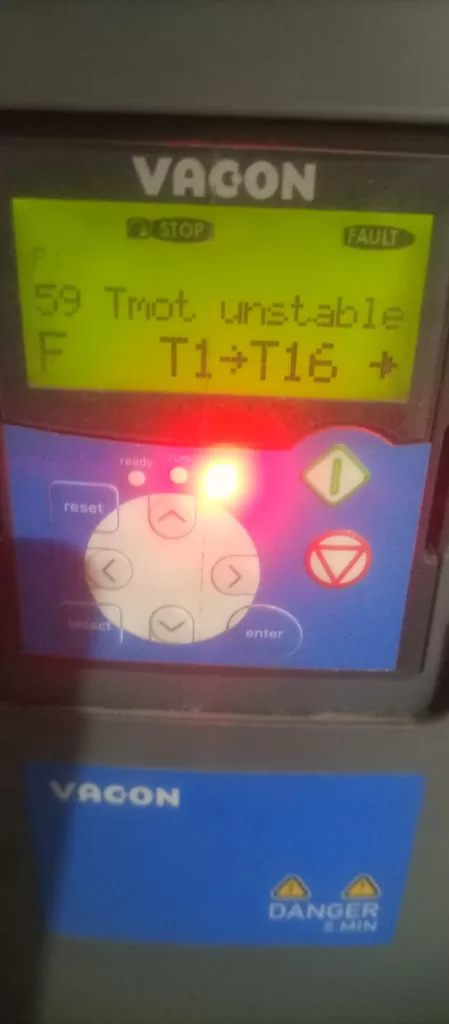
Deep Analysis of VACON Inverter Fault F59: Motor Temperature Signal Instability Diagnostics and Solutions

In modern industrial automation, a Variable Frequency Drive (VFD) is not only a speed controller but also the core of comprehensive motor protection. Among the Vacon (now Danfoss) series, F59 (Tmot unstable) is a highly representative fault code. Unlike the common “F16 Motor Overheat” error, F59 does not necessarily mean the motor is physically overheating; rather, it indicates that the monitoring signal itself is unreliable.

This article provides a deep technical analysis of the F59 fault, covering hardware principles, signal chains, software logic, and Electromagnetic Compatibility (EMC) to offer a practical guide for engineers.


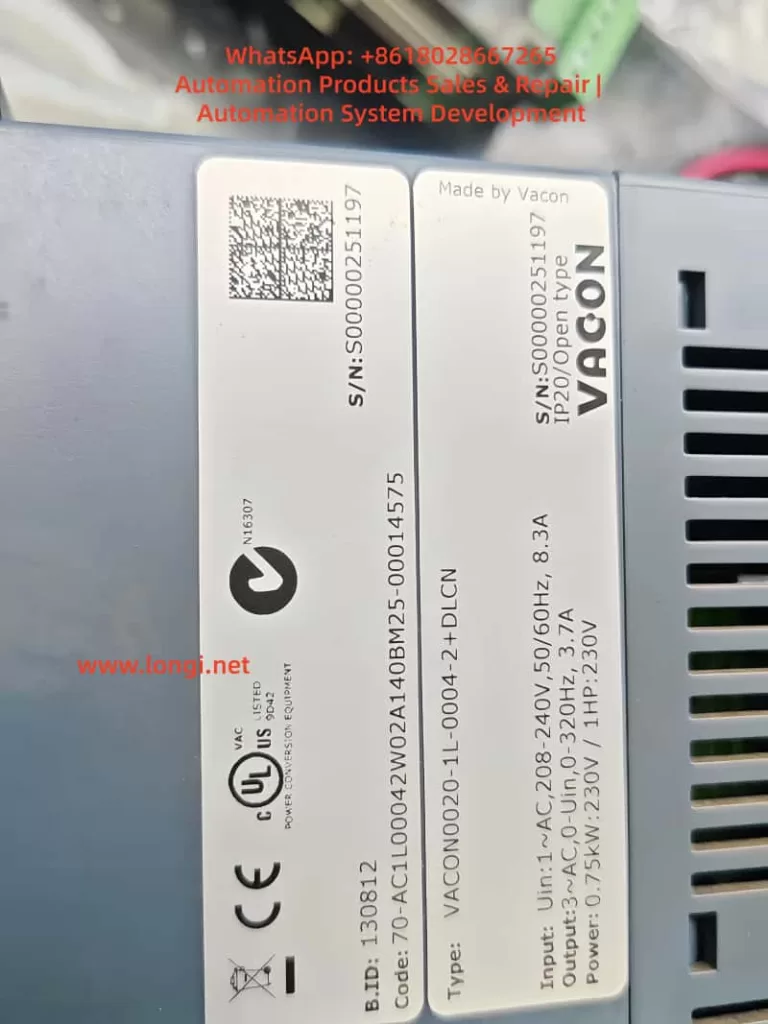
VACON0020-1L-0004-2+DLCN

I. Definition and Essence of F59 “Tmot unstable”

In Vacon firmware, F59 represents “Motor temperature signal unstable.”

1. Fault Logic Mechanism

The inverter reads the resistance of temperature sensors (typically PT100, PT1000, or KTY84) installed in the motor windings via expansion I/O cards (such as OPT-BH or OPT-AF). The microprocessor (MCU) monitors this resistance at millisecond intervals.

If the MCU detects a drastic fluctuation in resistance that contradicts physical laws—for example, a temperature jump of more than 20°C within 100ms—the system deems the signal unstable and triggers F59. This prevents false protection or protection failure due to poor wiring.

2. Difference from F16

  • F16 (Motor Overheat): The signal is stable, but the value exceeds the protection threshold (e.g., 150°C).
  • F59 (Tmot unstable): The signal value itself is erratic, and the inverter cannot confirm the actual motor temperature.

II. Hardware Level: Sensors and Measurement Circuits

Understanding F59 requires knowing how the inverter “perceives” temperature.

1. Sensor Characteristics

Resistance Temperature Detectors (RTDs) are most common. For a PT100 sensor, the resistance at $0^\circ\text{C}$ is $100\Omega$, increasing by approximately $0.385\Omega$ per $1^\circ\text{C}$. When contact resistance or electromagnetic noise is superimposed on the circuit, the measured value oscillates, inducing F59.

2. Vacon Expansion Cards

The display showing T1->T16 suggests a multi-channel temperature acquisition module. Vacon NXP/NXS series often use the OPT-BH module. Because measurement signals are usually at the millivolt (mV) level, they are highly susceptible to interference from high-frequency carrier frequencies.


F59 fault of VACON VFD

III. Four Core Causes of F59 Faults

Based on engineering practice, F59 faults generally stem from four dimensions:

1. Physical Connection: Fatigue and Contact Resistance

  • Loose Terminals: In high-vibration environments, terminals may loosen, causing instantaneous resistance changes.
  • Shielding Failure: If the cable shield is not grounded correctly (e.g., using a long “pig-tail” instead of a 360-degree clamp), shielding effectiveness drops significantly at high frequencies.

2. Environmental Interference: EMC

  • Common Mode Coupling: High $dv/dt$ from the inverter output can couple into sensor cables. Without twisted-pair shielded cables, this noise causes sampling errors.
  • Carrier Interference: High carrier frequencies (e.g., >10kHz) combined with short sampling filter times can lead the MCU to misidentify noise as temperature spikes.

3. Hardware Aging

  • Slot Oxidation: Oxidation between the OPT-BH card and the control board can cause transient communication interruptions.
  • Capacitor Degradation: Aging filter capacitors on the expansion card lose their ability to suppress high-frequency noise.

4. Configuration: Floating Channels

If channels are activated in the software (e.g., T1->T16) but have no physical sensor attached or no matching resistor, induced voltages on these floating channels can interfere with active channels.


IV. Diagnostic Process: Step-by-Step Elimination

Step 1: Static Resistance Test

  1. Power down the inverter and wait 5 minutes.
  2. Disconnect sensor leads and measure resistance with a multimeter.
    • Reference: At $20^\circ\text{C}$, a PT100 should be approx. $107.7\Omega$.
    • Stability: If the value jumps wildly while the motor is static, the sensor or cable is damaged.

Step 2: Signal Loop and Shielding

  1. Ensure sensor cables are not parallel to power cables (maintain >30cm gap).
  2. Key Test: Replace the motor sensor at the inverter terminals with a fixed precision resistor (e.g., $110\Omega$).
    • If the fault disappears, the problem is in the external cable or motor.
    • If the fault persists, the problem is the expansion card or internal logic.

Step 3: Software Parameter Adjustment

  • Temperature Signal Filtering: Increase the filter time constant (e.g., from 1.0s to 3.0s) to smooth out transient pulses.
  • Unused Channels: Deactivate any monitored channels that do not have sensors connected.

V. Preventive Measures

  • Proper Grounding: Use single-ended grounding for sensor signals. The shield should have large-area contact with the inverter chassis via a metal clamp.
  • Signal Conversion: For distances over 50 meters, use a signal transmitter to convert PT100 signals to 4-20mA, which is much more noise-resistant.
  • Routine Maintenance: Periodically re-seat expansion cards to break through oxidation layers on pins.

Conclusion

The F59 Tmot unstable code is a warning regarding signal integrity. As seen in the provided image, the drive is in a STOP state with the red fault light active, indicating the issue exists even when the motor is not running. By focusing on physical connections, EMC shielding, and proper filtering, this technical hurdle can be efficiently resolved to ensure stable production.