Posted on

Comprehensive Guide to Diagnosing and Maintaining Anruiji E6 Series Inverters

— A Focus on “END” Faults and TRIP Light Illumination

Table of Contents

  1. Introduction
  2. Fundamentals of Inverters 2.1 How Inverters Work 2.2 Technical Specifications of Anruiji E6 Series Inverters 2.3 Core Functions and Applications
  3. Basic Fault Diagnosis Process 3.1 Classification of Fault Phenomena 3.2 Steps for Fault Diagnosis
  4. In-Depth Analysis of “END” Faults and TRIP Light Illumination 4.1 Definition and Manifestation of Faults 4.2 Possible Causes of Faults 4.3 Viewing and Interpreting Fault Codes
  5. Common Fault Types and Solutions 5.1 Overcurrent Faults (OC1/OC2/OC3) 5.2 Overload Faults (OL1/OL2) 5.3 Phase Loss Faults (SP1/SP0) 5.4 Overvoltage/Undervoltage Faults (OV1/OV2/UV) 5.5 Motor Parameter Autotuning Faults (TE) 5.6 External Faults (EF)
  6. Principles and Troubleshooting of Motor Parameter Autotuning 6.1 Purpose and Process of Autotuning 6.2 Causes and Solutions for Autotuning Failures
  7. Maintenance and Upkeep of Inverters 7.1 Daily Maintenance Checklist 7.2 Periodic Maintenance Procedures 7.3 Replacement of Wear-Prone Components
  8. Advanced Fault Diagnosis Techniques 8.1 Using Oscilloscopes for Signal Analysis 8.2 Diagnosing Issues via Analog Inputs and Outputs 8.3 Remote Monitoring through Communication Functions
  9. Case Studies 9.1 Case Study 1: “END” Fault Due to Failed Motor Parameter Autotuning 9.2 Case Study 2: TRIP Light Illumination Caused by Overcurrent 9.3 Case Study 3: Inverter Shutdown Due to Input Phase Loss
  10. Preventive Measures and Best Practices 10.1 Avoiding Common Faults 10.2 Best Practices for Parameter Settings 10.3 Environmental Factors Affecting Inverters
  11. Conclusion

1. Introduction

Inverters are pivotal components in modern industrial automation systems, widely used for motor control, energy conservation, and precise speed regulation. The Anruiji E6 series inverters are renowned for their high performance, reliability, and extensive functionality. However, inverters can encounter various faults during operation, such as the “END” fault and TRIP light illumination, which can disrupt production and potentially damage equipment.

This article focuses on the Anruiji E6 series inverters, providing an in-depth analysis of the causes, diagnostic methods, and solutions for “END” faults and TRIP light illumination. Combined with practical case studies, this guide offers a systematic approach to troubleshooting and maintenance, helping engineers and technicians quickly identify and resolve issues to restore production efficiency.


2. Fundamentals of Inverters

2.1 How Inverters Work

Inverters adjust the frequency and voltage of the input power supply to achieve precise control of AC motors. Key components include:

  • Rectifier Unit: Converts AC power to DC power.
  • Filter Unit: Smooths the DC voltage.
  • Inverter Unit: Converts DC power back to adjustable frequency and voltage AC power.
  • Control Unit: Adjusts output frequency and voltage based on set parameters and feedback signals.

2.2 Technical Specifications of Anruiji E6 Series Inverters

The Anruiji E6 series inverters feature:

  • Input/Output Characteristics:
    • Input Voltage Range: 380V/220V ±15%
    • Output Frequency Range: 0~600Hz
    • Overload Capacity: 150% rated current for 60s, 180% rated current for 10s
  • Control Modes:
    • Sensorless Vector Control (SVC)
    • V/F Control
    • Torque Control
  • Functional Features:
    • PID Control, Multi-Speed Control, Swing Frequency Control
    • Instantaneous Power Loss Ride-Through, Speed Tracking Restart
    • 25 types of fault protection functions

2.3 Core Functions and Applications

Inverters are widely used in:

  • Fans and Pumps: Achieving energy savings through speed regulation.
  • Machine Tools and Injection Molding Machines: Precise control of speed and torque.
  • Cranes and Elevators: Smooth start/stop operations to reduce mechanical stress.
  • Textile and Fiber Industries: Swing frequency control for uniform winding.

3. Basic Fault Diagnosis Process

3.1 Classification of Fault Phenomena

Inverter faults can be categorized as:

  • Hardware Faults: Such as IGBT damage, capacitor aging, and loose connections.
  • Parameter Faults: Incorrect parameter settings or failed autotuning.
  • Environmental Faults: Overheating, high humidity, and electromagnetic interference.
  • Load Faults: Motor stalling, excessive load, or mechanical jamming.

3.2 Steps for Fault Diagnosis

  1. Observe Fault Phenomena: Note display messages and indicator light statuses.
  2. Check Fault Codes: Retrieve specific fault codes via the panel or communication software.
  3. Analyze Possible Causes: Refer to the manual to list potential causes based on fault codes.
  4. Systematic Troubleshooting: Start with simple checks and progress to more complex issues.
  5. Verification and Repair: After fixing the fault, restart the inverter to verify the solution.

4. In-Depth Analysis of “END” Faults and TRIP Light Illumination

4.1 Definition and Manifestation of Faults

  • “END” Display: Typically appears after motor parameter autotuning or parameter setting completion. If accompanied by the TRIP light, it indicates a fault during autotuning or operation.
  • TRIP Light Illumination: Indicates that the inverter has triggered a fault protection and stopped output.

4.2 Possible Causes of Faults

  1. Failed Motor Parameter Autotuning:
    • Motor not disconnected from the load (autotuning requires no load).
    • Incorrect motor nameplate parameters (F2.01~F2.05).
    • Inappropriate acceleration/deceleration times (F0.09, F0.10) causing overcurrent.
  2. Overcurrent Faults:
    • Motor stalling or excessive load.
    • Unstable input voltage (undervoltage or overvoltage).
    • Mismatch between inverter power and motor power.
  3. Overload Faults:
    • Motor operating under high load for extended periods.
    • Overload protection parameter (Fb.01) set too low.
  4. Input/Output Phase Loss:
    • Loose connections in input (R, S, T) or output (U, V, W).
  5. Overvoltage/Undervoltage:
    • Significant input voltage fluctuations.
    • Short deceleration time causing energy feedback and bus overvoltage.

4.3 Viewing and Interpreting Fault Codes

  • Press PRG/ESC or DATA/ENT to view specific fault codes (e.g., OC1, OL1, TE).
  • Refer to the “Fault Information and Troubleshooting” section in the manual to find solutions based on fault codes.

5. Common Fault Types and Solutions

5.1 Overcurrent Faults (OC1/OC2/OC3)

Causes:

  • Acceleration time too short (F0.09).
  • Motor stalling or excessive load.
  • Low input voltage.

Solutions:

  • Increase acceleration time (F0.09).
  • Check motor and load for mechanical jamming.
  • Verify input voltage stability.

5.2 Overload Faults (OL1/OL2)

Causes:

  • Motor operating under high load for extended periods.
  • Overload protection parameter (Fb.01) set too low.

Solutions:

  • Adjust overload protection current (Fb.01).
  • Check motor cooling and load conditions.

5.3 Phase Loss Faults (SP1/SP0)

Causes:

  • Loose input or output connections.
  • Incorrect wiring of power source or motor.

Solutions:

  • Check input (R, S, T) and output (U, V, W) connections.
  • Ensure no short circuits or open circuits in power source or motor wiring.

5.4 Overvoltage/Undervoltage Faults (OV1/OV2/UV)

Causes:

  • Significant input voltage fluctuations.
  • Short deceleration time causing energy feedback and bus overvoltage.

Solutions:

  • Increase deceleration time (F0.10).
  • Install braking resistors or units.
  • Check input voltage stability.

5.5 Motor Parameter Autotuning Faults (TE)

Causes:

  • Incorrect motor parameters.
  • Motor not disconnected from the load.
  • Autotuning timeout.

Solutions:

  • Re-enter motor nameplate parameters (F2.01~F2.05).
  • Ensure motor is unloaded.
  • Set appropriate acceleration/deceleration times (F0.09, F0.10).

5.6 External Faults (EF)

Causes:

  • External fault input terminal activation.
  • Communication faults (CE).

Solutions:

  • Check external fault input signals.
  • Verify communication lines and baud rate settings.

6. Principles and Troubleshooting of Motor Parameter Autotuning

6.1 Purpose and Process of Autotuning

Motor parameter autotuning aims to obtain precise motor parameters (e.g., stator resistance, rotor resistance, inductance) to enhance control accuracy. The process includes:

  1. Set F0.13=1 (Full Autotuning).
  2. Press RUN to start autotuning.
  3. The inverter drives the motor and calculates parameters.
  4. Upon completion, parameters are automatically updated to F2.06~F2.10.

6.2 Causes and Solutions for Autotuning Failures

CauseSolution
Motor not unloadedEnsure motor is disconnected from load
Incorrect parametersRe-enter motor nameplate parameters (F2.01~F2.05)
Short acceleration/deceleration timesIncrease F0.09, F0.10
Incorrect motor wiringCheck U, V, W connections
Unstable power supplyVerify input voltage

7. Maintenance and Upkeep of Inverters

7.1 Daily Maintenance Checklist

  • Check environmental temperature and humidity.
  • Ensure fan operates normally.
  • Verify input voltage and frequency stability.

7.2 Periodic Maintenance Procedures

Check ItemCheck ContentAction
External TerminalsLoose screwsTighten
PCB BoardDust, debrisClean with dry compressed air
FanAbnormal noise, vibrationClean or replace
Electrolytic CapacitorsDiscoloration, odorReplace

7.3 Replacement of Wear-Prone Components

  • Fans: Replace after 20,000 hours of use.
  • Electrolytic Capacitors: Replace after 30,000 to 40,000 hours of use.

8. Advanced Fault Diagnosis Techniques

8.1 Using Oscilloscopes for Signal Analysis

  • Check input/output voltage waveforms for distortions or phase loss.
  • Analyze analog input/output signals for interference.

8.2 Diagnosing Issues via Analog Inputs and Outputs

  • Verify A11, A12 inputs are normal.
  • Check AO1, AO2 outputs match settings.

8.3 Remote Monitoring through Communication Functions

  • Use Modbus communication to read real-time inverter data.
  • Remotely adjust parameters to avoid on-site operation risks.

9. Case Studies

9.1 Case Study 1: “END” Fault Due to Failed Motor Parameter Autotuning

Phenomenon: Inverter displays “END”, TRIP light illuminated. Cause: Motor not disconnected from load, autotuning timeout. Solution:

  1. Disconnect motor from load.
  2. Re-enter motor parameters (F2.01~F2.05).
  3. Restart autotuning (F0.13=1).

9.2 Case Study 2: TRIP Light Illumination Caused by Overcurrent

Phenomenon: Inverter shuts down during operation, displays OC1. Cause: Acceleration time too short, motor stalling. Solution:

  1. Increase acceleration time (F0.09=20s).
  2. Check motor load for jamming.

9.3 Case Study 3: Inverter Shutdown Due to Input Phase Loss

Phenomenon: Inverter fails to start, displays SP1. Cause: Input power source R phase loss. Solution:

  1. Check input connections, ensure R, S, T are connected.
  2. Restart inverter, fault cleared.

10. Preventive Measures and Best Practices

10.1 Avoiding Common Faults

  • Regularly check connections and environment.
  • Set reasonable acceleration/deceleration times and overload protection parameters.
  • Avoid frequent starts/stops to reduce mechanical stress.

10.2 Best Practices for Parameter Settings

  • Accurately set motor parameters (F2.01~F2.05) based on nameplate.
  • Optimize carrier frequency (F0.12) to balance noise and efficiency.
  • Enable AVR function (F0.15) to improve voltage stability.

10.3 Environmental Factors Affecting Inverters

  • Avoid high temperature, humidity, and dusty environments.
  • Ensure good ventilation to prevent overheating.

11. Conclusion

The “END” fault and TRIP light illumination in Anruiji E6 series inverters are typically caused by failed motor parameter autotuning, overcurrent, overload, phase loss, and other issues. Through a systematic fault diagnosis process, combined with fault codes and practical case studies, issues can be quickly identified and resolved. Regular maintenance and proper parameter settings are crucial for ensuring the long-term stable operation of inverters. Engineers should be familiar with the working principles and fault characteristics of inverters to enhance the efficiency and accuracy of troubleshooting.
Posted on

Easy-Laser E420 Laser Alignment System User Guide

I. Product Overview

The Easy-Laser E420 is a laser-based shaft alignment system designed specifically for the alignment operations of horizontally and vertically installed rotating machinery, such as pumps, motors, gearboxes, etc. This system utilizes high-precision laser emitters and Position Sensitive Detectors (PSDs) to capture alignment deviations in real-time and guides users through adjustments with intuitive numerical and graphical interfaces. This guide combines the core content of the user manual and provides detailed explanations on equipment composition, operation procedures, functional settings, and maintenance to help users fully master the usage methods of the device.

II. Equipment Composition and Key Components

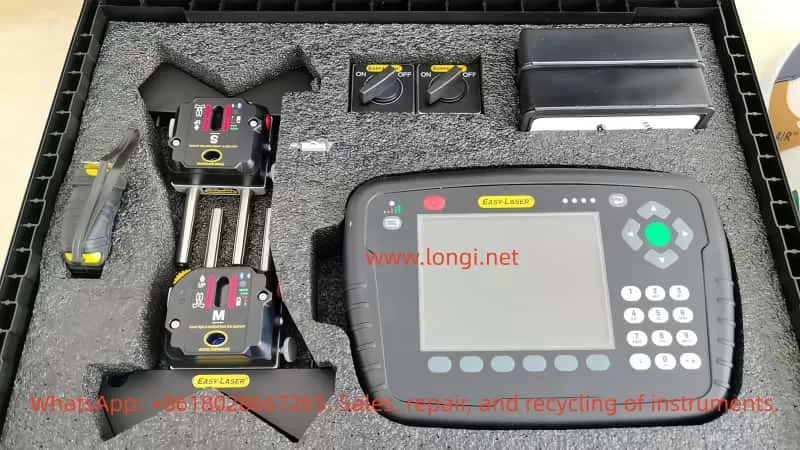
System Components

  • Measurement Units (M Unit and S Unit): Installed on the fixed end and the movable end respectively, transmitting data via wireless communication.
  • Display Unit E53: Equipped with a 5.7-inch color backlit display, featuring a built-in lithium battery that supports up to 30 hours of continuous operation.
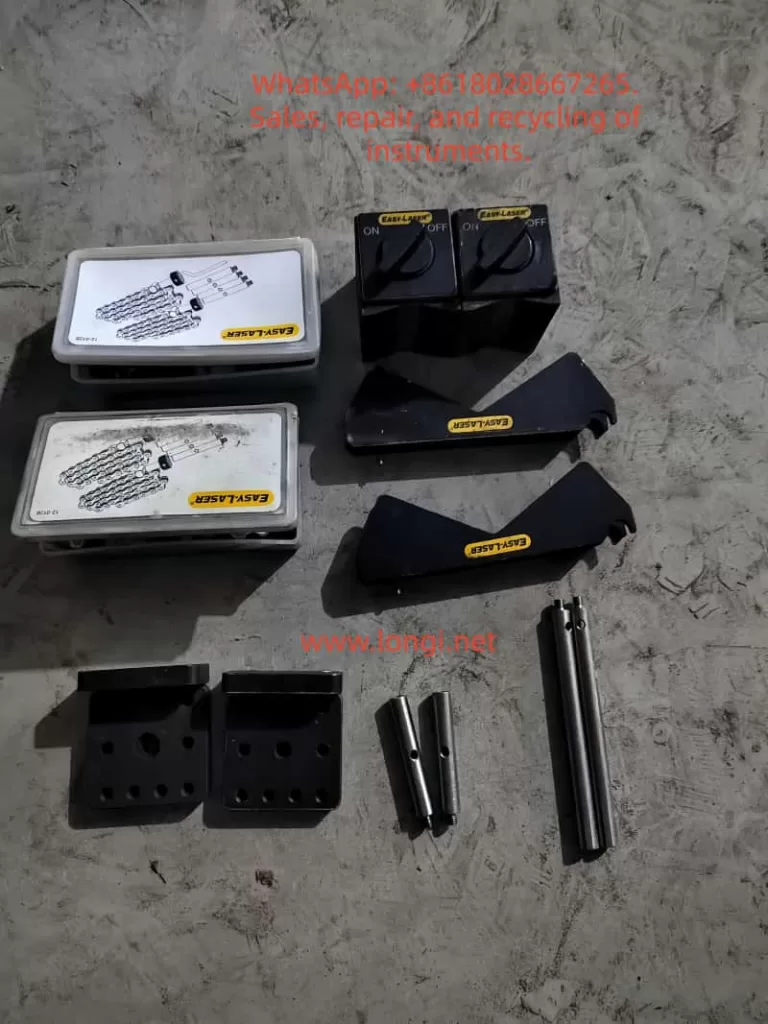
  • Accessory Kit: Includes shaft brackets, chains, extension rods (60mm/120mm), measuring tapes, power adapters, and data management software, etc.

Technical Specifications

  • Resolution: 0.01 mm (0.5 mil)
  • Measurement Accuracy: ±5µm ±1%
  • Laser Safety Class: Class 2 (power <0.6mW)
  • Operating Temperature Range: -10°C to +50°C
  • Protection Rating: IP65 (dustproof and waterproof)

III. Equipment Initialization and Basic Settings

Display Unit Operation

  • Navigation and Function Keys: Use the directional keys to select icons or adjust values, and the OK key to confirm operations. Function key icons change dynamically with the interface, with common functions including returning to the previous level, saving files, and opening the control panel.
  • Status Bar Information: Displays the current unit, filtering status, battery level, and wireless connection status.
  • Screen Capture: Press and hold the “.” key for 5 seconds to save the current interface as a JPG file, facilitating report generation.

Battery and Charging Management

  • Charging Procedure: Connect the display unit using the original power adapter and charge up to 8 measurement units simultaneously via a distribution box.
  • Low Battery Alert: An LED red light flashes to indicate the need for charging, a green light flashes during charging, and remains lit when fully charged.
  • Temperature Considerations: The charging environment should be controlled between 0°C and 40°C, with faster charging speeds in the off state.

System Settings

  • Language and Units: Supports multiple languages, with unit options for metric (mm) or imperial (mil).

IV. Detailed Measurement Procedures

Horizontal Alignment (Horizontal Program)

  • Installation Steps: Fix the S unit on the stationary machine and the M unit on the movable machine, ensuring relative positional offset. Align the laser beams with the targets on both sides using adjustment knobs. When using wireless functionality, search for and pair the measurement units in the control panel.
  • Measurement Modes:
    • EasyTurn™: Allows recording three measurement points within a 40° rotation range, suitable for space-constrained scenarios.
    • 9-12-3 Mode: Requires recording data at the 9 o’clock, 12 o’clock, and 3 o’clock positions on a clock face.
  • Result Analysis: The interface displays real-time horizontal and vertical offsets and angular errors, with green indicators showing values within tolerance ranges.

Vertical Alignment (Vertical Program)

  • Applicable Scenarios: For vertically installed or flange-connected equipment.
  • Key Parameter Inputs: Include measurement unit spacing, bolt quantity (4/6/8), bolt circle diameter, etc.
  • Adjustment Method: Gradually adjust the machine base height and horizontal position based on real-time values or shim calculation results.

Softfoot Check

  • Purpose: To check if the machine feet are evenly loaded, avoiding alignment failure due to foundation distortion.
  • Operation Procedure: Tighten all anchor bolts. Sequentially loosen and retighten individual bolts, recording detector value changes.
  • Result Interpretation: Arrows indicate the machine tilt direction, requiring shim adjustments for the foot with the largest displacement.

V. Advanced Functions and Data Processing

Tolerance Settings (Tolerance)

  • Preset Standards: Based on rotational speed分级 (e.g., 0–1000 rpm corresponds to a 0.07mm offset tolerance), users can also customize tolerance values.

File Management

  • Saving and Exporting: Supports saving measurement results as XML files, which can be copied to a USB drive or associated with equipment data via barcodes.
  • Favorites Function: Save commonly used machine parameters as “FAV” files for direct recall later.

Filter Adjustment (Filter)

  • Function: Suppresses reading fluctuations caused by temperature variations or vibrations.
  • Setting Recommendations: The default value is 1, typically using levels 1–3 for filtering, with higher values providing greater stability but taking longer.

Thermal Compensation (Thermal Compensation)

  • Application Scenarios: Compensates for height changes due to thermal expansion during machine operation. For example, when thermal expansion is +5mm, a -5mm compensation value should be preset in the cold state.

VI. Calibration and Maintenance

Calibration Check

  • Quick Verification: Use a 0.01mm tolerance to lift the measurement unit by 1mm using shims and verify if the readings match the actual displacement.

Safety Precautions

  • Laser Safety: Never look directly into the laser beam or aim it at others’ eyes.
  • Equipment Warranty: The entire unit comes with a 3-year warranty, but the battery capacity warranty period is 1 year (requiring maintenance of at least 70% capacity).
  • Prohibited Scenarios: Do not use in areas with explosion risks.

VII. Troubleshooting and Technical Support

Common Issues

  • Unstable Readings: Check for environmental temperature gradients or airflow influences, and increase the filtering value.
  • Unable to Connect Wireless Units: Ensure that the units are not simultaneously using wired connections and re-search for devices in the control panel.

Service Channels

  • Equipment must be repaired or calibrated by certified service centers. Users can query global service outlets through the official website.

VIII. Conclusion

The Easy-Laser E420 significantly enhances the efficiency and accuracy of shaft alignment operations through intelligent measurement procedures and intuitive interactive interfaces. Users should strictly follow the manual steps for equipment installation, parameter input, and result analysis, while making full use of advanced functions such as file management and thermal compensation to meet complex operational requirements. Regular calibration and standardized maintenance ensure long-term stable operation of the equipment, providing guarantees for industrial equipment safety.

Posted on

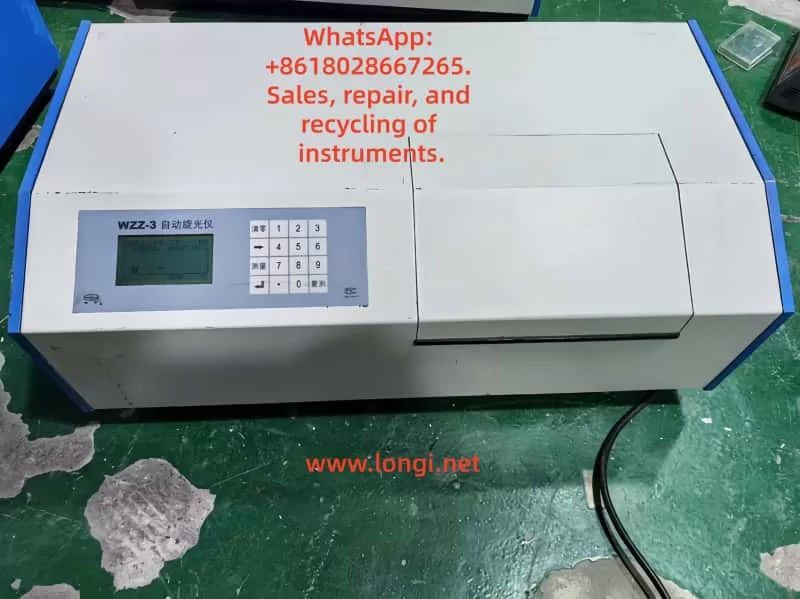
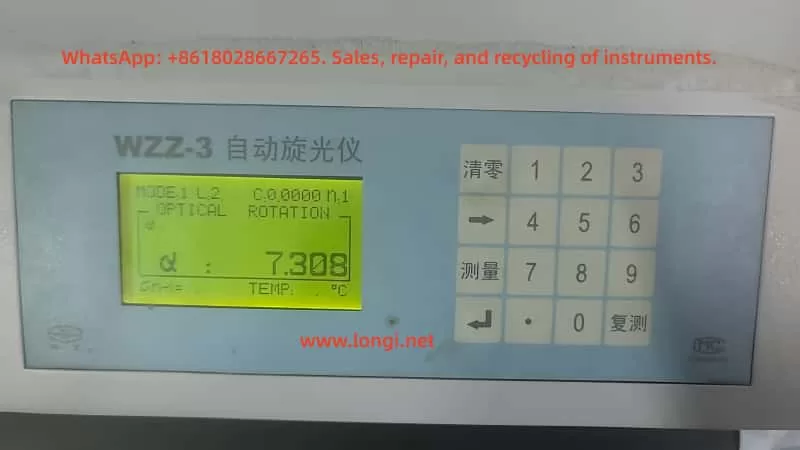
Optimization and Troubleshooting of the WZZ-3 Automatic Polarimeter in Crude Starch Content Determination

1. Introduction

Polarimeters are widely used analytical instruments in the food, pharmaceutical, and chemical industries. Their operation is based on the optical rotation of plane-polarized light when it passes through optically active substances. Starch, a fundamental carbohydrate in agricultural and food processing, plays a crucial role in quality control, formulation, and trade evaluation.
Compared with chemical titration or enzymatic assays, the polarimetric method offers advantages such as simplicity, high precision, and good repeatability — making it a preferred technique in many grain and food laboratories.

The WZZ-3 Automatic Polarimeter is one of the most commonly used models in domestic laboratories. It provides automatic calculation, digital display, and multiple measurement modes, and is frequently employed in starch, sugar, and pharmaceutical analyses.
However, in shared laboratory environments with multiple users, problems such as slow measurement response, unstable readings, and inconsistent zero points often occur. These issues reduce measurement efficiency and reliability.

This paper presents a systematic technical discussion on the WZZ-3 polarimeter’s performance in crude starch content measurement, analyzing its optical principles, operational settings, sample preparation, common errors, and optimization strategies, to improve measurement speed and precision for third-party laboratories.


2. Working Principle and Structure of the WZZ-3 Polarimeter

2.1 Optical Measurement Principle

The fundamental principle of polarimetry states that when plane-polarized light passes through an optically active substance, the plane of polarization rotates by an angle α, known as the angle of optical rotation.
The relationship among the angle of rotation, specific rotation, concentration, and path length is expressed by:

[
\alpha = [\alpha]_{T}^{\lambda} \cdot l \cdot c
]

Where:

  • ([\alpha]_{T}^{\lambda}) — specific rotation at wavelength λ and temperature T
  • (l) — optical path length (dm)
  • (c) — concentration of the solution (g/mL)

The WZZ-3 employs monochromatic light at 589.44 nm (sodium D-line). The light passes sequentially through a polarizer, sample tube, and analyzer. The instrument’s microprocessor system then detects the angle change using a photoelectric detector and automatically calculates and displays the result digitally.


2.2 System Composition

ModuleFunction
Light SourceSodium lamp or high-brightness LED for stable monochromatic light
Polarization SystemGenerates and analyzes plane-polarized light
Sample CompartmentHolds 100 mm or 200 mm sample tubes; sealed against dust and moisture
Photoelectric DetectionConverts light signal changes into electrical data
Control & Display UnitMicrocontroller computes α, [α], concentration, or sugar degree
Keypad and LCDAllows mode selection, numeric input, and measurement display

The internal control logic performs automatic compensation, temperature correction (if enabled), and digital averaging, ensuring stable readings even under fluctuating light conditions.


3. Principle and Workflow of Crude Starch Determination

3.1 Measurement Principle

Crude starch samples, after proper liquefaction and clarification, display a distinct right-handed optical rotation. The optical rotation angle (α) is directly proportional to the starch concentration.
By measuring α and applying a standard curve or calculation formula, the starch content can be determined precisely. The clarity and stability of the solution directly affect both response speed and measurement accuracy.

3.2 Sample Preparation Procedure

  1. Gelatinization and Enzymatic Hydrolysis
    Mix the sample with distilled water and heat to 85–90 °C until completely gelatinized.
    Add α-amylase for liquefaction and then glucoamylase for saccharification at 55–60 °C until the solution becomes clear.
  2. Clarification and Filtration
    Add Carrez I and II reagents to remove proteins and impurities. After standing or centrifugation, filter the supernatant through a 0.45 µm membrane.
  3. Temperature Equilibration and Dilution
    Cool the filtrate to 20 °C, ensuring the same temperature as the instrument environment. Dilute to the calibration mark.
  4. Measurement
    • Use distilled water as a blank for zeroing.
    • Fill the tube completely (preferably 100 mm optical path) and remove all air bubbles.
    • Record the optical rotation α.
    • If the rotation angle exceeds the measurable range, shorten the path or dilute the sample.

4. Common Problems and Causes of Slow Response in WZZ-3

During routine use, several factors can cause the WZZ-3 polarimeter to exhibit delayed readings or unstable results.

4.1 Misconfigured Instrument Parameters

When multiple operators use the same instrument, settings are frequently modified unintentionally.
Typical parameter issues include:

SettingCorrect ValueIncorrect Setting & Effect
Measurement ModeOptical RotationChanged to “Sugar” or “Concentration” — causes unnecessary calculation delay
Averaging Count (N)1Set to 6 or higher — multiple averaging cycles delay output
Time Constant / FilterShort / OffSet to “Long” — slow signal processing
Temperature ControlOff / 20 °CLeft “On” — instrument waits for thermal stability
Tube Length (L)Actual tube length (1 dm or 2 dm)Mismatch — optical signal weakens, measurement extended

These misconfigurations are the most frequent cause of slow response.


4.2 Low Transmittance of Sample Solution

If the sample is cloudy or contains suspended solids, the transmitted light intensity decreases. The system compensates by extending the integration time to improve the signal-to-noise ratio, resulting in a sluggish display.
When transmittance drops below 10%, the detector may fail to lock onto the signal.


4.3 Temperature Gradient or Condensation

A temperature difference between the sample and the optical system can cause condensation or fogging on the sample tube surface, scattering the light path.
The displayed value drifts gradually until equilibrium is reached, appearing as “slow convergence.”


4.4 Aging Light Source or Contaminated Optics

Sodium lamps or optical windows degrade over time, lowering light intensity and forcing the system to prolong measurement cycles.
Symptoms include delayed zeroing, dim display, or low-intensity readings even with clear samples.


4.5 Communication and Software Averaging

If connected to a PC with data logging enabled (e.g., 5 s sampling intervals or moving average), both display and response speed are limited by software settings. This is often mistaken for hardware delay.


5. Standardized Parameter Settings and Optimization Strategy

5.1 Recommended Standard Configuration

ParameterRecommended SettingNote
Measurement ModeOptical RotationDirect α measurement
Tube LengthMatch actual tube (1 dm or 2 dm)Prevent calculation mismatch
Averaging Count (N)1Fastest response
Filter / SmoothingOffReal-time display
Time ConstantShort or AutoMinimizes integration time
Temperature ControlOffFor room-temperature samples
Wavelength589.44 nmSodium D-line
Output ModeContinuous / Real-timeAvoid print delay
GainAutoOptimal signal balance

These baseline parameters restore the instrument’s “instant response” behavior.


5.2 Operational Workflow

  1. Blank Calibration
    • Fill the tube with distilled water.
    • Press “Zero.” The display should return to 0.000° within seconds.
    • If slow, inspect optical or parameter issues.
  2. Sample Measurement
    • Load the prepared starch solution.
    • The optical rotation should stabilize within 3–5 seconds.
    • Larger delays indicate improper sample or configuration.
  3. Data Recording
    • Take three consecutive readings.
    • Acceptable repeatability: standard deviation < 0.01°.
    • Calculate starch concentration via calibration curve.
  4. Post-Measurement Maintenance
    • Rinse the tube with distilled water.
    • Perform “factory reset” weekly.
    • Inspect lamp intensity and optical cleanliness quarterly.

6. Laboratory Management Under Multi-User Conditions

When multiple technicians share the same WZZ-3 polarimeter, management and configuration control are crucial to maintaining consistency.

6.1 Establish a “Standard Mode Lock”

Some models support saving user profiles. Save the optimal configuration as “Standard Mode” for automatic startup recall.
If unavailable, post a laminated parameter checklist near the instrument.

6.2 Access Control and Permissions

Lock or password-protect “System Settings.”
Only administrators may adjust system parameters, while general users perform only zeroing and measurement.

6.3 Routine Calibration and Verification

  • Use a standard sucrose solution (26 g/100 mL, α = +13.333° per 100 mm) weekly to verify precision.
  • If the response exceeds 10 s or deviates beyond tolerance, inspect light intensity and alignment.

6.4 Operation Log and Traceability

Maintain a Polarimeter Usage Log recording:

  • Operator name
  • Mode and settings
  • Sample ID
  • Response time and remarks

This allows quick identification of anomalies and operator training needs.

6.5 Staff Training and Certification

Regularly train all users on:

  • Correct zeroing and measurement steps
  • Prohibited actions (e.g., altering integration constants)
  • Reporting of slow or unstable readings

Such standardization minimizes human error and prolongs equipment life.


7. Case Study: Diagnosing Slow Measurement Response

A food processing laboratory reported a sudden increase in measurement time — from 3 s to 15–30 s per sample.

Investigation Findings:

  1. Mode = Optical Rotation (correct).
  2. Averaging Count (N) = 6; “Smoothing” = ON.
  3. Sample solution slightly turbid and contained micro-bubbles.
  4. Temperature control enabled but sample not equilibrated.

Corrective Measures:

  • Reset N to 1 and disable smoothing.
  • Filter and degas the sample solution.
  • Turn off temperature control or match temperature to ambient.

Result:
Response time returned to 4 s, with excellent repeatability.

Conclusion:
Measurement delay often stems from combined human and sample factors. Once parameters and preparation are standardized, the WZZ-3 performs rapidly and reliably.


8. Maintenance and Long-Term Stability

Long-term accuracy requires regular optical and mechanical maintenance.

Maintenance ItemFrequencyDescription
Optical Window CleaningMonthlyWipe with lint-free cloth and anhydrous ethanol
Light Source InspectionEvery 1,000 hReplace aging sodium lamp
Environmental ConditionsAlwaysKeep in stable 20 ± 2 °C lab with minimal vibration
Power SupplyAlwaysUse independent voltage stabilizer
CalibrationSemi-annuallyVerify with standard sucrose solution

By adhering to this preventive maintenance schedule, the WZZ-3 maintains long-term reliability and reproducibility.


9. Discussion and Recommendations

The WZZ-3 polarimeter’s digital architecture provides high precision but is sensitive to user settings and sample clarity.
Slow responses, unstable zeroing, or delayed results are rarely caused by hardware faults — they are almost always traceable to:

  1. Averaging or smoothing functions enabled;
  2. Temperature stabilization waiting loop;
  3. Cloudy or bubble-containing samples;
  4. Aging optical components.

To prevent recurrence:

  • Always restore “fast response” configuration before measurement.
  • Use filtered, degassed, and temperature-equilibrated samples.
  • Regularly calibrate with sucrose standards.
  • Document all measurements and configuration changes.

Proper user discipline, combined with parameter locking and preventive maintenance, ensures the WZZ-3’s continued performance.


10. Conclusion

The WZZ-3 Automatic Polarimeter is a reliable and efficient instrument for crude starch content analysis when properly configured and maintained.
In multi-user laboratories, incorrect parameter settings — especially averaging, smoothing, and temperature control — are the primary causes of slow or unstable readings.

By implementing the following practices:

  • Standardize instrument settings,
  • Match optical path length to actual sample tubes,
  • Maintain sample clarity and temperature equilibrium,
  • Enforce configuration management and operator training,

laboratories can restore fast, accurate, and reproducible measurement performance.

Furthermore, establishing a calibration and documentation system ensures long-term stability and compliance with analytical quality standards.


Posted on

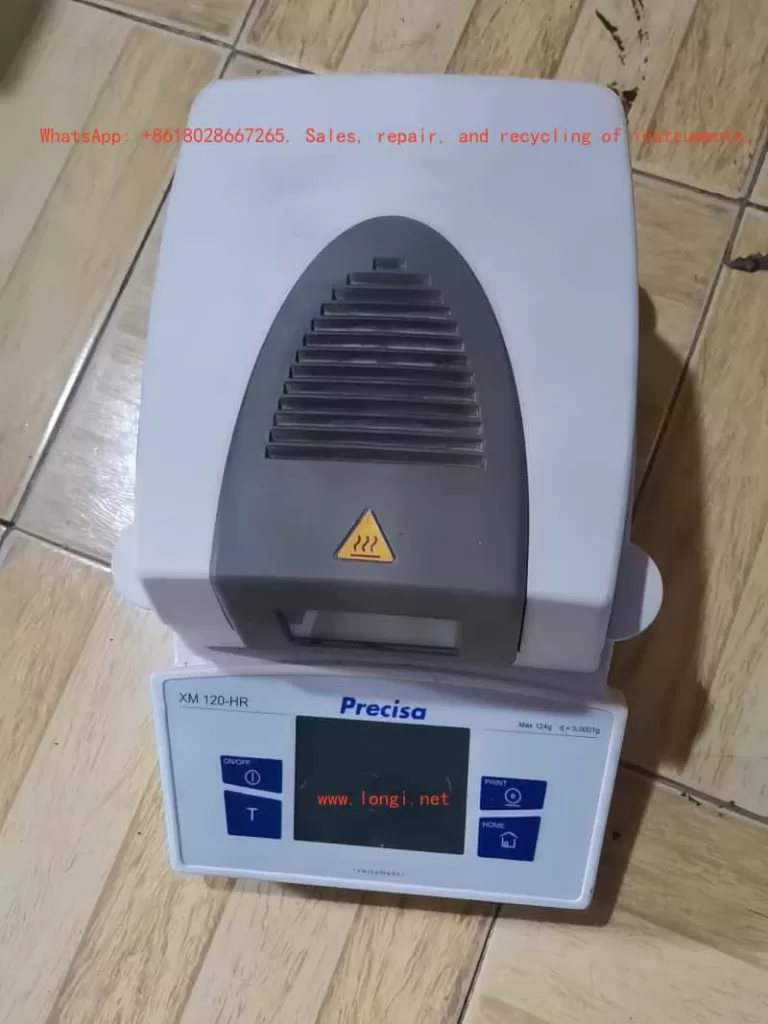
Precisa Moisture Analyzer XM120-HR User Manual: In-Depth Usage Guide

I. Product Overview and Technical Advantages

The Precisa XM120-HR Moisture Analyzer is designed based on the thermogravimetric principle, specifically tailored for rapid determination of moisture content in powder and liquid samples within laboratory and industrial environments. Its notable technical advantages include:

  • High-Precision Weighing Technology: Maximum weighing capacity of 124g with a resolution of 0.001g (0.0001g in HR mode), complying with international standards.
  • Intelligent Drying Control: Supports a three-stage heating program (standard/fast/gentle modes) with a temperature range of 30°C–230°C and customizable drying endpoint conditions.
  • Data Management Functionality: Built-in storage for 50 methods and 999 measurement records, supporting batch data management and adhering to GLP (Good Laboratory Practice) standards.
  • User-Friendly Design: Features a 7-inch touchscreen, multilingual interface (including Chinese), and an RS232 port for remote control and data export.

II. Device Installation and Initial Configuration

  1. Unpacking and Assembly
    • Component List: Main unit, power cord, windshield (1 piece), sample pan holder (2 pieces), sample tweezers (3 pieces), and 80 aluminum sample pans.
    • Assembly Steps:
      • Embed the windshield smoothly into the top slot of the main unit.
      • Install the sample pan holder and rotate to lock it in place.
      • Insert the sample tweezers, ensuring they are secure.
  2. Environmental Requirements
    • Location Selection: Place on a level, vibration-free surface with an ambient temperature of 5°C–40°C and humidity of 25%–85% (non-condensing).
    • Power Connection: Use only the original power cord and ensure reliable grounding. Confirm voltage compatibility for 230V and 115V versions; modifications are prohibited.
  3. Initial Calibration and Leveling
    • Leveling: Adjust the feet at the bottom to center the level bubble. Recalibrate after each device relocation.
    • Weight Calibration:
      • Enter the menu and select “External Calibration” mode. Place a 100g standard weight (accuracy ≤0.001g).
      • Save the data as prompted and verify the error after calibration.

III. Detailed Operation Procedures

  1. Sample Preparation and Measurement
    • Sample Handling:
      • Solid Samples: Grind into a uniform powder and spread evenly on the sample pan (thickness ≤3mm).
      • Liquid Samples: Use glass fiber pads to prevent splashing.
    • Starting Measurement:
      • Press the 《TARE》 button to zero the scale, place the sample, and close the windshield.
      • Select a preset method or customize parameters, then press 《START》 to initiate.
  2. Drying Program Setup
    • Multi-Stage Heating:
      • Stage I (Default): 105°C standard mode for 3 minutes, targeting 75% moisture removal.
      • Stages II/III: Activate higher temperatures or extend durations for difficult-to-volatilize samples.
    • Stopping Conditions:
      • Automatic Stop: When the weight change rate falls below the set value.
      • Time Stop: Maximum drying time limit.
      • AdaptStop: Intelligently determines the drying endpoint to avoid overheating.
  3. Data Recording and Export
    • Batch Processing: Create batches and automatically number samples.
    • Printing Reports: Output complete reports using the 《PRINT》 button.
    • RS232 Transmission: Connect to a computer and send the “PRT” command to export raw data.

IV. Advanced Functions and Maintenance

  1. Temperature Calibration
    • Calibration Tools: Use an optional temperature sensor (Model 350-8585), insert it into the sample chamber, and connect via RS232.
    • Steps:
      • Calibrate at 100°C and 160°C, inputting the actual measured values.
      • Save the data, and the system will automatically correct temperature deviations.
  2. Software Upgrade
    • Download the update tool from the Precisa website, connect to a PC using a data cable (RJ45-DB9), and follow the prompts to complete the firmware upgrade.
  3. Daily Maintenance
    • Cleaning: Wipe the sample chamber weekly with a soft cloth, avoiding contact with solvents on electronic components.
    • Troubleshooting:
      • Display “OL”: Overload, check sample weight.
      • Printing garbled text: Verify interface settings.
      • Heating abnormalities: Replace the fuse.

V. Safety Precautions

  • Do not analyze flammable or explosive samples, such as ethanol or acetone.
  • Avoid direct contact with the heating unit (which can reach 230°C) during the drying process; use sample tweezers for operation.
  • Disconnect the power when not in use for extended periods, store in a dry environment, and retain the original packaging.

Conclusion

The Precisa XM120-HR Moisture Analyzer significantly enhances the efficiency and reliability of moisture detection through its modular design and intelligent algorithms. Users must fully grasp the calibration, program settings, and maintenance points outlined in this manual to maximize device performance. For special samples, refer to the relevant techniques in the manual and optimize parameters through preliminary experiments.

Posted on

Reichert AR360 Auto Refractor: In-Depth Technical Analysis and Operation Guide

I. Product Overview and Technical Background

The Reichert AR360 Auto Refractor, developed by Reichert Ophthalmic Instruments (a subsidiary of Leica Microsystems), represents a cutting-edge electronic refraction device that embodies the technological advancements of the early 21st century in automated optometry. This device incorporates innovative image processing technology and an automatic alignment system, revolutionizing the traditional optometry process that previously required manual adjustments of control rods and chin rests.

The core technological advantage of the AR360 lies in its “hands-free” automatic alignment system. When a patient focuses on a fixed target and rests their forehead against the forehead support, the device automatically identifies the eye position and aligns with the corneal vertex. This breakthrough design not only enhances measurement efficiency (with a single measurement taking only a few seconds) but also significantly improves patient comfort, making it particularly suitable for children, the elderly, and patients with special needs.

As a professional-grade ophthalmic diagnostic device, the AR360 offers a comprehensive measurement range:

  • Sphere: -18.00D to +18.00D (adjustable step sizes of 0.01D/0.12D/0.25D)
  • Cylinder: 0 to 10.00D
  • Axis: 0-180 degrees
    It caters to the full spectrum of refractive error detection, from mild to severe cases.

II. Device Composition and Functional Module Analysis

2.1 Hardware System Architecture

The AR360 features a modular design with the following core components:

Optical Measurement System:

  • Optical path comprising an infrared light source and imaging sensor
  • Built-in self-calibration program (automatically executed upon power-on and after each measurement)
  • Patient observation window with a diameter of 45mm, featuring a built-in green fixation target

Mechanical Positioning System:

  • Translating headrest assembly (integrated L/R detector)
  • Automatic alignment mechanism (accuracy ±0.1mm)
  • Transport locking device (protects internal precision components)

Electronic Control System:

  • Main control board (with ESD electrostatic protection circuitry)
  • PC card upgrade slot (supports remote software updates)
  • RS-232C communication interface (adjustable baud rate from 2400 to 19200)

Human-Machine Interface:

  • 5.6-inch LCD operation screen (adjustable contrast)
  • 6-key membrane control panel
  • Thermal printer (printing speed of 2 lines per second)

2.2 Innovative Functional Features

Compared to contemporary competitors, the AR360 boasts several technological innovations:

  • Smart Measurement Modes: Supports single measurement, 3-average, and 5-average modes to effectively reduce random errors.
  • Vertex Distance Compensation: Offers six preset values (0.0/12.0/13.5/13.75/15.0/16.5mm) to accommodate different frame types.
  • Data Visualization Output: Capable of printing six types of refractive graphs (including emmetropia, myopia, hyperopia, mixed astigmatism, etc.).
  • Multilingual Support: Built-in with six operational interface languages, including English, French, and German.

III. Comprehensive Device Operation Guide

3.1 Initial Setup and Calibration

Unboxing Procedure:

  • Remove the accessory tray (containing power cord, dust cover, printing paper, etc.)
  • Release the transport lock (using the provided screwdriver, turn counterclockwise 6 times)
  • Connect to power (note voltage specifications: 110V/230V)
  • Perform power-on self-test (approximately 30 seconds)

Basic Parameter Configuration:
Through the MODE→SETUP menu, configure:

  • Refractive power step size (0.01/0.12/0.25D)
  • Cylinder display format (negative/positive/mixed cylinder)
  • Automatic measurement switch (recommended to enable)
  • Sleep time (auto-hibernation after 5-90 minutes of inactivity)

3.2 Standard Measurement Procedure

Step-by-Step Instructions:

Patient Preparation:

  • Adjust seat height to ensure the patient is at eye level with the device.
  • Instruct the patient to remove glasses/contact lenses.
  • Explain the fixation target observation instructions.

Right Eye Measurement:

  • Slide the headrest to the right position.
  • Guide the patient to press their forehead firmly against the forehead support.
  • The system automatically completes alignment and measurement (approximately 3-5 seconds).
  • A “beep” sound indicates measurement completion.

Left Eye Measurement:

  • Slide the headrest to the left position and repeat the procedure.
  • Data is automatically associated and stored with the right eye measurement.

Data Management:

  • Use the REVIEW menu to view detailed data.
  • Press the PRINT key to output a report (supports图文混合 printing, i.e., a combination of graphics and text).
  • Press CLEAR DATA to erase current measurement values.

3.3 Handling Special Scenarios

Common Problem Solutions:

Low Confidence Readings: May result from patient blinking or movement. Suggestions:

  • Have the patient blink fully to moisten the cornea.
  • Use tape to temporarily lift a drooping eyelid.
  • Adjust head position to keep eyelashes out of the optical path.

Persistent Alignment Failures:

  • Check the cleanliness of the observation window.
  • Verify ambient lighting (avoid direct strong light).
  • Restart the device to reset the system.

IV. Clinical Data Interpretation and Quality Control

4.1 Measurement Data Analysis

A typical printed report includes:

[Ref] Vertex = 13.75 mmSph   Cyl    Ax-2.25 -1.50  10-2.25 -1.50  10-2.25 -1.50  10Avg  -2.25 -1.50  10

Parameter Explanation:

  • Sph (Sphere): Negative values indicate myopia; positive values indicate hyperopia.
  • Cyl (Cylinder): Represents astigmatism power (axis determined by the Ax value).
  • Vertex Distance: A critical parameter affecting the effective power of the lens.

4.2 Device Accuracy Verification

The AR360 ensures data reliability through a “triple verification mechanism”:

  • Hardware-Level: Automatic optical calibration after each measurement.
  • Algorithm-Level: Exclusion of outliers (automatically flags values with a standard deviation >0.5D).
  • Operational-Level: Support for multiple measurement averaging modes.

Clinical verification data indicates:

  • Sphere Repeatability: ±0.12D (95% confidence interval)
  • Cylinder Axis Repeatability: ±5 degrees
    Meets ISO-9001 medical device certification requirements.

V. Maintenance and Troubleshooting

5.1 Routine Maintenance Protocol

Periodic Maintenance Tasks:

  • Daily: Disinfect the forehead support with 70% alcohol.
  • Weekly: Clean the observation window with dedicated lens paper.
  • Monthly: Lubricate mechanical tracks with silicone-based lubricant.
  • Quarterly: Optical path calibration (requires professional service).

Consumable Replacement:

  • Printing Paper (Model 12441): Standard roll prints approximately 300 times.
  • Fuse Specifications:
    • 110V model: T 0.63AL 250V
    • 230V model: T 0.315AL 250V

5.2 Fault Code Handling

Common Alerts and Solutions:

CodePhenomenonSolution
E01Printer jamReload paper according to door diagram
E05Voltage abnormalityCheck power adapter connection
E12Calibration failurePerform manual calibration procedure
E20Communication errorRestart device or replace RS232 cable

For unresolved faults, contact the authorized service center. Avoid disassembling the device yourself to prevent voiding the warranty.

VI. Technological Expansion and Clinical Applications

6.1 Comparison with Similar Products

Compared to traditional refraction devices, the AR360 offers significant advantages:

  • Efficiency Improvement: Reduces single-eye measurement time from 30 seconds to 5 seconds.
  • Simplified Operation: Reduces manual adjustment steps by 75%.
  • Data Consistency: Eliminates manual interpretation discrepancies (CV value <2%).

6.2 Clinical Value Proposition

  • Mass Screening: Rapid detection in schools, communities, etc.
  • Preoperative Assessment: Provides baseline data for refractive surgeries.
  • Progress Tracking: Establishes long-term refractive development archives.
  • Lens Fitting Guidance: Precisely measures vertex distance for frame adaptation.

VII. Development Prospects and Technological Evolution

Although the AR360 already boasts advanced performance, future advancements can be anticipated:

  • Bluetooth/WiFi wireless data transmission
  • Integrated corneal topography measurement
  • AI-assisted refractive diagnosis algorithms
  • Cloud platform data management

As technology progresses, automated refraction devices will evolve toward being “more intelligent, more integrated, and more convenient,” with the AR360’s design philosophy continuing to influence the development of next-generation products.

This guide provides a comprehensive analysis of the technical principles, operational methods, and clinical value of the Reichert AR360 Auto Refractor. It aims to help users fully leverage the device’s capabilities and deliver more precise vision health services to patients. Regular participation in manufacturer-organized training sessions (at least once a year) is recommended to stay updated on the latest feature enhancements and best practice protocols.

Posted on

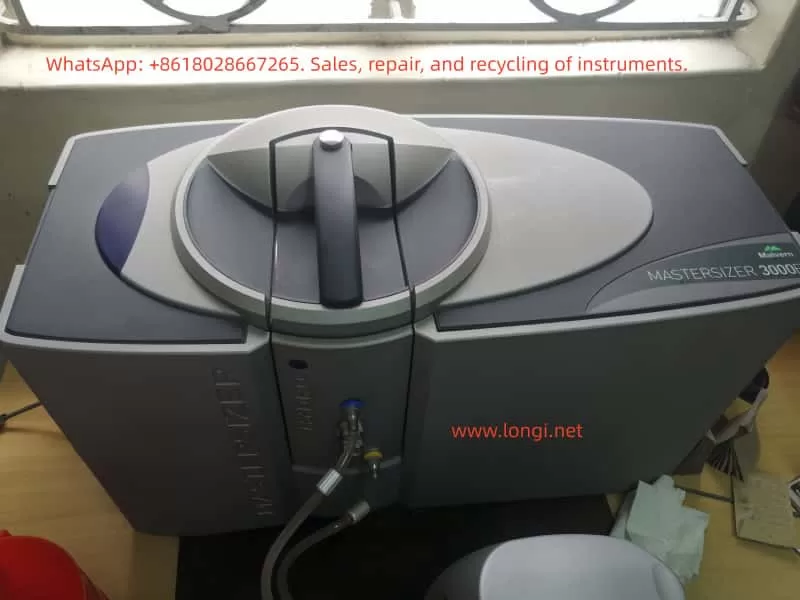
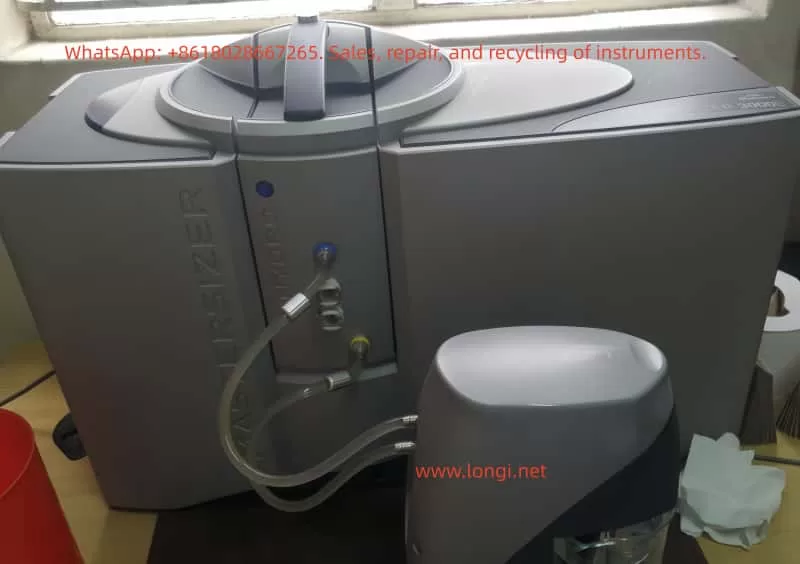
Technical Study on Troubleshooting and Repair of Mastersizer 3000: Air Pressure Zero and Insufficient Vacuum Issues

1. Introduction

The Mastersizer 3000 is a widely used laser diffraction particle size analyzer manufactured by Malvern Panalytical. It has become a key analytical tool in industries such as pharmaceuticals, chemicals, cement, food, coatings, and materials research. By applying laser diffraction principles, the instrument provides rapid, repeatable, and accurate measurements of particle size distributions.

Among its various configurations, the Aero S dry powder dispersion unit is essential for analyzing dry powders. This module relies on compressed air and vacuum control to disperse particles and to ensure that samples are introduced without agglomeration. Therefore, the stability of the pneumatic and vacuum subsystems directly affects data quality.

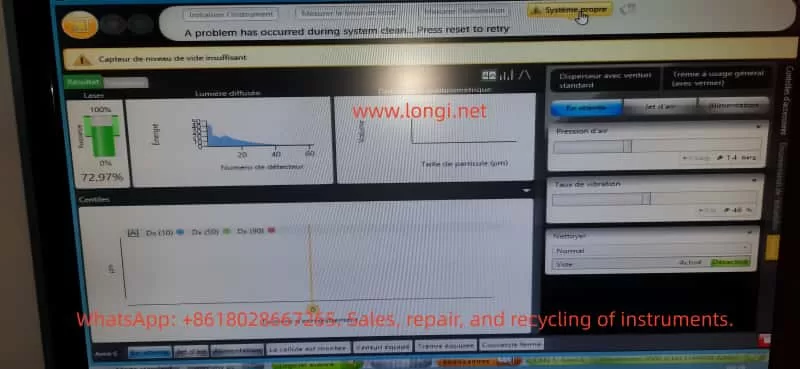
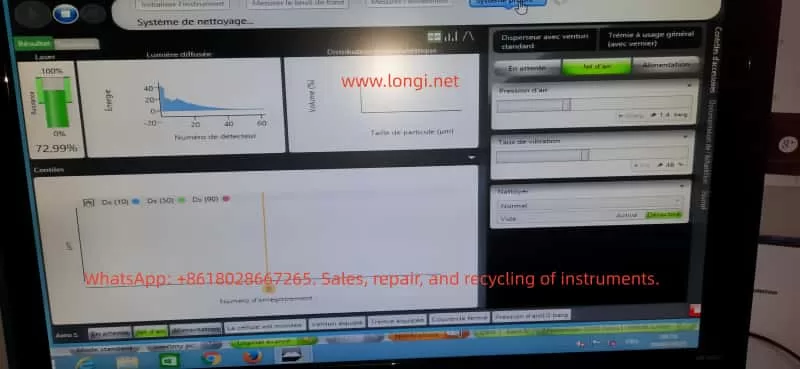
In practice, faults sometimes occur during startup or system cleaning. One such case involved a user who reported repeated errors during initialization and cleaning. The system displayed the following messages:

  • “Pression d’air = 0 bar” (Air pressure = 0 bar)
  • “Capteur de niveau de vide insuffisant” (Vacuum level insufficient)
  • “A problem has occurred during system clean. Press reset to retry”

While the optical laser subsystem appeared normal (laser intensity ~72.97%), the pneumatic and vacuum functions failed, preventing measurements.
This article will analyze the fault systematically, covering:

  • The operating principles of the Mastersizer 3000 pneumatic and vacuum systems
  • Fault symptoms and possible causes
  • A detailed troubleshooting and repair workflow
  • Case study insights
  • Preventive maintenance measures

The goal is to form a comprehensive technical study that can be used as a reference for engineers and laboratory technicians.


2. Working Principle of the Mastersizer 3000 and Pneumatic System

2.1 Overall Instrument Architecture

The Mastersizer 3000 consists of the following core modules:

  1. Optical system – Laser light source, lenses, and detectors that measure particle scattering signals.
  2. Dispersion unit – Either a wet dispersion unit (for suspensions) or the Aero S dry powder dispersion system (for powders).
  3. Pneumatic subsystem – Supplies compressed air to the Venturi nozzle to disperse particles.
  4. Vacuum and cleaning system – Provides suction during cleaning cycles to remove residual particles.
  5. Software and sensor monitoring – Continuously monitors laser intensity, detector signals, air pressure, vibration rate, and vacuum level.

2.2 The Aero S Dry Dispersion Unit

The Aero S operates based on Venturi dispersion:

  • Compressed air (typically 4–6 bar, oil-free and dry) passes through a narrow nozzle, creating high-velocity airflow.
  • Powder samples introduced into the airflow are broken apart into individual particles, which are carried into the laser measurement zone.
  • A vibrator ensures continuous and controlled feeding of powder.

To monitor performance, the unit uses:

  • Air pressure sensor – Ensures that the compressed air pressure is within the required range.
  • Vacuum pump and vacuum sensor – Used during System Clean cycles to generate negative pressure and remove any residual powder.
  • Electro-pneumatic valves – Control the switching between measurement, cleaning, and standby states.

2.3 Alarm Mechanisms

The software is designed to protect the system:

  • If the air pressure < 0.5 bar or the pressure sensor detects zero, it triggers “Pression d’air = 0 bar”.
  • If the vacuum pump fails or the vacuum sensor detects insufficient negative pressure, it triggers “Capteur de niveau de vide insuffisant”.
  • During cleaning cycles, if either air or vacuum fails, the software displays “A problem has occurred during system clean”, halting the process.

3. Fault Symptoms

3.1 Observed Behavior

The reported system displayed the following symptoms:

  1. Air pressure reading = 0 bar (even though external compressed air was connected).
  2. Vacuum insufficient – Cleaning could not be completed.
  3. Each attempt at System Clean resulted in the same error.
  4. Laser subsystem operated normally (~72.97% signal), confirming that the fault was confined to pneumatic/vacuum components.

3.2 Screen Snapshots

  • Laser: ~72.97% – Normal.
  • Air pressure: 0 bar – Abnormal.
  • Vacuum insufficient – Abnormal.
  • System Clean failed – Symptom repeated after each attempt.

4. Possible Causes

Based on the working principle, the issue can be classified into four categories:

4.1 External Compressed Air Problems

  • Insufficient pressure supplied (below 3 bar).
  • Moisture or oil contamination in the air supply leading to blockage.
  • Loose or disconnected inlet tubing.

4.2 Internal Pneumatic Issues

  • Venturi nozzle blockage – Powder residue, dust, or oil accumulation.
  • Tubing leak – Cracked or detached pneumatic hoses.
  • Faulty solenoid valve – Valve stuck closed, preventing airflow.

4.3 Vacuum System Issues

  • Vacuum pump not starting (electrical failure).
  • Vacuum pump clogged filter, reducing suction.
  • Vacuum hose leakage.
  • Defective vacuum sensor giving false signals.

4.4 Sensor or Control Electronics

  • Air pressure sensor drift or failure.
  • Vacuum sensor malfunction.
  • Control board failure in reading sensor values.
  • Loose electrical connections.

5. Troubleshooting Workflow

A structured troubleshooting approach helps isolate the problem quickly.

5.1 External Checks

  1. Verify that compressed air supply ≥ 4 bar.
  2. Inspect inlet tubing and fittings for leaks or loose connections.
  3. Confirm that a dryer/filter is installed to ensure oil-free and moisture-free air.

5.2 Pneumatic Circuit Tests

  1. Run manual Jet d’air in software. Observe if air flow is audible.
  2. If no airflow, dismantle and inspect the Venturi nozzle for blockage.
  3. Check solenoid valve operation: listen for clicking sound when activated.

5.3 Vacuum System Tests

  1. Run manual Clean cycle. Listen for the vacuum pump running.
  2. Disconnect vacuum tubing and feel for suction.
  3. Inspect vacuum filter; clean or replace if clogged.
  4. Measure vacuum with an external gauge.

5.4 Sensor Diagnostics

  1. Open Diagnostics menu in the software.
  2. Compare displayed sensor readings with actual measured pressure/vacuum.
  3. If real pressure exists but software shows zero → sensor fault.
  4. If vacuum pump works but error persists → vacuum sensor fault.

5.5 Control Electronics

  1. Verify power supply to pneumatic control board.
  2. Check connectors between sensors and board.
  3. If replacing sensors does not fix the issue, the control board may require replacement.

6. Repair Methods and Case Analysis

6.1 Air Supply Repairs

  • Adjust and stabilize supply at 5 bar.
  • Install or replace dryer filters to prevent moisture/oil contamination.
  • Replace damaged air tubing.

6.2 Internal Pneumatic Repairs

  • Clean Venturi nozzle with alcohol or compressed air.
  • Replace faulty solenoid valves.
  • Renew old or cracked pneumatic tubing.

6.3 Vacuum System Repairs

  • Disassemble vacuum pump and clean filter.
  • Replace vacuum pump if motor does not run.
  • Replace worn sealing gaskets.

6.4 Sensor Replacement

  • Replace faulty pressure sensor or vacuum sensor.
  • Recalibrate sensors after installation.

6.5 Case Study Result

In the real case:

  • External compressed air supply was only 1.4 bar, below specifications.
  • The vacuum pump failed to start (no noise, no suction).
  • After increasing compressed air supply to 5 bar and replacing the vacuum pump, the system returned to normal operation.

7. Preventive Maintenance Recommendations

7.1 Air Supply Management

  • Maintain external compressed air ≥ 4 bar.
  • Always use an oil-free compressor.
  • Install a dryer and oil separator filter, replacing filter elements regularly.

7.2 Routine Cleaning

  • Run System Clean after each measurement to avoid powder buildup.
  • Periodically dismantle and clean the Venturi nozzle.

7.3 Vacuum Pump Maintenance

  • Inspect and replace filters every 6–12 months.
  • Monitor pump noise and vibration; service if abnormal.
  • Replace worn gaskets and seals promptly.

7.4 Sensor Calibration

  • Perform annual calibration of air pressure and vacuum sensors by the manufacturer or accredited service center.

7.5 Software Monitoring

  • Regularly check the Diagnostics panel to detect early drift in sensor readings.
  • Record data logs to compare performance over time.

8. Conclusion

The Mastersizer 3000, when combined with the Aero S dry dispersion unit, relies heavily on stable air pressure and vacuum control. Failures such as “Air pressure = 0 bar” and “Vacuum level insufficient” disrupt operation, especially during System Clean cycles.

Through systematic analysis, the faults can be traced to:

  • External compressed air issues (low pressure, leaks, contamination)
  • Internal pneumatic blockages or valve faults
  • Vacuum pump failures or leaks
  • Sensor malfunctions or control board errors

A structured troubleshooting process — starting from external supply → pneumatic circuit → vacuum pump → sensors → electronics — ensures efficient fault localization.
In the reported case, increasing the compressed air pressure and replacing the defective vacuum pump successfully restored the instrument.

For laboratories and production environments, preventive maintenance is crucial:

  • Ensure stable, clean compressed air supply.
  • Clean and service nozzles, filters, and pumps regularly.
  • Calibrate sensors annually.
  • Monitor diagnostics to detect anomalies early.

By applying these strategies, downtime can be minimized, measurement accuracy preserved, and instrument lifespan extended.


Posted on

Troubleshooting and Technical Analysis of the Malvern Mastersizer 3000E with Hydro EV Wet Dispersion Unit

— A Case Study on “Measurement Operation Failed” Errors


1. Introduction

In particle size analysis, the Malvern Mastersizer 3000E is one of the most widely used laser diffraction particle size analyzers in laboratories worldwide. It can rapidly and accurately determine particle size distributions for powders, emulsions, and suspensions. To accommodate different dispersion requirements, the system is usually equipped with either wet or dry dispersion units. Among these, the Hydro EV wet dispersion unit is commonly used due to its flexibility, ease of operation, and automation features.

However, during routine use, operators often encounter issues during initialization, such as the error messages:

  • “A problem has occurred during initialisation”
  • “Measurement operation has failed”

These errors prevent the system from completing background measurements and optical alignment, effectively stopping any further sample analysis.

This article focuses on these common issues. It provides a technical analysis covering the working principles, system components, error causes, troubleshooting strategies, preventive maintenance, and a detailed case study based on real laboratory scenarios. The aim is to help users systematically identify the root cause of failures and restore the system to full operation.


2. Working Principles of the Mastersizer 3000E and Hydro EV

2.1 Principle of Laser Diffraction Particle Size Analysis

The Mastersizer 3000E uses the laser diffraction method to measure particle sizes. The principle is as follows:

  • When a laser beam passes through a medium containing dispersed particles, scattering occurs.
  • Small particles scatter light at large angles, while large particles scatter light at small angles.
  • An array of detectors measures the intensity distribution of the scattered light.
  • Using Mie scattering theory (or the Fraunhofer approximation), the system calculates the particle size distribution.

Thus, accurate measurement depends on three critical factors:

  1. Stable laser output
  2. Well-dispersed particles in the sample without bubbles
  3. Proper detection of scattered light by the detector array

2.2 Role of the Hydro EV Wet Dispersion Unit

The Hydro EV serves as the wet dispersion accessory of the Mastersizer 3000E. Its main functions include:

  1. Sample dispersion – Stirring and circulating liquid to ensure that particles are evenly suspended.
  2. Liquid level and flow control – Equipped with sensors and pumps to maintain stable liquid conditions in the sample cell.
  3. Bubble elimination – Reduces interference from air bubbles in the optical path.
  4. Automated cleaning – Runs flushing and cleaning cycles to prevent cross-contamination.

The Hydro EV connects to the main system via tubing and fittings, and all operations are controlled through the Mastersizer software.


3. Typical Error Symptoms and System Messages

Operators often observe the following system messages:

  1. “A problem has occurred during initialisation… Press reset to retry”
    • Indicates failure during system checks such as background measurement, alignment, or hardware initialization.
  2. “Measurement operation has failed”
    • Means the measurement process was interrupted or aborted due to hardware/software malfunction.
  3. Stuck at “Measuring dark background / Aligning system”
    • Suggests the optical system cannot establish a valid baseline or align properly.

4. Root Causes of Failures

Based on experience and manufacturer documentation, the failures can be classified into the following categories:

4.1 Optical System Issues

  • Laser not switched on or degraded laser power output
  • Contamination, scratches, or condensation on optical windows
  • Optical misalignment preventing light from reaching detectors

4.2 Hydro EV Dispersion System Issues

  • Air bubbles in the liquid circuit cause unstable signals
  • Liquid level sensors malfunction or misinterpret liquid presence
  • Pump or circulation failure
  • Stirrer malfunction or abnormal speed

4.3 Sample and User Operation Errors

  • Sample concentration too low, producing nearly no scattering
  • Sample cell incorrectly installed or not sealed properly
  • Large bubbles or contaminants present in the sample liquid

4.4 Software and Communication Errors

  • Unstable USB or hardware communication
  • Software version mismatch or system crash
  • Incorrect initialization parameters (e.g., threshold, dispersion mode)

4.5 Hardware Failures

  • Malfunctioning detector array
  • Damaged internal electronics or control circuits
  • End-of-life laser module requiring replacement

5. Troubleshooting and Resolution Path

To efficiently identify the source of the problem, troubleshooting should follow a layered approach:

5.1 Restart and Reset

  • Power down both software and hardware, wait several minutes, then restart.
  • Press Reset in the software and attempt initialization again.

5.2 Check Hydro EV Status

  • Confirm fluid is circulating properly.
  • Ensure liquid level sensors detect the liquid.
  • Run the “Clean System” routine to verify pump and stirrer functionality.

5.3 Inspect Optical and Sample Cell Conditions

  • Remove and thoroughly clean the cuvette and optical windows.
  • Confirm correct installation of the sample cell.
  • Run a background measurement with clean water to rule out bubble interference.

5.4 Verify Laser Functionality

  • Check whether laser power levels change in software.
  • Visually confirm the presence of a laser beam if possible.
  • If the laser does not switch on, the module may require service.

5.5 Communication and Software Checks

  • Replace USB cables or test alternate USB ports.
  • Install the software on another PC and repeat the test.
  • Review software logs for detailed error codes.

5.6 Hardware Diagnostics

  • Run built-in diagnostic tools to check subsystems.
  • If detectors or control circuits fail the diagnostics, service or replacement is required.

6. Preventive Maintenance Practices

To reduce the likelihood of these failures, users should adopt the following practices:

  1. Routine Hydro EV Cleaning
    • Flush tubing and reservoirs with clean water after each measurement.
  2. Maintain Optical Window Integrity
    • Regularly clean using lint-free wipes and suitable solvents.
    • Prevent scratches or deposits on optical surfaces.
  3. Monitor Laser Output
    • Check laser power readings in software periodically.
    • Contact manufacturer if output decreases significantly.
  4. Avoid Bubble Interference
    • Introduce samples slowly.
    • Use sonication or degassing techniques if necessary.
  5. Keep Software and Firmware Updated
    • Install recommended updates to avoid compatibility problems.
  6. Maintain Maintenance Logs
    • Document cleaning, servicing, and errors for historical reference.

7. Case Study: “Measurement Operation Failed”

7.1 Scenario Description

  • Error messages appeared during initialization:
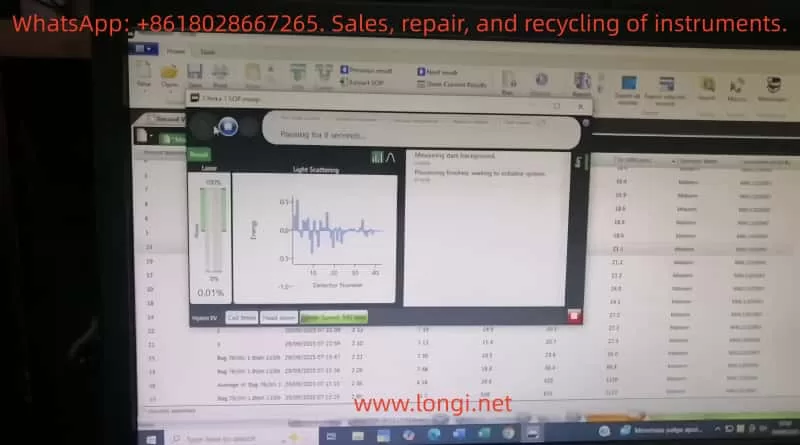
    “Measuring dark background” → “Aligning system” → “Measurement operation has failed.”
  • Hardware setup: Mastersizer 3000E with Hydro EV connected.
  • Likely symptoms: Bubbles or unstable liquid flow in Hydro EV, preventing valid background detection.

7.2 Troubleshooting Actions

  1. Reset and restart system.
  2. Check tubing and liquid circulation – purge air bubbles and confirm stable flow.
  3. Clean sample cell and optical windows – ensure transparent pathways.
  4. Run background measurement – if failure persists, test laser operation.
  5. Software and diagnostics – record log files, run diagnostic tools, and escalate to manufacturer if necessary.

7.3 Key Lessons

This case illustrates that background instability and optical interference are the most common causes of initialization errors. By addressing dispersion stability (Hydro EV liquid system) and ensuring optical cleanliness, most problems can be resolved without hardware replacement.


8. Conclusion

The Malvern Mastersizer 3000E with Hydro EV wet dispersion unit is a powerful and versatile solution for particle size analysis. Nevertheless, operational errors and system failures such as “Measurement operation failed” can significantly impact workflow.

Through technical analysis, these failures can generally be attributed to five categories: optical issues, dispersion system problems, sample/operation errors, software/communication faults, and hardware damage.

This article outlined a systematic troubleshooting workflow:

  • Restart and reset
  • Verify Hydro EV operation
  • Inspect optical components and cuvette
  • Confirm laser activity
  • Check software and communication
  • Run hardware diagnostics

Additionally, preventive maintenance strategies—such as cleaning, monitoring laser performance, and preventing bubbles—are critical for long-term system stability.

By applying these structured troubleshooting and maintenance practices, laboratories can minimize downtime, extend the instrument’s lifetime, and ensure reliable particle size measurements.


Posted on

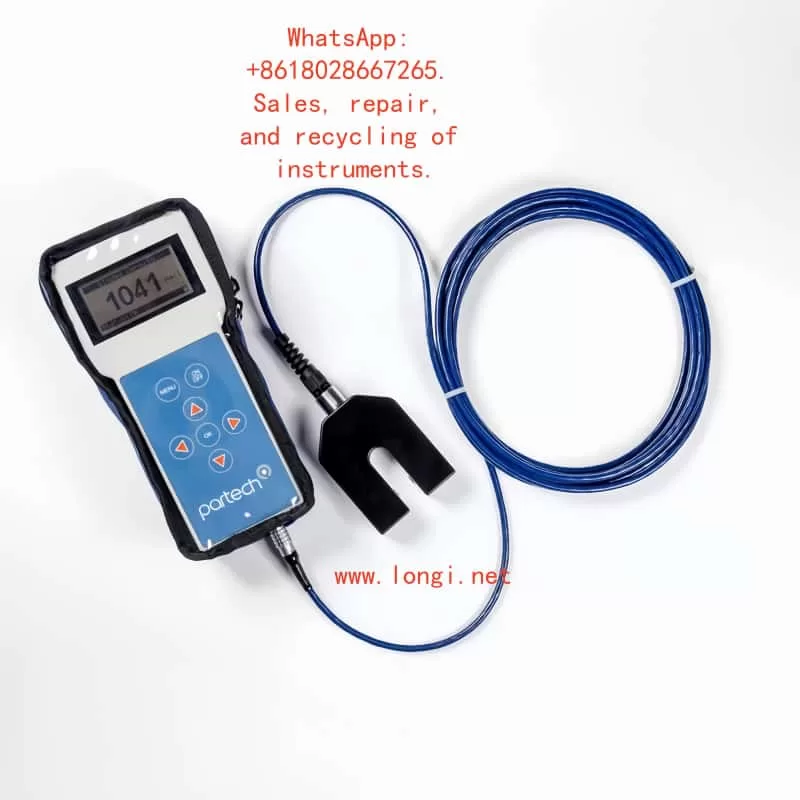
Partech 740 Sludge Concentration Meter User Manual Guide

Part I: Product Overview and Core Functions

1.1 Product Introduction

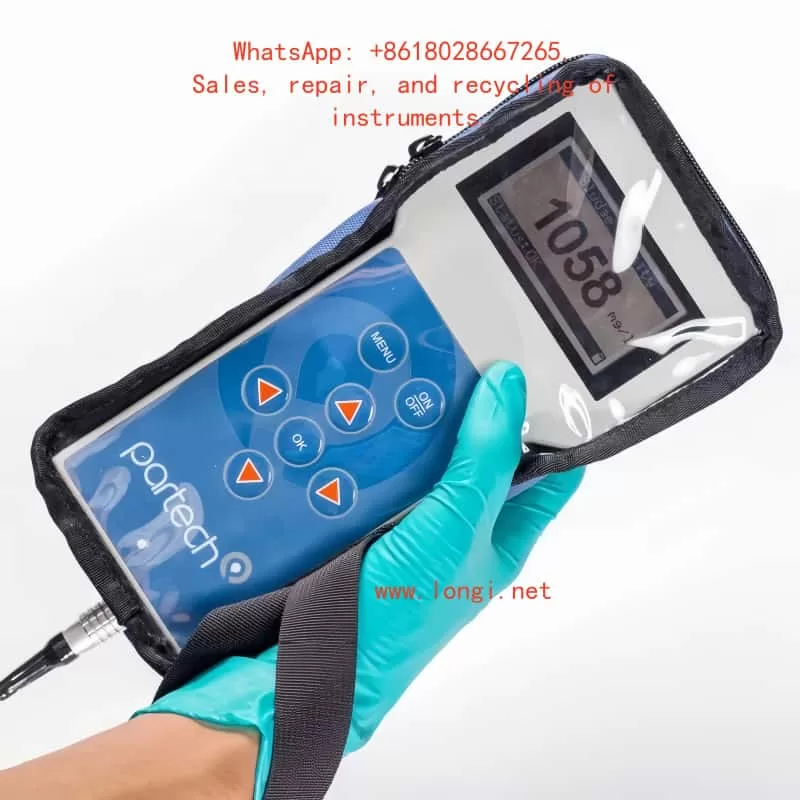
The Partech 740 portable sludge concentration meter is a high-precision instrument specifically designed for monitoring in sewage treatment, industrial wastewater, and surface water. It enables rapid measurement of Suspended Solids (SS), Sludge Blanket Level (SBL), and Turbidity. Its key advantages include:

  • Portability and Protection: Featuring an IP65-rated enclosure with a shock-resistant protective case and safety lanyard, it is suitable for use in harsh environments.
  • Multi-Scenario Adaptability: Supports up to 10 user-defined configuration profiles to meet diverse calibration needs for different water qualities (e.g., Mixed Liquor Suspended Solids (MLSS), Final Effluent (F.E.)).
  • High-Precision Measurement: Utilizes infrared light attenuation principle (880nm wavelength) with a measurement range of 0–20,000 mg/l and repeatability error ≤ ±1% FSD.
Partech 740

1.2 Core Components

  • Host Unit: Dimensions 224×106×39mm (H×W×D), weight 0.5kg, with built-in NiMH battery offering 5 hours of runtime.
  • Soli-Tech 10 Sensor: Black acetal construction, IP68 waterproof rating, 5m standard cable (extendable to 100m), supporting dual-range modes (low and high concentration).
  • Accessory Kit: Includes charger (compatible with EU/US/UK plugs), nylon tool bag, and operation manual.

Part II: Hardware Configuration and Initial Setup

2.1 Device Assembly and Startup

  • Sensor Connection: Insert the Soli-Tech 10 sensor into the host unit’s bottom port and tighten the waterproof cap.
  • Power On/Off: Press and hold the ON/OFF key on the panel. The initialization screen appears (approx. 3 seconds).
  • Battery Management:
    • Charging status indicated by LED (red: charging; green: fully charged).
    • Auto-shutdown timer configurable (default: 5-minute inactivity sleep).

2.2 Keypad and Display Layout

  • Six-Key Membrane Keyboard:
    • ↑/↓/←/→: Menu navigation and value adjustment.
    • OK: Confirm selection.
    • MENU: Return to the previous menu or cancel operation.
  • Display Layout:
    • Main screen: Large font displays current measurement (e.g., 1500 mg/l), with status bar showing battery level, units, and fault alerts.

Part III: Measurement Process and Calibration Methods

3.1 Basic Measurement Operation

  • Select Configuration Profile:
    Navigate to MAIN MENU → Select Profile and choose a preset or custom profile (e.g., “Charlestown MLSS”).
  • Real-Time Measurement:
    Immerse the sensor in the liquid. The host updates data every 0.2 seconds.
  • Damping Adjustment:
    Configure response speed via Profile Config → Damping Rate (e.g., “Medium” for 30-second stabilization).

3.2 Calibration Steps (Suspended Solids Example)

  • Zero Calibration:
    Navigate to Calibration → Set Zero, immerse the sensor in purified water, and press OK to collect data for 5 seconds.
    • Error Alert: If “Sensor Input Too High” appears, clean the sensor or replace the zero water.
  • Span Calibration:
    Select Set Span, input the standard solution value (e.g., 1000 mg/l), immerse the sensor, and press OK to collect data for 10 seconds.
  • Secondary Calibration:
    For delayed laboratory results, use Take Sample to store signals and later input actual values via Enter Sample Result for correction.

3.3 Advanced Calibration Options

  • Lookup Table Linearization:
    Adjust X/Y values in Profile Adv Config for nonlinear samples.
  • Constant Correction:
    A/B/C coefficients for computational adjustments (requires vendor technical support).
Partech 740

Part IV: Profile Management and Customization

4.1 Creating a New Profile

  • Startup Wizard: Navigate to MAIN MENU → New Profile Wizard.
  • Step-by-Step Setup:
    • Preset Type: Select “STW MLSS” or “User Defined”.
    • Naming and User Info: Supports 21 characters (e.g., “Aeration Lane 1”).
    • Units and Range: Options include mg/l, g/l, FTU, with automatic range scaling (e.g., mg/l→g/l conversion).

4.2 Parameter Customization

  • Display Title: Modify via Profile Config → Measurement Title (e.g., “Final Effluent SS”).
  • Security Settings: Enable password protection via Lock Instrument (default: 1000, customizable).

Part V: Maintenance and Troubleshooting

5.1 Routine Maintenance

  • Sensor Cleaning: Wipe the probe with a soft cloth to avoid organic residue.
  • Battery Care: Charge monthly during long-term storage.
  • Storage Conditions: -20~60°C in a dry environment.

5.2 Common Faults and Solutions

Fault PhenomenonPossible CauseSolution
“No Sensor” displayedLoose connection or sensor failureCheck interface or replace sensor
Value driftCalibration failure or low dampingRecalibrate or adjust damping to “Slow”
Charging indicator offPower adapter failureReplace compatible charger (11–14VDC)

5.3 Factory Repair

Include fault description, contact information, and safety precautions.

Part VI: Technical Specifications and Compliance

  • EMC Certification: Complies with EN 50081/50082 standards and EU EMC Directive (89/336/EEC).
  • Accuracy Verification: Use Fuller’s Earth or Formazin standard solutions (refer to Chapters 20–21 for preparation methods).
  • Software Version: Check via Information → Software Version and contact the vendor for updates.

Appendix: Quick Operation Flowchart

Startup → Select Profile → Immerse Sample → Read Data

For Abnormalities:

  1. Check sensor.
  2. Restart device.
  3. Contact technical support.

This guide comprehensively covers operational essentials for the Partech 740. Enhance efficiency with practical examples (e.g., “Bill Smith’s Profile Example” in Chapter 4). For advanced technical support, please contact us.

Posted on

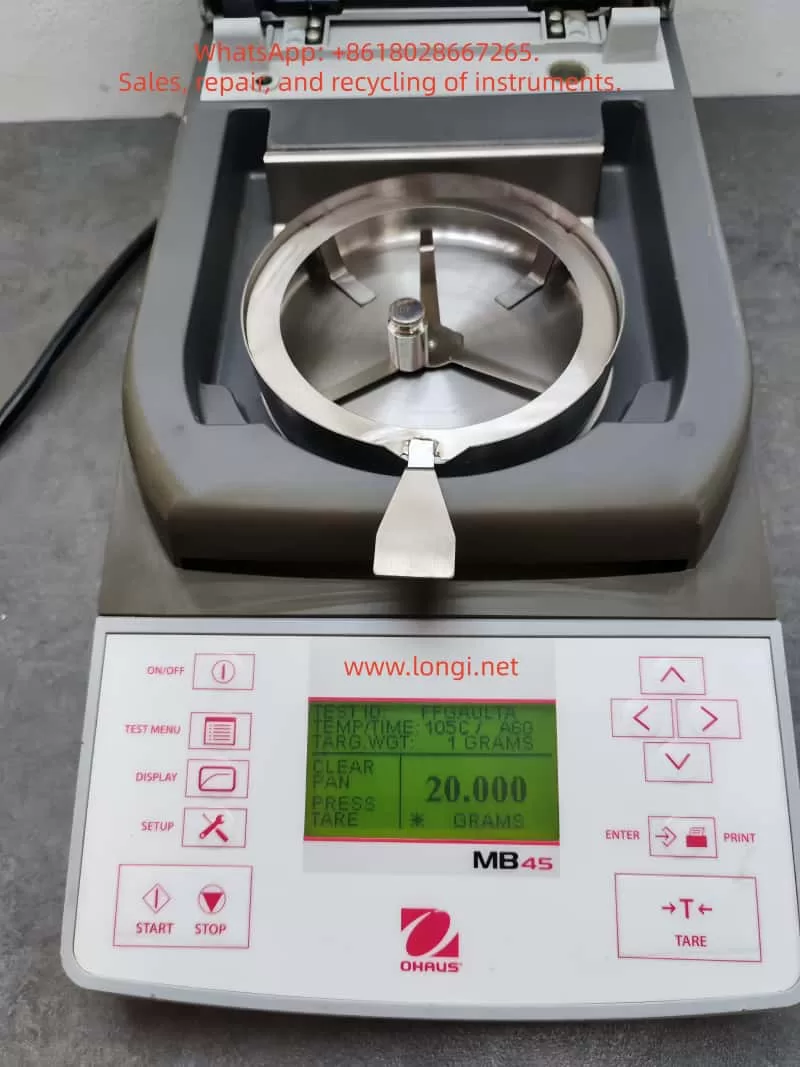
User Guide for OHAUS MB45 Halogen Moisture Analyzer

Introduction

OHAUS, a renowned brand in the laboratory instrumentation sector, is celebrated for its MB series moisture analyzers, which are recognized for their efficiency, reliability, and cost-effectiveness. Among them, the MB45 model stands out as an advanced product within the series, specifically tailored for industries such as pharmaceuticals, chemicals, food and beverage, quality control, and environmental testing. Leveraging cutting-edge halogen heating technology and a precision weighing system, the MB45 is capable of rapidly and accurately determining the moisture content of samples. This comprehensive user guide, based on the product introduction and user manuals of the OHAUS MB45 Halogen Moisture Analyzer, aims to assist users in mastering the instrument’s usage from understanding its principles to practical operation and maintenance. The guide will adhere to the following structure: principles and features of the instrument, installation and simple measurement, calibration and adjustment, operation methods, maintenance, and troubleshooting. The content strives to be original and detailed, ensuring users can avoid common pitfalls and achieve efficient measurements in practical applications. Let’s delve into the details step by step.

1. Principles and Features of the Instrument

1.1 Instrument Principles

The working principle of the OHAUS MB45 Halogen Moisture Analyzer is based on thermogravimetric analysis (TGA), a classical relative measurement method. In essence, the instrument evaporates the moisture within a sample by heating it and calculates the moisture content based on the weight difference before and after drying. The specific process is as follows:

  • Initial Weighing: At the start of the test, the instrument precisely measures the initial weight of the sample. This step relies on the built-in high-precision balance system to minimize errors.
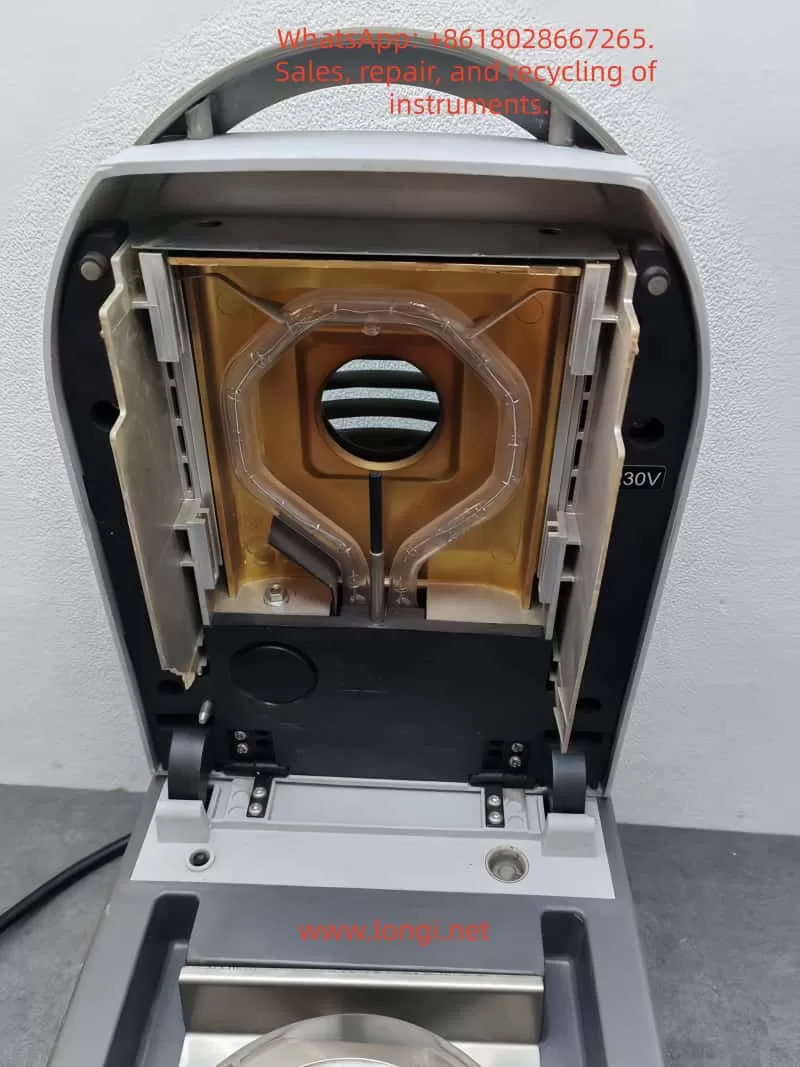
  • Heating and Drying: Utilizing a halogen lamp as the heat source, the analyzer generates uniform infrared radiation heating, which is 40% faster than traditional infrared heating. The heating element, designed with a gold-reflective inner chamber, evenly distributes heat to prevent local overheating that could lead to sample decomposition. The temperature can be precisely controlled between 50°C and 200°C, with increments of 1°C.
  • Real-Time Monitoring: During the drying process, the instrument continuously monitors changes in the sample’s weight. As moisture evaporates, the weight decreases until a preset shutdown criterion is met (e.g., weight loss rate falls below a threshold).
  • Moisture Content Calculation: The moisture percentage (%Moisture) is calculated using the formula: Moisture% = [(Initial Weight – Dried Weight) / Initial Weight] × 100%. Additionally, the analyzer can display %Solids, %Regain, weight in grams, or custom units.

The advantage of this principle lies in its relative measurement approach: it does not require absolute calibration of the sample’s initial weight; only the difference before and after drying is needed to obtain accurate results. This makes the MB45 particularly suitable for handling a wide range of substances, from liquids to solids, and even samples with skin formation or thermal sensitivity. Compared to the traditional oven method, thermogravimetric analysis significantly reduces testing time, typically requiring only minutes rather than hours. Moreover, the built-in software algorithm of the instrument can process complex samples, ensuring high repeatability (0.015% repeatability when using a 10g sample).

In practical applications, the principle also involves heat transfer and volatilization kinetics. The “light-speed heating” characteristic of halogen heating allows the testing area to reach full temperature in less than one minute, with precision heating software gradually controlling the temperature to avoid overshooting. Users can further optimize heating accuracy using an optional temperature calibration kit.

1.2 Instrument Features

As a high-end model in the MB series, the OHAUS MB45 integrates multiple advanced features that set it apart from the competition:

  • High-Performance Heating System: The halogen heating element is durable and provides uniform infrared heating. Compared to traditional infrared technology, it starts faster and operates more efficiently. The gold-reflective inner chamber design ensures even heat distribution, reducing testing time and enhancing performance.
  • Precision Weighing: With a capacity of 45g and a readability of 0.01%/0.001g, the instrument offers strong repeatability: 0.05% for a 3g sample and 0.015% for a 10g sample. This makes it suitable for high-precision requirements, such as trace moisture determination in the pharmaceutical industry.
  • User-Friendly Interface: Equipped with a 128×64 pixel backlit LCD display, the analyzer supports multiple languages (English, Spanish, French, Italian, German). The display provides rich information, including %Moisture, %Solids, weight, time, temperature, drying curve, and statistical data.
  • Powerful Software Functions: The integrated database can store up to 50 drying programs. It supports four automatic drying programs (Fast, Standard, Ramp, Step) for easy one-touch operation. The statistical function automatically calculates standard deviations, making it suitable for quality control. Automatic shutdown options include three pre-programmed endpoints, custom criteria, or timed tests.
  • Connectivity and Compliance: The standard RS232 port facilitates connection to printers or computers and supports GLP/GMP format printing. The instrument complies with ISO9001 quality assurance specifications and holds CE, UL, CSA, and FCC certifications.
  • Compact Design: Measuring only 19×15.2x36cm and weighing 4.6kg, the analyzer fits well in laboratory spaces with limited room. It operates within a temperature range of 5°C to 40°C.
  • Additional Features: Built-in battery backup protects data; multiple display modes can be switched; custom units are supported; a test library allows for storing, editing, and running tests; and statistical data tracking is available.
  • Accessory Support: Includes a temperature calibration kit, anti-theft device, sample pan handler, 20g calibration weight, etc. Accessories such as aluminum sample pans (80 pieces) and glass fiber pads (200 pieces) facilitate daily use.

These features make the MB45 suitable not only for pharmaceutical, chemical, and research fields but also for continuous operations in food and beverage, environmental, and quality control applications. Its excellent repeatability and rapid results (up to 40% faster) enhance production efficiency. Compared to the basic model MB35, the MB45 offers a larger sample capacity (45g vs. 35g), a wider temperature range (200°C vs. 160°C), and supports more heating options and test library functions.

In summary, the principles and features of the MB45 embody OHAUS’s traditional qualities: reliability, precision, and user orientation. Through these technologies, users can obtain consistent and accurate results while streamlining operational processes.

2. Installation and Simple Measurement of the Instrument

2.1 Installation Steps

Proper installation is crucial for ensuring the accuracy and safety of the OHAUS MB45 Moisture Analyzer. Below is a detailed installation guide based on the step-by-step instructions in the manual.

  • Unpacking and Inspection: Open the packaging and inspect the standard equipment: the instrument body, sample pan handler, 20 aluminum sample pans, glass fiber pads, specimen sample (absorbent glass fiber pad), draft shield components, heat shield, power cord, user manual, and warranty card. Confirm that there is no damage; if any issues are found, contact the dealer.
  • Selecting a Location: Place the instrument on a horizontal, stable, and vibration-free workbench. Avoid direct sunlight, heat sources, drafts, or magnetic field interference. The ambient temperature should be between 5°C and 40°C, with moderate humidity. Ensure there is sufficient space at the rear for heat dissipation (at least 10cm). If moved from a cold environment, allow several hours for stabilization.
  • Installing the Heat Shield, Draft Shield, and Sample Pan Support: Open the heating chamber cover and place the heat shield (circular metal plate) at the bottom of the chamber. Install the draft shield (plastic ring) to prevent airflow interference. Then, insert the sample pan support (tripod) and ensure stability.
  • Leveling the Instrument: Use the front level bubble and adjustable feet to adjust the level. Rotate the feet until the bubble is centered to ensure repeatable results.
  • Connecting the Power Supply: Plug the power cord into the socket at the rear of the instrument and connect it to a 120V or 240V AC, 50/60Hz power source. Warning: Use only the original power cord and avoid extension cords. Before the first use, ensure the voltage matches.
  • Powering On: Press the On/Off button, and the display will illuminate. After self-testing, the instrument enters the main interface. If stored in a cold environment, allow time for预热 (warm-up) and stabilization.

After installation, it is recommended to perform a preliminary check: close the lid to ensure no abnormal noises; test the balance stability.

2.2 Simple Measurement Steps

After installation, you can proceed with a simple measurement to familiarize yourself with the instrument. Use the provided specimen sample (glass fiber pad) for the test.

  • Preparing the Sample: Take approximately 1g of the specimen sample and evenly place it in an aluminum sample pan. Cover it with a glass fiber pad to prevent liquid splashing.
  • Entering the Test Menu: Press the Test button to enter the default settings: Test ID as “-DEFAULT-“, temperature at 100°C, and time at 10:00 minutes.
  • Placing the Sample: Open the cover and use the sample pan handler to place the sample pan inside. Close the cover to ensure a seal.
  • Starting the Measurement: Press the Start/Stop button. The instrument begins heating and weighing. The display shows real-time information such as time, temperature, and moisture%.
  • Monitoring the Process: Observe the drying curve. The initial weight is displayed, followed by the current moisture content (e.g., 4.04%) during the process. Press the Display button to switch views: %Moisture, %Solids, weight in grams, etc.
  • Ending the Measurement: Once the preset time or shutdown criterion is reached, the instrument automatically stops. A beep sounds to indicate completion. The final result, such as the moisture percentage, is displayed.
  • Removing the Sample: Carefully use the handler to remove the hot sample pan to avoid burns. Clean any residue.

This simple measurement typically takes 8-10 minutes. Through this process, users can understand the basic workflow: from sample preparation to result reading. Note: The first measurement may require parameter adjustments to match specific samples.

3. Calibration and Adjustment of the Instrument

3.1 Weight Calibration

Weight calibration ensures the accuracy of the balance. Although not strictly necessary for moisture determination, it is recommended to perform it regularly.

  • Preparation: Use a 20g external calibration weight (an optional accessory). Ensure the instrument is level and the sample chamber is empty.
  • Entering the Menu: Press the Setup button and select “Weight Calibration.”
  • Process: Close the cover and press Enter to begin. When “Place 0g” is displayed, ensure the pan is empty; then, when “Place 20g” is shown, place the calibration weight on the pan. The instrument automatically calibrates and displays success or failure.
  • Completion: Press Display to return to the main interface. If calibration fails, check for weight or environmental interference.

After calibration, print a report (if GLP is enabled) to record the date, time, and results.

3.2 Temperature Calibration

Temperature calibration uses an optional temperature calibration kit to ensure heating accuracy.

  • Preparation: The kit includes a temperature probe. Allow the instrument to cool for at least 30 minutes.
  • Entering the Menu: Navigate to Setup > “Temperature Calibration.”
  • Process: Insert the probe and press Enter. The instrument heats to a preset temperature (e.g., 100°C), and the probe reading is compared to the instrument display. Adjust the deviation and press Enter to confirm.
  • Multi-Point Calibration: Calibrate multiple temperature points (50-200°C) if needed.
  • Completion: The display indicates success. Perform regular calibration (monthly or after frequent use).

3.3 Other Adjustments

  • Language Settings: Navigate to Setup > Language to select English or other supported languages.
  • Buzzer Volume: Adjust the buzzer volume under Setup > Beeper to Low/High/Off.
  • Time and Date: Set the time and date format under Setup > Time-Date.
  • Display Contrast and Brightness: Adjust the display visibility under Setup > Adjust Display.
  • RS232 Settings: Configure the baud rate, parity, etc., under Setup > RS232.
  • Printing and GLP: Enable automatic printing under Setup > Print/GLP.
  • Factory Reset: Restore default settings under Setup > Factory Reset.

These adjustments optimize the user experience and ensure the instrument meets specific needs.

4. Operation of the Instrument

4.1 Operation Concepts

The MB45 is operated through the front panel buttons and menus. The main menu includes Setup (settings) and Test (testing). The test menu allows for customizing parameters such as Test ID, drying curve, temperature, shutdown criteria, result display, custom units, target weight, and print interval.

4.2 Entering a Test ID

Press Test > Test ID and input an alphanumeric ID (e.g., sample name).

4.3 Setting the Drying Curve

Choose from Standard (minimal overshoot), Fast (rapid heating), Ramp (controlled slope), or Step (three-step temperature).

4.4 Setting the Drying Temperature

Select a temperature between 50°C and 200°C, with increments of 1°C. Choose a temperature suitable for the sample to avoid decomposition.

4.5 Choosing Shutdown Criteria

  • Manual: Press Stop to halt the test.
  • Timed: Set a duration between 1 and 120 minutes.
  • Automatic: Select A30/A60/A90 (weight loss rate < threshold/second).
  • Automatic Free: Customize the weight loss rate.

4.6 Result Display

Choose to display %Moisture, %Solids, %Regain, weight in grams, or custom units.

4.7 Custom Units

Define formulas, such as the moisture/solids ratio.

4.8 Target Weight and Print Interval

Set a target weight prompt; configure the print interval between 1 and 120 seconds.

4.9 Saving and Running Tests

Save up to 50 test programs in the library; run a test by pressing Start.

4.10 Running Mode Display

View real-time curves and statistical data during operation.

4.11 Using the Library

Edit and lock test programs for consistent testing.

When operating the instrument, prioritize safety: wear gloves to avoid burns and optimize sample preparation for the best results.

5. Maintenance and Troubleshooting of the Instrument

5.1 Maintenance

Regular maintenance extends the instrument’s lifespan:

  • Cleaning: After disconnecting the power, use a soft cloth to wipe the exterior. Use compressed air to blow dust out of the interior. Avoid introducing liquids.
  • Replacing Fuses: Access the fuse box at the rear and replace fuses with the same specifications.
  • Resetting Thermal Overload: If heating fails, press the reset button at the rear to restore functionality.
  • Storage: Store the instrument in a dry, room-temperature environment.

5.2 Common Faults and Solutions

  • Black Display Screen: Check the power supply and fuses; contact service if necessary.
  • Prolonged Measurement Time: Adjust the shutdown criteria or drying curve.
  • Inaccurate Results: Calibrate the weight and temperature; review sample preparation.
  • Error Detection: The display shows error codes; refer to the manual to restart or seek service.
  • Other Issues: If there is no weight change in the sample, clean the balance; if overheating occurs, check ventilation.

If issues persist, contact OHAUS service for assistance.

Conclusion

This comprehensive guide equips users with a thorough understanding of the OHAUS MB45 Halogen Moisture Analyzer. Users are encouraged to apply this knowledge in practice and optimize their testing processes for the best results.

Posted on

Lake Shore Gaussmeter 475DSP Series User Manual Usage Guide

Introduction

The 475DSP series gaussmeter (hereinafter referred to as the 475DSP gaussmeter), developed by Lake Shore Cryotronics, is a precision magnetic field measurement device that utilizes digital signal processing (DSP) technology to achieve high-accuracy detection of magnetic flux density and magnetic field strength. This equipment is suitable for various applications, including materials science, electromagnetism research, and industrial magnetic field monitoring. This guide is compiled based on the Model 475 User Manual (Revision 2.4, June 10, 2019) and covers four core modules: principles and characteristics, standalone operation and computer software integration, calibration and maintenance, and troubleshooting. It aims to guide users in safely and effectively utilizing the equipment. Note: If the device model or firmware version differs, please consult the latest resources on the Lake Shore website to ensure compatibility.

The guide adopts a hierarchical structure, first analyzing the basic principles of the device, then detailing the operation methods, followed by discussing maintenance strategies, and finally addressing potential issues. Through this guide, users can progress from basic introduction to advanced applications.

1. Principles and Characteristics of the Gaussmeter

1.1 Overview of Principles

The 475DSP gaussmeter operates based on the Hall effect, an electromagnetic phenomenon where a voltage perpendicular to both the current and magnetic field is generated when a current-carrying conductor is placed in a magnetic field. The magnitude of this voltage is directly proportional to the magnetic field strength. The device captures this voltage through a Hall probe and amplifies and converts it via internal circuitry to output magnetic field readings.

Unlike conventional analog instruments, the 475DSP integrates a DSP module to digitize analog signals for advanced processing, including noise suppression and algorithm optimization. The main system components include:

  • Data Acquisition Mechanism: Continuous magnetic field signals are sampled and converted into digital sequences. The A/D converter collects data at a high frequency (e.g., dozens of times per second in DC mode) to ensure the capture of dynamic changes. The sampling theorem is followed to avoid frequency aliasing.
  • DSP Core Operations: The processor performs filtering, spectral analysis (e.g., Fourier transforms for AC RMS calculations), and error correction. It considers the effects of quantization error and thermal noise to maintain measurement stability.
  • Mode-Specific Principles:
    • DC Measurement: For constant or low-frequency magnetic fields, average filtering is used to eliminate random interference. Zero-field calibration utilizes a dedicated cavity to offset drift.
    • Root Mean Square (RMS) Measurement: Calculates the true RMS value of periodic AC fields, suitable for non-sinusoidal waves. Supports wide-band analysis with a frequency limit up to several kHz.
    • Peak Capture: Detects transient peaks, supporting both positive and negative polarities and pulse/continuous modes. High sampling rates (e.g., tens of thousands of Hz) are suitable for rapid pulse fields.
  • Units and Conversion: Conversion between magnetic flux density B (units: Gauss (G) or Tesla (T)) and magnetic field strength H (Ampere/meter (A/m) or Oersted (Oe)) is based on the permeability relationship. In non-magnetic media, B ≈ μ₀H.
  • Sensor Details: The Hall element has a small sensitive area and must be orthogonal to the magnetic field. Probe types vary, such as axial or transverse, with attention to polarity reversal and mechanical protection.

1.2 Characteristics Analysis

The 475DSP gaussmeter stands out with its advanced design, integrating precision, convenience, and durability. The following analysis covers performance, accessories, interface, and specifications:

  • Performance Highlights:
    • Multi-Mode Support: DC, RMS, and peak modes, with a range from nanogauss to hundreds of kilogauss.
    • Precision Enhancement: ±0.05% reading accuracy in DC mode, with an RMS frequency response up to 20 kHz.
    • Intelligent Functions: Auto-ranging, peak locking, deviation comparison, and threshold alarms.
    • Environmental Adaptability: Built-in temperature monitoring with automatic compensation for thermal drift (<0.01%/°C).
  • Accessory Features:
    • Probe Variety: High-precision (HST), sensitive (HSE), and extreme field (UHS) probes.
    • Memory Chips: Probe EEPROMs record calibration parameters for seamless integration.
    • Cable Extension: Supports cables up to 30 meters while maintaining signal integrity.
    • Custom Components: Bare Hall sensors for integrated applications, with resistance ranges of 500-1500 Ω and sensitivities of 0.05-0.15 mV/G.
  • Interface and Connectivity:
    • Display System: Color LCD screen with dual-line display of field values and auxiliary information (e.g., frequency). Brightness is adaptive.
    • Control Panel: Full-function keyboard supporting shortcuts and menu navigation.
    • Communication Ports: GPIB (IEEE-488) and serial RS-232 for data transmission.
    • Output Options: Multiple analog voltages (±5 V or ±12 V) and relay control.
    • Indicator Lights: Status LEDs indicate operation modes.
  • Technical Specifications:
    • Input: Single-channel Hall input with temperature compensation.
    • Accuracy Indicators: RMS ±0.5% (100 Hz-1 kHz), peak ±1.5%.
    • Environmental Adaptability: Operating temperature range of -10°C to 60°C, humidity <80%.
    • Power Supply: Universal AC 90-250 V, power consumption <20 W.
    • Physical Dimensions: 250 mm wide × 100 mm high × 350 mm deep, weighing approximately 4 kg.
    • Compliance: CE certification, Class A EMC, NIST traceable.
    • Warranty Policy: 3-year warranty from the shipping date, covering manufacturing defects (excluding abuse).
  • Additional Advantages:
    • Firmware Reliability: Although software limitations may exist, results are emphasized through dual verification.
    • Safety Design: Grounding requirements and anti-static measures.
    • EMC Optimization: Shielding recommendations for laboratory use to avoid RF interference.
      These characteristics make the 475DSP suitable for precision magnet calibration and electromagnetic shielding testing, providing robust solutions.

2. How to Use the Gaussmeter Independently and via Computer Software

2.1 Standalone Usage Guide

The 475DSP gaussmeter is designed for user-friendliness and supports standalone operation without external devices. The following covers steps from installation to advanced applications.

2.1.1 Installation Preparation

  • Unpacking Inspection: Confirm that the package includes the host unit, power adapter, optional probes, and documentation.
  • Rear Panel Interfaces: Connect the power supply (90-250 V), probe port (D-sub 15-pin), and I/O expansion (including analog output and relay).
  • Power Configuration: Install an appropriate fuse (1 A slow-blow) and use a grounded socket. The power switch is located on the rear.
  • Probe Installation: Insert the probe, which is automatically recognized by the EEPROM. If not detected, the screen prompts “Probe Missing.”
  • Mechanical Considerations: The probe’s bending radius is limited to 3 cm to avoid physical stress.
  • Installation Options: Supports desktop or rack mounting using dedicated brackets.

2.1.2 Basic Operations

  • Startup: Upon power-on, the device performs a self-test and displays firmware information. It defaults to DC mode.
  • Screen Interpretation: The main line displays the magnetic field value, while the auxiliary line shows temperature or frequency. The unit switching key supports G/T/A/m/Oe.
  • Key Functions: Shortcut keys switch modes, long presses activate submenus, arrows navigate, and numbers input parameters.
  • Unit Adjustment: A dedicated key cycles through magnetic field units.
  • DC Operation: Select DC mode and set auto/manual range. Filter levels include precision (slow), standard, and fast. Zero calibration is performed by placing the probe in a zero cavity and pressing the zero key. Peak mode locks extreme values (absolute or relative). Deviation sets a reference for comparison.
  • RMS Operation: Switch to RMS mode and configure bandwidth (wide/narrow). Displays the RMS value and frequency. Alarm thresholds can be set.
  • Peak Operation: Select peak mode and pulse/periodic submodes. Captures instantaneous high and low peaks, supporting reset.
  • Temperature Function: Displays the probe temperature in real-time (°C/K) and enables compensation.
  • Alarm System: Defines upper and lower limits and activates buzzers or external signals.
  • Output Control: Configures analog channel proportions and relay linkage with alarms.
  • Locking Mechanism: Password-protects the keyboard (default password: 456).
  • Reset: A combination key restores factory settings (retaining calibration).

2.1.3 Advanced Standalone Functions

  • Probe Configuration: Resets compensation or programs custom probes in the menu.
  • Cable Programming: Uses a dedicated cable to input sensitivity.
  • Environmental Considerations: For indoor use, avoid high RF areas, with an altitude limit of 3000 m.
    Standalone mode is ideal for portable measurements and offers intuitive operation.

2.2 Usage via Computer Software

The 475DSP is equipped with standard interfaces to support remote control and automation.

2.2.1 Interface Preparation

  • GPIB Setup: Address range 1-31 (default 5), with terminators LF or EOI.
  • Serial Port Parameters: Baud rate 1200-19200 bps (default 19200), no parity. Use a DB-9 connector.
  • Mode Switching: The remote mode is indicated by LEDs. Press the local key to return.

2.2.2 Software Integration

  • Status Monitoring: Utilizes event registers to query operational status, such as *STB?.
  • Command Library: System commands like *RST for reset and queries like FIELD? to read values. MODE sets the mode.
  • Programming Examples: Configures interfaces in Python or C++ and sends commands like *IDN? to confirm the device.
  • Service Requests: Enables SRQ interrupts for synchronous data.
  • Serial Protocol: Commands end with CR, and responses are simple to parse.
  • Compatible Software: Supports NI LabVIEW drivers; consult Lake Shore for details.
  • Debugging Tips: Verify connection parameters and check cables or restart if there is no response.
    Computer mode is suitable for batch data collection, such as plotting magnetic field maps with scripts.

3. How to Calibrate, Debug, and Maintain the Gaussmeter

3.1 Calibration and Debugging

Regular calibration maintains accuracy, and it is recommended to have the device calibrated annually by Lake Shore using NIST standards.

3.1.1 Required Tools

  • Computer with communication software.
  • High-precision multimeter (e.g., Fluke 87).
  • Resistance standards (10 kΩ-1 MΩ, 0.05% precision).
  • Zero-field cavity.

3.1.2 Calibration Process

  • Gain Adjustment: Input analog voltage and use the CALGAIN command to calculate the factor (actual/expected).
  • Zero Offset: Use the CALZERO command to clear the offset.
  • Temperature Calibration: Measure resistance with varying currents and update compensation coefficients.
  • Output Verification: Set the voltage range, measure, and fine-tune the offset.
  • Storage: Use the CALSTORE command to save to non-volatile memory.
  • Debugging Steps: Perform zero-field tests to verify the baseline, enable compensation to check stability, simulate thresholds to confirm alarms, and input values in deviation mode to test calculations.
  • Probe Handling: Calibrate cables integrally and input custom sensitivity (mV/G).

3.1.3 Maintenance and Care

  • Daily Cleaning: Wipe dust with a soft cloth, avoiding solvents. Store between -30°C and 70°C.
  • Probe Protection: Protect from impacts and perform regular zero calibrations.
  • Power Supply Check: Replace fuses and ensure stable voltage.
  • EMC Practices: Use short cable routes and separate signals.
  • Firmware Management: Consult the manufacturer before updating the firmware.
  • Warranty Reminder: Modifications invalidate the warranty; exclude disasters.
    Regular maintenance ensures long-term reliability.

4. What are the Faults of the Gaussmeter and How to Address Them

4.1 Common Fault Classifications

Faults can be categorized into device, user, and connection types, with error codes displayed on the screen.

4.1.1 Device Faults

  • Probe Not Detected: Loose connection or faulty probe. Solution: Reconnect, check the cable. Replace if defective.
  • Calibration Failure: Data corruption. Solution: Reset memory and recalibrate.
  • Internal Communication Disruption: Hardware issue. Solution: Restart; if persistent, return for repair.
  • Memory Error: EEPROM problem. Solution: Restore defaults and verify.
  • Out of Range: Excessive magnetic field. Solution: Adjust the range or remove the source.
  • Temperature Overload: Sensor overheating. Solution: Cool down and wait.

4.1.2 User Operation Faults

  • Keyboard Lock: Password activated. Solution: Input the password to unlock.
  • Invalid Command: Mode conflict. Solution: Switch to a compatible mode.
  • Reading Fluctuations: Interference. Solution: Enhance filtering and shielding.

4.1.3 Connection Faults

  • GPIB Unresponsive: Configuration error. Solution: Check the address and use *CLR to clear.
  • Serial Port Error: Parameter mismatch. Solution: Match the baud rate and check the line.
  • Interrupt Failure: Register not set. Solution: Enable *SRE.

4.1.4 General Troubleshooting Steps

  • Steps: Power off and restart, check the manual for error codes, and press the clear key.
  • Service: Provide the model number.
  • Prevention: Follow grounding specifications and avoid use in explosive areas.
  • Software Issues: Recheck abnormal readings and avoid reverse engineering.
    Quick responses minimize downtime.

Conclusion

This guide provides a comprehensive overview of the application of the 475DSP gaussmeter, assisting users in optimizing their operations. Combining practical experience with the manual deepens understanding.