Posted on

Agilent VacIon Plus 20 Ion Pump User Guide — Technical Interpretation & Operational Essentials Based on the Official Manual

I. Product Positioning & Technical Background

The Agilent VacIon Plus 20 is a mid-range ion pump with a nitrogen pumping speed of 20 L/s, making it a core model in the VacIon Plus series (which covers a full range from 0.4 to 1,000 L/s). It is designed for ultra-high vacuum (UHV) and extreme high vacuum (XHV) systems, with key applications including: academic research, high-energy physics (HEP) experiments, particle accelerators and synchrotron rings, scanning electron microscopy (SEM), imaging equipment, radiation therapy devices, and surface analysis instruments.

The official model numbers include 919-1114 (Diode, no magnet), 919-1115 (Diode, with ferrite magnet), 919-1144 (StarCell, no magnet), 919-1145 (StarCell, with ferrite magnet), and other variants. Users can select different pumping unit types, magnet configurations, and high-voltage feedthrough orientations based on actual pumping requirements.
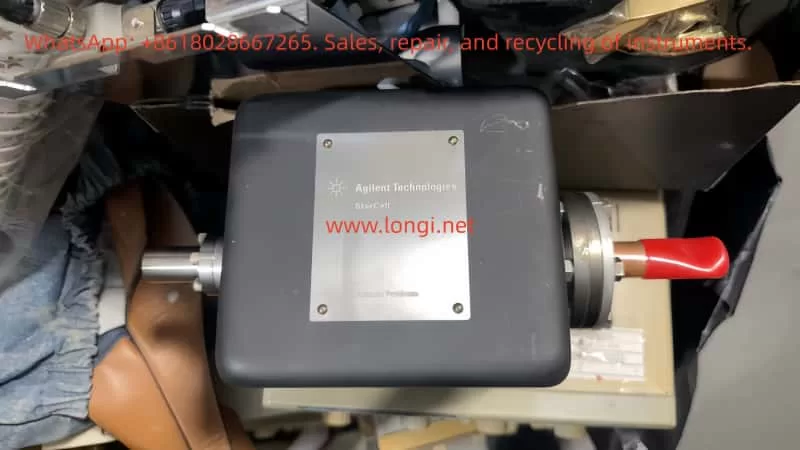

StarCell 9191146 Vacion Plus 20

II. Core Technical Principles

2.1 Diode Ion Pump Operating Mechanism

The diode ion pump core consists of a positively charged anode ring and a negatively charged titanium (Ti) cathode, both immersed in a magnetic field. When powered on, electrons collide with gas molecules in the plasma, generating positive ions. Light ions (e.g., H₂, He) accelerate toward the cathode, penetrate the Ti layer, and are buried and absorbed. Heavy ions strike the cathode, causing Ti sputtering. The sputtered Ti coats the inner surface of the anode ring, forming a fresh chemically active film that continuously traps active gases (H₂, N₂, O₂, etc.).

Key Limitation: The two-electrode structure cannot effectively trap noble gases (e.g., Ar), because noble gases do not chemically react with Ti. They must rely on physical sputtering for transport to the anode for pumping, which is far less efficient.

2.2 Triode / StarCell Ion Pump Operating Mechanism

Agilent’s proprietary StarCell pumping unit is a fundamental improvement over the traditional two-electrode design. It uses a star-shaped cathode geometry, which greatly increases the probability of noble gases being transported to the anode as energetic neutral particles, while the titanium cathode ensures high pumping speed for H₂. According to official technical documentation, StarCell is the only ion pump capable of handling large quantities of noble gases and hydrogen simultaneously, offering the highest pumping speed and capacity for methane (CH₄), argon (Ar), and helium (He).

Bottom line: if your system contains a significant proportion of noble gases or hydrogen, StarCell is the clearly superior choice over Diode.

2.3 Ion Pump as Vacuum Gauge

Because the ion current generated by an ion pump is proportional to pressure, in many applications (especially SEM), the VacIon Plus 20 can directly double as an ionization vacuum gauge — a capability that mechanical pumps like turbomolecular pumps do not have. However, this requires extremely low leakage current. Agilent achieves this through a patented anode design (reducing void volume, sharp edges, and metal “whiskers”), and the SEM version is further optimized for this parameter.


III. Key Performance Parameters

ParameterValue
Nitrogen pumping speed20 L/s (series range: 20–75 L/s)
Inlet flange2¾” ConFlat (NW 35 / CFF)
Maximum starting pressure≤ 5 × 10⁻² mbar
Ultimate pressure< 1 × 10⁻¹¹ mbar
Maximum bake-out temperature350 °C (vacuum processing up to >400 °C)
Heater voltage100–120 V / 200–240 V, 140 W
Service life80,000 hours
Pump weight (no magnet)7 kg (15 lbs)
High-voltage feedthrough optionsFischer, King, DESY, Varian, SHV 10kV (Safeconn)
Magnet optionsFerrite magnet, rare-earth magnet (NdFeB)

Parameter Interpretation: The maximum starting pressure of ≤ 5 × 10⁻² mbar means this pump cannot be started from atmospheric pressure. A backing pump (e.g., scroll pump, diaphragm pump) must first reduce the system to the 10⁻² mbar range before the ion pump can be turned on. The ultimate pressure of < 10⁻¹¹ mbar is already in the XHV regime, sufficient for most surface analysis and particle physics experiments.
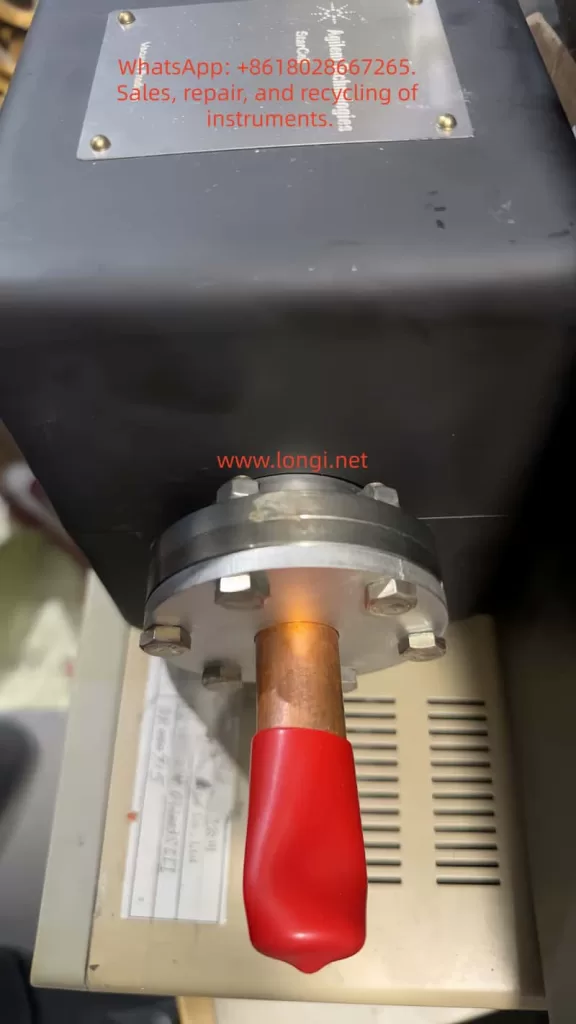

StarCell 9191146 Vacion Plus 20

IV. Pre-Installation Preparation & System Integration

4.1 Cleanliness & Vacuum Integrity

The manual explicitly requires: the pump be vacuum-processed at >400 °C and clamped off under vacuum to ensure cleanliness and vacuum integrity before installation. This step is not a formality — any surface contamination becomes an outgassing source in UHV environments and will severely degrade ultimate pressure.

Practical Tips:

  • Wipe the ConFlat flange face with anhydrous ethanol before installation; ensure no scratches or particles.
  • The copper gasket (OFHC copper) must be new or annealed if reused; never use gaskets with deformation marks.
  • Tighten bolts in a diagonal cross pattern in three passes, with torque per manual recommendations (typically ~20–25 N·m for a 2.75″ ConFlat flange).

4.2 Magnet Configuration Selection

ConfigurationApplicable Scenarios
No magnet (919-1114 / 919-1144)System already has external magnets, or scenarios extremely sensitive to magnetic interference
Ferrite magnet (919-1115 / 919-1145)General-purpose use, lower cost, moderate field strength
Rare-earth NdFeB magnet (919-1146 series)Scenarios requiring stronger magnetic field for higher pumping speed; be aware of interference with nearby electronics

4.3 High-Voltage Feedthrough Orientation

The ConFlat flange is rotatable, and the high-voltage feedthrough can be oriented in different directions (Fischer, SHV, etc.). Consider cable routing space, interference with other components, and whether optical baffles or other accessories are needed. The manual supports custom pump geometries and additional ports — specify these when ordering.


V. Startup Procedure

Step 1: Backing Pump Evacuation

Use a scroll pump or diaphragm pump to reduce system pressure to ≤ 5 × 10⁻² mbar. This is a hard requirement for ion pump startup — do not skip it.

Step 2: Power On the Ion Pump

Connect the heater power supply (100–120 V or 200–240 V, match to model), wait for the heater to stabilize (~5–10 minutes), then turn on the high-voltage supply.

Note: The manual does not specify an exact HV turn-on sequence, but per Agilent’s general ion pump operating guidelines, the filament (if equipped) should be turned on first, and the ion current should be allowed to stabilize before ramping to operating voltage. The Diode/StarCell versions of the VacIon Plus 20 typically do not require a filament — apply operating voltage directly.

Step 3: Monitor Ion Current & Pressure

After startup, the ion current should start high (corresponding to poorer vacuum) and gradually decrease, eventually stabilizing in the nA range. The vacuum gauge reading should continue to drop, ultimately reaching < 10⁻¹⁰ mbar.

Abnormal Condition Diagnosis:

  • Ion current stays persistently high → possible leak or backing pump did not evacuate sufficiently.
  • Ion current fluctuates abnormally → check HV power supply stability or whether the magnet is affected by external interference.
  • Pressure cannot drop below 10⁻⁹ mbar → consider bake-out (350 °C, hours to days).

Step 4: Bake-Out (If Required)

If the system requires ultimate pressure better than 10⁻¹⁰ mbar, bake-out is necessary. The VacIon Plus 20 can withstand up to 350 °C (vacuum processing above 400 °C), but note:

  • The ion pump should remain on during bake-out to continuously pump desorbed gases.
  • Recommended ramp rate: ≤ 5 °C/min to avoid thermal shock causing flange leaks.
  • After bake-out, cool naturally to room temperature before shutting down the ion pump.

VI. Daily Operations & Troubleshooting

6.1 Leakage Current Monitoring

Low leakage current is the foundation of stable VacIon Plus 20 operation. The manual notes that the SEM version features low leakage current and high stability, minimizing electronic interference. In daily operations, periodically record the ion pump’s ion current in the closed-valve state (i.e., leakage current). If leakage current rises significantly (exceeding several hundred nA), the anode or insulator may be contaminated — schedule maintenance.

6.2 Magnet Demagnetization Risk

Ferrite magnets may demagnetize at high temperatures. If the system requires frequent bake-outs above 300 °C, consider high-temperature-rated rare-earth magnets (NdFeB), but evaluate their magnetic interference with surrounding equipment. The manual offers shielded magnet options for use in strong-field environments.

6.3 Pumping Unit Replacement

Per Agilent’s official maintenance guide:

  • Ion pumps ≥ 150 L/s can have their pumping units replaced individually (StarCell / Diode / Noble Diode).
  • The VacIon Plus 20 is a smaller model; typically the entire pump body is replaced while retaining the magnet, to reduce maintenance cost.

Pumping Unit Comparison:

Unit TypeStrong GasesWeak GasesTypical Application
DiodeN₂, H₂, O₂Ar, HeGeneral UHV, electron microscopy
Noble DiodeMixed gases, H₂Pure noble gasesParticle accelerators, synchrotron rings
StarCellAr, He, CH₄, H₂Systems with high noble gas loads

6.4 Common Faults & Solutions

SymptomPossible CauseSolution
Cannot start (HV will not establish)Backing pressure > 5×10⁻² mbarRe-evacuate with backing pump
Abnormally high ion currentSystem leak / outgassing sourceHelium leak check, inspect flange seals
Ultimate pressure not reaching specInsufficient bake-out / aging pumping unitExtend bake-out time, consider pump replacement
Unstable pressure readingExcessive leakage current / external EMICheck grounding, evaluate need for shielded magnet

VII. Shutdown & Long-Term Storage

7.1 Normal Shutdown

  1. Turn off the ion pump high-voltage supply.
  2. Keep the heater on for an additional 10–15 minutes (to purge residual gas from the pump body).
  3. Turn off the heater power supply.
  4. Turn off the backing pump.
  5. Backfill with dry nitrogen or argon to atmospheric pressure (to prevent moisture condensation inside the pump).

7.2 Long-Term Storage (Exceeding 1 Week)

The manual recommends filling the pump with methanol or inert gas before long-term storage to prevent seal drying. Procedure: flush the system with methanol for 30 minutes, reduce flow to zero before shutdown, and keep the pump filled with methanol. To restart, first use the backing pump to remove methanol vapor, then follow the normal ion pump startup procedure.


VIII. Model Selection Decision Tree

Faced with model numbers like 919-1114, 919-1115, 919-1144, 919-1145, follow this logic:

  1. Does the system contain large amounts of noble gases (Ar, He)?
    • Yes → Choose StarCell (919-1144 / 919-1145)
    • No → Next step
  2. Is mixed-gas pumping speed also needed?
    • Yes → Choose Noble Diode (if available)
    • No → Choose Diode (919-1114 / 919-1115)
  3. Does the system already have external magnets?
    • Yes → Choose no-magnet version (save cost)
    • No → Choose ferrite or rare-earth magnet based on magnetic interference tolerance
  4. Is there a special requirement for HV feedthrough orientation?
    • Yes → Choose the corresponding custom model (e.g., 919-1145M021 = SHV feedthrough, 919-1145M022 = 90° feedthrough)
    • No → Standard Fischer feedthrough is sufficient

IX. Summary

The VacIon Plus 20 is not a “plug-and-play” device. It is a complete vacuum solution that must work in concert with a backing pump, vacuum gauge, and bake-out system. Every parameter in the manual — from the 5 × 10⁻² mbar maximum starting pressure to the 350 °C bake-out limit, from StarCell’s noble gas handling capability to the SEM version’s low-leakage-current design — represents an engineering constraint forged over decades of UHV applications.

Understanding these constraints matters more than memorizing the steps. Because when something goes wrong, what actually helps you diagnose the problem is not what page of the manual says what — it’s whether you truly understand the ion pump’s physical behavior at every pressure range and in every gas environment.
Posted on

BT500 Series Inverter ERR14 Fault Analysis: Root Cause and Engineering-Level Solutions for Delayed Overload Trips

In industrial applications, faults that occur only after a period of normal operation are often more difficult to diagnose than immediate startup errors. The ERR14 fault on the BOTten BT500 series inverter is a typical example. Many engineers simply interpret it as “motor overload,” but the actual root causes are usually more complex.

This article provides a systematic and engineering-oriented analysis of the ERR14 fault, including its underlying mechanism, typical triggers, and practical troubleshooting methods.


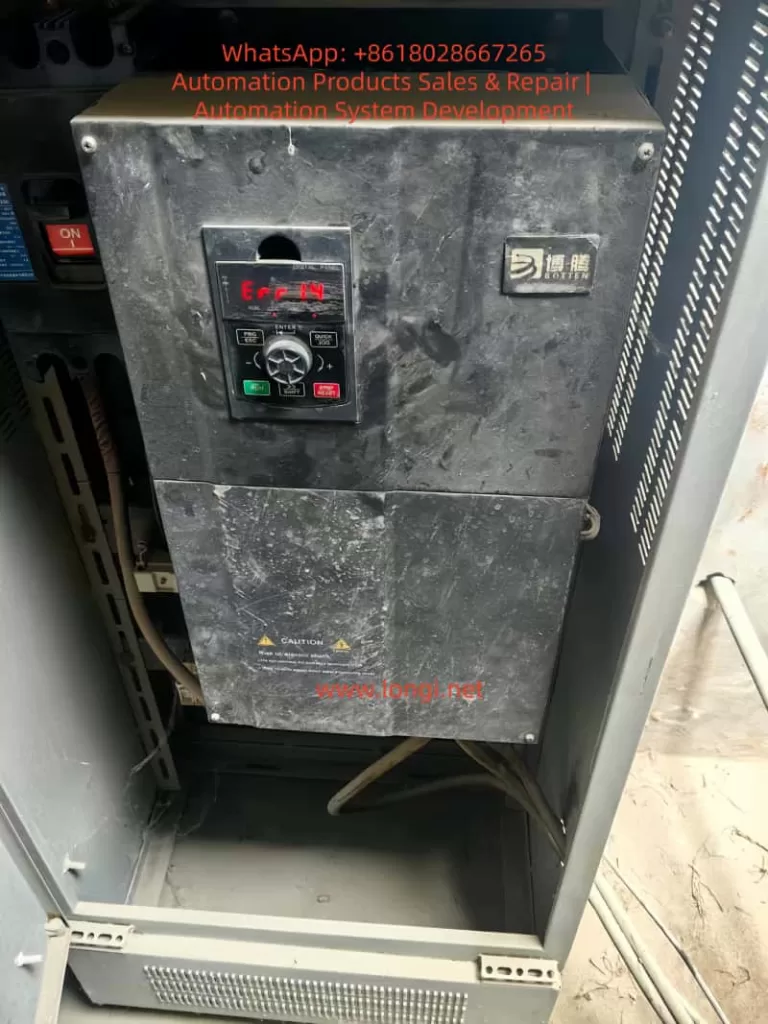
Err14 fault of BT500 VFD

1. Definition of ERR14 Fault

ERR14 indicates a motor overload protection fault.

It is important to distinguish this from overcurrent faults. ERR14 is not triggered by a short-term current spike. Instead, it is based on an electronic thermal model inside the inverter, which simulates the heating process of the motor.

The inverter continuously calculates:

  • Motor current
  • Time duration
  • Thermal accumulation

When the accumulated thermal value exceeds a predefined threshold, the inverter trips and reports ERR14.


2. Why the Fault Occurs After One Hour of Operation

This is a key characteristic of ERR14.

The fault is triggered by thermal accumulation over time, not instantaneous conditions.

The internal logic can be summarized as follows:

  • Higher current leads to faster heat generation
  • Longer operation leads to greater heat accumulation
  • When the thermal limit is exceeded, protection is triggered

This explains the typical behavior:

  • The system runs normally at startup
  • After tens of minutes or about one hour, the fault occurs

This type of issue is essentially a chronic overload condition, not an immediate failure.


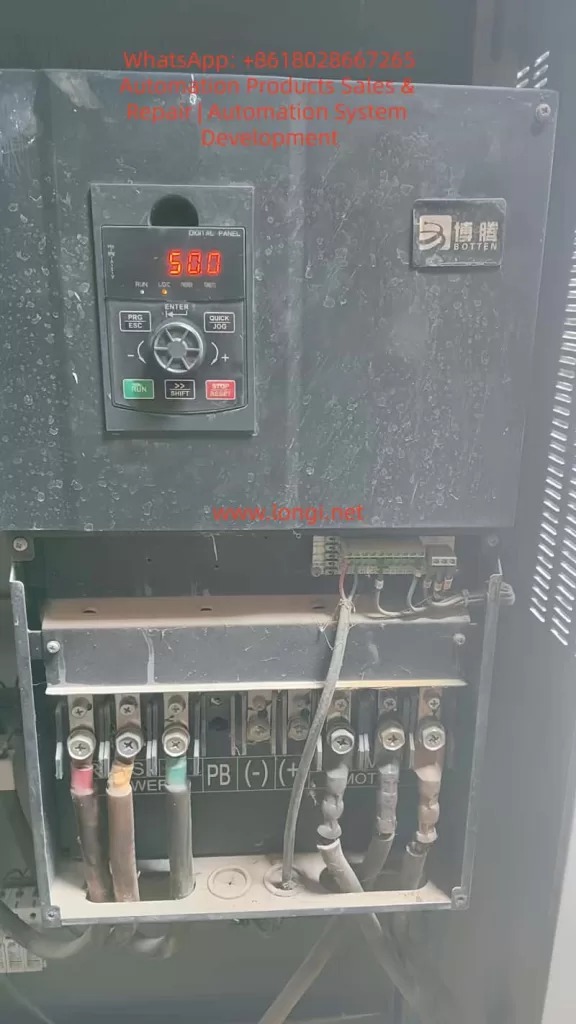
BT500 VFD displays normally

3. Five Primary Causes of ERR14 Fault

3.1 Excessive Mechanical Load (Most Common)

This is the most frequent cause in real-world applications.

Typical scenarios include:

  • Increased mechanical resistance (bearing wear, misalignment, or jamming)
  • Process changes (blocked pump, increased airflow resistance in fans)
  • Long-term operation near or above rated load

Observed behavior:

  • Normal operation at the beginning
  • Gradual increase in current
  • Eventual overload trip

3.2 Incorrect Motor Parameter Settings

If the motor parameters configured in the inverter are inaccurate, the inverter may misjudge the load condition.

Common issues include:

  • Rated current set too low
  • Incorrect motor power rating
  • Wrong number of poles

As a result:

  • The inverter may trigger overload protection prematurely
  • Or fail to reflect the actual operating condition

3.3 Over-Sensitive Overload Protection Settings

The key parameter is:

  • F9-01: Motor Overload Protection Gain

This parameter determines how quickly the inverter interprets a condition as overload.

If set too low:

  • Even moderate load levels may be treated as overload
  • Fault occurs after a period of operation

3.4 Poor Cooling Conditions

From typical field conditions, many units suffer from:

  • Heavy dust accumulation
  • Poor cabinet ventilation

These factors cause:

  • Increased internal temperature of the inverter
  • Reduced cooling efficiency of the motor

Resulting in:

  • Lower effective current capacity
  • Faster thermal accumulation
  • Increased likelihood of ERR14

3.5 Low-Speed High-Torque Operation

At low frequency operation:

  • Motor speed is low
  • Cooling fan efficiency decreases
  • Torque demand remains high

This leads to:

  • Increased current
  • Rapid heat buildup
  • Higher risk of overload trip

4. Standard Troubleshooting Procedure

The following step-by-step process can be directly applied on site.


Step 1: Check Operating Current

Use the inverter monitoring interface to read:

  • Actual running current
  • Motor rated current

Evaluation:

  • Above rated current: real overload
  • Near rated current: critical condition
  • Well below rated current: parameter or protection issue

Step 2: Inspect Mechanical System

Check for:

  • Bearing overheating
  • Mechanical jamming
  • Excessive coupling tension
  • Blockage in pumps or fans

In many cases, the root cause is mechanical rather than electrical.


Step 3: Verify Motor Parameters

Ensure the following match the motor nameplate:

  • Rated voltage
  • Rated current
  • Rated power

Incorrect parameters directly affect overload judgment.


Step 4: Optimize Overload Protection Parameters

Recommended adjustments:

  • F9-01: increase from 1.0 to 1.2–1.5
  • F9-02: increase to around 90%

Important:

  • Do not increase excessively
  • Over-adjustment may eliminate necessary protection

Step 5: Improve Cooling Conditions

Required actions:

  • Clean internal and external dust
  • Ensure cooling fans are operational
  • Improve cabinet ventilation
  • Avoid heat accumulation

Step 6: Analyze Operating Conditions

Check whether the system is:

  • Running at low frequency for long periods
  • Operating under high load continuously

If so:

  • Increase operating frequency where possible
  • Reduce load if feasible

Step 7: Evaluate Inverter Sizing

If the system operates near full load continuously:

  • The inverter may be undersized

Recommended action:

  • Upgrade to a higher power rating

5. Typical Fault Patterns

Case A

  • Fault occurs after a period of operation
  • Current near rated value
  • Visible dust accumulation

Conclusion:

  • Mild overload combined with poor cooling

Case B

  • Current is low
  • Fault still occurs

Conclusion:

  • Incorrect parameter configuration

Case C

  • Fault occurs at a consistent time interval

Conclusion:

  • Thermal model accumulation triggering protection

6. Engineering-Level Solutions

Solution 1: Reduce Mechanical Load

  • Eliminate unnecessary resistance
  • Optimize process conditions

Solution 2: Adjust Protection Parameters

Recommended setting:

  • F9-01 = 1.3
  • F9-02 = 90%

Solution 3: Correct Motor Parameters

  • Input accurate nameplate data
  • Perform motor auto-tuning if available

Solution 4: Enhance Cooling System

  • Clean dust
  • Add ventilation or fans
  • Improve airflow path

Solution 5: Upgrade Equipment

If operating current exceeds 80% of rated value continuously:

  • Replace with a higher capacity inverter

7. Conclusion

The ERR14 fault is not simply a “motor problem” or “inverter failure.” It is a system-level issue involving:

  • Electrical load
  • Thermal accumulation
  • Mechanical conditions

A delayed fault occurrence indicates that the system is operating near its thermal limit over time.

To fully resolve the issue, engineers must address three key aspects:

  • Mechanical load
  • Electrical parameter configuration
  • Cooling conditions

Only when all three are properly matched can ERR14 faults be completely eliminated in long-term operation.

Posted on

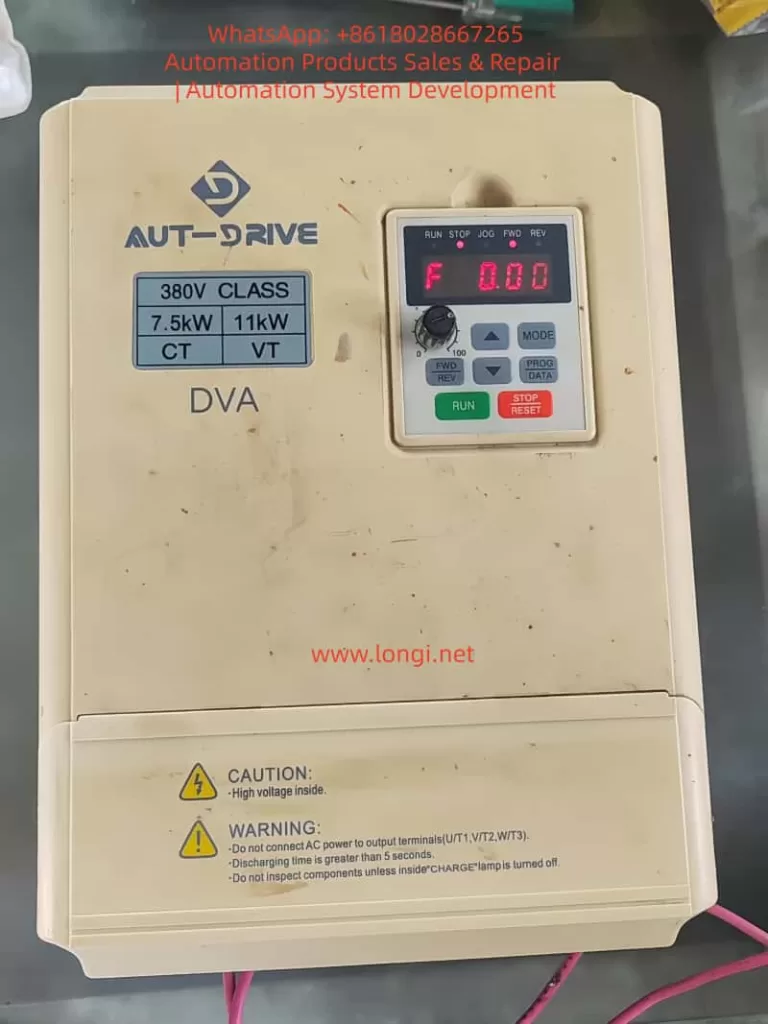
AUT-DRIVE Inverter DVA Series User Guide

The AUT-DRIVE DVA series high-function, low-noise general-purpose inverters employ high-quality components and the latest microcomputer control technology. They are widely applicable to constant torque (G-type) and fan/pump (P-type) loads. This guide, based on the AUT-DRIVE Inverter DVA Series User Manual (59 pages), focuses on practical operational needs and provides comprehensive and highly practical technical guidance. The content covers the use of the operation panel, parameter management, external terminal control, and fault diagnosis and troubleshooting, helping users install, commission, and maintain the inverter safely and efficiently. All operations must comply with the safety warnings in the manual: Cut off the power supply before wiring, never touch high-voltage components, and ensure proper grounding.

AUT-DRIVE VFD

I. Introduction to Digital Operation Panel Functions

The DVA series comes standard with either the LC-A05E (suitable for the low-power range DVA-2S0004G to DVA-4T0110G) or the LC-A20E (for the high-power range) digital operator, which is installed on the upper cover of the inverter. The panel is divided into a display area and a key control area.

Display Area

  • LED digital tubes display the current status, including the set frequency (F xxxx), actual output frequency (H xxxx), load current (A xxx), user-defined physical quantities, counter values, parameter group/value, forward/reverse commands (Fwd/rEu), and external abnormalities (EF).
  • LED indicators display the RUN (running), STOP (stopped), JOG (jogging), FWD (forward rotation), and REV (reverse rotation) statuses.

Key Control Area (Taking LC-A05E as an example)

  • MODE: Switch the display mode (e.g., frequency, current, parameter group).
  • PRGM DATA: Enter/exit the parameter programming mode.
  • FWD/REV: Switch between forward and reverse rotation (when keyboard control is effective, press to first decelerate to 0 Hz and then accelerate in the reverse direction).
  • JOG: Execute jogging operation (press to execute jogging frequency 01-14).
  • RUN: Start the operation (effective in keyboard mode).
  • STOP/RESET: Stop the operation; reset after fault clearance (wait 5 seconds for current-related faults).
  • ▲/▼: Select parameters or modify values (short press for step-by-step change, long press for rapid change).

Operation Example: After power-on, F 60.0 is displayed (the factory-set 50 Hz/60 Hz setting). Press RUN to start and STOP to stop. Parameter modification process: Enter via MODE → Enter the editing mode via PRGM DATA → Select parameters with ▲/▼ → Confirm with PRGM DATA → Modify values with ▲/▼ → Save with PRGM DATA (display End indicates success).

The panel supports keyboard locking (00-02 = 08) to prevent misoperation. All operations can be performed during operation (except for parameters marked with “★”).

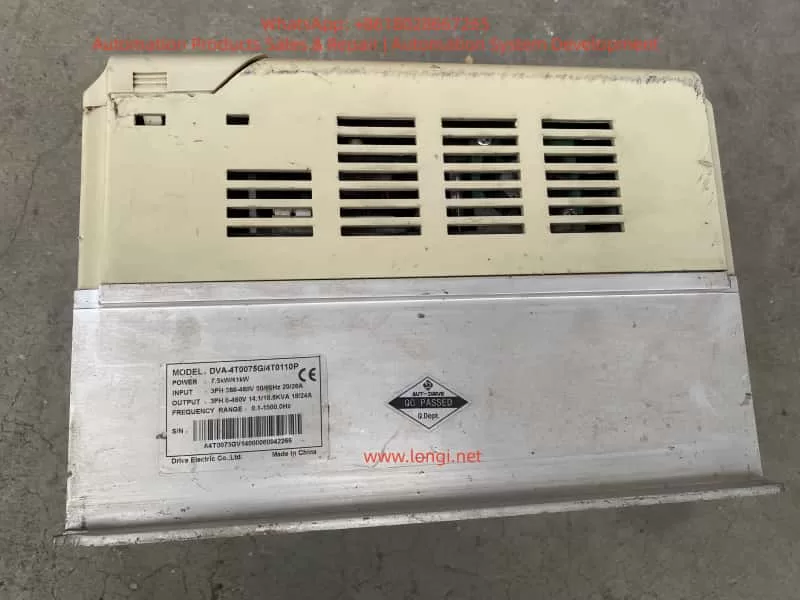
DVA-4T0075G

II. Parameter Setting and Management

DVA parameters are divided into 00 user parameters, 01 basic parameters, 02 operation mode parameters, etc. (see Chapter 5 of the manual for details). The core of parameter management is the security and restoration mechanism.

2.1 How to Set and Clear the Password

Parameter 00-08 (inverter parameter protection password input) is used to set/clear the password, with a factory default of 00.

Setting the Password: Set 00-08 to a non-00 value (e.g., 1234). After confirmation, it will automatically change to 01 (protection takes effect). Thereafter, before modifying any parameters, you must first enter the correct password in 00-07 to unlock it (00-07 has a factory default of 00).
Clearing the Password: Set 00-08 back to 00 (cancel protection). Or enter an incorrect value three times in 00-07 after power-on (locking requires a restart).
Unlocking Process: Enter the correct password in 00-07 → End → You can then modify all parameters. If you enter the wrong password three times in a row, you will be unable to enter it again and need to restart.
Password protection prevents unauthorized personnel from mismodifying parameters. It is recommended to re-lock it immediately after maintenance is completed.

2.2 How to Set Parameter Access Restrictions

Parameter 00-02 (parameter locking and reset settings):

  • 00: All parameters can be read and written (factory default).
  • 01: All parameters can only be read.
  • 08: Keyboard locking (parameters cannot be modified via the panel, but external terminals/communication can still be used).
  • 09: Restore to the 50 Hz factory settings.
  • 10: Restore to the 60 Hz factory settings.
    The settings take effect immediately. After locking, you can still unlock it via the 00-07 unlock password protection.

2.3 How to Restore Parameters to Factory Defaults

Set 00-02 to 09 (50 Hz) or 10 (60 Hz) → Confirm → End (automatically reset all parameters).

Notes:

  • The cumulative operating time (days/minutes) in 00-10/00-11 will not be cleared.
  • After resetting, you need to re-set key parameters such as 01-00 (maximum frequency), 02-00 (main frequency source), and 02-02 (operation command source).
  • Before resetting, record the current parameters. It is recommended to back them up first (via communication tools).
  • Resetting is suitable for parameter confusion or initial commissioning. Cut off the load before operation.

III. External Terminal Forward/Reverse Control and Potentiometer Frequency Regulation

The DVA supports three control methods: keyboard, external terminal, and communication. External control is more suitable for automated sites.

3.1 External Terminal Forward/Reverse Control

Wiring Terminals (control circuit, refer to pages 3-3 to 3-5 of the manual for the main circuit/control terminal diagram):

  • FWD-DCM: Forward rotation/stop (close for forward rotation).
  • REV-DCM: Reverse rotation/stop (close for reverse rotation).
  • DCM: Common terminal (24V COM).
  • Optional M0-M5-DCM can be used as multifunctional inputs (set to 00/01 in 04-04 to 04-09).
  • +EV-DCM: +24V power supply (used when an external switch supplies power).

Parameter Settings (02 operation mode parameters):

  • 02-02 (operation signal source): Set to 01 (external terminal, keyboard STOP is effective) or 02 (external terminal, keyboard STOP is ineffective).
  • 02-08 (FWD/REV input function selection):
    • 00: Two-wire mode 1 (FWD for forward rotation/stop, REV for reverse rotation/stop).
    • 01: Two-wire mode 2 (FWD for operation/stop, REV for forward/reverse switching).
    • 02/03: Three-wire mode (M0 is used for self-holding, FWD/REV for control, and 04-04 is ineffective).
  • 02-05: Prohibit reverse rotation (01 prohibits REV commands).
  • 02-06: Forward/reverse dead time (0.0-3000.0 s to prevent reversal impact).

Operation Logic: Close FWD-DCM → Forward rotation; simultaneously closing REV-DCM is ineffective (dead time protection). Under external control, the keyboard RUN/STOP is ineffective (when 02-02 = 01/02). Multifunctional terminals M0-M5 can be expanded for multi-speed, JOG, etc. (set corresponding values in 04-04 to 04-09).

3.2 External Terminal Potentiometer Frequency Regulation

Wiring Terminals:

  • +10V-ACM: +10V power supply (one end of the potentiometer).
  • AV1-ACM: Analog voltage input (middle tap of the potentiometer, 0 to +10V).
  • ACM: Analog common terminal (the other end of the potentiometer).
    A 5 kΩ/0.5 W potentiometer is recommended.

Parameter Settings:

  • 02-00 (main frequency input source): 01 (AVI 0 to +10V).
  • 02-01 (second frequency source): Optional backup.
  • 01-00 (maximum operating frequency): 50.0-1500.0 Hz (corresponding to 10V).
  • 01-05/01-06 (minimum output frequency/voltage): Prevent low-frequency overheating.
  • 01-07/01-08 (output frequency upper/lower limits): Safety limits.

Speed Regulation Principle: 0V corresponds to the minimum frequency (01-05), and +10V corresponds to the maximum frequency (01-00). It has a linear correspondence and supports remote speed regulation in combination with multifunctional inputs. Use shielded twisted-pair cables for analog inputs and keep them away from the main circuit. Inverters above 15 kW support 0-20 mA switching (set via parameters).

Note: Connect the main circuit R/S/T (single-phase connect R/T) and U/V/W to the motor, and E to the ground. Separate the control wires from the main circuit at a 90° angle.

IV. Detailed Explanation of Fault Codes and Troubleshooting Methods

The DVA has built-in multiple protections such as overvoltage and overcurrent. When a fault occurs, it stops the output, activates the abnormal contact, displays the code, and records the last 5 occurrences (viewable on the digital operator). After troubleshooting, press STOP/RESET to reset (wait 5 seconds for current faults). Common fault codes (Chapter 8) are as follows:

  • OC: Output-side overcurrent (sudden increase). Cause: Motor power mismatch, output short circuit, too fast acceleration, or excessive load. Solution: Check the wiring/motor matching, increase the acceleration time in 01-09/01-11, and check the load.
  • OU: Overvoltage on the DC high-voltage side (regenerative energy). Cause: Too fast deceleration or power surges. Solution: Increase the deceleration time in 01-10/01-12 and install a brake resistor (select the type according to 10-1).
  • OH: High internal temperature. Cause: Ambient temperature > 50°C, blocked air duct, or insufficient heat dissipation. Solution: Improve ventilation, clean the heat sink, and check the installation space (see page 2-1 of the manual).
  • LU: Low voltage on the DC high-voltage side. Cause: Abnormal input power supply. Solution: Check the power supply voltage (180-264V for the 220V series and 304-456V for the 380V series).
  • OL: Output current exceeds 150% of the rated value (for 60 seconds). Cause: Motor overload. Solution: Check the load, reduce the torque boost in 07-02, and increase the inverter capacity.
  • OL1: Electronic thermal relay protection (motor overload). Cause: Improper setting of the motor rated current in 07-03. Solution: Calibrate the 07-03 parameter and check the motor load.
  • OL2: Over-torque (06-03 to 06-05). Cause: Sudden load change. Solution: Check the setting values in 06-03 to 06-05 and reduce the load.
  • OC7: Overcurrent during acceleration. Cause: Output short circuit, too high torque boost, or short acceleration time. Solution: Check the insulation, increase the acceleration time, and reduce 07-02.
  • OC8: Overcurrent during deceleration. Cause: Same as above + too short deceleration time. Solution: Increase the deceleration time.
  • OC9: Overcurrent during operation. Cause: Sudden load increase or stalling. Solution: Check the motor and increase the capacity.
  • EF: External abnormality (M1-M5-DCM is closed, and the external abnormality function is set in 04-04 to 04-09). Solution: Troubleshoot the external fault and disconnect the terminal.
  • cF1: Memory write abnormality. Solution: Restart after the power supply is normal.
  • cF2: Memory read abnormality. Solution: Check the control board connection and reset the parameters (00-02 = 09/10).
  • cF3: Internal circuit abnormality. Solution: Restart after the power supply is normal.
  • GFF: Ground protection (output ground current > 50% of the rated value). Solution: Check the output insulation and IGBT module.
  • bb: External BB (the multifunctional input is set to the bb function). Solution: Disconnect the corresponding terminal.
  • FBE: PID feedback abnormality. Solution: Check the ACI signal connection.
  • HPF: Controller protection abnormality. Solution: Restart. If it persists, send it for repair.
  • cU / cU / cU: U/V/W phase IGBT abnormality. Solution: Check the output wiring and IGBT module.

General Troubleshooting Steps:

  1. Record the code and abnormal records.
  2. Cut off the power supply and check the main circuit/motor/load.
  3. Troubleshoot and reset.
  4. If the fault recurs, check the parameters (01-09 to 01-23 acceleration/deceleration time, 07-02 torque boost, 06-00 to 06-05 protection values). The abnormal contact (M01/M02/RELAY) can be connected to an alarm light (set to 07 for fault indication in 03-00 to 03-03).

V. Summary and Daily Maintenance Recommendations

The DVA series has rich parameters (up to 1500 Hz, S-curve, PID, RS485 communication), but the core principles are “safety first, parameter matching, and regular inspection”. During installation, ensure vertical installation and sufficient heat dissipation space (see page 2-1 of the manual); strictly separate the main/control circuits during wiring and ensure grounding < 100 Ω; during commissioning, first verify in keyboard mode and then switch to external control. Regular inspections include cleaning the air duct, tightening screws, backing up parameters, and clearing abnormal records.

Through this guide, users can independently complete more than 90% of daily operations and fault handling. For complex applications (such as multi-pump 11-01, multi-speed 04-04 to 04-09, and program operation), it is recommended to refer to the application cases in Chapter 7 of the manual. Proper use of the DVA series can significantly improve system efficiency, reduce energy consumption, and achieve stable and reliable variable-frequency drive.

Posted on

In-Depth Analysis and Complete Handling Guide for ALE03 Alarm (Main Circuit Undervoltage) in DPSON DSL200P Series AC Servo Drives

1. Overview and Significance of the ALE03 Alarm

The DPSON DSL200P series servo drives (e.g., DSL200-P1-0R4, DSL200-P1-0R7, etc.) are high-performance AC servo drives widely used in automation applications such as CNC machine tools, packaging machinery, robot joints, and textile equipment. The alarm code ALE03, displayed on the LED screen or read via communication, directly corresponds to a main circuit undervoltage fault.

This alarm can be triggered during power-up or operation of the drive. Its core detection mechanism involves monitoring the DC bus voltage of the main circuit. The typical input specifications for the DSL200P series are as follows:

  • Single-phase 200-230V (P1 series) or three-phase 200-230V/380V (P3 series) at 50/60Hz.
  • Normal DC bus voltage range: Approximately 270-320V DC (peak) for single-phase systems and approximately 540-650V DC for three-phase systems.

When the bus voltage falls below the set threshold (typically 85%-90% of the rated value, as specified in parameter P0-08 “DC bus voltage undervoltage threshold”), the DSP immediately blocks PWM output, illuminates the ALE03 alarm, and prevents the power module from overcurrent or IGBT damage due to undervoltage.

Note: The ALE03 alarm is an immediate protection type that can be automatically or manually reset (after the fault is resolved and the SON signal is resent). If left unaddressed, the system will shut down, severely affecting production rhythm.

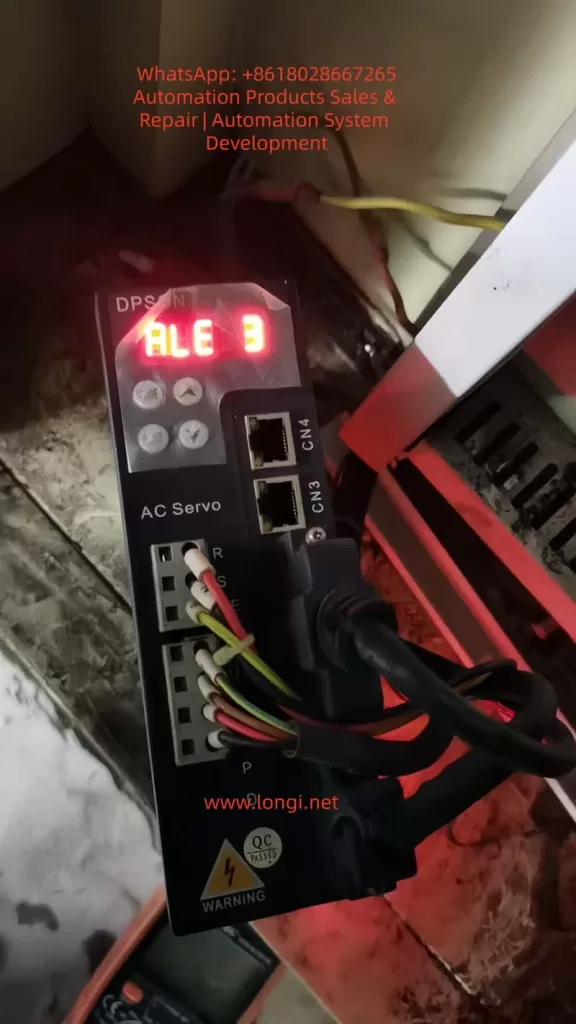
ALE 03 Fault of DPSON drives

2. Underlying Working Principle of the ALE03 Alarm

2.1 Main Circuit Structure of DSL200P

  • Input EMI filter → Rectifier bridge (single-phase or three-phase bridge) → DC bus filter capacitor (large-capacity electrolytic capacitor bank) → IPM intelligent power module → Inverter output to motor U/V/W.

2.2 Voltage Detection Circuit

  • Utilizes precision resistor voltage division + optocoupler isolation + ADC sampling to continuously monitor the DC bus voltage (Vdc).

2.3 Protection Logic (Built into DSP)

  • If Vdc < Vuv (undervoltage threshold) → Trigger ALE03.
  • Simultaneously monitors whether the soft-start relay is engaged and whether the charging resistor is bypassed.
  • After the alarm, automatically cuts off PWM and releases regenerative braking energy (if an external braking resistor is equipped).

2.4 Typical Undervoltage Thresholds (Factory Defaults)

  • Single-phase 200V system: Vuv ≈ 190V AC (corresponding to approximately 260V DC).
  • Three-phase 380V system: Vuv ≈ 320V AC (corresponding to approximately 450V DC).

2.5 Relevant Parameters

  • P0-08: DC bus voltage undervoltage detection value.
  • P0-09: Undervoltage protection delay (typically 20-100ms).

3. Common Causes of the ALE03 Alarm (Ranked by Probability)

3.1 Insufficient or Fluctuating Input Power Supply Voltage (Accounting for over 60% of cases)

  • On-site grid voltage below 200V (especially in rural or old factory buildings).
  • Instantaneous voltage drops caused by the start-stop of large-power equipment on the same power supply bus.
  • Insufficient transformer capacity or excessive line voltage drop (due to thin cables or long distances).

3.2 Wiring and Contact Issues (Accounting for 20%)

  • Loose, oxidized, or poor connections in the main power supply L/N (or R/S/T) wiring.
  • Loose terminal block screws (recommended torque: 1.0-1.5Nm).
  • Incorrect phase sequence (for three-phase systems).
  • Burned contacts on circuit breakers/contactors.

3.3 Internal Hardware Failures

  • Blown input fuses (F1/F2, typically 15-30A fast-acting fuses).
  • Single-arm breakdown or open circuit in the rectifier bridge diodes.
  • Reduced capacitance in the DC bus filter capacitors (aging leads to a capacitance drop of over 30%).
  • Burned charging resistors (soft-start circuit failure).
  • Abnormal detection circuit within the IPM (rare).

3.4 Auxiliary Control Power Supply Issues

  • Control power supply (R/S single-phase 220V) is normal, but the main power supply is not connected.
  • Abnormal external 24V/5V auxiliary power supply (although it does not directly trigger ALE03, it can cause misjudgment by the detection circuit).

3.5 Parameter or Software Configuration Errors

  • Excessive setting of P0-08.
  • Mismatch between the drive model and the actual power supply voltage (e.g., using a P1 series drive with 380V).
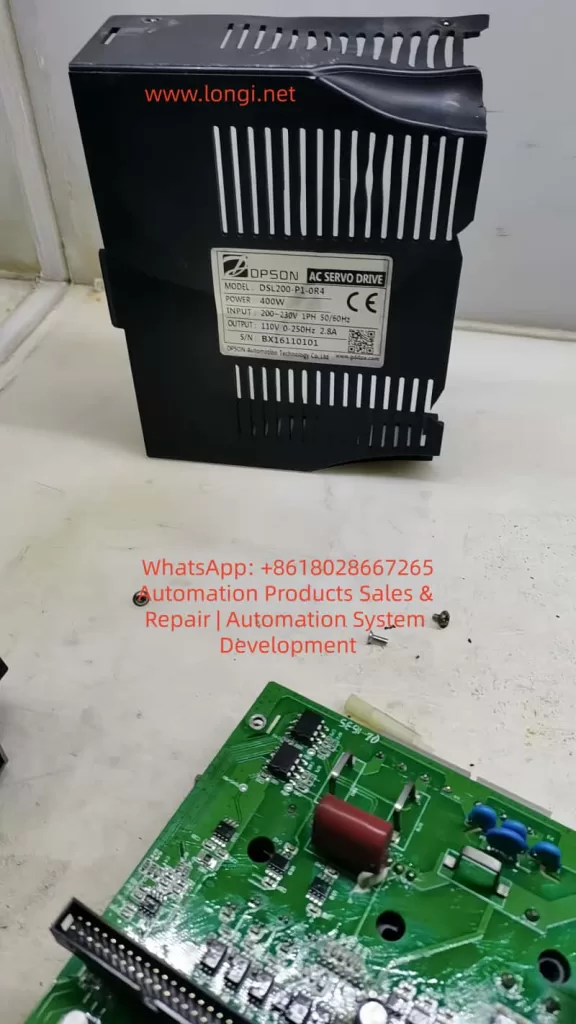
DSL200-P1-0R4

4. Complete Fault Diagnosis Process (Recommended Order, 15-30 minutes to complete)

⚠️ Safety First: Disconnect the main power supply and control power supply, wait for the DC bus capacitors to discharge for more than 5 minutes (confirm Vdc < 50V using a multimeter), and wear insulating gloves.

Step 1: Confirm the Authenticity of the Alarm

  • Observe whether the LED stably displays ALE03 after power-up.
  • Read the alarm code from register 4×1301 via Modbus/485 to confirm that it is not a false display.
  • Clear the alarm (by pressing the panel reset button or disconnecting and reconnecting the power). If it immediately reappears, it indicates a hardware or power supply issue.

Step 2: Measure the Input Power Supply Voltage

  • Use a true RMS multimeter (Fluke 87V recommended) to measure the voltage between L-N (single-phase) or R-S, S-T, and T-R (three-phase).
  • Standard: Should be ≥200V under no-load conditions and ≥195V under load conditions.
  • If the voltage fluctuation exceeds 5%, install a voltage stabilizer or UPS.

Step 3: Check Wiring and Fuses

  • Remove the front cover of the drive and visually inspect whether the fuses are blown (indicated by black carbon traces).
  • Tighten all main power supply terminals.
  • Measure the insulation resistance between the terminals and ground (>1MΩ).

Step 4: Measure the DC Bus Voltage

  • After power-up (without connecting the motor), measure the DC voltage between P(+) and N(-).
  • Normal values: Approximately 280-310V DC for single-phase systems and approximately 540-650V DC for three-phase systems.
  • If <260V DC → Confirm undervoltage.
  • After shutdown, measure the capacitor discharge time (should drop to <50V within <30 seconds).

Step 5: Check the Rectifier Bridge and Capacitors

  • With the power off, measure the forward and reverse voltage drops across the rectifier bridge diodes (0.4-0.6V forward, infinite reverse).
  • Test the capacitor capacity (using a dedicated capacitor meter or replacement method).

Step 6: Parameter Check and Reset

  • Enter the parameter mode and confirm that P0-00 to P0-09 are set correctly.
  • Restore factory settings (P0-10=1) and then modify them one by one.

Step 7: Advanced Diagnosis (If Necessary)

  • Use an oscilloscope to observe the DC bus voltage waveform (ripple <10V).
  • Replace the drive with a spare unit for comparison (to quickly determine whether the issue is within the drive or external).

5. Targeted Solutions

5.1 Insufficient Power Supply Voltage

  • Install an AC voltage stabilizer (SVC-10KVA or larger).
  • Upgrade the power supply line (≥4mm² copper cable).
  • Provide a separate power supply circuit.

5.2 Poor Wiring Contact

  • Replace aviation plugs or crimping terminals.
  • Apply conductive paste to prevent oxidation.

5.3 Blown Fuses

  • Replace the fuses strictly according to the manual specifications (do not use copper wire as a substitute).
  • Investigate the cause of the fuse blowing (short circuit? Surge?).

5.4 Internal Hardware Damage

  • Replace the entire set of DC bus capacitors (recommended to use original parts, with a voltage rating of 450V/1000μF × multiple units).
  • Replace the rectifier bridge/IPM module (requires a professional soldering station).
  • Return the entire unit to the manufacturer for repair (free of charge during the warranty period).

5.5 Parameter Optimization

  • Reduce P0-08 by 10V (use with caution, only as a temporary solution).
  • Increase the undervoltage protection delay P0-09=50ms.

6. Preventive Measures and Routine Maintenance Specifications

  • Inspection: Measure the input voltage once a month and record the results.
  • Tightening: Check the torque of all terminals every six months.
  • Environment: Maintain an operating environment temperature <45°C and humidity <85%RH, and avoid dust.
  • Protection: Equip with surge protectors (SPD) and EMC filters.
  • Selection: Allow a 20% margin when selecting the drive (e.g., choose a 750W drive for a 400W load).
  • Documentation: Establish equipment files to record the alarm time, voltage value, and handling method for each occurrence.

7. Typical On-Site Case Studies

Case 1: ALE03 Alarm in a DSL200-P1-0R4 at a Packaging Plant

  • Diagnosis: The grid voltage dropped to 195V in the afternoon.
  • Solution: Installed a 15KVA voltage stabilizer, completely resolving the issue.

Case 2: ALE03 Alarm Immediately After Power-Up in a Newly Installed Device

  • Diagnosis: The N wire of the main power supply was loosely connected, with the terminal loose by 0.5 turns.
  • Solution: Tightened the terminal, and the device operated normally.

Case 3: Occasional ALE03 Alarm After One Year of Operation

  • Diagnosis: The capacitance of the DC bus capacitors had decayed to 70% of the original value.
  • Solution: Replaced the entire set of capacitors, restoring normal operation and extending the equipment’s lifespan by over 3 years.

Case 4: ALE03 Alarm Constantly Lit in a Three-Phase 380V Model Connected to Single-Phase 220V

  • Solution: Replaced the drive with a matching P1 series model.

8. Differentiation and Linkage Analysis with Other Alarms

Alarm CodeMeaningLinkage Analysis
ALE02Main circuit overvoltageExcessive regenerative energy or input overvoltage.
ALE11IPM faultOvercurrent/short circuit.
ALE01(Duplicate in the original text, should be another fault)
ALE03UndervoltageUsually does not cause motor jitter but can directly lead to position deviation.

Linkage Handling: If ALE03 and ALE14 (overload) occur simultaneously, prioritize handling the undervoltage issue; otherwise, the power module is prone to secondary damage.

9. Communication Reading and Remote Monitoring

Via RS485 ModBus RTU (configured in P3-00 to P3-02):

  • Register 4×1301 = 3 → Represents the ALE03 alarm.
  • Register 4×1300 → Actual DC bus voltage value (V).

Application: Can be integrated into PLC/SCADA systems for remote alarm notifications.

10. Conclusion and Technical Recommendations

The ALE03 main circuit undervoltage alarm is one of the most common and easily diagnosable alarms in the DSL200P series. By following the “power supply → wiring → hardware → parameters” diagnosis sequence strictly, over 90% of on-site faults can be resolved within 30 minutes. The core principle is to “check the external factors first, then the internal ones; measure the voltage first, then disassemble the unit.”

For units using these drives in bulk, it is recommended to establish a “Servo Drive Voltage Inspection Form” to control the ALE03 occurrence rate to below 0.5% per year. DPSON offers fast official after-sales response and sufficient spare parts, and it is recommended to establish long-term cooperation with local distributors.

Summary: Through the complete process outlined in this article, readers should be able to independently, quickly, and thoroughly resolve DSL200P ALE03 faults, restoring efficient and stable operation of the equipment and promoting more reliable industrial automation.

Posted on

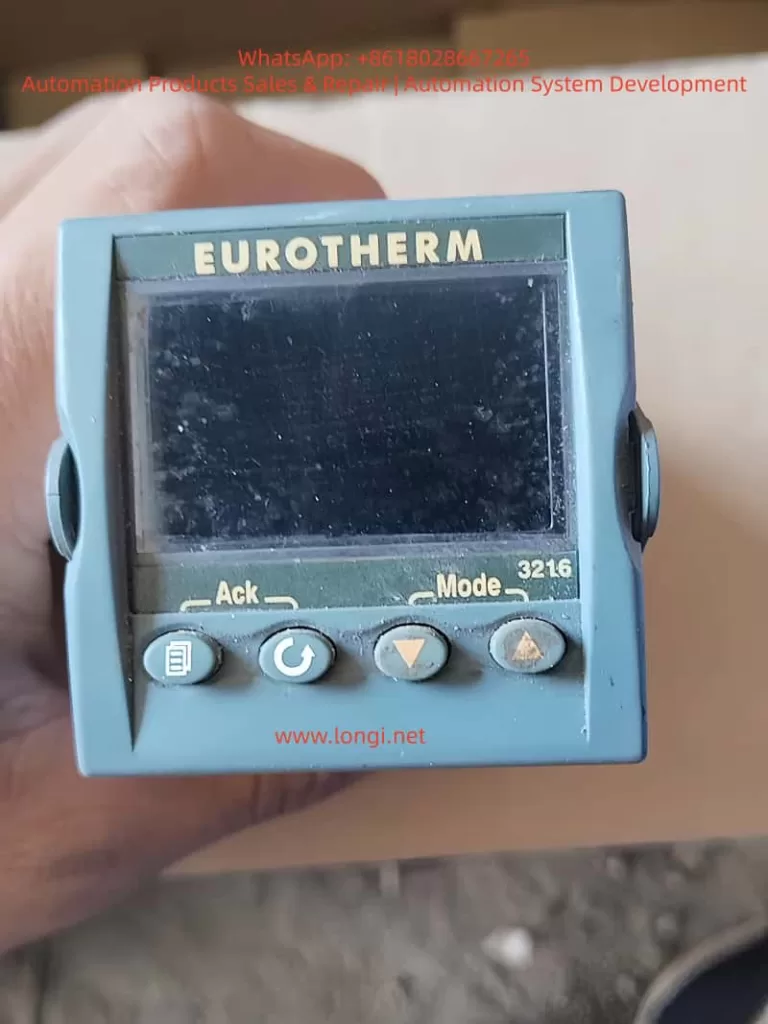
Eurotherm 3216 PID Temperature Controller: Advanced Guide to Installation, Configuration, Sensor Replacement, and Calibration

Introduction

The Eurotherm 3216 is a compact, versatile PID temperature controller designed for precise process control in industrial applications such as plastics extrusion, heat treatment, and environmental chambers. As part of the Eurotherm 3000 series, it offers features like auto-tuning, multiple output options (relay, logic, or DC), digital communications, and programmable timers. This controller stands out for its ease of integration, robust calibration capabilities, and ability to handle sensor variations, which is critical when replacing sensors to maintain accuracy. Drawing from the official engineering handbook (Part No. HA027986), user guides in multiple languages, and insights from online resources like Thermo Fisher and Thermoline support knowledge bases, this article provides a comprehensive, original technical overview. It emphasizes sensor replacement and calibration to address common temperature deviations, ensuring optimal performance without redundant explanations.

EUROTHERM 3216

Overview of the Eurotherm 3216 Controller

The 3216 is a 1/16 DIN panel-mounted device with dimensions of 48mm x 48mm front face and 90mm depth, suitable for panels up to 15mm thick. It supports IP65 and NEMA 4 front protection when mounted on a non-textured surface. Power options include high voltage (85-264Vac) or low voltage (24Vac/dc), with fuse recommendations of 2A 250V T-type for safety.

Key hardware includes:

  • PV Input: Supports thermocouples (B, J, K, L, N, R, S, T, custom), RTD (Pt100), or linear inputs (0-50mV, 0-20mA, 4-20mA) with a 2.49Ω shunt resistor for mA signals.
  • Outputs: Up to three configurable outputs (OP1, OP2, AA relay) for heating, cooling, alarms, or retransmission. Logic outputs provide 12Vdc at 5-40mA for SSR drive.
  • Optional Modules: Digital communications (RS232/RS485 Modbus), current transformer (CT) for load monitoring (0-50mA RMS, scales 10-100A), and logic input for setpoint selection or timer control.
  • Display: Dual-line LED with scrolling messages, beacons for OP1/OP2/OP4, SPX, ALM, REM, RUN, and MAN states.

The controller operates in levels: Level 1 for basic operations, Level 2 for advanced parameters (password-protected, default ‘2’), Level 3 for full access, and Configuration for deep setup. PID control uses proportional band (PB), integral time (TI), derivative time (TD), and relative cool gain (R2G) for dual-loop applications. Auto-tuning optimizes these for process characteristics, reducing overshoot and settling time.

From web sources, users note its reliability in high-vibration environments (0-55°C ambient) and EMC compliance per HA025464 guidelines. Compared to AI-generated responses from similar queries, the 3216 excels in bumpless auto-manual transfer, preventing process disruptions during mode switches.

Installation Steps

Installation begins with unpacking: the controller in its sleeve, two retaining clips, IP65 gasket, snubbers for relays, and 2.49Ω resistor for mA inputs.

  1. Site Selection: Choose a low-vibration location with 0-55°C ambient temperature. Ensure enclosure protects against conductive pollution (e.g., carbon dust) via air filters or thermostatically controlled heaters to prevent condensation.
  2. Panel Cutout: Prepare a 45mm x 45mm square cutout (+0.6/-0mm horizontally/vertically). Minimum spacing: 10mm horizontally, 38mm vertically between controllers.
  3. Mounting: Fit the IP65 gasket behind the front bezel. Insert the controller through the cutout. Spring the retaining clips into place, pushing forward to secure. Peel off the protective cover from the display.
  4. Removal: Ease latching ears outward and pull the controller forward from the sleeve. Reinsert ensuring ears click for IP65 seal.

Safety requirements mandate double insulation, no live sensors unless rated, and copper conductors (except thermocouples). Include a disconnect switch or circuit breaker near the device, marked as such. Overcurrent protection and voltage ratings (max 264Vac between terminals) are essential. For inductive loads, use snubbers (15nF/100Ω) to suppress transients and extend relay life, but avoid for low-power loads due to leakage current (0.6mA at 110Vac, 1.2mA at 240Vac).

From Thermoline support, ensure non-textured panel surfaces for sealing; improper mounting causes IP rating failures, leading to dust ingress and sensor inaccuracies.

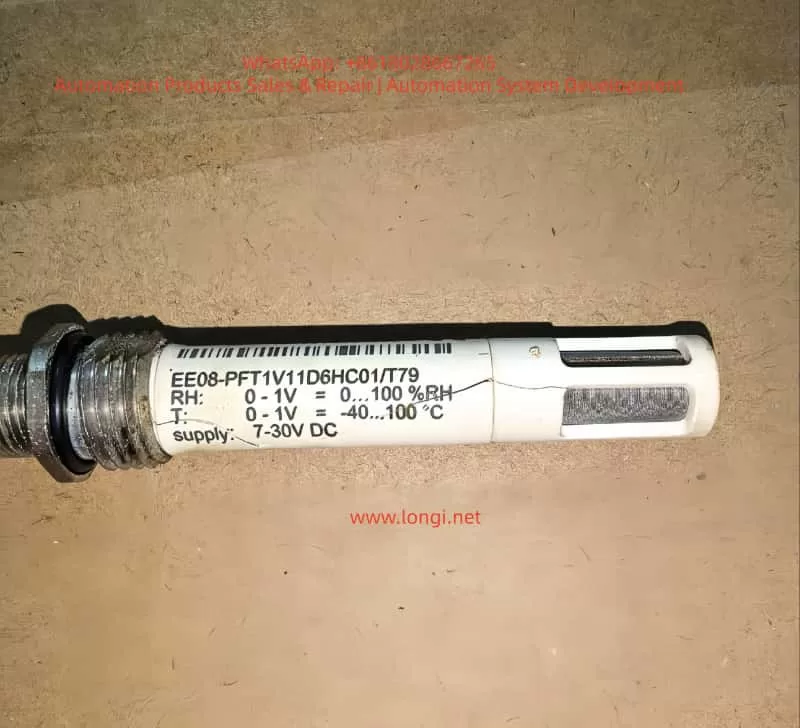
EE08-PFT1V11D6HC01/T79

Wiring and Hardware Connections

Wiring uses screw terminals accepting 0.5-1.5mm² (16-22AWG) wire, tightened to 0.4Nm. Hinged covers prevent accidental contact with live wires.

Terminal Layout (3216):

  • PV Input: + (thermocouple/RTD/mV), – (common), RTD sense wire.
  • OP1/OP2: Configurable as relay (2A 264Vac), logic (12Vdc 5-40mA), or DC (0-20mA 500Ω load).
  • AA Relay: Form C, 2A 264Vac.
  • CT/Logic Input: CT for load current (10Ω burden, 50mA RMS), logic for contact closure (>500Ω open, <200Ω closed).
  • Communications: RS232 (RX/TX/GND) or RS485 (A/B/common).
  • Power: L/N for high voltage, +/ – for low voltage.

Example Wiring: For heat/cool control, connect thermocouple to PV, SSR to OP1 logic for heating, relay to OP2 for cooling fan/valve. Use shielded cable for inputs, grounded at one point to minimize noise. For RTD, ensure equal wire resistances (max 22Ω per lead). Linear mA requires shunt; voltage uses external adapter (SUB21/I1).

Web troubleshooting highlights common errors: reversed thermocouple polarity (red negative in North America) causes low readings; open circuits show high indications. Measure input resistance <20Ω for thermocouples. CT setup includes voltage limiter (3-10V zener diodes) for protection.

Initial Configuration and Quick Codes

Upon first power-up, a self-test lights all segments and shows software version, then enters Quick Code mode if unconfigured.

Quick Codes consist of two sets of five characters for input type/range, outputs, CT scaling, digital input, and lower display.

Set 1 Example:

  • Input: J (J-type thermocouple), C (°C full range).
  • OP1: H (heat PID relay).
  • OP2: C (cool PID logic).
  • AA: 1 (low alarm relay).

Set 2:

  • CT Scale: 1 (10A).
  • Digital Input: W (alarm acknowledge).
  • Lower Display: T (setpoint).

Press any button to edit; ↑/↓ change digits, scroll to next. After Set 2, confirm with ‘go’ to YES.

To re-enter: Power off, hold page button while powering on, enter password (default 4).

AI insights from forums suggest Quick Codes simplify setup for standard applications, but for custom sensors, proceed to full configuration to adjust input scaling or offsets.

Operator Interface and Basic Operations

The interface features beacons and buttons:

  • Beacons: OP1 (heat), OP2 (cool), OP4 (alarm), etc.
  • Buttons: Page (home/scroll lists), Scroll (next parameter), Down/Up (adjust values).

Home Display: PV upper, SP lower in auto mode.

Set Temperature: From home, ↑/↓ adjust SP; flashes to confirm.

Alarm Indication: Red ALM flashes with scrolling message; acknowledge with page + down. Types: Non-latching (auto-reset), Auto-latching (acknowledge anytime), Manual-latching (acknowledge after condition clears).

Auto/Manual/Off: Press page + down >1s from home. Select Auto (closed loop), Manual (open loop, adjust power -100% to +100%), or Off (zero power). Bumpless transfer maintains power level.

Level 1 Parameters: Working output (WRK.OP), working SP (WKG.SP), SP1/2, time remaining (T.REMN), dwell (DWELL), alarm setpoints (A1.YYY), load current (LD.AMP).

From Eurotherm troubleshooting, monitor WRK.OP for unexpected values indicating sensor faults.

Advanced Parameters and Level Access

Level 2 (default password 2) adds parameters like display units (UNITS), SP limits (SP.HI/LO), rate limit (SP.RAT), timer config (TM.CFG: dwell, delayed, soft start, programmer), resolution (TM.RES: hours/minutes), threshold (THRES), end type (END.T: off, dwell, SP2), soft start power/SP (SS.PWR/SS.SP), auto-tune (A.TUNE: on/off), PID terms (PB, TI, TD, MR, R2G), hysteresis (HYST.H/C), deadband (D.BAND), output limits (OP.HI), min pulse time (PLS), CT thresholds (LD.ALM/LK.ALM/HC.ALM), address (ADDR), home display (HOME), customer ID (ID), recipe number/store (REC.NO/STORE).

Auto-tune: Enable A.TUNE; controller oscillates to calculate PID values for minimal overshoot.

Timers/Programmer: Configure in Level 2. Dwell times process at fixed SP; delayed starts output after time; soft start limits power below threshold. Programmer (CP model) has 4 segments: target SP (TSP.x), ramp rate (RMP.x), dwell (DWEL.x). Servo mode starts from SP or PV.

Digital inputs/outputs configurable for timer control or alarms.

Sensor Replacement Procedure

Sensor replacement often causes temperature deviations due to variations in thermocouple/RTD characteristics or wiring resistance.

  1. Preparation: Power off controller. Note old sensor type (e.g., K-type) from config or handbook.
  2. Removal: Disconnect wires from PV terminals. Inspect for damage; measure resistance (thermocouples <20Ω, RTD ~100Ω at 0°C).
  3. Installation: Connect new sensor using correct polarity (thermocouple: + to +, – to -; RTD: equal lead lengths). Use compensation cable for thermocouples, shielded for noise reduction.
  4. Verification: Power on; check PV reading at room temperature (short terminals for ~25°C test). If erroneous, reverse polarity or replace wiring.

From Thermofisher manuals, replace with identical type to avoid reconfiguration; custom sensors require input recalibration.

Calibration and Offset Adjustment

Post-replacement, calibrate to correct offsets. Use two-point offset (CJ.OFS for cold junction, PV.OFS for process value) in Level 3 (password 3) or Configuration (password 4, hold page + scroll >5s to ‘conf’, enter code).

Procedure (from Thermoline support):

  1. Access Level 3: Hold page, select ‘LEVL 3’, enter ‘3’.
  2. Navigate to Input List (INPUt): Press scroll to ‘PV.OFS’ (process offset).
  3. Compare controller PV with reference thermometer at stable point (e.g., 100°C). Adjust PV.OFS by difference (e.g., if reference 102°C, controller 100°C, set +2).
  4. For two-point: Use ‘CAL’ list; set ‘CAL.P1’ low point (e.g., 0°C ice bath), adjust ‘OFS.1’; ‘CAL.P2’ high point (e.g., boiling water), adjust ‘OFS.2’.
  5. Verify at multiple points; exit to Level 1.

Warnings: Avoid over-adjustment causing instability; record original values. For thermocouples, calibrate cold junction separately if ambient varies.

Troubleshooting offsets: Low reading/overheating – sensor detachment; high reading/no heat – open circuit. Use external simulator for input verification.

Troubleshooting

Common issues:

  • Sensor Faults: Low indication – crossed wires; high – open circuit. Test by shorting inputs.
  • Offset Errors: Post-replacement, use PV.OFS; check wiring resistance.
  • Overheating: Incorrect extension cable; tune PID.
  • No Heat/Cool: Check fuses, contactors, logic voltage (12Vdc for SSR).
  • Alarms: Configure latching type; acknowledge via buttons or input.
  • Communications: Set ADDR 1-254; verify RS485 termination.

From Eurotherm site, change one parameter at a time; use IR thermometer for hot spots.

Practical Applications and Case Studies

In plastics extrusion, 3216 controls barrel temperature with K-type thermocouple, PID tuned for minimal overshoot. Sensor replacement: Offset adjusted +1.5°C for new probe variance, maintaining ±0.5°C accuracy.

In heat treatment furnaces, programmer runs ramp-soak profiles; replacement RTD requires RTD calibration to correct 2Ω lead resistance offset.

Case: Oven application (Thermoline) – After PT100 swap, PV read 5°C low; PV.OFS set +5, verified at 50/150°C.

In environmental chambers, dual-loop heat/cool uses R2G=0.5 for water cooling, preventing cycling post-sensor change.

Conclusion

The Eurotherm 3216 excels in precise temperature control, with robust features for sensor integration and calibration. By following installation, wiring, configuration, and adjustment protocols, users ensure reliability. Sensor replacement demands careful offset calibration to mitigate deviations, as highlighted in handbooks and online resources. This guide synthesizes official documentation with practical insights, enabling engineers to optimize performance in diverse applications. For deeper customization, refer to full engineering handbook or consult Eurotherm support.

Posted on

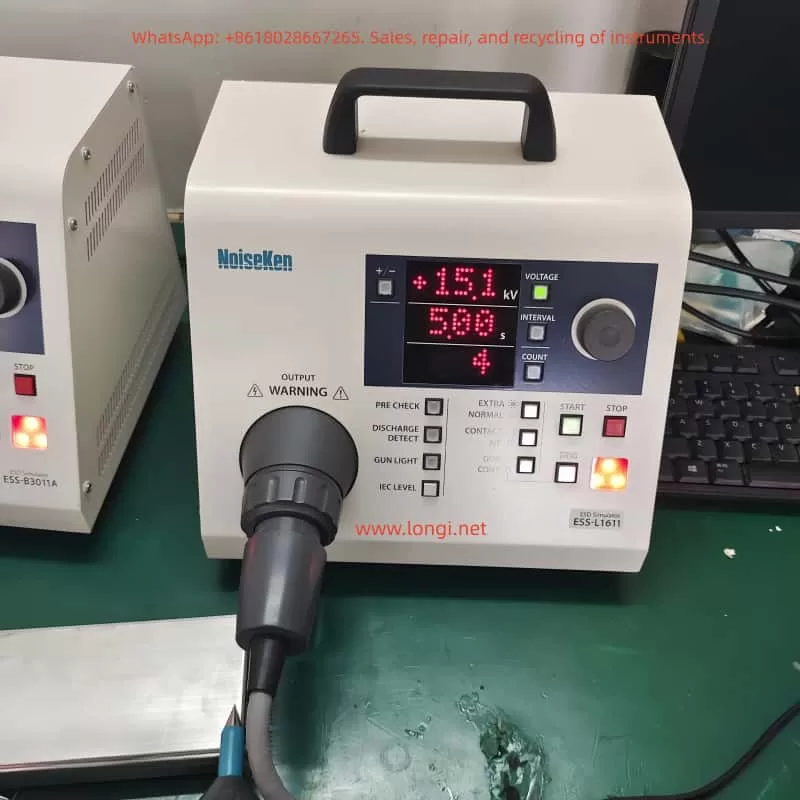
Noisken Electrostatic Discharge Simulator ESS-B3011A Series Manual User Guide

Introduction

In the development and production of electronic products, Electromagnetic Compatibility (EMC) testing is a crucial step to ensure product quality and reliability. Electrostatic Discharge (ESD) immunity testing, as an important part of EMC testing, is used to evaluate the anti-interference ability of electronic products when subjected to electrostatic discharges. The Noisken Electrostatic Discharge Simulator ESS-B3011A series is a high-performance, multi-functional ESD testing device widely used for ESD testing of various electronic equipment. This guide will provide a detailed introduction to the usage of the ESS-B3011A series simulator, helping users better understand and operate the equipment.

1. Product Overview

1.1 Product Introduction

The Noisken Electrostatic Discharge Simulator ESS-B3011A series is a computer-controlled electrostatic discharge generator that complies with international standards such as IEC 61000-4-2 and ISO 10605. It can simulate electrostatic discharge phenomena generated when a human body or object comes into contact with or approaches electronic equipment. By connecting different electrostatic discharge guns, this device can achieve various testing modes, including contact discharge and air discharge, helping users comprehensively evaluate the ESD immunity of electronic products.

1.2 Key Features

  • High Compatibility: Supports multiple electrostatic discharge guns, such as GT-30R/GT-30RA, TC-815R, TC-815S, etc., meeting different testing requirements.
  • Standardized Testing: Complies with international standards like IEC 61000-4-2 and ISO 10605, ensuring the authority and comparability of test results.
  • Easy Operation: The inclined front panel design facilitates operation, with well-arranged knobs and switches for convenient setting of test conditions.
  • Multi-functional Testing: Provides one-key setting of IEC standard test levels, discharge detection functions, pre-check functions, etc., supporting multiple testing modes and trigger methods.
  • Safe and Reliable: Equipped with multiple safety protection mechanisms to ensure the safety of equipment and personnel during the testing process.

2. Safety Precautions

2.1 User Restrictions

The ESS-B3011A series simulator is only intended for use by professional technicians who have received EMC testing training.
Untrained personnel operating this device may lead to serious consequences such as electric shocks or fires.
Individuals with electronic medical devices (such as pacemakers) are not allowed to use this device or enter the testing site.

2.2 Usage Environment

Do not use the ESS-B3011A series simulator in places where smoking is prohibited or where there is a risk of explosion.
Ensure good ventilation at the testing site and avoid running the device for extended periods in high-temperature, high-humidity, or corrosive environments.

2.3 Electrical Safety

Before use, check whether the device’s power cord is intact and properly grounded.
Do not arbitrarily replace the device’s power plug or use non-standard power cords.
When connecting or disconnecting device cables, ensure that the device is turned off and the power plug is disconnected.

2.4 Operational Safety

During operation, do not touch the discharge tip of the discharge gun.
The discharge gun must not be aimed at personnel or flammable items for discharge testing.
If any abnormalities (such as smoking or strange odors) are detected during the testing process, immediately stop the test, disconnect the power plug, and contact professionals for maintenance.

3. Detailed Explanation of Product Functions and Features

3.1 Compatible Standards and Discharge Guns

The ESS-B3011A series simulator supports multiple electrostatic discharge guns, each of which complies with specific international standards.
Users can select the appropriate discharge gun according to their testing needs.

  • GT-30R/GT-30RA Discharge Guns: Comply with IEC 61000-4-2 and ISO 10605 standards and are suitable for most ESD testing scenarios.
  • TC-815R/TC-815S Discharge Guns: These are existing discharge guns from Noisken that can also be used for testing with the ESS-B3011A series simulator.

3.2 Operation Panel and Switches

  • Display Screen: Displays information such as current test conditions, test modes, and test results.
  • Knob: Used to adjust the values of test parameters. Rotating the knob changes the parameter value, and pressing the knob switches the currently edited digit.
  • Function Switches: Include the power switch, test mode selection switch, trigger method selection switch, etc. Users can select the appropriate test mode and trigger method through these switches.

3.3 Convenient Functions

  • One-key Setting of IEC Standard Test Levels: By pressing the [IEC LEVEL] key, users can quickly set the test voltage levels that comply with the IEC 61000-4-2 standard.
  • Discharge Detection Function: In air discharge mode, the device can detect actual discharge situations and notify the user. This function helps users confirm whether the discharge has occurred successfully.
  • Pre-check Function: Performs a pre-check of the internal high-voltage power supply of the device before testing to ensure normal output voltage. This function helps reduce the failure rate during the testing process.

3.4 Radiation Level Modes

  • Extra Mode (EXTRA): Reduces the radiation noise generated by the discharge gun, suitable for testing scenarios sensitive to radiation noise.
  • Normal Mode (NORMAL): The radiation noise level is similar to that of previous models, suitable for general testing scenarios.
    Users can switch between radiation level modes using the [EXTRA / NORMAL] switch on the operation panel.

4. Basic Testing Process

4.1 Device Connection

  • Connect the AC Power Cord: Insert the AC power cord provided with the device into the AC inlet interface on the rear of the device and the other end into a power socket with a protective grounding terminal.
  • Connect the Discharge Gun: Align the high-voltage input connector of the discharge gun with the high-voltage output connector on the device and insert it. Then, rotate the safety ring on the discharge gun clockwise to secure the connector.

4.2 Test Planning

Determine the test mode (contact discharge or air discharge) and test conditions (polarity, voltage, discharge interval, and number of discharges) according to testing requirements.

  • Contact Discharge Testing: Use a conical discharge tip and place the tip in contact with the test point of the Equipment Under Test (EUT) for discharge testing. It is suitable for evaluating the ESD immunity of the EUT’s housing or coupling plane.
  • Air Discharge Testing: Use a circular discharge tip, move the discharge gun a certain distance away from the EUT, and then quickly approach and make contact with the EUT for discharge testing. It is suitable for evaluating the ESD immunity of the EUT’s insulating coating or insulating housing.

4.3 Basic Settings

  • Set Polarity: Select the polarity (positive or negative) of the output voltage by pressing the [+/−] switch on the operation panel.
  • Set Voltage, Discharge Interval, and Number of Discharges: Press the corresponding switches ([VOLTAGE], [INTERVAL], [COUNT]) and rotate the knob to set the values of these parameters. The voltage setting range is from 0.20 kV to 30.0 kV, the discharge interval setting range is from 0.05 seconds to 99.9 seconds, and the number of discharges setting range is from 1 to 999 times or continuous discharge.

4.4 Execute the Test

  • Start the Test: Press the [START] switch on the operation panel to start the test. The device will output high voltage and wait for a trigger signal for discharge testing.
  • Input Trigger Signal: Select the appropriate trigger method (gun trigger or controller trigger) according to the test mode. In contact discharge mode, press the trigger switch on the discharge gun for discharge; in air discharge mode, press the [TRIG] switch on the main unit for discharge.
  • Observe Test Results: During the testing process, observe the test results and the status of the warning lights on the display screen. If any abnormalities (such as discharge failure or device alarms) are found, immediately stop the test and check the device status.

4.5 End the Test

  • Stop the Test: Press the [STOP] switch on the operation panel to stop the test. The device will turn off the high-voltage power supply output and stop the discharge testing.
  • Disconnect Device Connections: After the test is completed, first disconnect the connection between the discharge gun and the EUT, and then disconnect the AC power cord. Ensure that the device is turned off before performing these operations.

5. Advanced Functions and Settings

5.1 Automatic Identification of CR Units and Discharge Cups

The ESS-B3011A series simulator has the function of automatically identifying whether the types of CR units and discharge cups and their combinations comply with standards. When the user replaces the CR unit or discharge cup and restarts the device, the device will automatically perform identification and display the compliance standards (such as IEC 61000-4-2 Ed1.2 & Ed2.0, ISO 10605 2nd Ed., etc.). This function helps users ensure the compliance of test conditions.

5.2 Sensitivity Setting of Discharge Detection Function

In air discharge mode, the discharge detection function may fail to detect the discharge due to factors such as the impedance of the discharge channel and the charged state of the tested object. At this time, users can improve the detection success rate by adjusting the sensitivity of the discharge detection function. Press and hold the [DISCHARGE DETECT] switch for more than one second to enter the sensitivity setting mode, and then rotate the knob to select low (Lo), medium (Mid), or high (Hi) sensitivity levels.

5.3 Pre-check Function

The pre-check function is used to check whether the output voltage of the internal high-voltage power supply of the device is normal. Performing a pre-check before testing ensures that the device is in good condition and reduces the failure rate during the testing process. Place the discharge gun on an insulator and away from the device body, press the [PRE CHECK] switch to display [Chk Rdy] (check ready), and then press the [START] switch to start the pre-check. The pre-check process takes about 20 seconds. After completion, the display screen will show [Chk +OK –OK] (check successful) or error information.

6. Maintenance and Troubleshooting

6.1 Daily Maintenance

  • Clean the Device: Regularly use a dry cloth to wipe off dust and dirt on the device housing and operation panel. Avoid using chemical cleaners or solvents to prevent damage to the device’s surface coating or markings.
  • Check Power Cords and Connectors: Regularly check whether the power cords and connectors are intact and properly grounded. If any damage or looseness is found, replace or tighten them in a timely manner.
  • Storage Environment: Store the device in a dry, well-ventilated environment without corrosive gases. Avoid exposing the device to high temperatures, high humidity, or direct sunlight for extended periods.

6.2 Troubleshooting

  • ERROR 1: Discharge Gun Interlock Error
    • Cause: There is an interlock signal on the high-voltage output connector.
    • Solution: Press the [STOP] switch to clear the error and correctly connect the high-voltage connector of the discharge gun.
  • ERROR 3: Trigger Error
    • Cause: The trigger switch is stuck in the input position.
    • Solution: Press the [STOP] switch to clear the error and stop the trigger switch from remaining in the input position. Try changing the trigger selection (e.g., from gun trigger to controller trigger).
  • ERROR 6: High-voltage Power Supply Output Error
    • Cause: The output of the high-voltage power supply cannot be confirmed.
    • Solution: Press the [STOP] switch to clear the error and check whether the device is faulty. If the problem persists, contact professionals for maintenance.
  • ERROR 8: CR Unit or Discharge Cup Identification Error
    • Cause: The CR unit or discharge cup is not connected, or the GT-30R/GT-30RA discharge gun is faulty.
    • Solution: Press the [STOP] switch to clear the error and correctly connect the CR unit and discharge cup. If the problem persists, check whether the CR unit and discharge cup are faulty and contact professionals for maintenance.

7. Specifications and Parameters

7.1 Main Parameters

  • Output Polarity: Positive or negative
  • Output Voltage: 0.20 kV to 30.0 kV (maximum 30.5 kV), with step settings varying according to the voltage range (0.20 kV to 10.00 kV: 0.01 kV step; 10.0 kV to 30.0 kV: 0.1 kV step)
  • Repetition Period: 0.05 seconds to 99.9 seconds (±10%), manually settable (0.05 seconds to 9.99 seconds: 0.01 second step; 10.0 seconds to 99.9 seconds: 0.1 second step)
  • Number of Discharges: 1 to 999 times (step of 1), or continuous discharge setting (set by further reducing the lower limit [1], displayed as [Cnt])
  • Electrostatic Discharge Modes: Contact discharge mode or air discharge mode
  • Radiation Level Modes: Extra mode or normal mode
  • Trigger Modes: Gun trigger or controller trigger

7.2 Recommended Discharge Guns

  • GT-30R/GT-30RA
  • TC-815R
  • TC-815S
  • TC-815-330/2K
  • TC-815S-330/2K

7.3 Electrical Parameters

  • Charging Resistance: 10 MΩ
  • Power Supply: AC100 V to AC240 V (±10%), 50 Hz/60 Hz
  • Power Consumption: 75 VA
  • Operating Temperature Range: +15°C to +35°C
  • Operating Humidity Range: 25% RH to 75% RH (no condensation)
  • Storage Temperature Range: -10°C to +50°C
  • Storage Humidity Range: 0% RH to 85% RH (no condensation)
  • External Dimensions: (Width) 270 mm x (Height) 263 mm x (Depth) 200 mm
  • Weight: Approximately 4.6 kg

8. Warranty and Maintenance Services

8.1 Warranty Period

The Noisken Electrostatic Discharge Simulator ESS-B3011A series comes with a one-year warranty service from the date of delivery. During the warranty period, if the device fails due to non-human damage, Noise Laboratory Co., Ltd. will provide free repair or replacement services.

8.2 Maintenance Services

Noise Laboratory Co., Ltd. offers professional technical maintenance services, including fault repair, component replacement, and internal adjustments. Users can contact the nearest distributor/agent or Noise Laboratory technical support for assistance.

Posted on

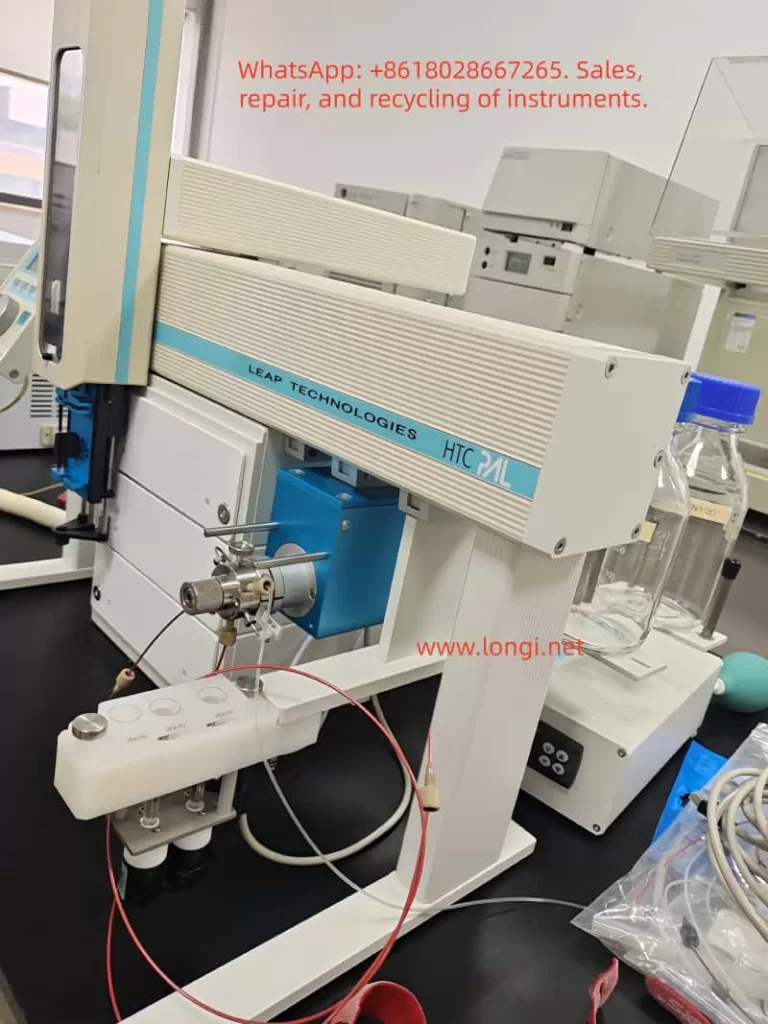
CTC Analytics AG HTC PAL Autosampler User Guide

Introduction

The HTC PAL autosampler produced by CTC Analytics AG is a highly flexible and powerful device widely used in fields such as chemical analysis, pharmaceuticals, and environmental monitoring. As a key tool for automated sample handling and injection, the HTC PAL not only enhances analytical efficiency but also ensures the accuracy and repeatability of results. This guide provides users with a comprehensive and practical manual covering aspects from device overview, pre-operation preparations, daily operations, maintenance, to troubleshooting.

Chapter 1 Device Overview

1.1 Introduction to the HTC PAL Autosampler

The HTC PAL autosampler is a robotic system based on X, Y, and Z-axis movements, specifically designed for chromatographic analyses (such as HPLC and GC). It can automatically complete sample picking, injection, and cleaning processes. Its highly customizable configurations and flexible operating modes enable it to adapt to a variety of analytical requirements.

1.2 Device Components

The HTC PAL autosampler mainly consists of the following parts:

  • X, Y, and Z-axis motion system: Responsible for the precise picking and injection of samples.
  • Injection unit: Includes syringes and needles for sample aspiration and injection.
  • Liquid injection valve: Controls the path of sample entry into the chromatographic system.
  • Rapid cleaning station: Used for cleaning syringes to prevent cross-contamination.
  • Keypad terminal: The user interface for setting up and monitoring device operation.
  • Safety shield: Protects operators from potential hazards.

1.3 Technical Specifications

  • Sample capacity: Depending on the configuration, it can support various trays and microplates, with sample vial capacities ranging from a few milliliters to tens of milliliters.
  • Injection volume range: 10 to 100 µL (standard configuration), with a minimum of 0.5 µL and a maximum of 5000 µL (through optional configurations).
  • Accuracy and repeatability: <0.5% RSD (Relative Standard Deviation) for peak areas from 10 µL to 100 µL, and <1.0% RSD for volumes <10 µL.
  • Injection cycle time: Typically 20 to 60 seconds, depending on plunger speed, injection volume, and cleaning cycle.

Chapter 2 Pre-Operation Preparations

2.1 Safety Precautions

  • Electrical safety: Ensure the device is properly grounded to avoid electrical shocks. Do not use damaged power cords or sockets.
  • Operational safety: During operation, avoid placing hands or other objects near moving parts to prevent injuries.
  • Chemical safety: Understand and comply with the MSDS (Material Safety Data Sheets) for all chemicals used, and wear appropriate protective gear.
  • Device protection: Do not modify the device structure or electrical connections without authorization, as this may affect device performance and safety.

2.2 Device Unboxing and Inspection

  • Confirm that all accessories are complete and undamaged.
  • Check the device exterior for any visible damage.
  • Verify the packing list to ensure all accessories and documentation have been received.

2.3 Device Installation

2.3.1 Installation Environment Requirements

  • Temperature and humidity: The device should operate within a temperature range of 4 to 40°C and a humidity environment below 75% RH.
  • Workbench: A clean, flat, and stable workbench to ensure stable device operation.
  • Power supply and grounding: Provide a stable power supply and ensure proper grounding of the device.

2.3.2 Installation Steps

  • Place the device: Position the HTC PAL autosampler in the predetermined location, ensuring sufficient space for operation and maintenance.
  • Install the injection unit: Carefully install the injection unit according to the illustrations and steps in the manual, ensuring all connections are secure and reliable.
  • Install the keypad terminal: Mount the keypad terminal near the device for easy operator monitoring and setup.
  • Connect the power supply: Plug the device power cord into a compliant power socket and ensure proper grounding.
  • Electrical connections: Correctly connect all electrical lines, including those for the injection valve and cleaning station, according to the illustrations in the manual.

2.4 Device Initialization

  • Power on: Turn on the device power, and the keypad terminal will display the initial menu.
  • System self-check: The device will automatically perform a system self-check to verify the normal operation of all components.
  • Parameter setup: Set the basic parameters of the device according to actual needs, such as language, date, and time.
  • Object positioning: Follow the steps in the manual to position key objects of the device (such as the tray holder and injection valve) to ensure accurate identification of component positions by the device.

Chapter 3 Daily Operations

3.1 Sample Preparation

  • Sample vial selection: Choose appropriate sample vials and caps based on sample properties and analytical requirements.
  • Sample loading: Accurately load samples into the sample vials, avoiding cross-contamination.
  • Sample tray configuration: Configure suitable sample trays and microplates according to the quantity and type of samples.
  • Barcode labeling: Affix barcode labels to sample vials for automatic identification and tracking by the device.

3.2 Method Creation and Editing

Method Creation

  • Select the “Method” menu on the keypad terminal to enter the method creation interface.
  • Enter the method name and select the required syringe and cycle type (e.g., LC-Inj).
  • Set method parameters, including sample volume, injection speed, and cleaning steps.
  • Save the method for future use.

Method Editing

  • Select the method to be edited from the method list.
  • Modify method parameters, such as adjusting the injection volume or cleaning time.
  • Save the modified method.

3.3 Task Queue Management

Task Creation

  • Select the “Task Queue” menu on the keypad terminal to enter the task creation interface.
  • Select the sample tray and sample range to be analyzed.
  • Choose the analytical method and set task parameters (e.g., start time, priority).
  • Add the task to the task queue.

Task Initiation

  • Select the task to be started in the task queue interface.
  • Click the “Start” button, and the device will automatically perform the analysis according to the task settings.

Task Monitoring

  • View the task status (e.g., in progress, completed, canceled) in the task queue interface.
  • Pause, resume, or cancel tasks as needed.

3.4 Daily Operation Precautions

  • Sample order: Ensure that the order of samples in the tray matches the settings in the task queue.
  • Syringe cleaning: Regularly clean syringes to prevent cross-contamination.
  • Device status monitoring: Closely monitor the device operation status to promptly identify and resolve issues.
  • Data backup: Regularly back up important data and methods on the device to prevent loss.

Chapter 4 Maintenance

4.1 Daily Maintenance

  • Clean the device: Regularly clean the device exterior and internal components to prevent the accumulation of dust and dirt.
  • Check syringes: Regularly inspect the sealing and flexibility of syringes and replace them if necessary.
  • Lubricate moving parts: Lubricate moving parts according to the recommendations in the manual to ensure smooth device operation.
  • Check electrical connections: Regularly inspect all electrical connections for firmness and reliability to avoid poor contact.

4.2 Periodic Maintenance

  • Replace consumables: Regularly replace consumables (such as syringe needles and seals) according to the recommendations in the manual.
  • Calibrate the device: Regularly calibrate the device to ensure the accuracy and repeatability of analytical results.
  • Software upgrade: Promptly upgrade the device software according to notifications from CTC Analytics AG to obtain the latest features and improvements.

4.3 Maintenance Plan

  • Daily maintenance: Clean the device exterior and check the syringe status.
  • Weekly maintenance: Lubricate moving parts and check electrical connections.
  • Monthly maintenance: Replace consumables and calibrate the device.
  • Annual maintenance: Conduct a comprehensive inspection of device performance and perform a software upgrade (if necessary).

Chapter 5 Troubleshooting

5.1 Common Faults and Solutions

5.1.1 No Detector Signal

Possible causes:

  • Syringe blockage or damage.
  • Incorrect installation of the injection valve needle guide or seal.
  • Incorrect connection of injection valve ports.

Solutions:

  • Clean or replace the syringe.
  • Reinstall the injection valve needle guide and seal.
  • Check and reconnect the injection valve ports.

5.1.2 Sample Not Injected

Possible causes:

  • Incorrect setting of the injection needle penetration depth.
  • Insufficient sample volume.
  • Incorrect installation of the injection valve rotor.

Solutions:

  • Adjust the injection needle penetration depth.
  • Increase the sample volume.
  • Reinstall the injection valve rotor, ensuring the correct orientation.

5.1.3 Injection Unit Collision

Possible causes:

  • Incorrect object positioning.
  • Incorrect setting of the injection needle Z-axis coordinate.

Solutions:

  • Reposition objects to ensure accurate positioning.
  • Adjust the injection needle Z-axis coordinate.

5.2 Advanced Troubleshooting

For more complex faults, technical support from CTC Analytics AG may be required:

  • Contact technical support: When unable to resolve the fault independently, promptly contact the technical support team of CTC Analytics AG, providing a detailed fault description and device information.
  • Remote assistance: Under the guidance of the technical support team, perform remote fault diagnosis and repair.
  • On-site service: For faults requiring on-site repair, arrange for technicians from CTC Analytics AG to visit the site for maintenance.

Chapter 6 Advanced Features and Applications

6.1 Synchronous and Output Signals

The HTC PAL autosampler supports synchronous and output signal functions, enabling synchronous operation with other devices (such as chromatographs and data acquisition systems):

  • Synchronous signals: Used to control the device to wait or continue executing sample processing steps at specific time points.
  • Output signals: Used to send status or completion signals to external devices, indicating the completion of specific processing steps.

6.2 Custom Cycles and Macros

The HTC PAL autosampler supports user-defined cycles and macro functions to meet more complex analytical requirements:

  • Custom cycles: Users can create custom sample processing cycles according to actual needs, including specific injection, cleaning, and movement steps.
  • Macro functions: Through macro functions, users can combine multiple operation steps into a single macro command to simplify the operation process.

6.3 Multitasking and Priority Settings

The HTC PAL autosampler supports multitasking functionality, enabling the simultaneous management of multiple sample analysis tasks:

  • Task priority: Users can set priorities for different tasks to ensure that important tasks are executed first.
  • Task scheduling: The device automatically schedules the execution order of tasks based on task priority and start time.

Chapter 7 Conclusion and Outlook

7.1 Conclusion

This guide provides a detailed introduction to the user manual of the CTC Analytics AG HTC PAL autosampler, covering aspects from device overview, pre-operation preparations, daily operations, maintenance, to troubleshooting. Through the guidance in this guide, users can better understand and use the HTC PAL autosampler, improving analytical efficiency and result accuracy.

7.2 Outlook

With the continuous development of analytical technology, the HTC PAL autosampler will continue to play an important role in fields such as chemical analysis, pharmaceuticals, and environmental monitoring. In the future, the HTC PAL autosampler is expected to further integrate intelligent and automated functions, providing a more convenient and efficient user experience. Meanwhile, with the application of new materials and technologies, the performance and stability of the HTC PAL autosampler will also be further enhanced.

Posted on

JEOL JSM-IT200 Series Scanning Electron Microscope User Guide

I. Introduction

The JEOL JSM-IT200 series scanning electron microscope (SEM) is a high-performance analytical instrument specifically designed for scientific research and metrology applications. This series features high resolution (below 10 nm), supports both high-vacuum and low-vacuum mode imaging, and offers X-ray energy-dispersive spectroscopy (EDS) for elemental analysis. This user guide aims to assist users in comprehensively mastering the use of the JSM-IT200 series, from safety preparations to advanced operations, ensuring efficient utilization of the instrument.

II. Safety Guidelines

Training and Protection

All users must complete Environmental, Health, and Safety (EH&S) training and wear personal protective equipment (PPE) such as safety glasses and rubber gloves.

Sample Preparation

Avoid using solvents in the SEM chamber to prevent volatile organic compound (VOC) contamination; handle plastic sharp objects properly; links to Material Safety Data Sheets (MSDS), EH&S laboratory safety manuals, and CIF safety manuals are available on the computer desktop.

Instrument Operation

Record any abnormal responses or error states, capture images using the screenshot tool, and notify relevant personnel; promptly report filament failures and replace the Wehnelt cap and spare filaments.

Vacuum System

Wear gloves when exchanging samples and keep the sample holder clean; firmly secure powder samples to prevent damage to the electron gun.

III. System Overview

The JSM-IT200 series consists of an electron optical column (EOS), a sample chamber, a vacuum system, and control software. In terms of software, log in to the instrument computer as the.\cif user and manage logins/logouts using the LockScreen program; the OperationServer icon on the taskbar is a critical background process for SEM operation; the bottom of the desktop contains main programs such as SEM Operation and SMILE VIEW Lab.

IV. Sample Preparation and Loading

Sample Preparation

Samples must be firmly fixed and have moderate conductivity; non-conductive samples require gold coating; powder samples must not be loosely loaded.

Sample Holder

Various types of holders are provided; measure the sample height to prevent collisions.

Loading Process

Follow the guidance of Specimen Exchange Navi, including venting, opening the chamber, entering sample information, setting parameters, adjusting the Z-axis height, closing the chamber door, evacuating the chamber, and starting the electron gun.

V. Software Interface and Operation

Main Interface

Displays real-time images, with the control bar below including zoom, focus, etc.; stage navigation is located in the upper right corner, and the chamber camera helps tilt samples.

Control Options

Include screen buttons and MUI knobs; the mouse wheel controls zooming; in manual mode, adjust focus and astigmatism; automatic astigmatism correction simplifies operations.

Display Histogram

Optimize brightness/contrast settings to ensure no signal clipping.

Advanced Navigation

For example, Holder Graphics displays the current sample position, and the SNS option switches to CCD color images.

VI. Imaging Techniques

Imaging Modes

Include secondary electron images (SEI) and backscattered electron images (BSE), highlighting surface topography and compositional differences, respectively.

Parameter Optimization

Adjust the accelerating voltage, probe current, and magnification according to sample requirements.

Automatic Functions

One-click adjustment of focus, contrast, brightness, and astigmatism; use BED and LSED to obtain images in low-vacuum mode.

Advanced Functions

Such as the Montage function for automated large-area observation and 3D imaging options for creating stereo images and 3D models.

VII. Elemental Analysis (EDS)

Operation

Specify points/lines/areas on the SEM screen for EDS analysis, displaying X-ray spectra and major elements in real time.

Analysis Methods

Include qualitative analysis, quantitative analysis, line analysis, and elemental mapping.

Advanced Functions

Such as QBase database comparison of spectra, PlayBack Analysis for replaying accumulated frames, and GSR analysis for automated classification of gunshot residue particles.

VIII. Data Management and Reporting

Data Management

SMILE VIEW Lab integrates the management of CCD, SEM images, and EDS data, supporting search and position display.

Report Generation

Select data to automatically layout reports, support the creation of templates and one-click updates; output to Word or PowerPoint for easy sharing.

IX. Maintenance and Troubleshooting

Maintenance

Pre-align the filament; gun alignment is fully automatic; when replacing the filament, insert the Wehnelt to automatically center it.

Troubleshooting

Record error states and take screenshots; promptly report filament failures and replace them; follow the procedure when ending a session.

X. Advanced Functions

Zeromag

Seamlessly transition from optical to SEM, supporting multi-analysis position presets and reviews.

Particle Analysis Software

Automatic/manual particle detection, EDS analysis, classification, and statistical graphs.

Language Switching

The UI supports Japanese/English; the vacuum system is fully automatic.

Installation Requirements

Specify power supply, room temperature, humidity, and space requirements.

XI. Conclusion

The JSM-IT200 series simplifies SEM operations and enhances analytical efficiency through integrated software and automatic functions. This guide covers comprehensive steps from safety to advanced applications, and users can apply them according to their specific configurations. Practice is key; by analyzing poor images, optimizing parameters, and utilizing tools such as histograms and automatic corrections, users can ensure instrument reliability and data accuracy, driving innovation in fields such as materials science and biology.

Posted on

SMILE VIEW Lab Software Manual User Guide

Introduction

SMILE VIEW Lab is a professional data management and analysis software specially designed by JEOL Ltd. for electron microscope systems. It supports the processing and analysis of data collected from JEOL high-end instruments such as JXA-ISP100, JXA-iHP200F, JSM-F100, and JSM-IT800. It integrates Sample Navigation System (SNS) images, Scanning Electron Microscope (SEM) images, Energy Dispersive X-ray Spectroscopy (EDS) data, and positional information, storing them in project files. This guide aims to provide comprehensive and original technical guidance to help users fully master the software from installation to advanced applications.

{“AIGC”: {“Label”: “1”, “ContentProducer”: “001191110000802100433B10005”, “ProduceID”: “1212063114806644222”, “ReservedCode1”: “”, “ContentPropagator”: “001191110000802100433B10005”, “PropagateID”: “1212063114806644222”, “ReservedCode2”: “”}}

Software Overview and Installation

Core Functions

  • Data Integration: Links sample images, electron microscope images, and EDS results, supporting graphical representation of positions.
  • Analysis Tools: Offers functions such as spectrum editing, one-dimensional comparative spectra, line profiles, and pop-up spectra editing.
  • Advanced Visualization: Supports 3D surface topology reconstruction, viewing at any zoom level and angle, and surface roughness standards conforming to ISO/JIS/ASME.
  • Report Generation: Features an intuitive layout editor, supports PDF/Word export, and multi-page document creation.
  • Compatibility: Seamlessly integrates with specific JEOL models and supports miXcroscopy™ image positioning.

Pre-installation Preparations

  • System Requirements: Windows operating system (Windows 10 or higher recommended), at least 8GB RAM, Intel i5 or equivalent processor, dedicated graphics card (supporting OpenGL), and sufficient storage space.
  • Software License: Non-exclusive and non-transferable; reverse engineering or copying is prohibited.

Installation Steps

  1. Download the installation package (.exe file) from the JEOL official website or authorized channels.
  2. Double-click the installer and select the installation path (default: C:\Program Files\JEOL\SMILE VIEW Lab).
  3. Accept the license agreement and install dependent components such as .NET Framework.
  4. After installation, restart the computer and activate the software with administrator privileges.
  5. If integrating EDS, configure standard data and measurement conditions.
{“AIGC”: {“Label”: “1”, “ContentProducer”: “001191110000802100433B10005”, “ProduceID”: “1212063753600550751”, “ReservedCode1”: “”, “ContentPropagator”: “001191110000802100433B10005”, “PropagateID”: “1212063753600550751”, “ReservedCode2”: “”}}

Starting the Software

Starting Methods

  • Click the “Data” button through SEM Center.
  • Select “Project – Data management” from the File menu.

Starting Process

  1. Ensure that the JEOL instrument is connected and data has been collected.
  2. Open SEM Center and navigate to the data management option.
  3. Click to start, and the software loads the database, displaying the project tab panel.
  4. During the first start, the software may prompt you to configure user accounts (administrator privileges are required for data sharing).

Precautions

  • Avoid operating in environments with high electromagnetic interference and ensure the computer is grounded.
  • Software version information can be viewed under the Help tab.

Screen Configuration

Interface Layout

  • Project Tab Panel: The core data management area, including the Ribbon menu, address bar, project file list, collected data list, and sample image area.
  • Favorite Tab Panel: A collection of shortcuts for quick access to frequently used projects or data.
  • Report Tab Panel: The report management area, supporting preview, deletion, and export of report files.
  • Layout Tab Panel: The layout editor for customizing report templates.

Ribbon Menu

  • Home: Copy projects, import/export data, search, toggle display, and access the recycle bin.
  • Setting: Chemical formula calculation, standard data management, EDS settings, report settings, and measurement conditions.
  • Admin (Administrator Only): Data sharing and database maintenance.
  • Help: Version information.

Mouse and Touch Operations

Supports click selection, right-click menu, drag-and-drop adjustment, and pinch-to-zoom. The interface supports customization, such as changing display formats or sorting data.

{“AIGC”: {“Label”: “1”, “ContentProducer”: “001191110000802100433B10005”, “ProduceID”: “1212063960630317435”, “ReservedCode1”: “”, “ContentPropagator”: “001191110000802100433B10005”, “PropagateID”: “1212063960630317435”, “ReservedCode2”: “”}}

Data Management

Operations from the Ribbon

  • Copy Project: Select a project and click Copy Project.
  • Import Data: Supports importing project/sample unit jlz files.
  • Export Data: Export in jlz format, supporting sample units, reports, and layouts.
  • Search Data: Search for files in the project list.
  • Display Toggle: Classify and display data types.
  • Recycle Bin Operations: Temporarily store deleted files and support recovery.
  • Data Sharing: Administrators set up sharing among users.
  • Version Check: Display the software version.

Project File List Operations

Create new projects, move samples, filter and display formats, and right-click menu operations (rename, send to recycle bin, copy, export, batch analyze spectra, move to other projects).

Sample File Operations

Right-click menu operations (rename, delete, export, batch analysis, move).

Collected Data Operations

Double-click to open the analysis window, and right-click menu operations (open, delete, add to favorites, restore conditions/stage positions, add to report, save as other formats, correspondence program, particle size analysis).

Other Functions

Restore conditions, restore stage positions, add to report, save formats, correspondence program, particle size analysis.

Checking and Editing Collected Data

Opening Collected Data

Select data and double-click to display the analysis window.

Editing Sample Images

Adjust brightness, contrast, rotation, and mark positions.

Editing Electron Microscope Images

Zoom, measure distances/angles, and enhance images.

Spectrum Analysis

Edit one-dimensional comparative spectra, adjust baselines, identify peaks, and quantify.

Line Analysis

Edit profiles, smooth curves, and extract data.

Mapping Analysis

Edit pop-up spectra and adjust line profiles.

Correspondence Program (Image Alignment)

Starting Method

Select Correspondence from the data right-click menu.

Operation Steps

  1. Specify Matching Mode: Automatic positioning or manual.
    • Automatic Positioning: Specify the input image, magnification (Mag), region of interest (ROI), set parameters, and run processing.
    • Manual Positioning: Manually adjust image overlay.
  2. miXcroscopy™ Image Positioning: Specific integration mode.
  3. Fine-tune Partial Images: Move, resize, and rotate.
  4. Adjust Image Quality: Brightness and contrast.
  5. Save Results: Export aligned images.
  6. Scale Space Detection: Use image pyramids to optimize matching.

Report Generation

Screen Configuration

The report creation window includes a layout editor, data list, and preview.

Creating a Report

Select a template and create a new layout base.

Editing a Report

Add data, covers, and headers/footers.

Creating a New Layout

Use the layout editor to add items, adjust positions, and save.

Adding Data

Add from the list or analysis screen, supporting comparison.

Adding Covers/Headers/Footers

Customize text and page numbers.

Exporting Reports

Export as electronic data (PDF/Word) or print.

Transferring Data to Other Computers

Exporting Data

Select projects/samples/reports/layouts and generate jlz files.

Importing Data

Select jlz files and import them into new projects, supporting Windows Explorer drag-and-drop.

Precautions

Ensure compatibility and back up data before transfer.

Database Maintenance Tools

Starting/Closing

Start from the Admin tab and confirm closing.

Backup

Select the source/target and perform backup.

Restore

Restore data from backup.

Path Change

Move the data folder and use backup data.

Error Messages

Handle common issues such as invalid paths.

Troubleshooting

Common Problems

  • Startup Failure: Check the license and system requirements.
  • Data Import Errors: Verify the jlz format.
  • Analysis Window Unresponsiveness: Restart the software and check memory.
  • Report Export Failure: Confirm permissions and update the software.

Contact Information

If problems persist, contact the JEOL service office.

Software Warranty

The warranty period is 12 months, covering hardware/software failures but excluding improper operation.

Conclusion

SMILE VIEW Lab, as a key component of the JEOL ecosystem, significantly enhances the efficiency and accuracy of electron microscopy analysis. Through this guide, users can master comprehensive skills from basic operations to advanced functions. It is recommended to practice with actual data and regularly update the software to access new features. In the future, with AI integration, this software will further optimize automated analysis and drive scientific research innovation.

Posted on

JEOL JSM-T200 Series Scanning Electron Microscope: Comprehensive User Guide and Technical Analysis

Chapter 1: Equipment Overview and Technical Specifications

1.1 Product Design Philosophy and Technical Positioning

The JEOL JSM-T200 series scanning electron microscope combines simplified operation, easy maintenance, and high performance, enabling even users without professional operational skills to easily obtain high-quality microscopic images. Its advantages, such as a large depth of field, a wide magnification range, and minimized sample preparation requirements, make it an effective instrument in research, quality control, and visual education fields.

{“AIGC”: {“Label”: “1”, “ContentProducer”: “001191110000802100433B10005”, “ProduceID”: “1212054535207460807”, “ReservedCode1”: “”, “ContentPropagator”: “001191110000802100433B10005”, “PropagateID”: “1212054535207460807”, “ReservedCode2”: “”}}

1.2 Detailed Explanation of Core Technical Parameters

Electron Optical System Performance Indicators:

  • Resolution: Under conditions of 25 kV accelerating voltage and a 20 mm working distance, the resolution can reach 10 nm (100 angstroms).
  • Magnification: Continuously adjustable from 15x to 100,000x (15x is only available at a 48 mm working distance).
  • Accelerating Voltage: Five options are provided: 2, 5, 10, 15, and 25 kV.
  • Electron Gun Filament: Utilizes a pre-aligned box-type tungsten filament.
  • Lens System: A three-stage condenser system (two condenser lenses and an objective lens).
  • Alignment System: Mechanical alignment.
  • Stigmator: Octupole electromagnetic stigmator.
  • Image Shift: ±10 μm electromagnetic shift in any direction, controlled by a joystick.

Sample Stage Technical Parameters:
Centered Sample Stage (Type I):

  • Sample Size Capacity: Maximum diameter of 10 mm × thickness of 10 mm.
  • Movement Range: 10 mm on the X-axis and 20 mm on the Y-axis.
  • Tilt Angle: Continuously adjustable from -40° to +90°.
  • Rotation Angle: 360° full rotation.
  • Working Distance: 20 mm.
  • Sample Exchange Method: Achieved by pulling out the sample stage.

1.3 Scanning Detection System Configuration

Secondary and Backscattered Electron Detection: An integrated detector comprising a scintillator, light guide, photomultiplier tube, and collector is used.
Optional Detectors:

  • Backscattered Electron Detector: Enables the acquisition of both morphological and compositional images.
  • Transmission Electron Detector.
  • Cathodoluminescence Detector.
  • Sample Current Detector.
  • X-ray Detector.

Chapter 2: Equipment Installation and Environmental Requirements

2.1 Power and Water Supply Configuration Requirements

Power Supply:

  • Voltage: 100 V, 50/60 Hz, single-phase.
  • Power: Basic instrument: 1.2 kVA, accessories: 0.8 kVA, totaling 2 kVA.
  • Starting Current: 60 A (0.2 seconds).
  • Voltage Fluctuation: No more than ±10%.
  • Grounding Requirement: One terminal with a resistance of less than 100 Ω.

Cooling Water System:

  • Flow Rate: 2 liters per minute (pressure range: 0.05-0.2 MPa).
  • Water Temperature: 20 ± 5°C (outlet water temperature not exceeding 35°C).

2.2 Installation Environment Technical Specifications

Indoor Environmental Requirements:

  • Room Temperature: 20 ± 5°C.
  • Relative Humidity: Less than 80%.
    Ground Vibration:
  • At 5 Hz: Less than 2 μm peak-to-peak in the X, Y, and Z directions.
  • At 10 Hz: Less than 3 μm peak-to-peak in the X, Y, and Z directions.
  • At 50 Hz: Less than 8 μm peak-to-peak in the X, Y, and Z directions.
    Stray Magnetic Field: Less than 0.3 μT (3 milligauss).

Chapter 3: Comprehensive Analysis of Equipment Operation Procedures

3.1 Standard Startup and Shutdown Procedures

Startup Operation Procedure:

  • Turn on the faucet to supply cooling water to the microscope (water flow rate: 1.5-2 liters per minute).
  • Turn on the main power switch on the distribution board and press the power switch on the left panel of the control console.
  • Wait for 15-30 minutes until the magnification panel displays a reading, indicating that the column vacuum has reached a sufficient level to generate an electron beam and observe samples.

Shutdown Operation Procedure:

  • Press the power-off switch.
  • Turn off the main power switch.
  • Wait for 10-15 minutes to allow the diffusion pump to cool to room temperature.
  • Turn off the faucet.

Special Situation Handling:

  • Power Failure: The microscope stops automatically. Manual reactivation is required after power restoration.
  • Water Supply Failure: The microscope stops automatically. Manual reactivation is required after water supply restoration.

3.2 Technical Specifications for Sample Installation

Centered Sample Stage Installation Steps:

  • Press the exhaust switch to allow air into the column.
  • Wait approximately 40 seconds for the column to be fully exposed to the atmosphere.
  • Insert the sample stub with the sample into the sample holder.
  • Adjust the sample height adjustment screw so that the sample surface is flush with the edge of the holder.
  • Secure the sample stub using the sample stub fixing screw.
  • Return the sample stage to the sample chamber.
  • Press the vacuum evacuation switch.

3.3 Detailed Explanation of Image Observation Techniques

Secondary Electron Image (SEI) Observation Setup:

  • Set the sample stage control parameters and working distance selector.
  • Set the detector panel and control panel control parameters.
  • Press the accelerating voltage on button.
  • Press the line scan and exposure buttons in sequence.
  • Adjust the filament control knob to approximately the 11 o’clock position.
  • Gradually rotate the filament control knob to approximately the 2 o’clock position.
  • Observe the waveform changes on the CRT screen.
  • Press the image mode button to observe the rapid exposure marker and raster.

Backscattered Electron Image (BEI) Observation:
The operation steps are the same as those for SEI observation, but press the BEI button during the initial setup and control the spot size between 12 and 3 o’clock.

3.4 Guide to Using Automatic Functions

Automatic Focusing Mode Operation Procedure:

  • Use the coarse focusing control to roughly focus the image.
  • Use the fine focusing control to precisely focus the image.
  • Press the auto button, and the focus light on the display panel illuminates.
  • When the magnification and/or field of view changes, press the auto button on the right side of the focusing panel.

Fully Automatic SEM Image Acquisition:
Images will automatically appear when the power switch is pressed under the following control settings.

{“AIGC”: {“Label”: “1”, “ContentProducer”: “001191110000802100433B10005”, “ProduceID”: “1212054856041987840”, “ReservedCode1”: “”, “ContentPropagator”: “001191110000802100433B10005”, “PropagateID”: “1212054856041987840”, “ReservedCode2”: “”}}

Chapter 4: Technical Analysis of Photographic Recording System

4.1 Photographic Recording System Configuration

Comparative Analysis of Four Photographic Recording Systems:

  • CSI-1: Standard configuration, Brownie film, 1:0.5 photographic ratio.
  • CSI-2: Polaroid film pack, 1:0.75 photographic ratio (optional).
  • CSI-3: 35 mm film, 1:0.25 photographic ratio (optional).
  • CSI-4: Polaroid loose-leaf film, 1:1 photographic ratio (optional).

4.2 Technical Specifications for Photographic Operation

Scanned Image Photography Procedure:

  • Install the recording system on the CRT and secure it with hinge pins.
  • Insert the CSI connector into the socket on the display panel.
  • Obtain an image on the CRT.
  • Swing the CSI onto the CRT and secure it with a latch bar.

4.3 Film Selection and Parameter Settings

Relationship Between Film Sensitivity and f-value:

  • 50 ASA → 5.6-8 f.
  • 75, 100 ASA → 8-11 f.
  • 200 ASA → 11-16 f.
  • 400 ASA → 16-22 f.

Notes on the Use of Ultra-High-Speed Film:
Ultra-high-speed film (ASA 3000) is generally not suitable for image recording due to its lower resolution and narrower latitude. The use of such film should be limited to special-purpose photography, such as recording dynamic behavior.

Chapter 5: Equipment Maintenance and Troubleshooting

5.1 Key Points of Daily Maintenance

Oil Rotary Pump Maintenance:

  • Regularly check the oil level and replenish as needed.

Diffusion Pump Heater Replacement:

  • Turn off the power switch and the main power switch on the distribution board.
  • Remove the rear panel.
  • Allow the heater assembly to cool.
  • Remove the heater assembly.
  • Take out the heater from the cover.
  • Disconnect the leads connected to the heater and remove the heater.

5.2 Technical Guidance for Component Replacement

Electron Gun Filament Replacement Steps:

  • Press the exhaust switch to allow air into the column.
  • Loosen the alignment screws and remove the electron gun from the column.

Chapter 6: Advanced Applications and Optimization Techniques

6.1 Advanced Imaging Techniques

Methods for Optimizing Image Contrast:

  • High-Contrast Image: Rotate the contrast control knob clockwise until the exposure marker bar exceeds the standard white level bar.
  • Low-Contrast Image: Rotate the contrast control knob counterclockwise.
  • Automatic Brightness and Contrast Control: First obtain the optimal image brightness and contrast at approximately 1000x magnification, then press the auto control button on the control panel.

6.2 Performance Optimization Strategies

Key Points of Stigmator Correction Techniques:

  • Press the image shift button.
  • Set the stigmator control knob to the 12 o’clock position.
  • Observe the direction of image blur and adjust the stigmator control knob accordingly.

Adjustment of Rapid Exposure Marker:
This marker has been optimized for exposure using ASA 75 film with the lens aperture set to fully open before factory shipment. Therefore, under normal circumstances, as long as the film speed and lens aperture are maintained at ASA 75 and fully open, respectively, no adjustment of the rapid exposure marker is required. However, since the optimal exposure may vary depending on the condition and nature of the sample, occasional adjustments may be necessary. In addition, adjustments will be required when taking high-contrast and low-contrast micrographs.

This user guide covers all operational procedures of the JEOL JSM-T200 series scanning electron microscope, from basic operations to advanced applications, and from routine observations to precision photography. It provides users with a complete and detailed set of operational technical guidance. By following the operational norms outlined in this guide, users can fully leverage the equipment’s performance and obtain high-quality experimental results. At the same time, regular maintenance will ensure the long-term stable operation of the equipment and extend its service life.