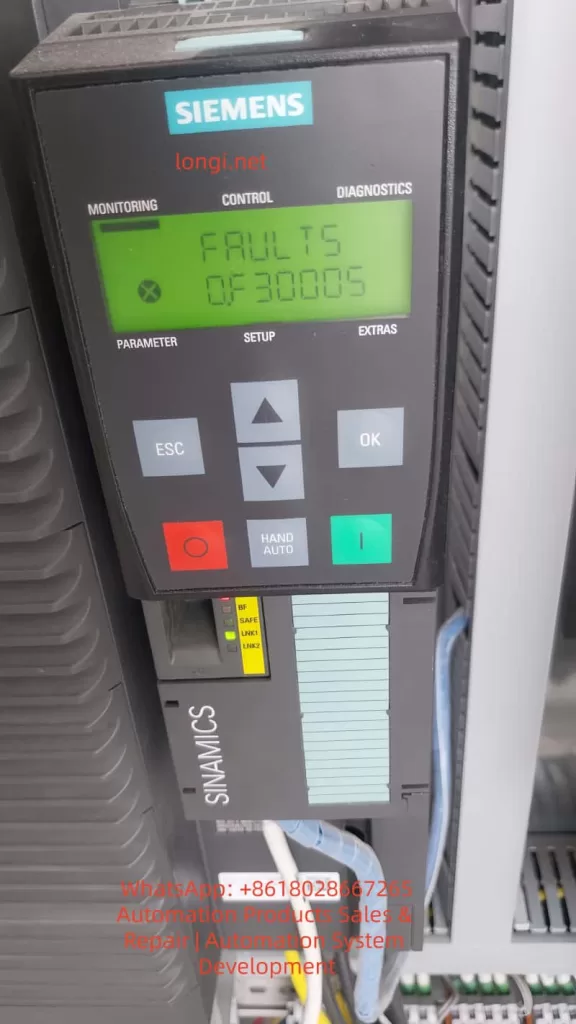
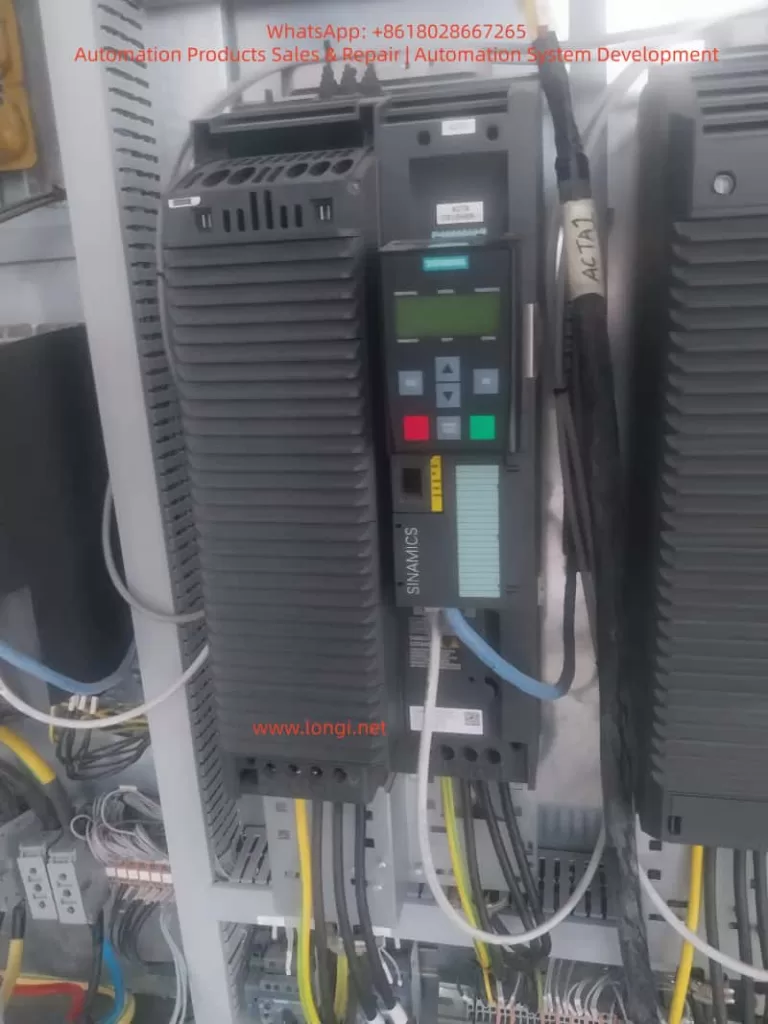
In the Siemens SINAMICS G120 series variable frequency drive system, the fault code F30005 – Power unit overload falls within the range of 30000–30999 and is clearly attributed to the DRIVE-CLiQ power unit (Power Module, PM) itself, rather than the control unit (CU) or the external communication layer. This fault code indicates that the power module has internally determined that its operating state has exceeded the safe operating boundaries, and does not simply refer to motor overload or a load current exceeding the nameplate value.
II. The True Meaning of “Power Unit Overload” in SINAMICS G120
1. Siemens’ Engineering Definition of “Overload”
In the SINAMICS system, “Power Unit Overload” is not a simple I²t overload protection but the result of a multi-dimensional comprehensive assessment, including power device (IGBT) junction temperature models, heat sink temperature rise models, output current time integrals (equivalent thermal loads), abnormal DC bus energy flows, and the coupling effects of switching losses and carrier frequencies. F30005 is the final outcome of a thermal model mismatch or stress overrun in the power module.
2. Relationship with the F3xxxx Coding System
The range 30000–30999 clearly points to the DRIVE-CLiQ power unit, with F30005 being a typical representative within this range. This means that the fault source lies in power modules such as the PM240/PM240-2/PM250, with the CU only responsible for forwarding the fault information. DRIVE-CLiQ communication serves as an information channel and is not the root cause of the fault.
III. Typical Trigger Scenarios for F30005
Scenario 1: Long-Term Operation in the “Hidden Overload Zone” of the Power Module
The operating current does not exceed the rated value, but prolonged operation, high ambient temperatures, and inadequate cabinet ventilation design lead to continuous accumulation in the IGBT junction temperature model, ultimately triggering F30005. This is a thermal design issue, not a parameter issue.
In low-frequency (<10 Hz), high-torque maintenance, vector control/DTC modes, prolonged “holding still” results in a significant increase in IGBT conduction losses, reduced fan speed, decreased cooling capacity, and a thermal model accumulation rate that far exceeds expectations.
Scenario 3: Improper Matching Between the Power Module and the Motor
If the PM power selection is too small, the motor’s rated current is close to the PM’s upper limit, the actual load torque exceeds the design value, or high-inertia mechanical systems are used, the power module will alarm even if the parameters “appear to be fine.”
Scenario 4: Improper Carrier Frequency Settings
Setting the carrier frequency too high (e.g., 8–12 kHz) in pursuit of low noise, combined with high power, leads to increased IGBT switching losses, rising module heat generation, and ultimately triggers F30005.
IV. Why “Restarting Works for a While,” but the Fault Recurs?
The thermal model is reset upon power-off, and the actual IGBT junction temperature drops, temporarily restoring the system’s “safety margin.” However, as long as the operating conditions, cooling conditions, and parameters remain unchanged, the thermal model will accumulate again, and the fault will inevitably reoccur.
V. The Fundamental Differences Between F30005 and “Motor Overload”
Comparison Item
Motor Overload
F30005
Monitoring Object
Motor
Power Module
Judgment Basis
Current/I²t
Thermal Model + Energy
Must Have High Current
Yes
Not Necessarily
Short-Term Recoverability
Limited
Obvious
Root Cause
Mechanical or Load
Electrical + Thermal
VI. Engineering-Level Troubleshooting Process
Step 1: Confirm the Power Module Model and Rated Capacity
Check the model and current rating of power modules such as the PM240/PM240-2/PM250 to confirm whether they are operating close to or exceeding 80% of their long-term capacity. Insufficient power module selection is a common cause.
Step 2: Inspect Cabinet Cooling and Environmental Conditions
Focus on the cabinet temperature, whether the air duct is blocked by cables, and whether the PM fan is aged or dusty.
Step 3: Analyze Operating Conditions
Confirm whether there is long-term low-speed, heavy-load operation, frequent starting/stopping, or accumulation of DC braking or regenerative energy.
Step 4: Review Carrier Frequency and Control Modes
Check whether thermal margins have been sacrificed for “quietness” and whether unnecessary high-performance control modes are being used.
VII. Sustainable Solutions
✔ Correct Approaches
Reduce the carrier frequency to decrease IGBT switching losses.
Optimize the process operating curve to avoid prolonged low-speed, heavy-load operation.
Improve cooling conditions, such as clearing air ducts and replacing aged fans.
Upgrade the power module rating if necessary to increase system redundancy.
✘ Incorrect Practices
Repeatedly resetting the system while ignoring the root cause.
Blindly increasing overload parameters to mask the fault.
Ignoring cabinet thermal design, leading to recurring issues.
Shifting the blame to the motor, delaying repair timing.
VIII. Conclusion: F30005 is the “Power Module’s Self-Preservation Mechanism”
F30005 is not bad news but a clear indication from the power module that the current system’s thermal-electrical-mechanical balance has been disrupted. Ignoring it may lead to permanent IGBT damage, drive failure, and costs far exceeding those of a reasonable rectification. Therefore, F30005 faults should be taken seriously, and timely troubleshooting and resolution should be carried out.
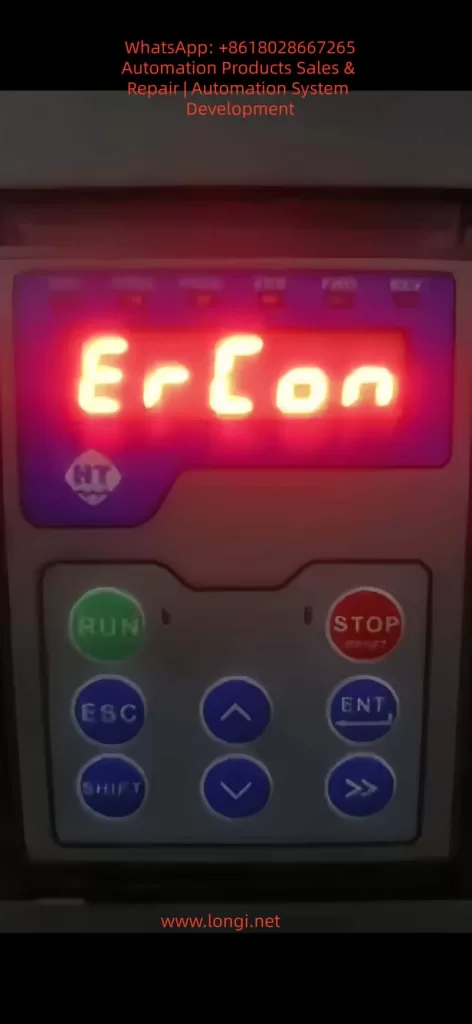
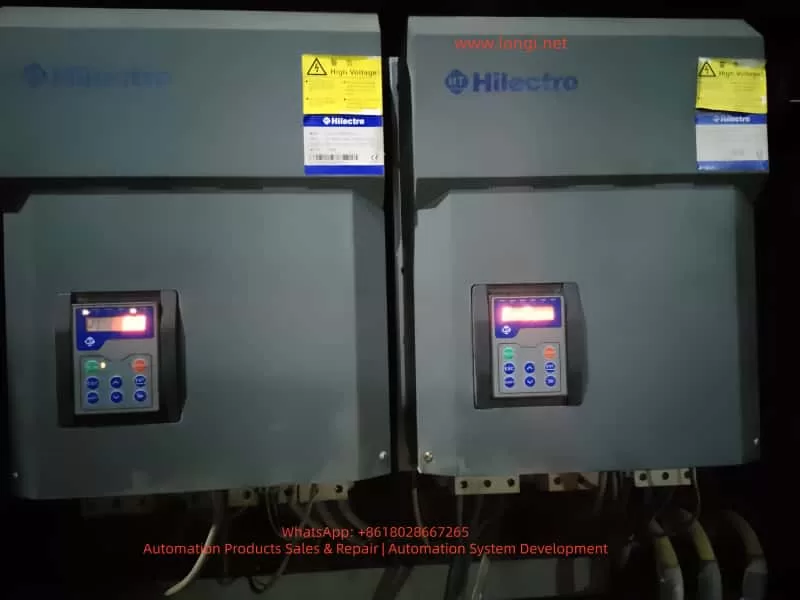
Servo drives, as the core control components of industrial automation equipment, directly determine the operational efficiency and production continuity of devices. The HiMEC HI2xx series servo drives, renowned for their high cost performance and user-friendliness, are widely applied in machine tools, robots, packaging machinery, and other fields. However, in practical use, the ERCON fault (flashing display) caused by communication interruption between the operator (e.g., drive panel) and the main board is one of the most common issues. If unresolved promptly, it can lead to equipment downtime and production stagnation. This article delves into the root causes of the ERCON fault in HI2xx series drives, provides a step-by-step solution guide, and proposes preventive measures to help technicians quickly locate and resolve the problem.
1. Overview of ERCON Fault
1.1 Fault Definition
ERCON (Error Communication) is a communication fault code specific to HiMEC HI2xx series drives, referring to the interruption of the communication link between the operator (e.g., drive panel, handheld programmer) and the main board. When the communication link is abnormal, the operator triggers a communication alarm and displays “ERCON” in a flashing manner, alerting users to check the communication system immediately.
1.2 Fault Impact
The operator cannot receive status information from the main board (e.g., motor speed, torque, alarm codes);
Control commands (e.g., start, stop, parameter modification) cannot be sent to the main board;
The drive enters protection mode, unable to drive the motor normally, and may cause equipment shutdown in severe cases.
2. In-Depth Analysis of Fault Causes
The communication link of HI2xx series drives consists of three parts: operator, communication cable, and main board interface (Figure 1). Any abnormality in these components can trigger the ERCON fault. Below is a detailed breakdown of the causes:
2.1 Communication Cable Fault (Most Common Cause)
The communication cable is the “signal bridge” connecting the operator and the main board, accounting for over 60% of ERCON faults. Specific causes include:
Physical damage: Internal conductors break due to long-term vibration or bending (e.g., copper foil fracture in a flat cable);
Loose connection: Poor contact between the plug and socket due to vibration or repeated插拔 (e.g., reduced clamping force between a pin header and socket);
Electromagnetic interference (EMI): The communication cable is not shielded or laid parallel to power cables (e.g., motor cables), causing EMI to disrupt communication (e.g., RS485 differential signals are submerged by noise);
Aging: The insulation layer of the communication cable ages due to high temperature or humidity, leading to short circuits or signal attenuation.
2.2 Interface Fault
The communication interfaces of the operator or main board are “nodes” in the link, accounting for about 30% of faults. Specific causes include:
Pin damage: Pins (e.g., pin header, DB9 interface pins) bend or break due to forced插拔 or vibration (e.g., a pin header pin is bent and cannot contact the socket);
Oxidation/contamination: Pins oxidize (e.g., copper pins turn black) or the interface is contaminated with dust/oil in humid/dusty environments, increasing contact resistance and blocking signal transmission;
Lock failure: The plug lock (e.g., flat cable clip) breaks due to aging, causing the plug to loosen and lose contact.
2.3 Equipment Itself Fault
Faults in the internal communication circuits of the operator or main board account for about 10% of cases. Specific causes include:
Operator fault: The operator’s communication chip (e.g., RS485 transceiver) is damaged, unable to send/receive signals;
Main board fault: The main board’s communication interface circuit (e.g., UART, RS485 circuit) fails (e.g., capacitor breakdown, resistor burnout), preventing signal processing;
Firmware incompatibility: Mismatched firmware versions between the operator and main board (e.g., the operator’s firmware is upgraded but incompatible with the old main board’s communication protocol) disrupt communication.
2.4 Environmental Factors
Excessive temperature: The operating environment exceeds the rated range (e.g., HI2xx series operates at 0–45°C), softening the communication cable’s insulation or loosening solder joints on interface pins;
High humidity: Ambient humidity exceeds 85%, accelerating pin oxidation or reducing the communication cable’s insulation resistance (e.g., insulation resistance drops from 10MΩ to <1MΩ, causing severe signal attenuation);
Vibration: Long-term operation in high-vibration environments (e.g., presses, vibration tables) loosens communication cable plugs or breaks internal conductors.
3. Step-by-Step Solution Guide for ERCON Fault
The following steps follow the principle of “from simple to complex, from external to internal” to help technicians troubleshoot without盲目 disassembling the device.
3.1 Step 1: Power Off and Preliminary Inspection
Purpose: Ensure safety and avoid damaging the device during live operations;初步 locate the fault scope. Details:
Power off: Turn off the drive’s power switch (e.g., circuit breaker) and unplug the power cord. Wait 5 minutes to discharge the drive’s internal capacitors;
Visual inspection:
Check the communication cable for obvious breaks, bends, or insulation damage (e.g., exposed copper foil in a flat cable);
Check the connection between the plug and socket for looseness (e.g., the flat cable plug is not fully inserted into the socket);
Check the operator and main board interfaces for dust or oil (e.g., black dust in the interface);
Re-plug the communication cable:
Release the plug lock (e.g., flat cable clip) and slowly pull out the plug;
Check the plug pins for bending or breakage (e.g., a pin header pin is bent);
Brush dust from the plug and socket with a brush, then reinsert the plug and ensure the lock is fastened (e.g., the flat cable clip is fully locked).
Notes:
Align the pins when plugging/unplugging to avoid bending pins with force;
Replace the communication cable if the plug lock fails (avoid using tape, which can cause poor contact).
3.2 Step 2: Continuity Test of Communication Cable
Purpose: Verify if the communication cable has internal breaks and eliminate conductor faults. Details:
Prepare tools: Multimeter (set to “continuity mode” or “resistance mode”);
Test method:
Connect both ends of the communication cable to the operator and main board interfaces (e.g., insert both ends of the flat cable into the operator and main board sockets);
Touch the corresponding pins of the communication cable with multimeter probes (e.g., pin 1 to pin 1, pin 2 to pin 2, etc.);
If the multimeter shows “continuity” (resistance <1Ω), the conductor is normal; if it shows “open circuit” (infinite resistance), the conductor is broken.
Example:
If pin 3 of the communication cable is not continuous to pin 3, the 3rd conductor is broken and the cable needs replacement.
Notes:
Ensure both ends of the communication cable are not connected to the operator or main board during testing (to avoid interference from the main board circuit);
If the communication cable is a shielded type, test the shield continuity (the shield must be grounded to avoid EMI).
3.3 Step 3: Interface Inspection and Cleaning
Purpose: Eliminate poor contact caused by pin damage, oxidation, or contamination. Details:
Inspect pins:
Use a magnifying glass to check interface pins (e.g., socket pins): look for bending or breakage (e.g., a socket pin is bent);
If a pin is bent, slowly adjust it to vertical with tweezers (avoid excessive force to prevent breakage);
If a pin is broken, replace the interface (e.g., socket) or main board (if the pin is soldered to the main board).
Clean oxidation and dust:
Soak a cotton swab in anhydrous alcohol (≥99% concentration) and wipe the interface pins (e.g., socket pins, plug pins);
Brush dust from the interface with a brush;
Reinsert the communication cable after the alcohol evaporates.
Notes:
Do not grind pins with sandpaper (this damages the pin coating and accelerates oxidation);
Use anhydrous alcohol to clean oil stains (avoid corrosive solvents like gasoline or thinner).
3.4 Step 4: Replace the Communication Cable
Purpose: Eliminate faults caused by the communication cable itself (e.g., internal breaks, aging). Details:
Select the communication cable:
Use a HiMEC original communication cable (matching the HI2xx series drive model, e.g., HI2-CABLE-01);
If an original cable is unavailable, use a shielded communication cable of the same specification (e.g., RS485 communication cables must be twisted-pair with a shield, and the shield must be grounded).
Replacement method:
Disconnect both ends of the old communication cable (operator and main board sides);
Insert both ends of the new communication cable into the operator and main board interfaces, ensuring the lock is fastened;
Power on the drive: if the ERCON fault disappears, the communication cable fault is resolved.
Notes:
Do not use non-original communication cables (incorrect pinout or impedance mismatch may cause communication faults);
If the ERCON fault persists after replacing the cable, check the operator and main board interfaces for damage (e.g., bent pins).
3.5 Step 5: Firmware Inspection for Operator and Main Board
Purpose: Eliminate communication faults caused by firmware incompatibility. Details:
Check firmware versions:
View the operator’s firmware version via the menu (e.g., “Parameter Settings” → “Version Information”);
View the main board’s firmware version via the drive’s upper computer software (e.g., HiMEC Servo Tool);
Upgrade firmware:
If the operator and main board firmware versions are mismatched (e.g., operator firmware V1.2, main board firmware V1.0), upgrade to a compatible version (e.g., both to V1.3);
Follow HiMEC’s Firmware Upgrade Guide for firmware upgrades (e.g., via USB or SD card) to avoid device damage.
Notes:
Backup parameters before firmware upgrades (to avoid parameter loss after upgrading);
Do not upgrade to unvalidated firmware versions (may cause communication protocol incompatibility).
3.6 Step 6: Hardware Inspection of Main Board and Operator
Purpose: Eliminate hardware faults in the operator or main board (e.g., damaged communication circuits). Details:
Replacement test:
If a spare operator is available (e.g., the same model panel), replace the original operator. If the ERCON fault disappears, the original operator is faulty;
If a spare main board is available (e.g., the same model main board), replace the original main board. If the ERCON fault disappears, the original main board is faulty.
Circuit testing:
Use a multimeter to test the voltage of the main board’s communication interface (e.g., RS485 interface voltage: normally 1–5V between A+ and B-);
Use an oscilloscope to test the communication signal (e.g., RS485 differential signal: normally clear waveform without noise);
If the voltage or signal is abnormal, repair or replace the main board (e.g., replace the communication circuit chip or resistor).
Notes:
Use the same model of device for replacement tests (to avoid compatibility issues);
Circuit testing must be performed by a professional technician (to avoid damaging other circuits).
4. Preventive Measures for ERCON Fault
4.1 Regularly Inspect the Communication Link
Weekly check: Visually inspect if the communication cable is loosely connected or damaged (e.g., flat cable copper foil breakage);
Monthly check: Test the communication cable’s continuity with a multimeter (to avoid internal conductor breaks);
Quarterly check: Clean dust and oxidation from the operator and main board interfaces (to avoid poor contact).
4.2 Environmental Maintenance
Temperature control: Keep the drive’s operating environment between 0–45°C (e.g., install cooling fans, avoid direct sunlight);
Humidity control: Maintain ambient humidity between 40%–85% (e.g., install dehumidifiers, avoid exposing the device to rain);
Vibration protection: Install the drive in a low-vibration area (e.g., fix the device with shock-absorbing pads) to prevent communication cable breaks due to vibration.
4.3 Standardize Operations
Plug/unplug communication cables: Align the pins and avoid forced insertion (e.g., use the lock to fix, avoid pulling out pins);
Firmware upgrades: Follow the manufacturer’s guide (e.g., backup parameters, use a stable power supply) to avoid upgrade failures;
Avoid EMI: Lay communication cables separately from power cables (e.g., spacing >30cm) or use shielded communication cables (the shield must be grounded).
4.4 Spare Parts Management
Stock original communication cables (e.g., HI2-CABLE-01), spare operators (e.g., same model panel), and spare main boards (e.g., same model main board) to enable quick replacement and reduce downtime.
5. Case Analysis
5.1 Fault Phenomenon
An HI200-01 drive in a packaging machinery factory (controlling a feeder motor for a packaging machine) displayed a flashing “ERCON” after power-on, and the motor could not start.
5.2 Troubleshooting Process
Step 1: Re-plugging the communication cable after power-off did not resolve the fault;
Step 2: A multimeter test showed an open circuit between pin 3 of the communication cable (internal conductor break);
Step 3: Replacing the original communication cable (HI2-CABLE-01) eliminated the ERCON fault, and the operator displayed normally.
5.3 Root Cause
The communication cable’s internal conductor broke due to long-term vibration from the packaging machine, interrupting the communication link.
5.4 Result
The device resumed normal operation after replacing the communication cable, and no further ERCON faults occurred.
6. Conclusion
The ERCON fault is a common communication fault in HiMEC HI2xx series drives, caused by communication link interruption. Technicians can quickly locate and resolve the problem by following the steps: power off and inspect → test communication cable → clean interfaces → replace communication cable → check firmware → inspect hardware. Additionally, preventive measures such as regular inspections, environmental maintenance, standardized operations, and spare parts management can effectively reduce the occurrence of ERCON faults and ensure stable device operation.
The solution guide and preventive measures in this article are not only applicable to HI2xx series drives but also provide a reference for troubleshooting communication faults in other servo drives. Technicians should adjust the troubleshooting steps flexibly based on specific device conditions (e.g., environment, frequency of use) to ensure rapid recovery of device operation.
In industrial automation, PLCs (Programmable Logic Controllers) are core control devices. The Siemens S7-300 PLC series is widely used in various automation production lines and control systems. As system complexity and communication protocols increase, communication issues between the PLC and connected devices have become common faults. This article will detail the common communication faults encountered during the use of Siemens S7-300 PLCs, including error diagnostics, clearing the error buffer, restarting communication, and common network configuration issues, while providing specific troubleshooting steps.
2. Common Communication Faults Analysis
Siemens S7-300 PLCs often need to exchange data with other devices in industrial automation systems, such as HMIs (Human-Machine Interfaces), remote I/O modules, variable frequency drives, sensors, etc. The following are some common types of communication faults and their analysis:
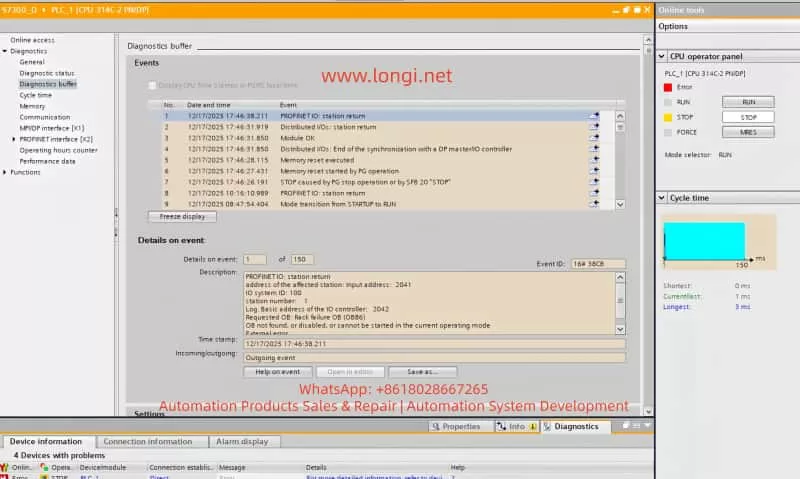
PROFINET Communication Errors When using PROFINET for device interconnection, communication between the PLC and network devices may be interrupted or erroneous. A common error is “PROFINET: station return,” which typically indicates that the device did not respond as expected, possibly due to incorrect IP address settings, network cable issues, or improper device configuration.
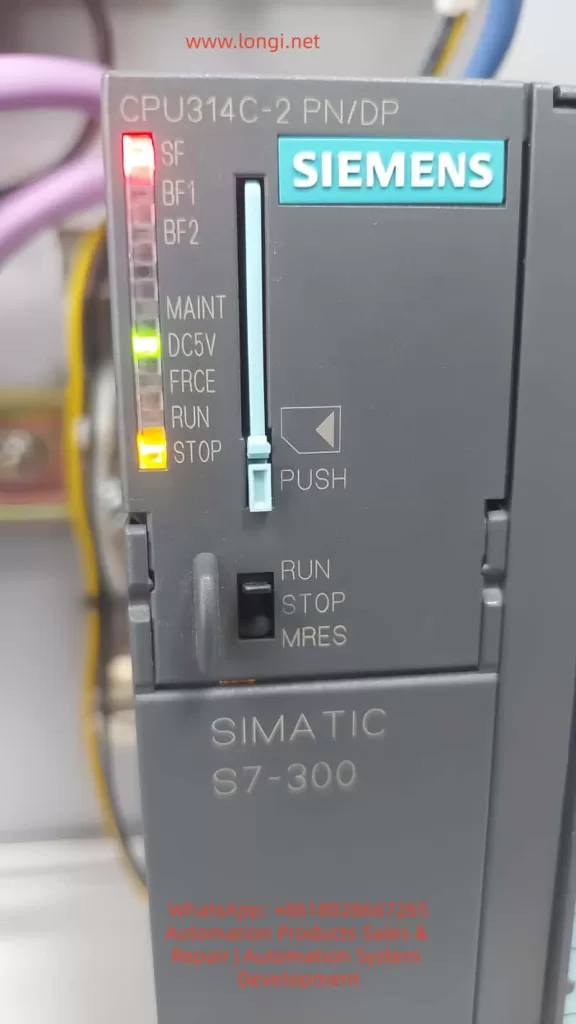
BUS2F Bus Fault When the SF (System Fault) indicator on the PLC lights up red, it typically indicates a communication issue on the PROFIBUS or PROFINET bus. Common causes include module mismatch, hardware failure, or address conflicts.
I/O Module Unresponsiveness In complex systems, communication errors between the PLC and I/O modules can prevent the I/O modules from responding correctly. Diagnostic information often shows “Distributed I/O: station return,” indicating that a module failed to synchronize correctly.
3. Diagnostic Steps and Solutions
When encountering communication faults, follow these steps for diagnosis:
1. Check PLC Diagnostic Information
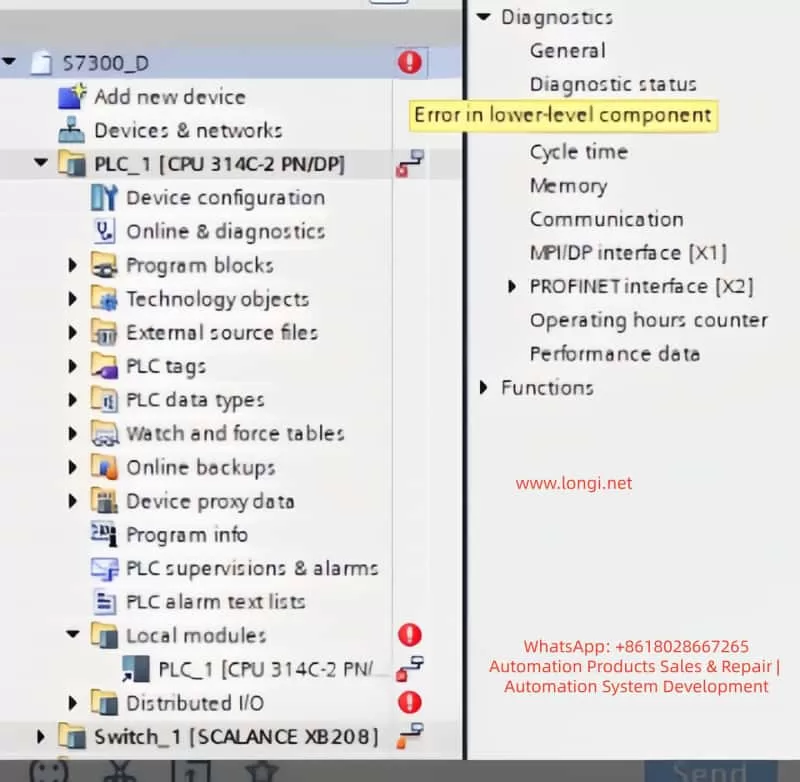
In TIA Portal, navigate to the Online and Diagnostics tab to view detailed diagnostic information for the PLC. This can help quickly identify fault codes and the affected devices. Key diagnostic steps include:
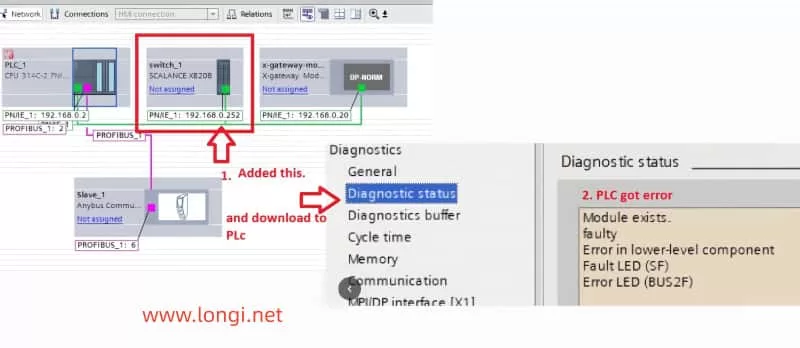
Open Diagnostic Status and observe the status of Fault LED and Error LED. If the BUS2F or SF indicator is red, it indicates a communication issue.
Access the Diagnostic Buffer to view detailed event logs. These logs will help pinpoint the root cause, such as network issues, module failures, or configuration errors.
2. Clear the Error Buffer
When communication errors occur, the first step is to clear the error buffer. This prevents the accumulation of obsolete error logs and ensures accurate diagnostics. Follow these steps:
In TIA Portal, select PLC_1 and navigate to the Diagnostics Buffer section.
In the diagnostic window, click the Clear button to remove previous error logs. This will clear the error state, making it easier to diagnose the current issue.
3. Restart PLC Communication
If clearing the error buffer doesn’t resolve the issue, try restarting the PLC communication. This can be done in two ways:
Restart PLC Operation: In TIA Portal, right-click the PLC and select “Restart” or “Stop/Start” options.
Manual Restart: If restarting from TIA Portal doesn’t work, press the RESET button on the PLC, or power cycle the PLC to restart it.
4. Check Device Connections and Network Configuration
The root cause of communication problems is often related to device connections or network configuration errors. Perform the following checks:
Check Device Connections: Ensure all devices (e.g., SCALANCE XB208, remote I/O modules, HMI) are correctly connected to the PLC and that network cables are not damaged.
Check IP Address Settings: Ensure that the PLC and all connected devices have correctly configured IP addresses and subnet masks. Address conflicts or incorrect settings are common causes of communication failures.
Network Topology: Verify that the network topology is correct, with all devices on the appropriate network segments, and ensure there are no loops or address conflicts.
5. Update Firmware
Firmware mismatches are another common cause of communication faults. After checking the hardware version of the devices, ensure that the firmware on both the SCALANCE XB208 and the PLC is compatible. If the firmware is outdated, update it by following these steps:
Access Device Management Interface: Log into the device’s web interface to view its firmware version.
Download and Install Updates: Visit Siemens’ website to download the latest firmware and perform the update. After updating, restart the device to apply the new firmware.
6. Test and Verify the Network
After completing all troubleshooting steps, network communication should be tested to ensure that it has been restored. Use the following methods to verify if the network is functioning properly:
Use TIA Portal’s diagnostic tools to perform network tests and check whether the communication between the PLC and other devices has been restored.
Ping the PLC and devices using the ping command to test network connectivity.
4. Conclusion
PLC communication problems are common in industrial automation, especially in systems involving multiple devices and complex networks. Through systematic troubleshooting steps, users can effectively diagnose and resolve common PROFINET and PROFIBUS communication issues. Clearing the error buffer, restarting communication, checking device connections, and updating firmware are key steps in resolving communication faults.
This article provides detailed steps for troubleshooting communication issues in Siemens S7-300 PLCs, and aims to help users restore normal operation and improve system reliability and stability.
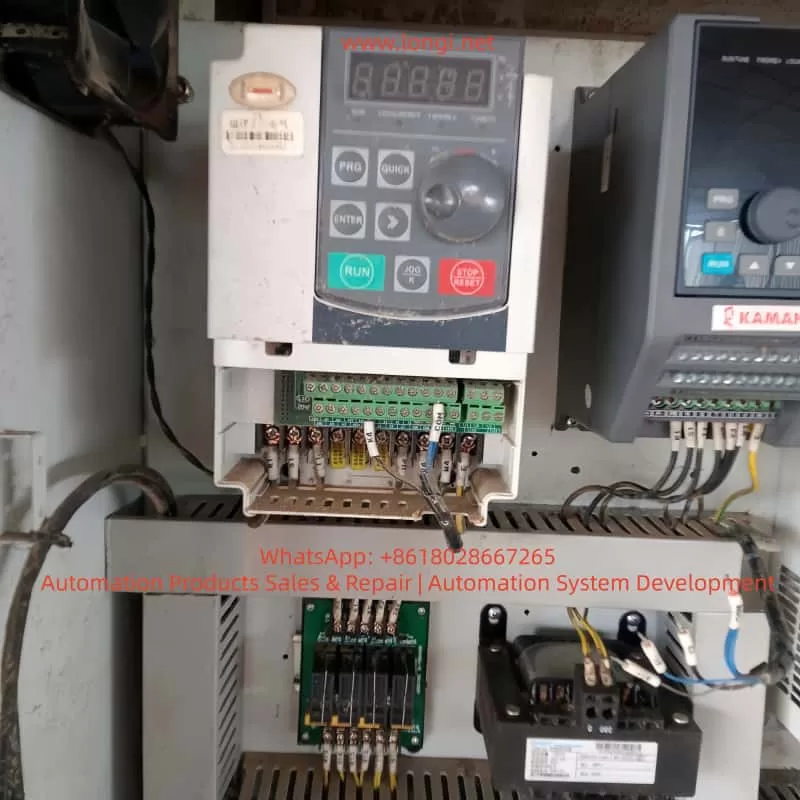
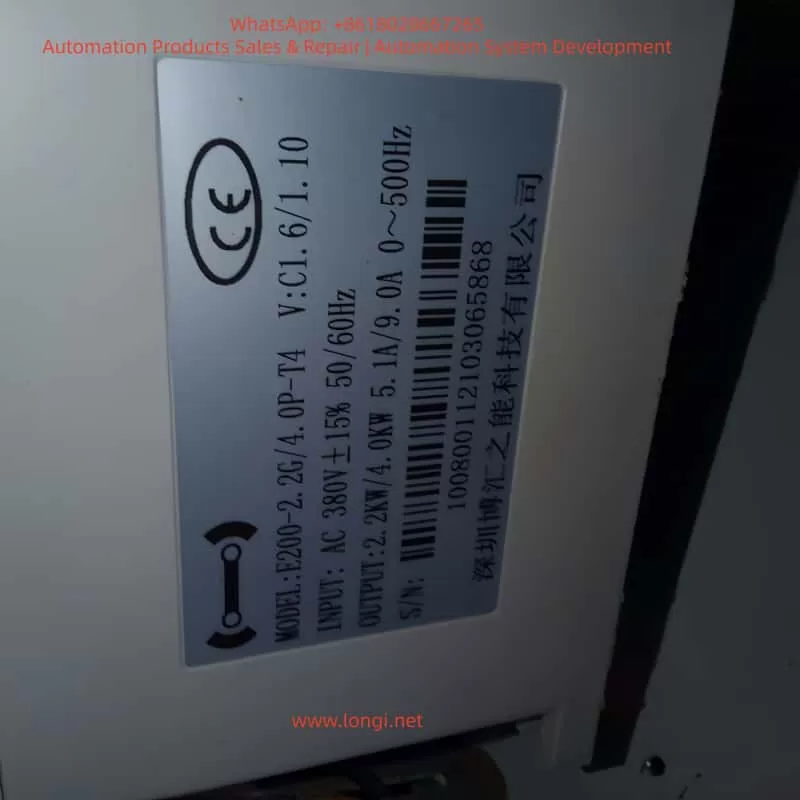
The Bohui E200 series Variable Frequency Drive (VFD) is a high-performance, reliable vector control inverter widely used in industrial automation, including fans, pumps, textile machinery, machine tools, packaging, and food processing. It supports VF control, open-loop vector control, and closed-loop vector control, and features PLC functionality, PID control, multi-speed operation, and high-speed pulse input.
This guide provides a detailed explanation of the E200 series operation panel, parameter settings, external control wiring, and fault troubleshooting to help users efficiently operate and maintain the device.
2. Operation Panel Overview
2.1 Panel Buttons and Functions
The E200 series VFD operation panel includes the following buttons:
Button
Function
RUN
Starts the VFD.
STOP/RESET
Stops the VFD or resets faults.
MODE
Switches between parameter setting and monitoring modes.
UP/DOWN
Adjusts parameter values or navigates menus.
ENTER
Confirms parameter settings or enters submenus.
JOG
Used for jog operation or command source switching.
2.2 Display Screen Functions
The display screen shows real-time data, including:
Running frequency
Set frequency
Bus voltage
Output current
Fault codes
Users can customize the display content via F0-00 (Menu Mode Selection).
3. Parameter Settings and Management
3.1 Restoring Factory Default Settings
To reset all parameters to factory defaults:
Press MODE to enter parameter setting mode.
Navigate to F0-47 (Parameter Initialization).
Set F0-47 = 1001 to restore factory settings (excluding motor parameters).
Set F0-47 = 1002 to reset recorded information.
Press ENTER to confirm. The VFD will restart automatically.
3.2 Setting and Removing Password Protection
To prevent unauthorized parameter changes, the E200 supports password protection:
Setting a Password
Enter F0-46 (Password Setting).
Set a non-zero value (e.g., 1234).
Confirm with ENTER. The password will be required to access parameters.
Removing a Password
Enter F0-46.
Set the value to 0.
Confirm with ENTER. Password protection will be disabled.
3.3 Parameter Access Restrictions
The E200 allows different access levels via F0-44 (Parameter Access Level):
Level
Access Permission
0
No restrictions.
1
Basic parameter modifications only.
2
Most parameter modifications allowed.
3
Monitoring only (no modifications).
4
Fully locked.
Steps to Set Access Level:
Enter F0-44.
Select the desired level (0~4).
Confirm with ENTER.
4. External Terminal Control and Speed Adjustment
4.1 External Terminal Forward/Reverse Control
The E200 supports forward and reverse control via external terminals.
Wiring Terminals
X1: Forward run (default function).
X2: Reverse run (requires configuration).
COM: Common terminal.
Parameter Settings
Enter F5-00 (X1 Input Function Selection) and set to 1 (Forward Run).
Enter F5-01 (X2 Input Function Selection) and set to 2 (Reverse Run).
Ensure F0-02 (Run Command Channel Selection) is set to 1 (Terminal Control).
Wiring Example:
Connect an external switch or PLC output to X1 and X2, with COM as the common terminal.
4.2 External Potentiometer Speed Control
The E200 supports speed adjustment via an external potentiometer (010V or 420mA).
Wiring Terminals
AI1: Analog input terminal (default 0~10V).
+10V: Reference voltage output.
ACM: Analog common terminal.
Parameter Settings
Enter F0-03 (Main Frequency Source Selection) and set to 2 (AI1).
Configure F5-24~F5-27 to set the AI1 input range (e.g., 010V corresponds to 050Hz).
Ensure F0-02 (Run Command Channel Selection) is set to 1 (Terminal Control).
Wiring Example:
Connect the potentiometer to AI1 and ACM, and use +10V as the reference voltage.
5. Fault Codes and Troubleshooting
The E200 displays fault codes on the screen or via U0-62 (Current Fault Code). Below are common faults and solutions:
Fault Code
Fault Name
Possible Cause
Solution
OC1
Acceleration Overcurrent
Short acceleration time, excessive load
Increase acceleration time (F0-10), check load
OC2
Deceleration Overcurrent
Short deceleration time, high inertia
Increase deceleration time (F0-11), add braking resistor
OU1
Acceleration Overvoltage
High supply voltage, insufficient braking
Check power supply, add braking unit
LU
Undervoltage Fault
Low supply voltage
Check power supply stability
OL2
Motor Overload
Motor overheating, excessive load
Check motor cooling, reduce load
IPL
Input Phase Loss
Missing input phase
Check input power wiring
ETF
External Fault
External fault signal
Check external control wiring
CoF
Communication Fault
Communication line issue
Check communication interface and wiring
Troubleshooting Steps:
Check U0-62 for the fault code.
Refer to the table above to identify the cause.
Take corrective action.
Press STOP/RESET to clear the fault after resolution.
6. Conclusion
The Bohui E200 series VFD is a powerful and flexible device suitable for various industrial applications. This guide covers operation panel functions, parameter settings, external control wiring, and fault troubleshooting to help users operate the VFD efficiently.
— From Application Error to Power Management Failure**
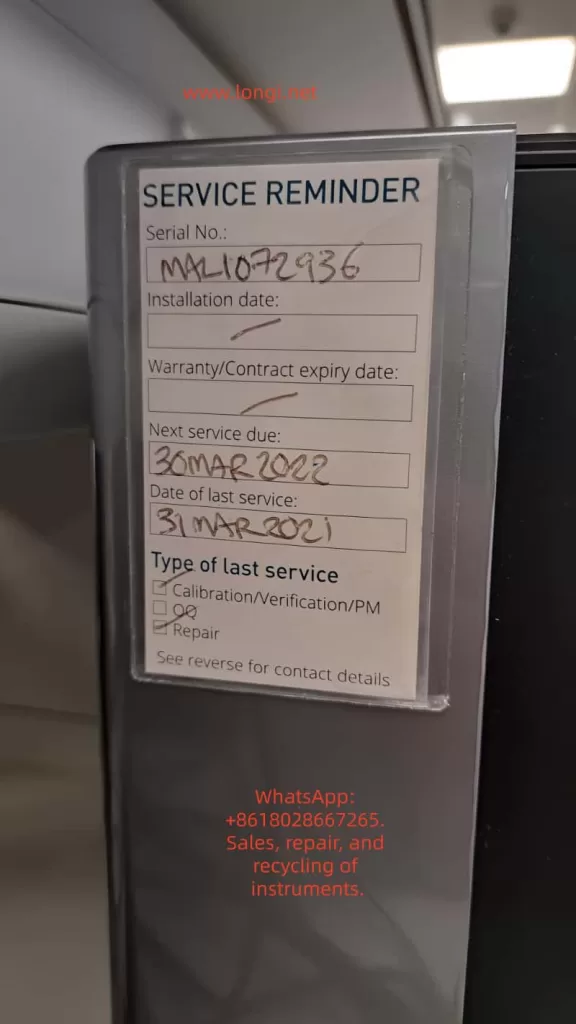
1. Background: Mastersizer Software Fails with an Application Exception
The Malvern Mastersizer series (including Mastersizer 2000 and Mastersizer 3000) is widely used in laboratories for laser diffraction particle size analysis. The system combines high-precision optics, detectors, embedded electronics, and complex software layers running on a Windows platform.
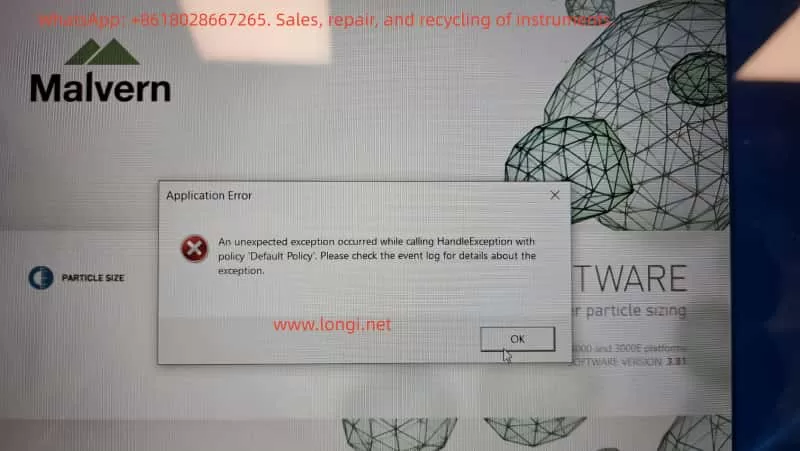
In this case, the customer reported that the Mastersizer software fails to start and displays the following message:
Application Error An unexpected exception occurred while calling HandleException with policy “Default Policy”. Please check the event log for details about the exception.
Key characteristics of the issue include:
The software does not enter the main operating interface
The error is generic and non-descriptive
The message explicitly refers to Windows Event Logs
Reinstalling Windows does not resolve the problem
This type of error is frequently misdiagnosed as a corrupted installation or a simple software incompatibility. However, as shown in this case, the true cause lies deeper.
2. A Common Misconception: “Reinstalling Windows Fixes Everything”
From an engineering perspective, the statement:
“The operating system has been reinstalled, but the error remains”
is extremely important.
A clean OS installation normally eliminates:
Damaged system files
Registry corruption
Malware or residual software conflicts
User-level configuration issues
When a problem persists after a full OS reinstall, it strongly indicates that:
The fault is not at the Windows installation layer.
This observation immediately shifts the diagnostic focus toward:
Hardware state
Power management
Low-level system services
Firmware or driver–hardware interactions
3. Event Viewer Analysis: Useful Evidence or a Red Herring?
3.1 Logs Provided by the Customer
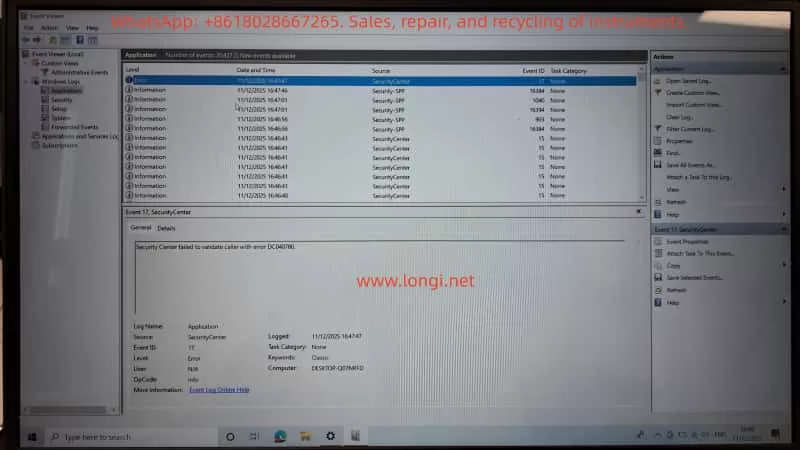
The customer followed instructions and provided multiple screenshots from Windows Event Viewer, specifically:
Windows Logs → Application
Sources observed:
SecurityCenter
Security-SPP (Software Protection Platform)
Notable entries included:
Event ID 17 – SecurityCenter Security Center failed to validate caller with error DC040780
Event ID 903 – Security-SPP The Software Protection service has stopped
Multiple informational events regarding:
Defender / McAfee status changes
Software Protection service restarts
3.2 Do These Logs Explain the Mastersizer Crash?
From a professional diagnostic standpoint, the answer is:
No — not directly.
Reasons:
Source mismatch Mastersizer-related crashes usually appear under:
.NET Runtime
Application Error
Vendor-specific modules
None of the provided logs reference the Mastersizer application itself.
Severity mismatch Most entries are Information level events. A software crash severe enough to block startup typically produces a clear Error or Critical event tied to the executable or runtime.
Causal mismatch Windows Security Center or Software Protection state changes alone do not cause a specialized instrument control application to fail consistently on a fresh OS.
Conclusion: These logs indicate system instability, but they are symptoms, not the root cause.
4. The Critical Clue: Laptop Battery Stuck at 1% Charge
During troubleshooting, the customer added an apparently unrelated detail:
“The laptop is stuck on 1% charge.”
From an engineering perspective, this is not a minor issue. It is a high-value diagnostic signal.
5. Power Engineering Perspective: Why 1% Battery Matters
5.1 What “Stuck at 1%” Usually Means
A laptop permanently stuck at 1% charge typically indicates one or more of the following:
Severely degraded battery
High internal resistance
Battery Management System (BMS) limiting output
Battery effectively unusable as a power buffer
Power management or EC firmware issues
Embedded Controller (EC) in protection mode
Incorrect power state reporting
System forced into extreme low-power operation
CPU frequency throttled
USB power current limited
Peripheral initialization restricted
This is not just a battery indicator problem — it represents a global system power constraint.
5.2 Why This Directly Affects Malvern Mastersizer
The Mastersizer software is not a lightweight application. During startup, it performs:
Laser source initialization
Detector and photodiode communication
USB / PCIe hardware enumeration
License and security module validation
High-resolution timing and buffer allocation
All of these processes require:
Stable voltage rails
Predictable timing
Reliable peripheral power delivery
When a laptop operates in a forced low-power state:
Hardware initialization may time out
.NET runtime calls may fail unexpectedly
Driver-level calls may return invalid states
Exception handlers may be triggered without clear diagnostic messages
This combination often results in exactly the type of error observed:
“An unexpected exception occurred…”
6. Why Reinstalling Windows Cannot Fix This
This is the key engineering insight of the case.
A Windows reinstall cannot repair:
A failed battery
Power management IC faults
Embedded controller firmware states
Hardware-enforced power throttling
Even on a completely fresh OS, the system remains constrained by its physical power condition.
As a result:
Any hardware-intensive scientific instrument software may fail unpredictably, even on a clean system.
7. Correct Diagnostic and Recovery Procedure
Step 1: Eliminate Power as a Variable (Highest Priority)
Remove or bypass the faulty battery
Operate the laptop on a verified, original AC adapter
Or replace the battery with a known-good unit
Confirm stable charging above 80%
No further software troubleshooting should be performed until this step is completed.
Step 2: Retest Mastersizer Under Stable Power Conditions
Launch the Mastersizer software
Observe startup behavior
If the error disappears, the root cause is confirmed as power management failure
Only if the error persists should further logs be collected:
Windows Logs → Application
Look specifically for:
.NET Runtime
Application Error
Mastersizer-related modules
These logs provide actionable information at the software layer.
8. Practical Recommendations for Laboratories
For laboratories operating high-precision instruments:
Do not use laptops with degraded batteries as instrument controllers
Treat abnormal power behavior as a system-level fault, not a cosmetic issue
System stability is more critical than OS cleanliness
Instrument software errors are often hardware-condition dependent
9. Final Conclusion
This case demonstrates that:
The Mastersizer error is not a simple software bug
Event Viewer logs related to Security Center are secondary indicators
A laptop stuck at 1% battery is a strong and plausible root cause
Power instability can directly trigger non-descriptive application exceptions
Reinstalling Windows alone cannot resolve hardware-level constraints
True fault isolation requires understanding the full causal chain: Power → Hardware → OS Services → Drivers → Application.
10. Closing Remarks
Scientific instrument troubleshooting must go beyond surface-level symptoms. Only by integrating hardware engineering, power management, operating system behavior, and application architecture can accurate conclusions be reached.
In this case, the Mastersizer software did not “fail randomly” — it failed predictably under abnormal power conditions.
1. Introduction: Background of the Communication Error
The Malvern Mastersizer 2000 is one of the most widely deployed laser diffraction particle size analyzers worldwide. Its reputation is built on a stable optical system, mature algorithms, and long-term repeatability. However, as the instrument ages, a specific class of failures becomes increasingly common in field applications: loss of communication between the instrument and the host computer.
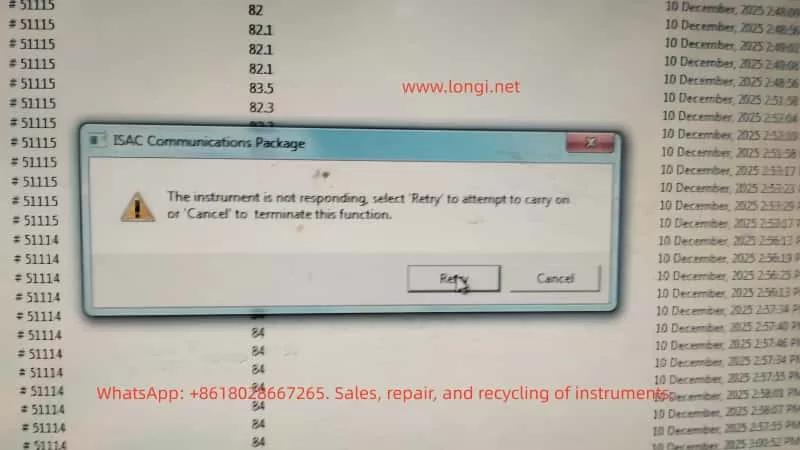
A typical software warning appears as:
ISAC Communications Package The instrument is not responding
From the user’s perspective, this message is often interpreted as a software crash or a temporary computer issue. From an engineering and maintenance standpoint, however, this error is a clear indicator of a system-level communication failure, involving hardware, power stability, and embedded control reliability rather than measurement parameters or optics.
This article provides a structured, engineering-level analysis of this failure mode in the Mastersizer 2000, focusing on root causes, diagnostic logic, and realistic repair considerations.
2. System Architecture Overview of Mastersizer 2000
Understanding this error requires a clear understanding of how the Mastersizer 2000 is architected at a system level.
The instrument can be divided into four major functional subsystems:
Host PC and Malvern control software
Communication layer (ISAC Communications Package)
Internal controller system (embedded control board)
Optical and fluid handling subsystems
The ISAC Communications Package is not merely an application layer component. It is responsible for:
Establishing and maintaining the communication session between PC and instrument
Periodic polling of instrument status (heartbeat mechanism)
Transmission of operational commands (start, stop, align, clean, measure)
Receiving and decoding status responses and operational data
When the software reports “Instrument is not responding”, the real meaning is:
The instrument failed to return a valid response within the defined communication timeout window
This indicates a failure somewhere along the communication and control chain, not a measurement error.
3. What This Error Is NOT
Before diagnosing the real cause, it is critical to eliminate several common misconceptions.
3.1 Not a Simple Software Crash
In many cases, background data logging continues even after the warning appears. This confirms that:
The Windows operating system is still running
The Malvern application itself has not crashed
The failure occurs at the communication interface or embedded control level
3.2 Not an Optical or Laser Failure
Failures related to lasers, detectors, or alignment typically result in:
Light intensity errors
Background measurement failures
Optical calibration errors
They do not directly cause a total communication timeout.
3.3 Not a Sample or Method Issue
Sample concentration, dispersion settings, pump speed, or measurement SOPs may affect results, but they do not cause the instrument controller to stop responding at the protocol level.
4. Engineering Interpretation of the Communication Failure
From a system engineering perspective, the error can be summarized as follows:
The host PC cannot complete a communication transaction with the instrument controller within the allowed time
The communication path is a serial chain:
PC software → OS USB stack → PC USB controller → USB cable → instrument USB interface → internal communication module → controller board MCU → response returned
Any instability along this chain will result in the same final symptom: Instrument not responding.
5. Root Causes in Mastersizer 2000 (Ranked by Probability)
5.1 Unstable USB Communication Path (Highest Probability)
This is the most common cause in aging Mastersizer 2000 units.
Typical symptoms:
Instrument is detected, but disconnects during operation
Retry sometimes works, sometimes fails
Behavior differs between computers
Connection drops after several minutes of runtime
Engineering causes:
Aging or poorly shielded USB cables
Use of USB extension cables or hubs
Fatigue or micro-cracks in the instrument USB connector solder joints
Degraded internal USB-to-serial communication module
If replacing the USB cable and connecting directly to a motherboard USB port improves stability, the issue is hardware-level communication reliability, not software.
5.2 Controller Board Marginal Operation
After long service life (typically >8–10 years), the controller board often enters a marginal operating state.
Typical symptoms:
Cold start works normally
Communication fails after warm-up
Power cycling temporarily restores operation
Underlying causes:
MCU operating near voltage tolerance limits
Increased ESR in electrolytic capacitors
Power rail ripple exceeding acceptable margins
Temperature-related timing instability
This class of failure is often misdiagnosed as intermittent software behavior but is fundamentally a hardware aging issue.
5.3 Internal Power Supply Degradation or Poor Mains Quality
This factor is especially common in regions with unstable mains power.
Contributing conditions:
Line voltage fluctuations
Lack of voltage regulation
Aging internal switching power supplies
Resulting behavior:
Momentary drops in 5 V or 3.3 V rails
Internal controller or communication module resets
PC reports communication timeout
The instrument may appear powered and operational while internally experiencing repeated micro-resets.
5.4 Operating System or Driver Environment (Low Probability)
This factor should only be prioritized when:
A new PC has been introduced
The operating system was recently reinstalled
Non-standard or unofficial software versions are used
In stable legacy systems, OS-level causes are relatively rare.
A professional diagnostic approach must be systematic and repeatable.
Step 1: Full Cold Reset
Shut down software
Power off instrument
Disconnect power for at least 5 minutes
Step 2: Minimize Communication Path
Replace USB cable
Eliminate USB hubs or extensions
Use rear motherboard USB ports
Step 3: Test with an Alternate Computer
Clean OS environment
No additional instrument drivers
Step 4: Idle Stability Test
Do not perform measurements
Maintain connection for at least 10 minutes
If communication still fails under these conditions, the fault can be confidently attributed to instrument-side hardware.
7. Repair and Commercial Considerations
From a third-party service and repair perspective, this fault class has clear implications:
It is not a user operation issue
Reinstalling software is rarely a true solution
In many cases, the instrument is repairable
Risk and cost must be evaluated at board level
Viable repair directions:
USB connector and communication module repair
Controller board power conditioning (capacitors, regulators)
Internal power supply refurbishment
Cases where repair is not recommended:
Severe multi-board corrosion
Controller MCU failure without replacement options
8. Conclusion
The error message “ISAC Communications Package – Instrument not responding” is not vague or generic. In the Mastersizer 2000, it represents a classic aging-related system-level failure involving communication stability and embedded control reliability.
The correct solution is not repeated retries or blind software reinstallation, but:
Understanding the communication architecture
Differentiating software symptoms from hardware causes
Making informed engineering and commercial repair decisions
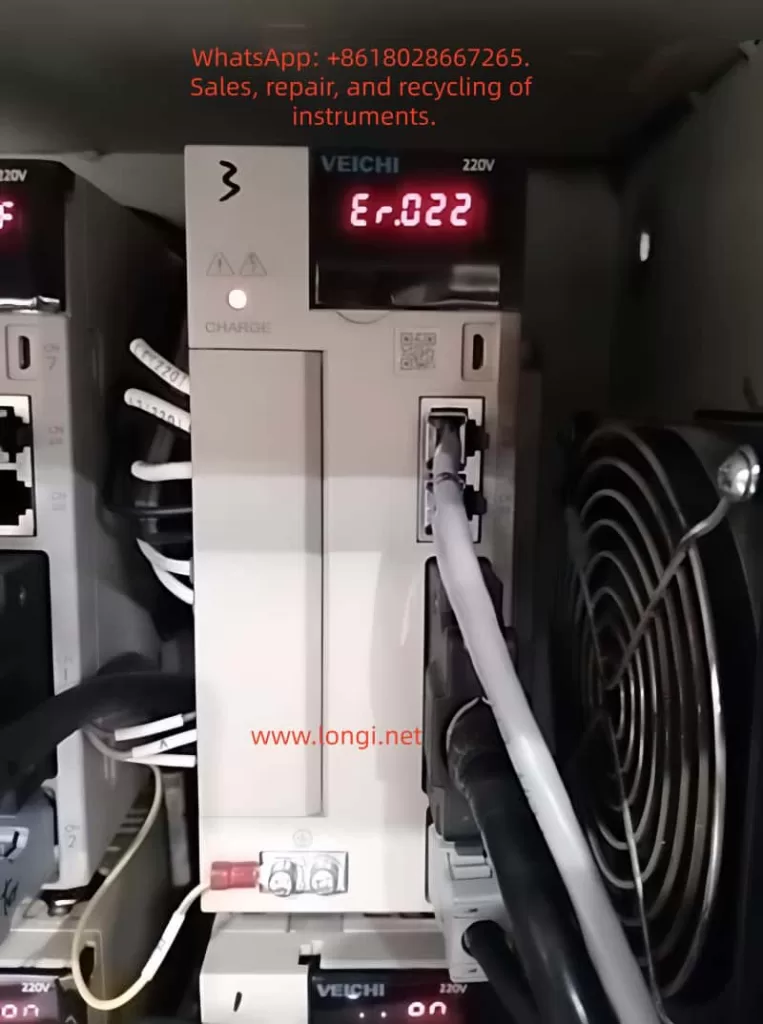
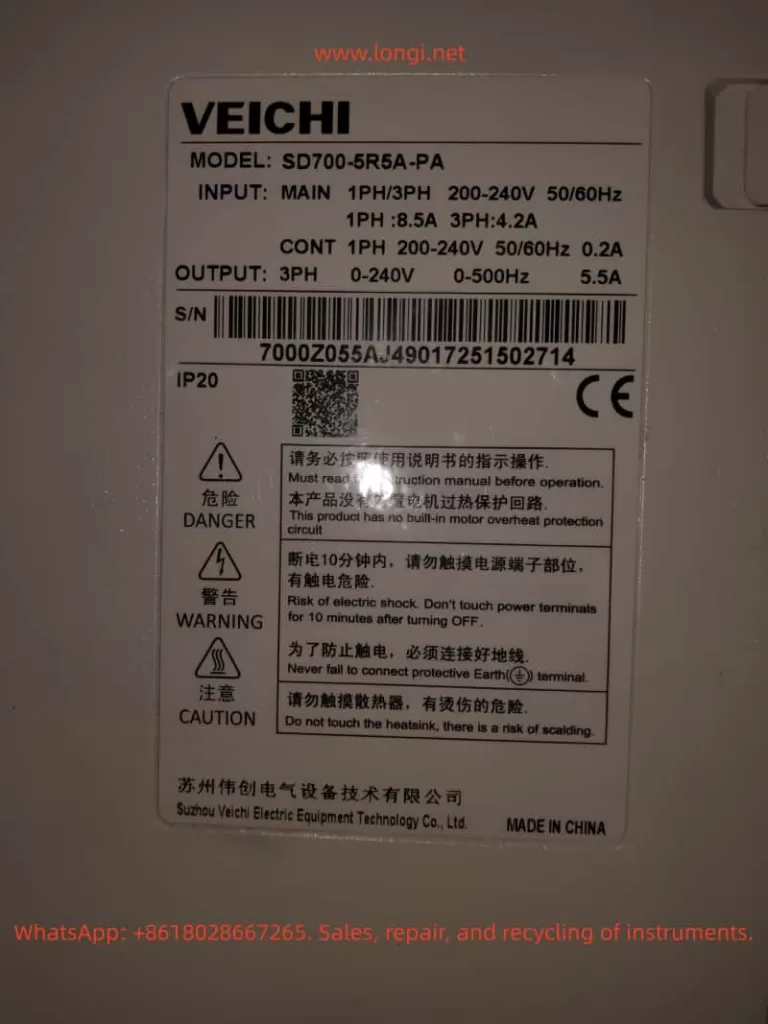
In the field of modern industrial automation, servo systems are the core components for high-precision motion control, and their stability and reliability directly impact the efficiency and product quality of production lines. The SD700 series servo drives launched by Weichuang Electric have gained market recognition due to their excellent performance and wide applications. However, in actual operation, the ER.022 fault code, as a common system abnormality alert, poses a challenge to technicians. This article will provide a systematic technical guide for technicians from the aspects of definition, causes, diagnosis, solutions, and prevention.
I. Overview of the ER.022 Fault Code
1.1 Definition of the Fault Code
The ER.022 fault code in the Weichuang Servo SD700 series represents a “system and checksum anomaly,” indicating that the servo drive has detected inconsistencies in system parameters, data, or checksums during self-check or operation, which may be caused by software errors, hardware failures, or external interference.
1.2 Fault Phenomena
When the SD700 series servo drive experiences an ER.022 fault, it is usually accompanied by the following phenomena:
The fault indicator light on the drive panel illuminates, displaying the ER.022 error code.
The servo motor stops running and fails to respond to control commands from the host computer.
The drive may automatically enter a protective state.
II. Analysis of the Causes of the ER.022 Fault
2.1 Software Errors
Loss or Damage of System Parameters: Parameters may be lost or damaged during storage or transmission due to sudden power outages or electromagnetic interference.
Incompatibility of Firmware Versions: The firmware may be incompatible with the host computer software or other devices.
Software Defects: The servo drive software may have undiscovered defects or vulnerabilities.
2.2 Hardware Failures
Memory Failures: Non-volatile memories such as EEPROMs and Flash memories may age, be damaged, or have write errors.
Processor Failures: The CPU or DSP may operate abnormally due to overheating, voltage instability, or manufacturing defects.
Communication Interface Failures: Data transmission errors may occur due to poor contact, damage, or protocol mismatches in communication lines.
2.3 External Interference
Electromagnetic Interference: Electromagnetic interference may be generated by frequency converters, high-voltage cables, etc., in the surrounding environment.
Power Supply Fluctuations: Unstable power supplies may cause abnormal operation of internal circuits in the drive, such as voltage dips or surges.
III. Diagnostic Process for the ER.022 Fault
3.1 Preliminary Checks
Confirm Fault Phenomena: Check the fault indicator light and error code on the drive panel.
Check Power Supply: Use a multimeter to measure the input power supply voltage to ensure it is stable without fluctuations.
Check Communication Lines: Check the connection status of communication lines to ensure there are no loose or damaged parts.
3.2 In-Depth Diagnosis
View Fault Logs: View fault logs through the host computer software or drive panel.
Parameter Backup and Restoration: Back up parameters and then perform initialization operations to restore factory settings. Reconfigure parameters and observe whether the fault disappears.
Firmware Upgrade: Check and upgrade the firmware version.
Hardware Detection: Use professional testing tools to detect key components such as memories, processors, and communication interfaces.
IV. Solutions for the ER.022 Fault
4.1 Software Solutions
Parameter Initialization and Reconfiguration:
Back up parameters to an external storage device.
Perform initialization operations to restore factory settings.
Reconfigure parameters according to requirements and observe whether the fault disappears.
Firmware Upgrade:
Download the latest firmware file from the official website.
Burn the firmware using the host computer software or a dedicated programmer.
Restart the drive and observe whether the fault disappears.
4.2 Hardware Solutions
Replace Memory: If memory failure is suspected, try replacing the EEPROM or Flash memory and reconfigure parameters.
Replace Processor: If processor failure is confirmed, replace the entire drive or processor module and reconfigure parameters and upgrade the firmware.
Repair Communication Interface: Check the connection status of communication lines and replace the communication interface module or the entire drive.
4.3 Solutions for External Interference
Electromagnetic Shielding: Perform electromagnetic shielding treatment on the drive and surrounding equipment and use shielded cables for connections.
Stable Power Supply: Provide a stable and reliable power supply and use a UPS or voltage regulator to ensure power quality.
V. Preventive Measures and Routine Maintenance
5.1 Preventive Measures
Regular Parameter Backup: Regularly back up parameters for quick restoration.
Avoid Sudden Power Outages: Avoid sudden power outages during operation as much as possible.
Use Genuine Software: Ensure that genuine software and firmware from the official source are used.
5.2 Routine Maintenance
Cleaning and Dust Prevention: Regularly clean the drive and surrounding equipment to keep them clean and well-ventilated.
Check Connection Lines: Regularly check whether connection lines are properly connected without looseness or damage.
Monitor Operating Status: Monitor the operating status and parameter changes of the drive through the host computer software or drive panel to promptly detect and handle potential problems.
VI. Conclusion
The ER.022 fault, as a common system abnormality alert in the Weichuang Servo SD700 series, has causes involving software errors, hardware failures, and external interference. Through a systematic diagnostic process and solutions, technicians can effectively locate and solve the problem to ensure the stable operation of the servo system. Meanwhile, taking preventive measures and strengthening routine maintenance can reduce the probability of fault occurrence and improve the efficiency and product quality of production lines.
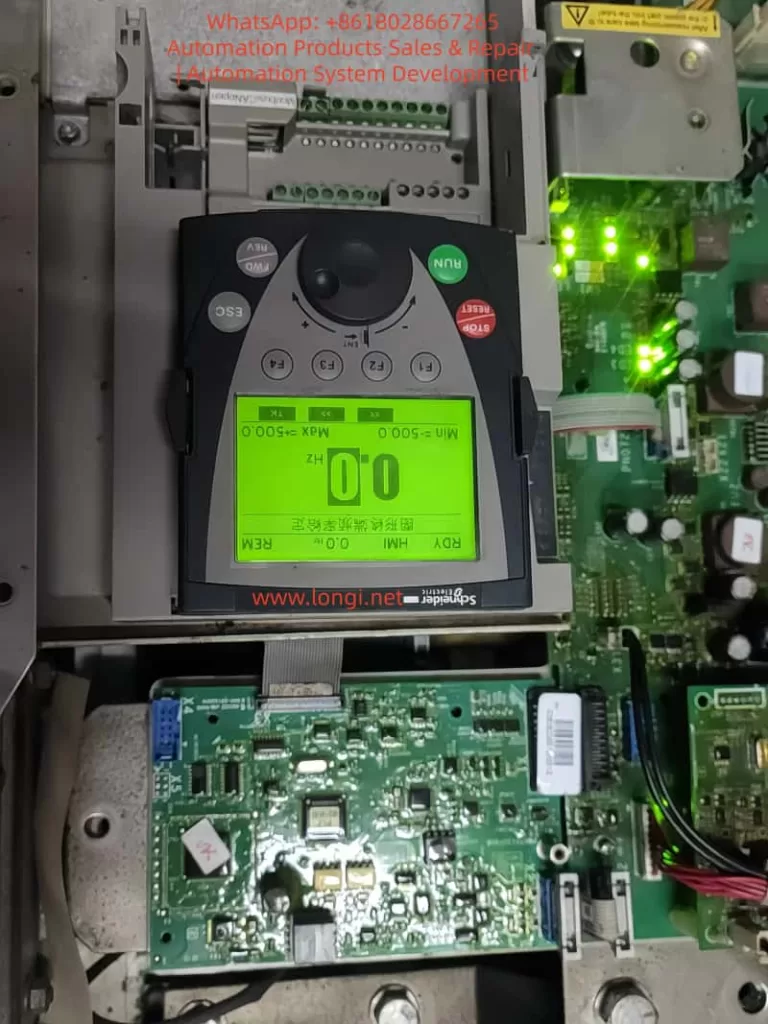
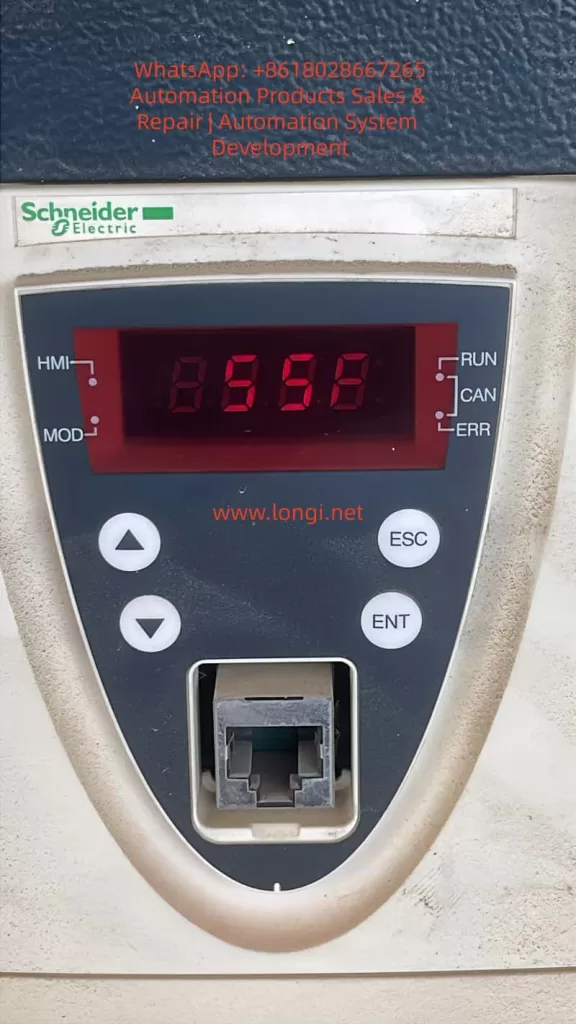
Schneider Electric Altivar ATV71, a classic high-performance inverter, is widely used in the field of industrial automation. However, in practical use, the SSF (Torque or Current Limitation Fault) has become one of the more common faults, especially being easily misread as “S5F” or “55F” on the seven-segment LED display. This article will provide an in-depth analysis of the generation mechanism, triggering conditions, common causes, diagnostic methods, troubleshooting steps, and preventive measures for the SSF fault.
I. Overview of SSF Fault
The SSF fault indicates that the inverter has been in a torque or current limiting state for an extended period, and after exceeding the set timeout time, it triggers a protective shutdown. This is a “soft” protective fault. Unlike instantaneous hard protections such as SCF (Motor Short Circuit) or OCF (Overcurrent), it is based on time judgment and aims to protect the motor and mechanical system from damage caused by long-term high-load operation.
II. Characteristics and Misreading of SSF Fault Code
The integrated HMI of the ATV71 uses a seven-segment LED display. The SSF fault code may be misread as “S5F” or “55F” due to display aging, dust coverage, or improper viewing angles. The official manual clearly states that SSF is a torque or current limitation fault, and users can view the actual fault code through the graphic terminal or SoMove software to confirm.
III. Triggering Mechanism of SSF Fault
The control algorithm of the ATV71 continuously monitors the output current and estimates the torque in real time. When the actual current reaches or exceeds the current limit value (CLI), or the estimated torque reaches or exceeds the torque limit value, and the duration exceeds the set timeout time (Sto), the drive will trigger the SSF fault and shut down.
IV. Common Causes of SSF Fault
Mechanical Load Aspect
Sudden increase in load
Increased mechanical friction
Changes in the inertia of the transmission system or process variations
Improper Parameter Configuration
Excessively short Sto setting
Current/torque limit values set too low
Incorrect motor nameplate parameters or excessively short acceleration/deceleration times
Control Mode and Tuning Issues
Failure of sensorless vector control tuning
Using V/F control for high-inertia loads or improper PID control parameters
Electrical and Environmental Factors
Power supply voltage fluctuations
High ambient temperature
Excessively long output cables or parallel operation of multiple motors
Potential Hardware Problems
Aging of IGBT modules
Drift of current sensors or control board failures
V. Diagnostic Process for SSF Fault
On-site Preliminary Confirmation
Record the operating state at the time of the fault occurrence, check the fault history, and monitor the current, torque, output frequency, and drive thermal state at the moment of the fault.
Parameter Check and Temporary Adjustment
Adjust the Sto parameter, check the current and torque limit values, confirm the motor parameters, and perform automatic tuning.
Mechanical System Inspection
Manually rotate the shaft to check for mechanical jamming, inspect the transmission components, and measure the actual load current.
Electrical Testing
Check the stability of the input voltage, measure the balance of the motor’s three-phase currents, and consider adding an output reactor.
Advanced Diagnosis
Use SoMove software to view real-time curves, execute test programs, and contact Schneider service.
VI. Troubleshooting and Solutions for SSF Fault
Parameter Optimization
Increase the Sto value, raise the CLI, set the torque limit value reasonably, and extend the acceleration/deceleration times.
Mechanical System Improvement
Lubricate the bearings, adjust the belt tension, clear blockages, and optimize the process load.
Control Strategy Adjustment
Perform a complete automatic tuning, optimize the PID parameters, and switch to closed-loop control with an encoder.
Hardware Supplementation
Add an output reactor, enhance cooling or operate at a reduced rating, and add a braking unit/resistor.
Reset Methods
Press the panel STOP/RESET key, reset through an assigned digital input, or enable the automatic restart function.
VII. Typical Case Studies
Conveyor Belt Application
Problem: During startup, a sudden increase in coal volume caused the current to瞬间 (momentarily) reach 160% and remain for 2 seconds, with the original Sto set at 100 ms.
Solution: Change the Sto to “Cont” and optimize the material loading process.
Constant-pressure Water Supply in a Pump Station
Problem: One pump’s impeller was entangled with debris, causing uneven load.
Solution: Clean the impeller, redistribute the load, and increase the Sto value.
Crane Hoisting
Problem: During the deceleration phase, regenerative energy triggered the torque limit.
Solution: Set the reverse torque limit reasonably and add a braking resistor.
Fan Application
Problem: In a high-temperature workshop during summer, the drive automatically derated.
Solution: Strengthen the ventilation of the cabinet and install an air conditioner.
VIII. Preventive Measures for SSF Fault
Parameter Rationalization
Adjust the Sto value before the commissioning of a new project and reserve current/torque margins.
Regular Maintenance
Regularly inspect the mechanical transmission system, clean the drive’s radiator, perform motor insulation tests, and execute automatic tuning.
Monitoring and Early Warning
Continuously monitor the current/torque curves and provide early warnings when approaching the limit state.
Training and Documentation
Establish standard operating procedures and save parameter modification records.
IX. Conclusion
Although the SSF fault is common, it can be quickly resolved through systematic analysis and targeted measures. Proper handling of the SSF not only eliminates the fault but also improves system stability and efficiency. It is recommended to use the official programming manual as the standard in actual maintenance, conduct in-depth diagnosis with the help of SoMove software, and promptly contact Schneider Electric technical support for professional solutions.
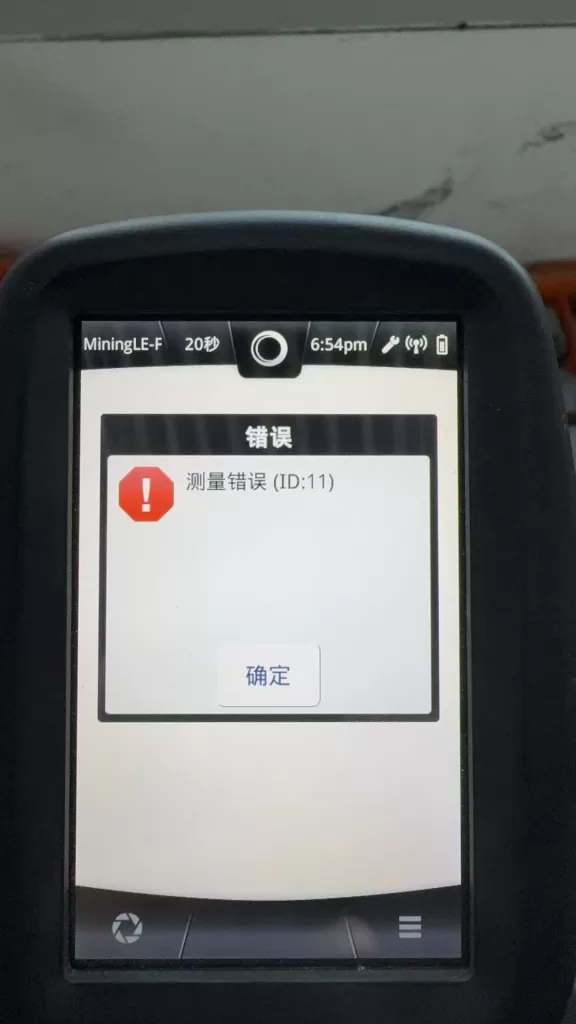
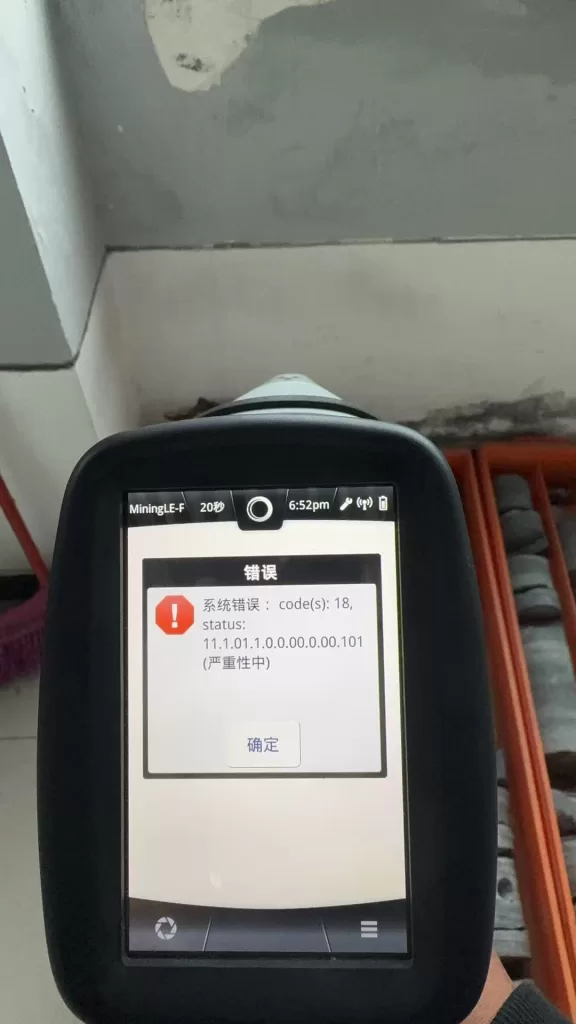
The Hitachi X-MET 8000 handheld XRF analyzer is widely used in alloy identification, PMI inspection, scrap sorting, and on-site material analysis. In daily service practice, a common failure scenario is frequently reported:
The instrument powers on normally
The touchscreen interface works correctly
Measurement methods and settings are accessible
Measurement starts but immediately fails
The system displays error messages such as:
“System Error: code(s): 18”
“Measurement Error (ID:11)”
When reported to official service channels, users often receive a brief response:
“The X-ray tube is defective and must be replaced.”
While this conclusion may be acceptable from a manufacturer’s service policy perspective, it is technically incomplete. This article explains what “X-ray tube failure” actually means, how these errors are triggered internally, and how engineers can determine whether the instrument is truly beyond repair.
What Does “X-ray Tube” Mean in the X-MET 8000?
In XRF systems, the term “X-ray tube” does not refer to a lamp or light source. It is a high-voltage vacuum device responsible for generating primary X-rays.
In the Hitachi X-MET 8000, the X-ray tube:
Operates at tens of kilovolts (typically 40–50 kV)
Emits X-rays that excite atoms in the sample
Enables fluorescence detection by the SDD detector
Without a functioning X-ray tube system, elemental analysis is physically impossible, regardless of software or detector condition.
X-ray Generation System Architecture
From an engineering standpoint, the X-ray generation chain in the X-MET 8000 consists of multiple subsystems:
Main CPU / Operating System
        ↓
X-ray Control Logic
        ↓
High Voltage Generator (HV Module)
        ↓
X-ray Tube
        ↓
Collimator and Window
Failure at any point in this chain will present itself to the user as a measurement error.
This is a key reason why many different faults are generalized by manufacturers as “X-ray tube failure.”
Interpreting System Error Code(s): 18
The “System Error: code(s): 18” message is not a random software bug. In Hitachi / Olympus / Evident XRF platforms, system errors are bitwise status evaluations of hardware readiness.
Error code 18 typically indicates:
X-ray generation system failed to reach operational state
High-voltage enable confirmation missing
Tube current feedback abnormal or absent
Safety interlock preventing X-ray emission
Importantly, this error does not specify which component failed—only that the X-ray system did not pass internal checks.
Understanding Measurement Error (ID:11)
Measurement Error (ID:11) is a result-level error, not a root-cause error.
It means:
During measurement, the system did not detect a valid X-ray fluorescence signal.
This condition may be caused by:
No X-ray emission
Insufficient tube current
High-voltage shutdown
Safety interlock interruption
It does not automatically prove that the X-ray tube itself is defective.
Why Official Service Diagnoses “X-ray Tube Failure”
Manufacturers use a module replacement service model:
No component-level troubleshooting
No HV board repair
No interlock diagnostics beyond basic checks
From this standpoint:
Any X-ray system malfunction → replace X-ray assembly
X-ray assembly includes tube + HV + shielding
Result: “X-ray tube failure”
This approach simplifies liability, radiation safety compliance, and service logistics—but sacrifices diagnostic precision.
Real-World Failure Probability Distribution
Based on field repair experience, actual root causes are distributed as follows:
Failure Area
Likelihood
Notes
X-ray tube aging
High
Consumable component
HV generator failure
High
MOSFETs, drivers, protection
Tube current sensing fault
Medium
Feedback circuit
Safety interlock open
Medium
Probe or housing switches
Cable or connector issue
Low
Shock or liquid ingress
A significant portion of units diagnosed as “tube failure” are actually repairable HV or interlock issues.
This simple test immediately separates control-side failures from tube-side failures.
Low-Voltage Input Stability Check
Using a multimeter:
Verify stable DC input to the HV module
Observe voltage behavior during measurement start
If voltage collapses immediately, the problem is likely within the HV power stage—not the tube itself.
HV Enable Signal Verification
Most HV modules include an enable control line:
Idle state: 0 V
Measurement state: logic high (3.3 V or 5 V)
If no enable signal is present, investigate:
Safety interlocks
Control board logic
Firmware permission state
When Can the X-ray Tube Be Considered Truly Defective?
A tube should only be considered irreversibly defective when:
High voltage is confirmed to start
Tube current remains zero or unstable
No X-ray output is detected
Power, control, and safety systems are verified normal
Only under these conditions does replacing the tube make technical sense.
Repair vs Replacement Decision Logic
From a cost and engineering perspective:
Official tube replacement often equals the value of a used X-MET unit
Component-level repair can restore full functionality at a fraction of the cost
Partial repair enables resale as refurbishable equipment
A rational decision process includes:
Confirm root cause
Attempt HV or interlock repair first
Evaluate tube replacement only if proven necessary
Consider secondary market strategies if uneconomical
Conclusion
“X-ray tube failure” is not a precise technical diagnosis—it is a service-level classification.
True engineering evaluation requires separating:
Control logic failures
High-voltage generation issues
Safety interlock interruptions
Genuine tube end-of-life conditions
By understanding the internal architecture and error logic of the Hitachi X-MET 8000, technicians and equipment owners can avoid unnecessary replacement, reduce costs, and make informed repair or resale decisions.
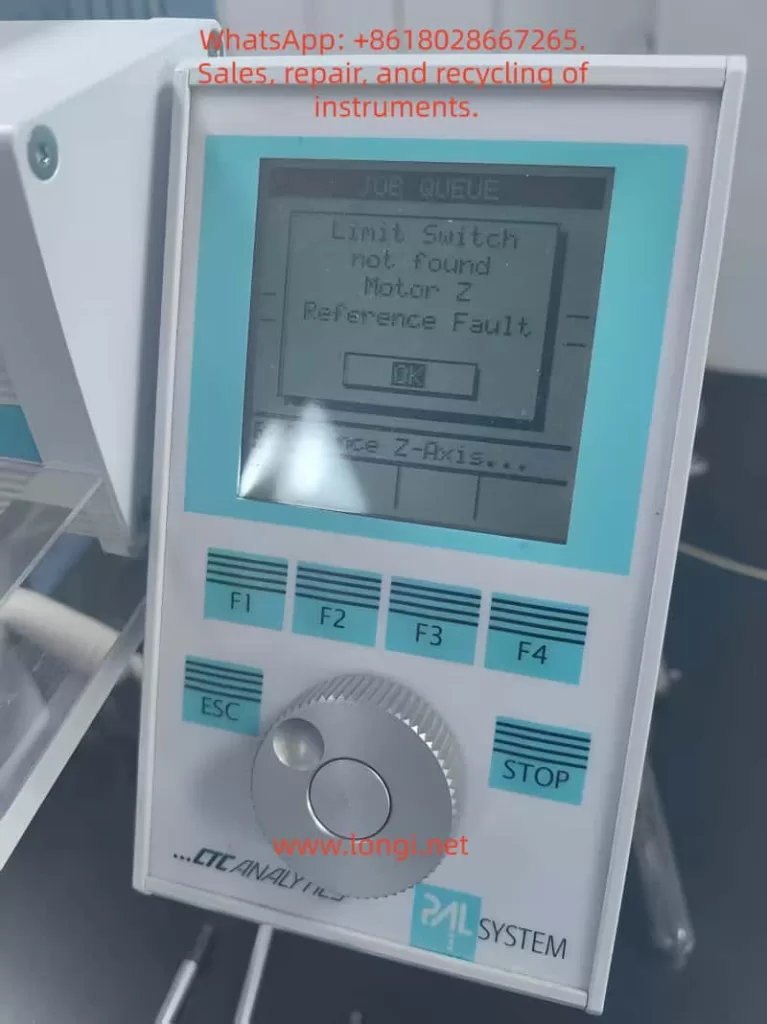
CTC Analytics PAL autosamplers are widely used in GC, LC, sample preparation systems, and automated analytical workflows. Among all moving axes of the autosampler, the Z-axis is the most critical because it performs vertical motion for injection, pipetting, piercing septa, and positioning the syringe with sub-millimeter precision.
When the Z-axis loses its reference or cannot locate its zero position, the entire instrument becomes unusable.
One of the most frequent and confusing problems many engineers face is the following scenario:
After replacing the belt (elastic cord) or disassembling the autosampler arm, the machine powers up and begins to “chatter,” vibrate, or oscillate the Z-axis near the top. After several seconds, it throws the error:
“Limit Switch not found” “Motor Z Reference Fault”
Although this issue appears mechanical or electrical, the root cause is surprisingly consistent:
The Hall sensor and the magnetic trigger on the gear are no longer aligned. The Z-axis physically reaches the top, but the controller never receives the reference signal.
This 5000+ word technical article provides a complete, engineering-level explanation of:
The Z-axis reference mechanism
Why belt replacement often causes reference failure
How the autosampler actually detects the Z-axis zero
Why the motor vibrates or “chatters” at the top
Step-by-step repair procedures
Calibration details
How to avoid the problem in the future
This is designed for field service engineers, repair technicians, laboratory maintenance personnel, and advanced users.
_cuva
Table of Contents
Overview of the PAL Autosampler Z-Axis Mechanism
How the Z-Axis Reference System Works
Why Z-Axis Reference Failure Commonly Occurs After Belt Replacement
Typical Symptoms of “Limit Switch Not Found / Motor Z Reference Fault”
The Core Root Cause: Hall Sensor vs Magnetic Gear Misalignment
A Real-World Case Study: Z-Axis Hits the Mechanical Top but Never Triggers Reference
Detailed Repair Procedure (Engineering Workflow)
Hall Sensor Calibration Requirements
Effect of Belt / Cable Installation on Reference Position
Electrical Diagnostics and Sensor Verification
How to Prevent Future Reference Faults
Final Summary of Mechanical Logic Behind Z-Axis Reference Failure
_cuva
1. Overview of the PAL Autosampler Z-Axis Mechanism
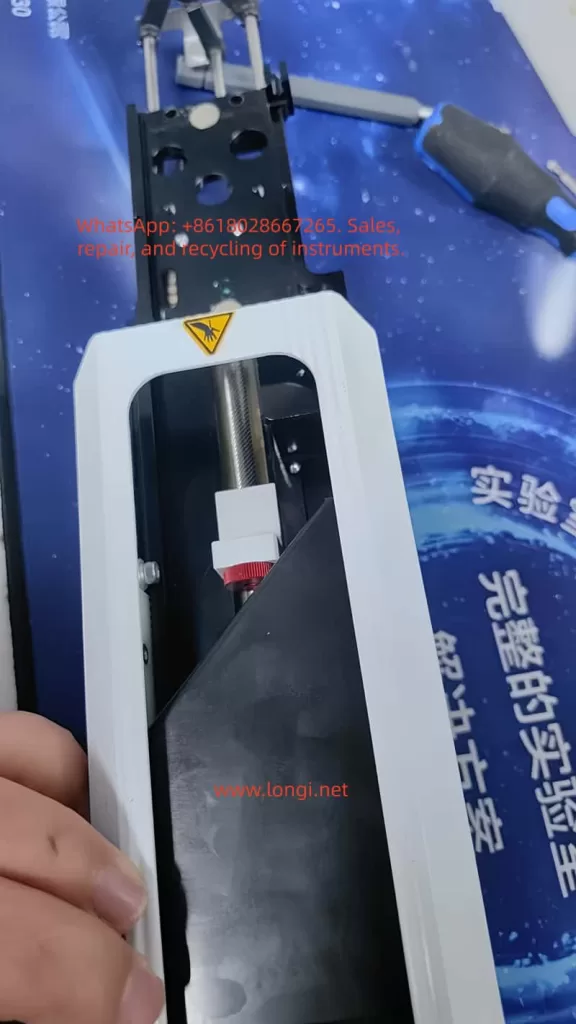
PAL autosamplers use a sophisticated mechanical assembly to control vertical motion. The Z-axis includes:
A precision lead screw
A slider block guided by two rails
A counterweight steel cable & pulley system
A belt (elastic cord) that transfers motor torque
A small gear linked to the cable pulley
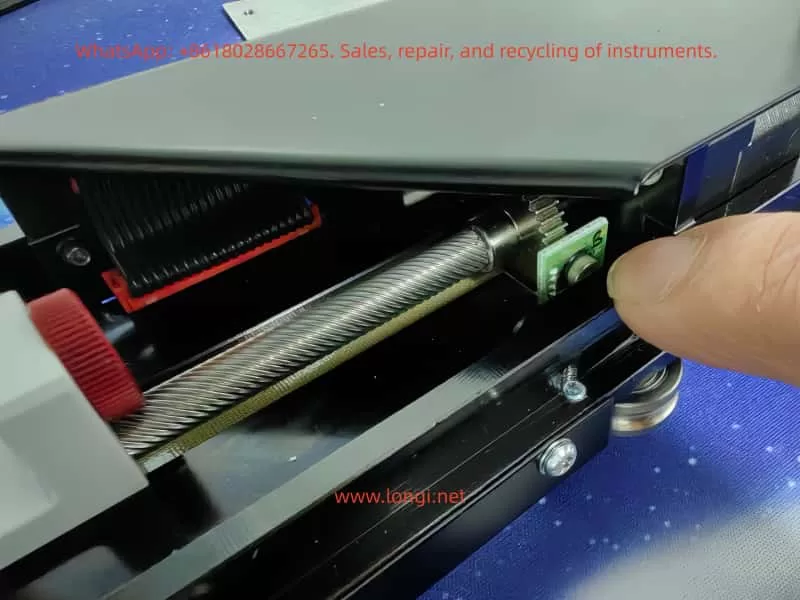
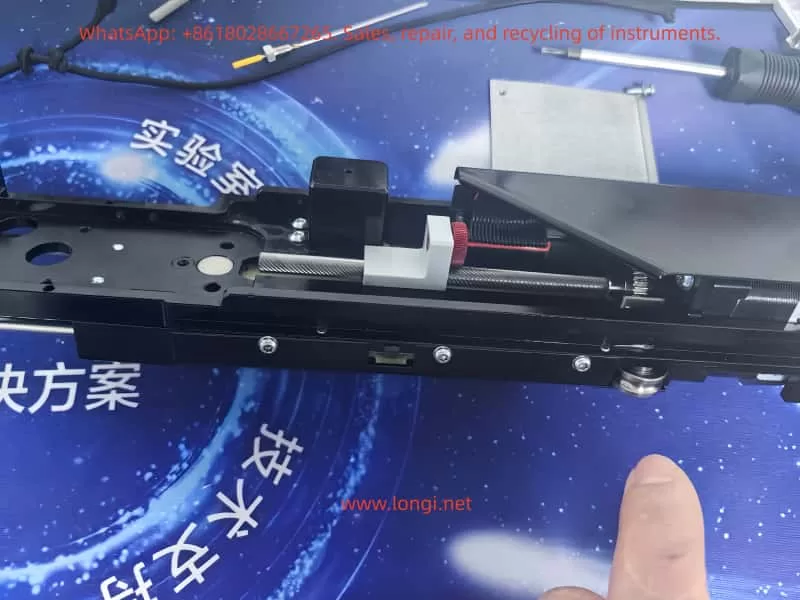
A Hall sensor PCB mounted near the gear
Mechanical end-stop regions
Importantly, the Z-axis reference is not detected using a traditional micro-switch or optical interrupter placed at the top of the slider.
Instead:
The Z-axis reference is determined by the rotational angle of the pulley gear, sensed by a Hall effect sensor located on a small PCB near the gear.
This design reduces the number of components on the moving slider and ensures repeatable referencing.
However, it also means:
Any disturbance to the pulley
Any shift in gear angle
Any belt tension / installation variation
Any slight movement of the Hall sensor PCB
may cause the reference to be lost.
2. How the Z-Axis Reference System Works
Understanding the mechanism is essential before diagnosing the failure.
(1) A magnetic element is embedded in the pulley gear
The small brass gear adjacent to the pulley is not just a mechanical part—it contains:
A small magnet,
Or a magnetic “pole pattern,”
which only aligns with the sensor at one exact angular position.
(2) The Hall sensor reads the magnetic field
On the small green PCB near the gear is a black circular component:
This is the Hall effect sensor.
When the magnet aligns with the sensor’s active zone, the sensor output changes state (from HIGH to LOW or LOW to HIGH).
This signal is sent to the controller as:
Z-axis reference detected.
(3) Motor lifts the Z-axis upward until reference is detected
During startup:
The motor drives the lead screw upward.
The pulley rotates accordingly.
At the correct gear angle, the magnet should trigger the Hall sensor.
Controller stops the motor and declares the Z-axis “homed.”
If no magnetic trigger occurs, the controller continues lifting until:
The slider reaches the physical top
The lead screw jams
The motor vibrates or “chatters”
After timeout → Error occurs
3. Why Belt Replacement Commonly Causes Reference Failure
Replacing the belt is a simple mechanical job—but it almost always changes the phase relationship between:
Slider height
Pulley rotation
Gear magnetic alignment
Hall sensor position
Here are the common reasons:
(1) The pulley gear rotates while the belt is removed
When the belt is removed:
The pulley is no longer constrained.
The slider may be moved.
The pulley may rotate freely.
Thus, the gear angle no longer matches the slider height, and when the slider reaches its physical top, the magnet is not aligned with the Hall sensor.
(2) The Hall sensor PCB may be slightly displaced
Even a 1–2 mm offset can prevent magnetic detection.
(3) Belt tension can shift pulley position
Too tight → slight angular preload Too loose → gear does not rotate uniformly
(4) The slider’s initial position may have changed during reassembly
If the slider is reinstalled even 1–2 mm lower or higher:
The “true top” is mechanically achieved
But the magnetic top is misaligned
These effects explain why:
After belt replacement, the Z-axis almost always fails to find its reference unless re-calibrated.
4. Typical Symptoms of Z-Axis Reference Fault
The failure sequence is almost identical across machines:
Symptom 1: Z-axis moves upward and begins to vibrate at the top
This vibration occurs because:
The lead screw is fully engaged
The slider cannot go higher
The controller still commands upward movement
The motor “skips steps,” producing a chattering noise
Symptom 2: Z-axis oscillates up and down slightly
The firmware attempts micro-adjustments to locate the reference.
No sensor signal → repeated oscillation.
Symptom 3: Error Appears
Eventually the firmware times out and displays:
Limit Switch not found
Motor Z Reference Fault
These two errors are always paired because they refer to:
Hall sensor failed to trigger during upward reference seek.
5. The Core Root Cause: Hall Sensor vs Magnetic Gear Misalignment
This is the most important part.
From photos and videos, this problem becomes obvious:
The Hall sensor PCB is mounted properly.
The gear rotates normally.
The slider reaches the top.
But the magnet never enters the sensor’s active zone.
In other words:
The mechanical “top position” of the slider does not equal the rotational “reference position” of the pulley gear.
This is called mechanical phase misalignment.
And it is the only reason for the reference fault in >90% of repairs.
6. Case Study: Slider Hits Mechanical Top but Reference Never Triggers
In the examined unit:
The belt was replaced.
After reassembly, the pulley rotated slightly.
When powered on, the slider reached its mechanical limit.
But the gear magnet was approximately 20–30 degrees away from the Hall sensor position.
As a result:
The sensor never toggled
The controller continued forcing the motor upward
The lead screw stalled
The Z-axis vibrated
Error appeared
This exact mechanical condition produces the identical symptoms observed in your video.
This section provides the official, practical solution.
Step 1 — Power off the instrument
Remove power supply to prevent sudden movement.
Step 2 — Manually rotate the lead screw to raise the slider
Raise the slider until:
It is close to the physical top
But not forcibly jammed
This position approximates the reference height.
Step 3 — Inspect gear vs Hall sensor alignment
You should check:
Is the magnet on the gear facing the Hall sensor?
Is the gear too low/high relative to the sensor?
Is the sensor PCB angled or shifted?
Does the magnet pass through the correct sensing zone?
If they do not line up, the reference cannot be triggered.
Step 4 — Loosen the gear set screw and adjust the gear angle
The brass gear has a set screw (hex/Allen type).
You must:
Loosen it slightly
Rotate the gear until the magnet aligns with the Hall sensor
Retighten the screw securely
Precision requirements:
Angular accuracy within 3–5 degrees
Radial alignment within 1 mm
Even a minor misalignment prevents the sensor from toggling.
Step 5 — Adjust the Hall sensor PCB if necessary
The Hall sensor board usually has slight play in its mounting screws.
If the magnet rotates correctly but still fails to trigger:
Move the PCB up or down 1–2 mm
Ensure the gear tooth/magnet passes through the detection field
Step 6 — Power on and perform Z-axis reference test
If alignment is correct:
Z-axis rises smoothly
Motor stops as soon as Hall sensor triggers
No vibration occurs
No fault is displayed
If vibration persists, repeat alignment steps.
8. Hall Sensor Calibration Requirements
Proper sensor calibration requires adherence to these mechanical tolerances:
(1) Distance
The magnet must pass within 0.5–1.5 mm of the sensor surface.
(2) Angle
The magnetic pole must face the sensor’s active detection area.
(3) Speed
Uniform pulley rotation ensures clean signal transition.
Too much vibration → missed detection.
9. Effect of Belt / Cable Installation on Reference
Belt installation affects the reference in several ways:
Problem 1 — Pulley rotates during disassembly
This shifts the reference angle relative to the slider height.
Problem 2 — Slider is moved while disconnected
This alters the mechanical relationship between slider height and pulley angle.
Problem 3 — Belt tension changes the pulley preload
Too tight or too loose → inconsistent rotation → failed reference.
Problem 4 — Cable/elastic cord positioning changes slider top height
A 1 mm difference in top height can make the reference impossible to detect.
10. Electrical Diagnostics and Sensor Verification
In rare cases, the issue is electrical.
(1) Test sensor output using a multimeter
Rotate pulley by hand:
Voltage should toggle when magnet passes
If not → sensor or magnet problem
(2) Verify Hall sensor supply (3.3V or 5V)
If unpowered, it will not output reference signal.
(3) Inspect connector and cable integrity
Loose or damaged wiring can mimic mechanical failure.
(4) Controller input failure (very rare)
Only after excluding all mechanical and sensor issues.
11. How to Prevent Future Reference Faults
To avoid repeating this problem:
✔ Mark the pulley angle before removing the belt
Use a fine marker to show original alignment.
✔ Avoid moving the slider while the belt is removed
Prevents phase drift.
✔ Ensure Hall sensor PCB is never bent or pushed sideways
It is extremely sensitive to alignment.
✔ Record a photo of correct alignment after calibration
Useful for future maintenance.
12. Final Summary: The Mechanical Logic Behind Z-Axis Reference Failure
The essential principle is:
The Z-axis reference is a combination of physical slider position and pulley gear magnetic alignment. If these two “phases” are not synchronized, the reference will never trigger.
Thus the primary cause is:
Misalignment between slider height and
Magnetic gear angle
The motor will continue pushing upward until mechanical stall, resulting in:
Vibration
Chattering
Error messages
Fixing the issue requires only one task:
Realign the gear magnet and Hall sensor so the reference signal can be detected at the correct slider height.
Once alignment is restored, the autosampler functions normally.