Posted on

Troubleshooting a Batching Weighing System That Cannot Return to Zero, Displays Negative Weight at Empty Hopper, and Shows Only 19.83 kg with a 20 kg Test Weight

In powder, granule, plastic, chemical, food, feed, and building material production lines, batching weighing systems are one of the most critical parts of the entire automation process. A typical weighing system consists of a weighing hopper, load cells, weighing transmitters or indicators, PLC control systems, HMI touch screens, pneumatic valves, vacuum conveying systems, discharge valves, vibrators, and related mechanical structures.

When a batching scale begins to show symptoms such as:

  • inability to return to zero,
  • negative weight values when the hopper is empty,
  • unstable readings,
  • or inaccurate display values when standard weights are applied,

the issue can directly affect formula accuracy, production consistency, and final product quality.

This article analyzes a real industrial case involving a batching system using a METTLER TOLEDO IND131 weighing module. The system exhibited several typical problems:

  1. The empty hopper displayed approximately -2.03 kg to -2.05 kg.
  2. The HMI and the IND131 module displayed nearly identical values.
  3. Two 10 kg calibration weights produced a reading around 19.90 kg.
  4. A 20 kg test weight later produced a display of 19.83 kg.
  5. The customer reported that the “20 kg weight still shows slightly less than actual.”

Although these symptoms may initially appear minor, they actually reveal potential issues related to zero offset, tare errors, mechanical interference, load cell installation stress, calibration deviation, and weighing repeatability.
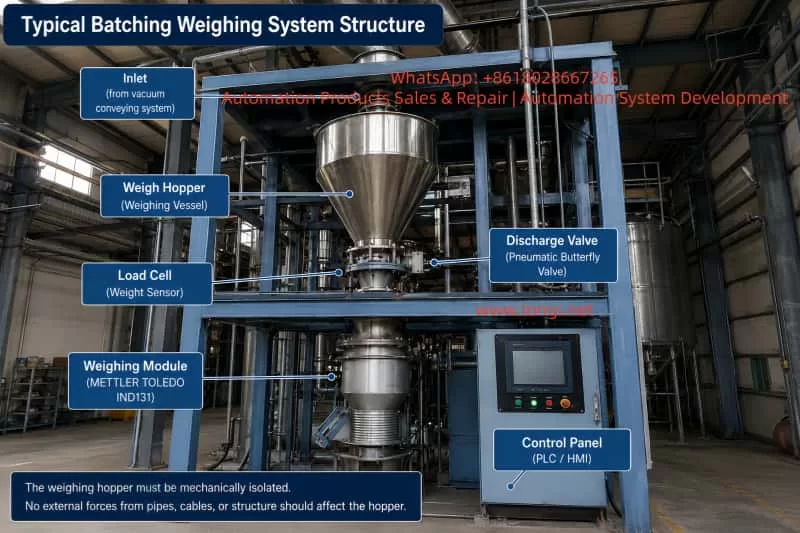

Industrial batching weighing system with stainless steel weigh hopper, load cell, pneumatic discharge valve, METTLER TOLEDO IND131 weighing module, and PLC/HMI control panel, illustrating the mechanical isolation required for accurate hopper weighing.

Understanding the Initial Symptoms

The first important observation was that both the HMI screen and the IND131 module displayed nearly the same negative value while the hopper was empty.

This is extremely significant from a troubleshooting perspective.

If the HMI displayed -2.05 kg while the IND131 module itself displayed 0.00 kg, the problem would likely be related to PLC scaling, communication conversion, HMI display configuration, or software logic.

However, because both devices showed nearly identical readings, the weighing signal itself was already offset into the negative range. This strongly suggests that the issue originates from the weighing system itself rather than the communication layer.

Later, when the customer added test weights, the system responded correctly in principle:

  • Two 10 kg weights produced approximately 19.90 kg.
  • A later 20 kg test showed 19.83 kg.

This proves several important things:

  • The load cell is not completely dead.
  • The IND131 module is receiving weight signals.
  • Signal polarity is generally correct.
  • Communication between the weighing module and PLC/HMI is functional.

Therefore, this type of fault should not immediately be classified as a failed weighing module or failed load cell.

A more accurate conclusion is:

The weighing system is operational, but suffers from zero offset, calibration deviation, or external mechanical interference.


Common Causes of Negative Weight at Empty Hopper

Incorrect Zeroing or Taring While Material Was Still Present

This is one of the most common causes in industrial batching systems.

Operators sometimes execute a ZERO or TARE command while residual material is still inside the hopper, while valves are not fully discharged, or while powder buildup remains attached to internal surfaces.

For example:

  • The hopper actually contains 2 kg of material.
  • The operator mistakenly performs a ZERO operation.
  • The system records this condition as 0.00 kg.
  • Later, after the hopper becomes truly empty, the display shows approximately -2 kg.

This does not necessarily indicate load cell failure. It simply means the zero reference was incorrectly established.

This problem is particularly common in powder handling systems where:

  • material sticks to hopper walls,
  • powder accumulates around discharge valves,
  • or vacuum conveying systems leave residual product inside the hopper.

Tare Values Were Not Cleared

Many technicians confuse ZERO and TARE functions, but they are not the same.

ZERO

Used to correct small offsets around true empty scale conditions.

TARE

Used to subtract container or process weight from the gross reading, displaying net weight instead.

If the system still retains a previous tare value, the empty hopper may display a negative number.

For example:

  • The system stored a 2 kg tare.
  • The hopper later becomes empty.
  • The net display becomes approximately -2 kg.

Therefore, troubleshooting must include checking for:

  • TARE,
  • CLEAR TARE,
  • PRESET TARE,
  • GROSS/NET mode,
  • NET WEIGHT display,
  • or hidden PLC tare variables.

Simply pressing ZERO may not solve the problem if an active tare remains inside the system.
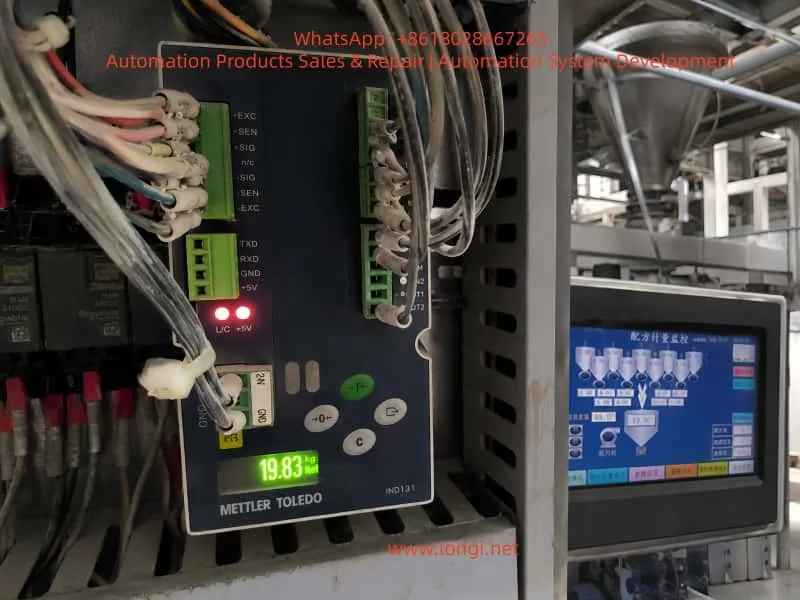

Close-up of a METTLER TOLEDO IND131 weighing module inside an industrial control cabinet displaying 19.83 kg during a 20 kg test weight check, with the batching machine HMI and weigh hopper shown in the background.

Mechanical Interference and External Forces

A weighing hopper must remain mechanically isolated.

The hopper’s entire weight should transfer only through the load cell(s). Any external force can distort measurements.

In the provided industrial structure, the weighing hopper is surrounded by:

  • pneumatic tubing,
  • electrical cables,
  • vacuum lines,
  • discharge pipes,
  • vibrators,
  • support frames,
  • and valve assemblies.

Even slight pulling or pushing forces can create weight deviations ranging from several grams to multiple kilograms.

Typical interference sources include:

  • cables tied too tightly,
  • hardened flexible connectors,
  • vacuum hoses pulling upward,
  • discharge valve misalignment,
  • hopper walls touching support frames,
  • poorly installed vibrators,
  • side-loading on the load cell,
  • or piping transmitting external forces into the hopper.

A negative empty-hopper reading may actually indicate that some external structure is slightly lifting the hopper upward.


Load Cell Installation Stress

Load cells are highly sensitive to mechanical installation quality.

They are designed primarily for vertical force measurement. Side forces, torsion, uneven mounting surfaces, excessive tightening, or frame distortion can all affect zero stability and repeatability.

Over time, industrial systems experience:

  • vibration,
  • impact loading,
  • corrosion,
  • dust accumulation,
  • thermal expansion,
  • structural deformation,
  • and mechanical wear.

Even if the electrical part of the load cell remains functional, mechanical stress can still produce symptoms such as:

  • inability to return to zero,
  • unstable repeatability,
  • or inaccurate calibration readings.

What Does 19.83 kg with a 20 kg Test Weight Mean?

When the customer applied a 20 kg calibration weight, the IND131 displayed 19.83 kg.

This result provides two important conclusions.

The Weighing System Is Basically Functional

The system responds proportionally to added weight. This confirms:

  • the load cell generates output,
  • the IND131 receives the signal,
  • the display scaling is generally correct,
  • and signal direction is proper.

This is not a total system failure.


The System Has Measurement Error

The error is:

20.00 kg – 19.83 kg = 0.17 kg

That equals 170 grams.

Relative error:

0.17 ÷ 20.00 = 0.85%

Whether this is acceptable depends on the process requirements.

For large-scale bulk batching, such as 85 kg recipes, 170 g may be tolerable.

For precision chemical dosing, additives, pigments, or specialty materials, this error may be unacceptable.


Accuracy Error vs Repeatability Error

One of the biggest mistakes in industrial weighing maintenance is immediately recalibrating the system after observing a small error.

Before calibration, repeatability must be verified.


Good Repeatability

If repeated tests produce:

  • Empty hopper: 0.00 kg
  • 20 kg applied: 19.83 kg
  • Weight removed: 0.00 kg
  • Repeat cycles remain consistent

then the system likely has good repeatability and only requires span calibration adjustment.


Poor Repeatability

If repeated tests produce:

  • 19.90 kg,
  • then 19.83 kg,
  • then 19.70 kg,
  • and empty readings drift unpredictably,

then the issue is not simple calibration deviation.

Possible causes include:

  • mechanical binding,
  • piping interference,
  • side loading,
  • unstable load cell mounting,
  • inconsistent force transfer,
  • vibration effects,
  • or electrical instability.

In such cases, calibration should NOT be performed until the underlying mechanical instability is corrected.


Importance of Return-to-Zero Performance

A weighing system must reliably return to the same zero point after unloading.

If the scale:

  • drifts after unloading,
  • fails to return to zero,
  • or stabilizes at different empty values,

then mechanical or sensor-related issues remain unresolved.

Poor return-to-zero behavior often results from:

  • hopper friction,
  • pipe tension,
  • load cell side stress,
  • residual product buildup,
  • pneumatic actuator movement,
  • or structural deformation.

Correct Troubleshooting Procedure

Industrial weighing systems should be diagnosed in the following order:

  1. Mechanical condition
  2. Zero condition
  3. Repeatability
  4. Calibration

Step 1 – Ensure the Hopper Is Truly Empty

Stop automatic operation and verify:

  • no residual material remains,
  • discharge valves are fully open,
  • powder buildup is removed,
  • and the hopper is physically empty.

Never rely only on the HMI display.


Step 2 – Verify Mechanical Freedom

Check carefully for:

  • hopper contact with the frame,
  • rigid hoses,
  • over-tightened cables,
  • discharge pipe misalignment,
  • vacuum line tension,
  • vibrator mounting problems,
  • or support interference.

The hopper must move freely on the load cell.


Step 3 – Clear Tare Values

Check whether the system is displaying:

  • NET weight,
  • GROSS weight,
  • or an active TARE value.

Clear all tare values before troubleshooting zero errors.


Step 4 – Zero the IND131 Directly

Do not rely solely on the HMI ZERO button.

The HMI may communicate through PLC logic, which can block or modify the command.

Instead, perform ZERO directly on the IND131 module itself.

If the IND131 zeros correctly but the HMI does not, the problem likely exists in PLC logic or communication commands.


Step 5 – Perform Repeatability Testing

Conduct multiple loading cycles:

  1. Zero the empty hopper.
  2. Apply a known calibration weight.
  3. Record the stable reading.
  4. Remove the weight.
  5. Verify return-to-zero.
  6. Repeat several times.

Repeatability is more important than single-point accuracy.


When Should Calibration Be Performed?

Calibration should only be performed after confirming:

  • stable zero,
  • good repeatability,
  • no mechanical interference,
  • proper load cell mounting,
  • and correct electrical wiring.

If the system consistently displays 19.83 kg for a true 20 kg weight and always returns to zero correctly afterward, then span calibration is appropriate.

However, if the system normally operates around 85 kg batching ranges, using only a 20 kg calibration weight is not ideal.

Calibration loads should preferably approach the normal operating range whenever possible.


Wiring and Load Cell Signal Considerations

Typical IND131 load cell terminals include:

  • +EXC
  • -EXC
  • +SIG
  • -SIG
  • +SEN
  • -SEN

Incorrect wiring may produce:

  • unstable readings,
  • reversed weight direction,
  • poor zero stability,
  • or scaling errors.

If pressing downward causes displayed weight to decrease, signal polarity may be reversed.

Electrical checks should include:

  • terminal tightness,
  • shielding quality,
  • cable insulation,
  • grounding,
  • and moisture contamination.

Determining Whether the Load Cell Is Actually Faulty

A negative reading alone does not prove load cell failure.

True load cell damage usually involves:

  • unstable drift,
  • poor repeatability,
  • severe nonlinearity,
  • inability to return to zero,
  • physical deformation,
  • moisture ingress,
  • or abnormal millivolt output.

If possible, technicians should measure actual load cell mV output using proper instrumentation.


Final Technical Conclusion

This weighing system is not completely nonfunctional.

The 20 kg test producing approximately 19.83 kg demonstrates that:

  • the load cell is active,
  • the IND131 is operating,
  • communication is functioning,
  • and weight response exists.

However, the system still exhibits:

  • zero offset,
  • potential mechanical interference,
  • calibration deviation,
  • or incomplete tare removal.

The correct repair sequence is:

Eliminate mechanical interference → Clear tare → Establish proper zero → Verify repeatability → Perform calibration only afterward.

If repeatability is stable, calibration can correct the remaining offset.

If repeatability remains unstable, mechanical and installation problems must be solved before any recalibration attempt.


Recommended Field Service Procedure

For industrial batching systems showing negative empty readings and inaccurate calibration response:

  1. Fully empty the hopper.
  2. Stop vacuum conveying, vibration, and pneumatic motion.
  3. Inspect all hoses, cables, and structures for mechanical interference.
  4. Clear all tare values.
  5. Perform zero directly on the IND131.
  6. Conduct repeated loading tests.
  7. Verify repeatability before calibration.
  8. Correct mechanical issues before recalibrating.
  9. Use calibration weights near actual operating range whenever possible.
  10. Verify return-to-zero after every test.

The most important principle in industrial weighing diagnostics is:

Mechanical freedom comes first. Stable zero comes second. Repeatability comes before calibration.

Ignoring this order often leads to repeated calibration failures, unstable production batches, and ongoing weighing problems in industrial batching systems.
Posted on

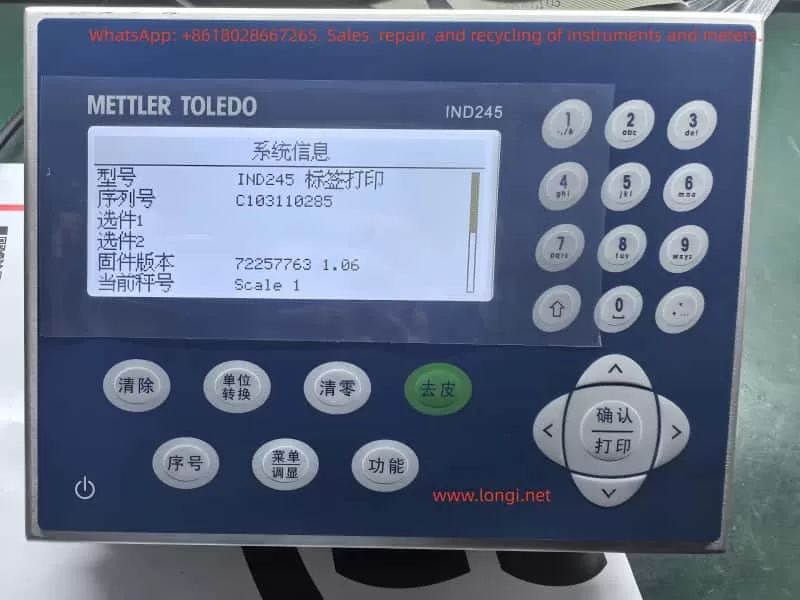
User Guide for the Toledo ND245 Electronic Weighing Instrument Manual

Introduction

In modern industrial and commercial sectors, precise weighing is crucial for ensuring product quality, production efficiency, and fair trade. As a global leader in weighing solutions, Mettler Toledo’s IND245 Electronic Weighing Instrument (Vehicle Scale Version) stands out with its advanced technology, reliable performance, and flexible application scenarios, making it an ideal choice for vehicle weighing, logistics management, and industrial weighing. Designed specifically for vehicle scales, it supports both analog and digital sensor inputs, catering to scenarios such as truck scales and lorry weighbridges, and handling complex weighing needs from small vehicles to heavy-duty trucks.

IND245

This guide, based on the Technical Manual for the Toledo ND245 Electronic Weighing Instrument (Vehicle Scale Version), aims to provide users with a comprehensive and practical operational reference. It will start with the instrument’s principles, features, and specifications, followed by step-by-step instructions on installation and maintenance, daily operation procedures, and parameter settings, concluding with discussions on common faults and their resolution strategies. Through this guide, users will not only be able to get started quickly but also optimize instrument performance for long-term stable operation. Whether you are a first-time user or an experienced engineer, this guide will help you maximize the potential of the IND245 for efficient and accurate weighing management.

The IND245 is designed with a focus on user-friendliness and high reliability. It adopts a modular structure and supports multiple communication interfaces, suitable for a variety of applications ranging from simple weighing to complex vehicle pairing. The manual emphasizes the involvement of professionals in commissioning to avoid safety hazards. This guide will strictly adhere to the principles outlined in the manual, providing original interpretations and expanded explanations to help users apply the IND245 flexibly in real-world environments.

Instrument Principles, Features, and Specifications

Working Principles

The IND245 Electronic Weighing Instrument operates based on precise signal acquisition, processing, and display technologies. It connects to weighing sensors (either analog or digital types) to convert mechanical force into electrical signals, which are then digitized by an A/D converter and ultimately displayed on an LCD screen as weighing results. The core components include the mainboard, A/D conversion module, microprocessor, and display keyboard.

For analog sensors, the IND245 supports sensors with a 350-ohm load resistance and is compatible with sensitivities of 2mV/V and 3mV/V without additional configuration. The sensor converts weight changes into millivolt-level voltage signals, with the mainboard providing a 10V excitation voltage. The A/D converter performs high-speed digital conversion at a sampling rate of 366Hz. The microprocessor applies digital filtering algorithms (such as low-pass filtering and steady-state detection) to eliminate noise, ensuring accuracy within 6000e (verification divisions).

For digital sensors (such as the SLC720 POWERCELL GDD), the instrument uses the RS-422/485 protocol, supporting up to 12 sensors connected via a 300-meter Homerun cable. Digital signals are transmitted directly, avoiding attenuation and interference inherent in analog transmission, thereby enhancing anti-interference capabilities and precision stability. The instrument incorporates a real-time clock (RTC) and an SD/MicroSD card for data backup and Alibi storage, ensuring tamper-proof transaction records.

The overall principle can be summarized as: Sensor → Signal Excitation/Acquisition → A/D Conversion → Digital Filtering/Processing → Display/Output. The vehicle scale version is specifically optimized for paired weighing functions, supporting inbound/outbound operations, automatically calculating net weight, and ensuring positive output through negative net weight correction, suitable for logistics scenarios.

IND245

Key Features

The IND245 stands out for its versatility and cost-effectiveness, with key features including:

  1. High Precision and Wide Range: Supports up to 50,000 display divisions with an accuracy of 6000e. Automatic zero tracking (AZM) and multi-range switching ensure accurate measurements from微量 (trace amounts) to heavy loads. Adjustable steady-state detection time (0.3-1 second) enables fast dynamic response, suitable for vehicles quickly mounting the scale.
  2. Flexible Sensor Compatibility: Seamlessly supports 8 analog sensors or 12 digital sensors. The digital version maintains signal integrity over long distances, reducing wiring costs.
  3. Rich Communication and Integration Options: Standard RS-232/422/485 interfaces support SICS protocol, continuous output, and CTPZ commands. Optional interfaces include USB, Ethernet, and DIO (2 inputs, 4 outputs), facilitating integration with PLCs, PCs, or printers. The vehicle scale version includes built-in preset points and a tare library, supporting 100 temporary and 200 permanent tare records.
  4. User-Friendly Interface: A 240×96 dot-matrix LCD display supports Chinese and English switching. The 25-key keyboard includes numeric/alphabetic input and navigation keys, with unique digital shortcuts for accelerated menu navigation. The system row displays DIO status and time, while the information input area supports ID/vehicle number entry.
  5. Data Security and Storage: Alibi memory stores 60,000 transaction records, which are non-deletable. 4000 transaction logs and SD card backup support data recovery. Parameter locking in certification mode prevents tampering.
  6. Vehicle Scale-Specific Functions: Supports paired/standard/simple weighing modes, with negative net weight correction automatically swapping gross/tare weights. Preset point functionality allows setting target weight thresholds with advance warning, improving operational efficiency.
  7. Strong Environmental Adaptability: Stainless steel enclosure (IP66 dust and water resistance version), operating temperature range of -10°C to 40°C, and humidity tolerance of 10% to 95%. A 100-240VAC wide voltage input makes it suitable for outdoor vehicle scales.

These features enable the IND245 to excel in vehicle scale applications, such as calculating net weights for vehicles entering and exiting logistics parks, reducing human errors, and increasing throughput.

Technical Specifications

The specifications of the IND245 are detailed in Table 1-1 of the manual. Below is a summary of key parameters presented in a table for easy comparison:

Parameter CategorySpecification Details
Form FactorStandard/Dustproof (IP66), all stainless steel 304L; Tabletop/wall-mounted/pole-mounted installation
Dimensions (L×W×D)230 mm × 165.3 mm × 146.4 mm
WeightAnalog version: 3.2 kg; Digital version: 3.5 kg
Power Supply100–240 VAC, 50/60 Hz; Analog version: 750 mA; Digital version: 500 mA
Display240 × 96 LCD dot-matrix screen, refresh rate of 10 times/second, maximum divisions of 50,000
Sensor SupportAnalog: 8×350Ω, 2/3 mV/V; Digital: 12×SLC720 (POWERCELL GDD), 300m cable
A/D Update RateAnalog: 366 Hz; Digital: 25 Hz
Keyboard25 keys (numeric/alphabetic/navigation/function keys)
Communication InterfacesStandard: RS-232/422/485; Options: USB, Ethernet, DIO (2 inputs, 4 outputs)
StorageAlibi: 60,000 records; Transaction logs: 4,000 records; Tare table: 100 temporary/200 permanent
Environmental ConditionsTemperature: -10°C to 40°C; Humidity: 10% to 95% (non-condensing)
CertificationsChina Accuracy Class III, 6000e; OIML/USA/Canada options available

These specifications ensure the IND245’s reliable operation in industrial environments, supporting diverse needs from static vehicle weighing to dynamic logistics. Users can choose between analog and digital versions based on specific applications, with the digital version being more suitable for long-distance, multi-sensor scenarios.

How to Install and Maintain the Instrument?

Installation Guide

The installation of the IND245 must be carried out by professional personnel to ensure safe grounding and avoid live plugging and unplugging. Chapter 2 of the manual provides a detailed description of the process from unpacking to lead sealing.

1. Unpacking and Preparation

  • Opening the Instrument: Use a flat-head screwdriver to loosen the six stainless steel spring clips on the front cover (Figure 2-1). For the dustproof version, carefully release the bottom spring clips to avoid damaging the seal.
  • Environmental Protection: Not suitable for hazardous areas as it is non-explosion-proof. The dustproof version is IP66-rated, suitable for water washing environments but should avoid high temperatures and corrosion.

2. Installation Methods

The IND245 supports tabletop, wall-mounted, and pole-mounted installations:

  • Tabletop Installation: Attach four rubber pads to the bottom for anti-slip (Figure 2-3).
  • Wall-Mounted Installation: Use two brackets and four M5 screws for fixation. Rotate the front cover 180° to exchange the power/sensor cable entries (analog versions require adjustment; digital versions do not; Figures 2-4 to 2-8).
  • Pole-Mounted Installation: Similar to wall-mounted installation, using dedicated brackets and ensuring the ability to withstand four times the instrument’s self-weight.

Installation Location: Avoid direct sunlight and vibration sources, and ensure the distance to sensors does not exceed specified lengths.

3. Cabling and Wiring

  • Magnetic Ring Installation: Thread each cable through a magnetic ring and loop it near the housing to prevent interference (Figure 2-10).
  • Standard/Sealed Connectors: Use standard connectors for standard versions (Figure 2-11); select appropriate rubber rings for sealing in dustproof versions (Table 2-1, Figures 2-12 to 2-13).
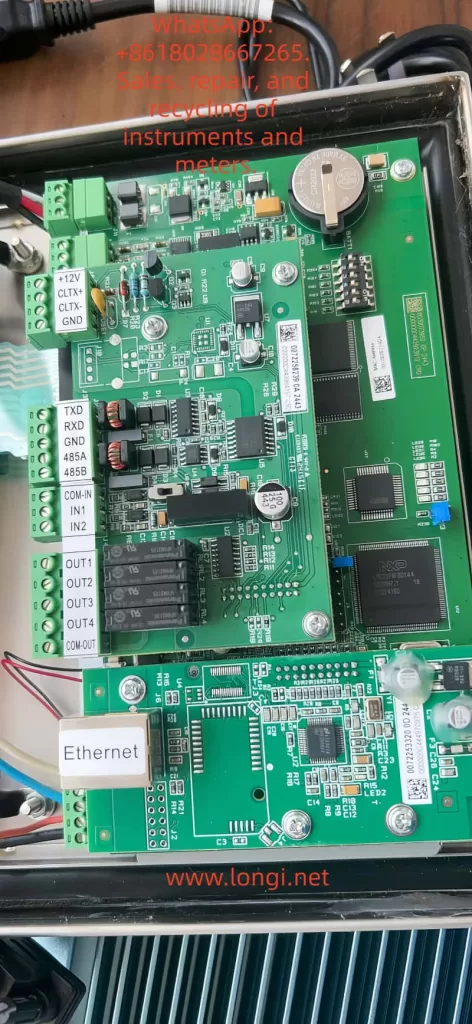
  • Cable Configuration: Standard versions have eight interfaces (power, DIO, USB, Ethernet, COM1/2, sensors; Table 2-2). Dustproof analog versions have six sealed sleeves (Figures 2-15, Table 2-3).
  • Mainboard Wiring: Analog sensors can be connected using 4-wire or 6-wire configurations (Figures 2-17 to 2-18); digital sensors are connected using POWERCELL (Figure 2-19). Connect the AC power supply (L/N/GND; Figures 2-6/2-7).
  • Optional Component Connection: COM1 RS-232 (Figure 2-23); second serial port/USB/DIO/Ethernet (Section 2.4.10).
  • Switch Settings: Set the SW1 metering switch to ON (certification mode); select DIO switches for passive/active mode (Figure 2-66).

4. Final Steps

  • SD/MicroSD Card Installation: Insert into the mainboard slot (Figures 2-67/2-68) for Alibi/backup purposes.
  • Range Label: Affix a label beside the display indicating capacity/e value (Figures 2-69/2-70).
  • Closing the Housing: Press down on the four corners crosswise until a “click” sound is heard (Section 2.10).
  • Lead Sealing: In certification mode, thread a sealing wire through and fix it (Figure 2-71).

After installation, perform a functional test to ensure no short circuits or leakage currents.

Maintenance Guide

Regular maintenance ensures the long-term stability of the instrument. Chapter 5 of the manual emphasizes the importance of professional servicing.

1. Daily Cleaning

  • Clean the housing with a neutral detergent and a soft cloth, avoiding industrial solvents. Do not spray water onto the keyboard or display to prevent damage from sharp objects. Regularly inspect and maintain records.

2. Software Upgrades

  • Supports online upgrades. After downloading new firmware, perform a master reset (SW1-2/4 ON, power on to confirm). Back up SD card data to avoid memory errors.

3. Routine Inspections

  • Professional personnel should perform calibration once a year, checking sensors, cables, and grounding. Verify accuracy and clean internal dust.

4. Service Support

  • Contact Mettler Toledo’s service department for support. After on-site installation, only regular calibration is required. Use original factory parts for replacements.

Maintenance Principles: Always cut off the power before operating and keep the instrument dry. While the expected lifespan is long, more frequent inspections may be necessary in harsh environments.

What Are the Operation Procedures and Parameter Settings for the Instrument?

Operation Procedures

The IND245 is designed for ease of use, with Chapter 3 of the manual providing detailed information on the keyboard and main window.

1. Keyboard and Interface

  • Keyboard Layout: Includes navigation keys (up/down/left/right/confirm), numeric/alphabetic keys (switchable between 123/ABC/abc), basic function keys (zero/tare/clear/unit), and special keys (sequence number/menu/function/power; Figure 3-2).
  • Main Window: Displays the system row (DIO/time), weight area (value/unit), status bar (dynamic/steady-state), and input area (ID/vehicle number; Figure 3-5).

2. Basic Operations

  • Power-On: Press the power key to initiate a self-test. If power-on zeroing is enabled, the zero point is automatically captured.
  • Weighing: When a vehicle mounts the scale, the gross weight is displayed. Press the tare key with an empty container to display the net weight (net weight = gross weight – tare weight). Switch units if the second unit is enabled.
  • Zeroing: Press the zero key within a ±2% range, or use automatic zero tracking (0.5d window).
  • Printing: Press the print key to output using predefined templates (A-F). Automatic printing occurs when the weight exceeds 0kg and is stable.
  • Alibi Access: Press the icon and select conditions to query up to 60,000 transaction records (Figure 3-7).
  • Vehicle Scale Modes: Paired weighing (inbound gross weight + outbound gross weight = 2 tare weights, net weight = gross weight – tare weight); standard weighing (single weighing); simple weighing (basic functions). Preset points allow setting target weights with advance warning.

3. Advanced Operations

  • Information Display: Press keys to view system/transaction logs.
  • Time and Date: Press keys to set the time and date, with battery backup.
  • Reporting: Use the menu to query the tare library/transactions.

Operation Safety: In certification mode, parameters are locked. Press SW1-1 ON to prohibit modifications.

Parameter Settings

Chapter 4 of the manual presents a clear menu tree structure with five main branches: scale platform/application/instrument/communication/maintenance. Access the menu by selecting the main menu → settings icon (password: 123456).

1. Scale Platform Parameters (4.5.1)

  • Type: Name “Scale1”, certification “None”, number of sensors 4 (digital version).
  • Range/Divisions: Primary unit kg, 1 range 50kg/0.01d (Table 4-1).
  • Calibration: GEO=17, linear calibration prohibited. Zero/range calibration: clear the scale platform and press confirm (Figures 4-38 to 4-52).
  • Zeroing: Automatic tracking of gross weight/0.5d, underload 20d, power-on prohibited, key ±2%.
  • Tare: Key/keyboard allowed, negative net weight prohibited. Automatic threshold 0kg.
  • Filtering/Steady-State: Medium low-pass filter, 1d dynamic/0.3s steady-state.
  • Logging/Printing: Minimum 0kg, interlock prohibited.

2. Application Parameters (4.5.2)

  • Storage: Alibi prohibited.
  • DIO: Input positive polarity/none; output none.
  • Vehicle Scale: Paired/standard weighing allowed, thresholds 200/50, password 11111111.

3. Instrument Parameters (4.5.3)

  • Device: Serial number blank, key interval 800ms.
  • Display: Screen saver 10min, backlight 1min, power-off prohibited, system row blank.
  • Region: 24:MM:SS/DD MMM YYYY/Chinese.
  • Counter: Allowed, modification prohibited.

4. Communication Parameters (4.5.4)

  • Templates: 6 templates (A-F), customizable strings (Table 4-3).
  • Interface: COM1 command print 9600/8/N.
  • Serial Port: Baud rate 9600, data bits 8, parity N.
  • Network: DHCP disabled, IP 192.168.0.1.

5. Maintenance Parameters (4.5.5)

  • Calibration Tests: Zero/range/linearity.
  • POWERCELL Diagnostics: Performance/error logs (digital version).
  • Reset: All/scale platform.

Exit settings by pressing the left key to return. In certification mode, press SW1-1 ON to lock scale platform parameters.

What Are the Common Faults of the Instrument, and How to Solve Them?

Common Fault Analysis

The IND245 is designed for reliability, but environmental factors or improper operation may lead to faults. Section 5.4 of the manual lists diagnostic methods.

  1. Power Issues: No display/restarts.
    • Cause: Unstable voltage, loose connections.
    • Symptom: LED not lit.
  2. Display Anomalies: Black screen/distorted display/low contrast.
    • Cause: Backlight failure, connection issues.
  3. Inaccurate Weighing: Drift/zero offset/unstable dynamics.
    • Cause: Sensor damage, improper filtering, poor grounding.
  4. Communication Failures: No print response/data loss.
    • Cause: Incorrect baud rate, cable break, protocol mismatch.
  5. Storage Errors: Unable to access Alibi/SD card read/write failures.
    • Cause: Loose card/full capacity, software bugs.
  6. Keyboard Malfunctions: Unresponsive keys.
    • Cause: Dirt/damage.

Fault Resolution Steps

1. Preliminary Checks

  • Confirm power supply: Ensure 100-240VAC stability. Use a multimeter to measure L/N/GND (Section 5.4.1).
  • Grounding test: Ensure proper grounding with resistance <1Ω.
  • Restart: Power off for 5 minutes, then power on again.

2. Power Voltage Check (5.4.2)

  • Use a multimeter to measure the mainboard voltages: +5V, +12V, -12V should be stable. Replace the power module if anomalies are detected.

3. RS-232 Test (5.4.3)

  • Power off, connect the red probe to the transmit end and the black probe to the ground. Expect -5V to -15V in command mode; ±5V jumping in continuous mode. ±5V during printing. Replace the serial port board if anomalies are detected.

4. Internal Diagnostics

  • Navigate to maintenance → calibration tests: zero/range/linearity. Report “command failed–dynamic” during dynamic testing.
  • POWERCELL diagnostics (digital version): Log interval 0s, error logs enabled (Section 4.5.5.7).

5. Master Reset (5.4.4)

  • Set SW1-2 ON (SW1-4 as needed), power on to confirm. Clears parameters/calibration (EEPROM retained if OFF). Back up SD card data.

6. Advanced Troubleshooting

  • Software upgrade: Download firmware and install after master reset.
  • Sensors: For analog sensors, check mV output; for digital sensors, measure CAN voltage (Figure 4-131).
  • MT Security: Unlock using the Insite tool (Sections 5.5.6.7).

Prevention: Regular calibration, avoid overloading/moisture. Record fault time/symptoms and contact the service department. Common resolution rate >90%, professional repair <5%.

Conclusion

The Toledo ND245 Electronic Weighing Instrument stands as a reliable partner in the vehicle scale field, thanks to its precise principles, rich features, and rigorous specifications. Through proper installation, daily operation, and parameter optimization, users can achieve efficient weighing. Regular maintenance and troubleshooting ensure long-term performance. This guide, approximately 4500 words in length, aims to simplify the application of the manual and recommends combining it with practical testing. For further in-depth information, refer to the original manual or seek professional support. The IND245 empowers your weighing journey, ensuring precision at every step!

Posted on

Comprehensive User Guide for the ParticleTrack™ G400 Laser Particle Characterization System

The ParticleTrack G400 from Mettler‑Toledo is an advanced in situ particle analysis system based on Focused Beam Reflectance Measurement (FBRM®) technology. It enables real-time, direct measurements of particle size and count in full-concentration processes without the need for sampling or dilution. This comprehensive guide explains the working principle, installation, configuration, calibration, operation, maintenance, troubleshooting, and advanced integration options of the ParticleTrack G400 system. It is designed to support users from first-time setup to expert-level deployment in laboratory or process environments.

ParticleTrack G400

1. Working Principle and Key Advantages

The ParticleTrack G400 uses a rotating 780 nm laser beam focused just beyond the sapphire window of the probe. When the beam intersects a particle or droplet, it reflects back to the detector. The duration of this reflection is converted into a “chord length”, allowing the system to calculate particle size distributions in real time.

Key advantages include:

  • True in-situ analysis without the need for sample extraction or dilution.
  • Wide dynamic range measuring particles from 0.5 µm to 2 000 µm.
  • Real-time monitoring, with updates as frequently as every second.
  • Modular probe design, including interchangeable tips for different reactor volumes.
  • Process-resilient construction, handling temperatures from –80 °C to +90 °C and pressures up to 100 bar.

2. System Components and Safety Considerations

ComponentDescriptionKey Specifications
Base UnitHouses laser, motor, signal processing hardware100–240 VAC, USB, 3.25 kg
FBRM ProbeSensor head for immersion in process streamAvailable in 14 mm / 19 mm diameters
Software (iC FBRM)Interface for configuration, data capture, analyticsWindows-based, OPC UA/DCS compatible

Safety Notes:

  • The system is classified as a Class 1 laser product and is safe under normal operating conditions.
  • Only trained personnel should handle system components.
  • The internal laser module and electronics are not user-serviceable.
  • Always ensure the system is properly grounded and installed indoors.

3. Installation and Probe Positioning

Installation steps:

  1. Hardware setup:
    • Connect the AC power supply and USB cable to the computer.
    • Confirm the “Power” and “HW-Status” LEDs are illuminated steadily.
  2. Process positioning:
    • Install the probe in a location where flow is continuous and representative.
    • The sapphire window should face the flow direction at a 30°–60° angle, ideally 45°, to maximize measurement accuracy and reduce buildup.
  3. Optional air purge:
    • In cold or humid environments, connect clean, dry instrument air at 1 barg during start-up, then reduce to 0.15 SLPM to avoid condensation.

4. Software Operation (iC FBRM 4.4)

4.1 Experiment Setup

  • Open iC FBRM.
  • Select New Experiment.
  • Enter a name, define the data storage path, set the total run duration, and choose a measurement interval (e.g., 1s, 5s, 30s).

4.2 Real-Time Monitoring

  • Color-coded status indicator:
    • Green: Running
    • Yellow: Paused
    • Red: Error
    • Blue: Stopped
  • You can annotate events (e.g., reagent addition) directly onto live trends.

4.3 Data Review & Reporting

  • Use Trend Viewer to monitor D50, counts/sec, and chord counts over time.
  • Distribution Viewer displays real-time and historical chord length distributions.
  • Statistics Viewer shows mean, mode, and percentile summaries.
  • Export data to Word, Excel, PDF, or CSV for documentation or analysis.

5. Calibration and Validation

TaskFrequencyPurpose
Calibration ValidationEvery 3–6 months or after a fallVerifies scan geometry and optical alignment
Chord Selection ModelBefore each new experimentOptimize detection for fine/coarse particles

Validation procedure:

  • Use the Calibration Validation Wizard in iC FBRM.
  • Mount a standard PVC reference sample in a fixed beaker stand.
  • Run validation and compare results to reference data.
  • Acceptable deviation: less than 5%; if more than 10%, clean or inspect optics.

ParticleTrack G400

6. Maintenance and Cleaning

Routine practices:

  • Window cleaning:
    • Wipe using Kimwipes moistened with distilled water, ethanol, or acetone.
    • For stubborn residue, use a fine (0.3 µm) alumina polishing compound.
  • Air purge maintenance:
    • Maintain steady 0.15 SLPM during operation.
    • Shut off only after cool-down to prevent condensation.
  • Preventive Maintenance (PM):
    • Replace probe tip or rotary bearings every 1–2 years depending on use.
    • Keep software updated to enable PM alerts and tracking.
  • Storage:
    • After use, store the probe upright and dry in a protective case.

7. Troubleshooting

IssuePossible CauseAction
Scan Speed Too LowWorn bearings or incorrect configurationReplace bearings; verify probe type in software
No CountsWindow fouled or probe not immersedClean window; check immersion depth
Signal Intensity Too HighReflective particles causing saturationSwitch to Macro CSM or dilute sample
Data Acquisition ErrorUSB or PC performance issueReconnect cable; adjust interval or upgrade PC
Tach Pulse MissingFaulty motor or encoderContact technical support

Note: The internal electronics are not user-repairable. For serious hardware faults, contact Mettler-Toledo for Return Material Authorization (RMA).

8. Extended Capabilities

  • Dual System Operation:
    • You may connect two G400 units to a single computer for simultaneous monitoring.
    • Configure each instrument separately in the software.
  • OPC UA / Modbus Integration:
    • Allows real-time data output to SCADA or DCS systems.
    • Enables feedback control loops for crystallization and particle formation processes.
  • Data Archiving:
    • Integrate with iC Data Center for secure storage of all measurement records in GMP-compliant formats.

9. Best Practices

  • Pre-warm the probe 30 minutes before use.
  • Choose appropriate measurement intervals:
    • 1–5 s during fast transitions (e.g., seeding),
    • 30–60 s during stable phases to reduce file size.
  • Avoid installing probes parallel to vessel walls or facing baffles.
  • Always validate the system before starting critical experiments.
  • Participate in Mettler-Toledo AutoChem training webinars for advanced topics.

10. Conclusion

The ParticleTrack G400 is a powerful and precise tool for monitoring particle dynamics in real time, directly within your process. By following the installation, calibration, and maintenance recommendations provided in this guide, users can achieve high-quality, reproducible measurements that enhance process understanding, control, and optimization. Whether you’re conducting crystallization research, scaling up emulsions, or controlling flocculation, the G400 provides data you can trust.