
Posted on

**Root Cause Analysis of Malvern Mastersizer Software Exceptions

— From Application Error to Power Management Failure**

1. Background: Mastersizer Software Fails with an Application Exception

The Malvern Mastersizer series (including Mastersizer 2000 and Mastersizer 3000) is widely used in laboratories for laser diffraction particle size analysis. The system combines high-precision optics, detectors, embedded electronics, and complex software layers running on a Windows platform.

In this case, the customer reported that the Mastersizer software fails to start and displays the following message:

Application Error
An unexpected exception occurred while calling HandleException with policy “Default Policy”. Please check the event log for details about the exception.

Key characteristics of the issue include:

  • The software does not enter the main operating interface
  • The error is generic and non-descriptive
  • The message explicitly refers to Windows Event Logs
  • Reinstalling Windows does not resolve the problem

This type of error is frequently misdiagnosed as a corrupted installation or a simple software incompatibility. However, as shown in this case, the true cause lies deeper.
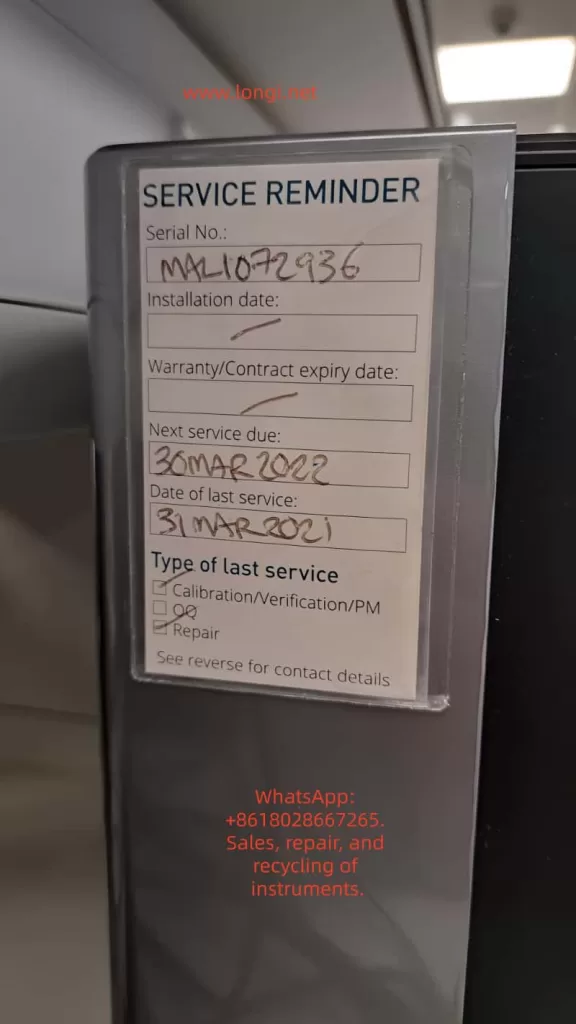

MALI072936

2. A Common Misconception: “Reinstalling Windows Fixes Everything”

From an engineering perspective, the statement:

“The operating system has been reinstalled, but the error remains”

is extremely important.

A clean OS installation normally eliminates:

  • Damaged system files
  • Registry corruption
  • Malware or residual software conflicts
  • User-level configuration issues

When a problem persists after a full OS reinstall, it strongly indicates that:

The fault is not at the Windows installation layer.

This observation immediately shifts the diagnostic focus toward:

  • Hardware state
  • Power management
  • Low-level system services
  • Firmware or driver–hardware interactions
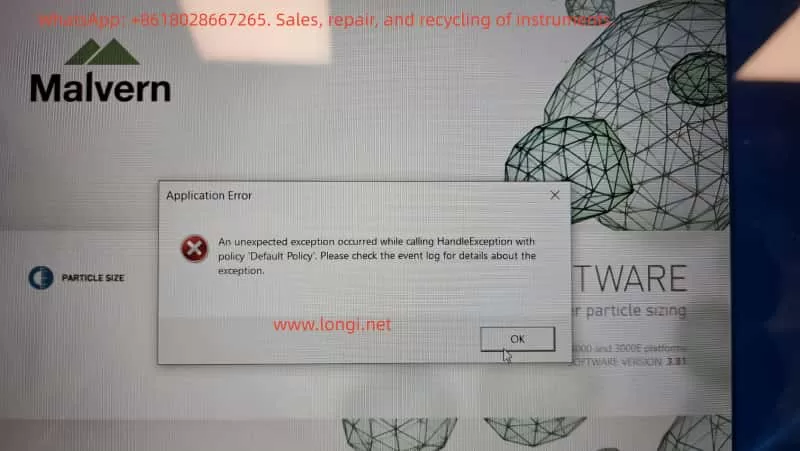
Application Error
An unexpected exception occurred while calling HandleException with policy “Default Policy”. Please check the event log for details about the exception.

3. Event Viewer Analysis: Useful Evidence or a Red Herring?

3.1 Logs Provided by the Customer

The customer followed instructions and provided multiple screenshots from Windows Event Viewer, specifically:

  • Windows Logs → Application
  • Sources observed:
    • SecurityCenter
    • Security-SPP (Software Protection Platform)

Notable entries included:

  • Event ID 17 – SecurityCenter
    Security Center failed to validate caller with error DC040780
  • Event ID 903 – Security-SPP
    The Software Protection service has stopped
  • Multiple informational events regarding:
    • Defender / McAfee status changes
    • Software Protection service restarts

3.2 Do These Logs Explain the Mastersizer Crash?

From a professional diagnostic standpoint, the answer is:

No — not directly.

Reasons:

  1. Source mismatch
    Mastersizer-related crashes usually appear under:
    • .NET Runtime
    • Application Error
    • Vendor-specific modules
    None of the provided logs reference the Mastersizer application itself.
  2. Severity mismatch
    Most entries are Information level events.
    A software crash severe enough to block startup typically produces a clear Error or Critical event tied to the executable or runtime.
  3. Causal mismatch
    Windows Security Center or Software Protection state changes alone do not cause a specialized instrument control application to fail consistently on a fresh OS.

Conclusion:
These logs indicate system instability, but they are symptoms, not the root cause.
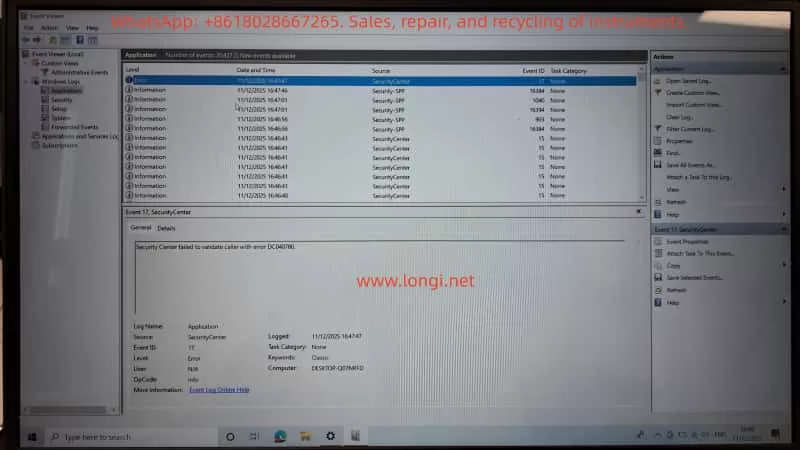

[Security Center failed to validate caller with error DC040780.

4. The Critical Clue: Laptop Battery Stuck at 1% Charge

During troubleshooting, the customer added an apparently unrelated detail:

“The laptop is stuck on 1% charge.”

From an engineering perspective, this is not a minor issue.
It is a high-value diagnostic signal.


5. Power Engineering Perspective: Why 1% Battery Matters

5.1 What “Stuck at 1%” Usually Means

A laptop permanently stuck at 1% charge typically indicates one or more of the following:

  1. Severely degraded battery
    • High internal resistance
    • Battery Management System (BMS) limiting output
    • Battery effectively unusable as a power buffer
  2. Power management or EC firmware issues
    • Embedded Controller (EC) in protection mode
    • Incorrect power state reporting
  3. System forced into extreme low-power operation
    • CPU frequency throttled
    • USB power current limited
    • Peripheral initialization restricted

This is not just a battery indicator problem — it represents a global system power constraint.


5.2 Why This Directly Affects Malvern Mastersizer

The Mastersizer software is not a lightweight application. During startup, it performs:

  • Laser source initialization
  • Detector and photodiode communication
  • USB / PCIe hardware enumeration
  • License and security module validation
  • High-resolution timing and buffer allocation

All of these processes require:

  • Stable voltage rails
  • Predictable timing
  • Reliable peripheral power delivery

When a laptop operates in a forced low-power state:

  • Hardware initialization may time out
  • .NET runtime calls may fail unexpectedly
  • Driver-level calls may return invalid states
  • Exception handlers may be triggered without clear diagnostic messages

This combination often results in exactly the type of error observed:

“An unexpected exception occurred…”


6. Why Reinstalling Windows Cannot Fix This

This is the key engineering insight of the case.

A Windows reinstall cannot repair:

  • A failed battery
  • Power management IC faults
  • Embedded controller firmware states
  • Hardware-enforced power throttling

Even on a completely fresh OS, the system remains constrained by its physical power condition.

As a result:

Any hardware-intensive scientific instrument software may fail unpredictably, even on a clean system.


7. Correct Diagnostic and Recovery Procedure

Step 1: Eliminate Power as a Variable (Highest Priority)

  • Remove or bypass the faulty battery
  • Operate the laptop on a verified, original AC adapter
  • Or replace the battery with a known-good unit
  • Confirm stable charging above 80%

No further software troubleshooting should be performed until this step is completed.


Step 2: Retest Mastersizer Under Stable Power Conditions

  • Launch the Mastersizer software
  • Observe startup behavior
  • If the error disappears, the root cause is confirmed as power management failure

Step 3 (If Needed): Collect Relevant Application Logs

Only if the error persists should further logs be collected:

  • Windows Logs → Application
  • Look specifically for:
    • .NET Runtime
    • Application Error
    • Mastersizer-related modules

These logs provide actionable information at the software layer.


8. Practical Recommendations for Laboratories

For laboratories operating high-precision instruments:

  1. Do not use laptops with degraded batteries as instrument controllers
  2. Treat abnormal power behavior as a system-level fault, not a cosmetic issue
  3. System stability is more critical than OS cleanliness
  4. Instrument software errors are often hardware-condition dependent

9. Final Conclusion

This case demonstrates that:

  • The Mastersizer error is not a simple software bug
  • Event Viewer logs related to Security Center are secondary indicators
  • A laptop stuck at 1% battery is a strong and plausible root cause
  • Power instability can directly trigger non-descriptive application exceptions
  • Reinstalling Windows alone cannot resolve hardware-level constraints

True fault isolation requires understanding the full causal chain:
Power → Hardware → OS Services → Drivers → Application.


10. Closing Remarks

Scientific instrument troubleshooting must go beyond surface-level symptoms.
Only by integrating hardware engineering, power management, operating system behavior, and application architecture can accurate conclusions be reached.

In this case, the Mastersizer software did not “fail randomly” — it failed predictably under abnormal power conditions.

Posted on

Systematic Analysis and Engineering-Level Diagnosis of Communication Failure in Malvern Mastersizer 2000

1. Introduction: Background of the Communication Error

The Malvern Mastersizer 2000 is one of the most widely deployed laser diffraction particle size analyzers worldwide. Its reputation is built on a stable optical system, mature algorithms, and long-term repeatability. However, as the instrument ages, a specific class of failures becomes increasingly common in field applications: loss of communication between the instrument and the host computer.

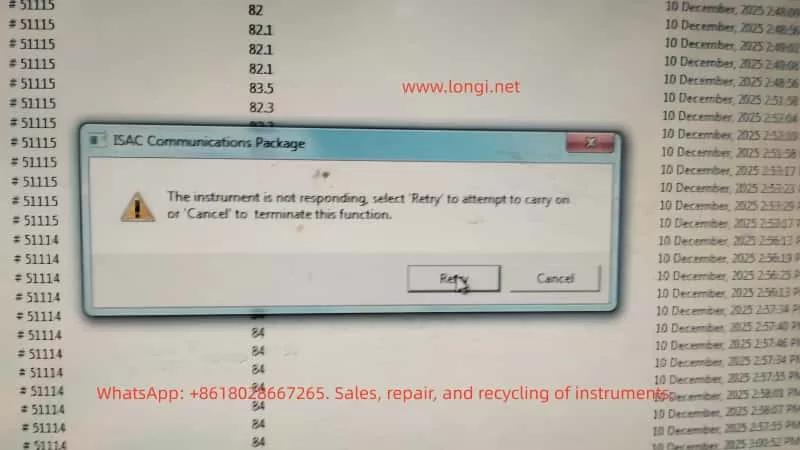
A typical software warning appears as:

ISAC Communications Package
The instrument is not responding

From the user’s perspective, this message is often interpreted as a software crash or a temporary computer issue. From an engineering and maintenance standpoint, however, this error is a clear indicator of a system-level communication failure, involving hardware, power stability, and embedded control reliability rather than measurement parameters or optics.

This article provides a structured, engineering-level analysis of this failure mode in the Mastersizer 2000, focusing on root causes, diagnostic logic, and realistic repair considerations.


Mastersizer 2000,

2. System Architecture Overview of Mastersizer 2000

Understanding this error requires a clear understanding of how the Mastersizer 2000 is architected at a system level.

The instrument can be divided into four major functional subsystems:

  1. Host PC and Malvern control software
  2. Communication layer (ISAC Communications Package)
  3. Internal controller system (embedded control board)
  4. Optical and fluid handling subsystems

The ISAC Communications Package is not merely an application layer component. It is responsible for:

  • Establishing and maintaining the communication session between PC and instrument
  • Periodic polling of instrument status (heartbeat mechanism)
  • Transmission of operational commands (start, stop, align, clean, measure)
  • Receiving and decoding status responses and operational data

When the software reports “Instrument is not responding”, the real meaning is:

The instrument failed to return a valid response within the defined communication timeout window

This indicates a failure somewhere along the communication and control chain, not a measurement error.


3. What This Error Is NOT

Before diagnosing the real cause, it is critical to eliminate several common misconceptions.

3.1 Not a Simple Software Crash

In many cases, background data logging continues even after the warning appears. This confirms that:

  • The Windows operating system is still running
  • The Malvern application itself has not crashed
  • The failure occurs at the communication interface or embedded control level

3.2 Not an Optical or Laser Failure

Failures related to lasers, detectors, or alignment typically result in:

  • Light intensity errors
  • Background measurement failures
  • Optical calibration errors

They do not directly cause a total communication timeout.

3.3 Not a Sample or Method Issue

Sample concentration, dispersion settings, pump speed, or measurement SOPs may affect results, but they do not cause the instrument controller to stop responding at the protocol level.


4. Engineering Interpretation of the Communication Failure

From a system engineering perspective, the error can be summarized as follows:

The host PC cannot complete a communication transaction with the instrument controller within the allowed time

The communication path is a serial chain:

PC software → OS USB stack → PC USB controller → USB cable → instrument USB interface → internal communication module → controller board MCU → response returned

Any instability along this chain will result in the same final symptom: Instrument not responding.


ISAC Communications Package
The instrument is not responding

5. Root Causes in Mastersizer 2000 (Ranked by Probability)

5.1 Unstable USB Communication Path (Highest Probability)

This is the most common cause in aging Mastersizer 2000 units.

Typical symptoms:

  • Instrument is detected, but disconnects during operation
  • Retry sometimes works, sometimes fails
  • Behavior differs between computers
  • Connection drops after several minutes of runtime

Engineering causes:

  • Aging or poorly shielded USB cables
  • Use of USB extension cables or hubs
  • Fatigue or micro-cracks in the instrument USB connector solder joints
  • Degraded internal USB-to-serial communication module

If replacing the USB cable and connecting directly to a motherboard USB port improves stability, the issue is hardware-level communication reliability, not software.


5.2 Controller Board Marginal Operation

After long service life (typically >8–10 years), the controller board often enters a marginal operating state.

Typical symptoms:

  • Cold start works normally
  • Communication fails after warm-up
  • Power cycling temporarily restores operation

Underlying causes:

  • MCU operating near voltage tolerance limits
  • Increased ESR in electrolytic capacitors
  • Power rail ripple exceeding acceptable margins
  • Temperature-related timing instability

This class of failure is often misdiagnosed as intermittent software behavior but is fundamentally a hardware aging issue.


5.3 Internal Power Supply Degradation or Poor Mains Quality

This factor is especially common in regions with unstable mains power.

Contributing conditions:

  • Line voltage fluctuations
  • Lack of voltage regulation
  • Aging internal switching power supplies

Resulting behavior:

  • Momentary drops in 5 V or 3.3 V rails
  • Internal controller or communication module resets
  • PC reports communication timeout

The instrument may appear powered and operational while internally experiencing repeated micro-resets.


5.4 Operating System or Driver Environment (Low Probability)

This factor should only be prioritized when:

  • A new PC has been introduced
  • The operating system was recently reinstalled
  • Non-standard or unofficial software versions are used

In stable legacy systems, OS-level causes are relatively rare.


6. Structured Diagnostic Procedure (Field-Applicable)

A professional diagnostic approach must be systematic and repeatable.

Step 1: Full Cold Reset

  • Shut down software
  • Power off instrument
  • Disconnect power for at least 5 minutes

Step 2: Minimize Communication Path

  • Replace USB cable
  • Eliminate USB hubs or extensions
  • Use rear motherboard USB ports

Step 3: Test with an Alternate Computer

  • Clean OS environment
  • No additional instrument drivers

Step 4: Idle Stability Test

  • Do not perform measurements
  • Maintain connection for at least 10 minutes

If communication still fails under these conditions, the fault can be confidently attributed to instrument-side hardware.


7. Repair and Commercial Considerations

From a third-party service and repair perspective, this fault class has clear implications:

  • It is not a user operation issue
  • Reinstalling software is rarely a true solution
  • In many cases, the instrument is repairable
  • Risk and cost must be evaluated at board level

Viable repair directions:

  • USB connector and communication module repair
  • Controller board power conditioning (capacitors, regulators)
  • Internal power supply refurbishment

Cases where repair is not recommended:

  • Severe multi-board corrosion
  • Controller MCU failure without replacement options

8. Conclusion

The error message “ISAC Communications Package – Instrument not responding” is not vague or generic. In the Mastersizer 2000, it represents a classic aging-related system-level failure involving communication stability and embedded control reliability.

The correct solution is not repeated retries or blind software reinstallation, but:

  • Understanding the communication architecture
  • Differentiating software symptoms from hardware causes
  • Making informed engineering and commercial repair decisions