Posted on

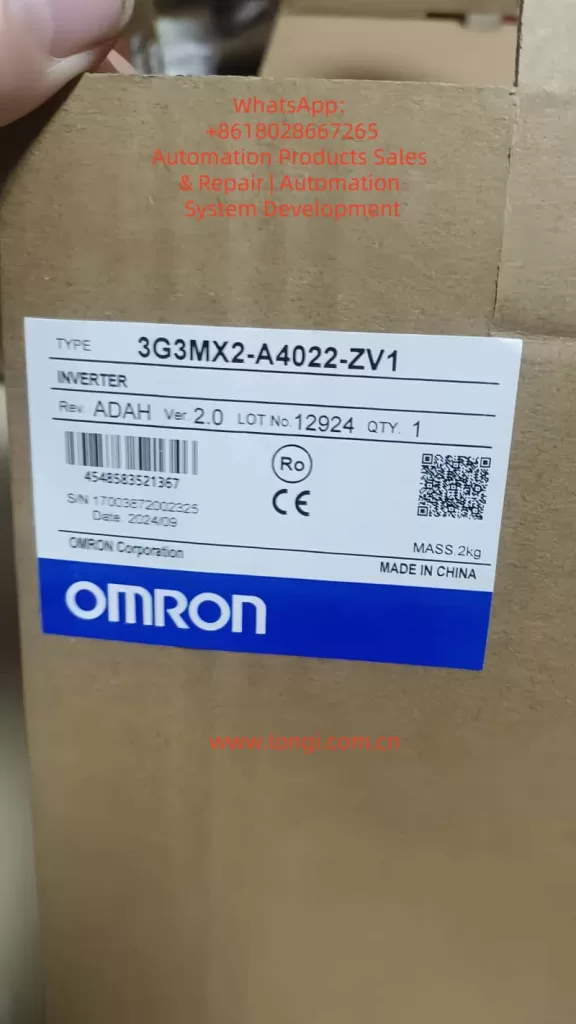
Omron 3G3MX2 Series Inverter User Guide

Introduction

The Omron 3G3MX2 series inverter (model: 3G3MX2-□-V1) is specifically designed for industrial automation applications. It features high-performance vector control, a rich array of I/O interfaces, Modbus communication, and DriveProgramming capabilities. The user manual (I585-CN5-03) provides detailed explanations on installation, wiring, parameter settings, operation methods, fault diagnosis, and maintenance. This article focuses on the operation panel functions, terminal control and external speed regulation, and fault code diagnosis, aiming to help engineers quickly get started and optimize system performance.
Part 1: Introduction to Inverter Operation Panel Functions

Components and Basic Functions of the Operation Panel

  • Digital Operator: Standardly integrated into the inverter body; the optional model 3G3AX-OP01 supports remote connection.
  • LED Display: Shows real-time data such as frequency, current, and voltage, as well as parameter codes.
  • Indicator Lights: Power, alarm, operation, and operation command indicator lights provide a直观 (visual) reflection of equipment status.
  • Buttons:
    • Up/Down Buttons: Change parameter values or frequencies, and switch between monitoring items.
    • Mode Button: Switch between monitoring, basic function, and extended function modes.
    • Confirm Button: Save parameters or enter submenus.
    • Run Button (RUN): Start the motor (requires the operation command source to be set as the digital operator).
    • Stop/Reset Button (STOP/RESET): Stop the motor or reset faults (controlled by parameter b087).

Password Setting and Removal

  • Setting a Password:
    • Enter the extended function mode and switch to the b group.
    • Select b190 (Password A) or b192 (Password B) and enter a 4-digit hexadecimal number (0000 disables the password).
    • Save the settings to enable password protection.
  • Removing a Password:
    • Enter the correct password for verification.
    • Set b190 or b192 back to 0000, save, and remove the password.

Parameter Access Restriction Settings

  • Software Lock Function (SFT):
    • Set one of the multifunction input terminals to “15 (SFT)”.
    • Select the lock mode in b031 (00 disables, 01 locks all, 02 allows only frequency changes).
    • The lock is enabled when the SFT terminal is ON and disabled when OFF.

Restoring Parameters to Factory Values

  • Initialization Steps:
    • Enter the b group and set b084 to 04 (clear fault monitoring + initialize data + clear DriveProgramming).
    • Set b094 to 00 (all data) or 01 (except communication data).
    • Set b180 to 01 and execute initialization.
    • Restart the inverter for verification, and remember to back up important parameters.

Part 2: Terminal Forward/Reverse Rotation Control and External Potentiometer Speed Regulation

Terminal Forward/Reverse Rotation Control

  • Wiring:
    • Connect the multifunction input terminals S1–S7 to FW (forward) and RV (reverse).
    • Connect the input common terminal SC to the switch or PLC common terminal.
  • Parameter Settings:
    • Set A002/A202 to 01 (control circuit terminal block).
    • Set C001–C007 to 00 (FW) and 01 (RV).
    • Set b035 to 00 (no operation direction restrictions).

External Potentiometer Speed Regulation

  • Wiring:
    • Connect the potentiometer to FS (power supply), FV (input), and SC (common).
  • Parameter Settings:
    • Set A001/A201 to 01 (analog input).
    • Set A005 to 00 (voltage input).
    • Adjust the analog input parameters A011–A016.

Part 3: Inverter Fault Codes and Solutions

Common Fault Codes and Solutions

  • E01/E02/E03/E04 (Overcurrent Protection):
    • Cause: Sudden load changes on the motor or overly rapid acceleration/deceleration.
    • Solution: Increase the acceleration/deceleration time, check for output short circuits/grounding, and reduce torque boost.
  • E05 (Overload Protection):
    • Cause: Motor overload.
    • Solution: Reduce the load and adjust the thermal protection level.
  • E07 (Overvoltage Protection):
    • Cause: Excessive DC voltage due to regenerative energy.
    • Solution: Increase the deceleration time, enable overvoltage suppression, and add a regenerative braking unit.
  • E08 (EEPROM Error):
    • Cause: Memory errors caused by noise or temperature.
    • Solution: Suppress noise and initialize parameters.

Fault Diagnosis Methods

  • View Alarm Codes: After power-on, E.xx is displayed; press the up button to view detailed information.
  • Analyze Causes: Refer to the code list and check the load, wiring, power supply fluctuations, and parameter settings.
  • Corrective Measures: Take appropriate actions based on the cause, such as extending acceleration/deceleration times or adding regenerative units.
  • Prevention: Perform regular maintenance, suppress noise, and back up parameters.
  • Advanced Diagnosis: Use CX-Drive to connect via USB, read logs, and monitor historical faults.

Conclusion

The Omron 3G3MX2 series inverter manual is an invaluable resource for efficient operation and maintenance. By mastering the operation panel functions, terminal control and external speed regulation, and fault code diagnosis, system reliability can be significantly improved. In practical applications, combine on-site testing with the appendices in the manual to optimize configurations and ensure safe and compliant operations.
Posted on

Omron PLC Switch Power Supply: Understanding and Maintenance Guide

Omron, a leading Japanese brand in the field of Programmable Logic Controllers (PLCs), holds a significant market share in mainland China. Given its widespread application in industrial control systems, understanding the maintenance of Omron PLCs, particularly their switching power supplies, is crucial for ensuring operational efficiency and minimizing downtime. This article delves into the maintenance process of Omron PLC switch power supplies, focusing on common faults, diagnosis, and repair methods.

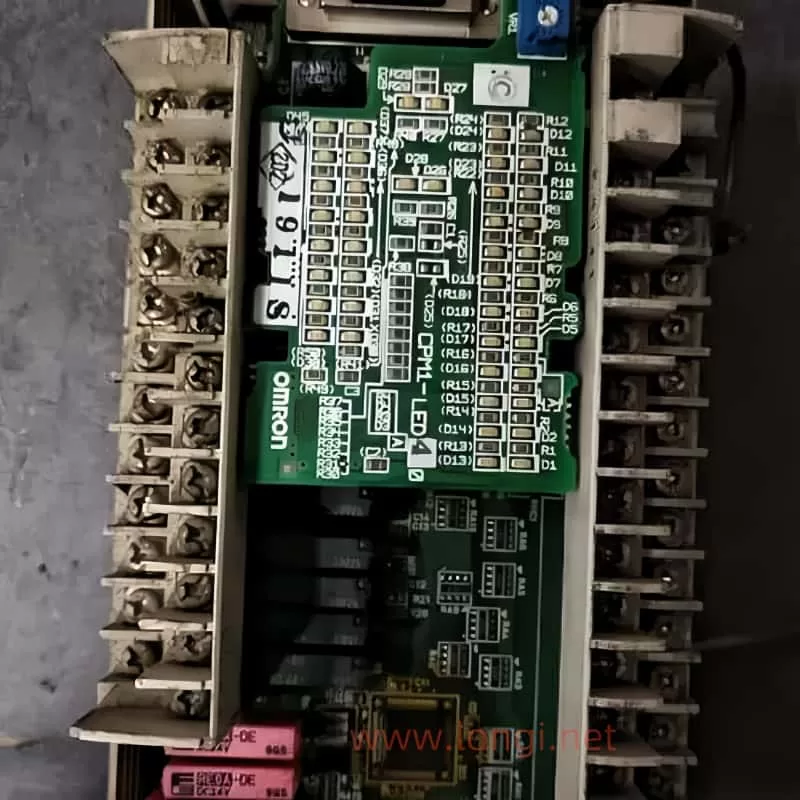
Internal physical diagram of Omron PLC

The Importance of Switch Power Supplies in Omron PLCs

The switch power supply is a critical component of any PLC, including Omron models. It converts the incoming AC power into the DC voltage required to operate the PLC’s internal circuitry. A faulty power supply can lead to a variety of issues, ranging from the PLC not powering on at all to intermittent operation and potential damage to other components.

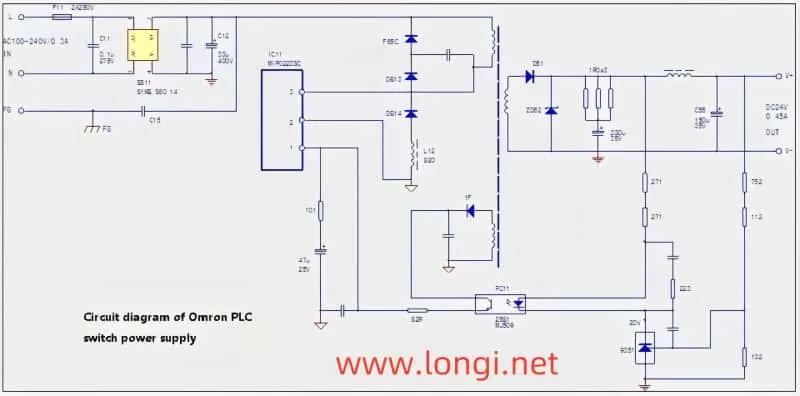
Schematic diagram of Moron PLC switch power supply circuit

Common Faults in Omron PLC Switch Power Supplies

One of the most common issues encountered with Omron PLCs not displaying after being powered on is a faulty switch power supply. Fortunately, these power supplies are often relatively simple in design, making them easier to diagnose and repair. Based on extensive repair experience, there are three primary components that commonly fail:

  1. F11 Fuse: This fuse is designed to protect the circuit from overcurrent situations. If the fuse blows, it indicates that there has been an excessive current draw, possibly due to a short circuit or component failure.
  2. IC11 Power Module: The power module is the heart of the switch power supply, responsible for converting AC to DC. It can fail due to age, overheating, or surge currents.
  3. C12 Electrolytic Capacitor: Often overlooked, the C12 capacitor plays a crucial role in stabilizing the power supply. Over time, the electrolyte inside the capacitor can evaporate, leading to a loss of capacity. This loss of capacity can cause surge currents that the power module cannot handle, leading to its failure.

Diagnosing and Repairing Omron PLC Switch Power Supplies

When faced with a non-responsive Omron PLC, the first step is to check the switch power supply. Here’s a step-by-step guide to diagnosing and repairing common faults:

  1. Visual Inspection: Start by visually inspecting the power supply for any signs of damage or burnout. Check the fuse (F11) to see if it has blown.
  2. Measure Component Values:
    • Fuse (F11): Use a multimeter to check for continuity. If the fuse is open (no continuity), it needs to be replaced.
    • Power Module (IC11): Measure the voltage across the module’s input and output terminals. If the module is faulty, you may find abnormal voltage readings or no voltage at all.
    • Electrolytic Capacitor (C12): This is where many technicians make a mistake. Even if the capacitor looks normal and shows no signs of short-circuiting when measured in-circuit, it may have lost significant capacity. Remove the capacitor and measure its capacitance. A healthy capacitor should have a value close to its rated capacity. If it’s significantly lower, replace it.
  3. Repair and Replacement:
    • Replace any blown fuses (F11) with a fuse of the same rating.
    • If the power module (IC11) is faulty, replace it with an exact match. Ensure that the new module’s specifications (such as voltage, current, and frequency) match the original.
    • When replacing the electrolytic capacitor (C12), choose a high-quality replacement with the same or higher capacitance and voltage rating. Be sure to install it away from heat sources to prevent future capacity loss.
  4. Testing: After making repairs, test the power supply without load first. If it powers on without issue, gradually add load to ensure stability. Listen for any abnormal sounds, such as a “snap,” which may indicate a component failure.
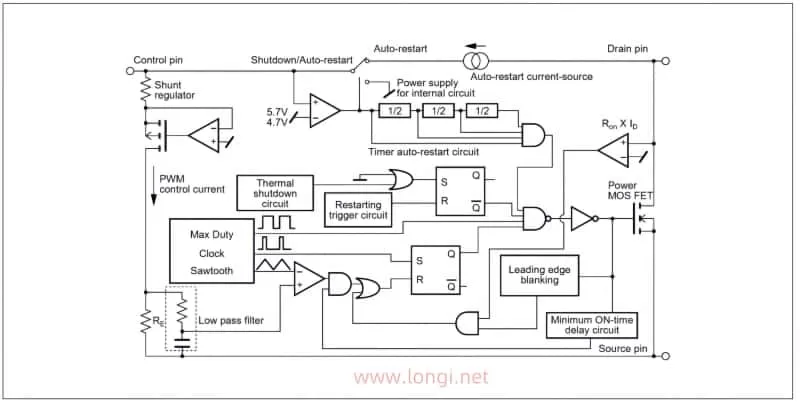
Internal schematic diagram of MIP0223SC power module

Understanding the IC11 MIP0223SC Power Module

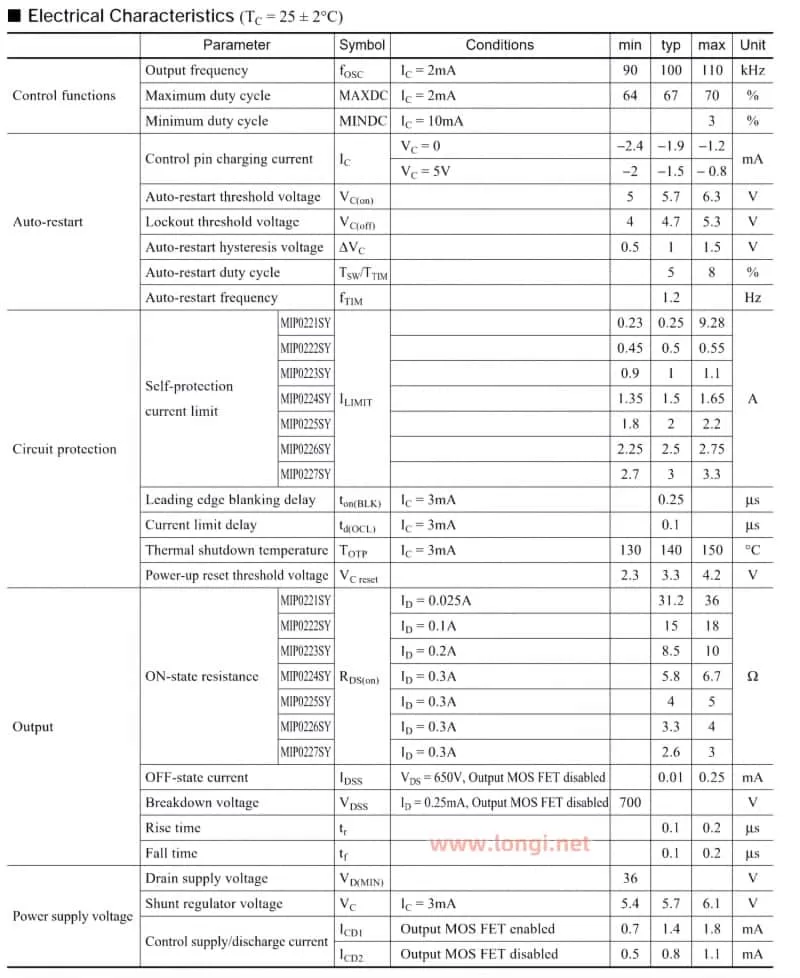
To effectively maintain the switch power supply, it’s essential to understand the key components, especially the IC11 MIP0223SC power module. While a detailed understanding of all the parameters and unit circuits is not necessary, familiarity with the module’s basic functions and pin connections is crucial. Refer to the schematic data table for key parameters such as power supply voltage, oscillation frequency, working current, and power capacity. This information will guide you in troubleshooting and ensuring compatibility when replacing components.

MIP0223SC Power Module Parameter Table

Conclusion

Maintaining Omron PLC switch power supplies doesn’t have to be a daunting task. By understanding the common faults, performing thorough diagnostics, and using high-quality replacement components, you can keep your PLCs running smoothly and minimize downtime. Remember, the key to successful maintenance is not just replacing faulty parts but also identifying the root causes of failures, such as the loss of capacity in electrolytic capacitors, and addressing them proactively. With this guide, you’ll be well-equipped to handle any issues that arise with Omron PLC switch power supplies, ensuring the reliability and longevity of your industrial control systems.